
Time Tracking and Location Checks for Warehouse and Courier Teams
With the team spread out, who pulls the day together?
Some are in the depot, some are on the road, and finding out means picking up the phone. FinalWork brings the hours, the vehicle checks and the notes from the field onto one screen — you can see the day before it ends.
The difficulty of tracking courier and warehouse teams in the field
The depot is in one place, the vans in another, and the day gets pulled together in the evening. Most warehouse managers live with the following — on the right is what each one looks like in FinalWork.
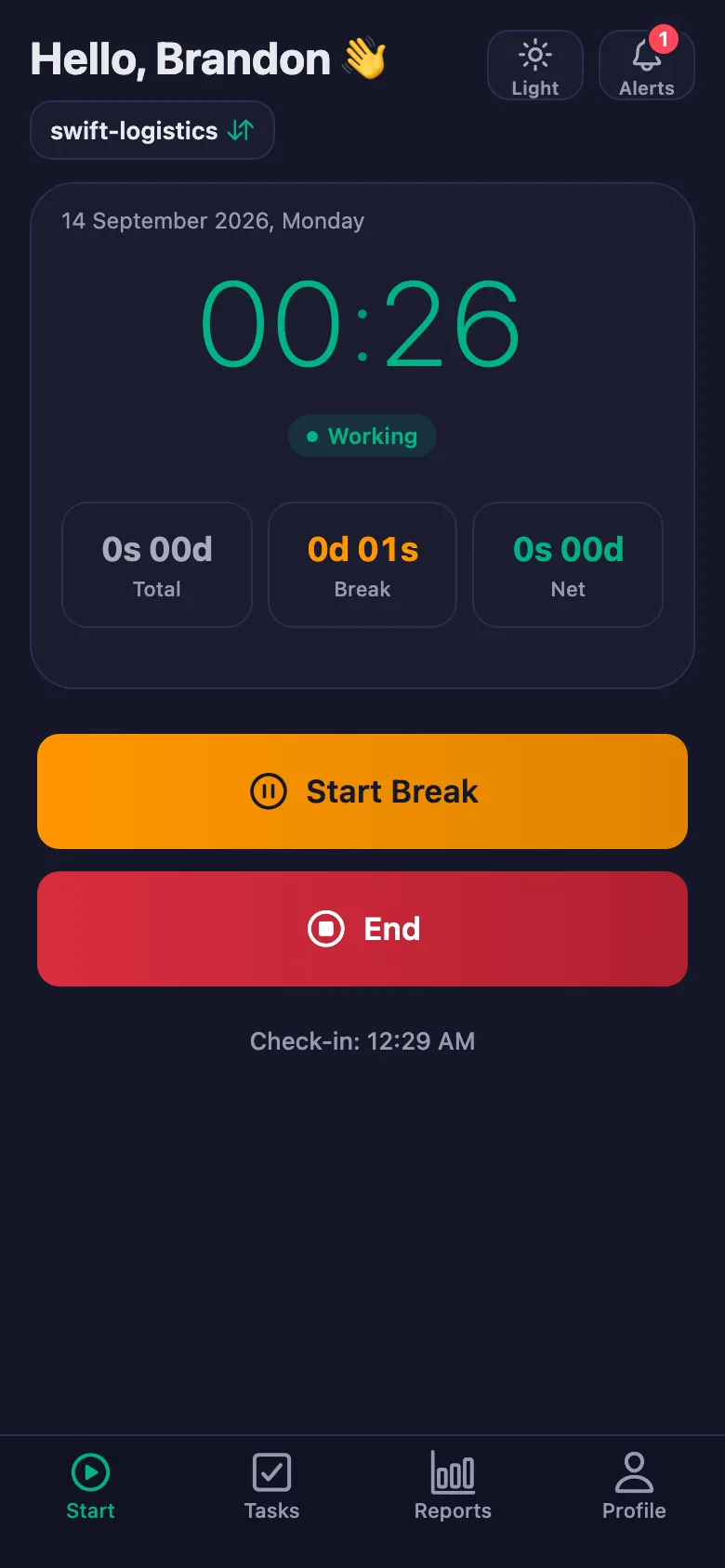
Who left when and came back when goes on paper. For the team out on the road, that record often isn't kept at all.
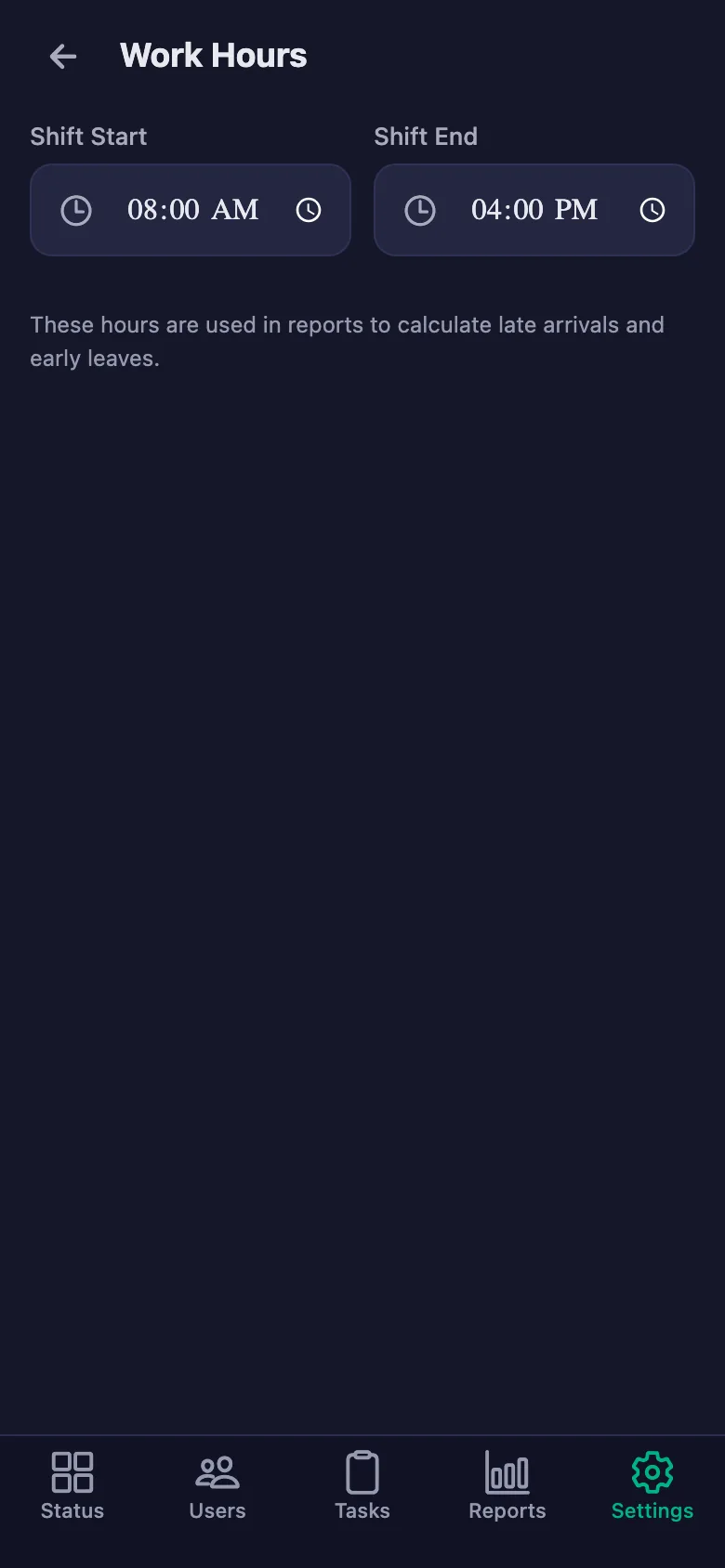
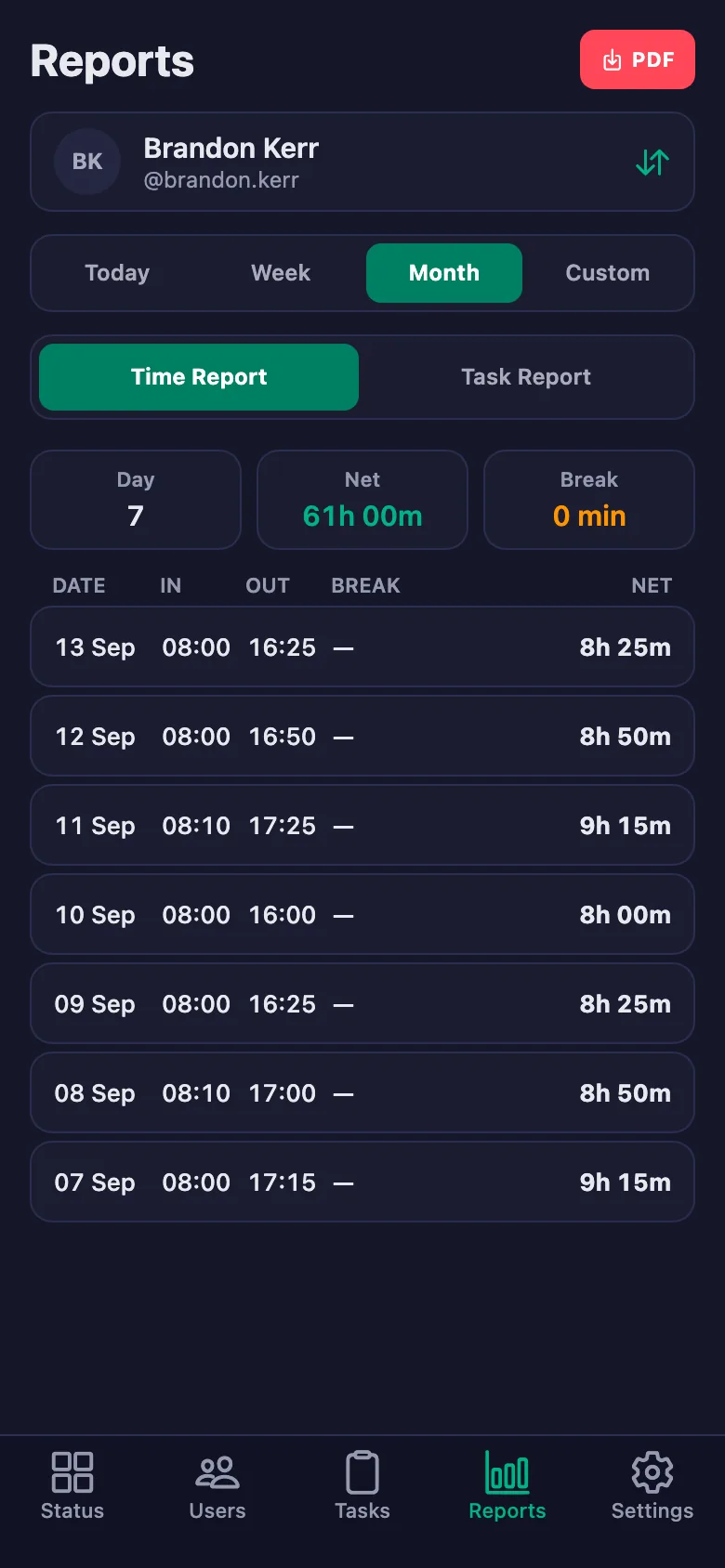
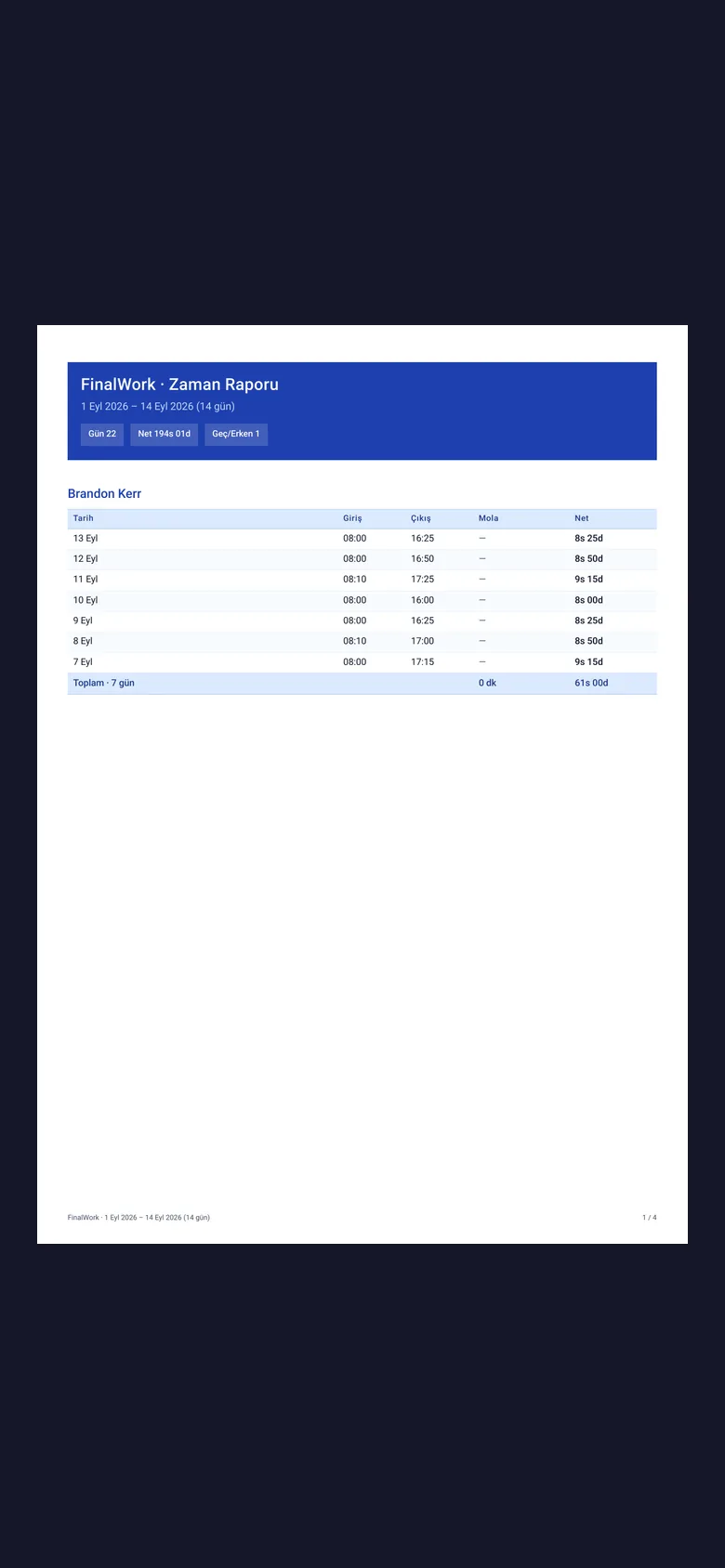
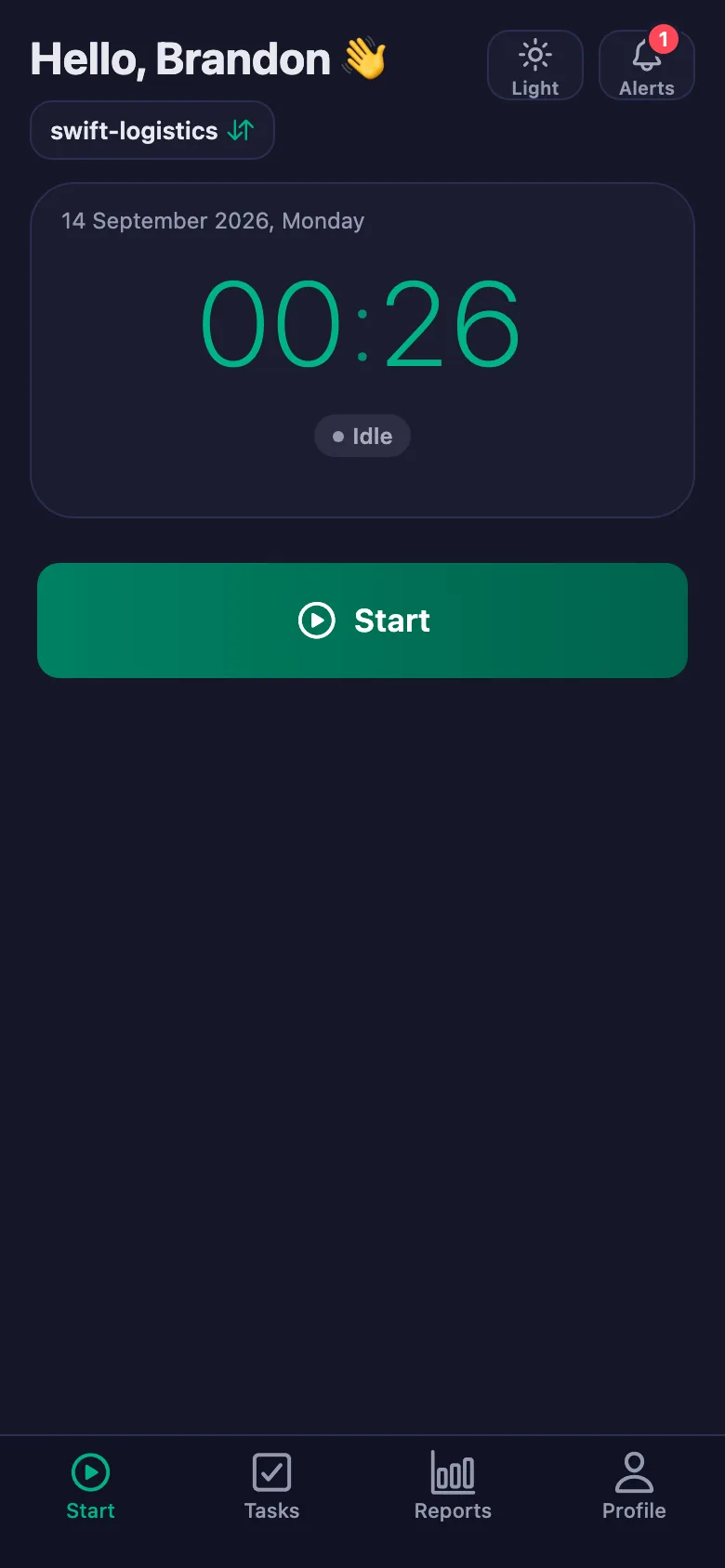
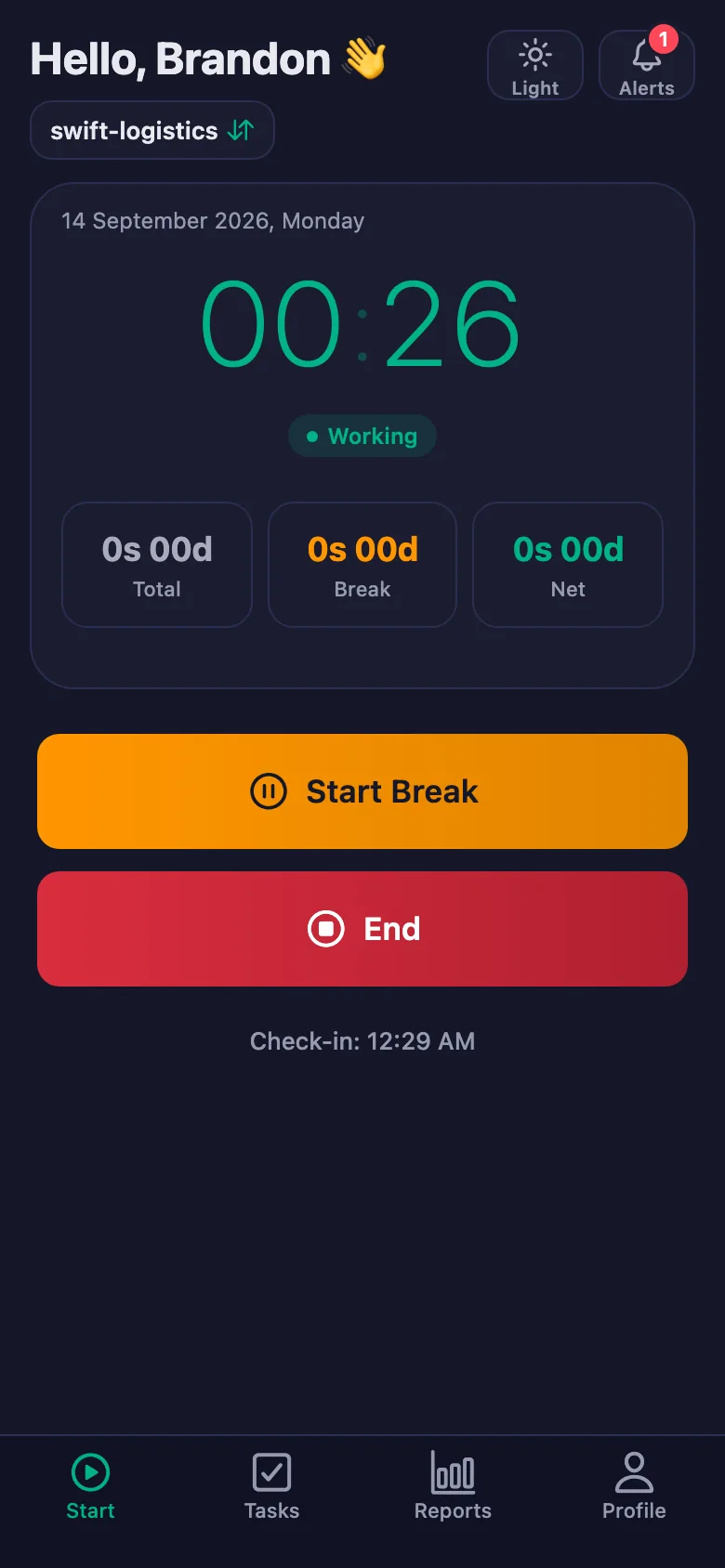
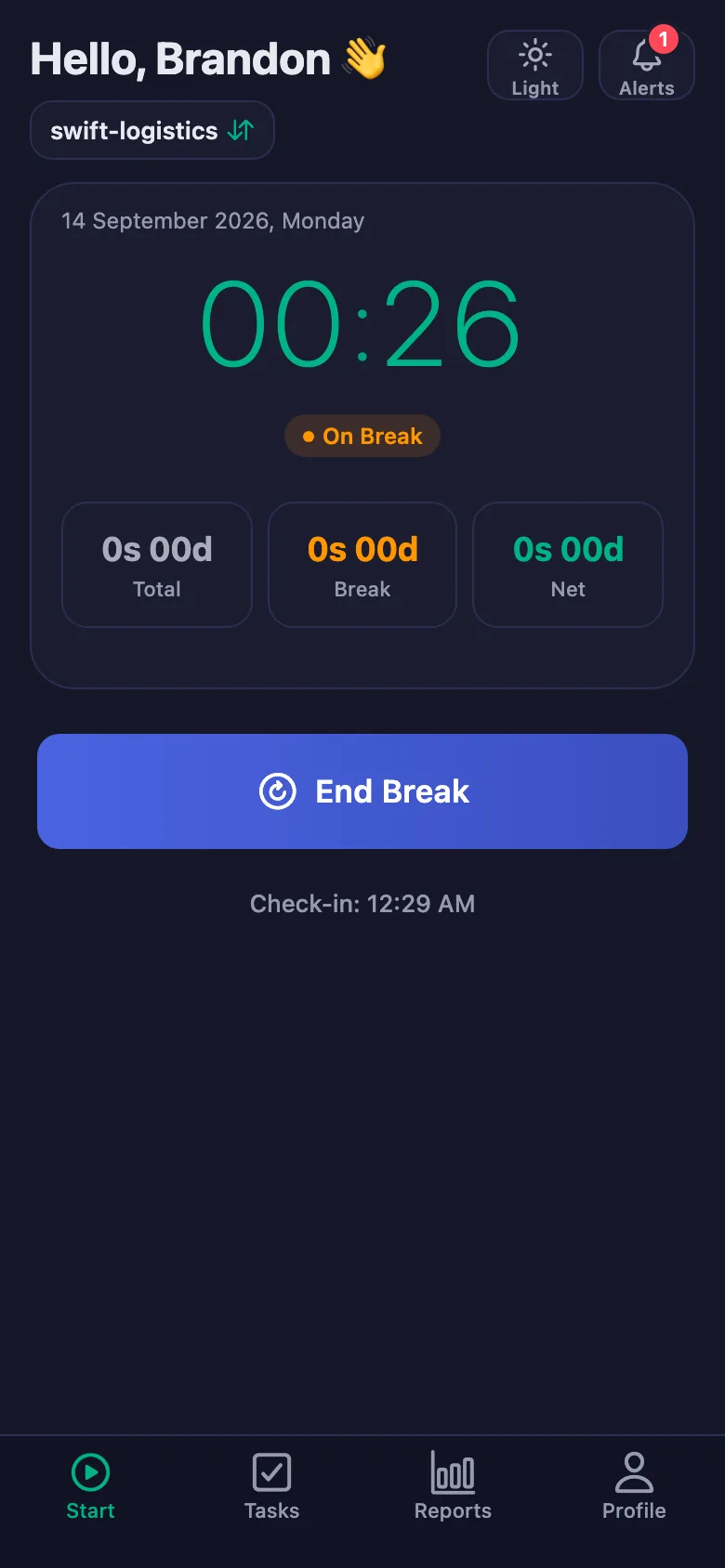
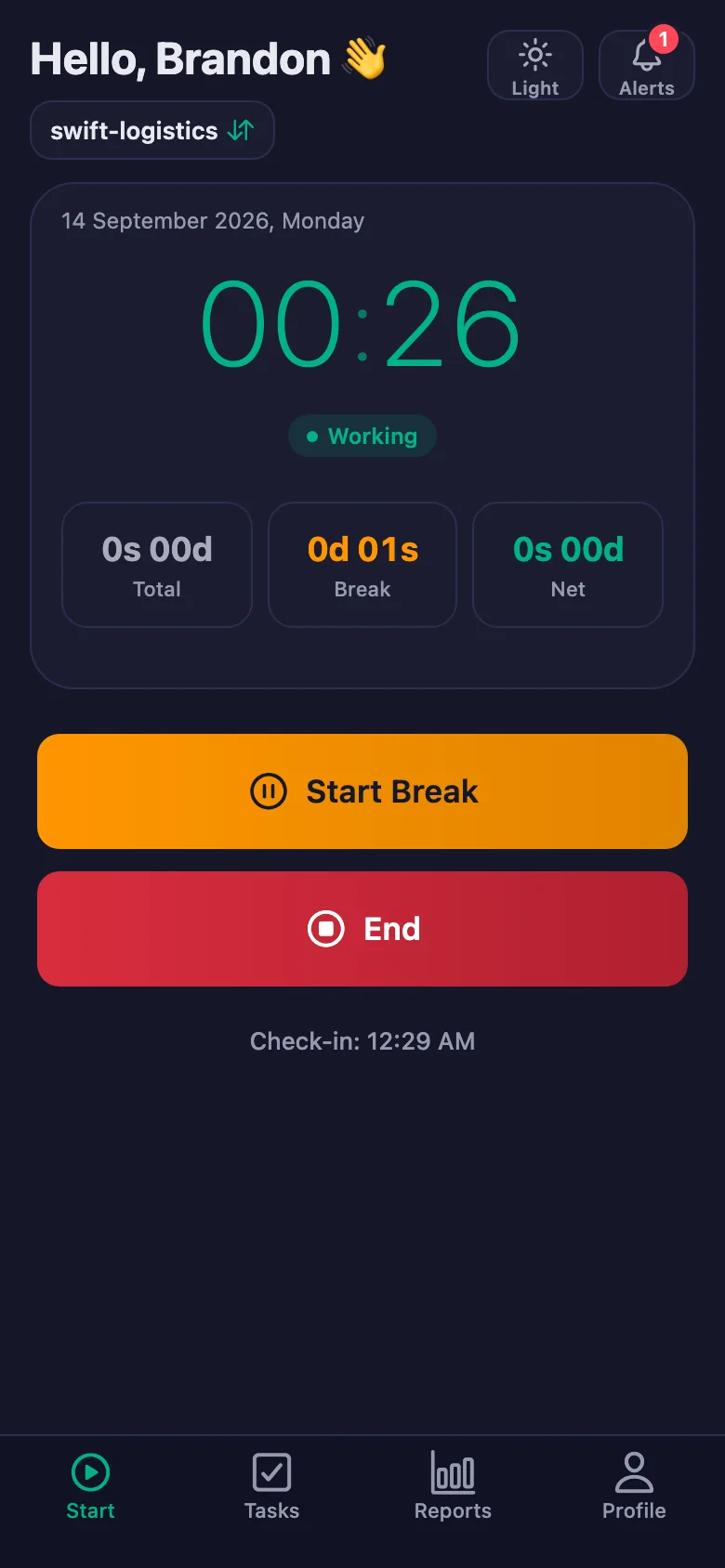
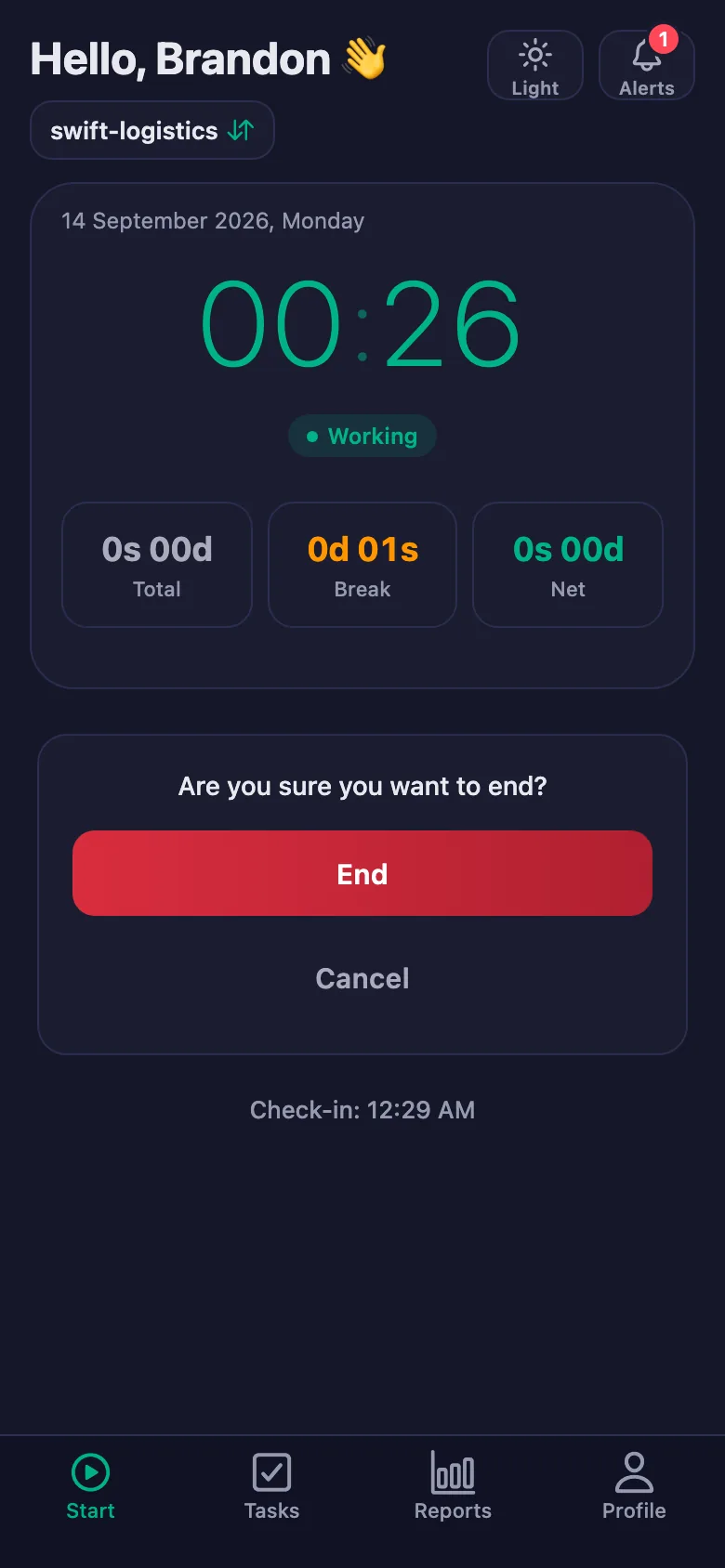
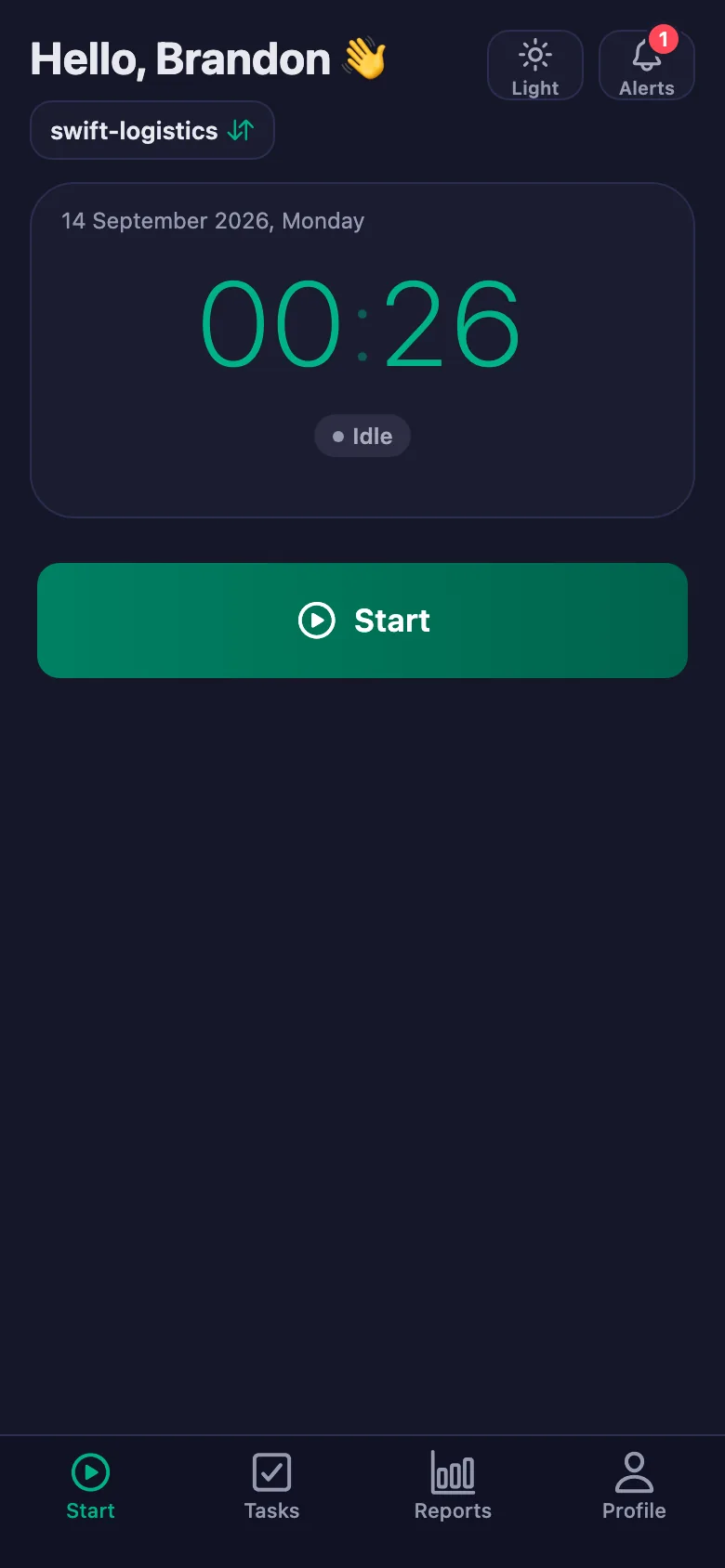
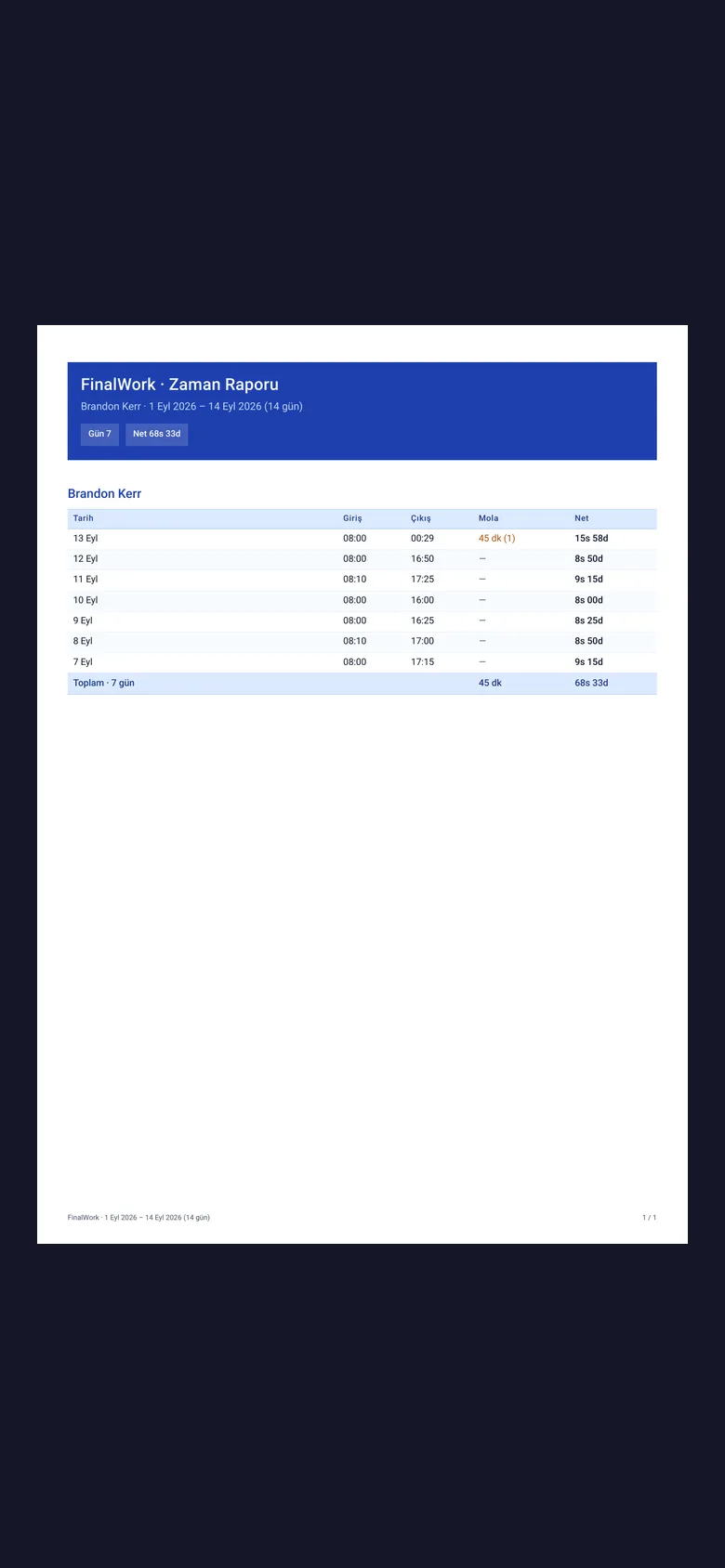
The team start the timer when they begin and stop it at the end. Departure time, breaks and net time appear separately in the report.
Finding out where everyone is means ringing round, and a courier on the road cannot pick up.
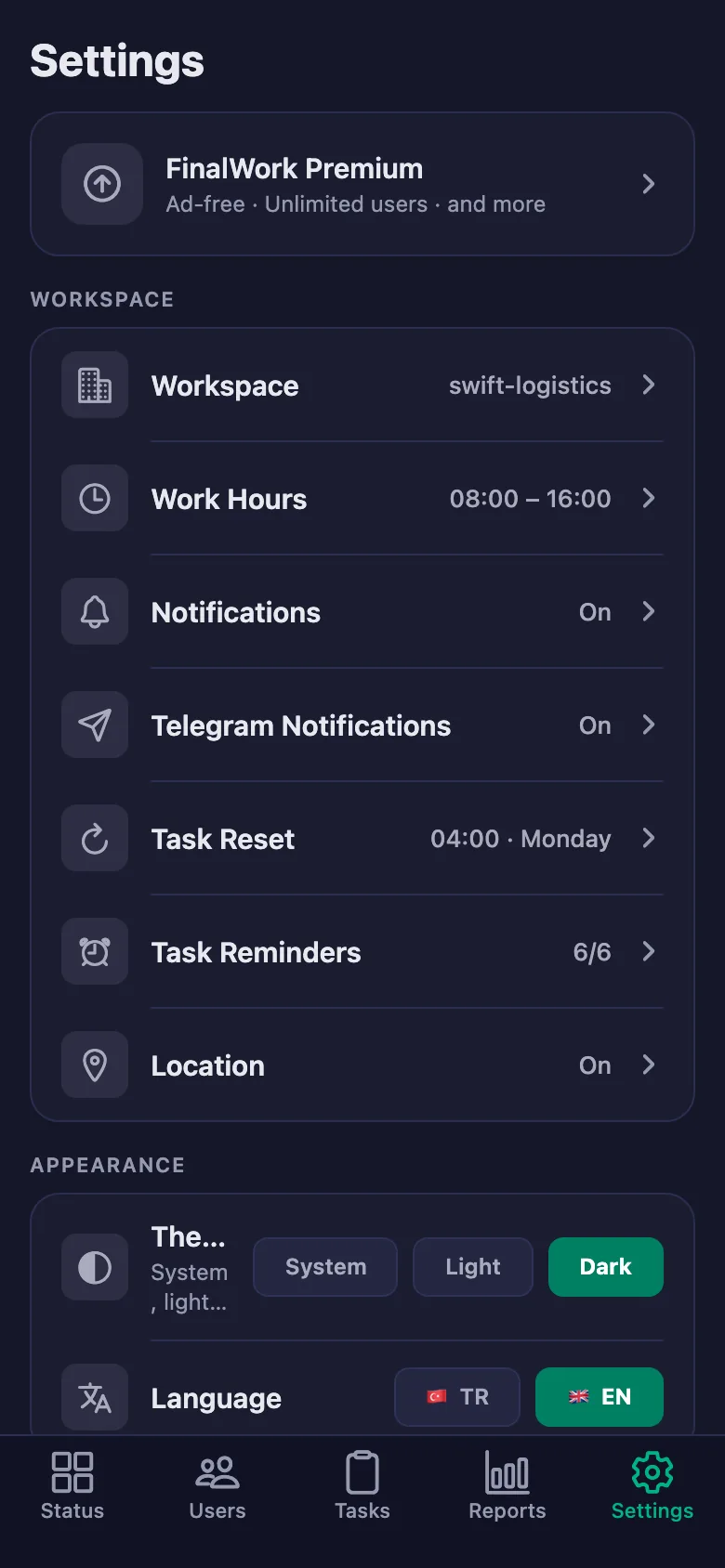
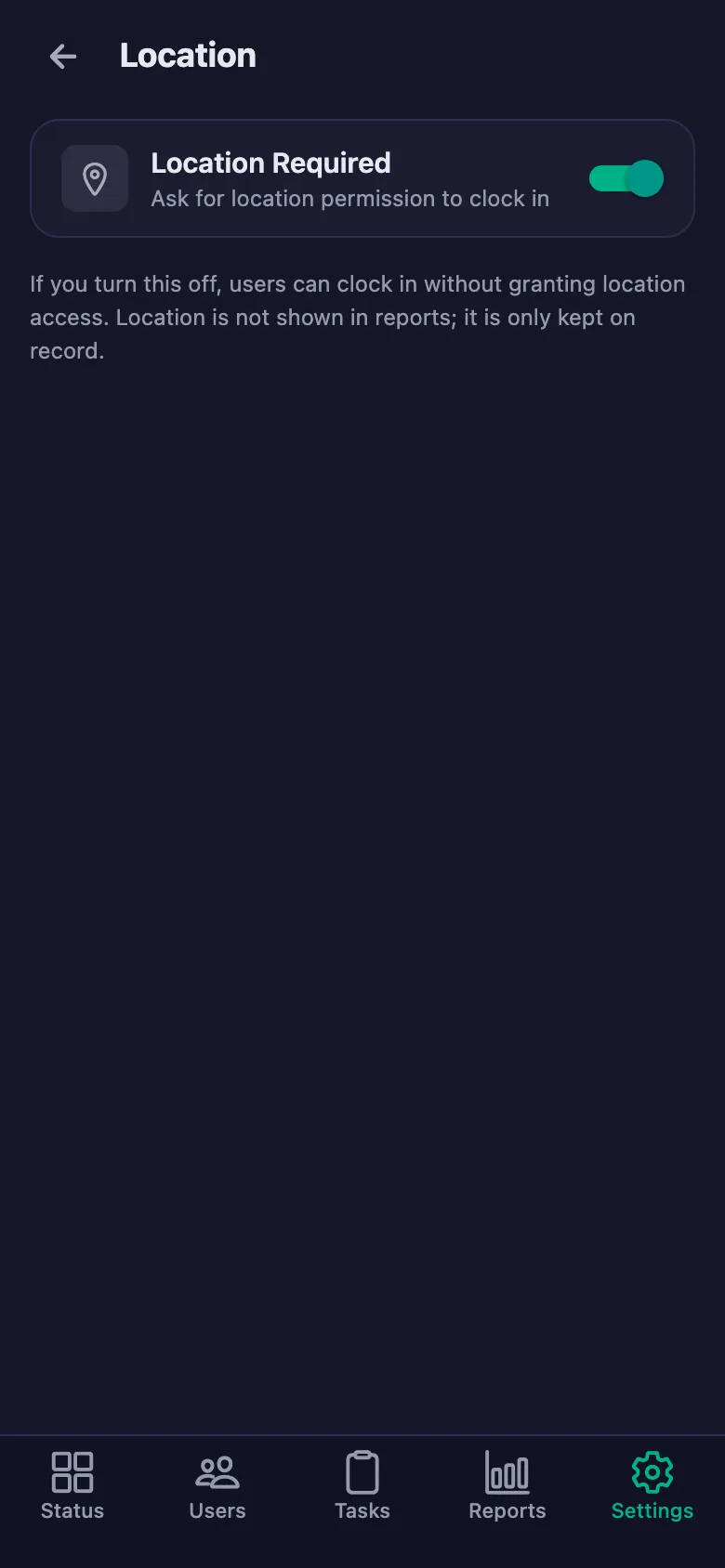
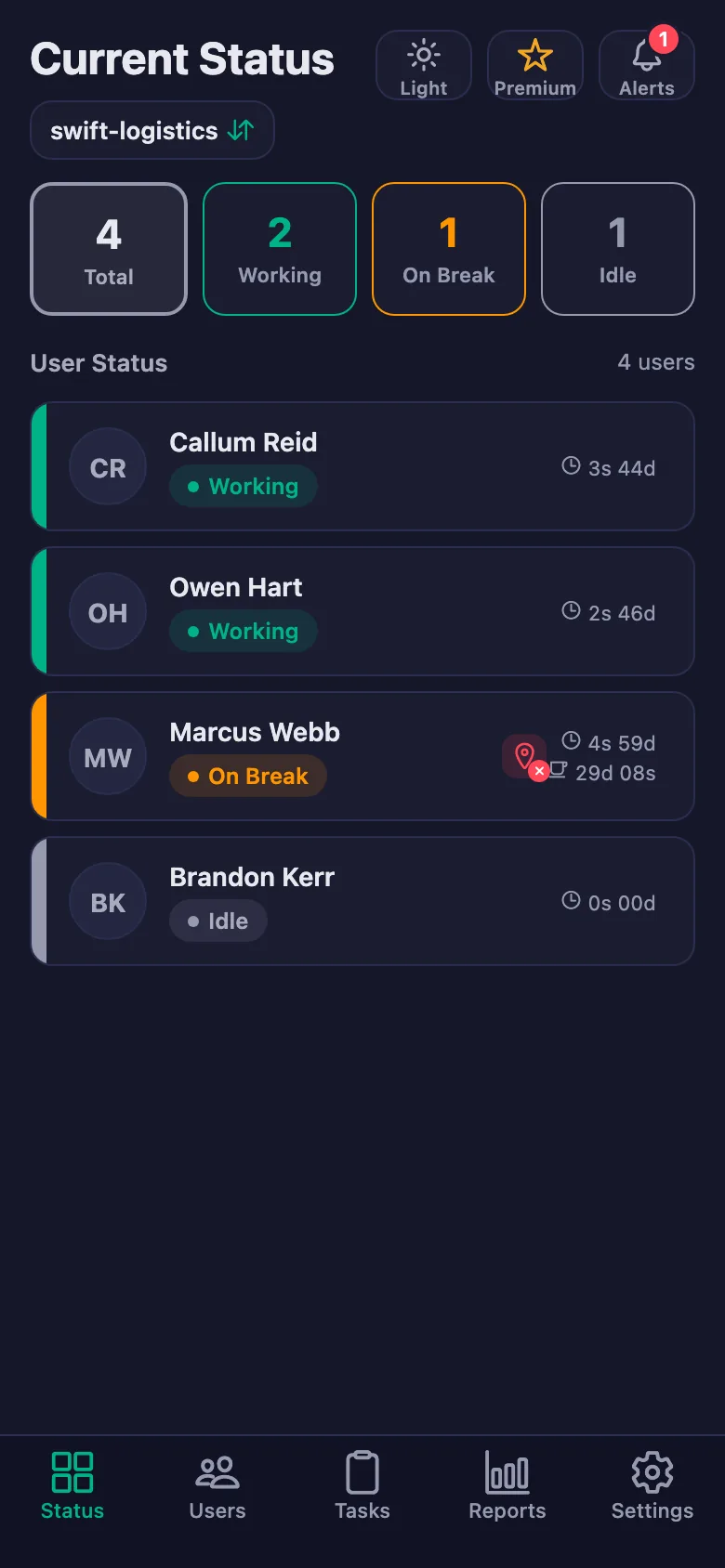
The live status screen shows whose timer is running and who is on a break. With the location rule on, work can only be started at the depot.
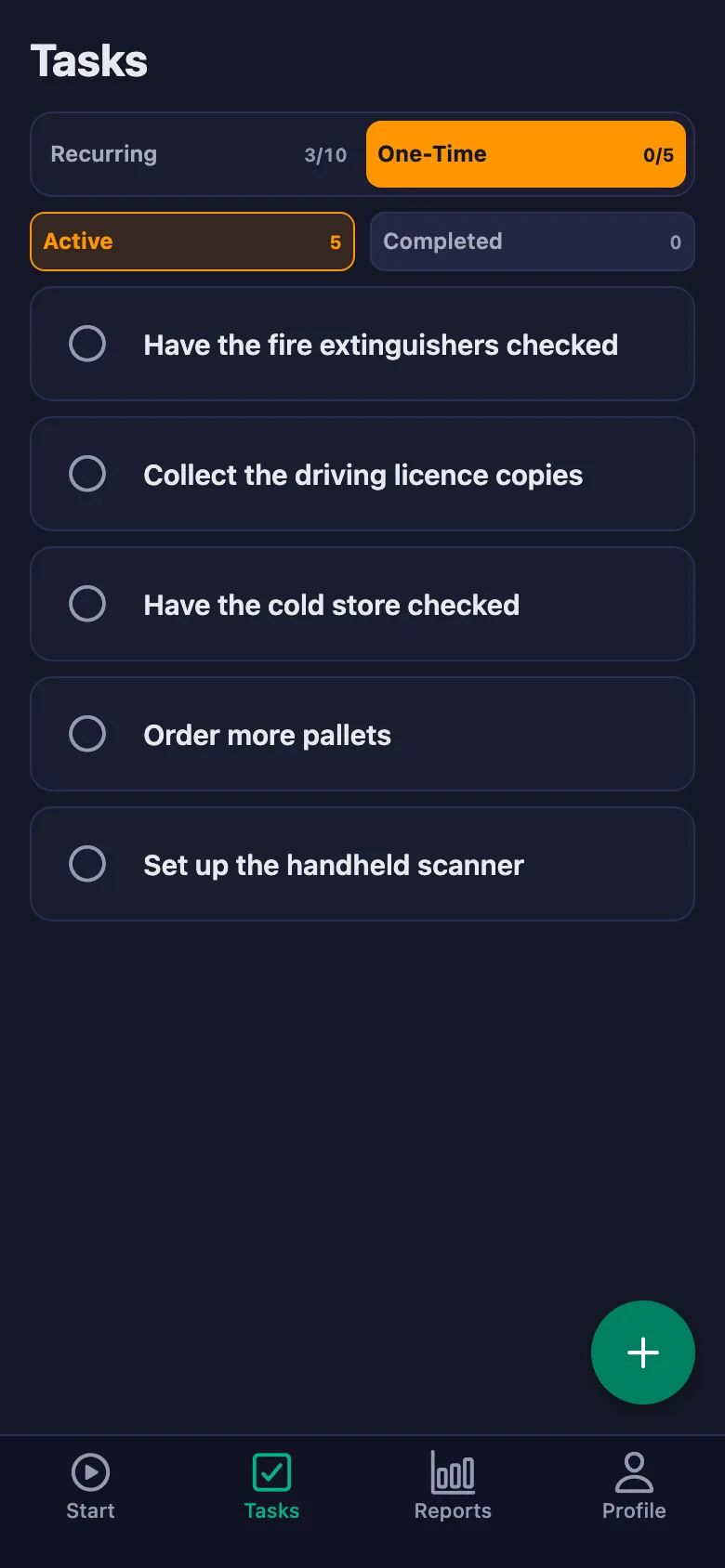
Fuel, tyre and load checks get rushed in the morning, and the problem shows up on the road.
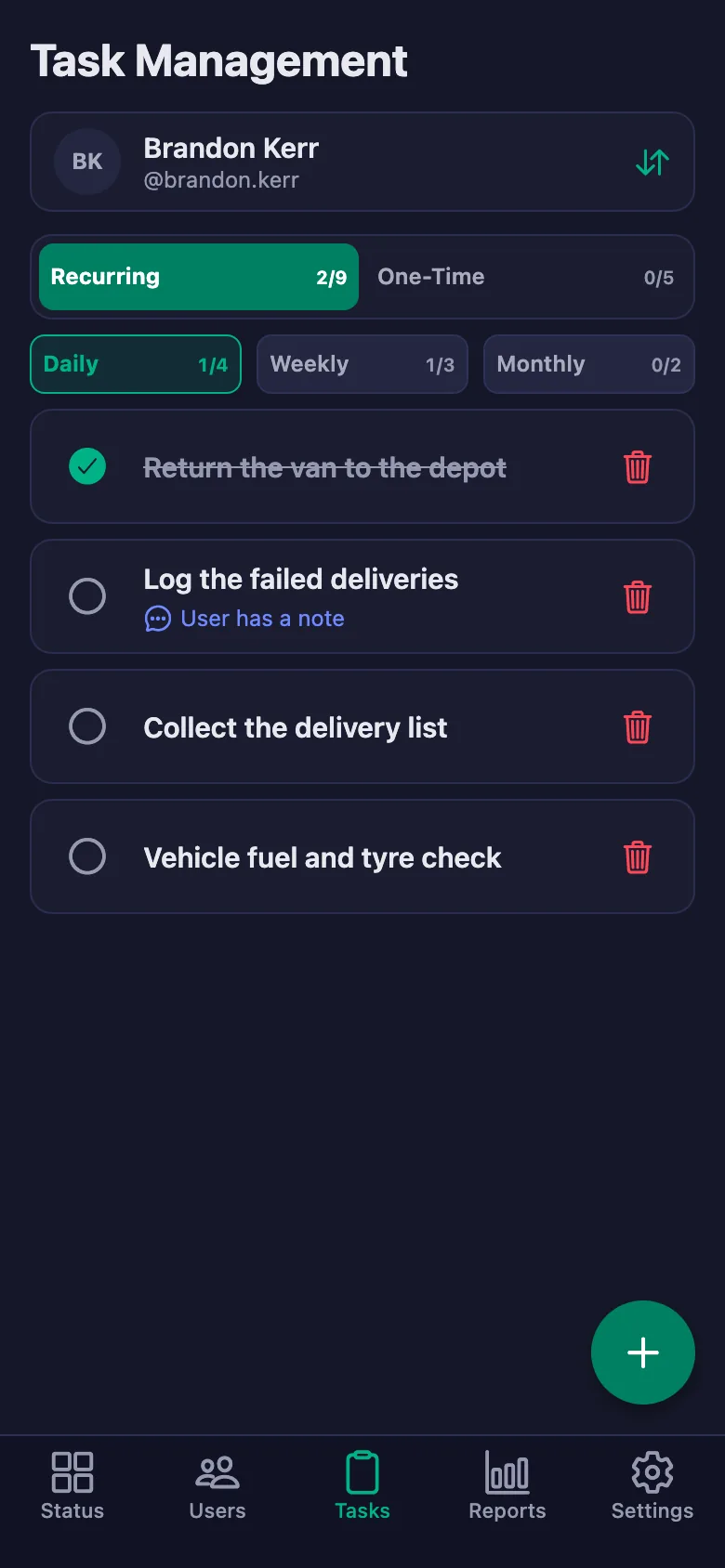
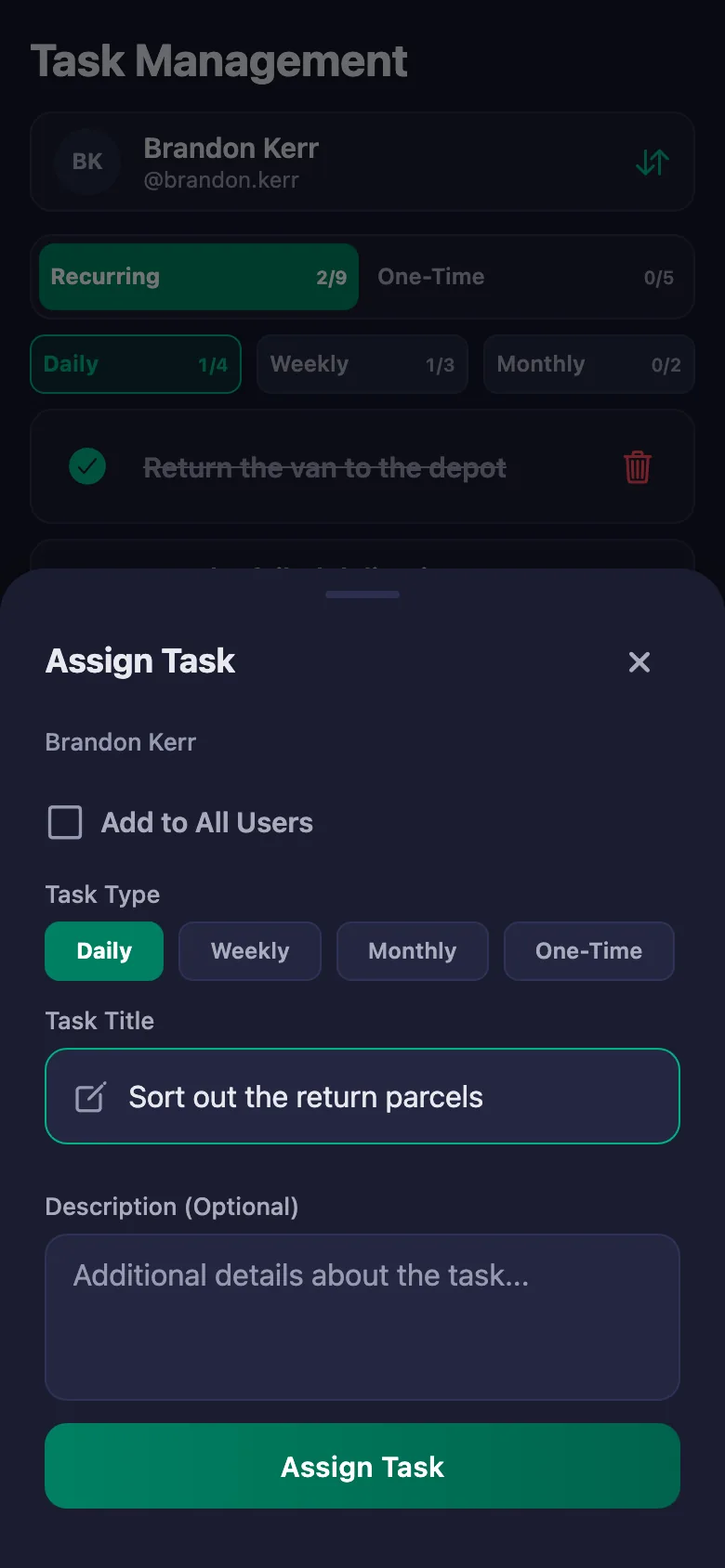
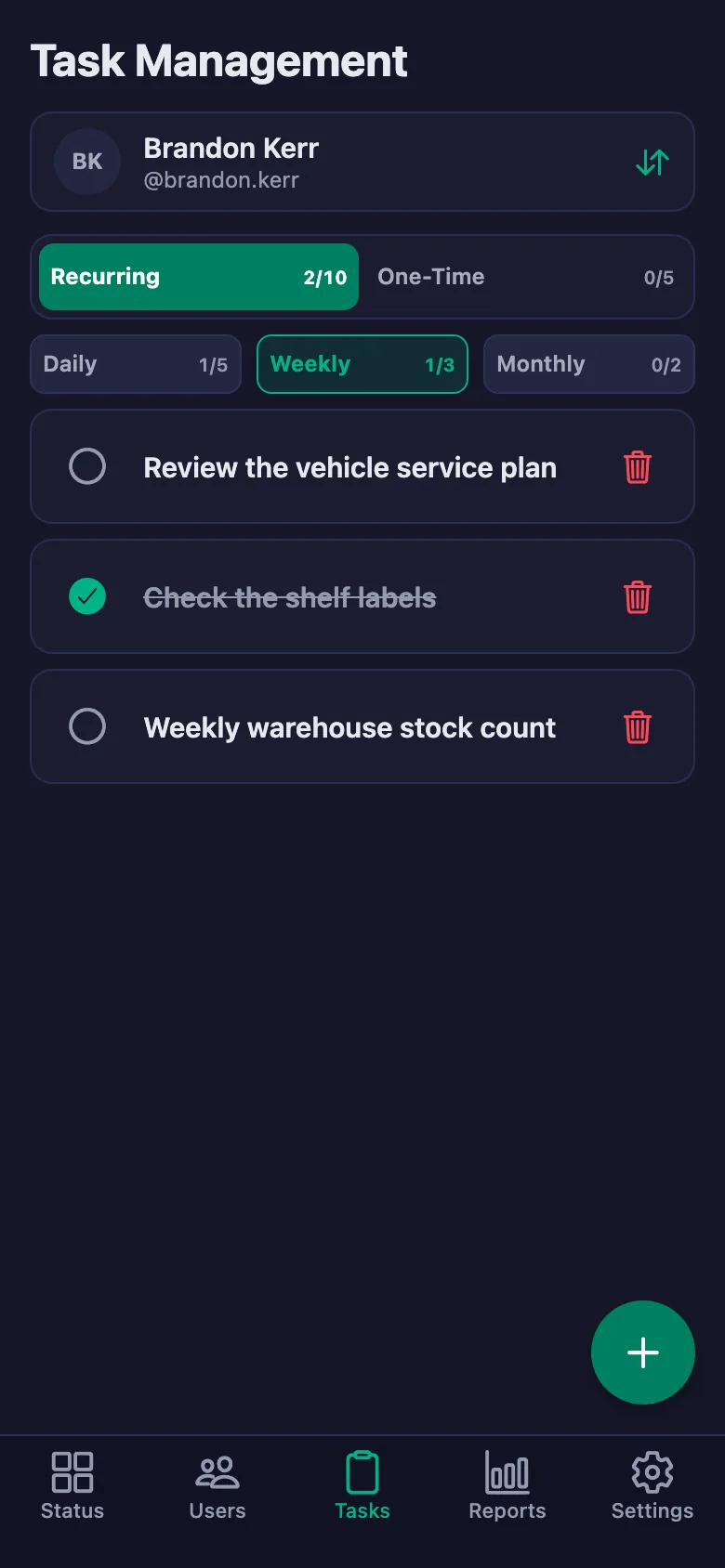
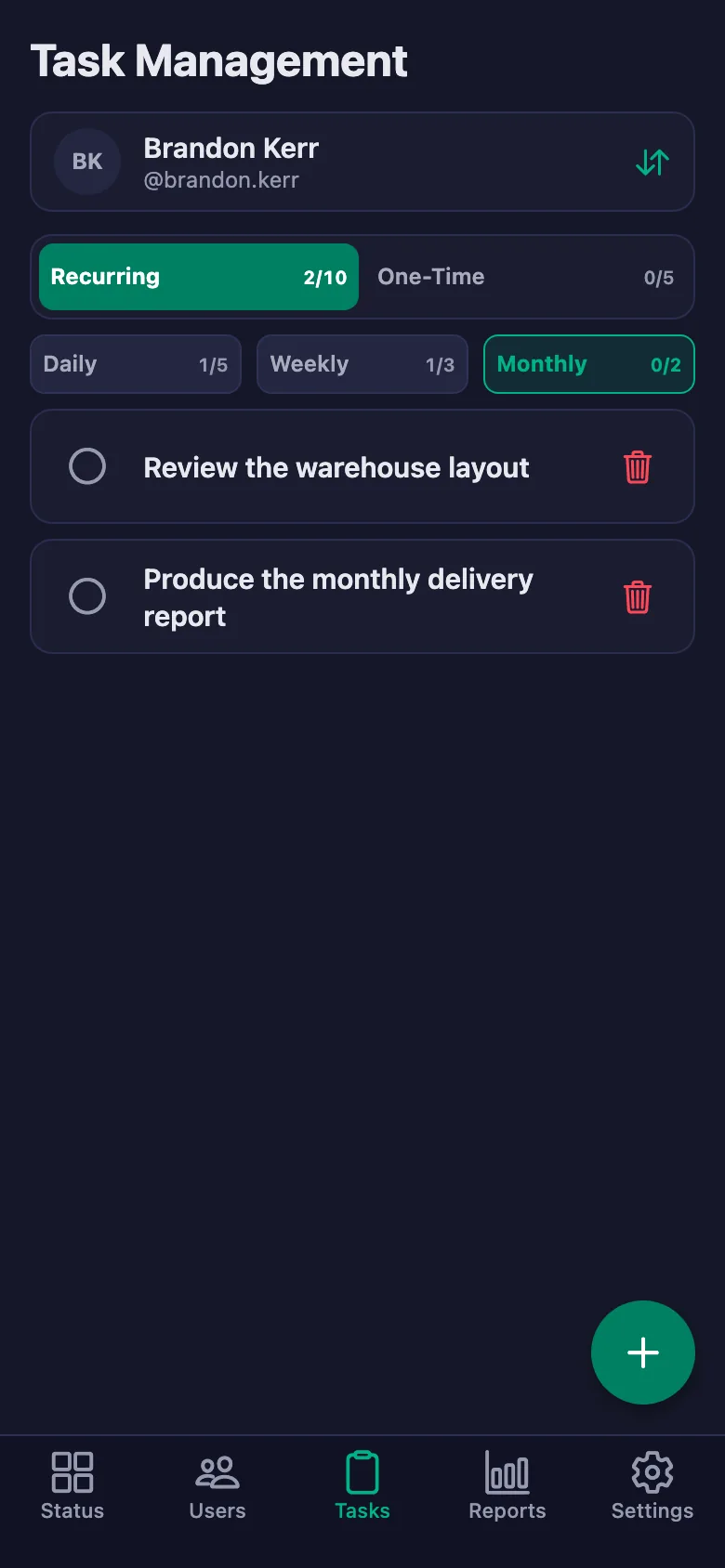
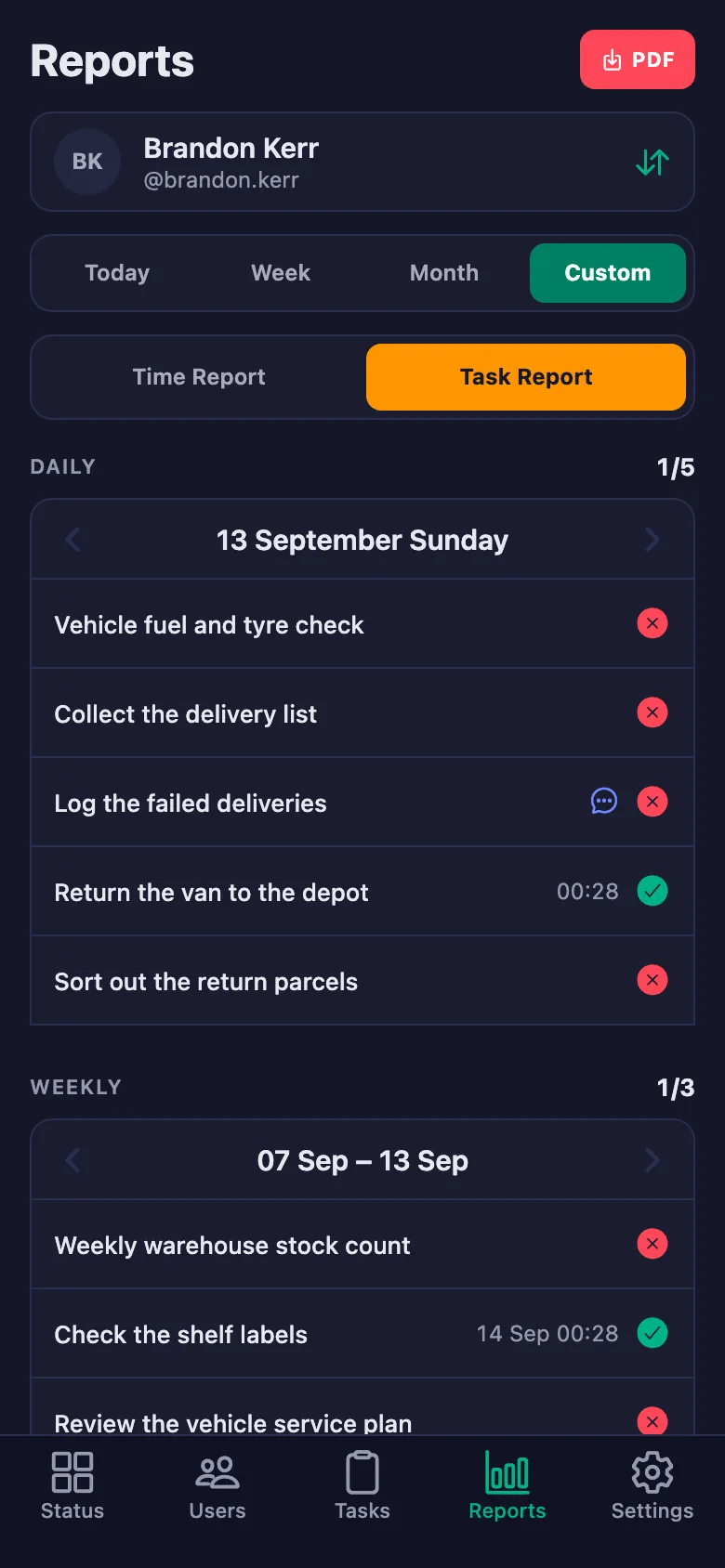
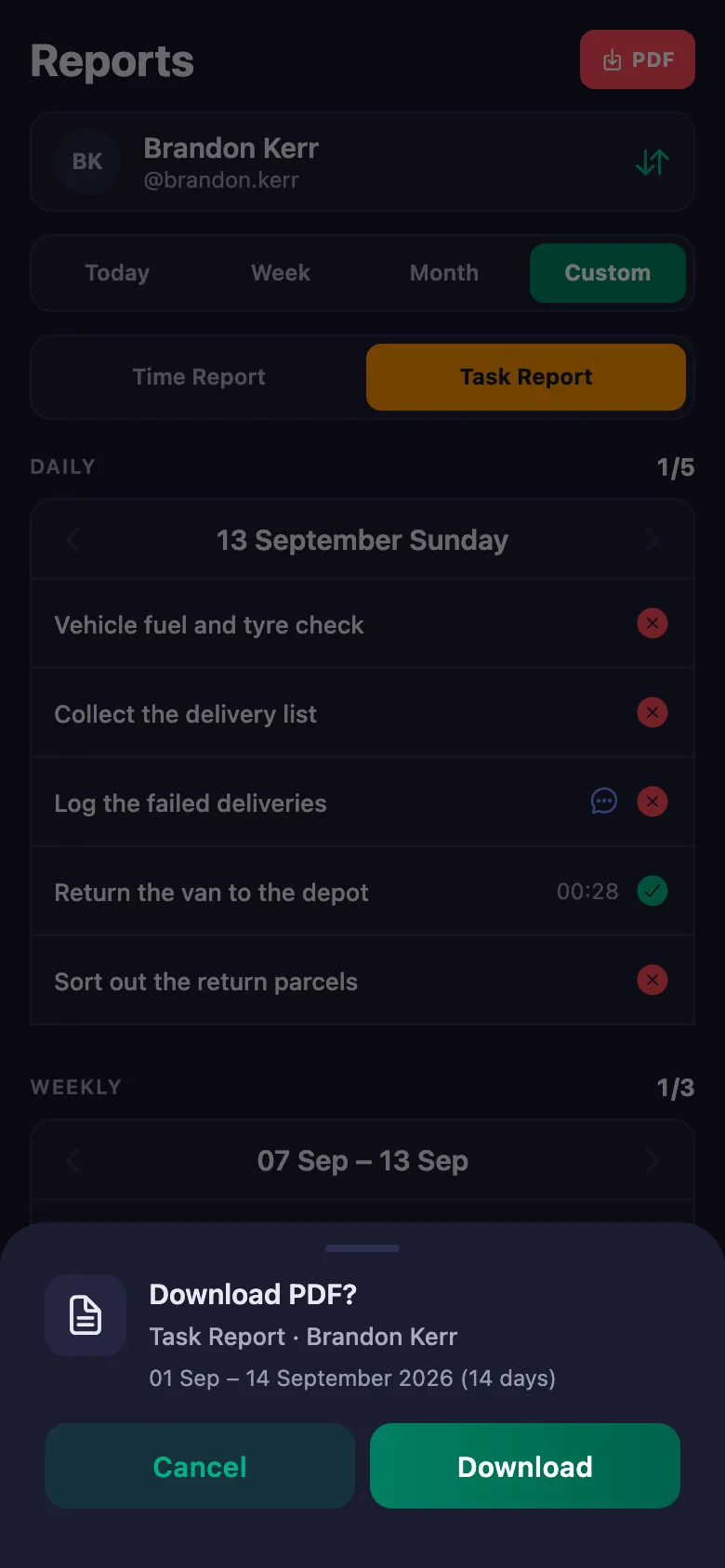
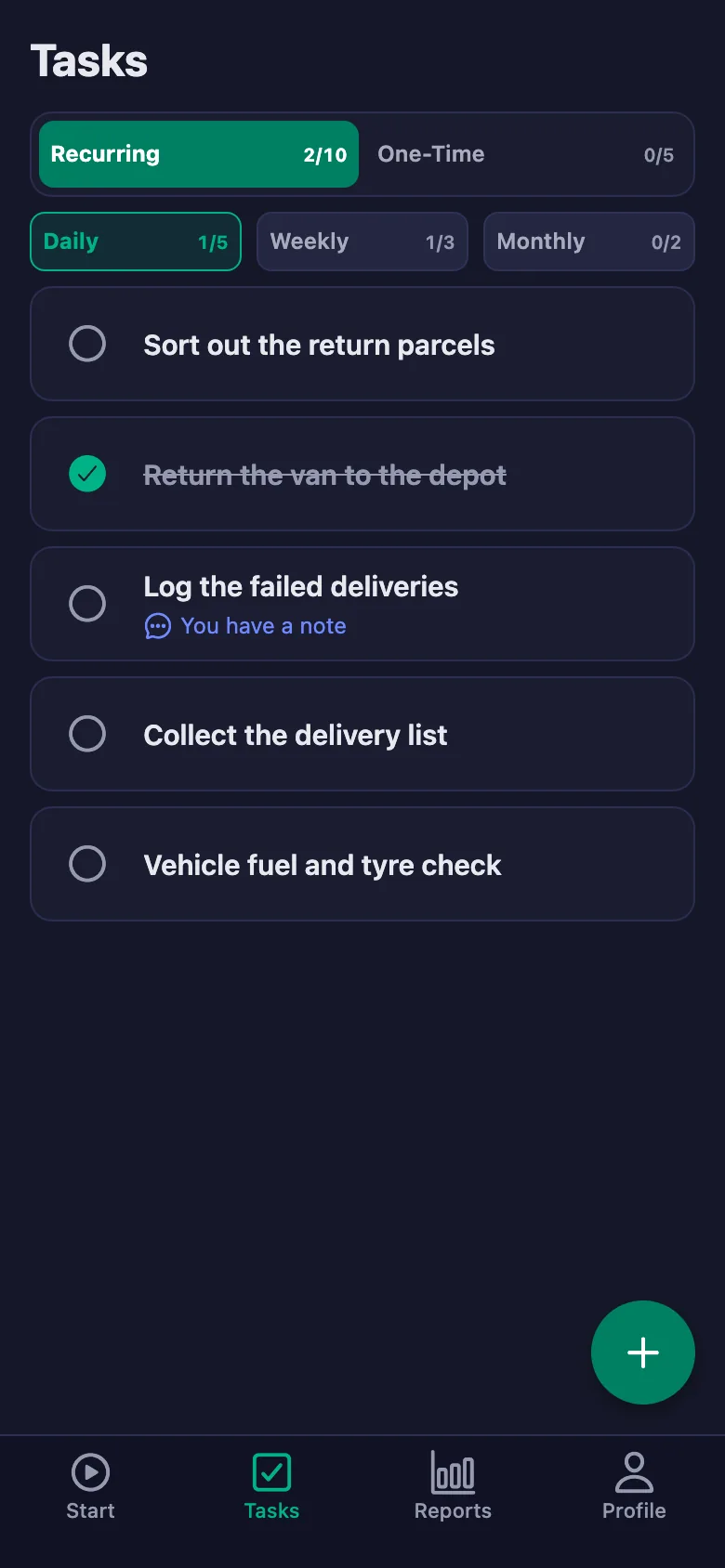
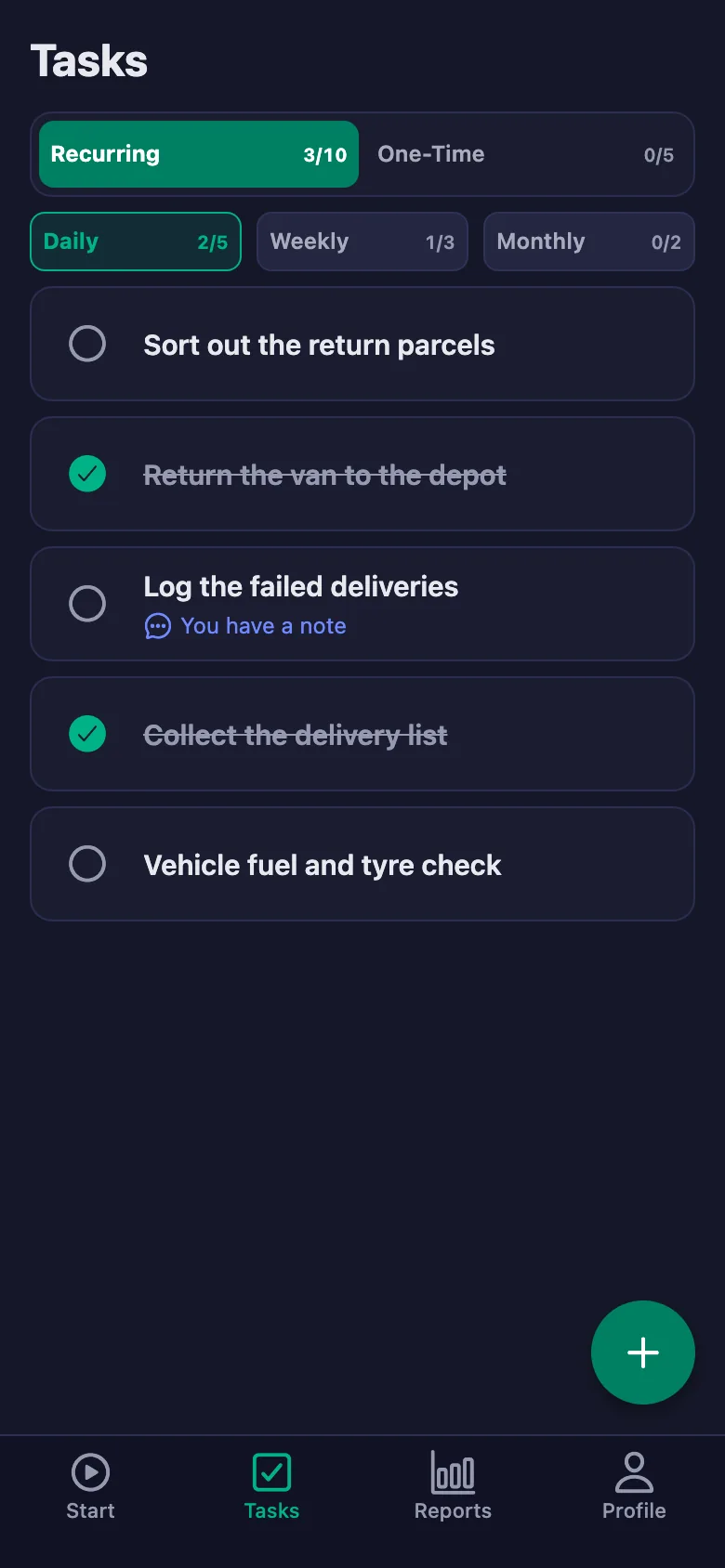
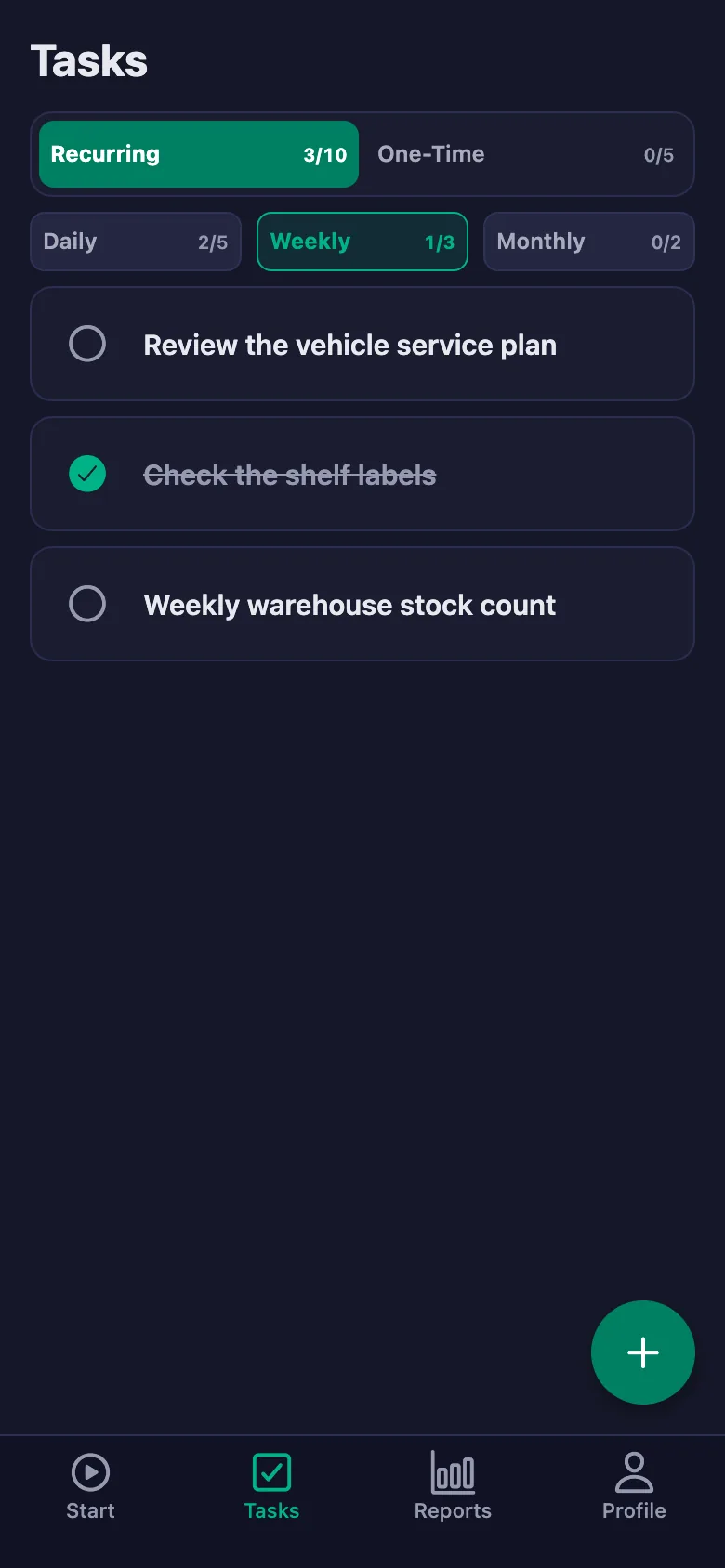
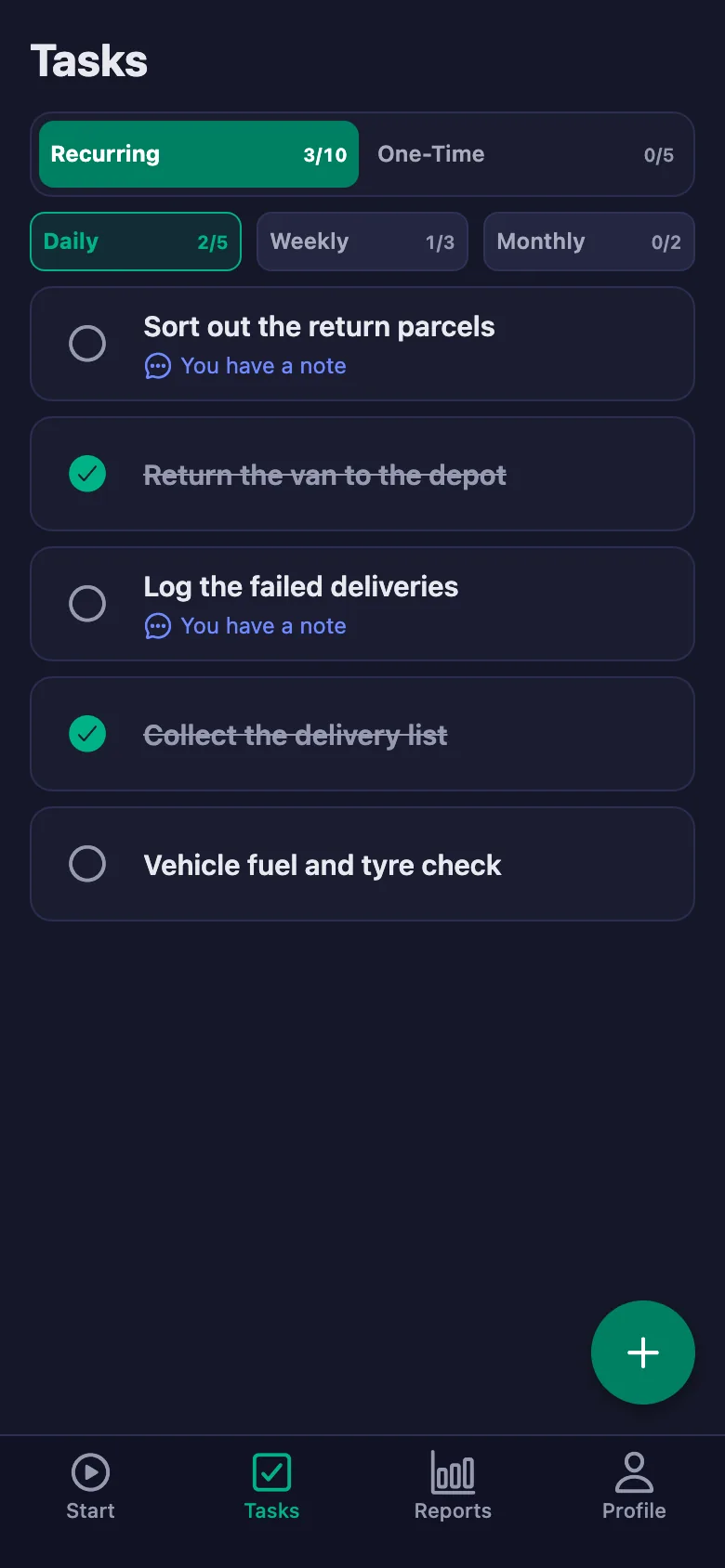
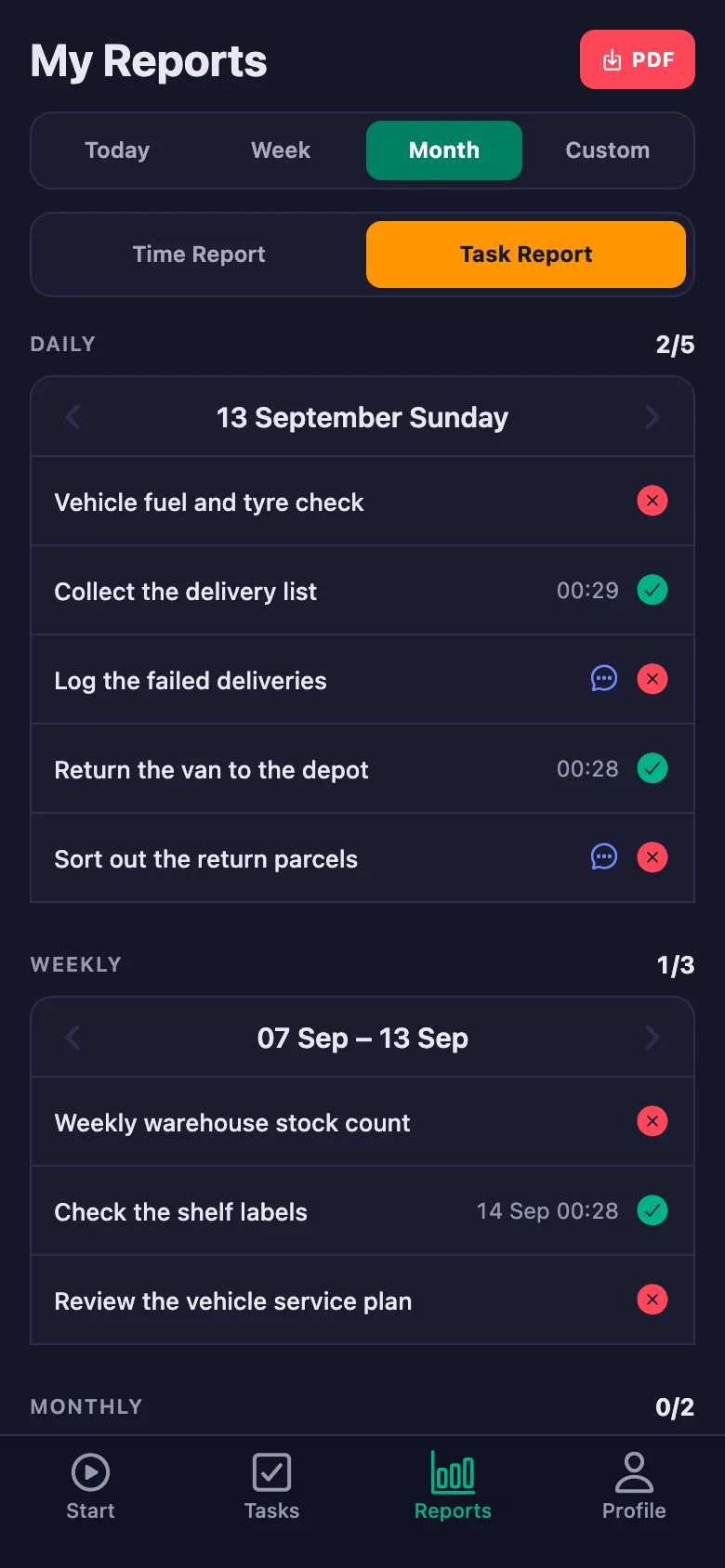
Every check sits on the phone as a daily task; anything unticked stays on screen, and who did it — and when — goes on the record.
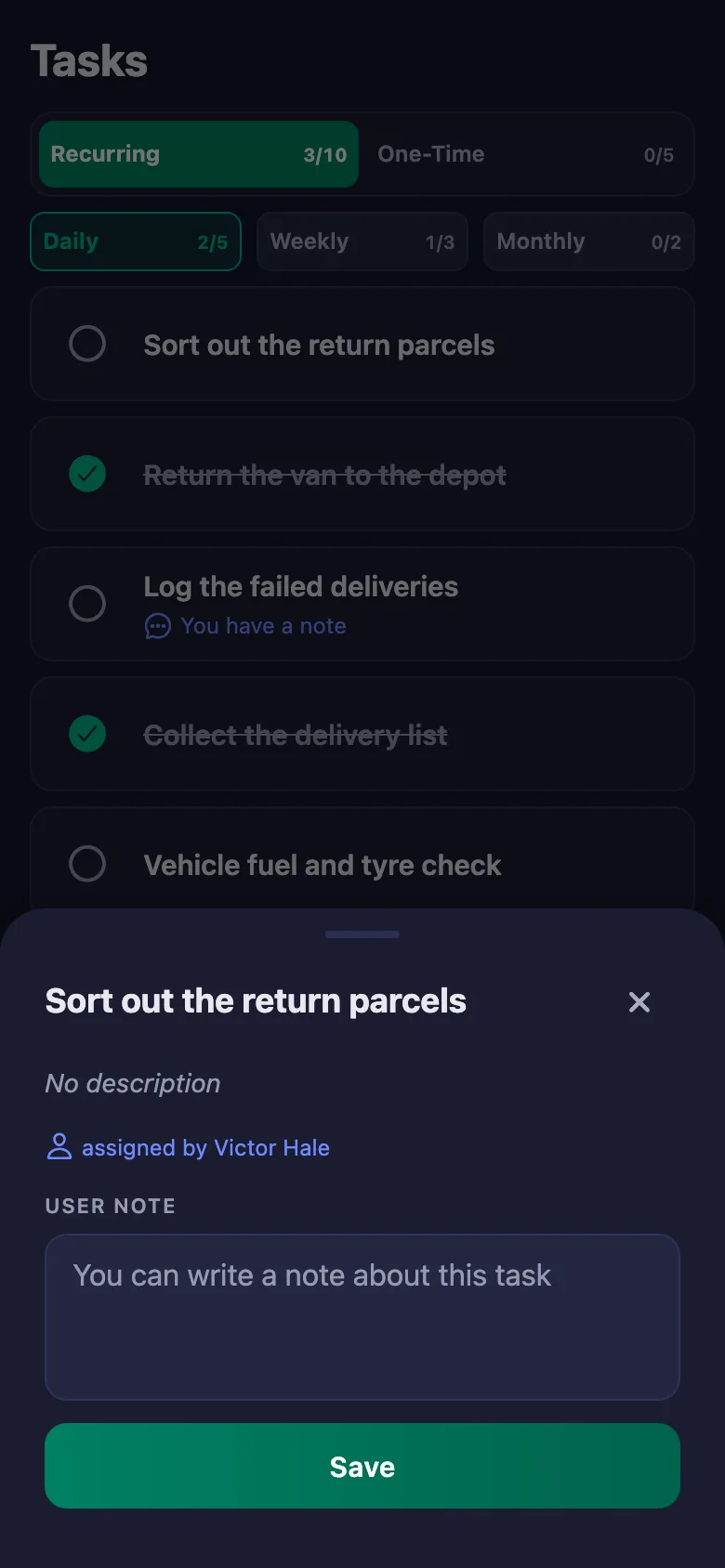
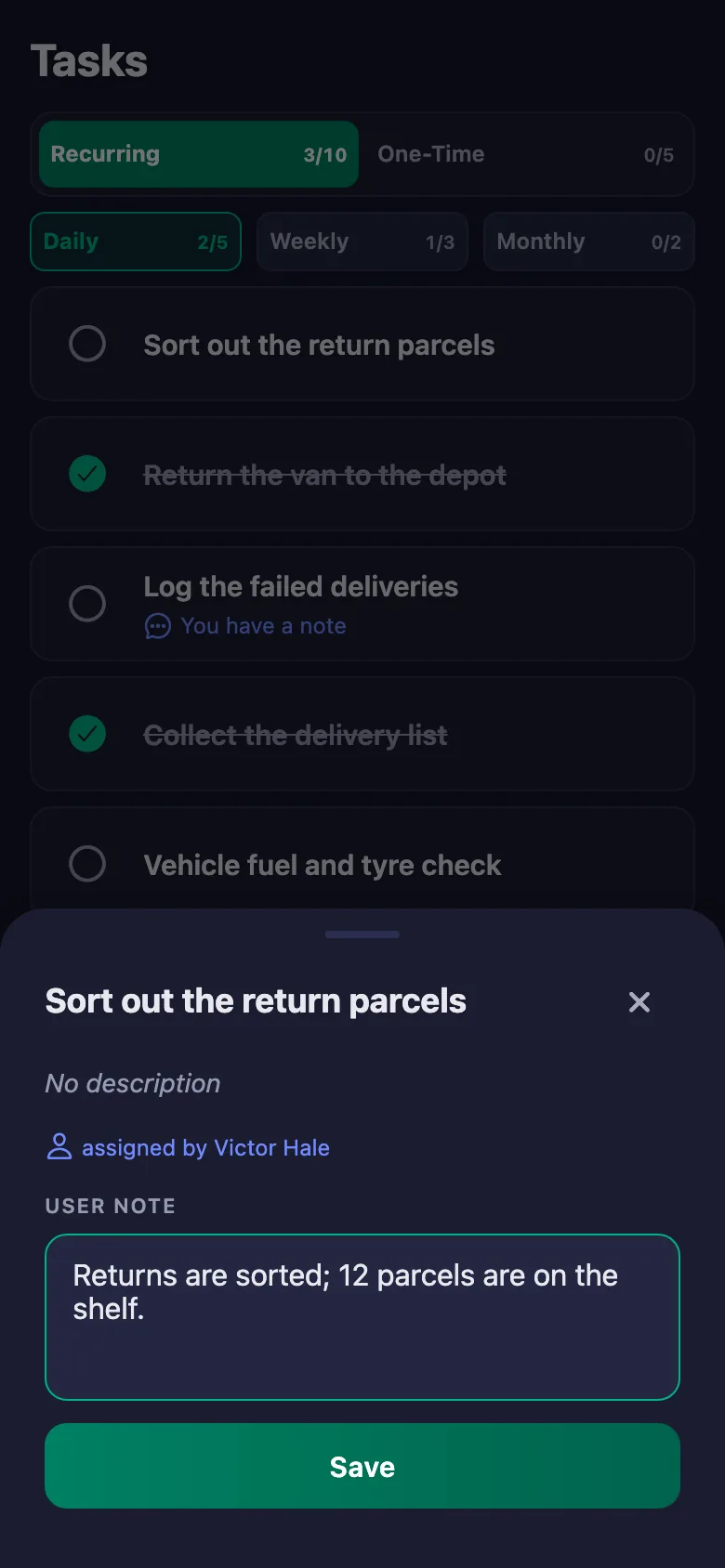
Failed deliveries get described out loud in the evening, and the next day nobody is sure where each parcel ended up.
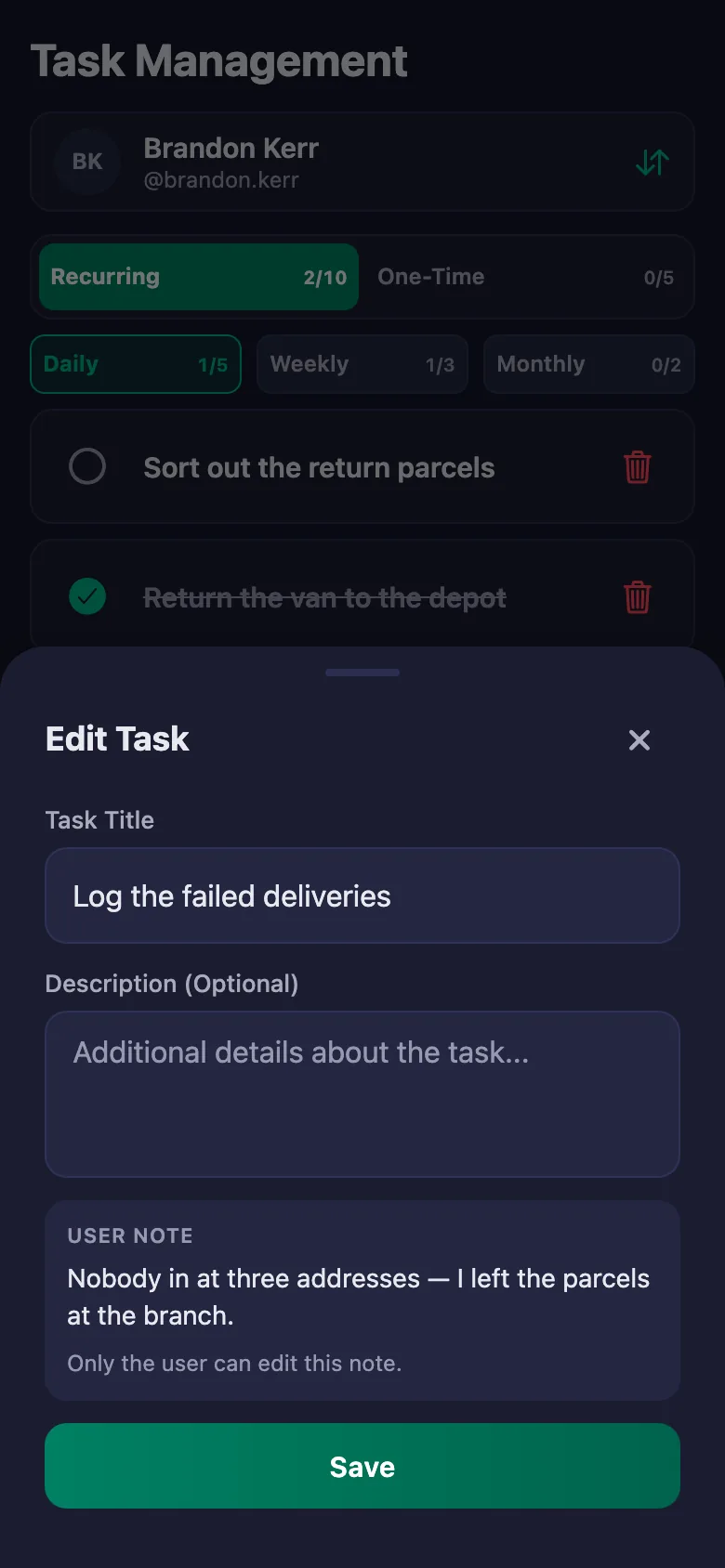
The courier writes a note under the task: how many addresses, where the parcels were left. The note sits on your screen, and only the person who wrote it can change it.
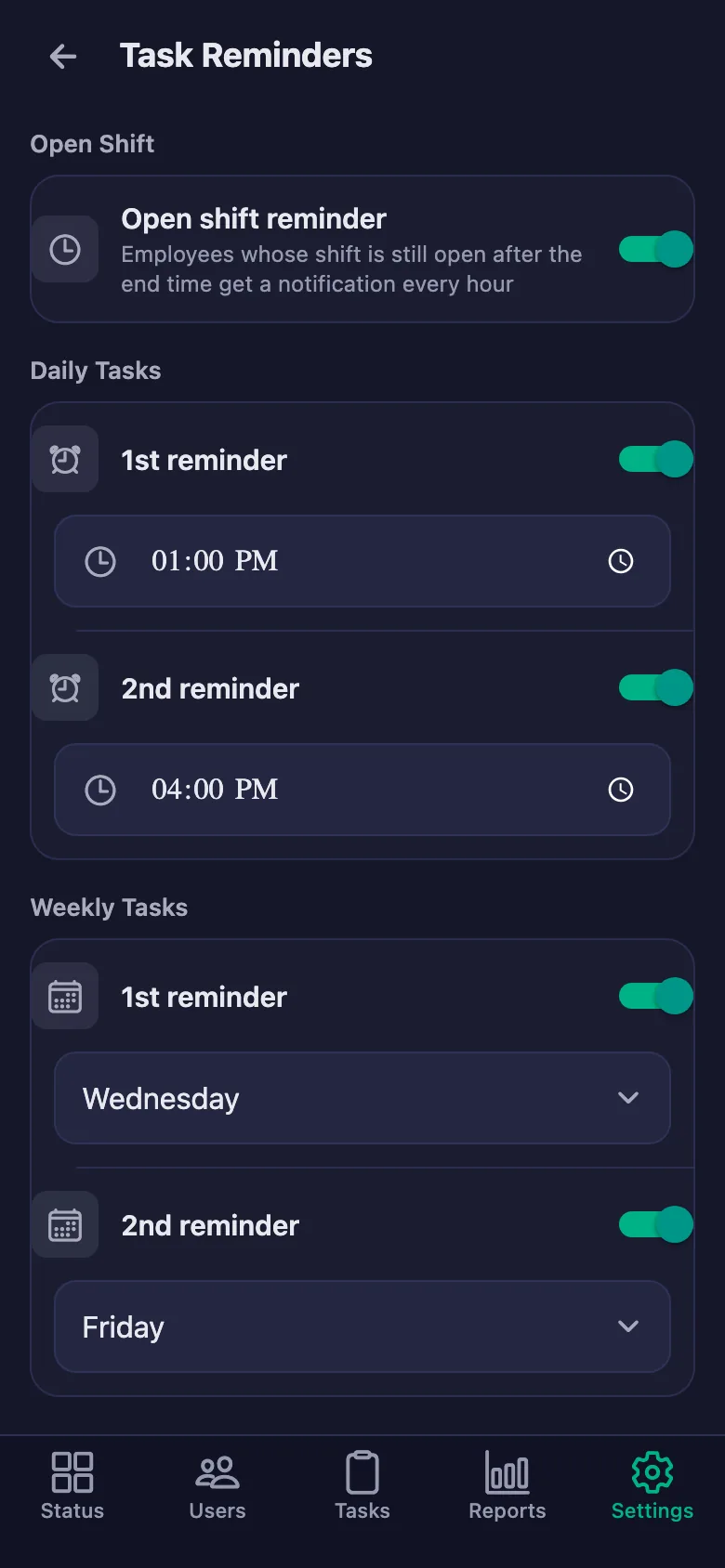
Returning the van and closing the depot get forgotten, and reminding means sending messages.
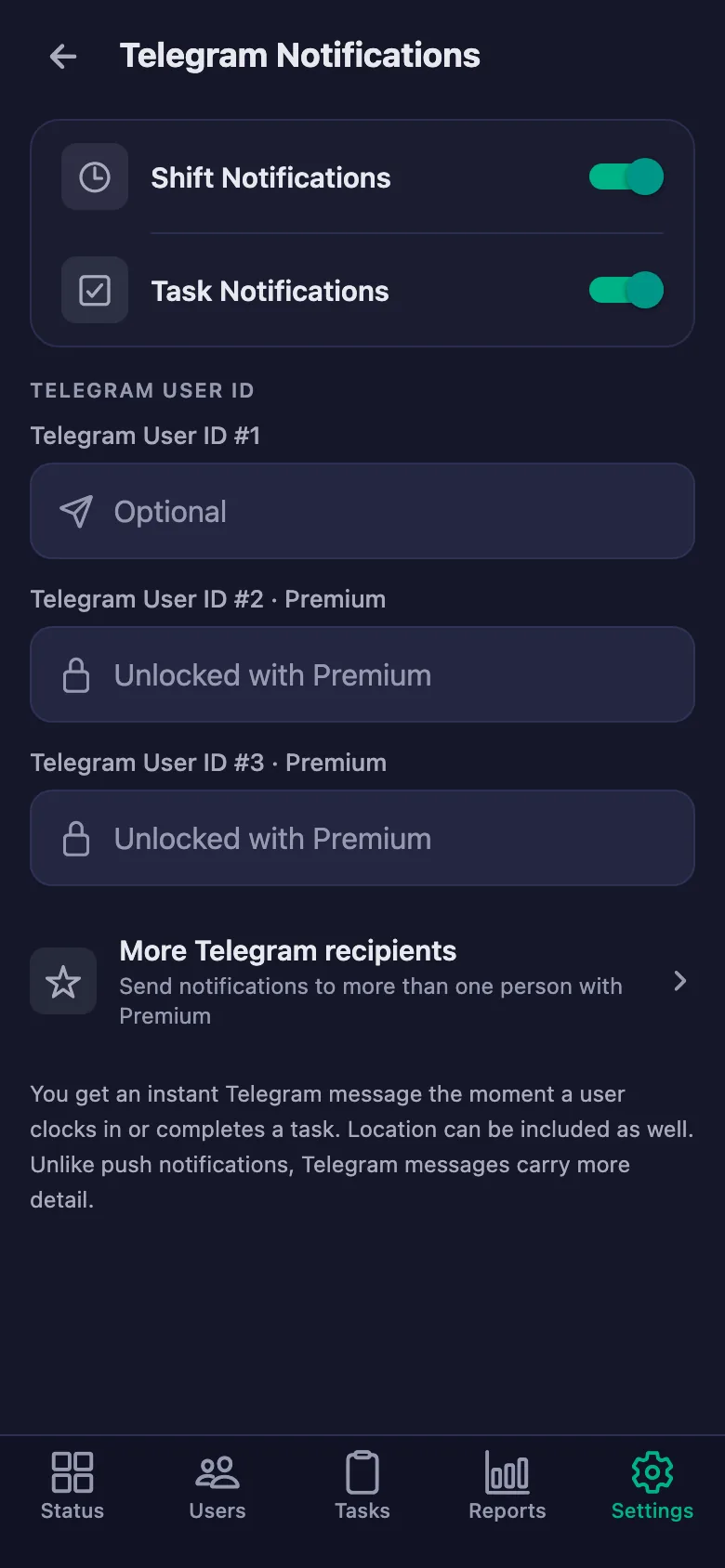
You set the reminder times. If returning the van or closing the depot is still unticked at the end of the day, a notification lands on the team's phones.
Working out overtime and bonuses means adding up bits of paper at the end of the month.
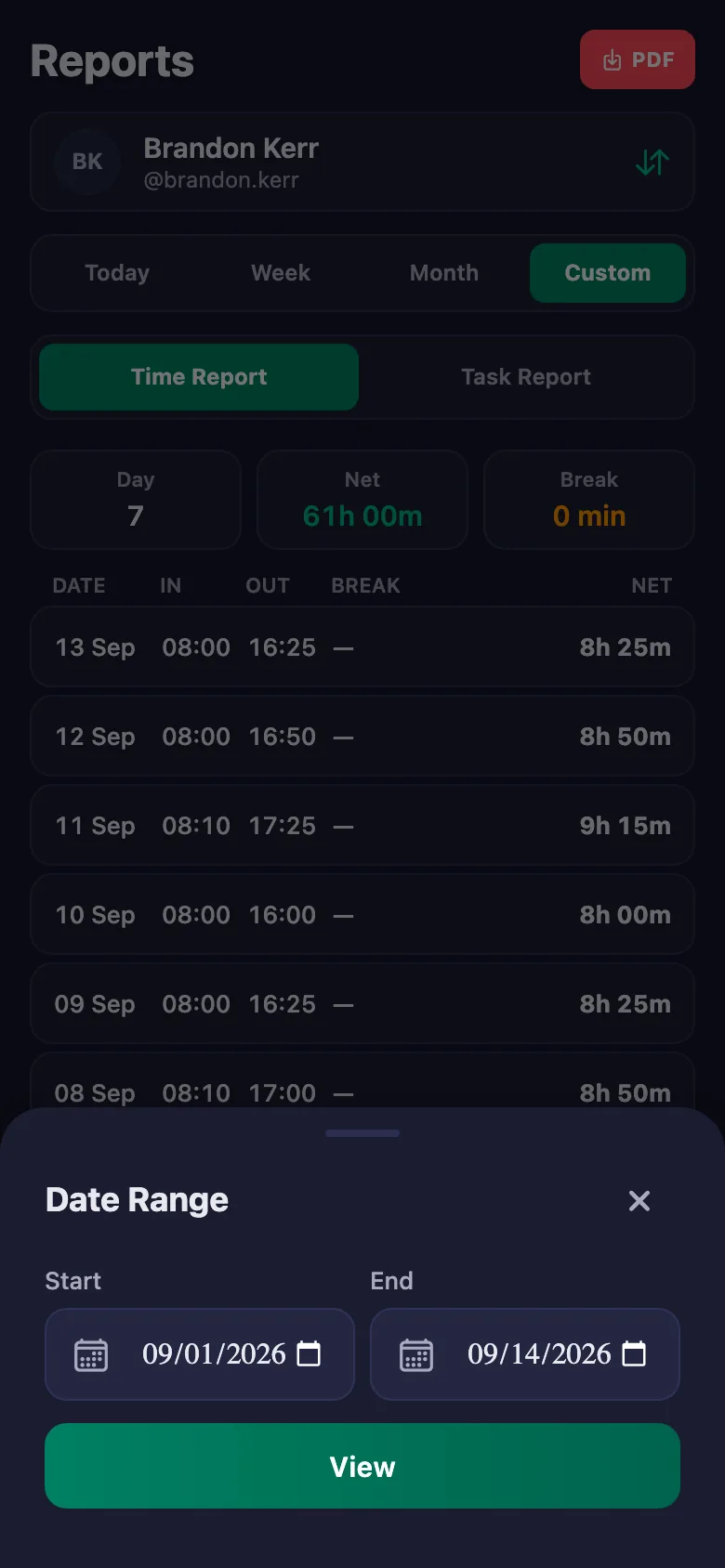
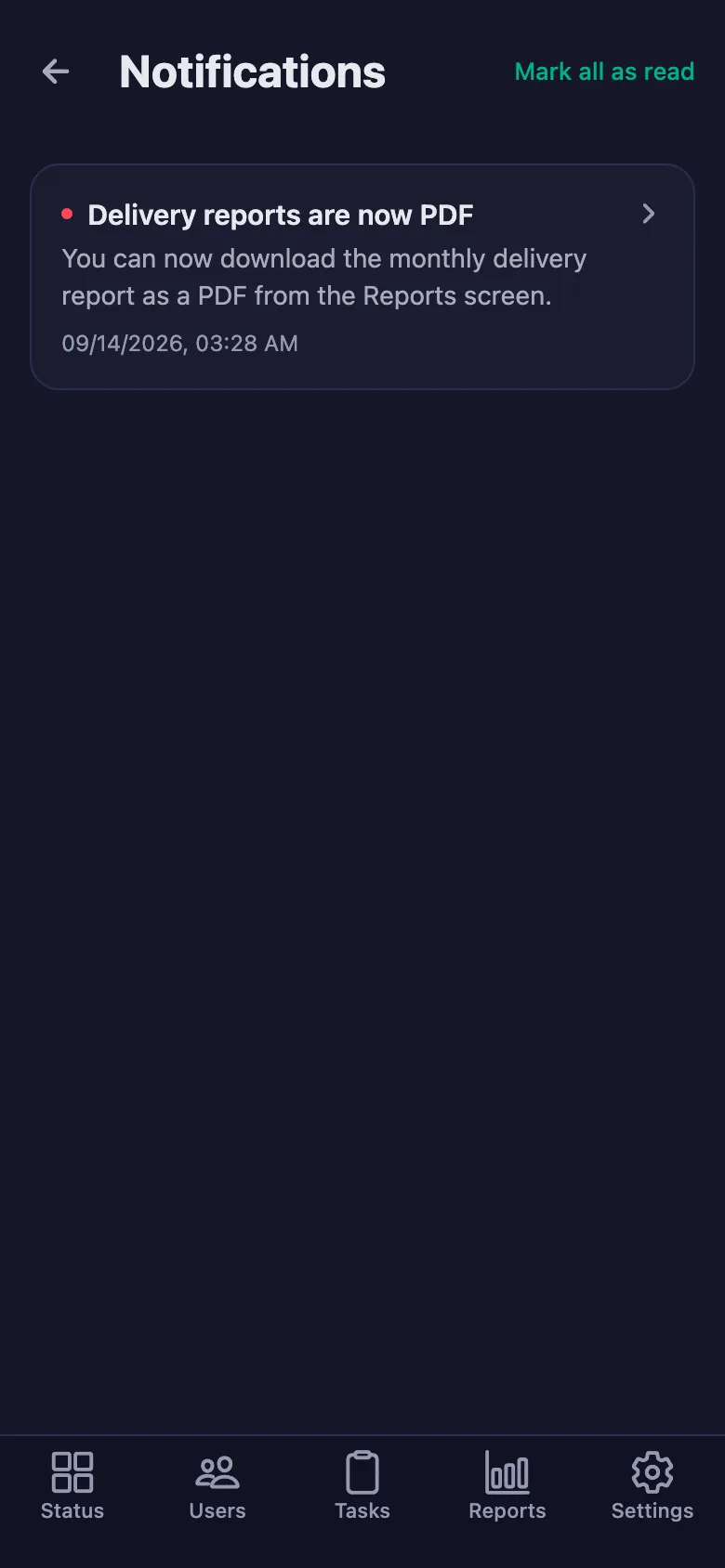
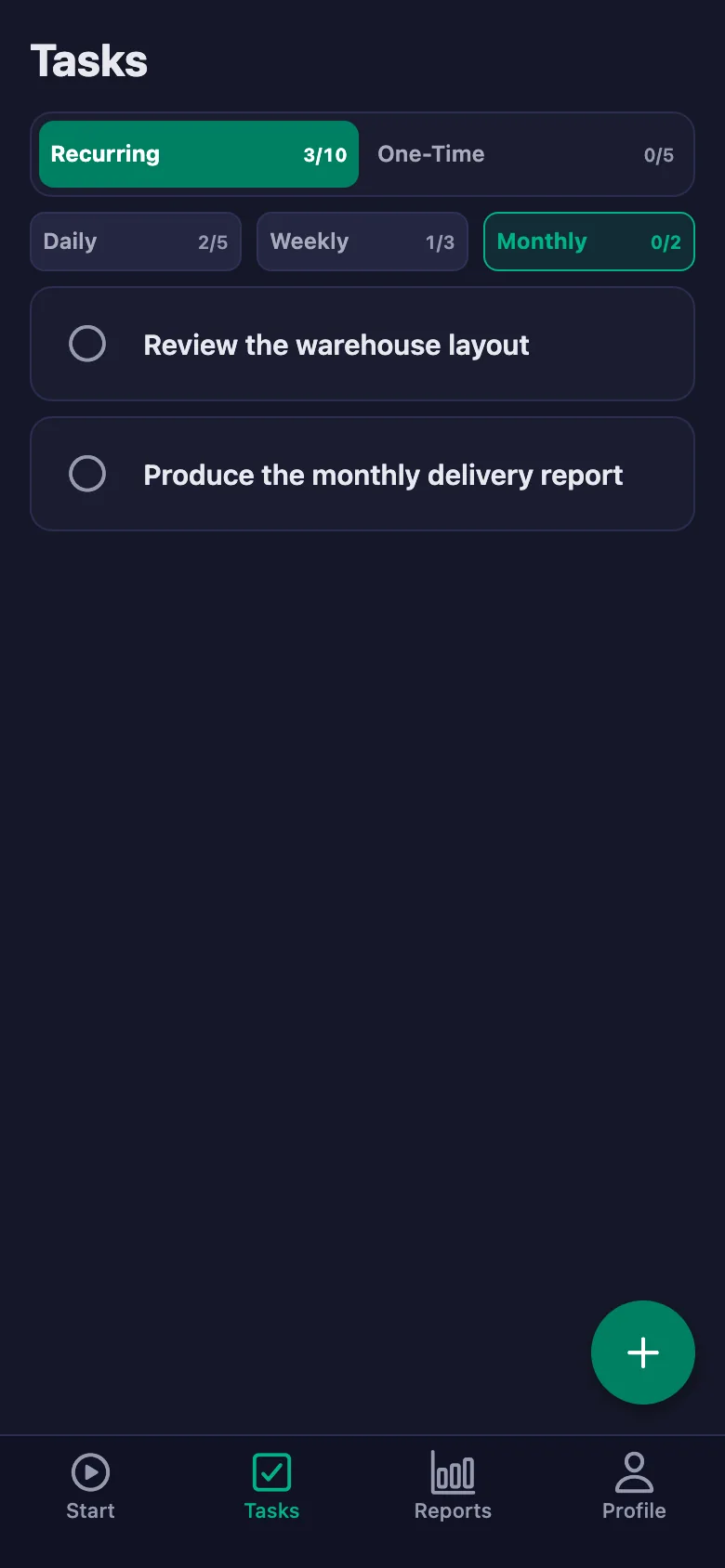
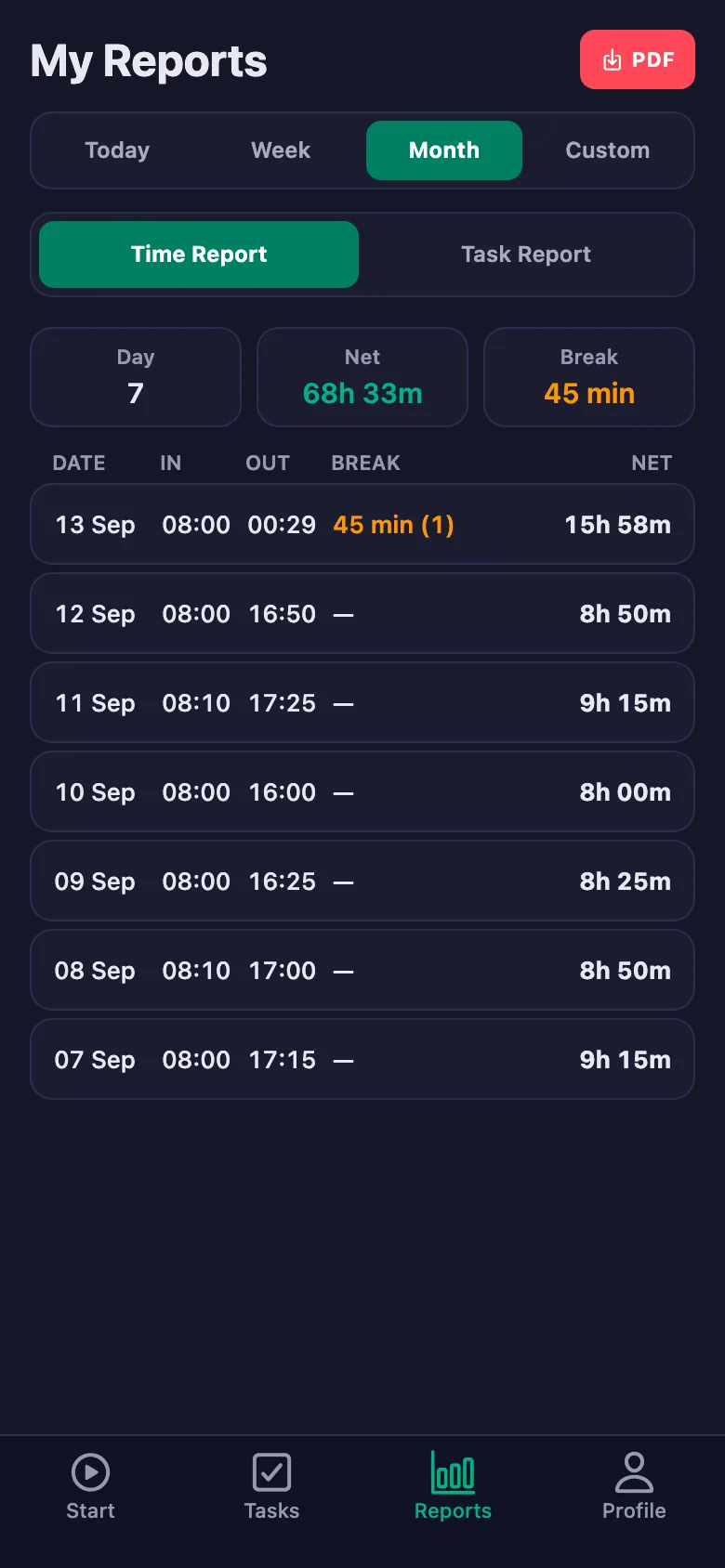
At the end of the month you pick a date range and the report appears on screen. You download it as a PDF and hand it to the bookkeeper.
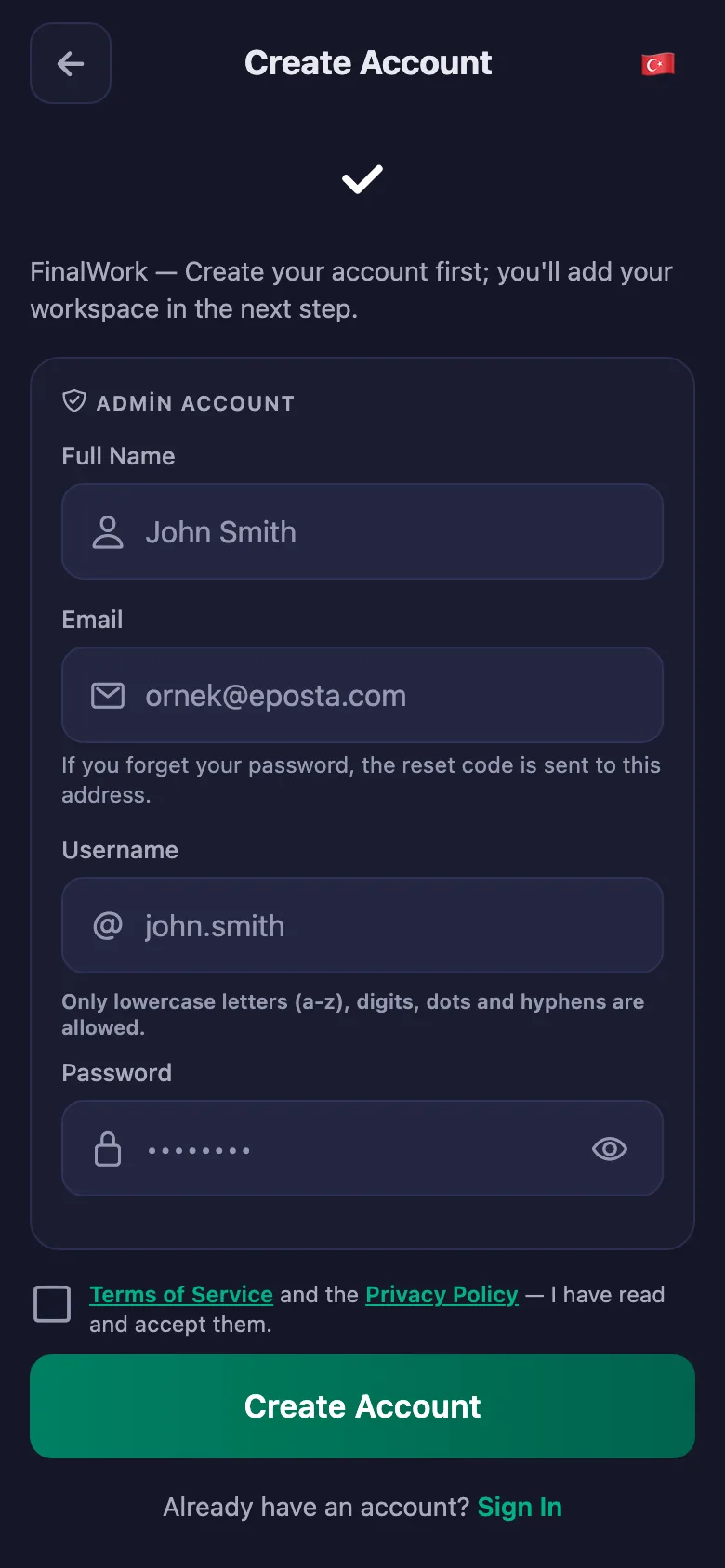
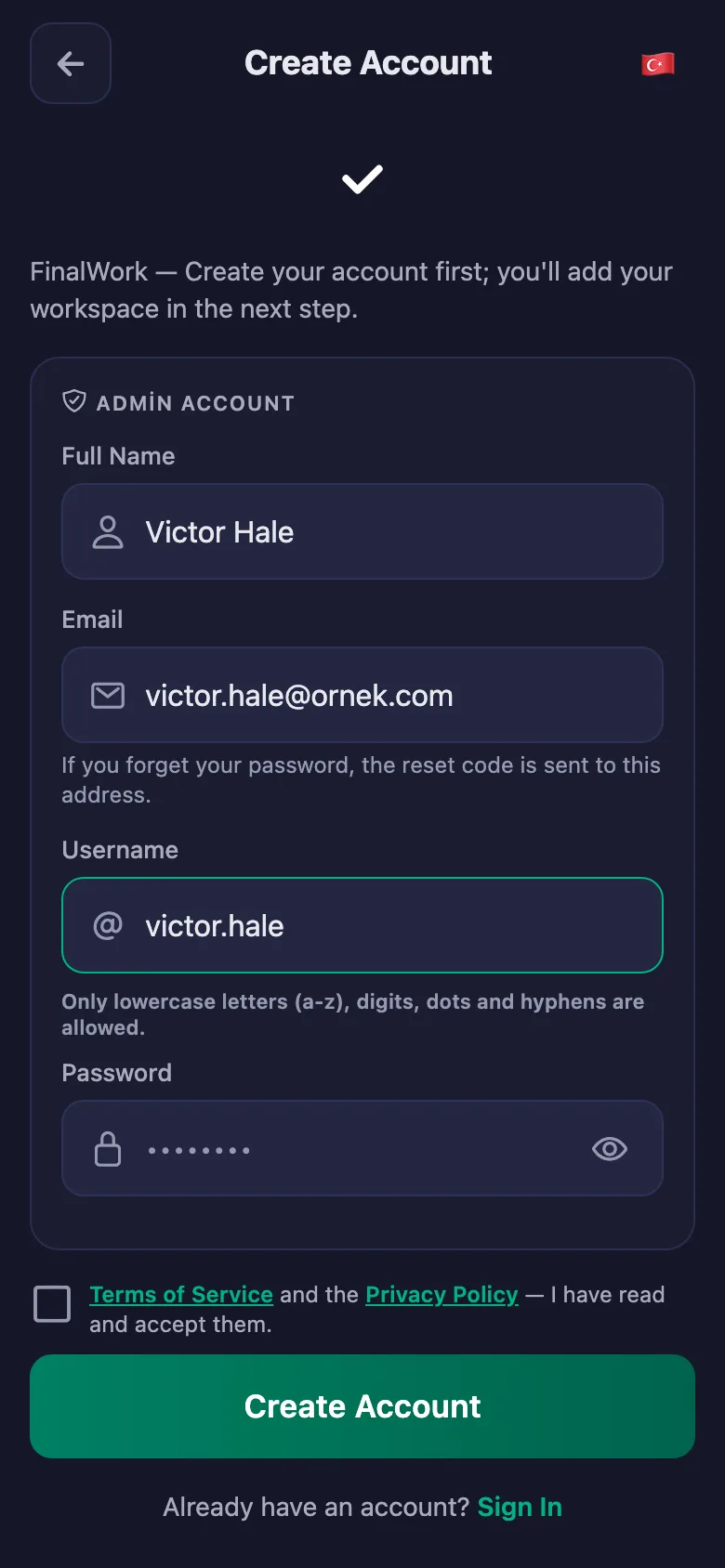
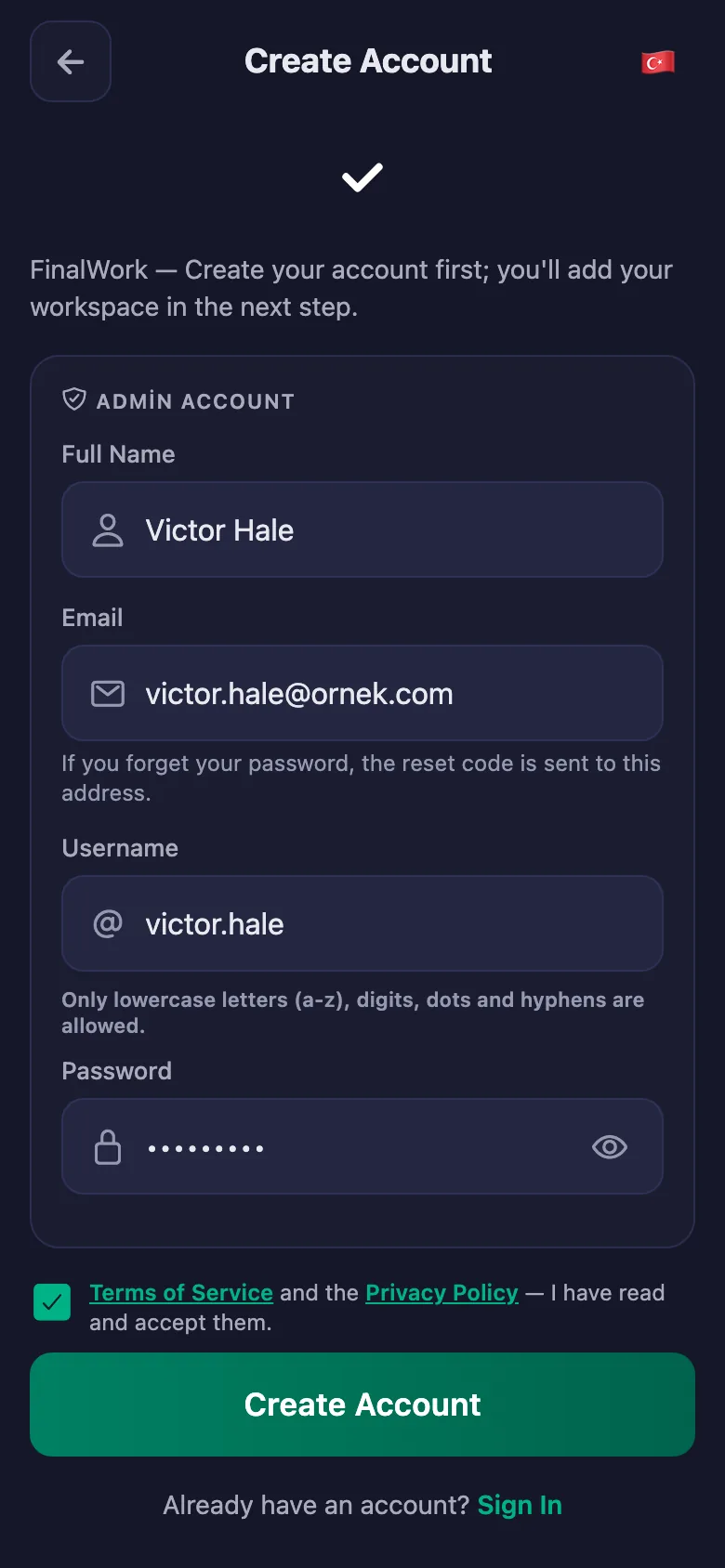
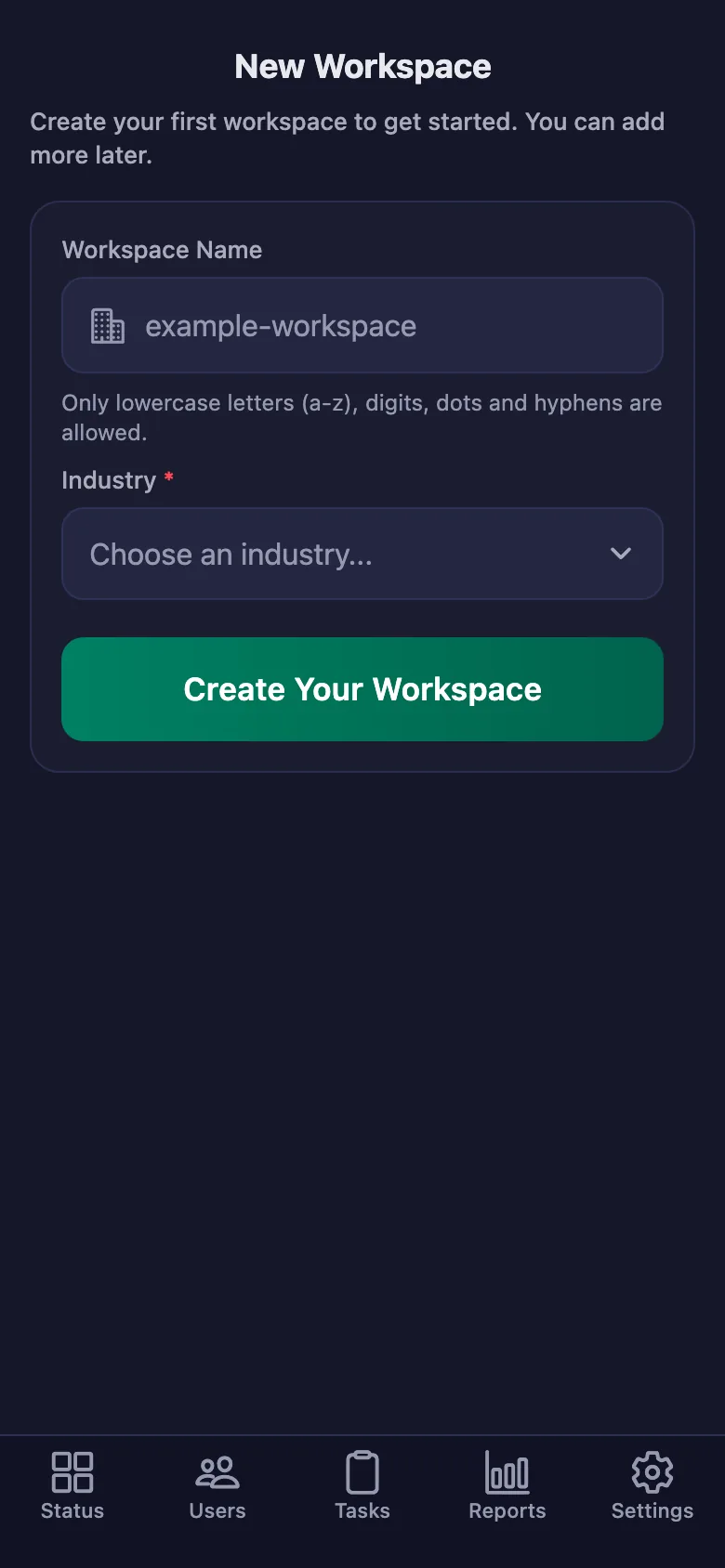
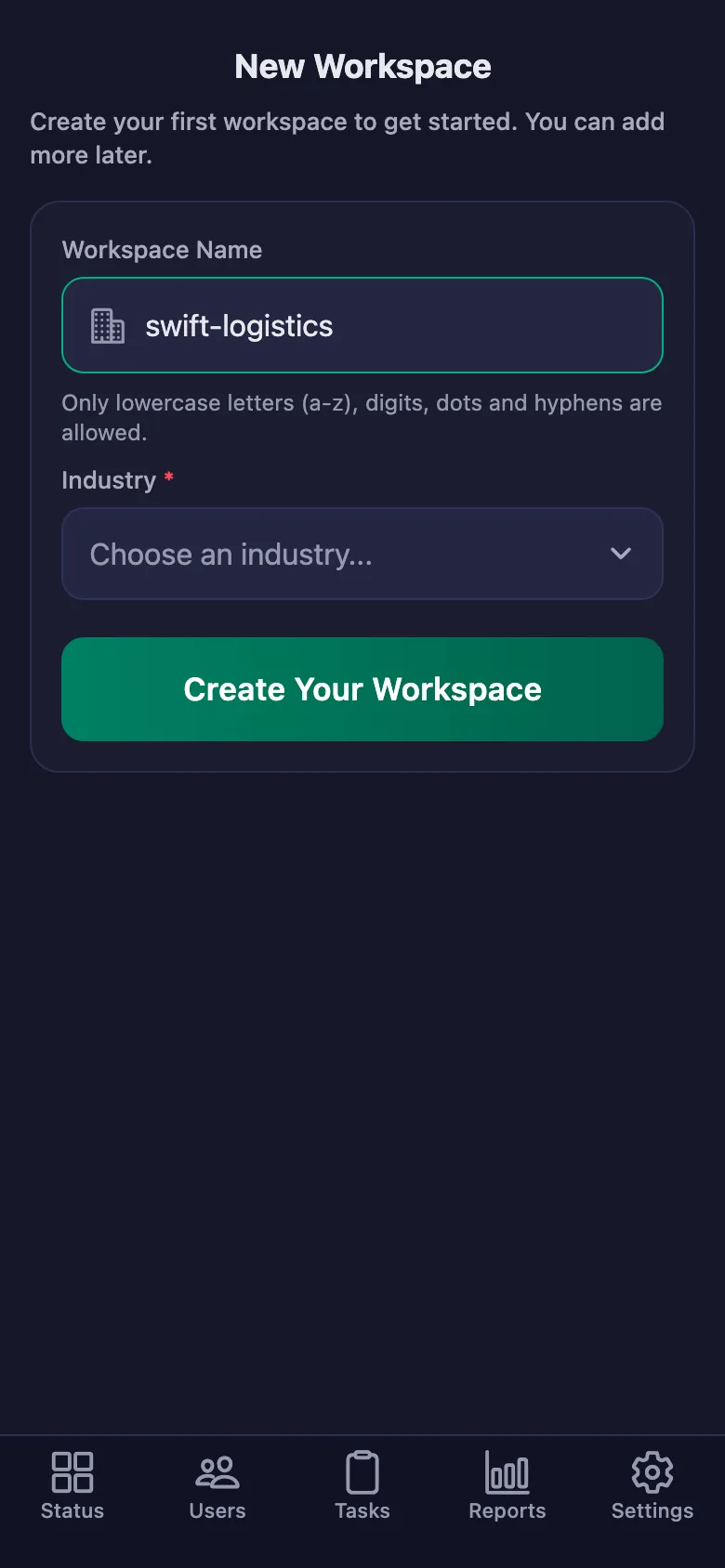
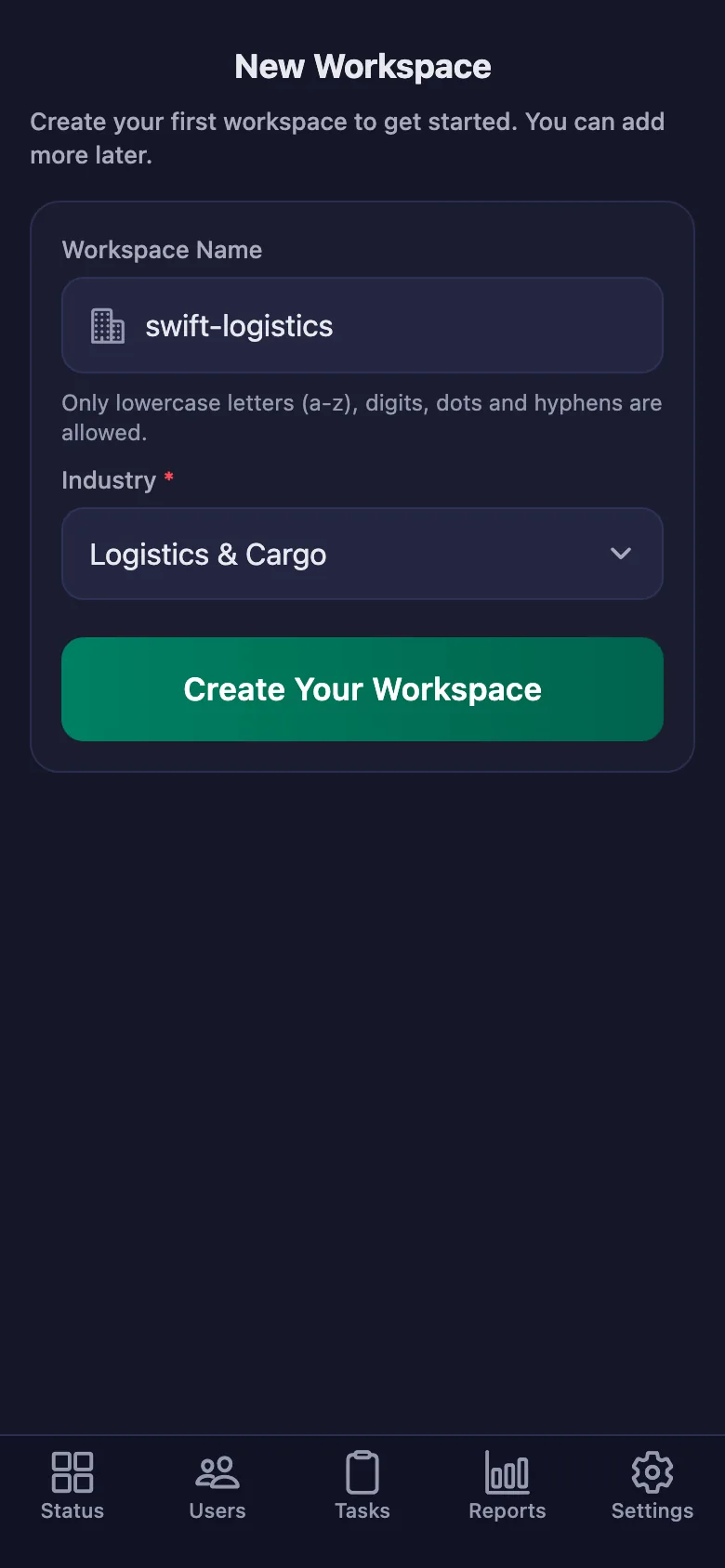
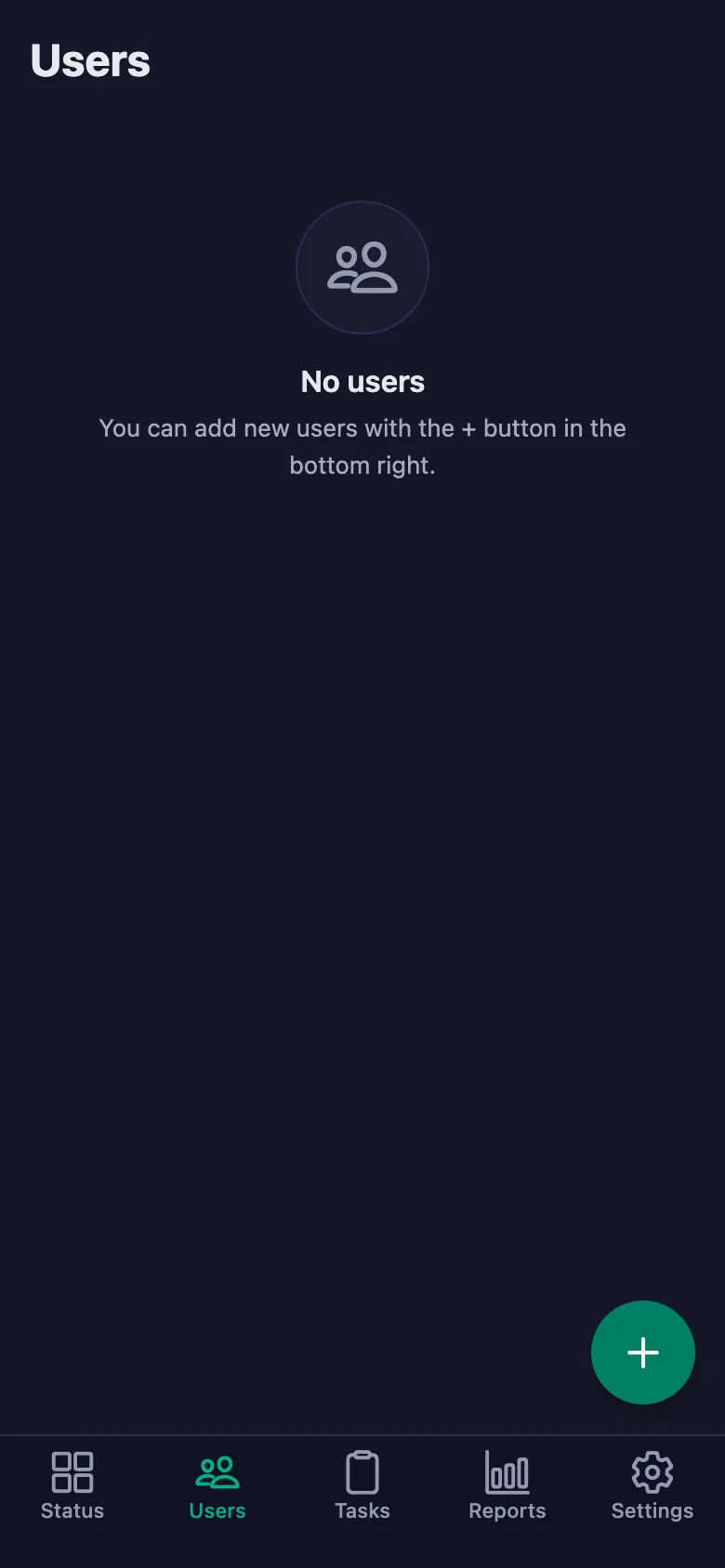
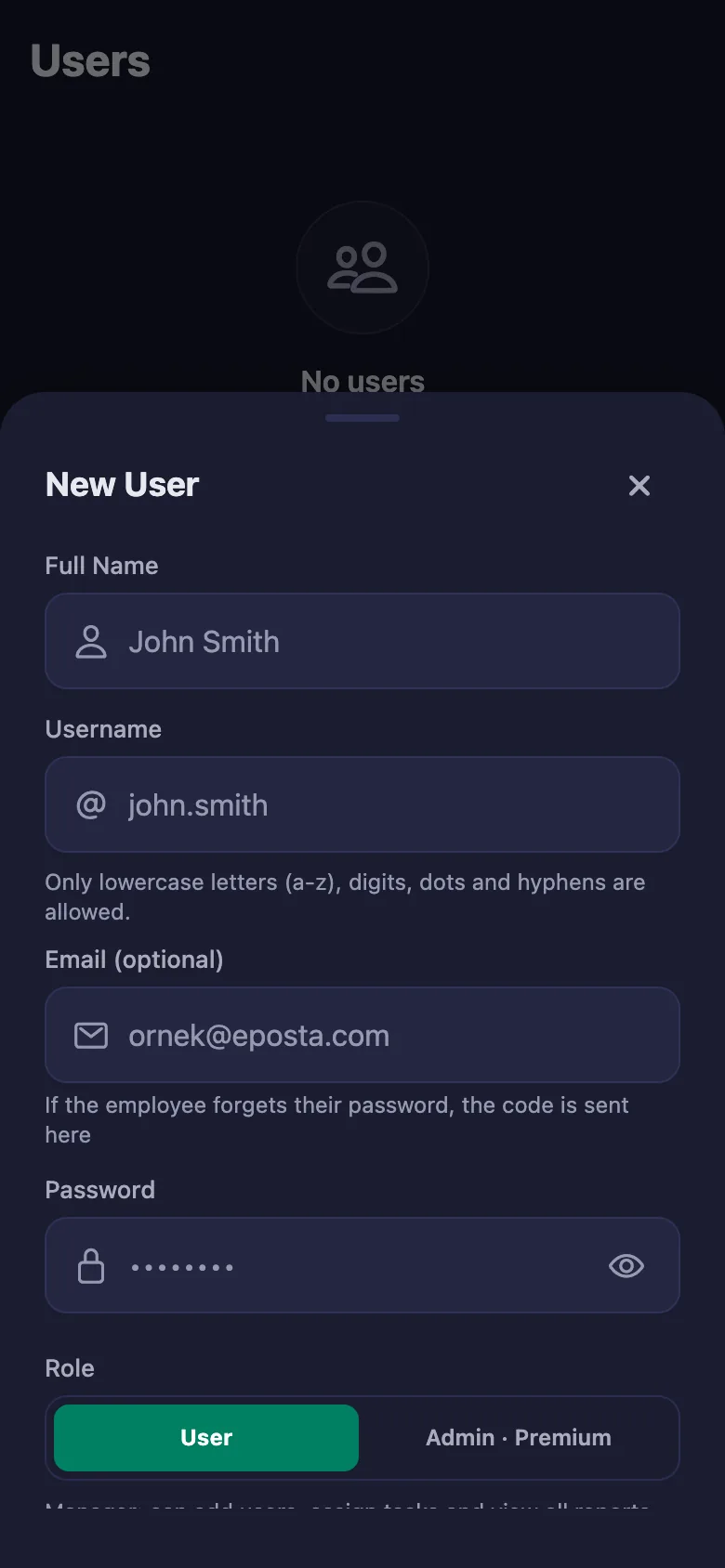
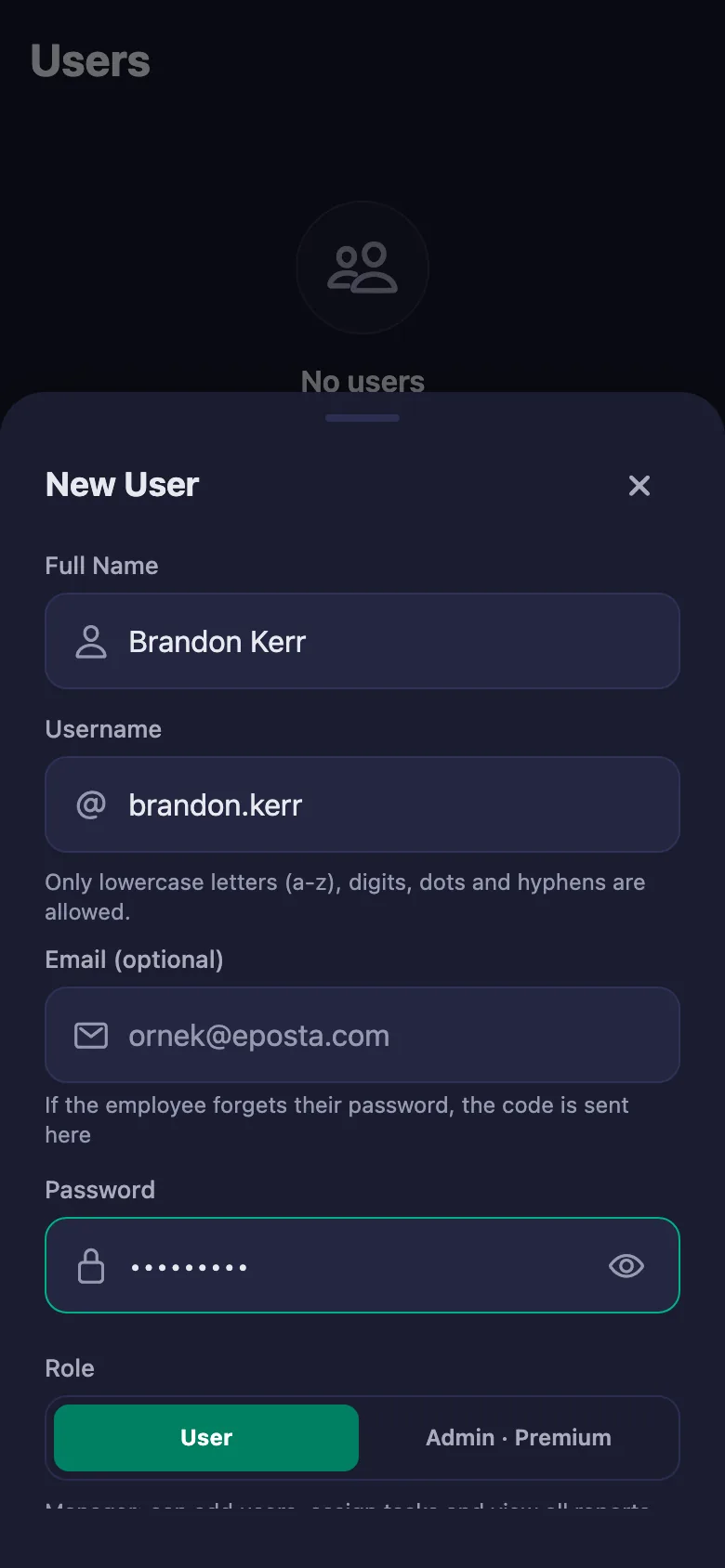
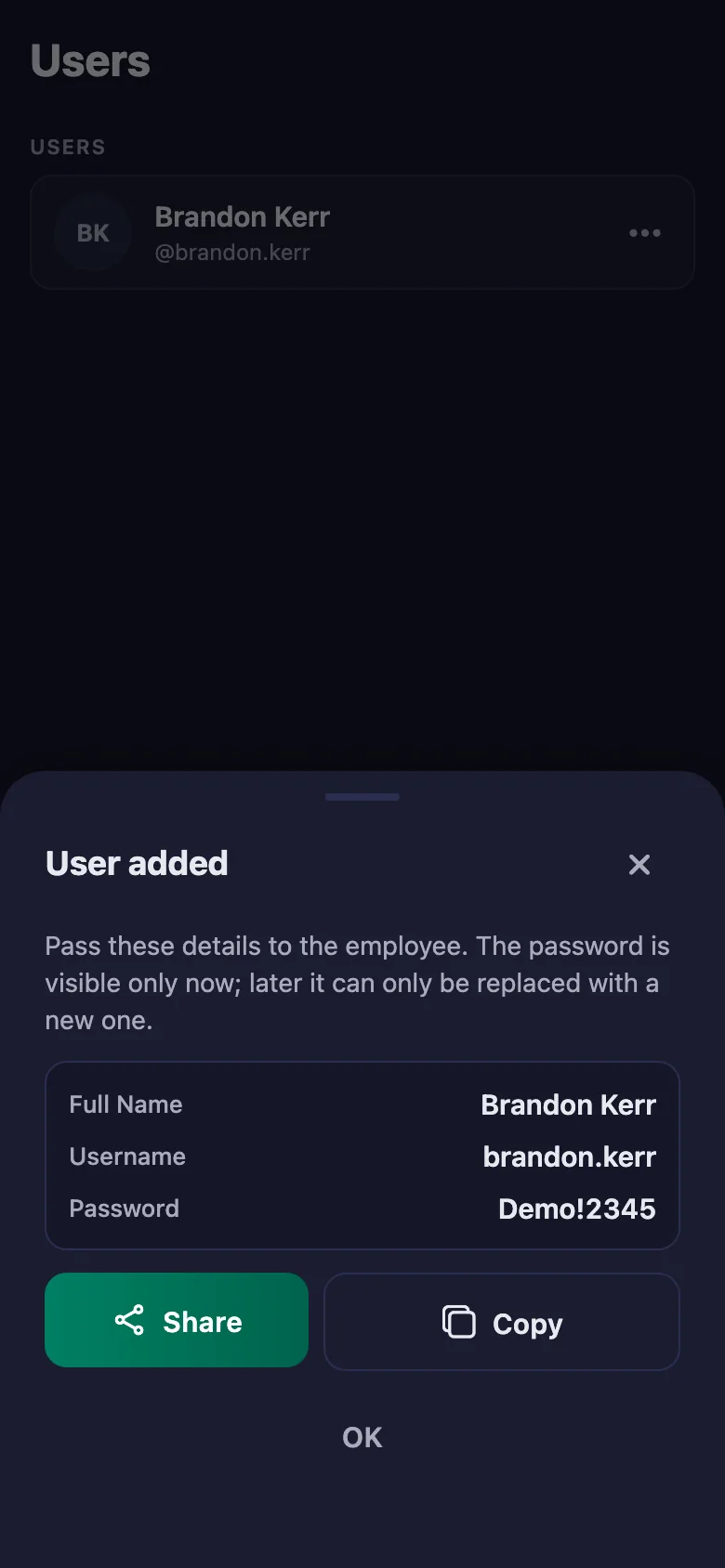
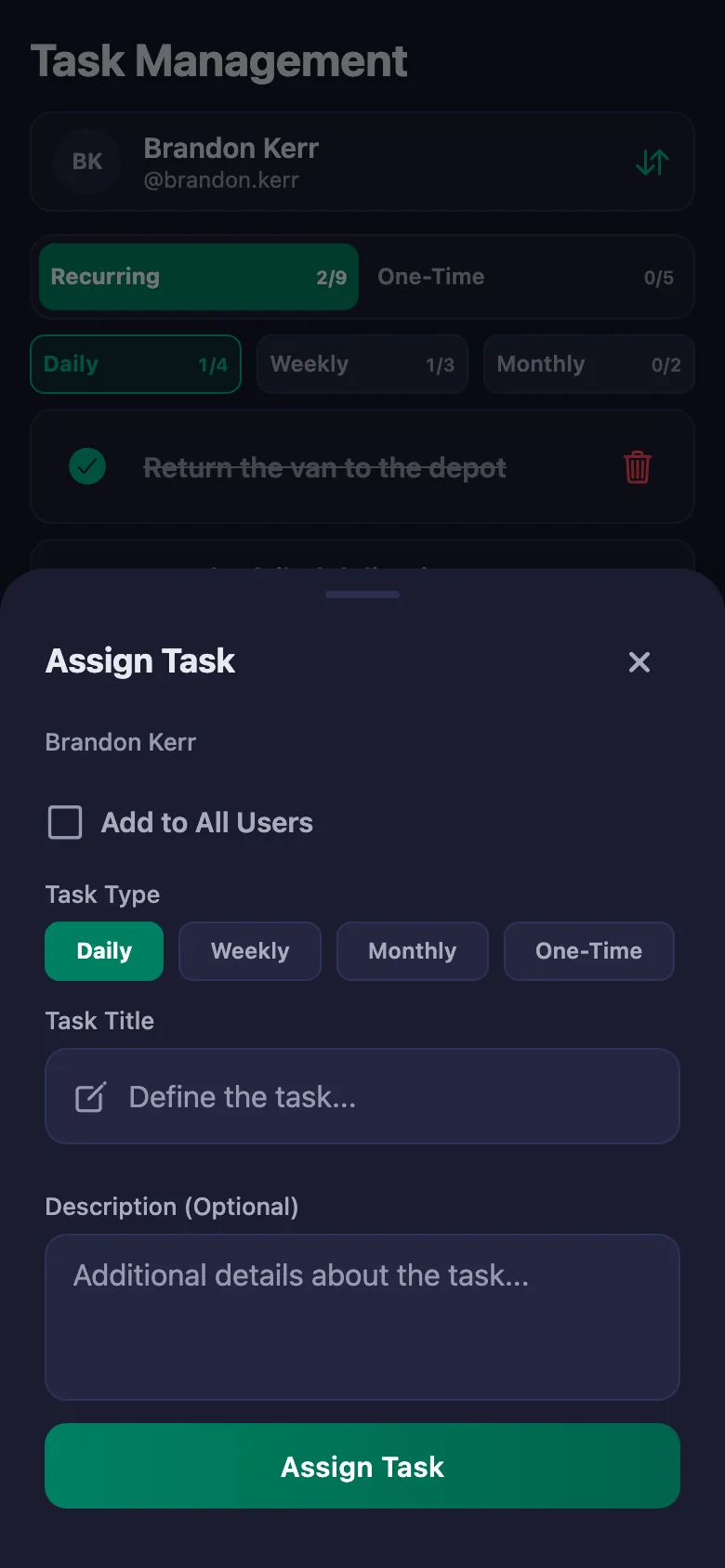
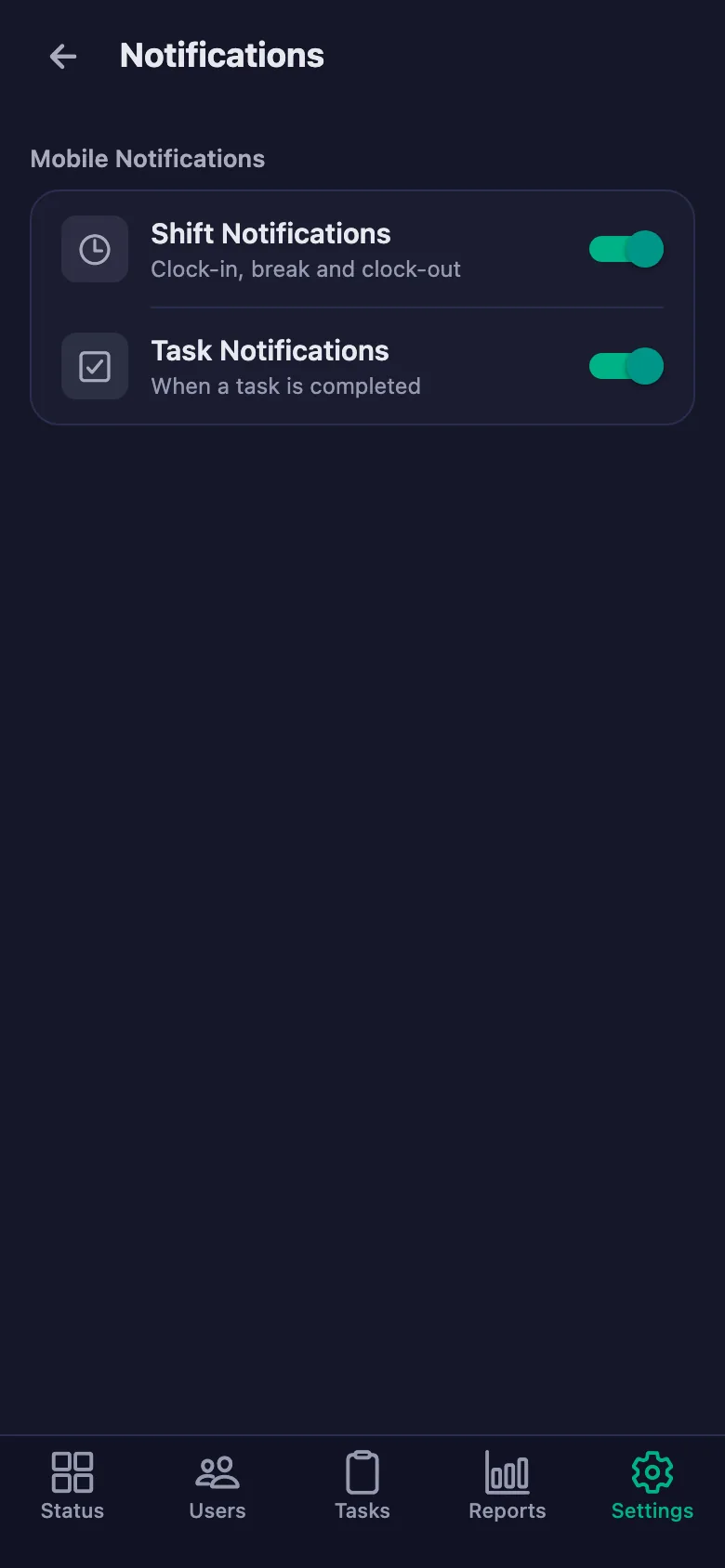
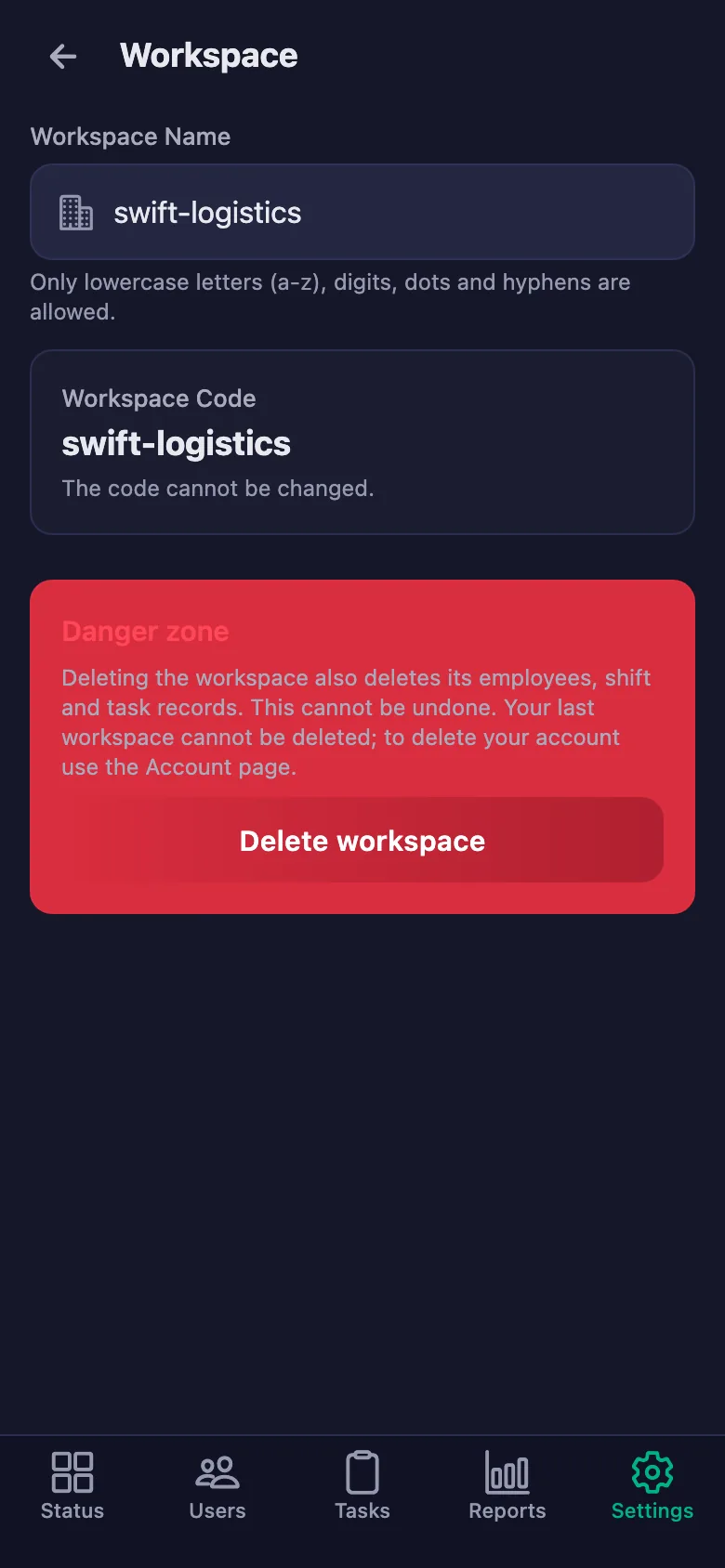
Setup and activation take just one minute — you can start free. Below you can watch the whole flow on the app's real screens.
Warehouse Manager – Courier App Demo
 FinalWork — Task reminder
2 daily tasks are waiting for you.
FinalWork — Task reminder
2 daily tasks are waiting for you.
Warehouse and courier time tracking software — frequently asked questions
Does it include parcel tracking and barcodes?
No, the app is not a shipment tracking system. It tracks your team's working hours and the daily vehicle, depot and delivery checks; you carry on using your existing system as before.
Can the courier use it while out on the road?
Yes. Couriers tick off tasks and write notes from their phone. With the location rule on they start work at the depot, and can finish the day wherever they are.
Can the team write notes, and can I see them?
Yes. The team can write a note under each check — how many addresses failed, where the parcel was left. You can see the note but you cannot change it; only the person who wrote it can edit it.
How many people can I add?
The free plan has a limit on users; when you reach it the app warns you and no new user is added. The limit is lifted on Premium.
Can I be sure work really started at the depot?
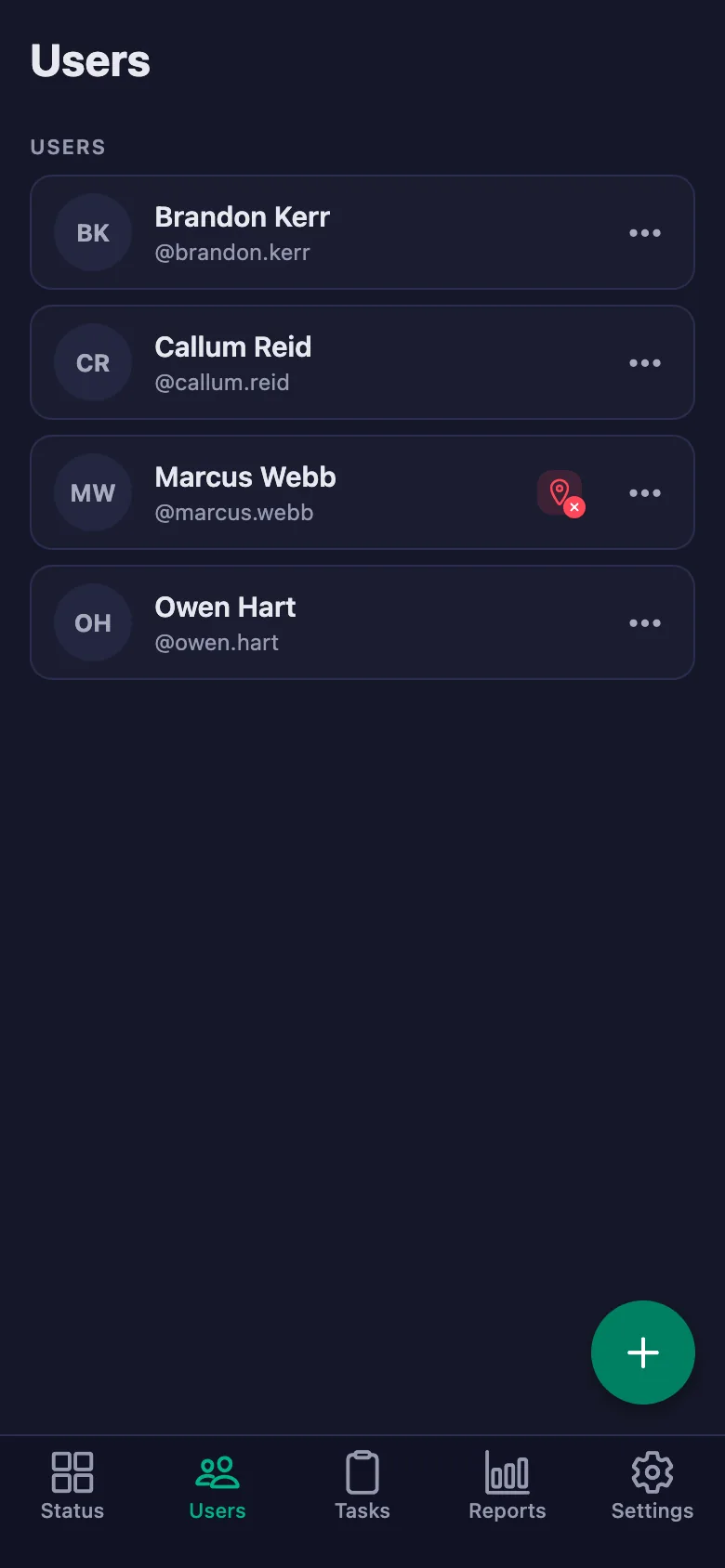
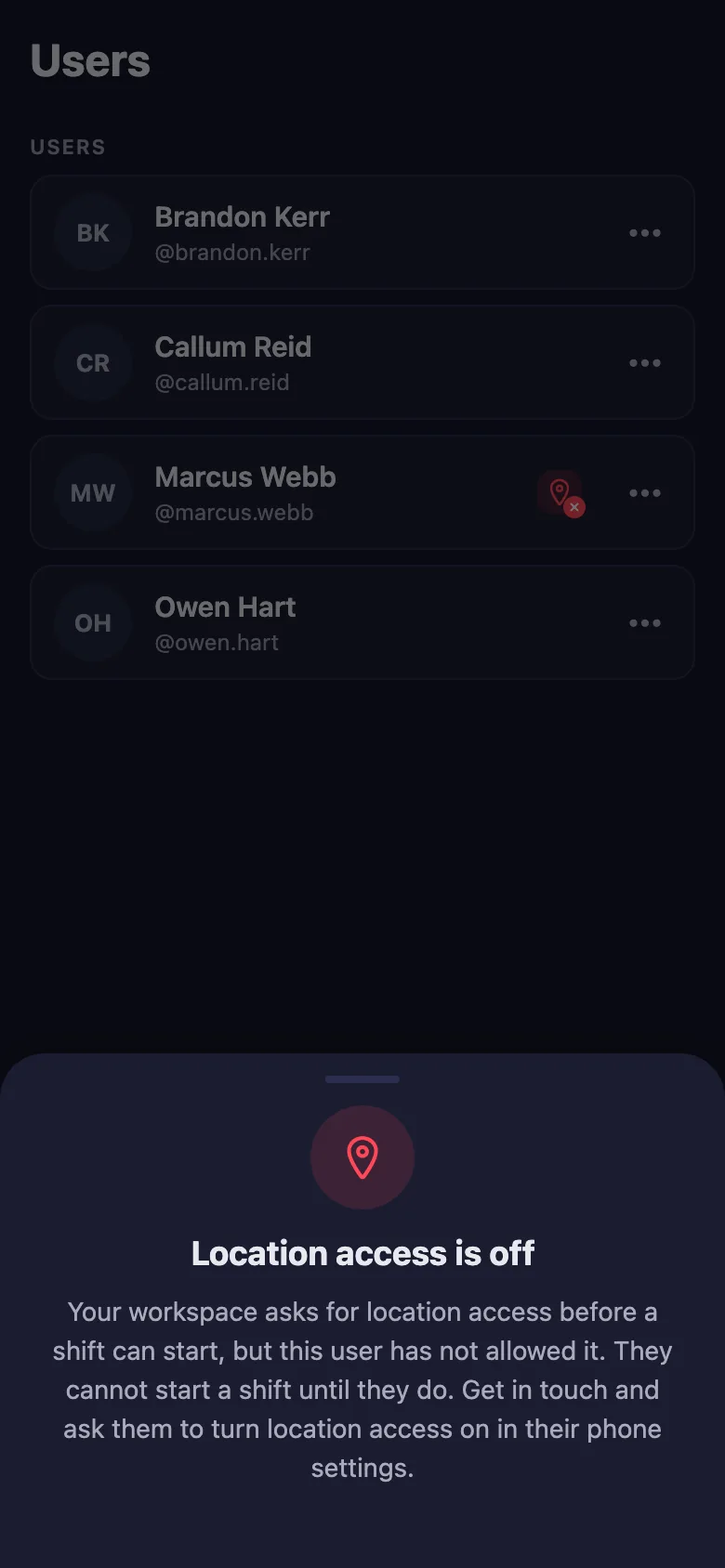
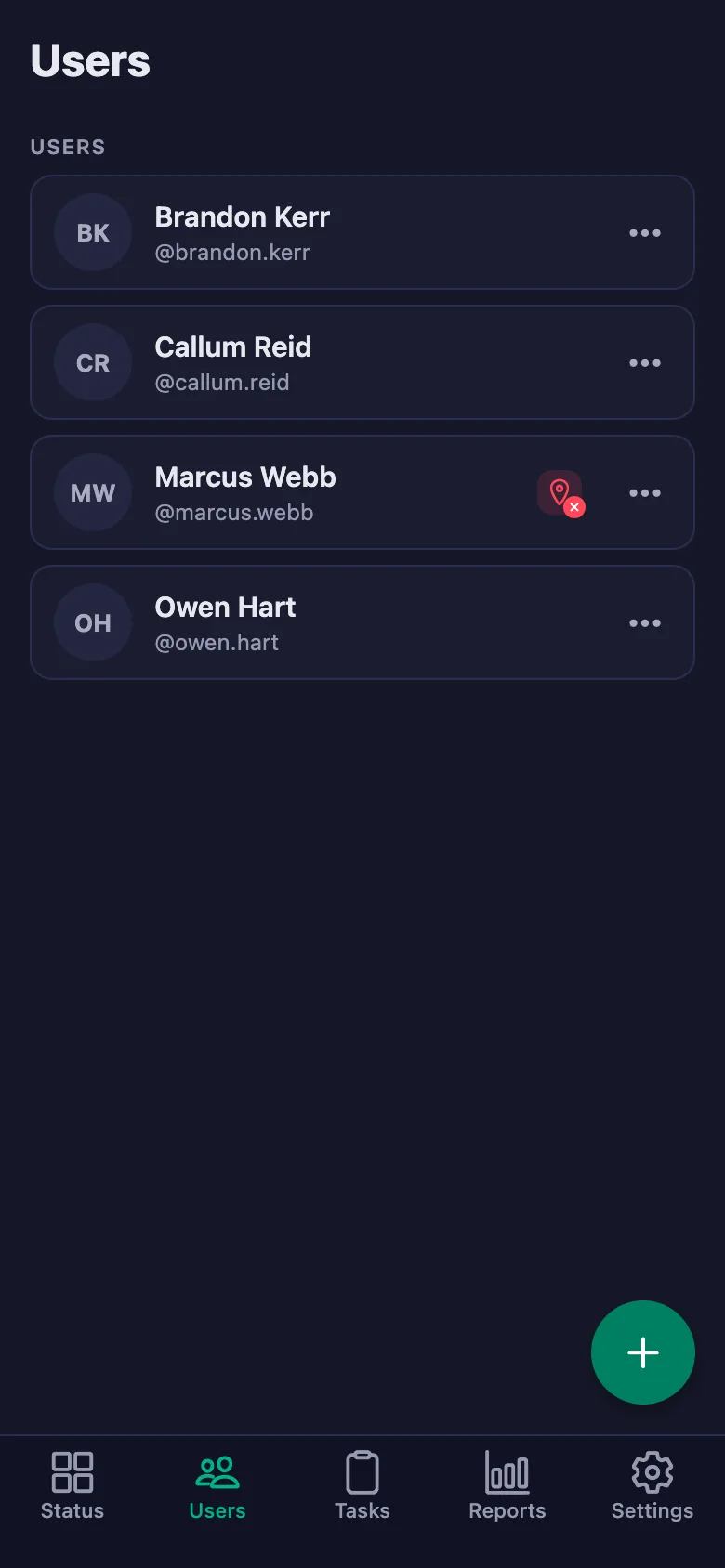
With the location rule switched on, the timer can only be started at the location you set. Anyone who hasn't given location permission shows up in the list with a warning badge.
I have more than one depot — can I track them separately?
You can open a separate workspace for each depot and switch between them with the same account. Reports are kept separately for each depot.
Can I use it for overtime?
The report shows how many hours and how many days each person worked; you can download it as a PDF and use it as the basis for overtime and bonuses.
Set up your depot today
Setup and activation take just one minute — you can start free. Open the account, add your first team member, and let today's hours go on the record.