
Timesheets, Staff Tracking and Location Checks for Sites
Who is on site, and is the timesheet right?
Timesheets go on paper and the checks stay in someone's head. FinalWork records the crew's arrivals and departures with location confirmation, and the daily safety checks alongside them — so you have evidence for the progress claim and the inspection.
The hard parts of timesheets and staff tracking on site
The site is large, the crew is spread out, and paper gets wet. Most site managers live with the following — on the right is what each one looks like in FinalWork.
Timesheets go on paper. Who arrived when and who left early turns into an argument at the end of the month.
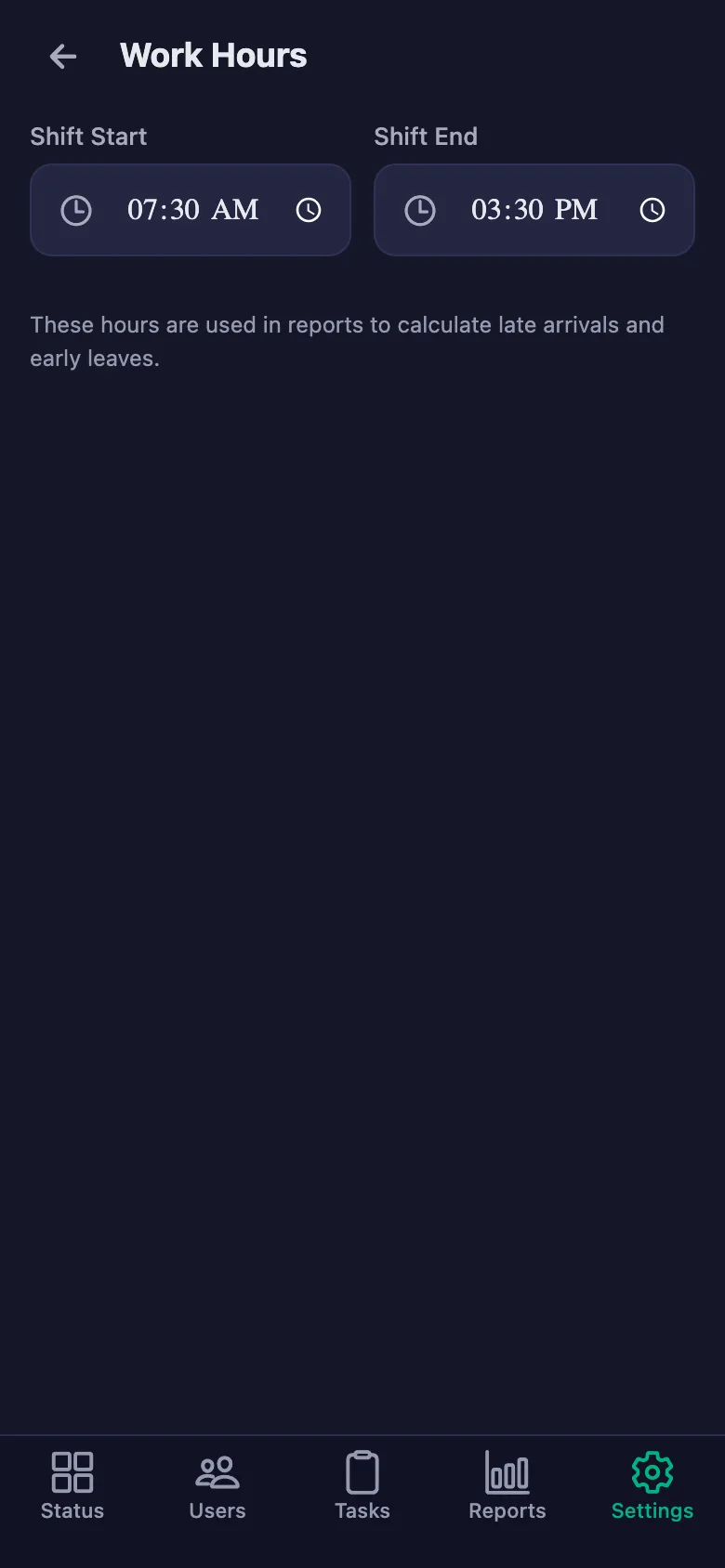
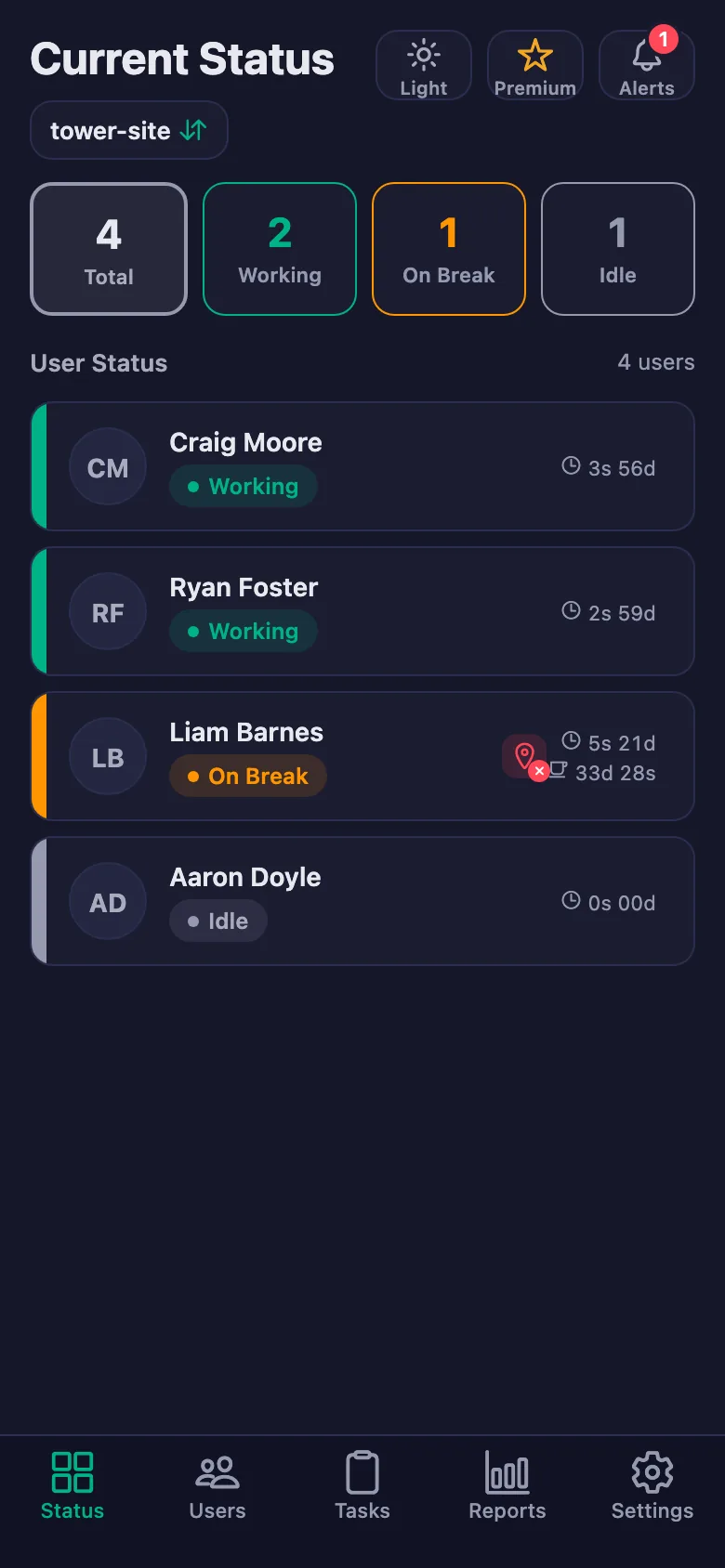
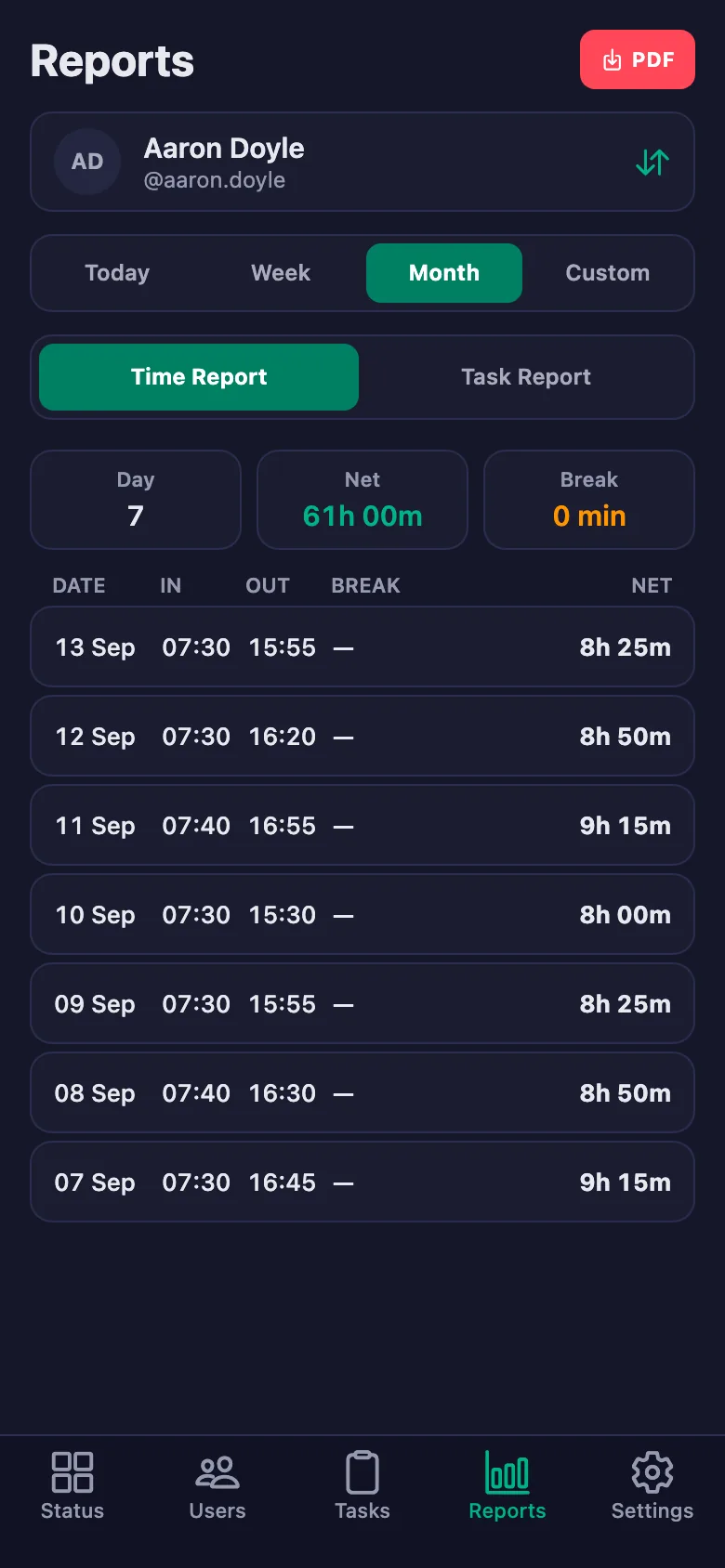
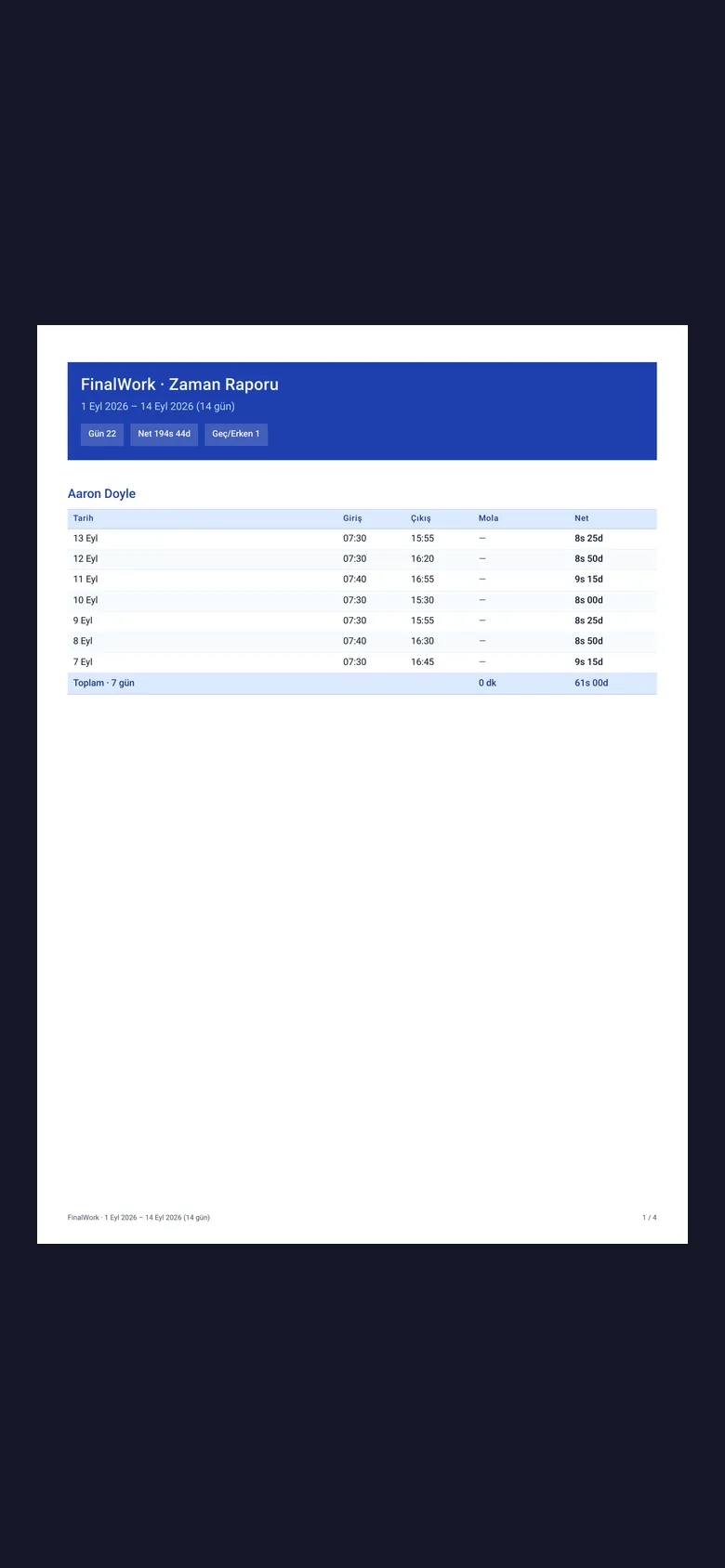
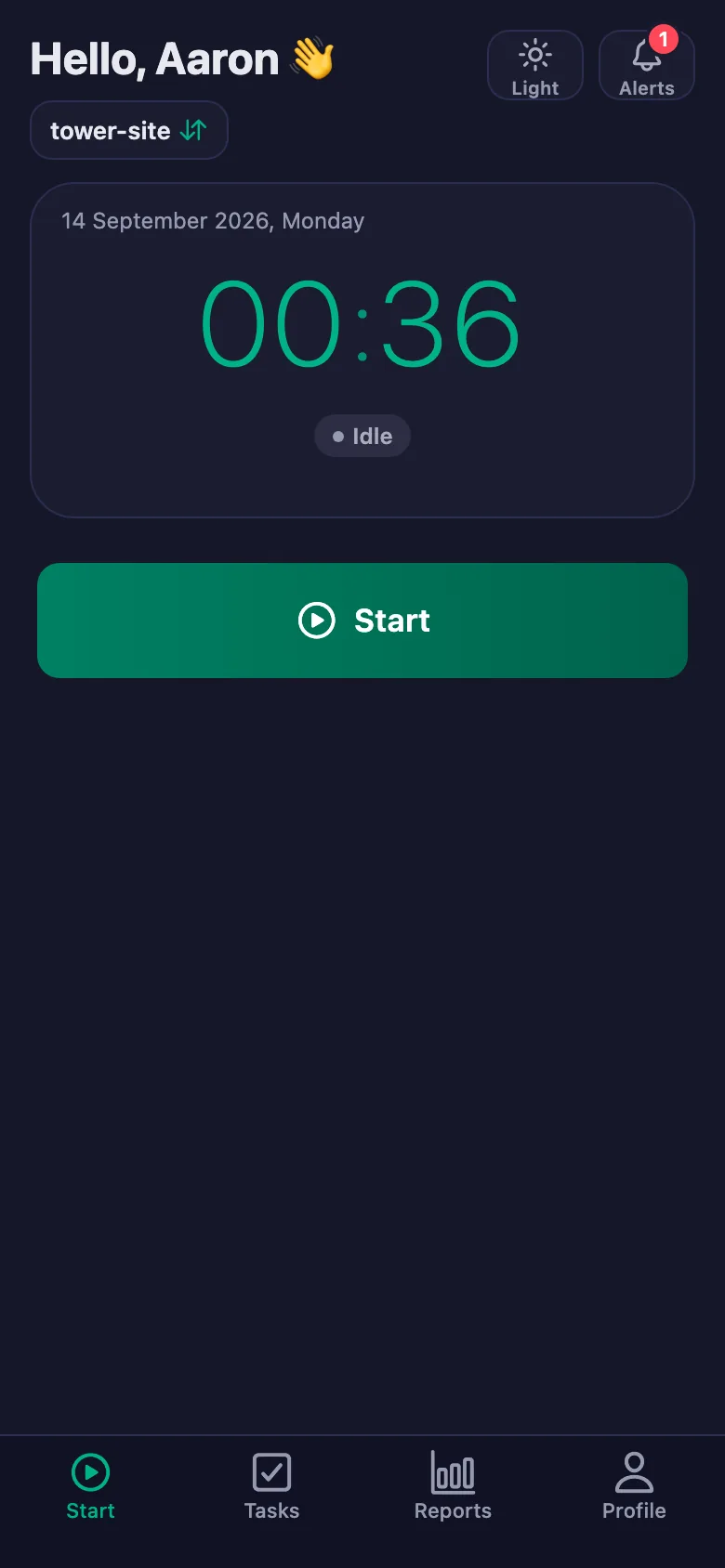
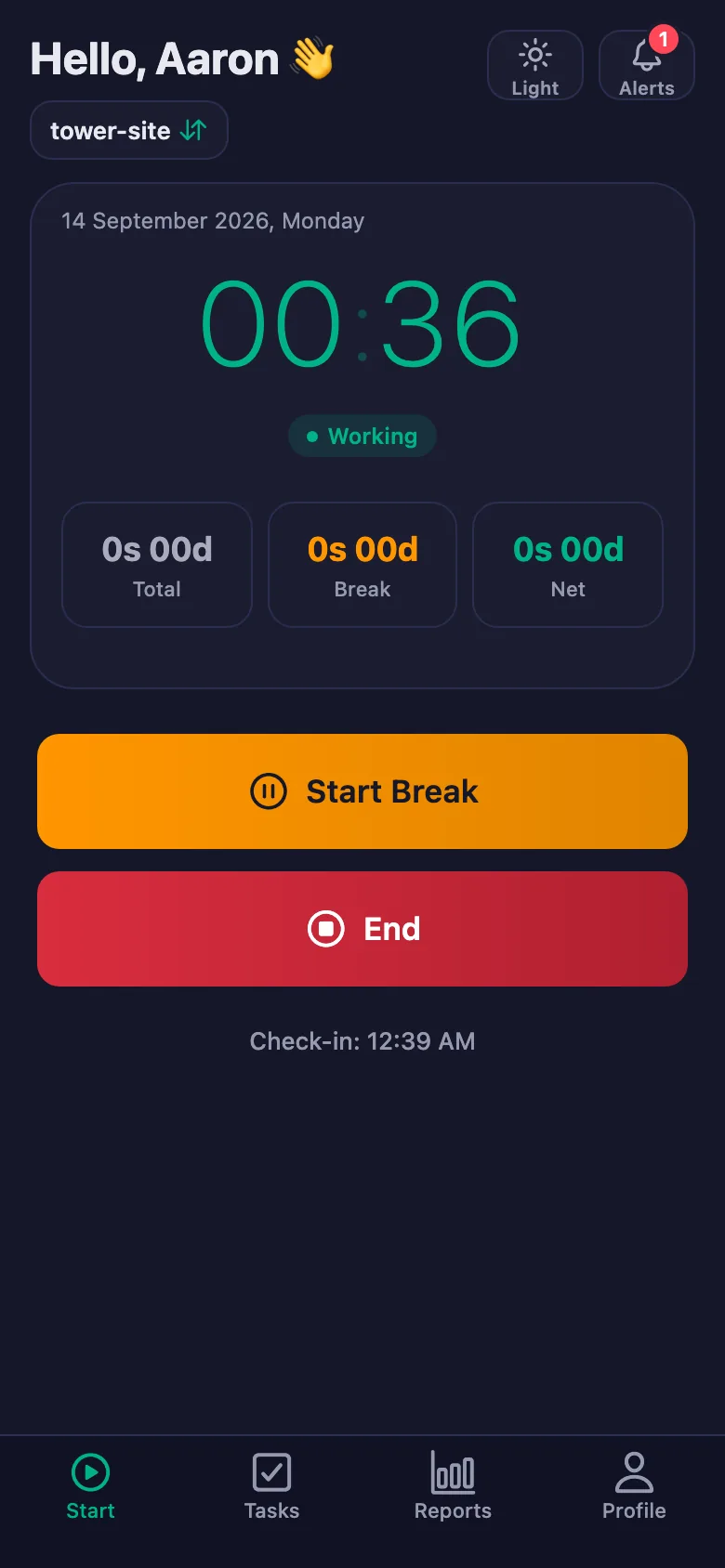
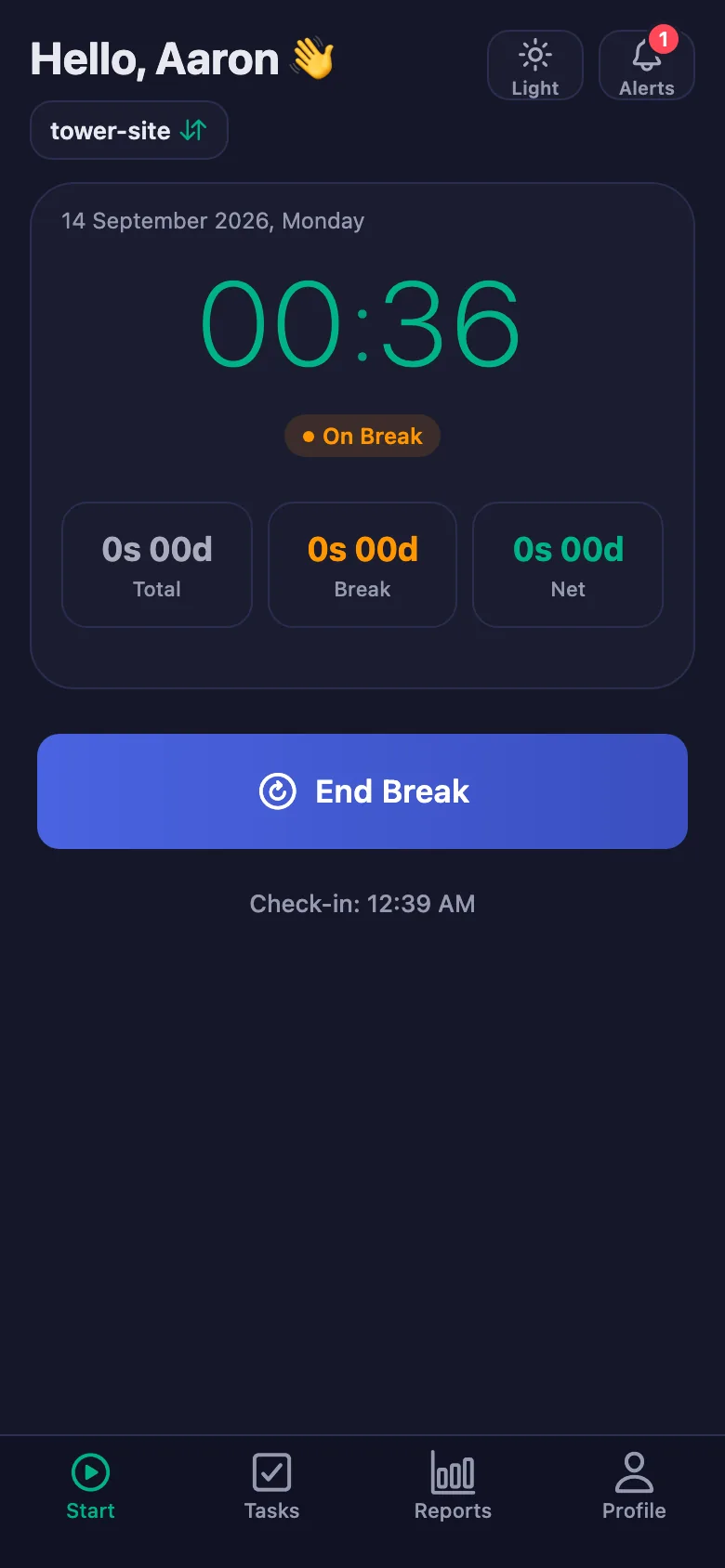
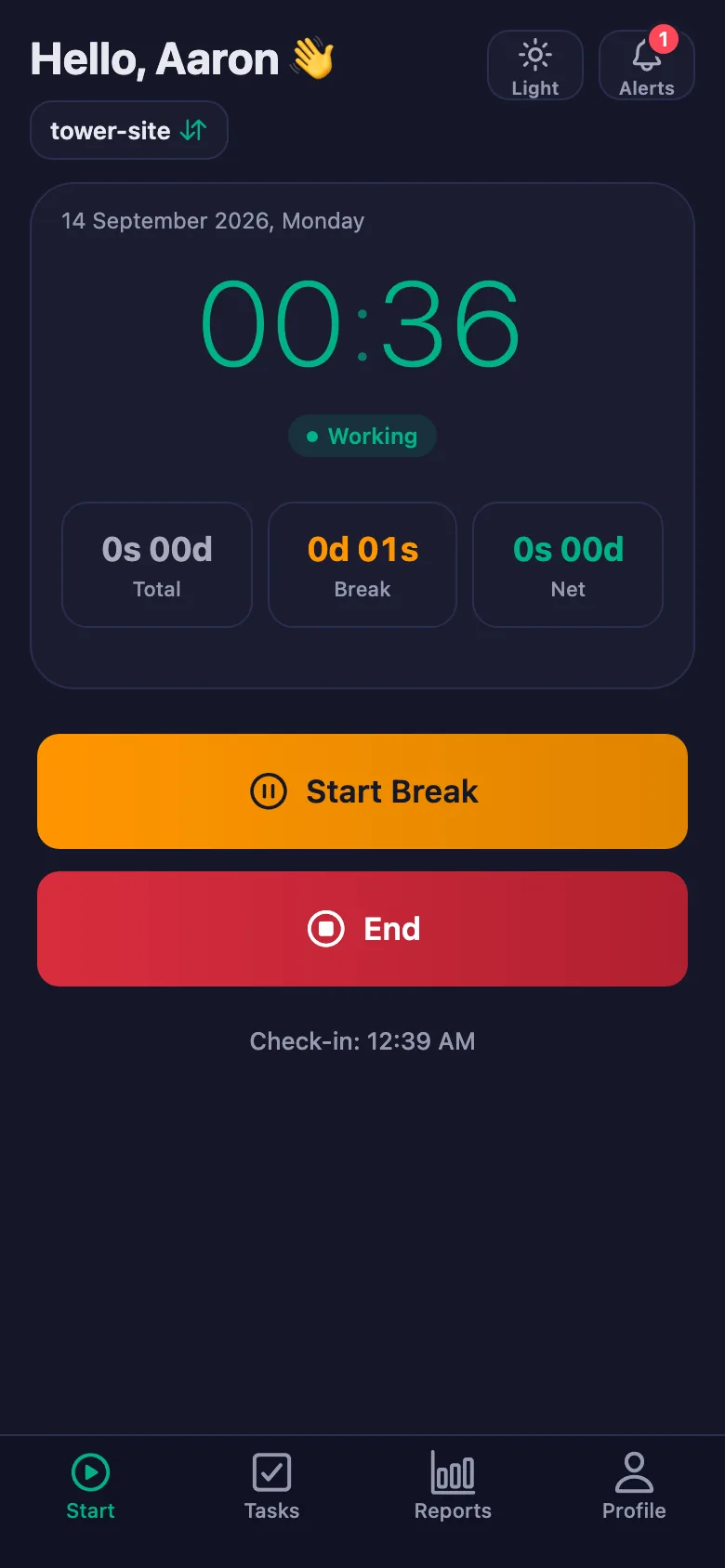
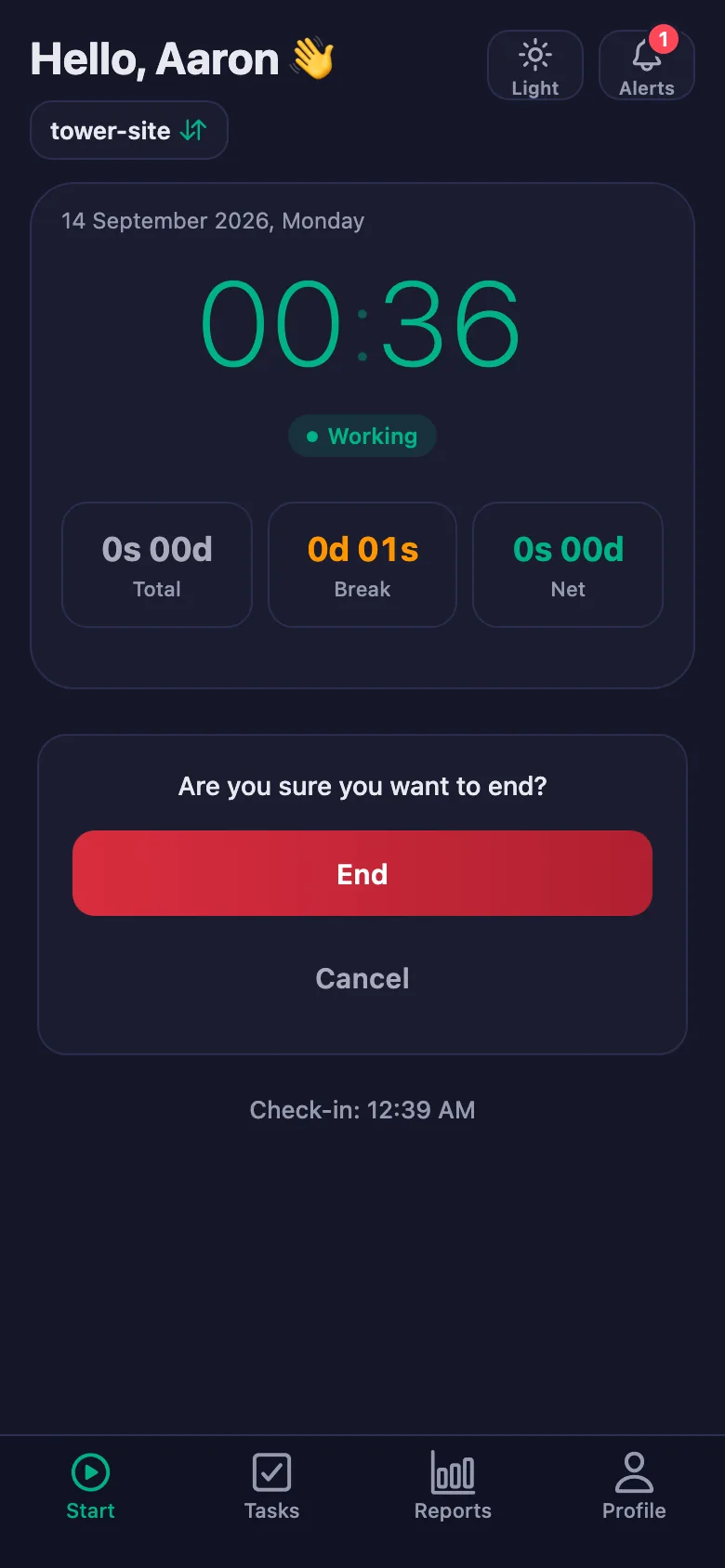
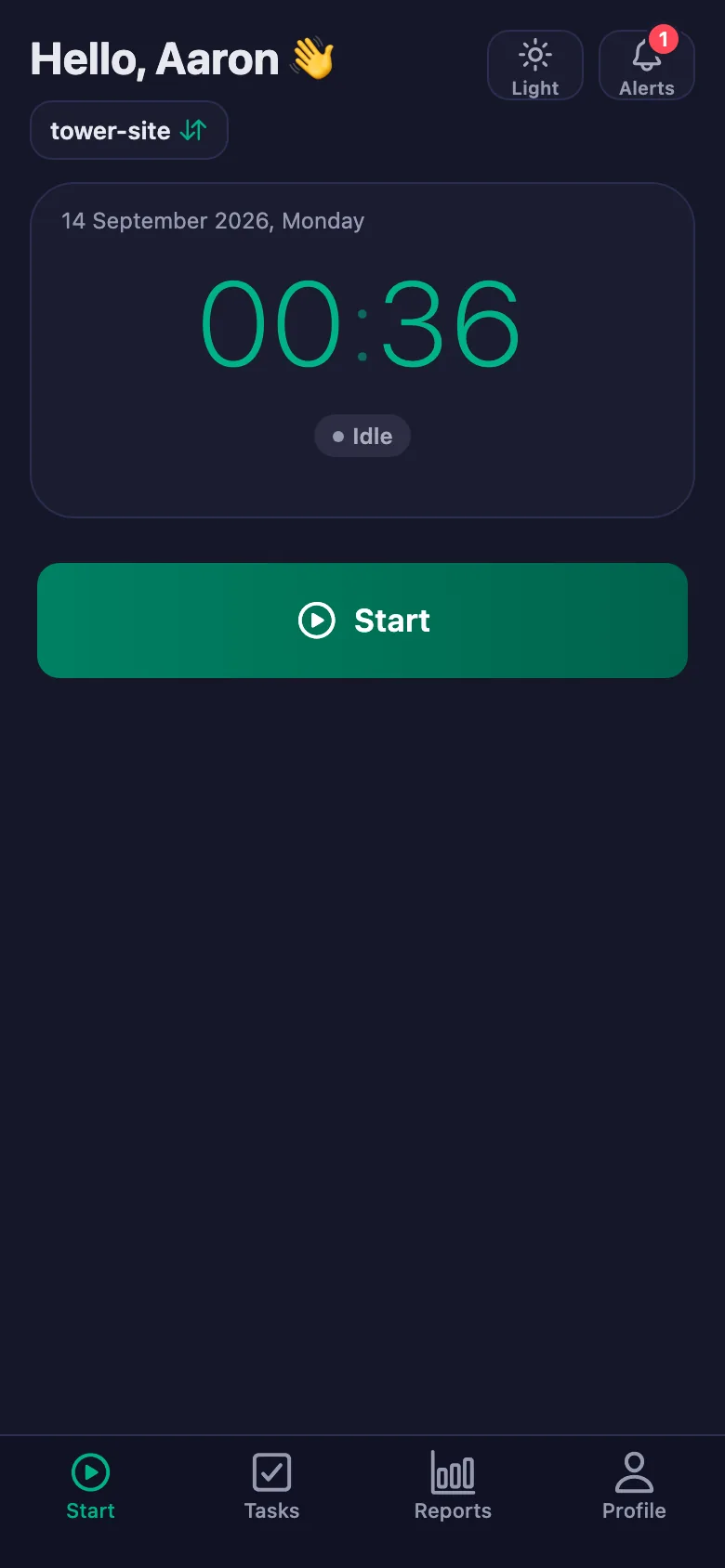
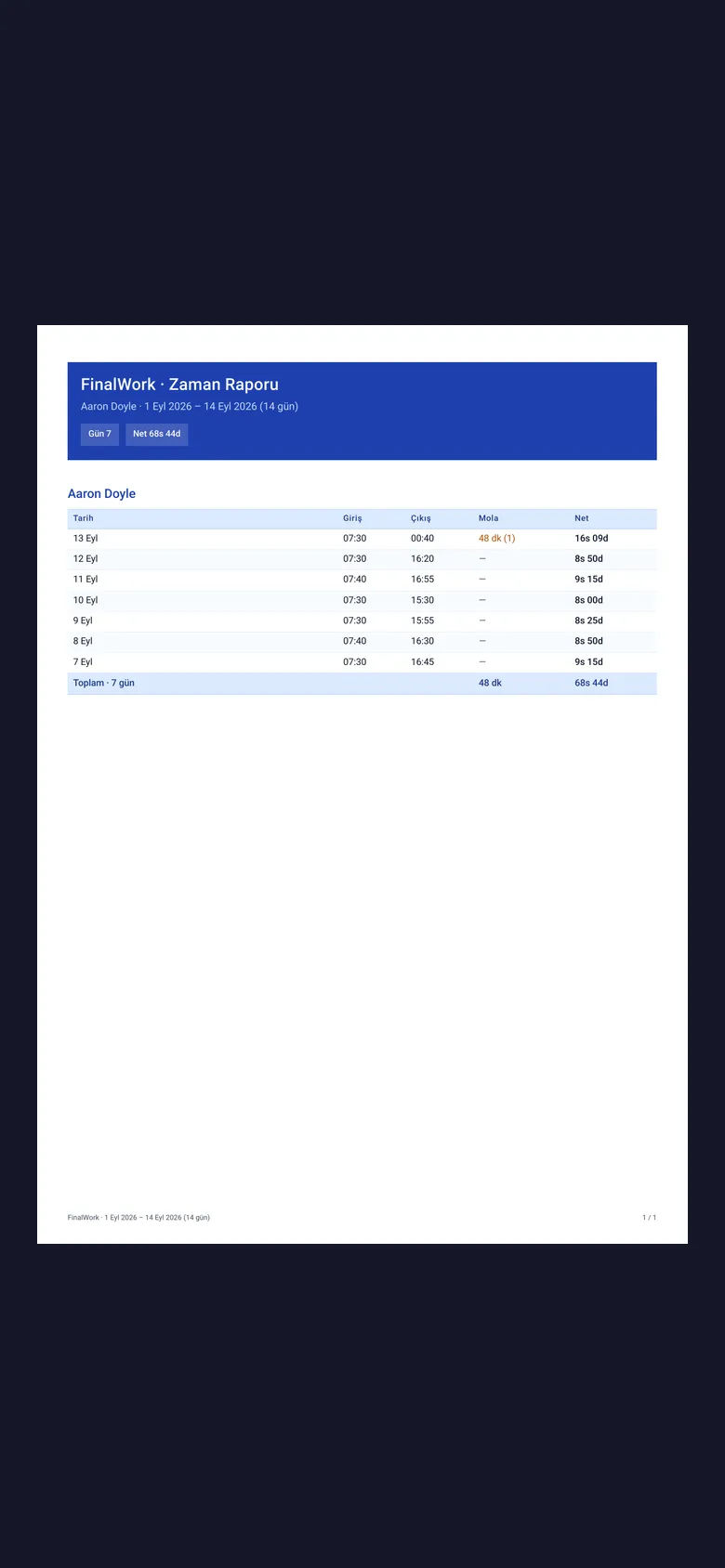
The crew start the timer when they reach the site and stop it when they leave. Arrival time, breaks and net time appear separately in the report.
Whether someone actually made it to the site comes down to trust, and with crews moving between sites it gets tangled fast.
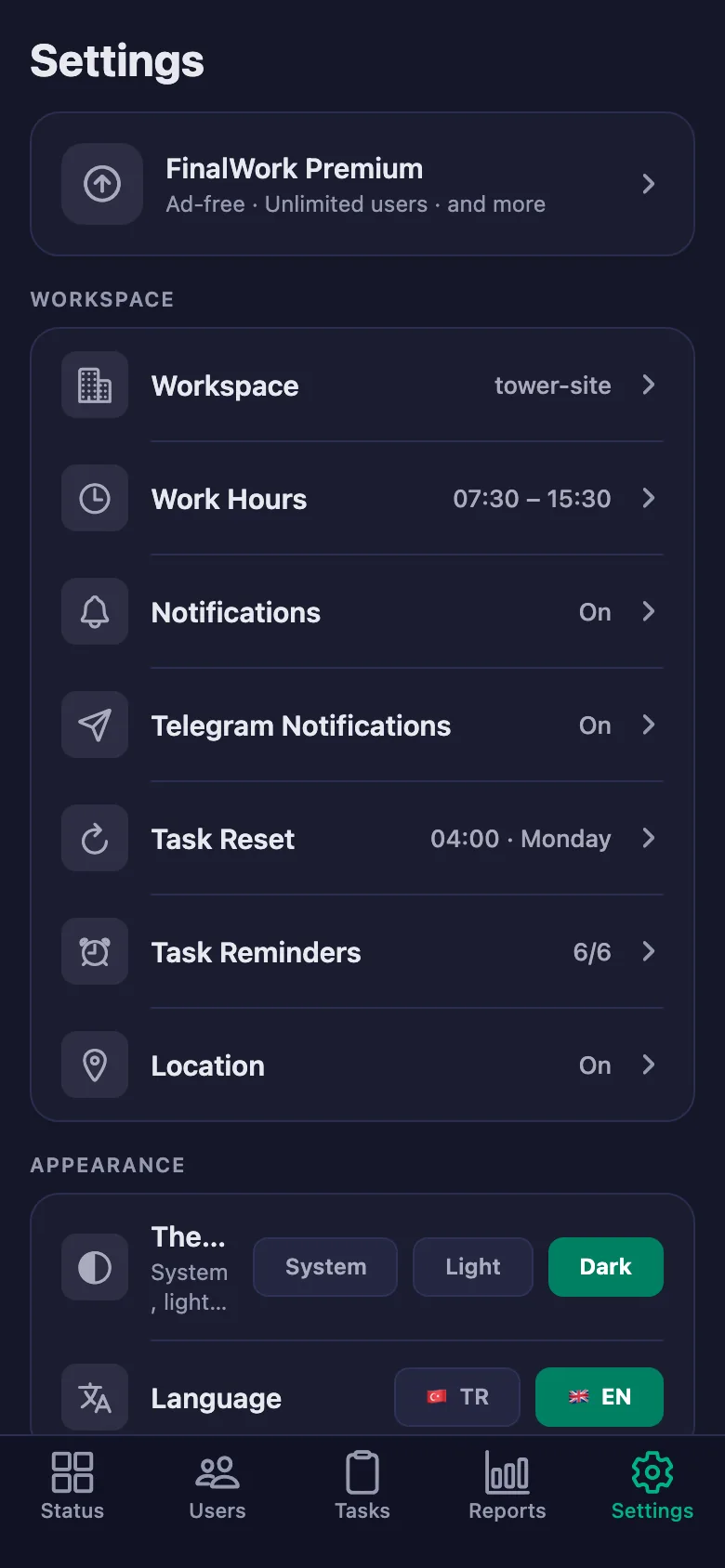
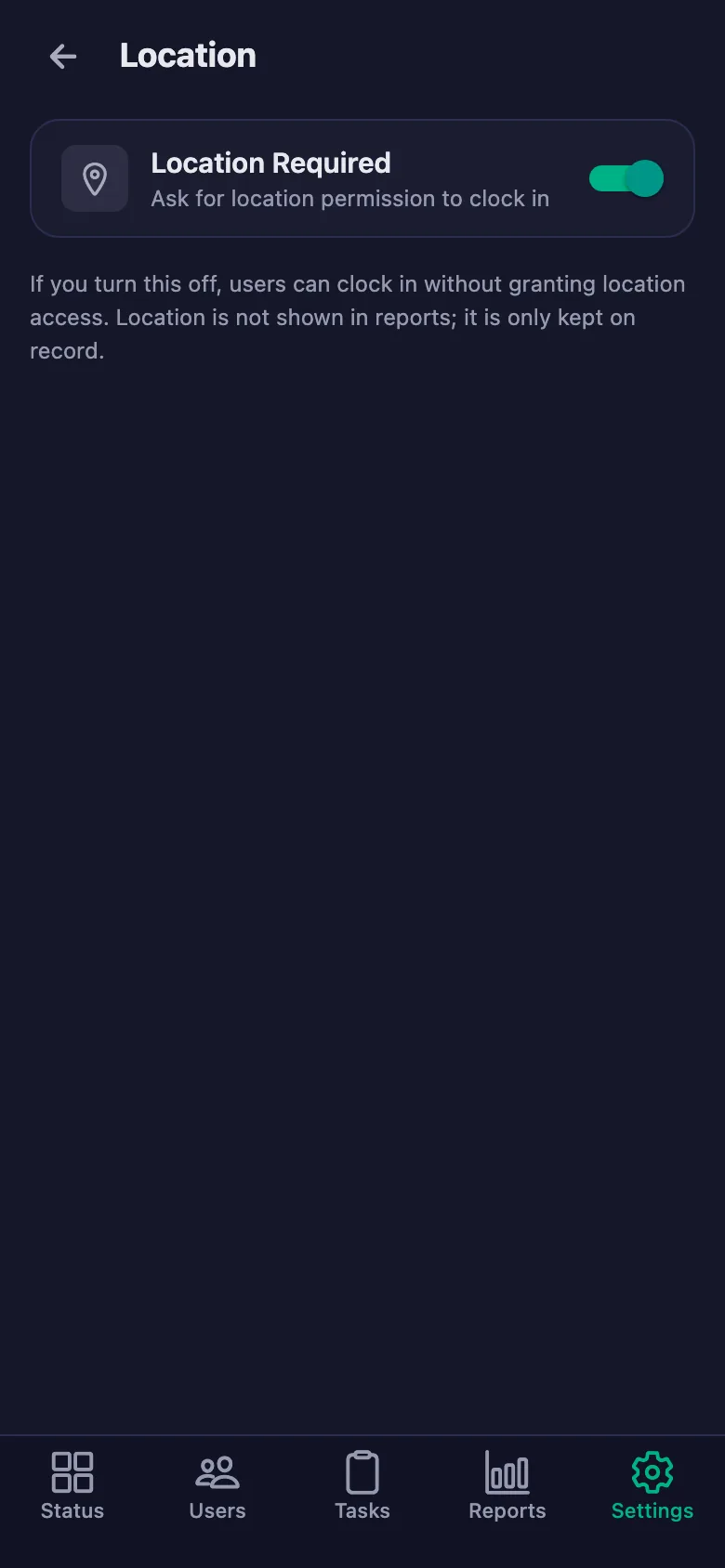
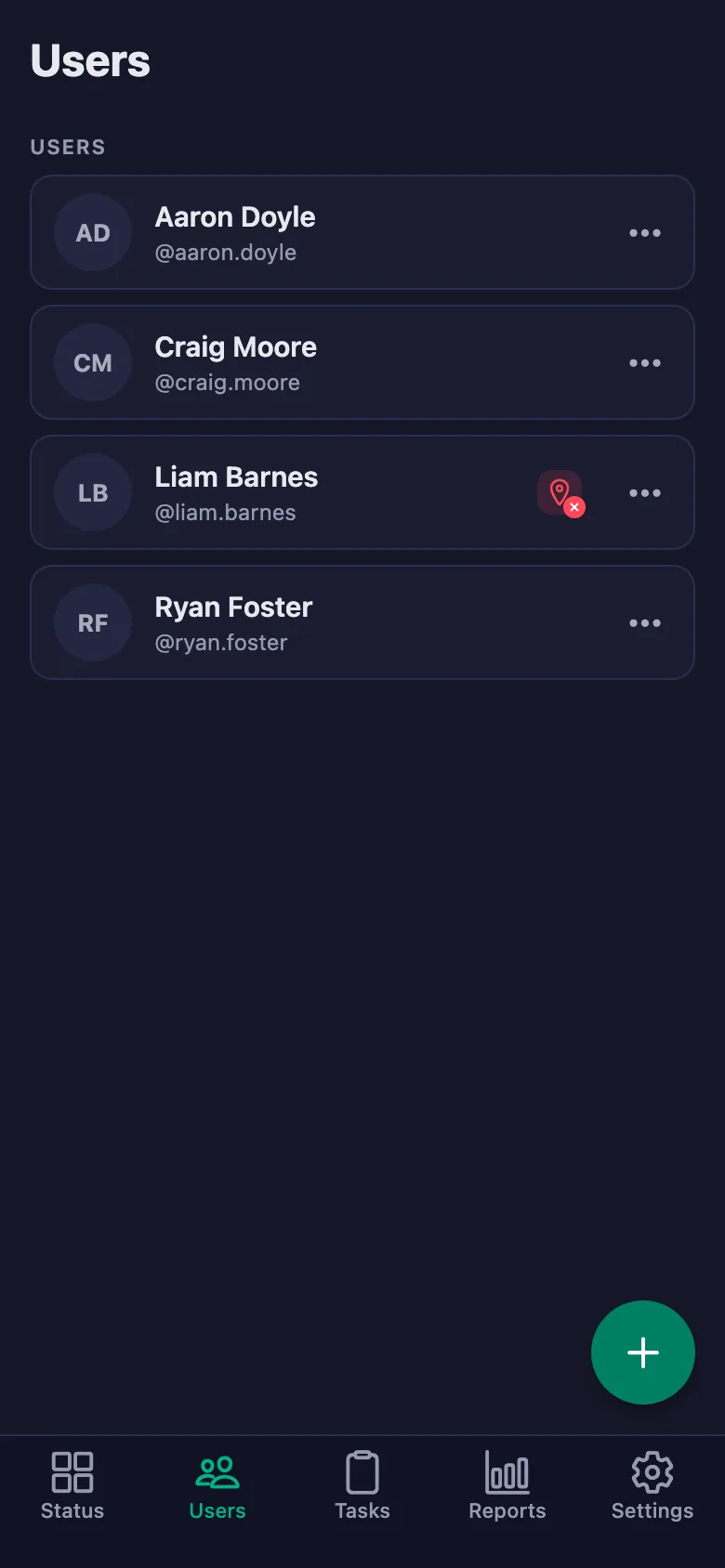
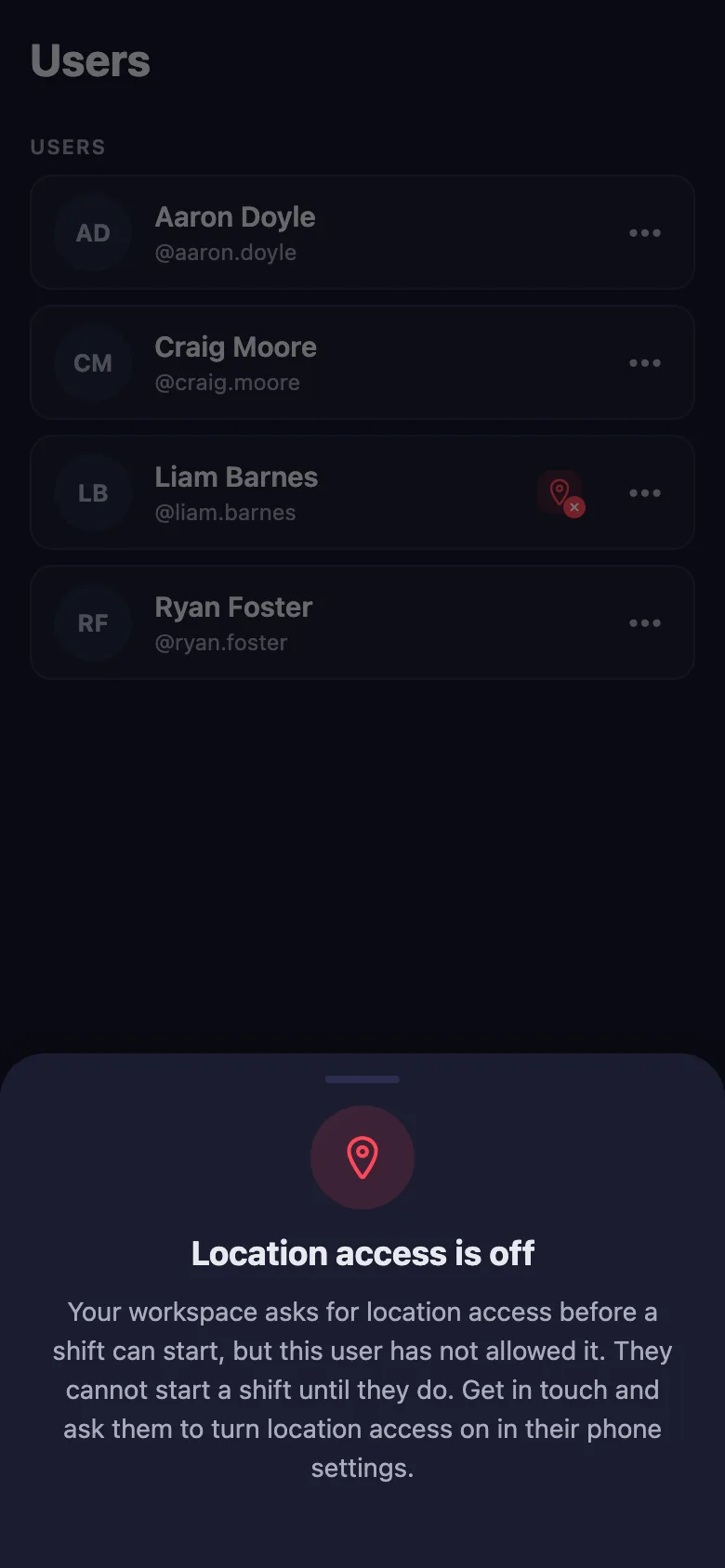
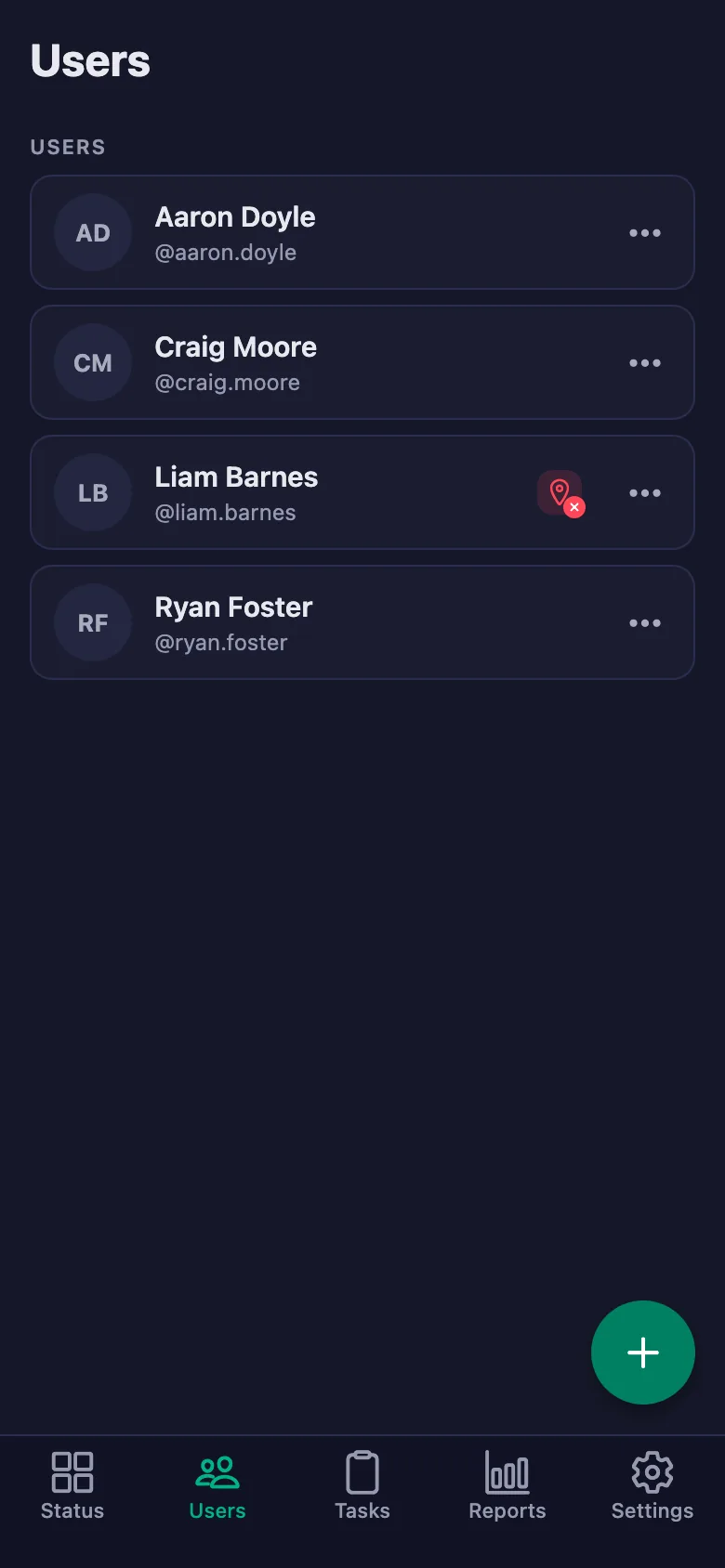
With the location rule on, the timer can only be started inside the site boundary. Anyone who hasn't given location permission shows up with a warning badge.
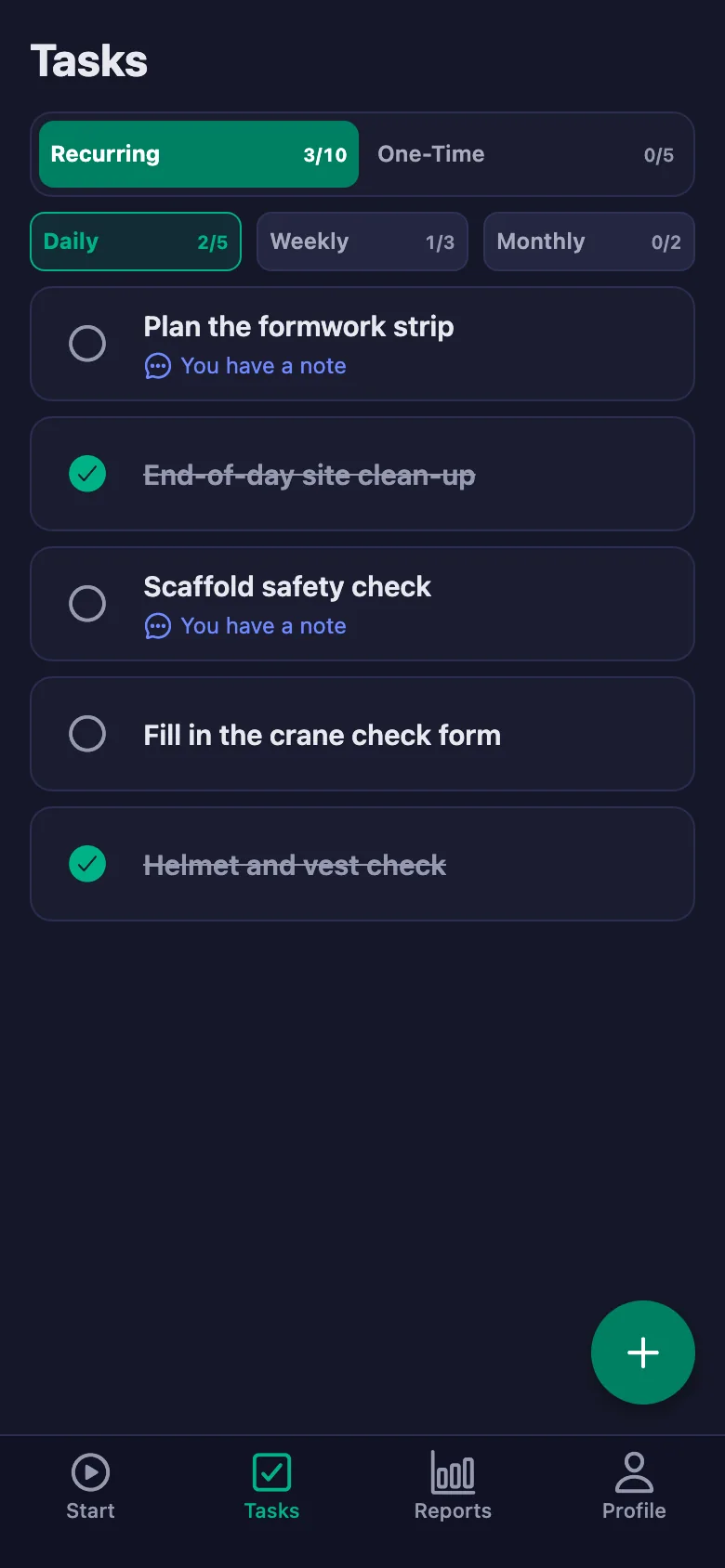
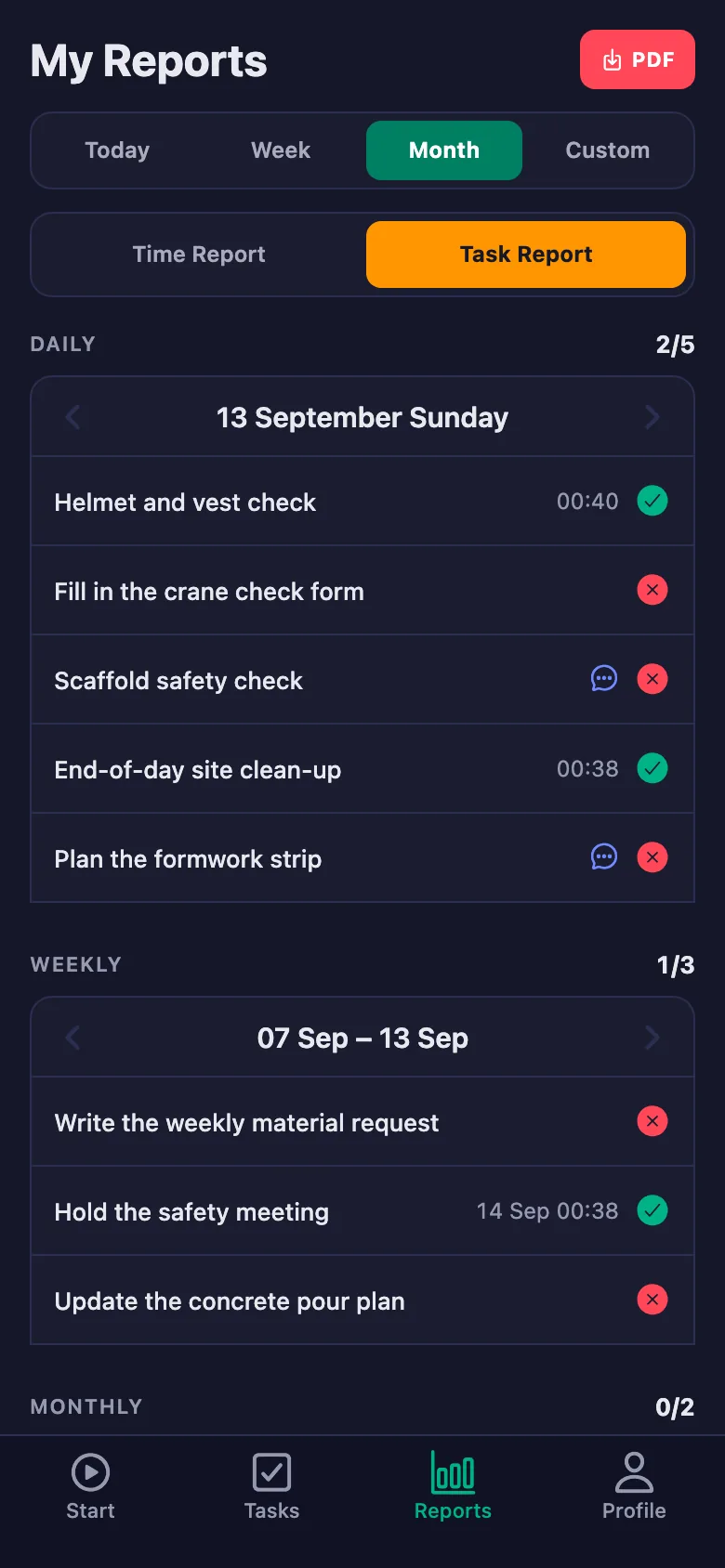
Helmet checks, scaffold safety and the crane form happen every day but leave no record. At an inspection, “we did it” is not enough.
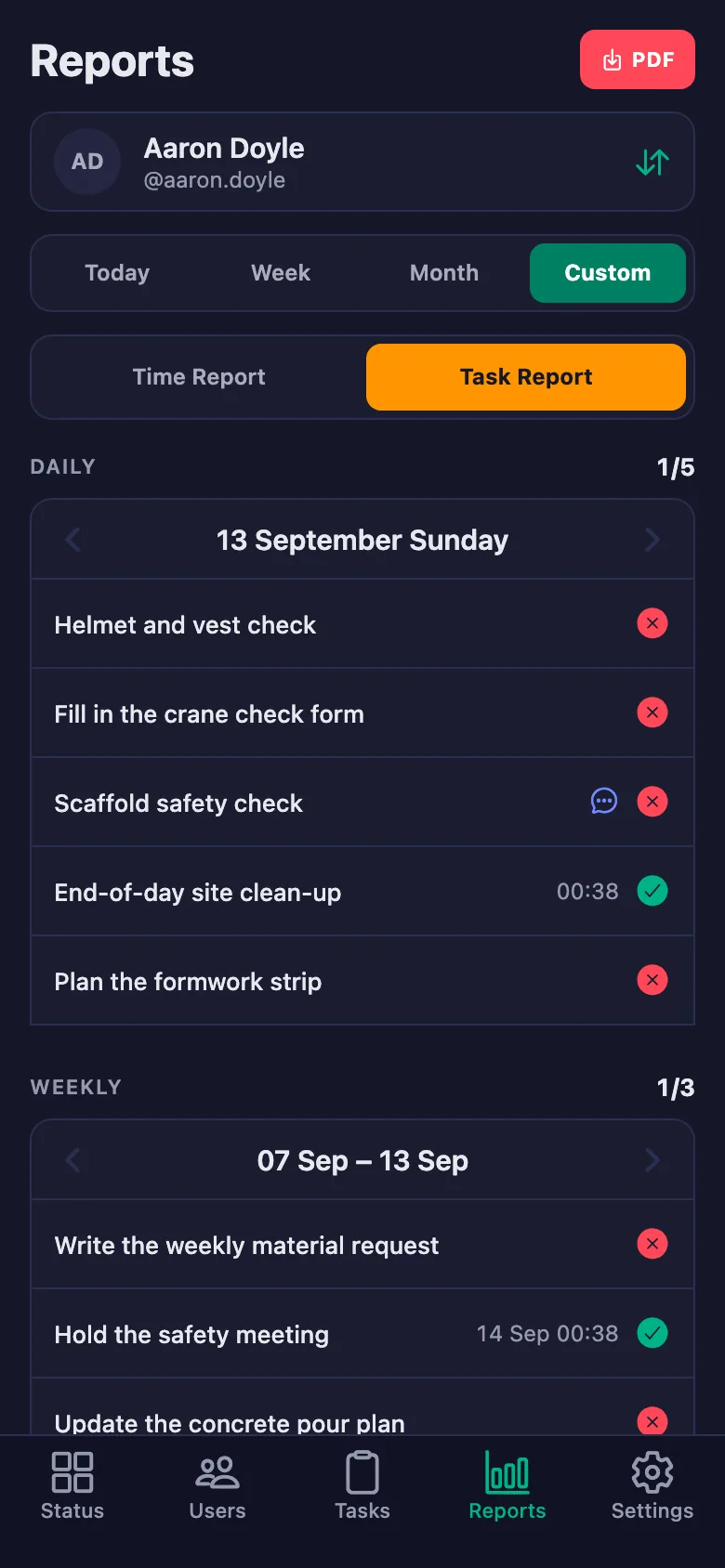
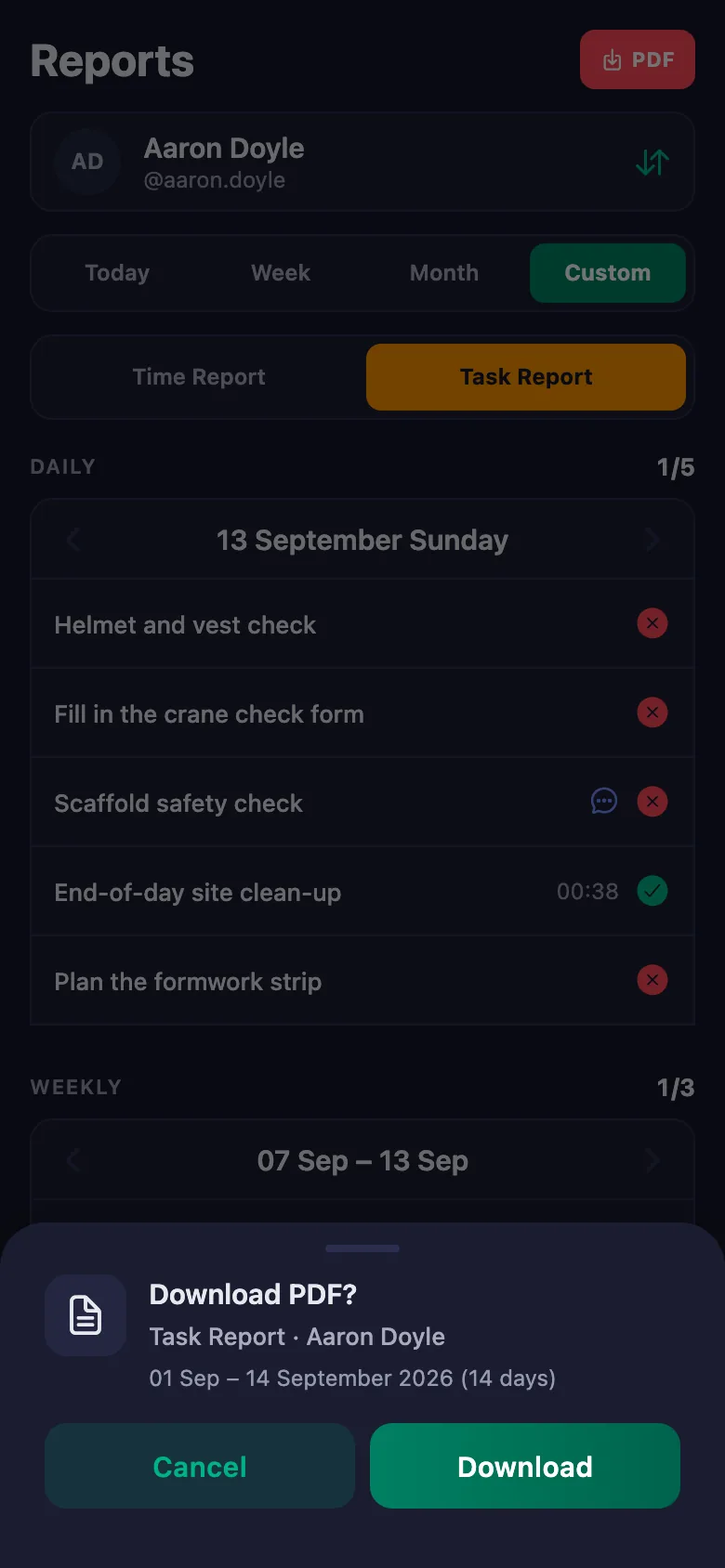
Every check sits there as a daily task; who ticked it, and when, goes on the record. Pick a date range and it comes out as a PDF you can hand over.
Findings like a missing guard rail or faulty equipment get said over the radio and disappear during the day.
The crew write a note under the task: which floor, what is missing. The note sits on your screen, and only the person who wrote it can change it.
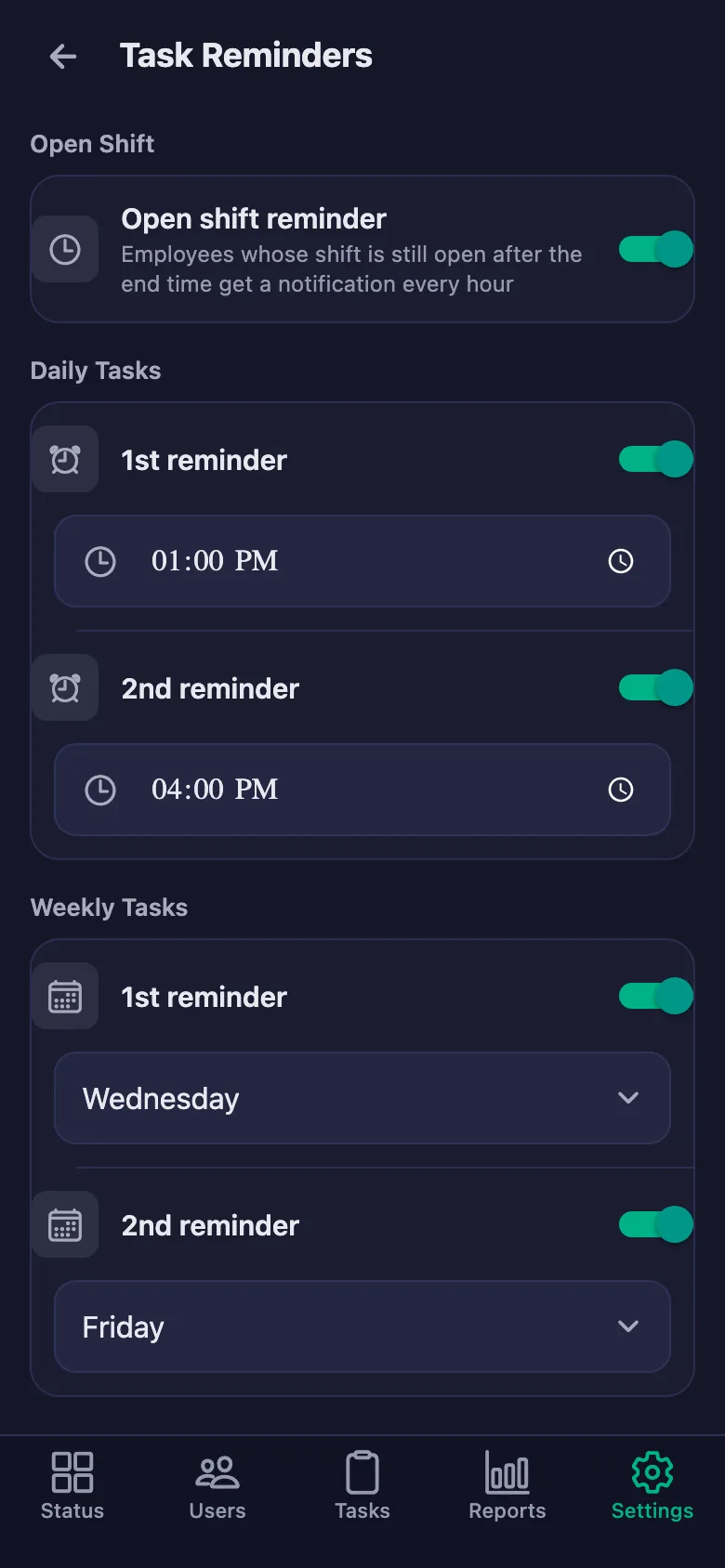
End-of-day clean-up and closing checks get forgotten, and reminding means ringing round.
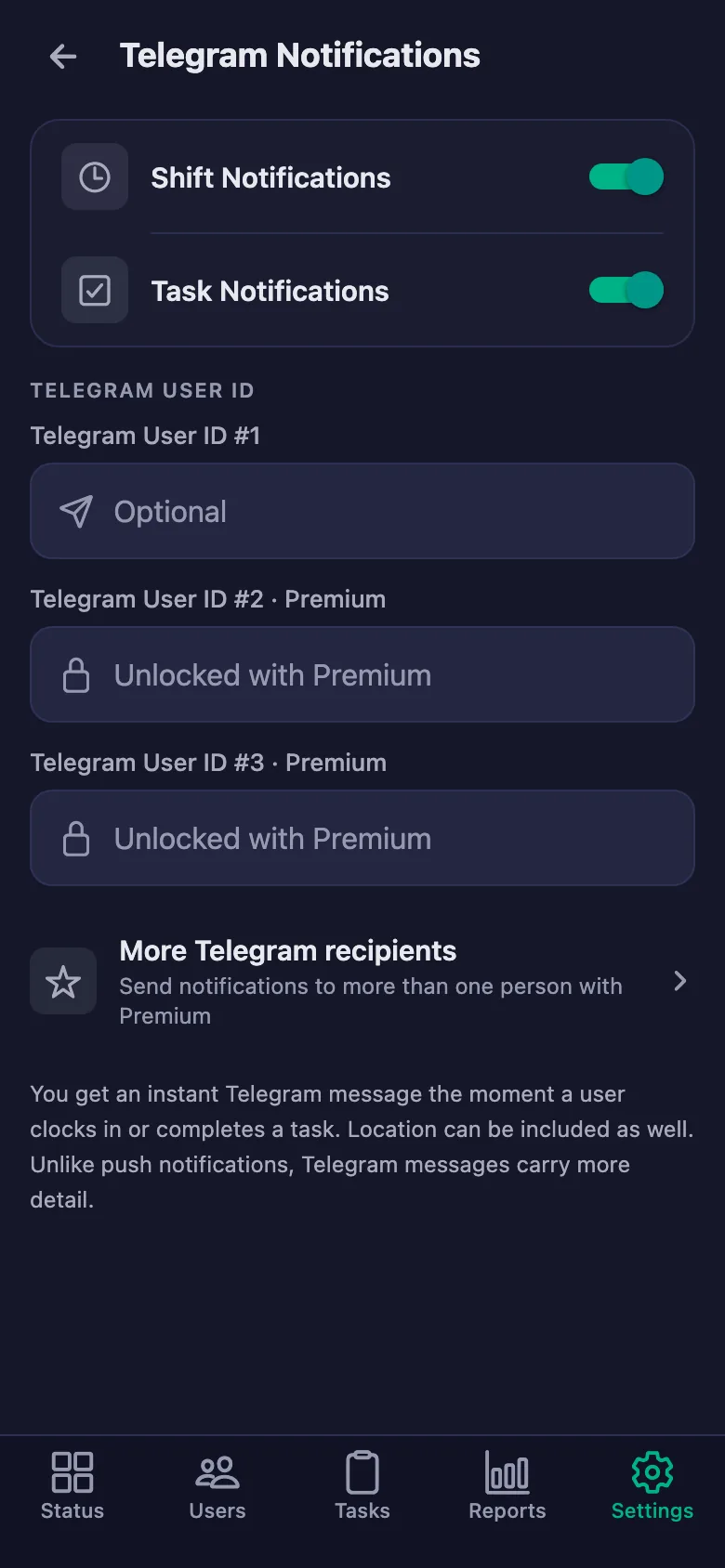
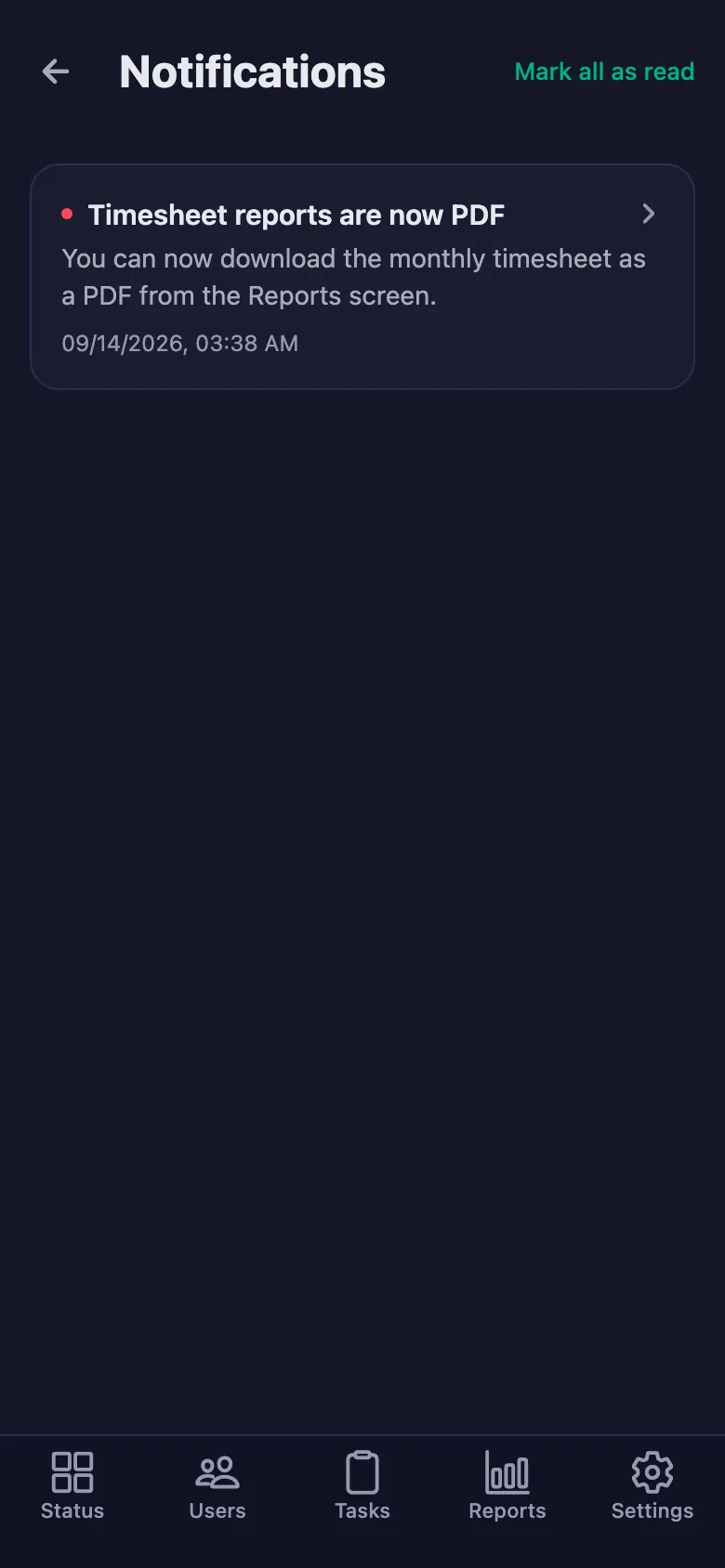
You set the reminder times. If a check is still undone at that hour, a notification lands on the crew's phones.
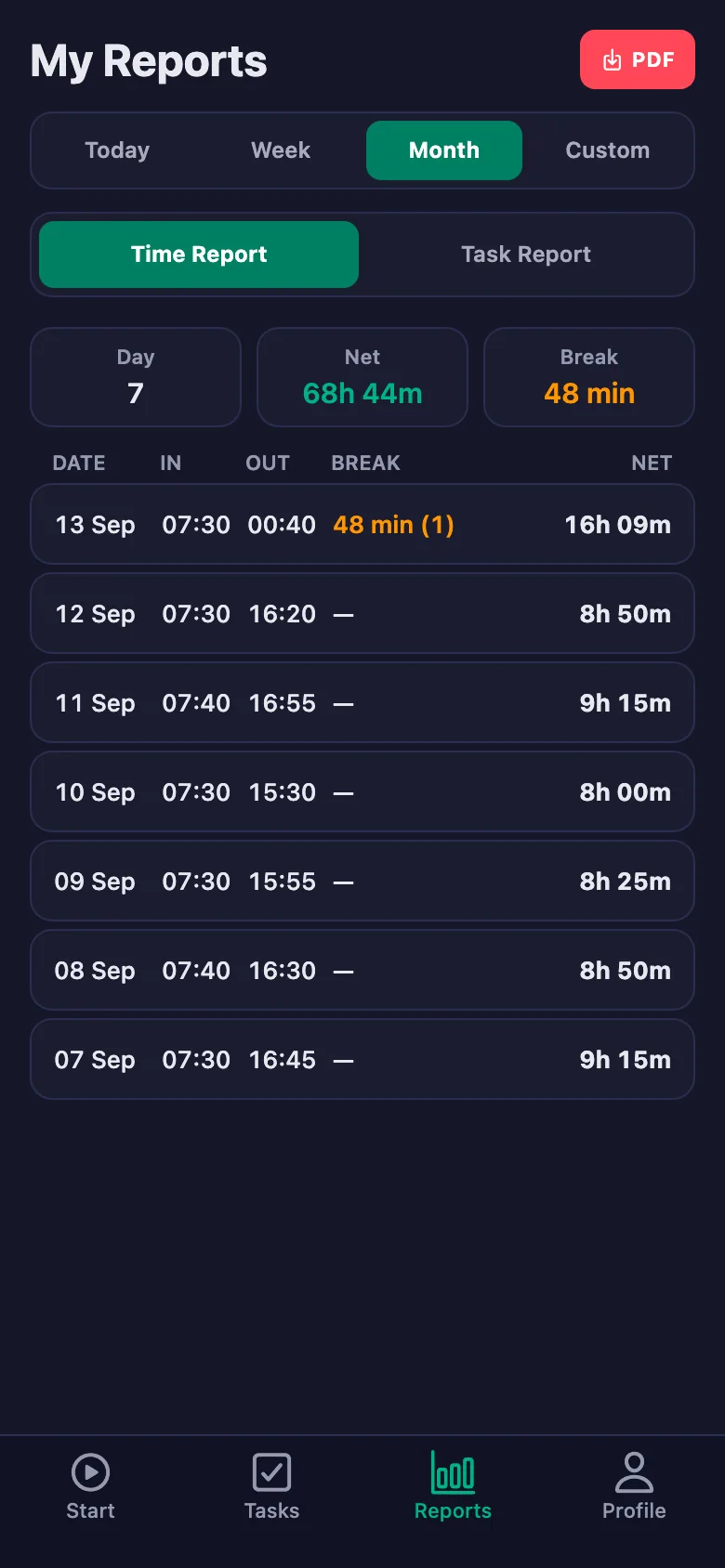
Collecting day-by-day timesheets for the progress claim takes days.
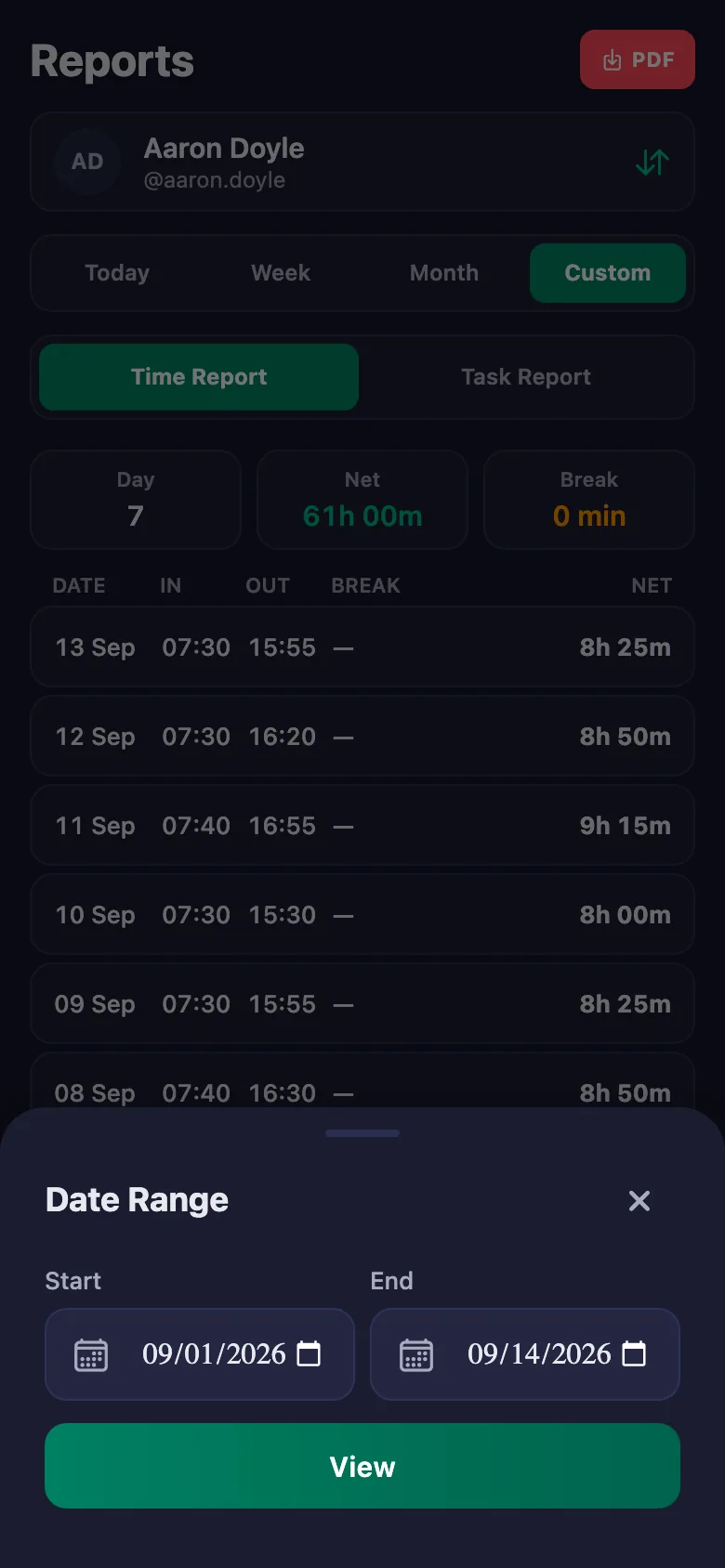
You pick a date range and the report appears on screen. You download the same report as a PDF and put it in the file.
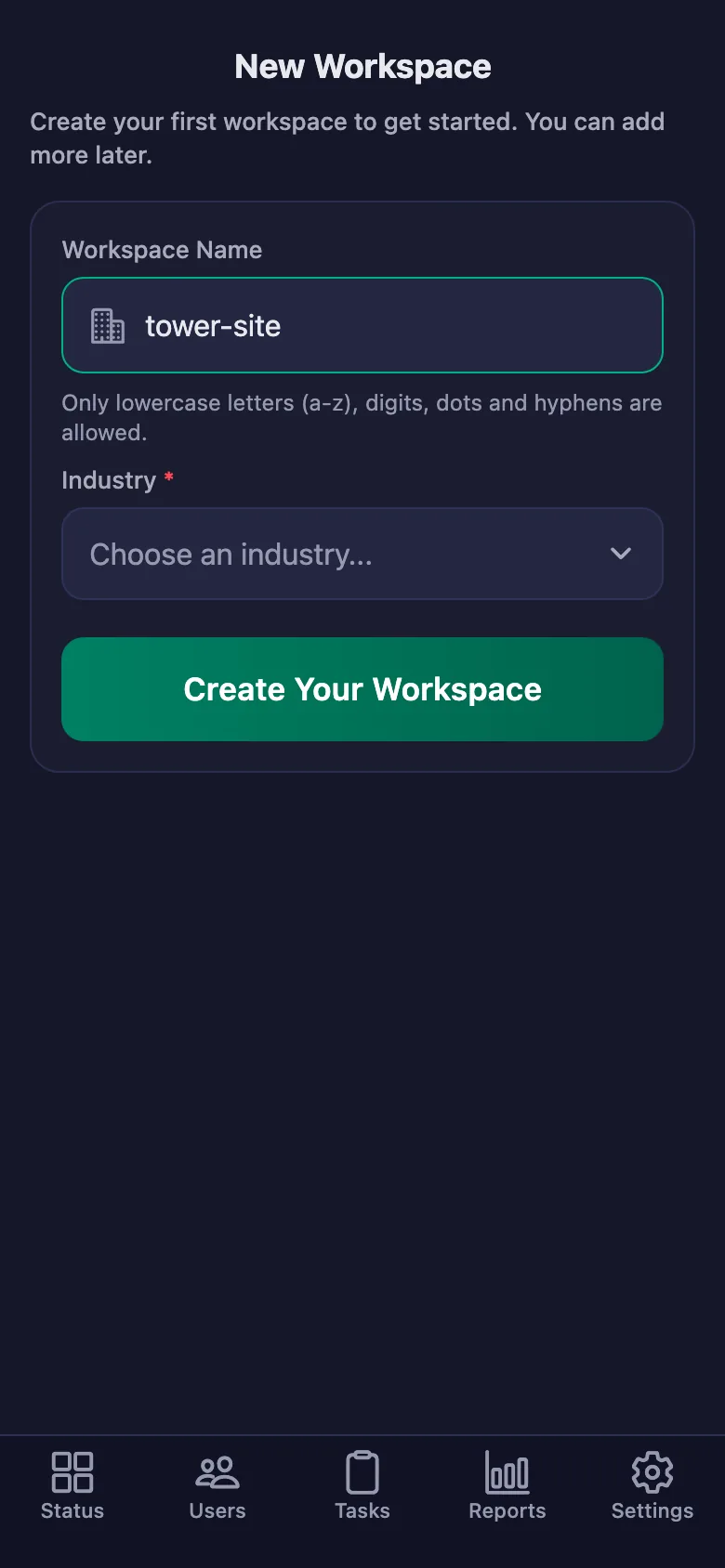
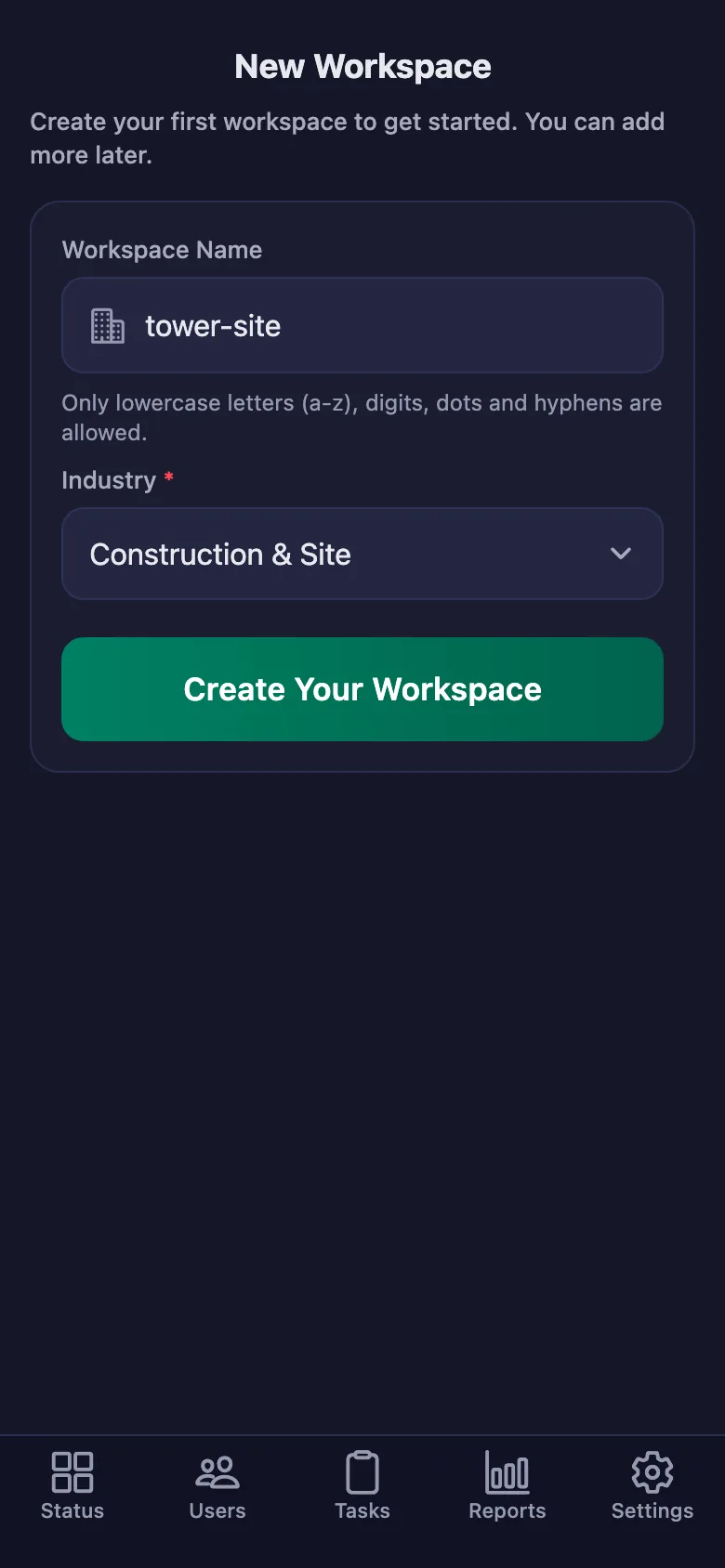
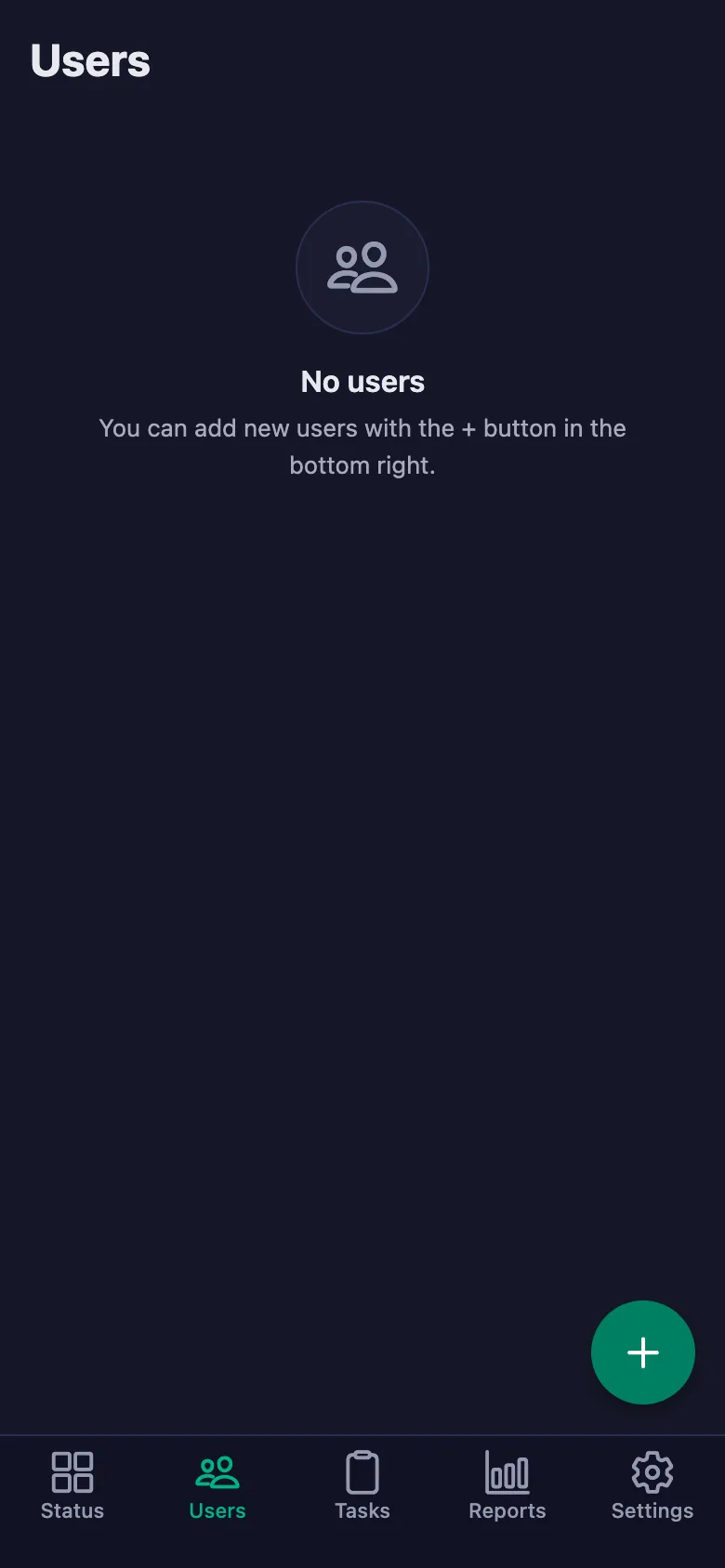
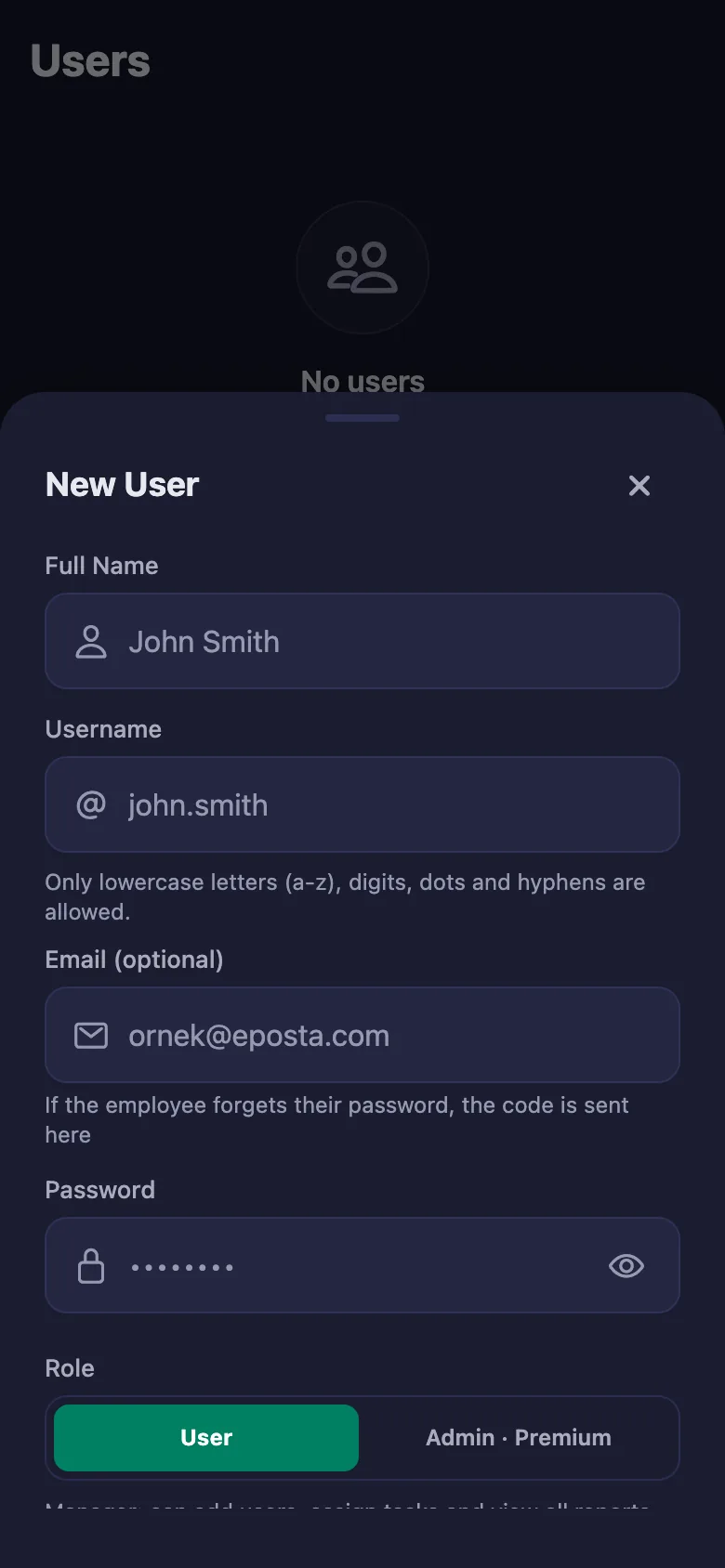
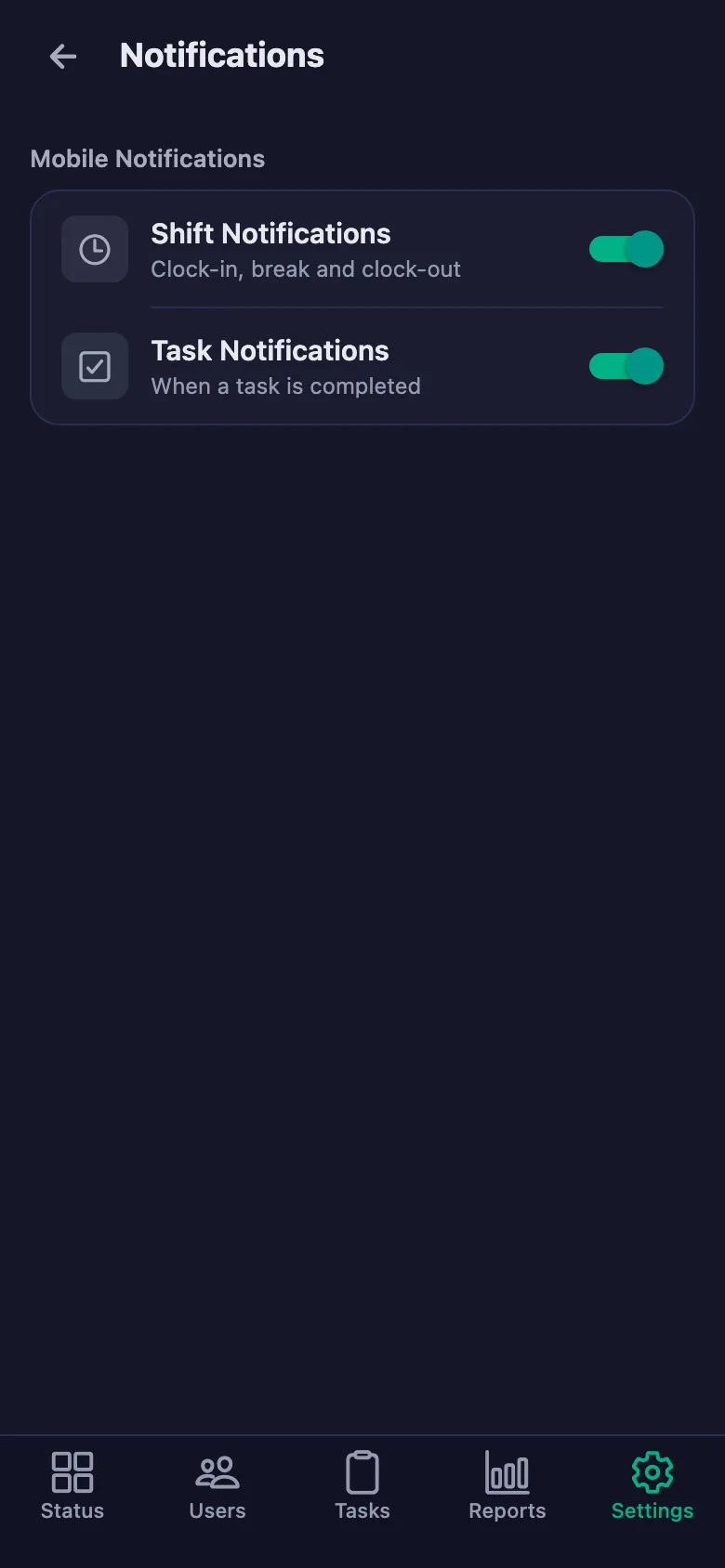
Setup and activation take just one minute — you can start free. Below you can watch the whole flow on the app's real screens.
Site Manager – Field Crew App Demo
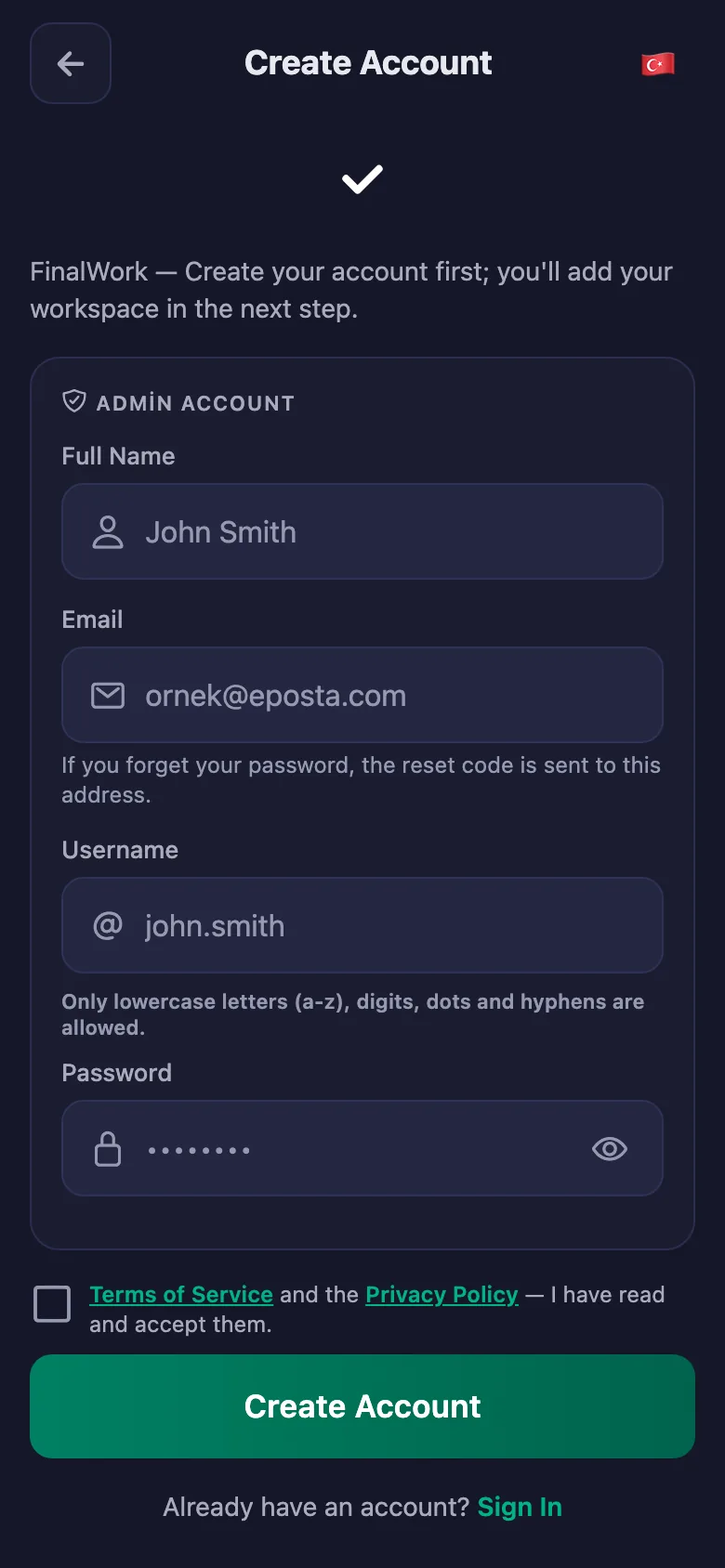
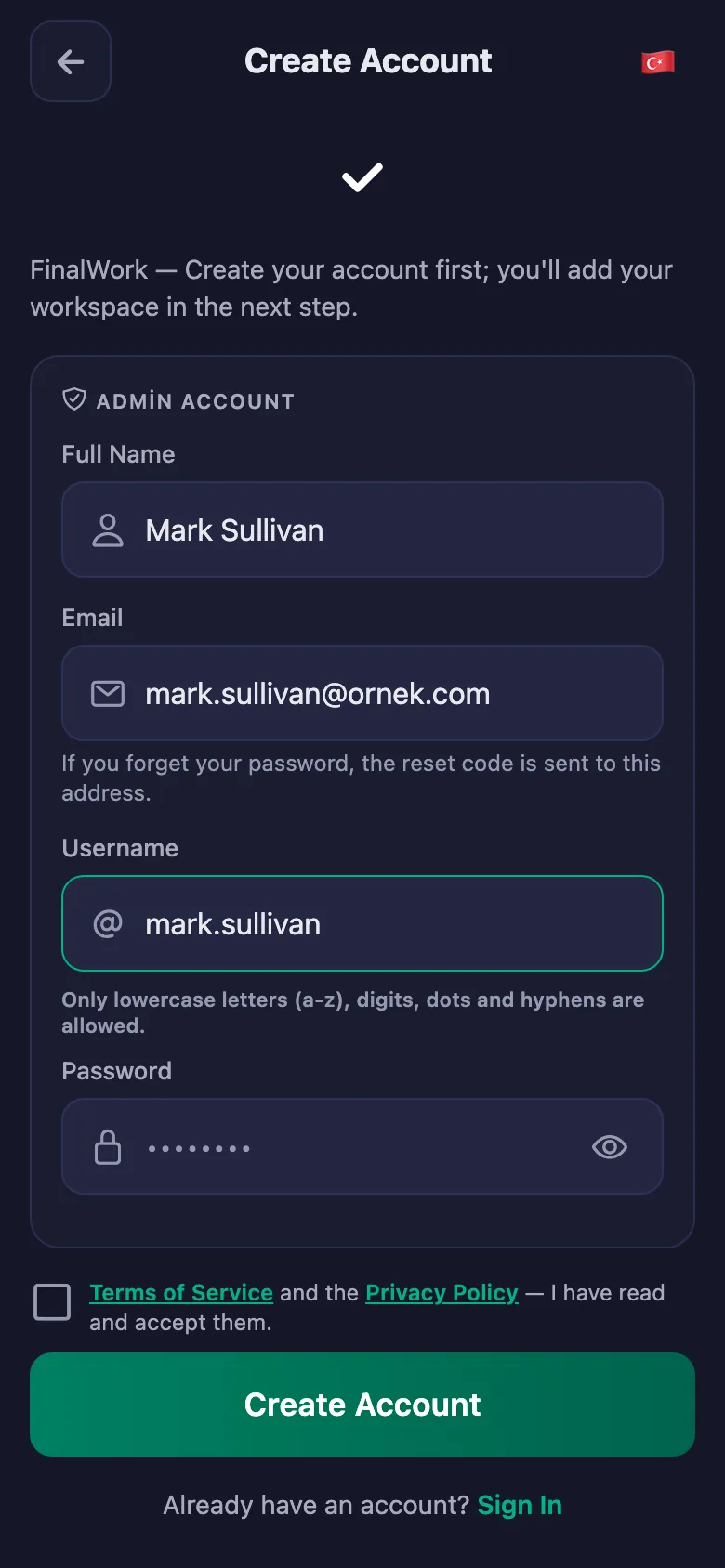
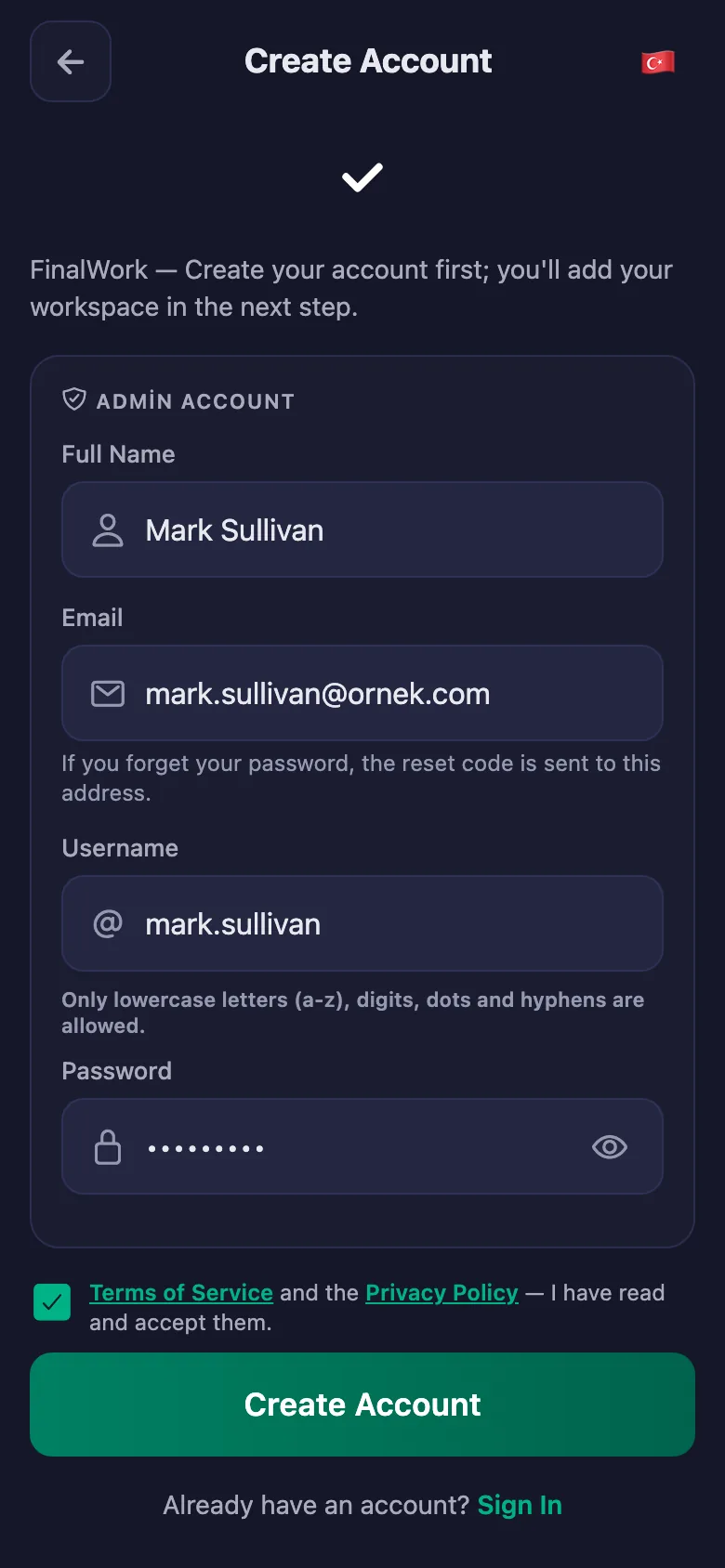
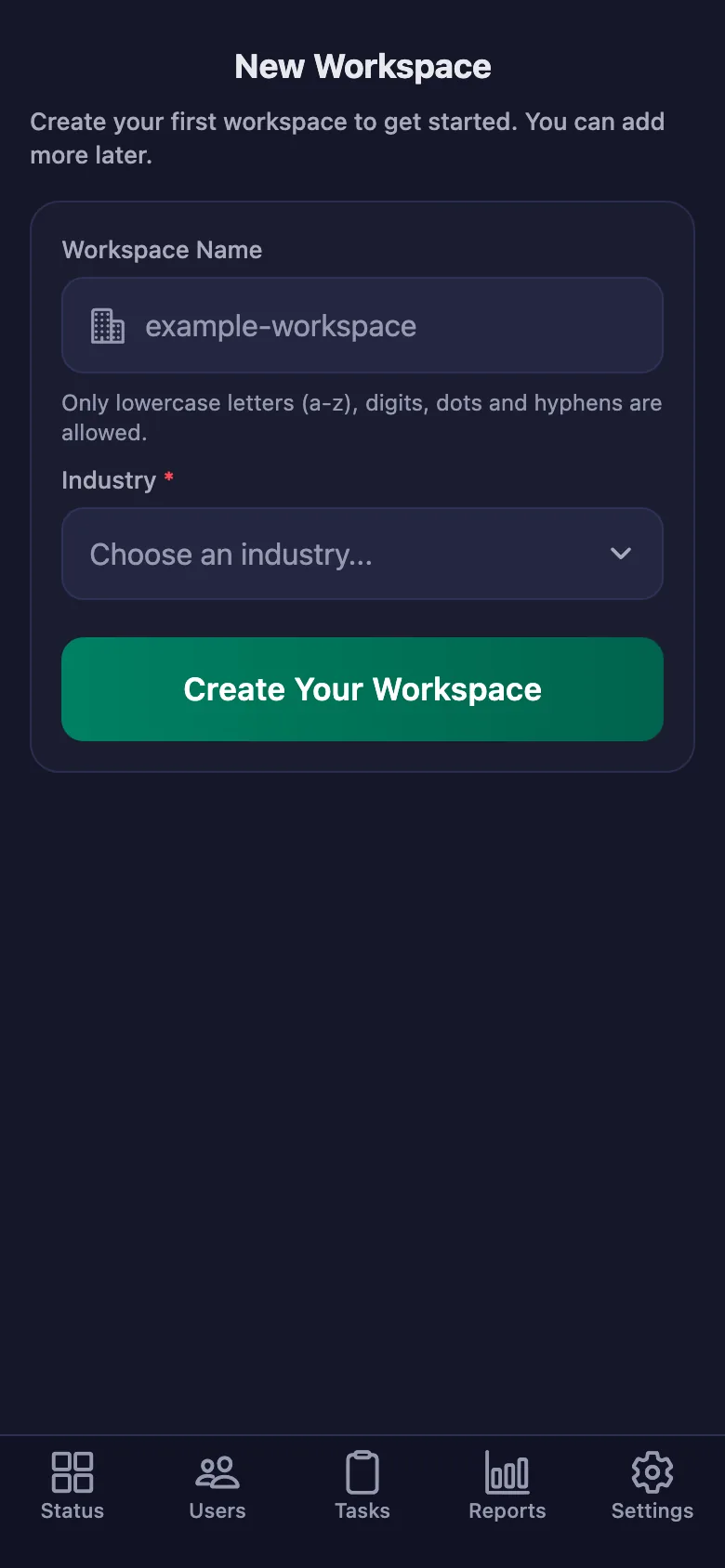
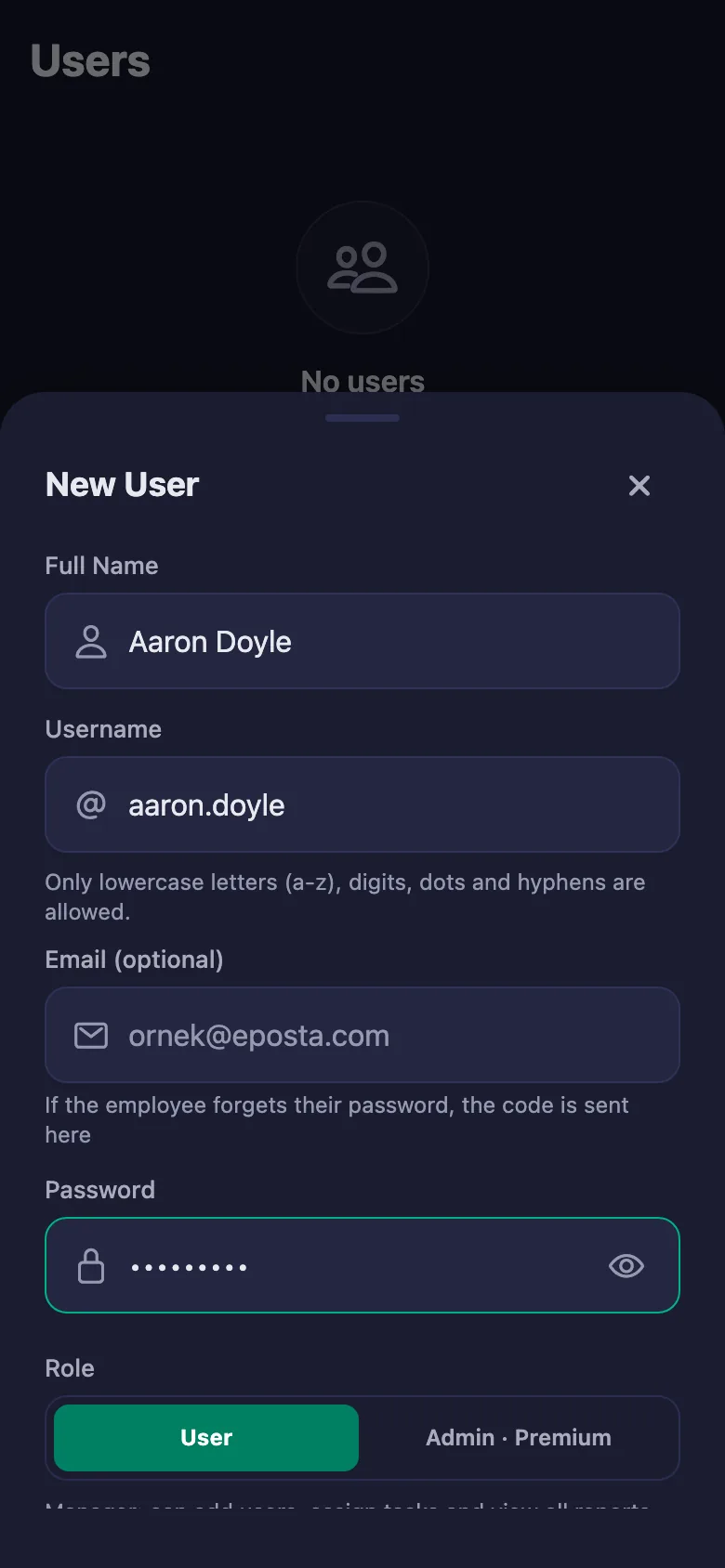
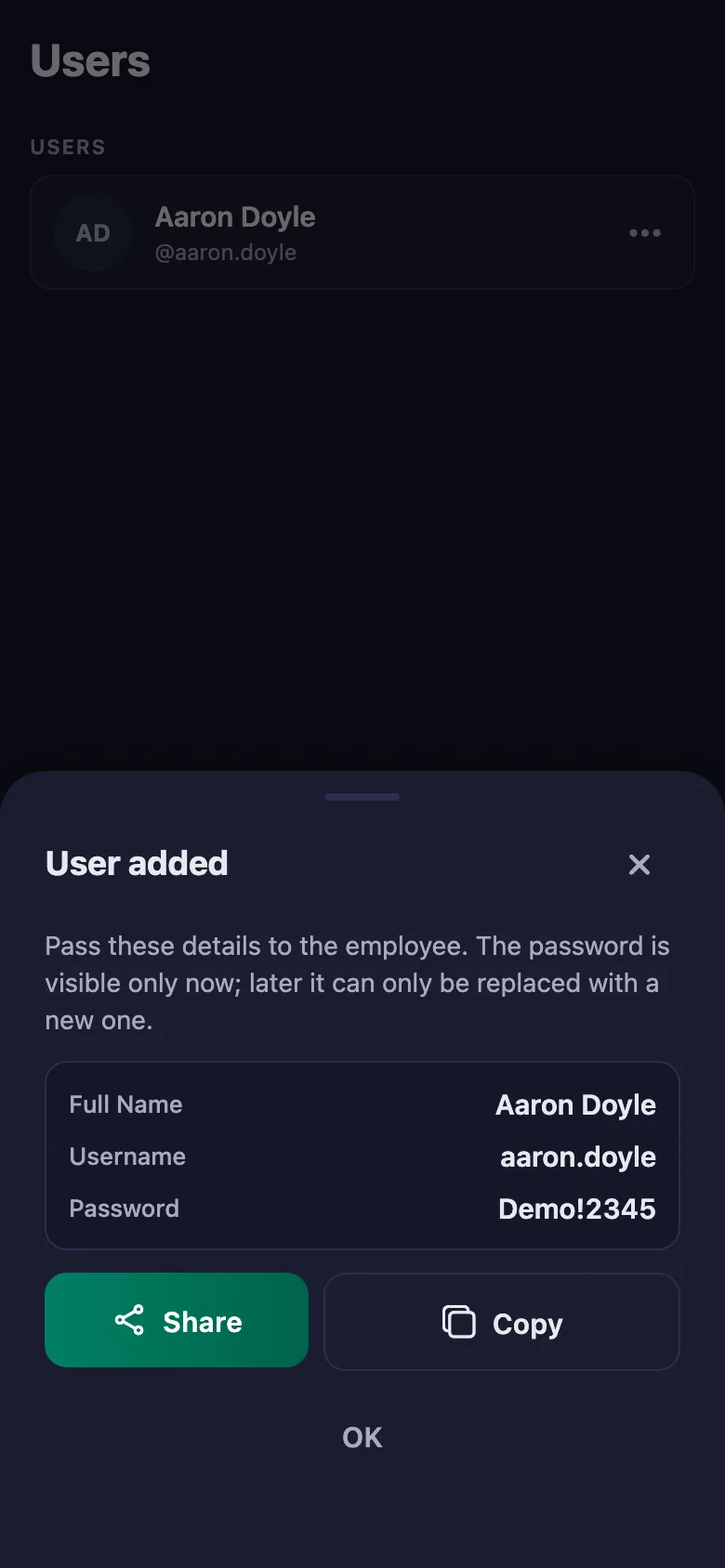
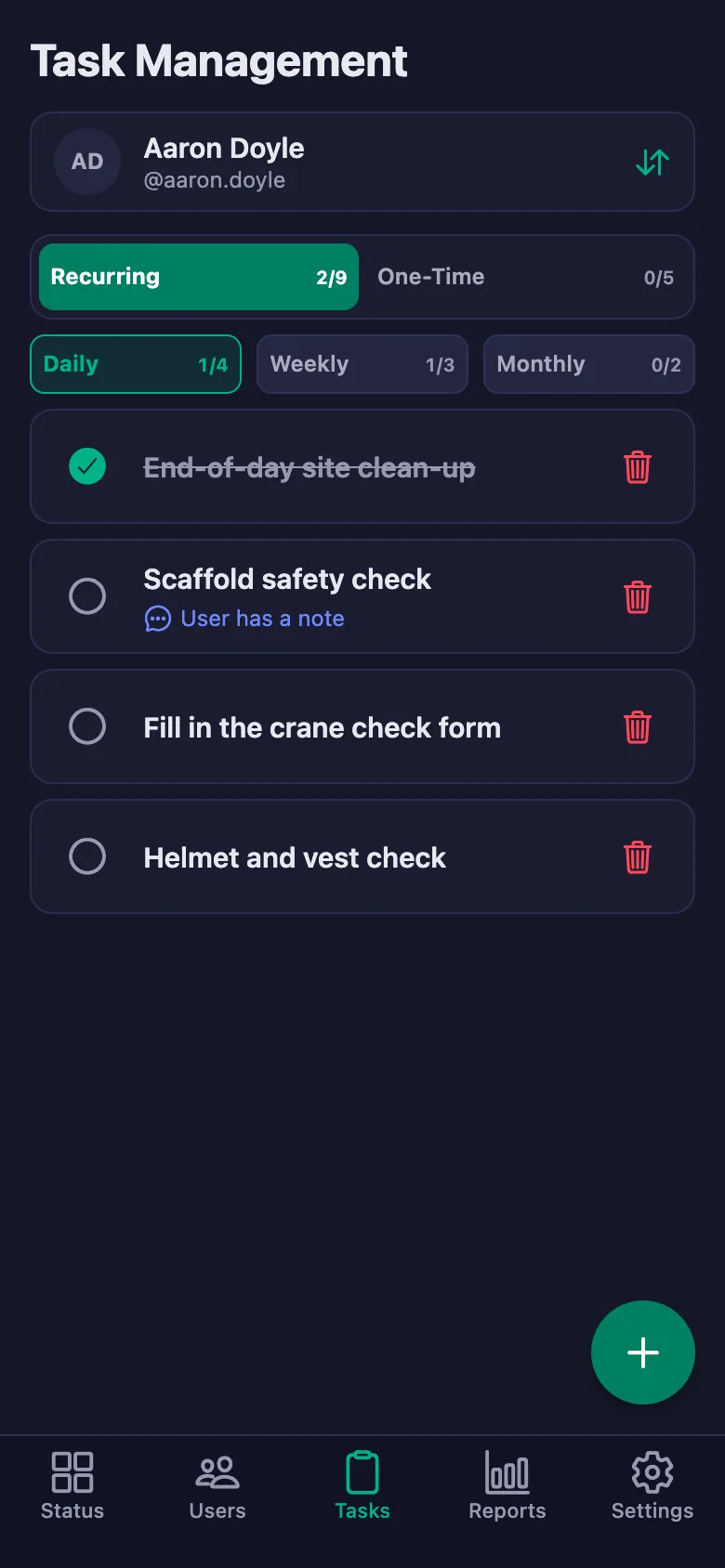
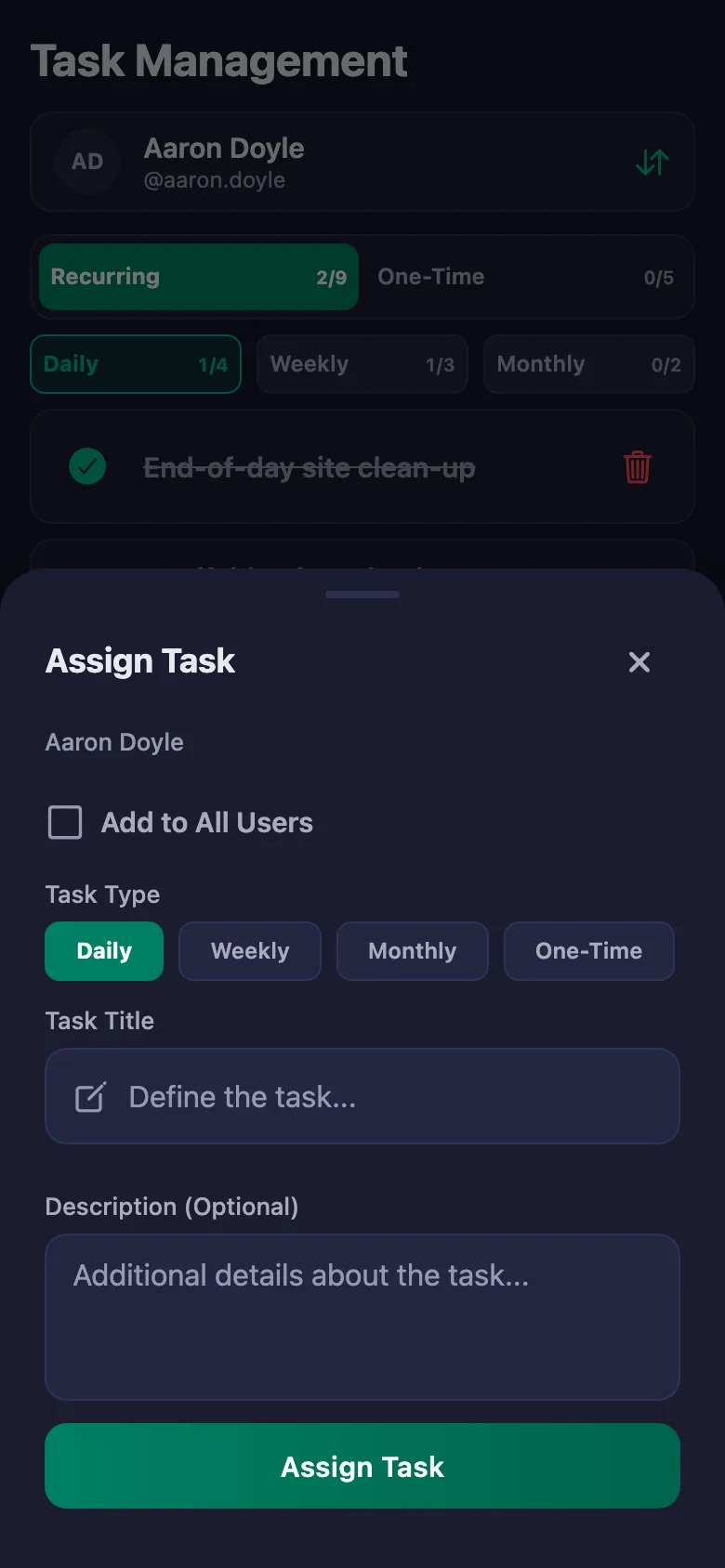
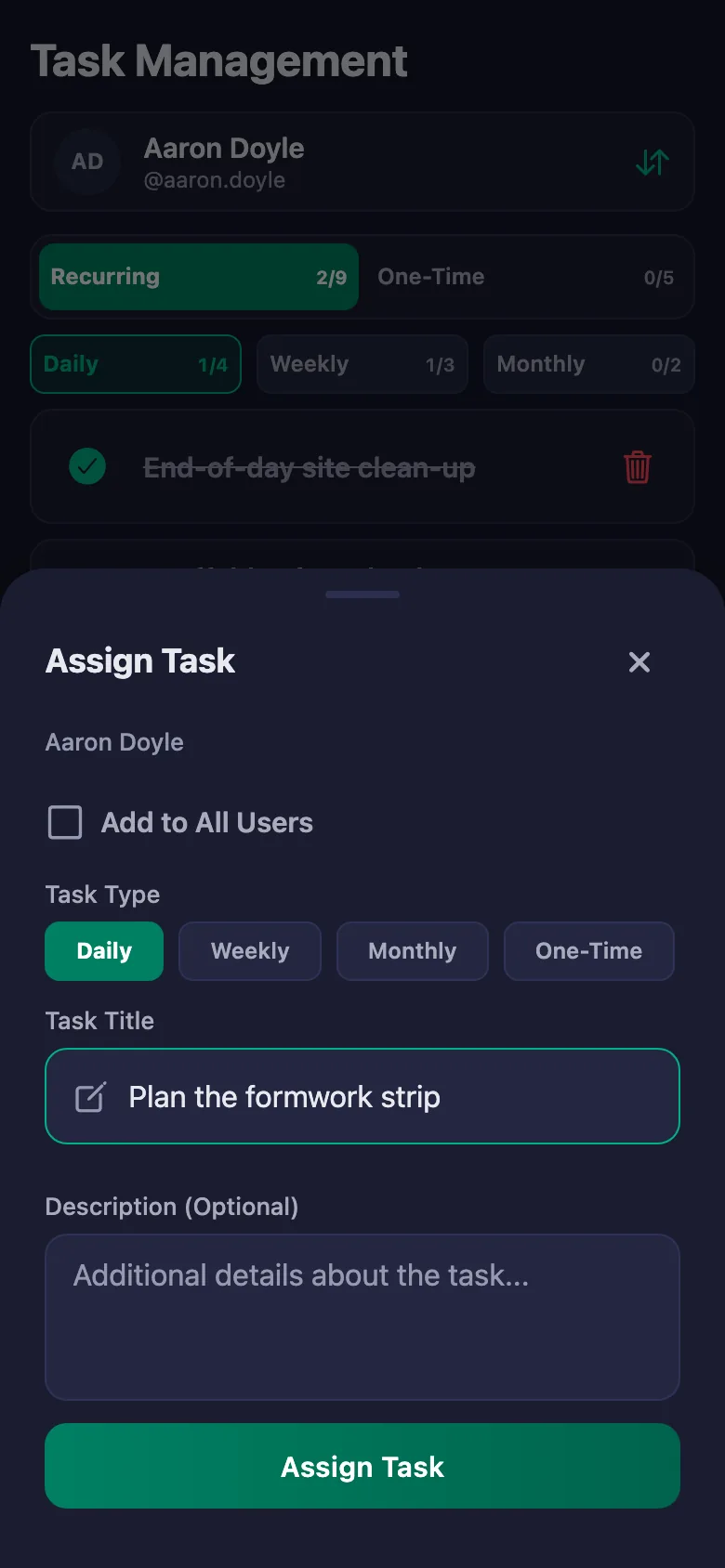
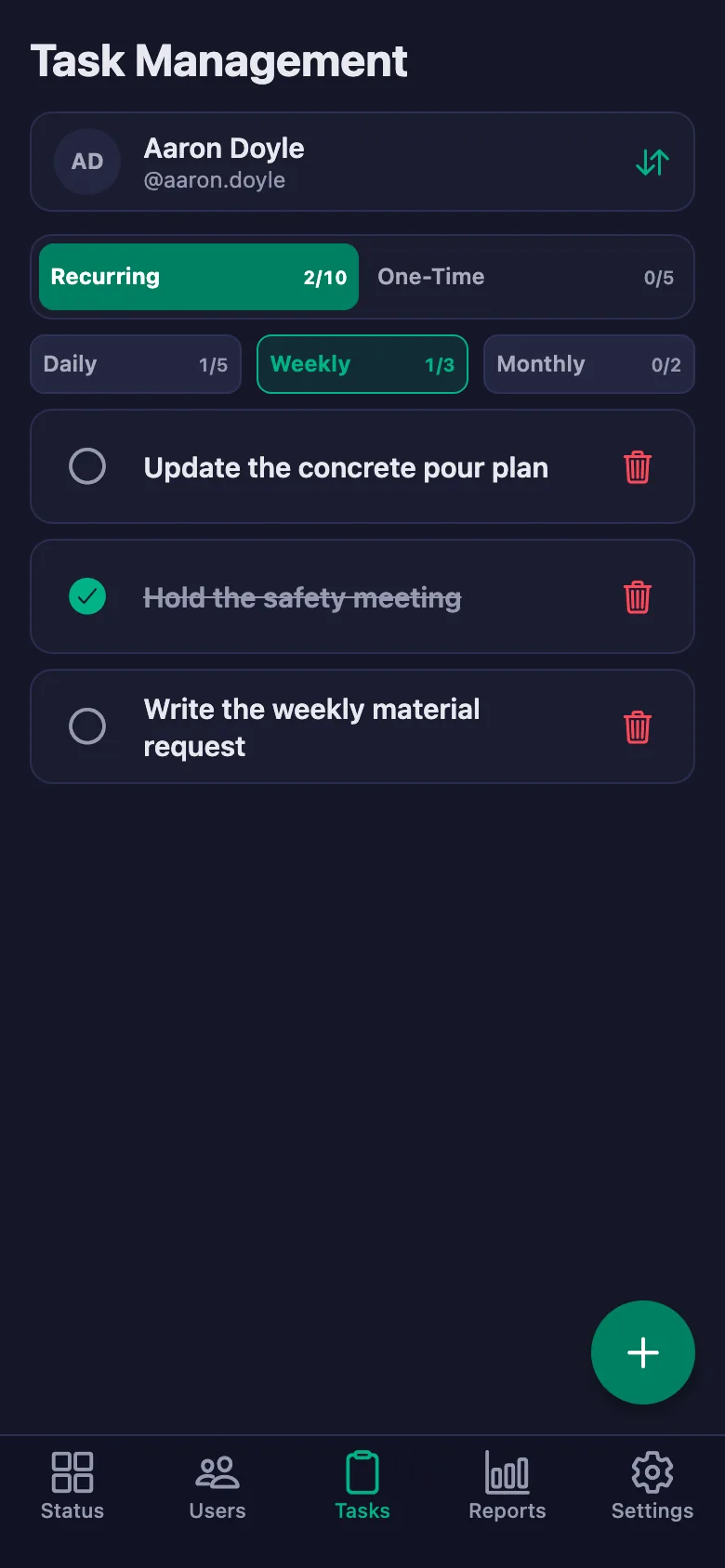
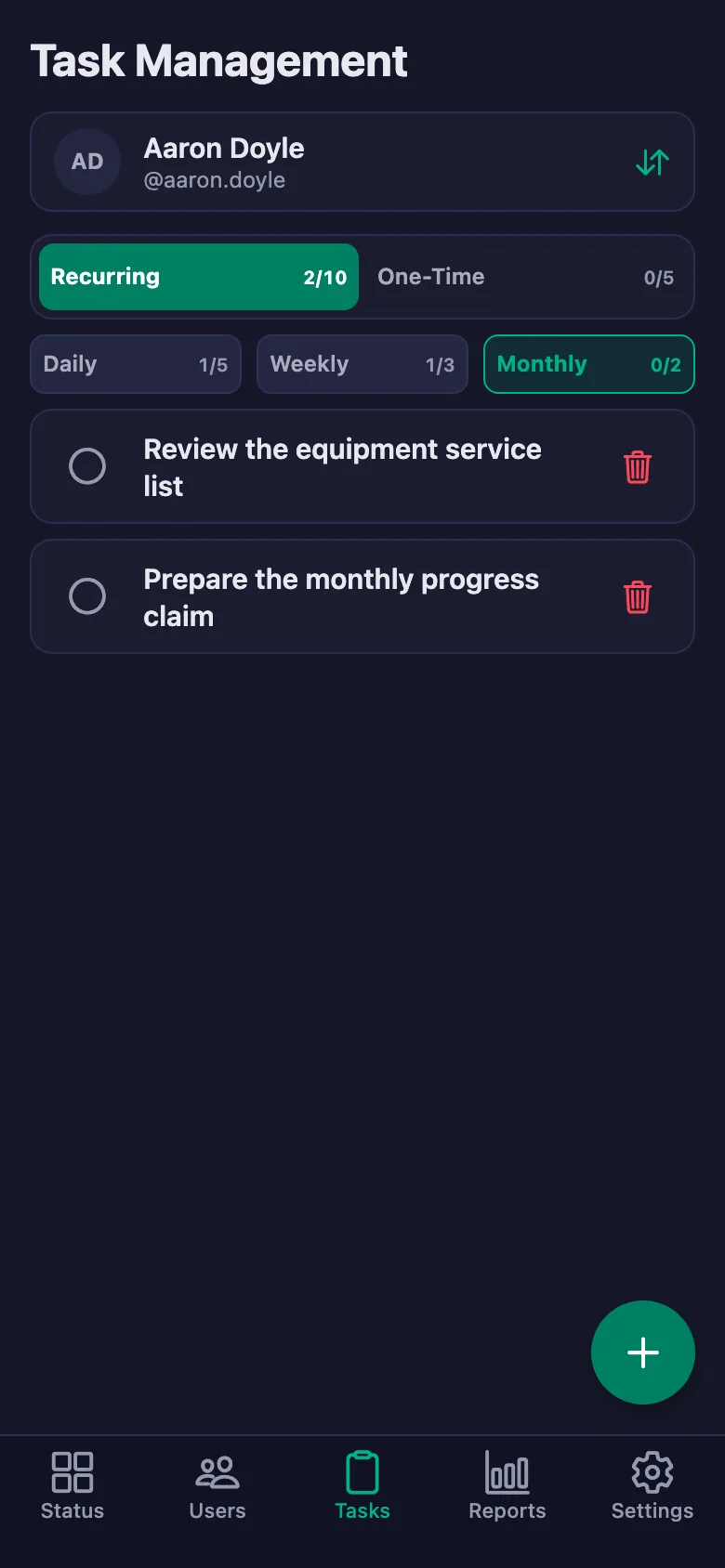
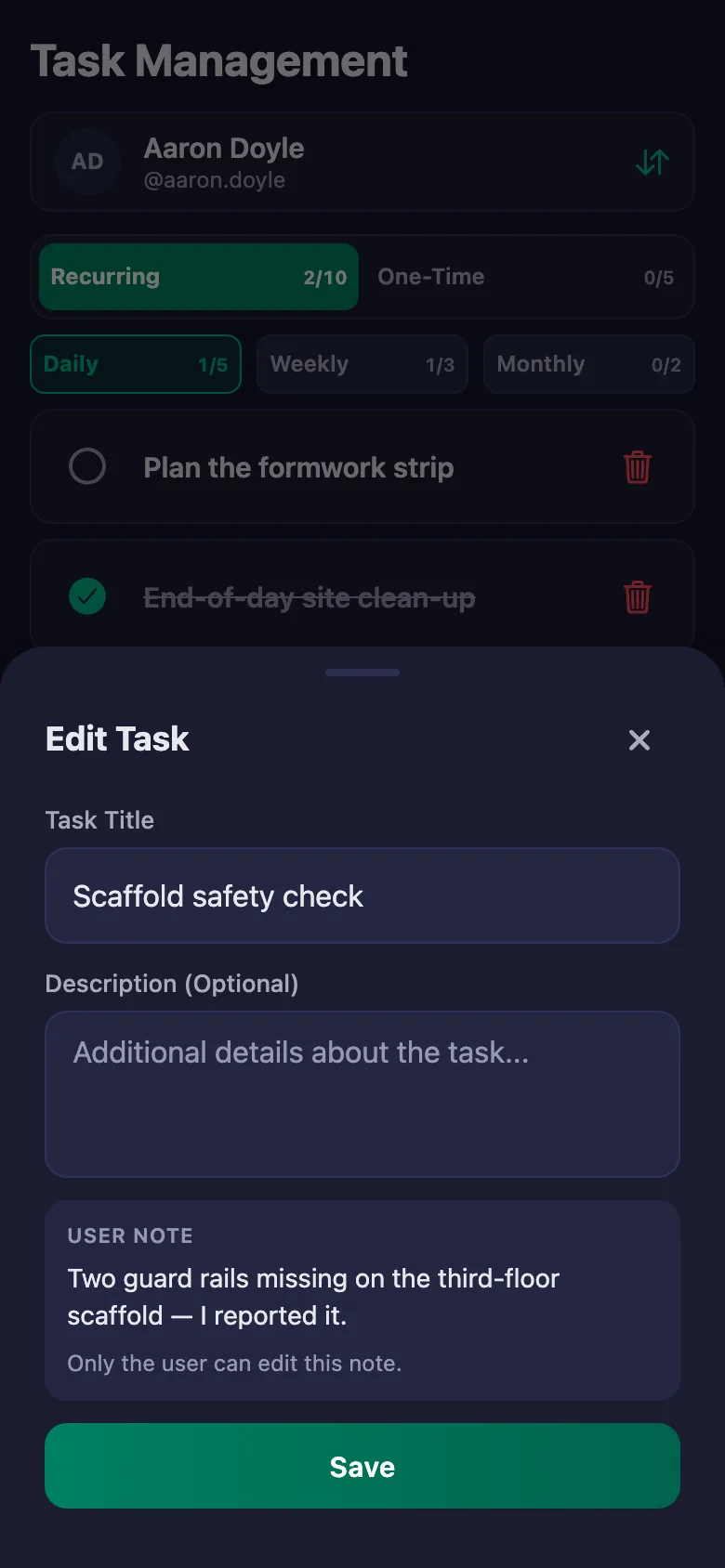
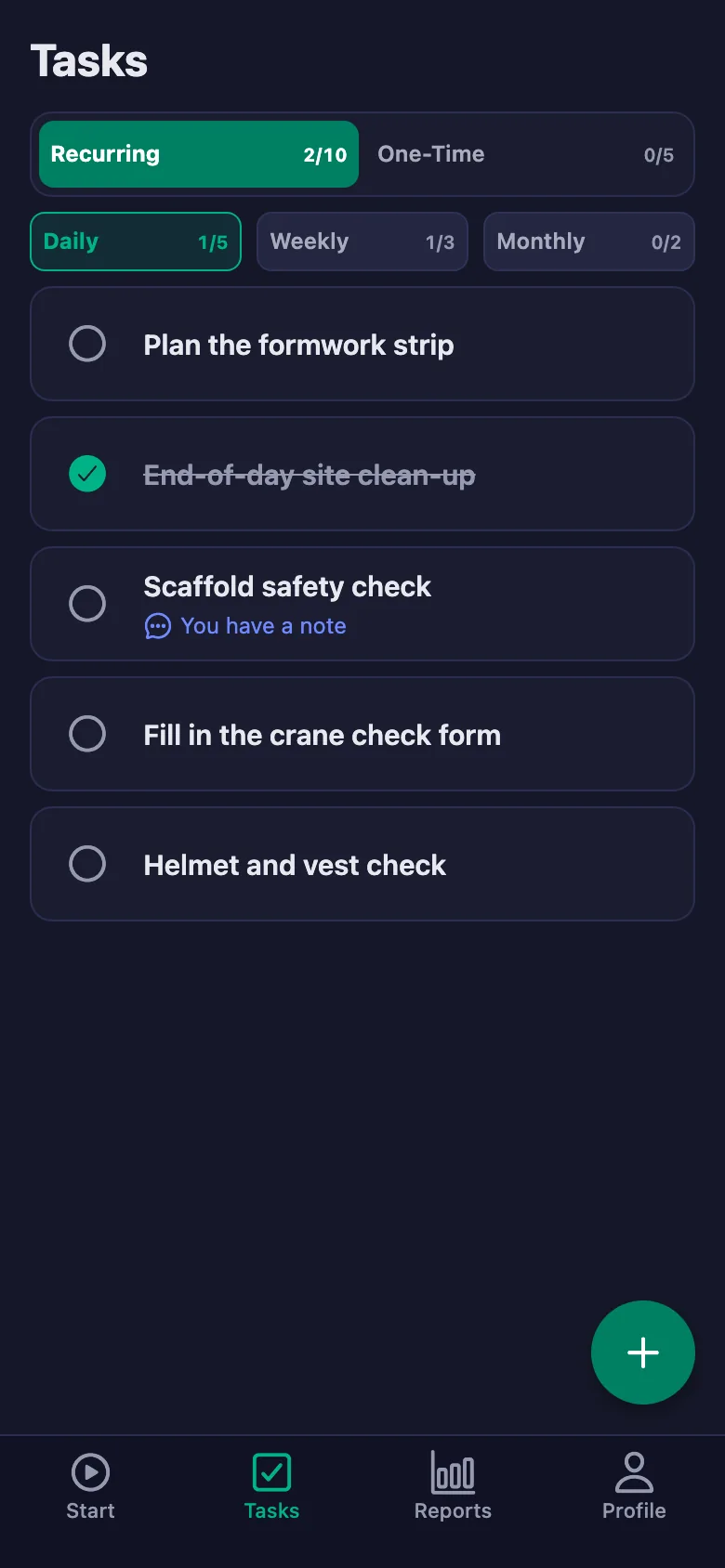
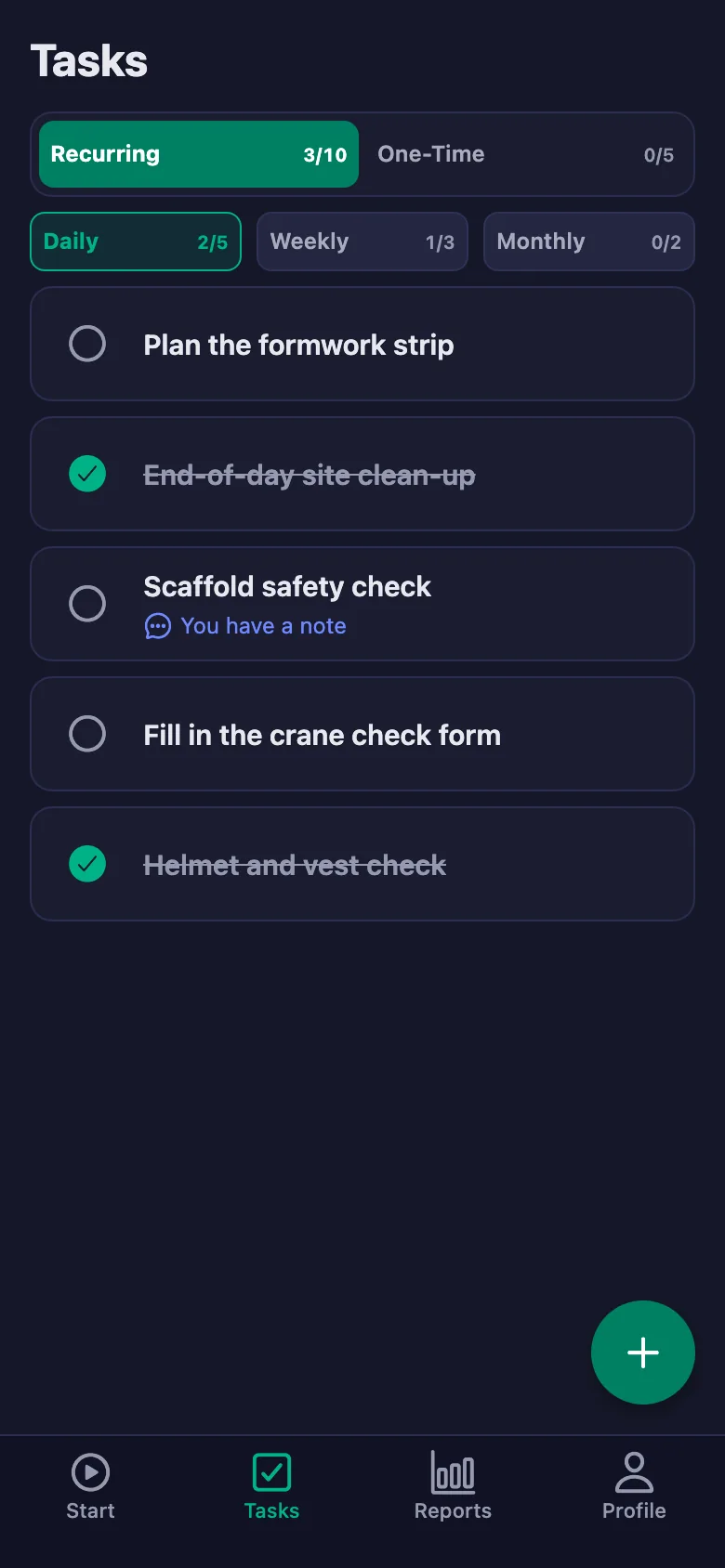
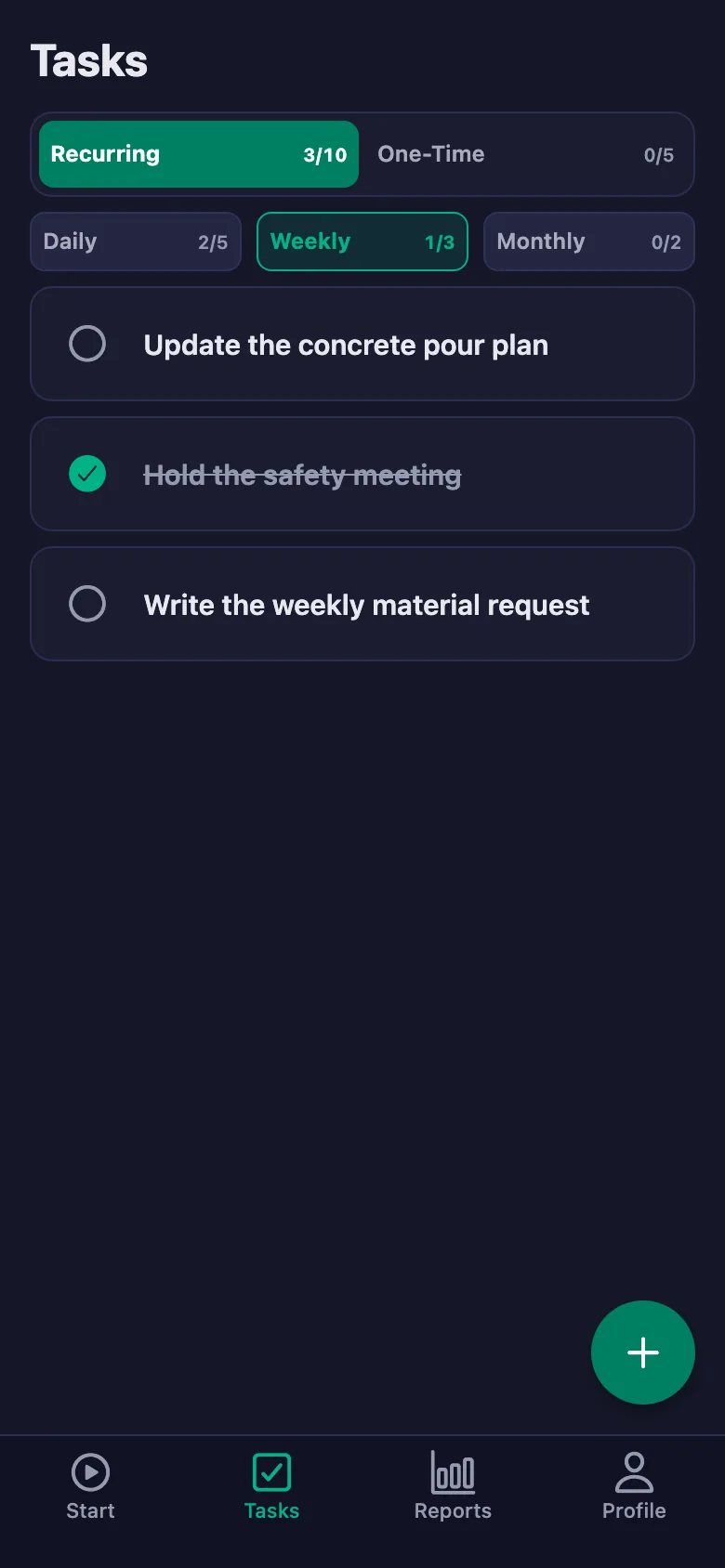
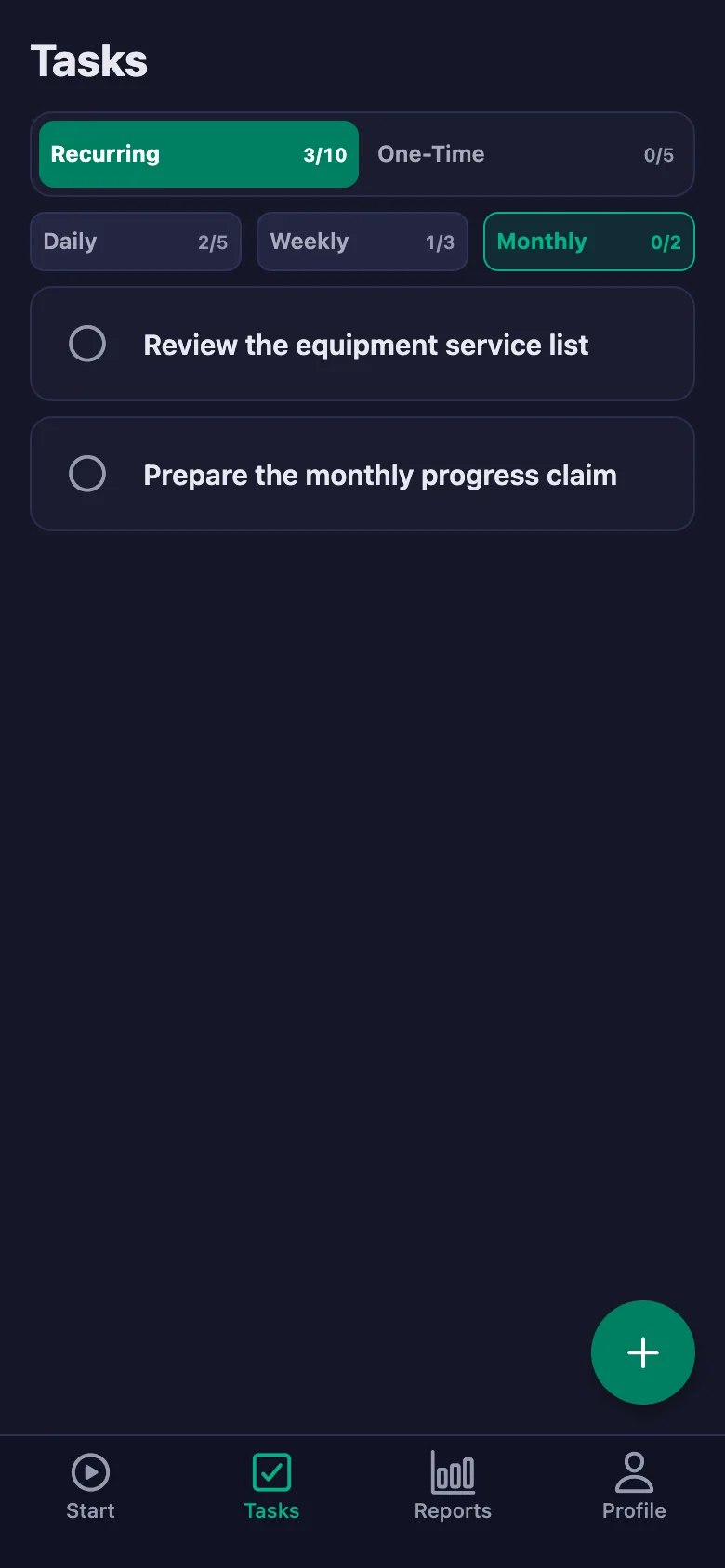
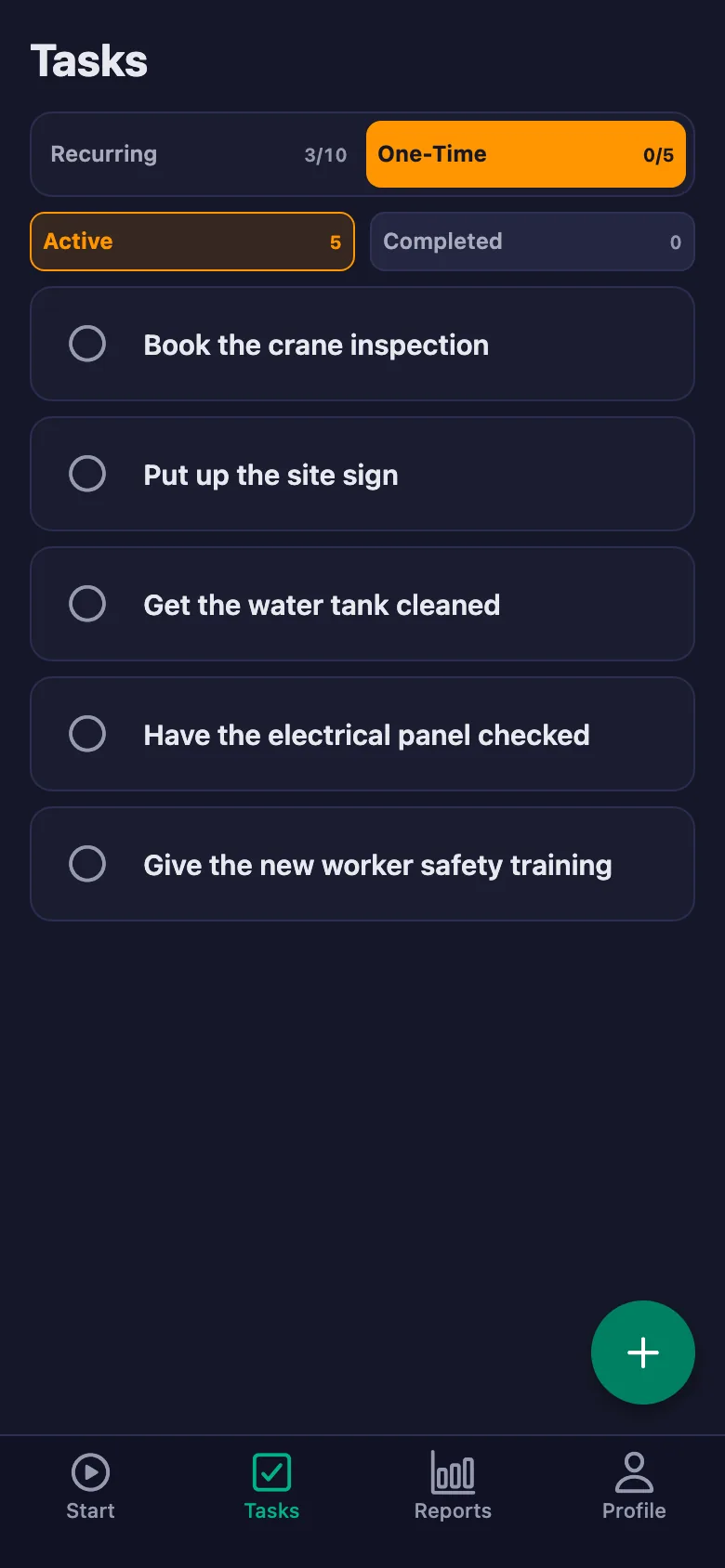
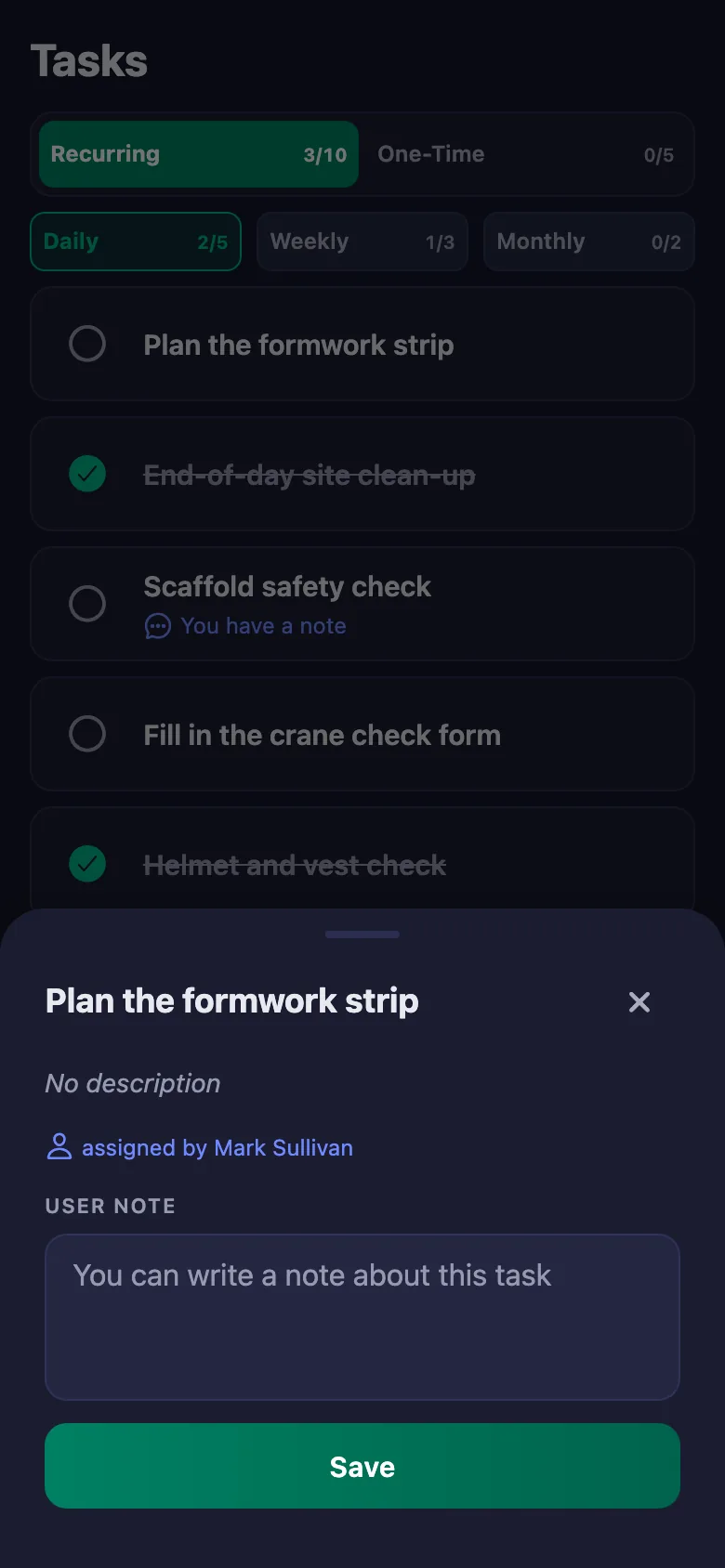
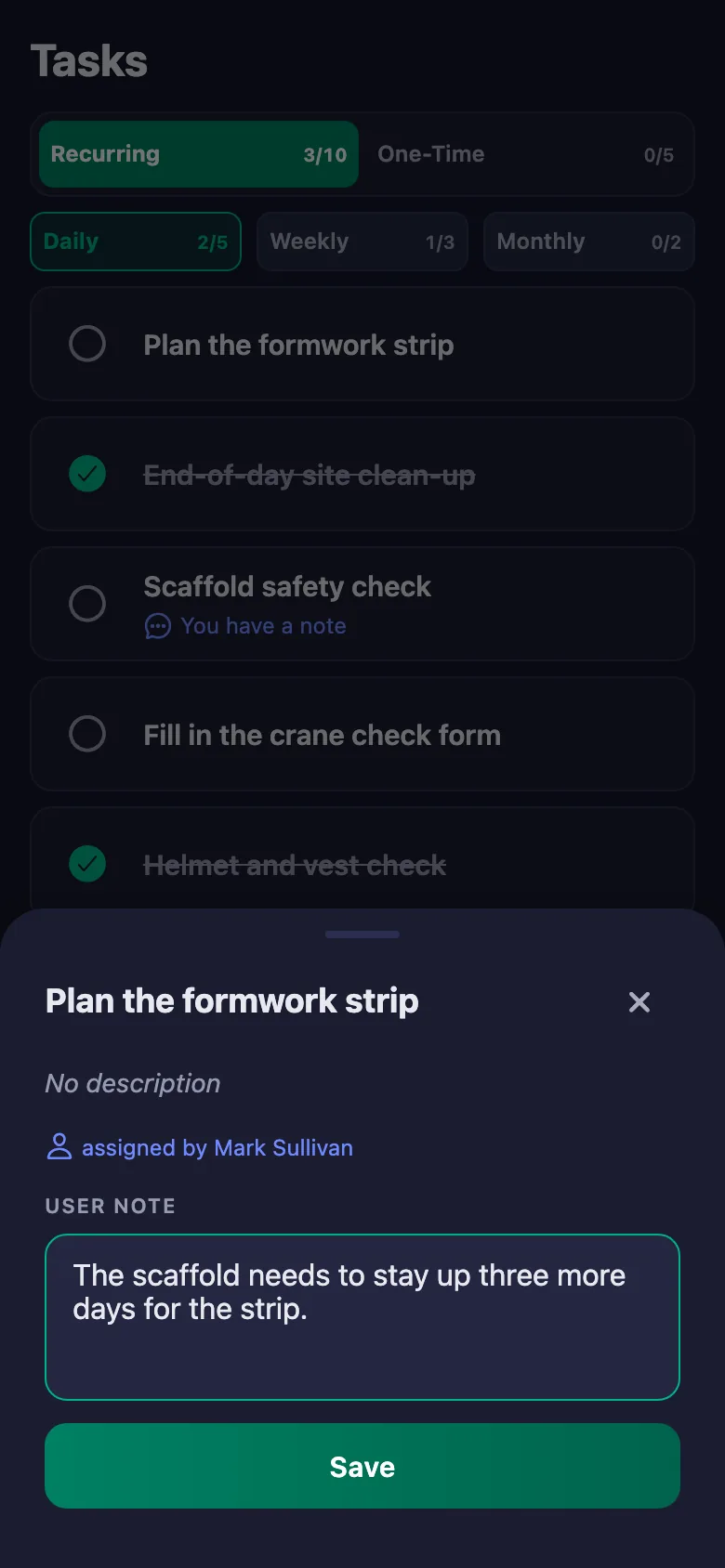
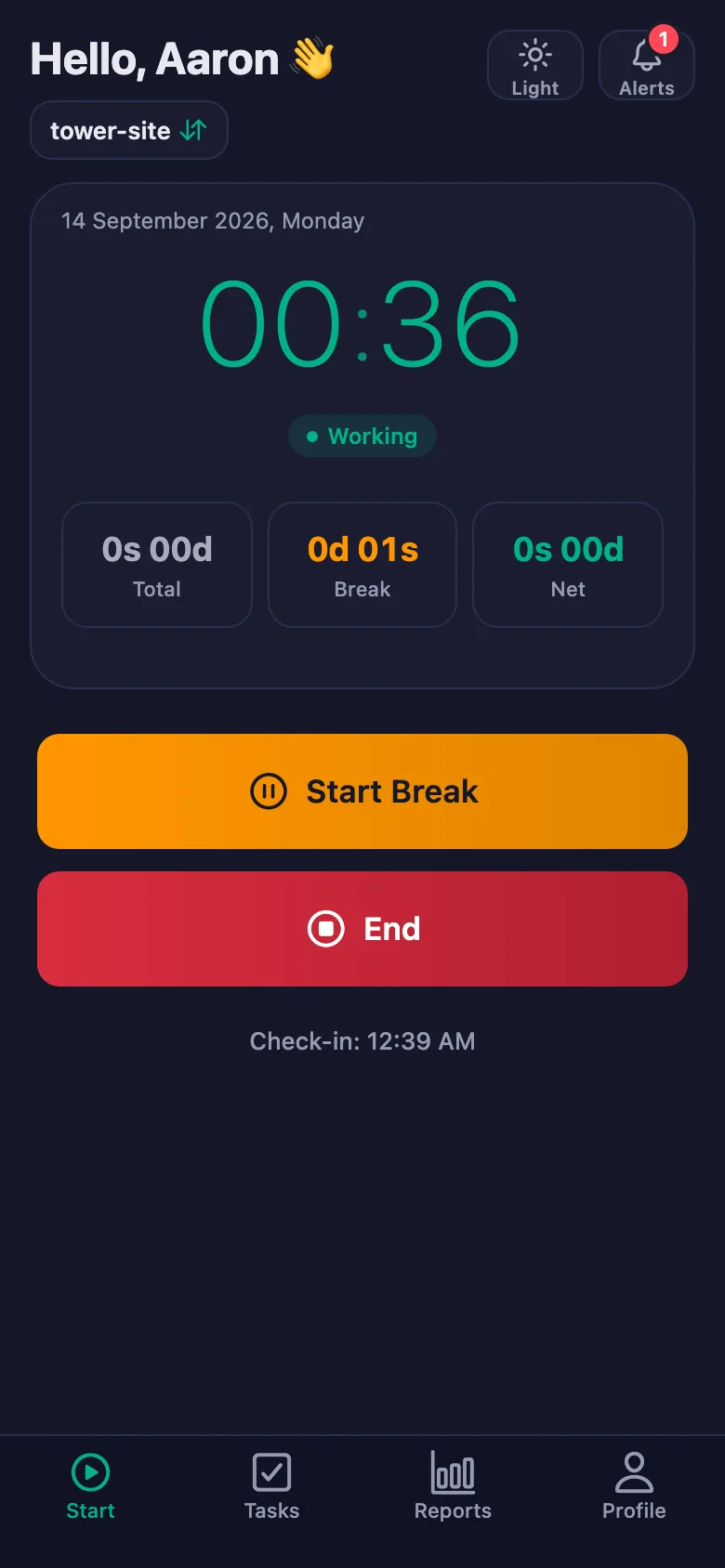 FinalWork — Task reminder
2 daily tasks are waiting for you.
FinalWork — Task reminder
2 daily tasks are waiting for you.
Construction timesheet and staff tracking software — frequently asked questions
Can I be sure the crew are really on site?
With the location rule switched on, the timer can only be started at the site location you set. Anyone who hasn't given location permission shows up in the list with a warning badge.
Does it work on a site with no signal?
Starting work and ticking tasks need a connection. If the signal is weak, the action completes once the connection comes back; nothing is lost.
Can the crew write notes, and can I see them?
Yes. The crew can write a note under each check — which floor, what is missing, what was done. You can see the note but you cannot change it; only the person who wrote it can edit it.
How many people can I add?
The free plan has a limit on users; when you reach it the app warns you and no new user is added. The limit is lifted on Premium.
I run several sites — can I follow them separately?
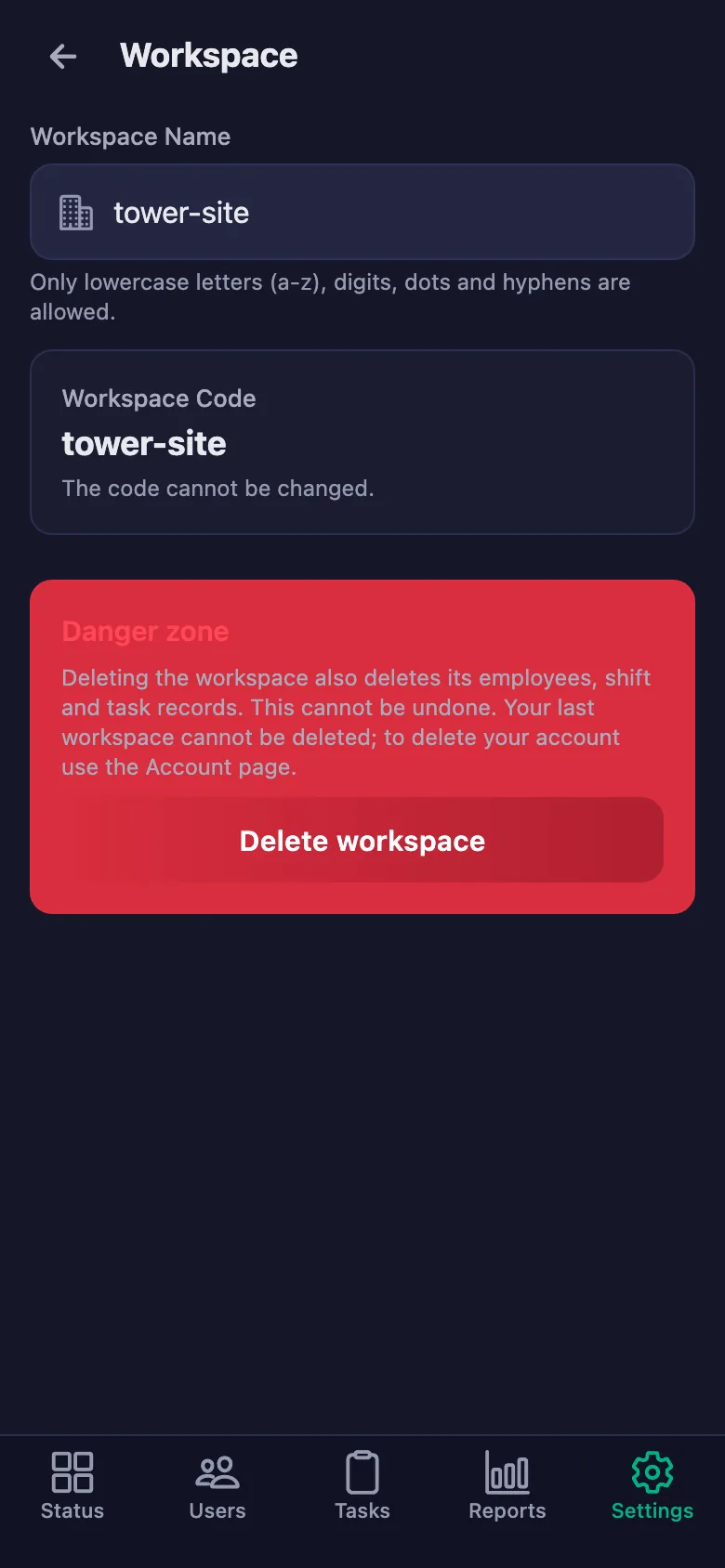
You can open a separate workspace for each site and switch between them with the same account. Timesheets and reports are kept separately for each site.
Can I present the safety checks as evidence?
You pick a date range and download the report as a PDF. Which check was ticked, by whom and when, stays on the record.
Can subcontractor crews use it too?
Yes, you can add a subcontractor's crew to the same workspace as users. Everyone's time appears separately in the report.
Set up your site today
Setup and activation take just one minute — you can start free. Open the account, add your first crew member, and let today's timesheet go on the record.