Staff Tracking and Time Tracking Software for Employers
Who came in when, and what actually got done?
The same questions every morning. FinalWork keeps the answers in one place instead of a notebook, a WhatsApp group and your memory — on your phone and on your staff's.
Where employers lose the most time tracking staff
Tracking staff isn't hard work, but it never leaves your head. Most employers run into these — on the right is what each one looks like in FinalWork.
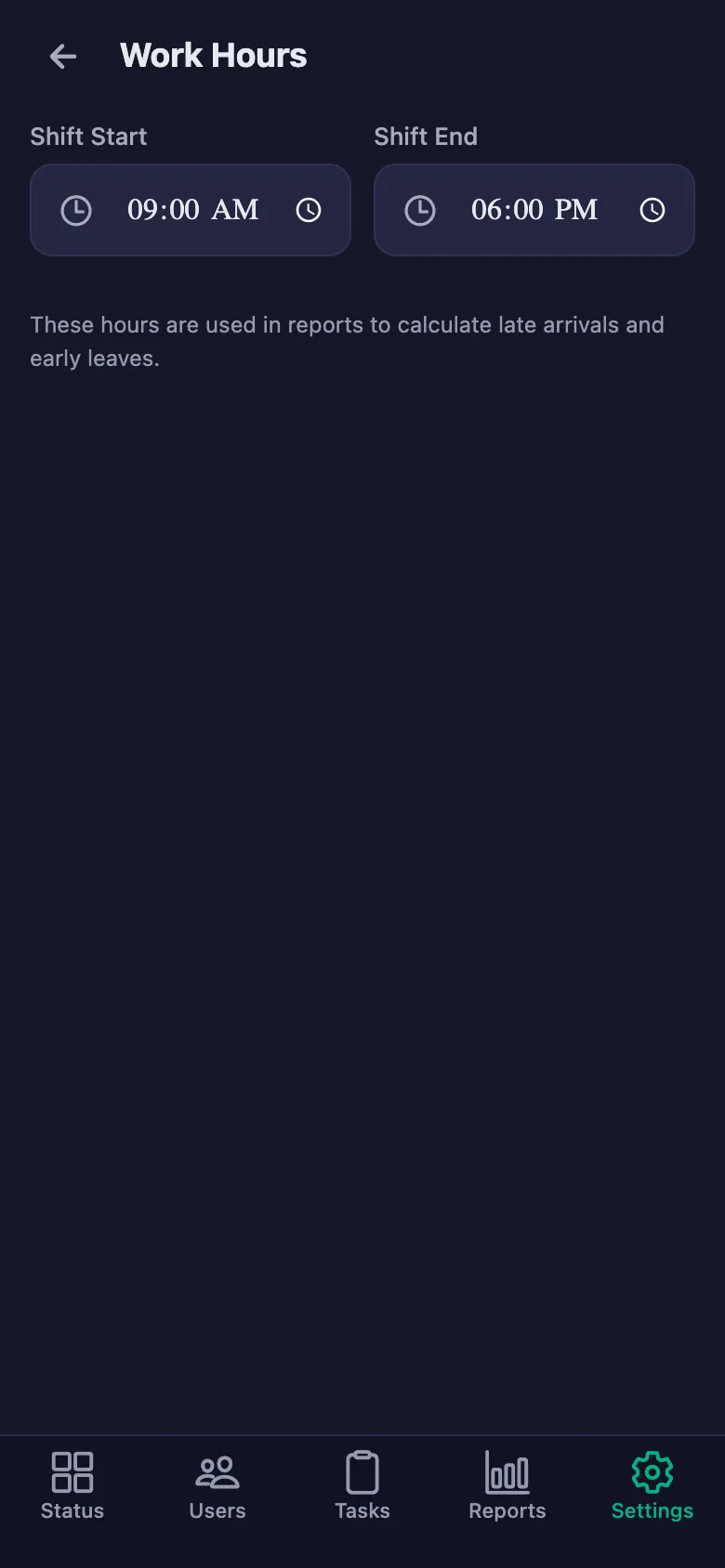
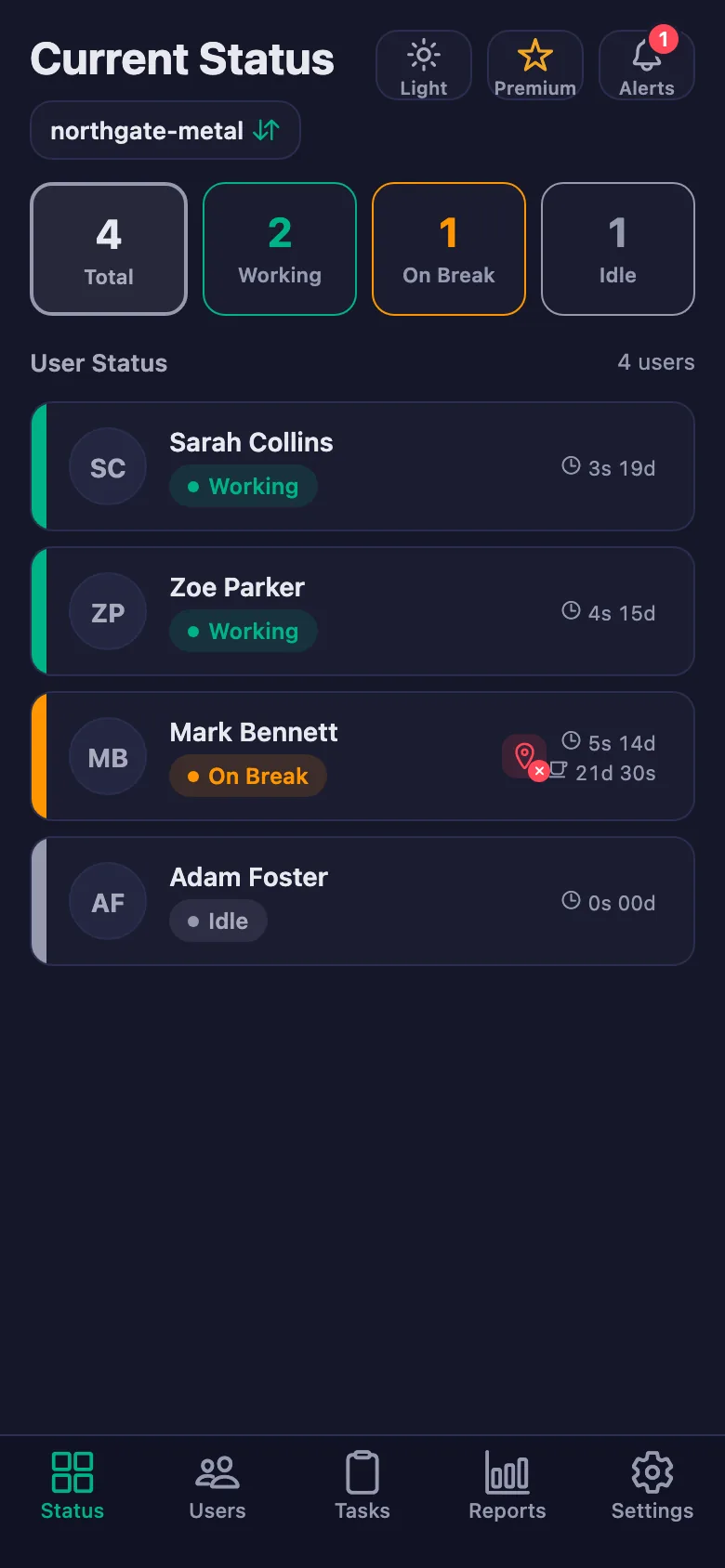
Who arrived at what time, who took how long a break — it all lives in your head or in a notebook. At the end of the month everyone remembers a different hour.
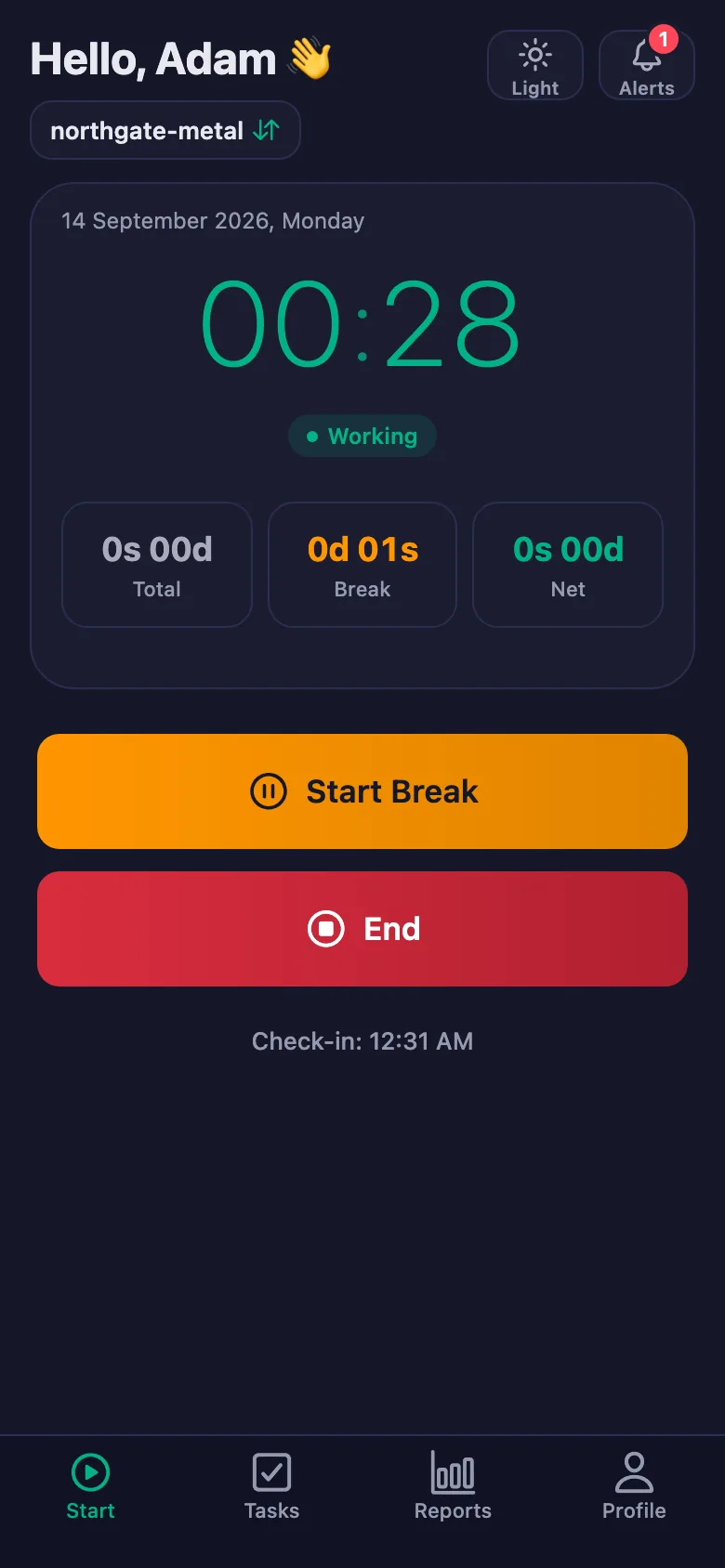
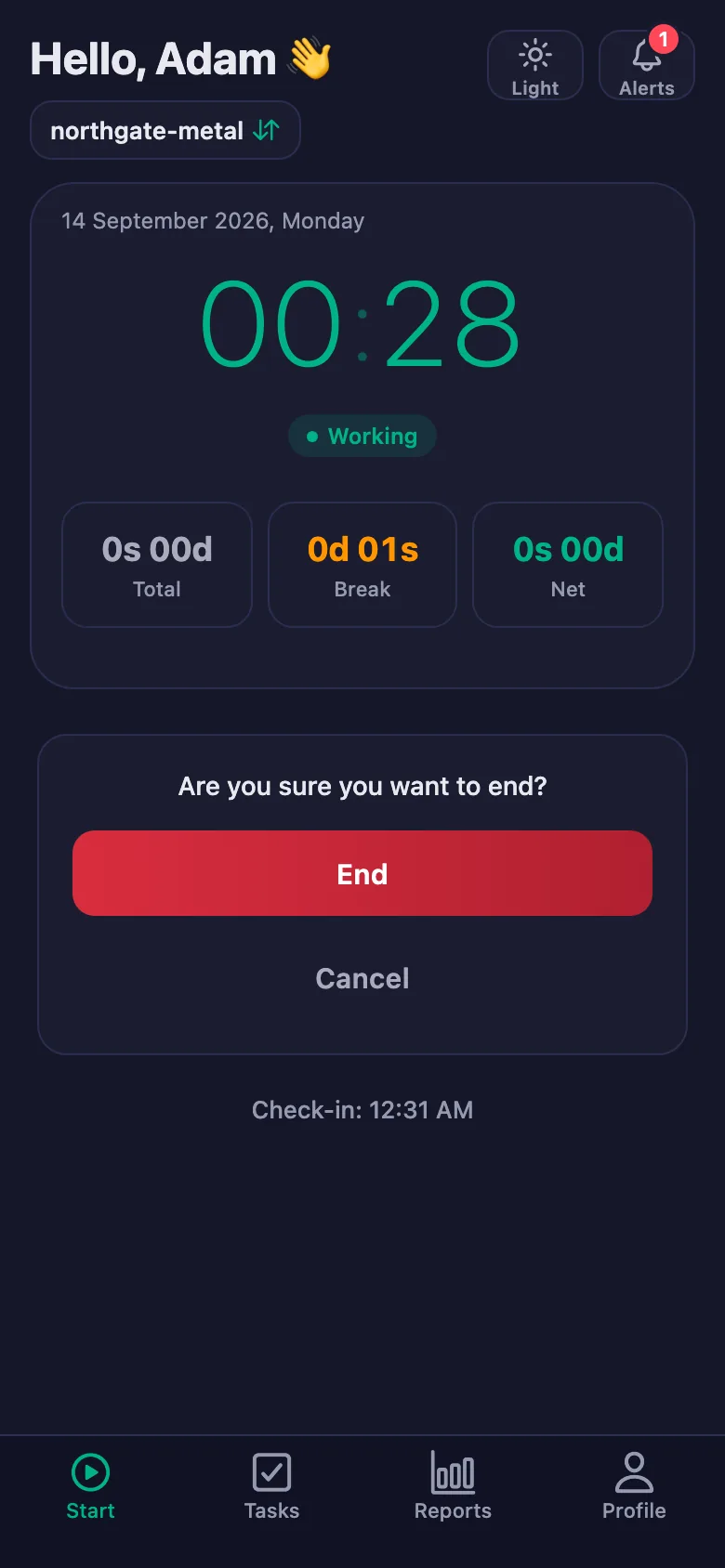
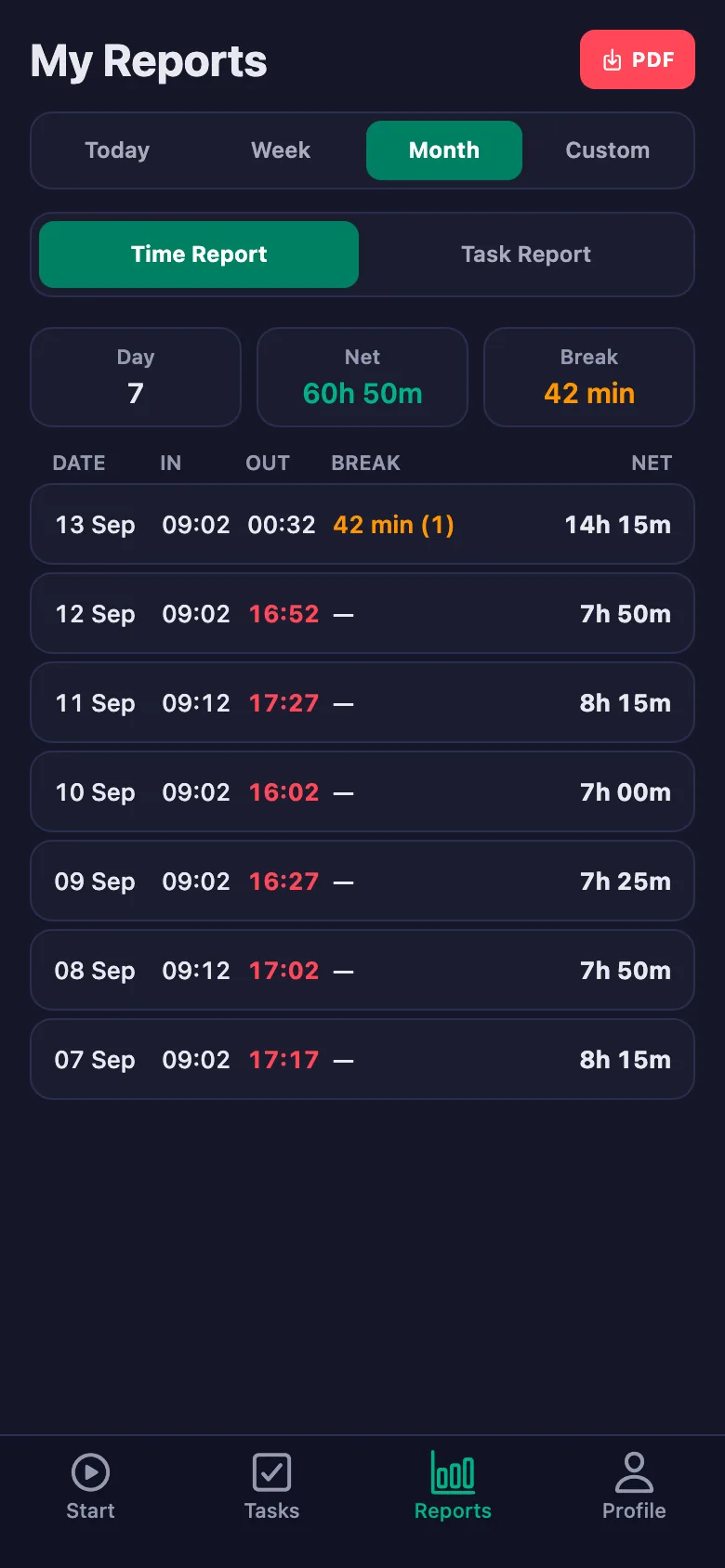
Staff start and end their shift from their own phone. Breaks are counted separately and deducted from net time, so there is nothing left to argue about.
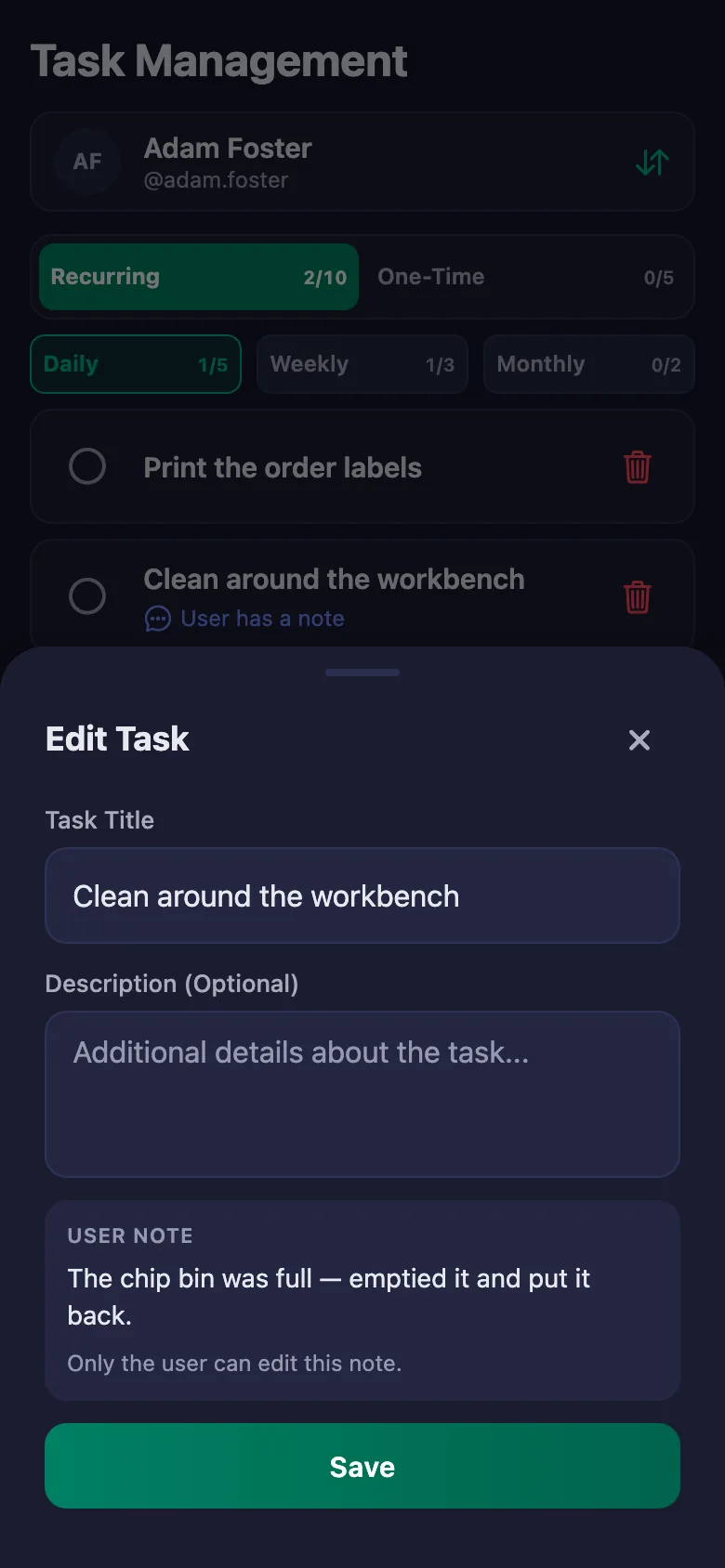
“Don’t forget to do that” isn’t enough. You repeat the same jobs every day, and when one is missed you usually only hear about it afterwards.
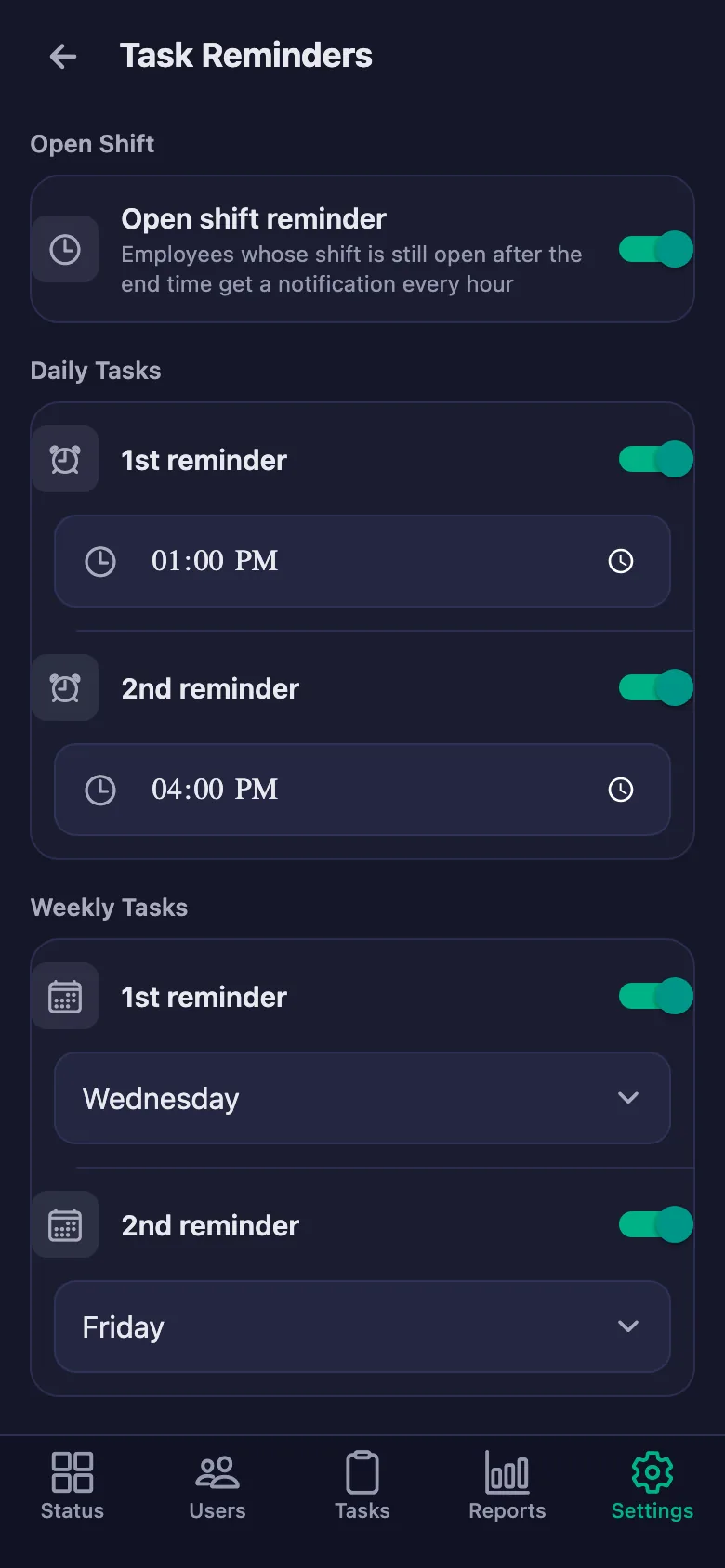
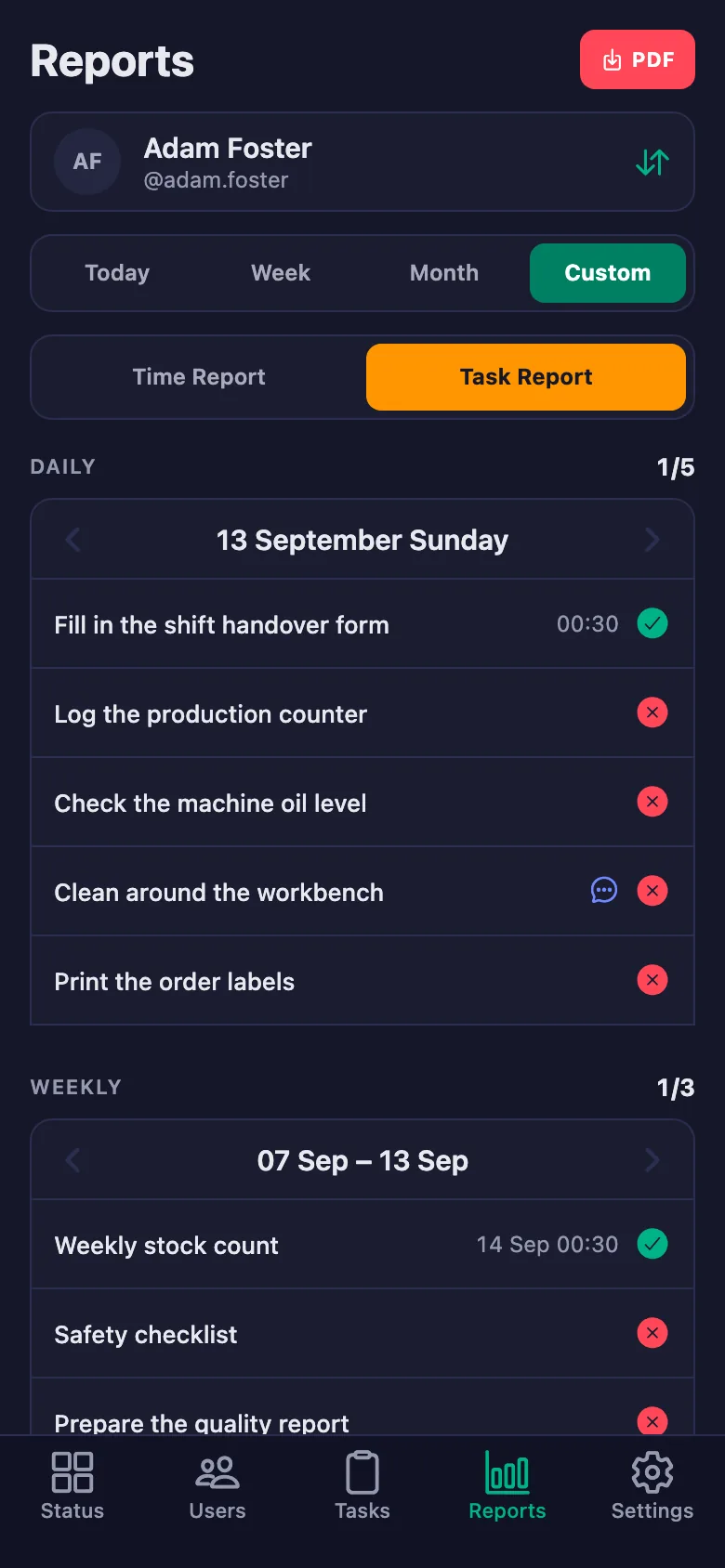
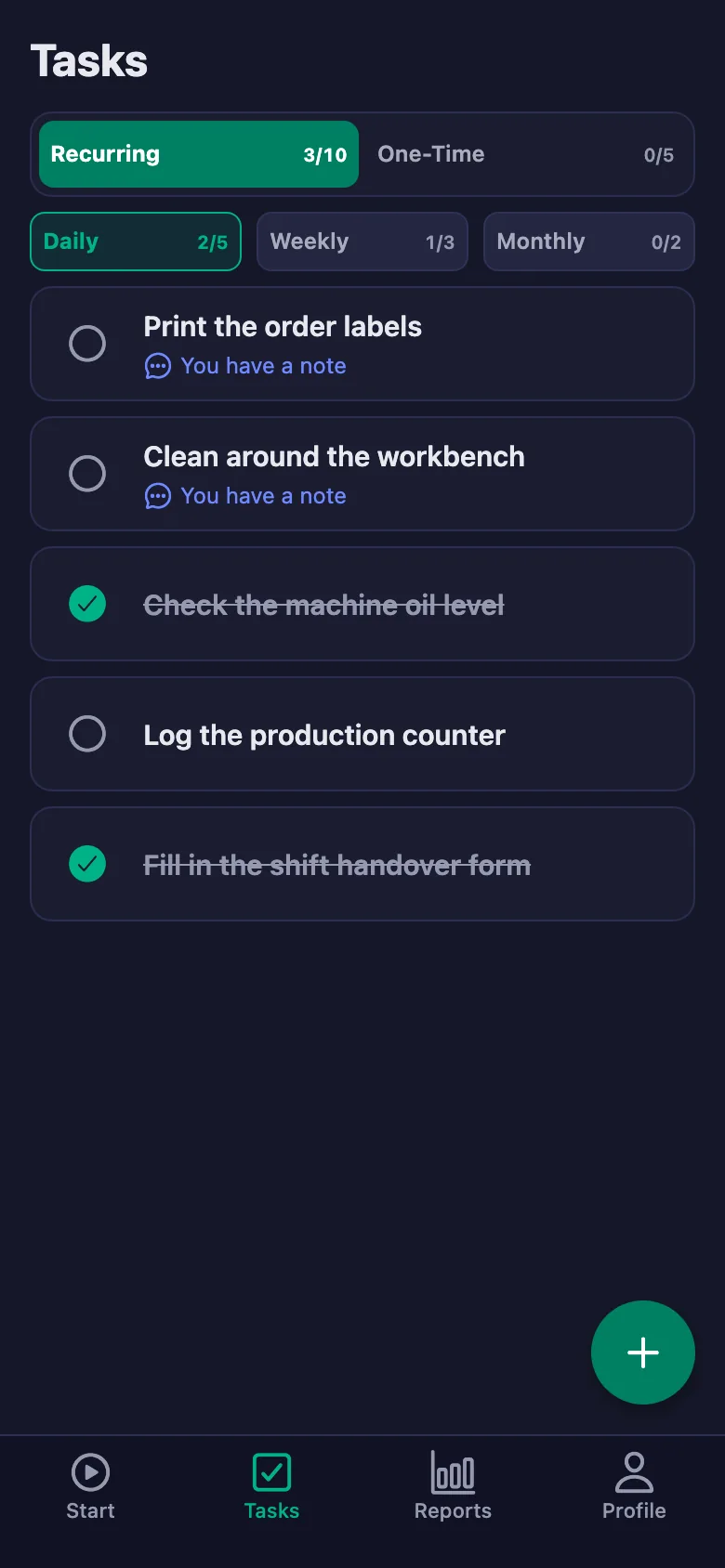
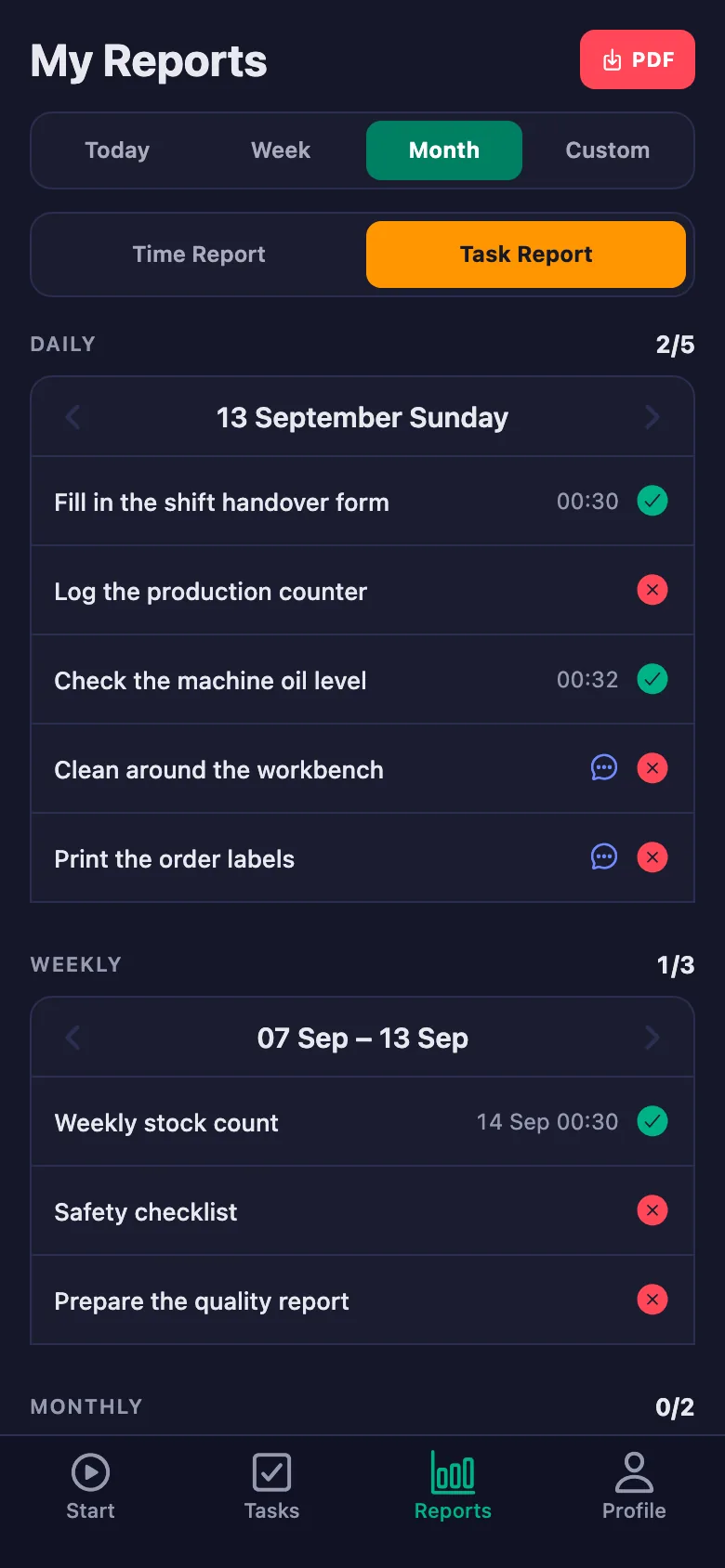
You write the daily, weekly and monthly tasks once; each period reopens on its own. If something is still waiting, a reminder lands on your staff's phone.
When you're not at the workplace you don't know what's going on. You have to call, ask, and double-check.
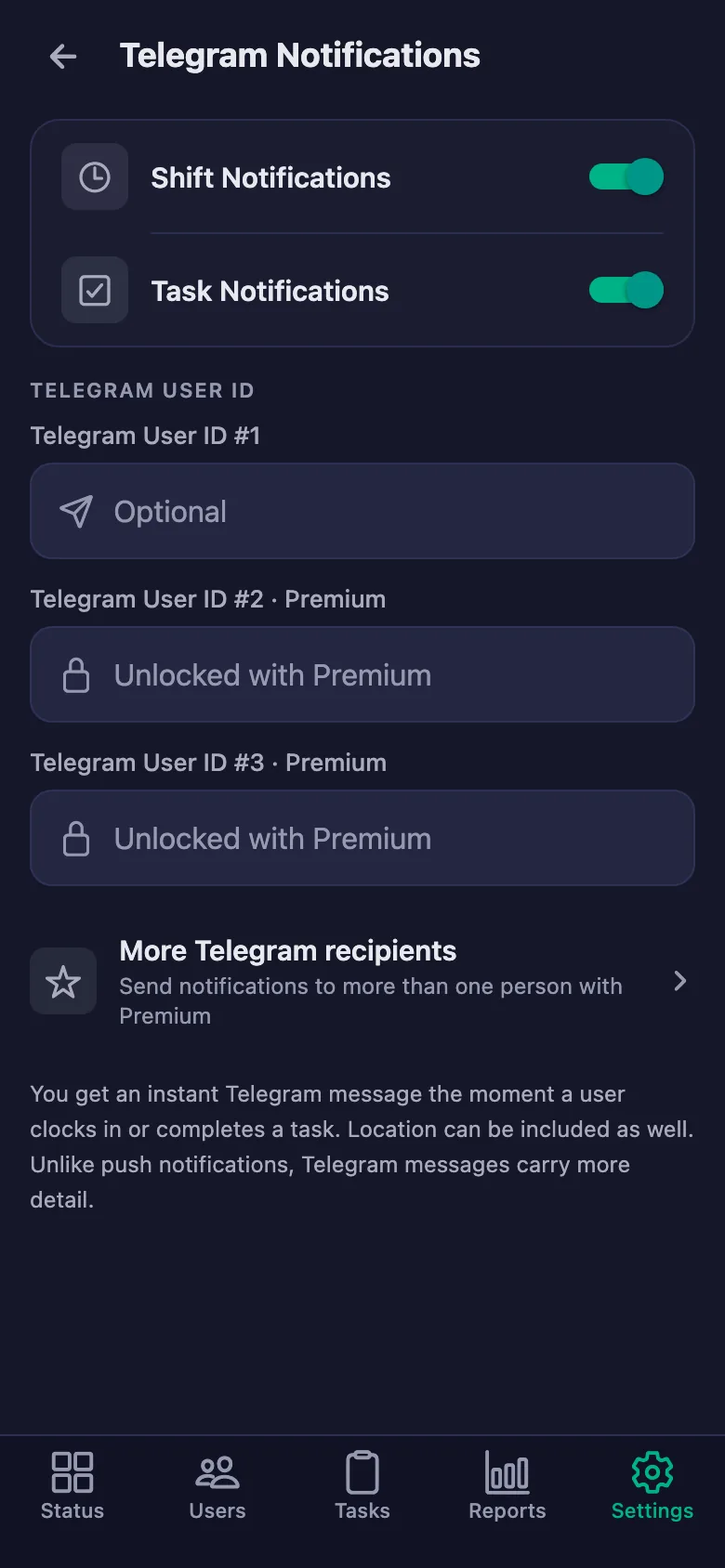
Open your phone and you see who is working and who is on break, live. Shift starts can be pushed to Telegram too.
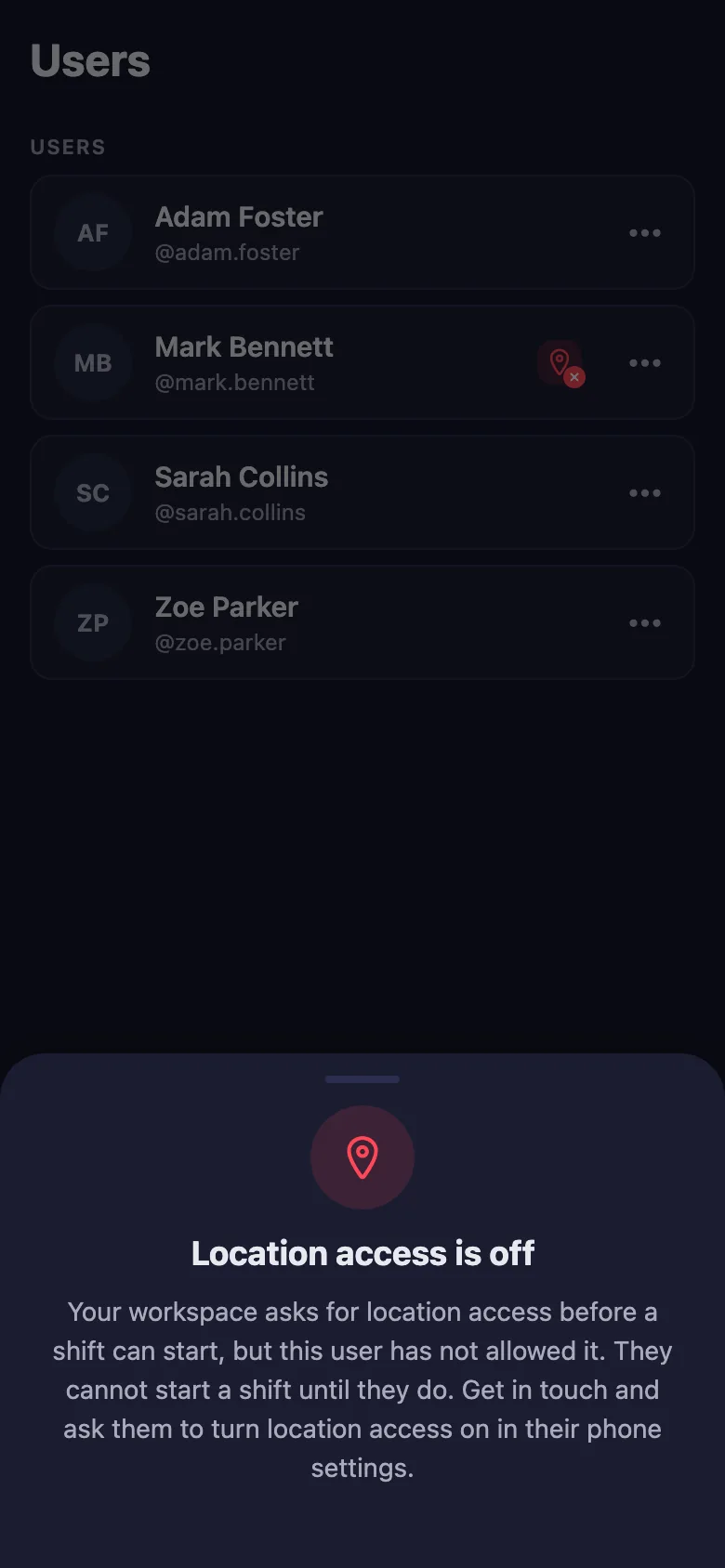
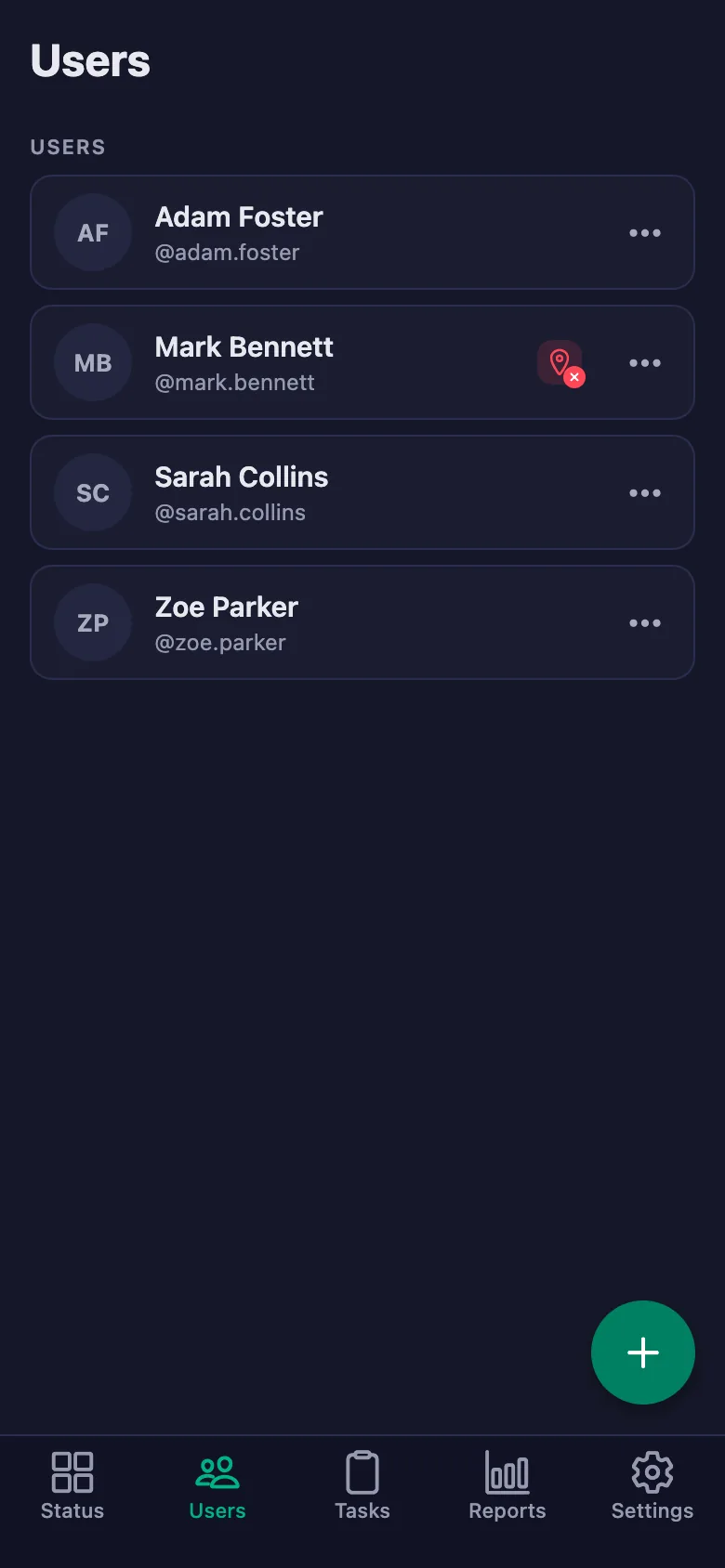
You can't be sure whether someone started their shift on the road or from home.
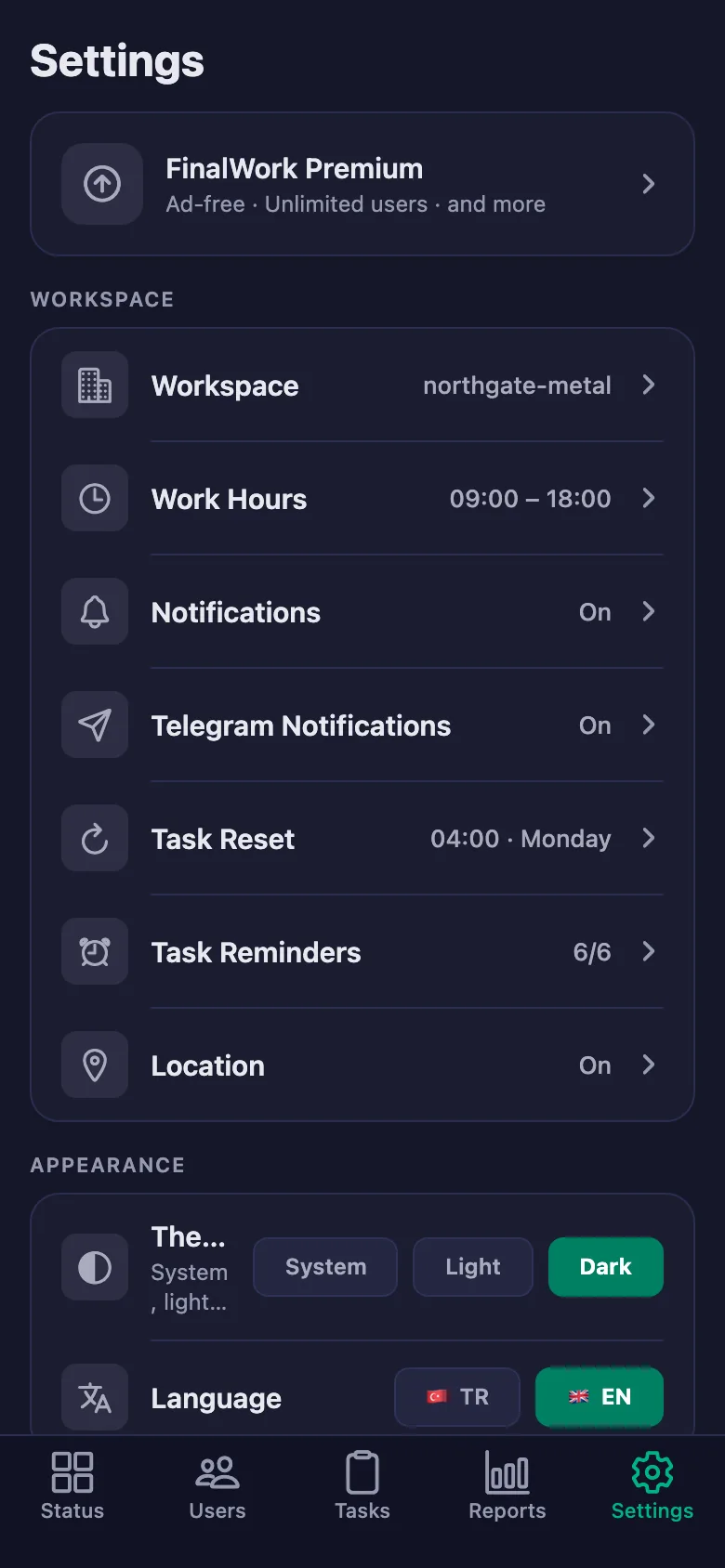
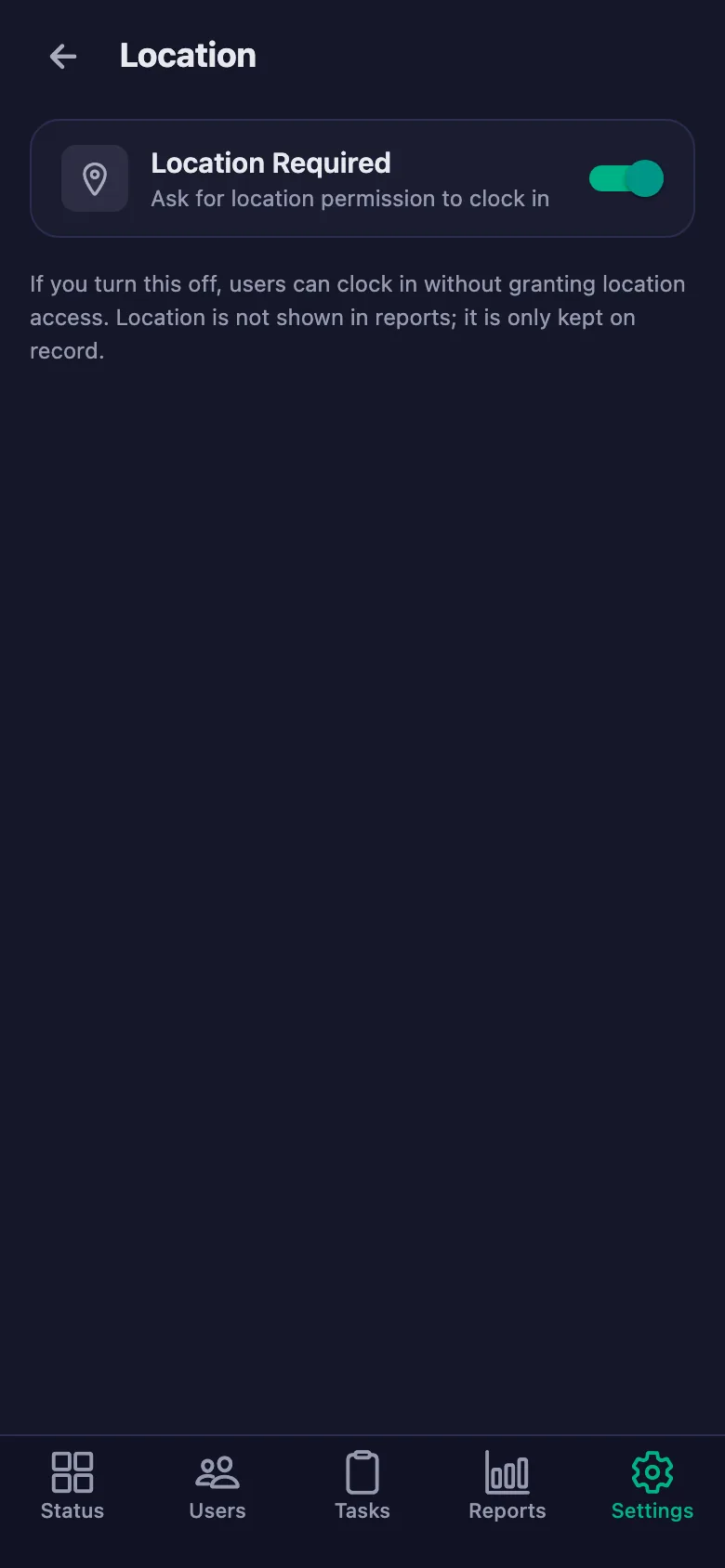
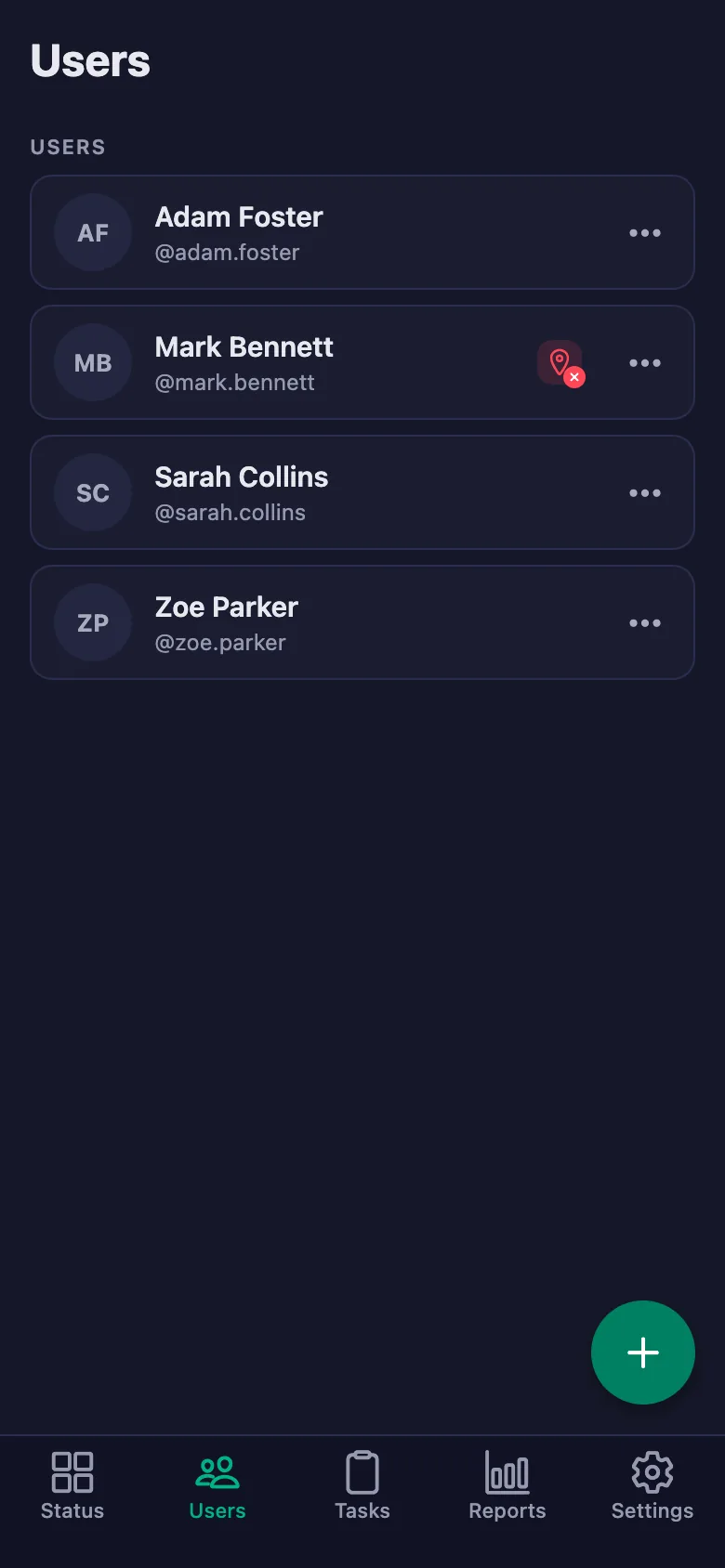
You can make location permission mandatory, so shifts start only at the workplace. Leave it off and location is never requested at all.
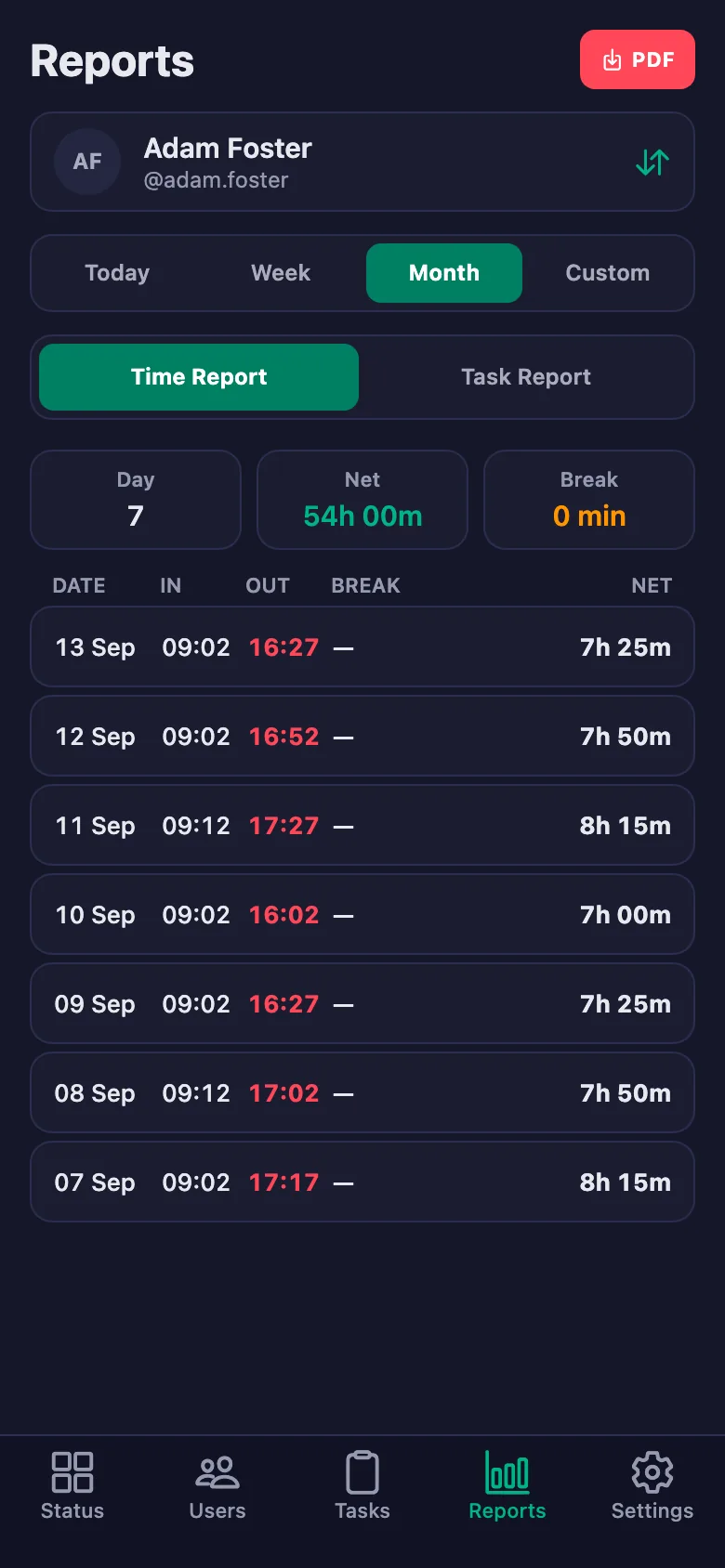
Month-end timesheets eat a whole day: collecting the papers, adding up the hours, then explaining them.
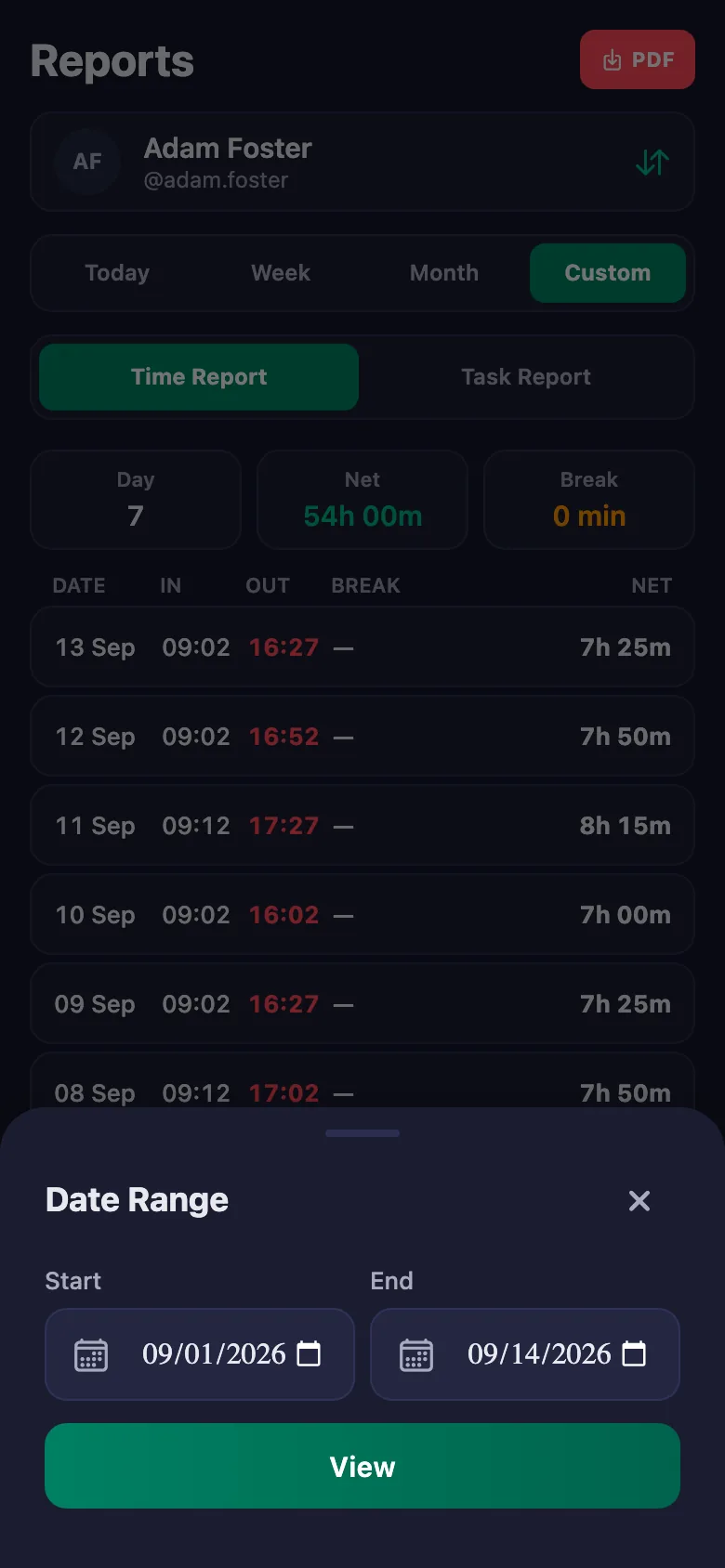
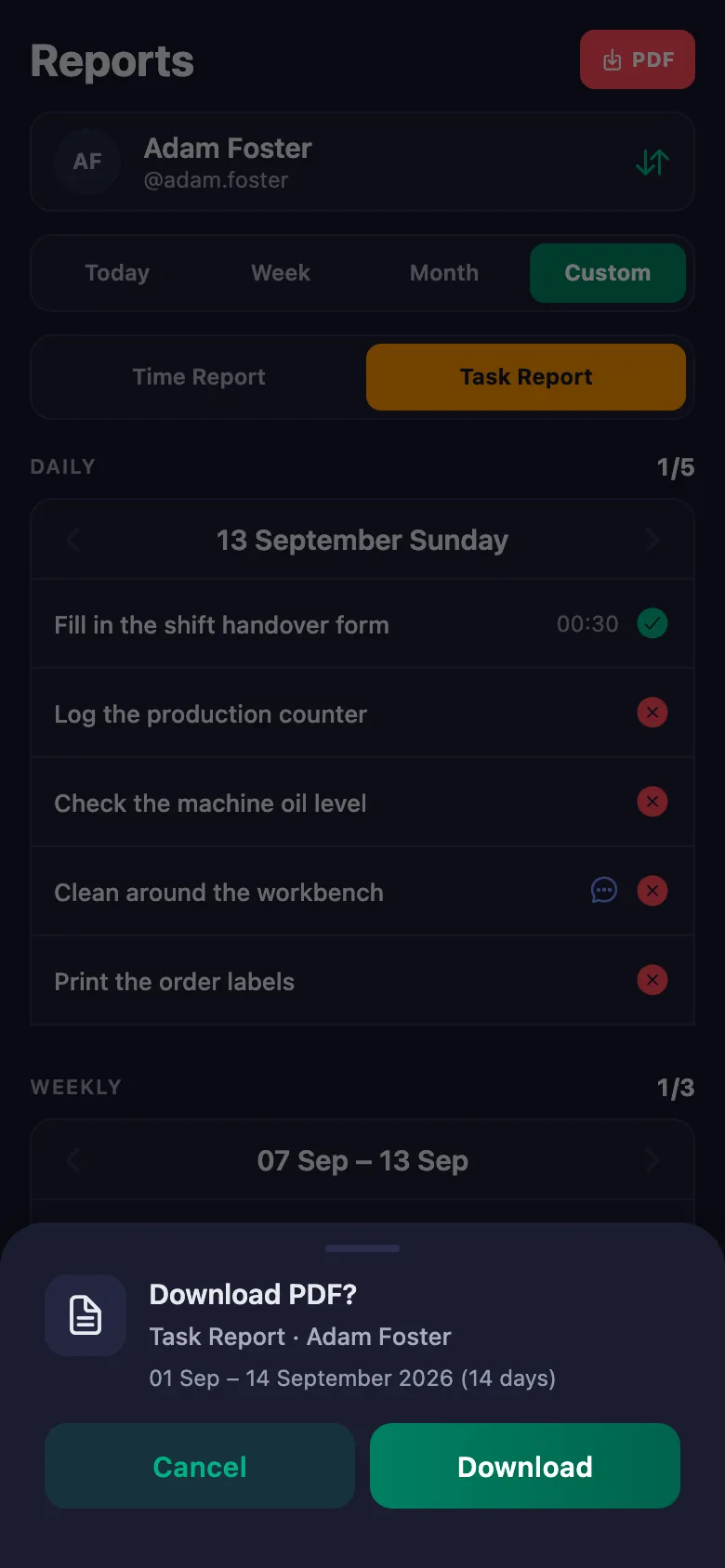
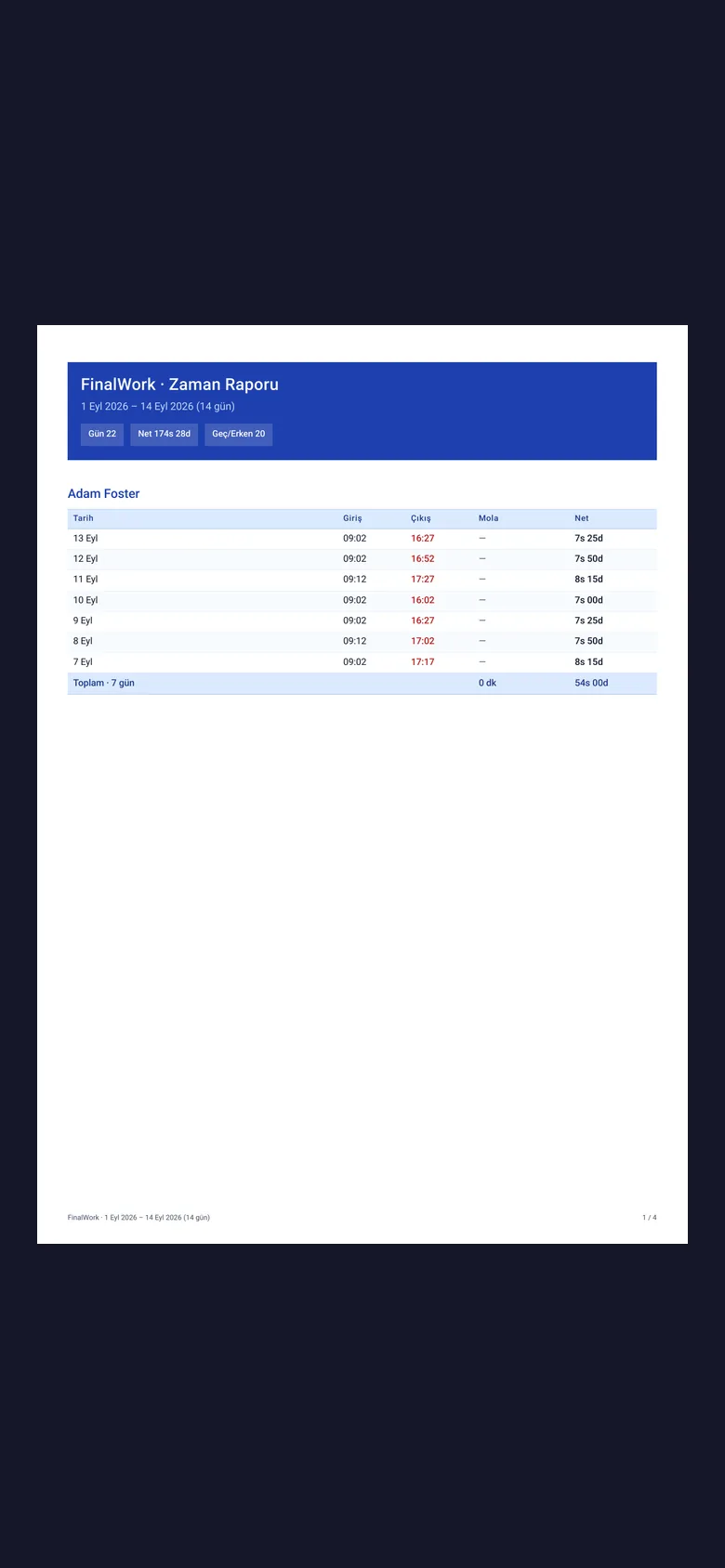
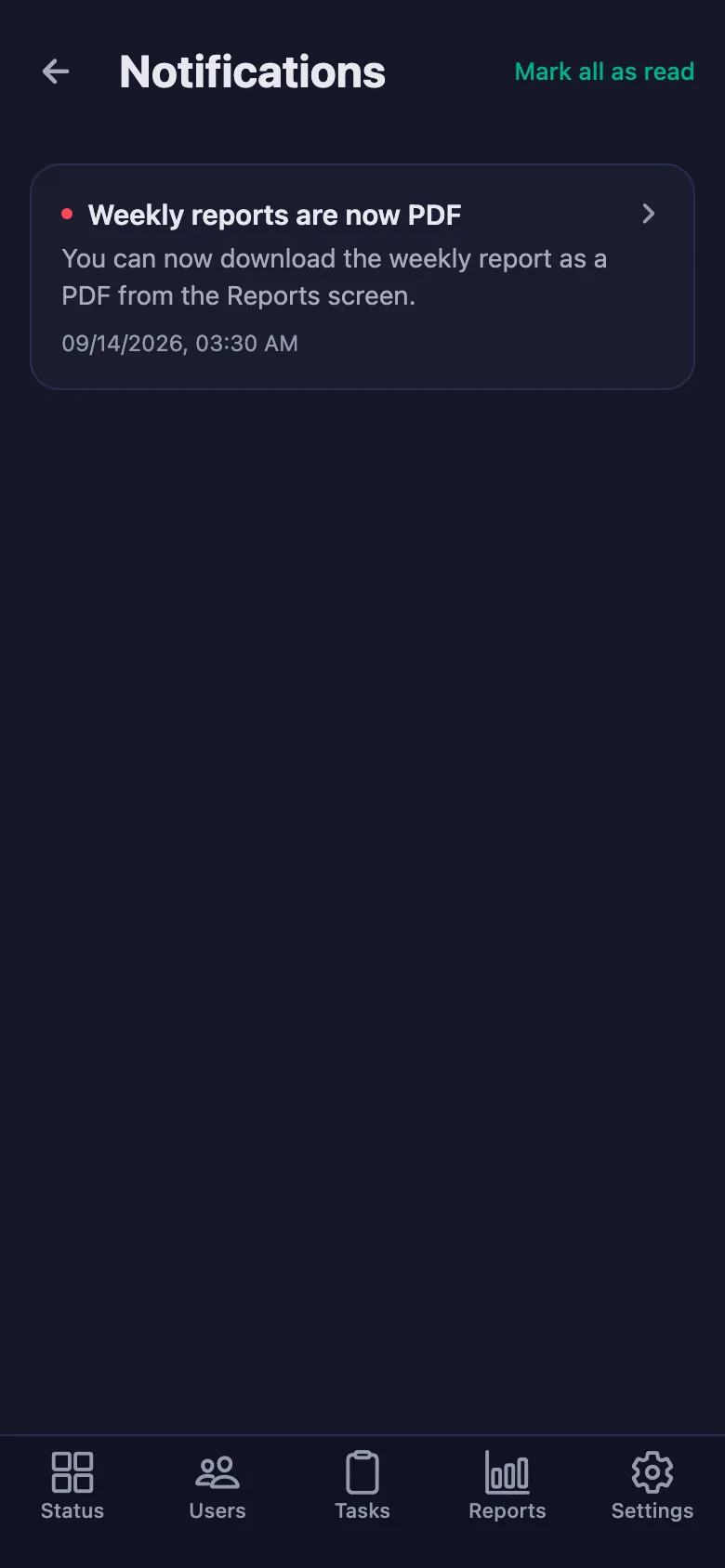
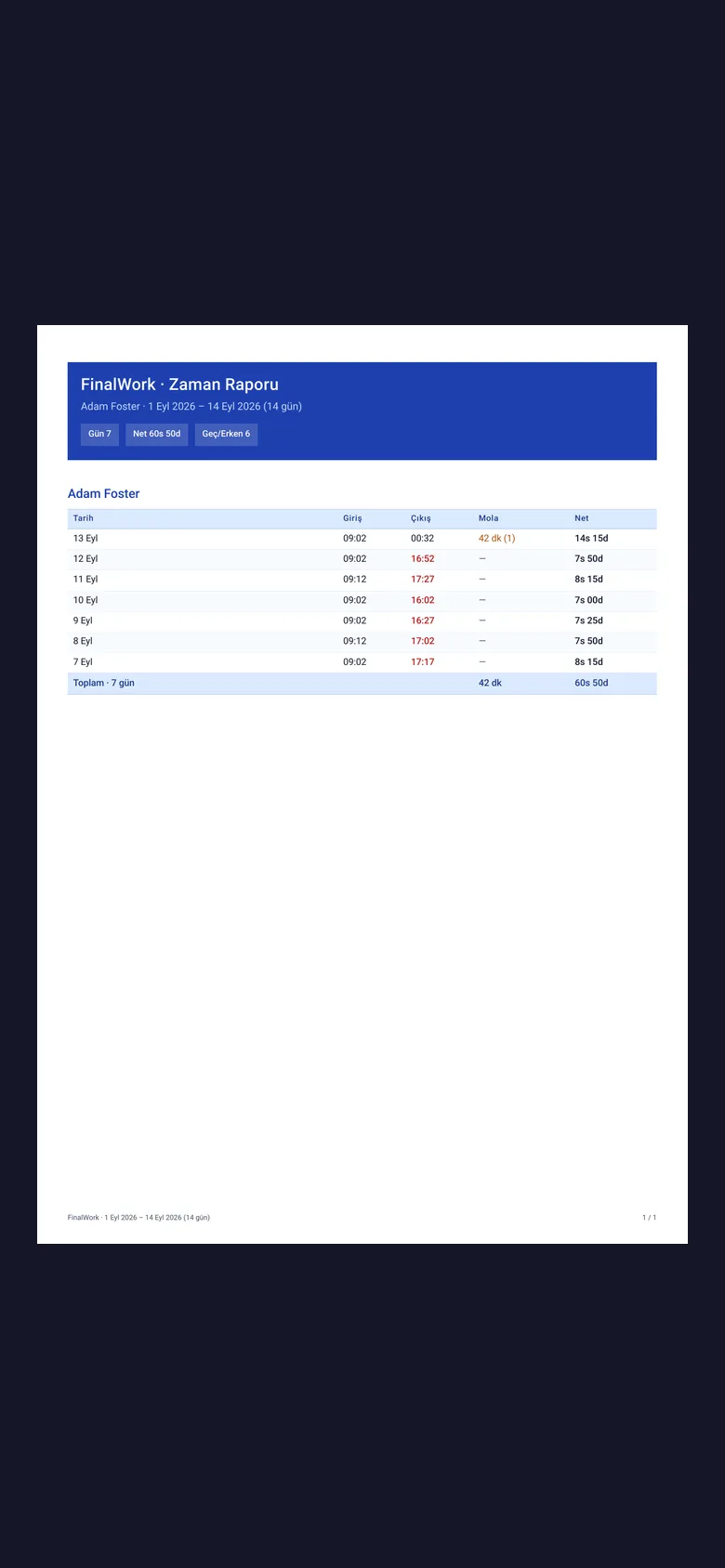
Pick a date range and the report appears on screen. Download the same report as a PDF and send it to your accountant.
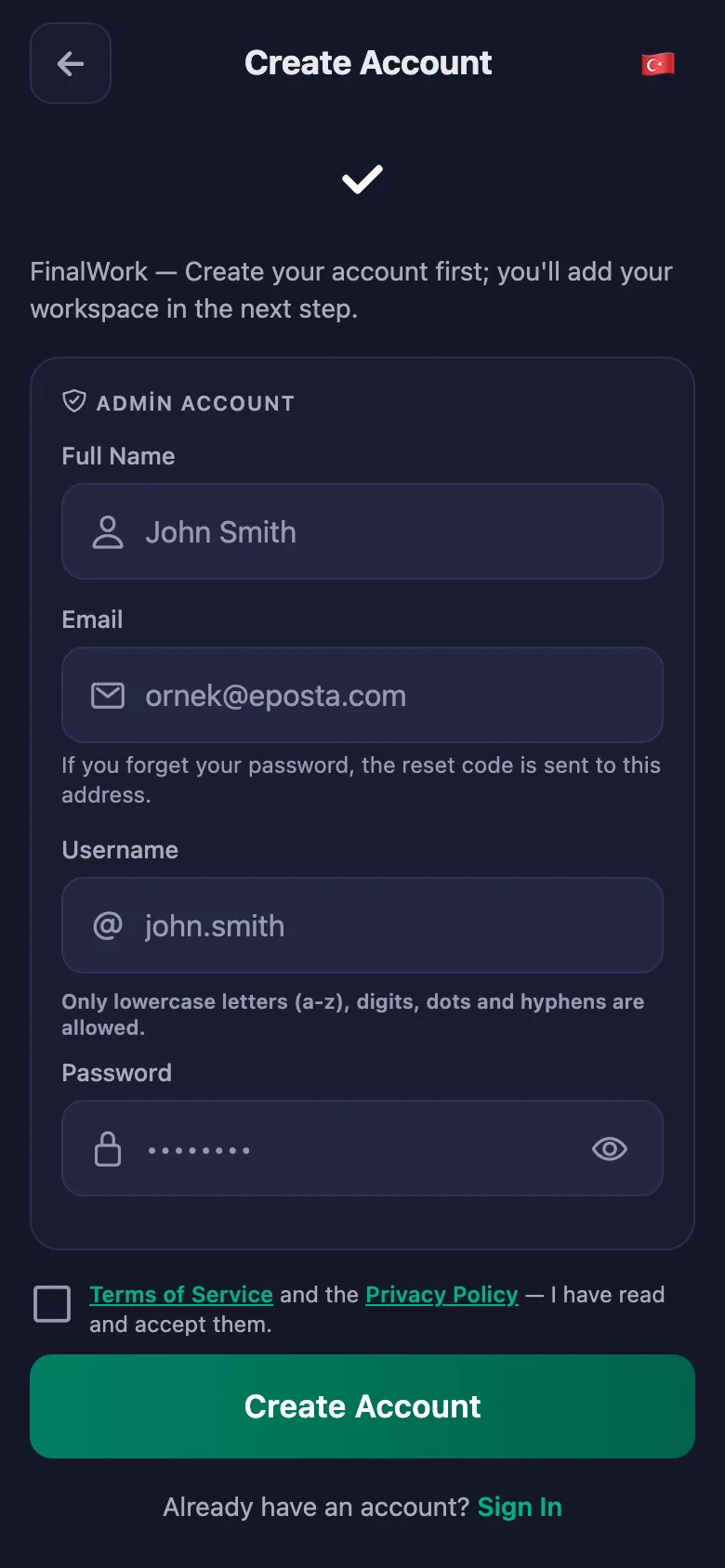
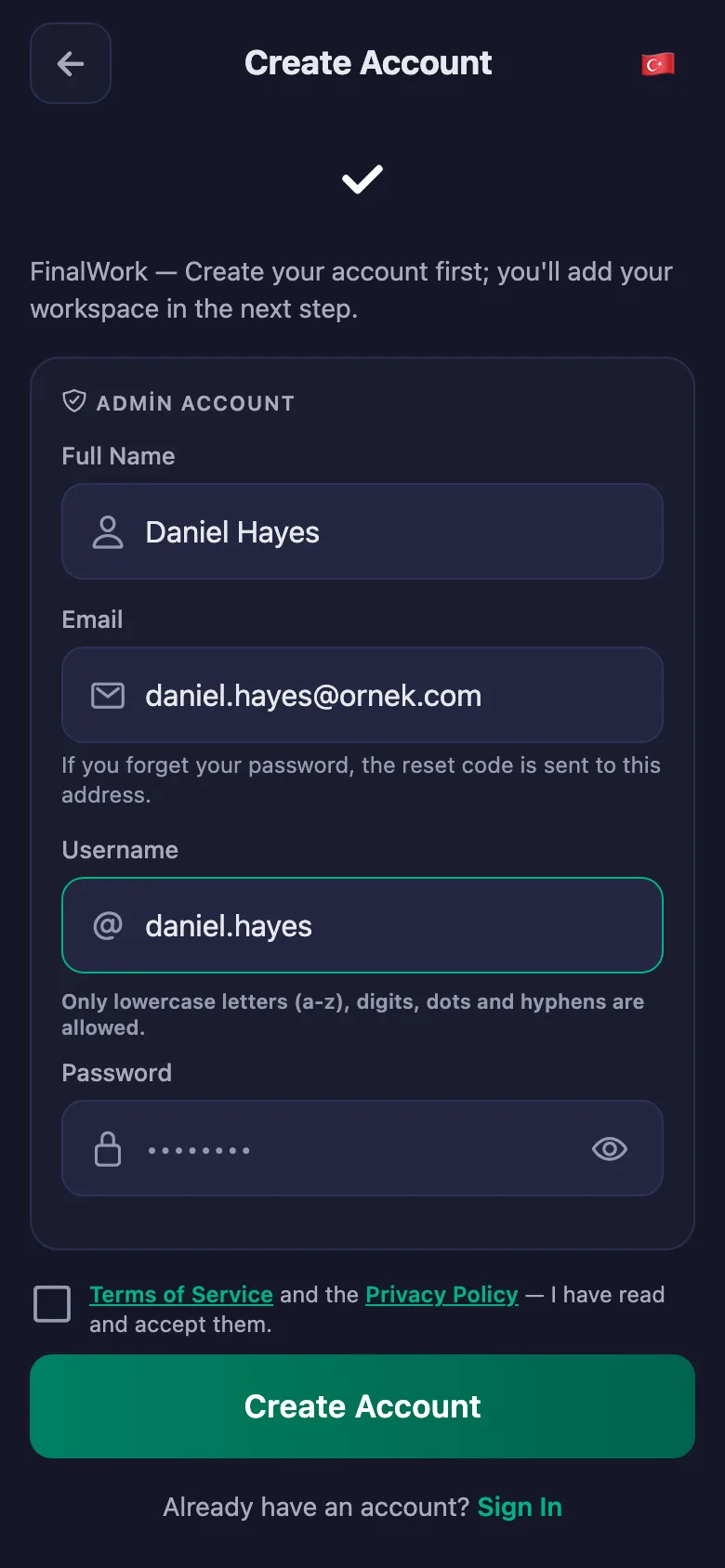
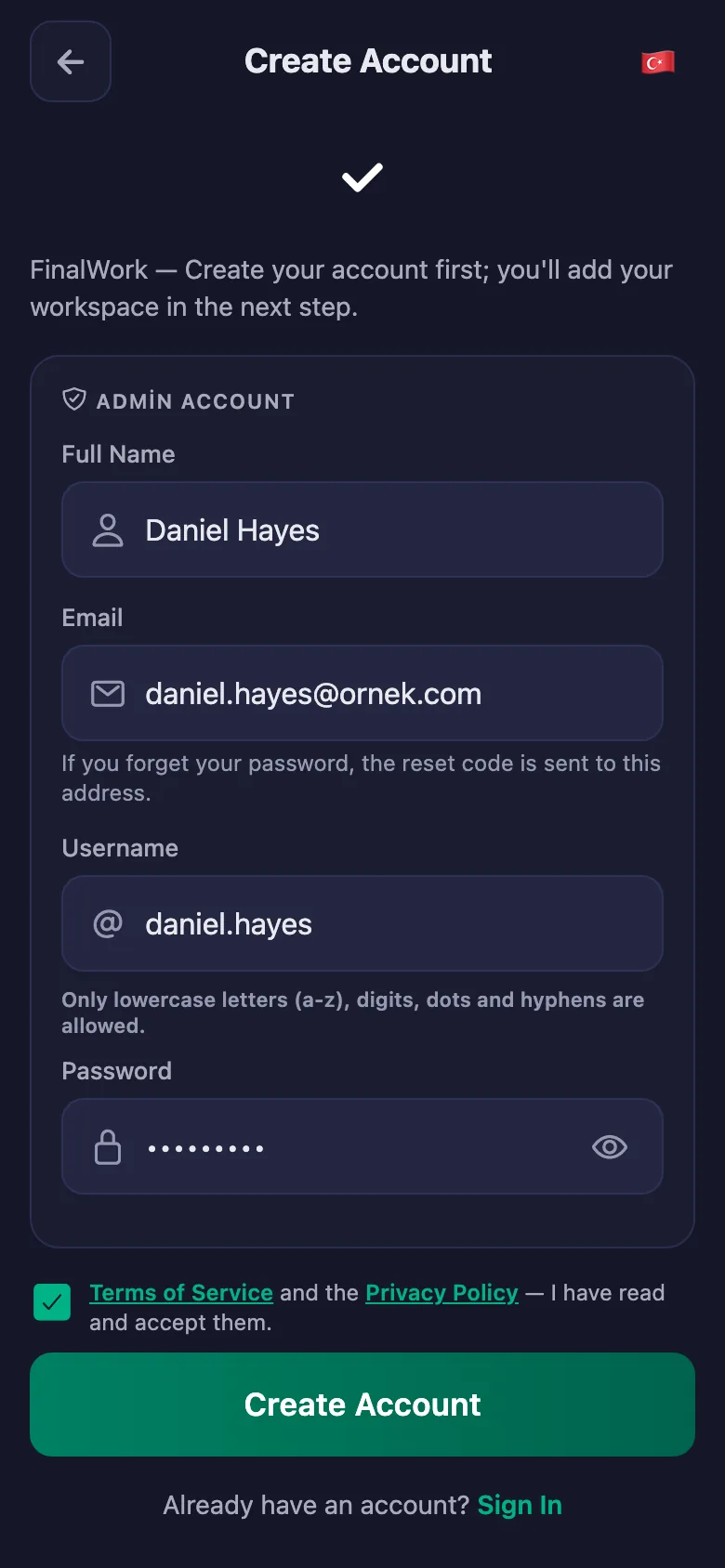
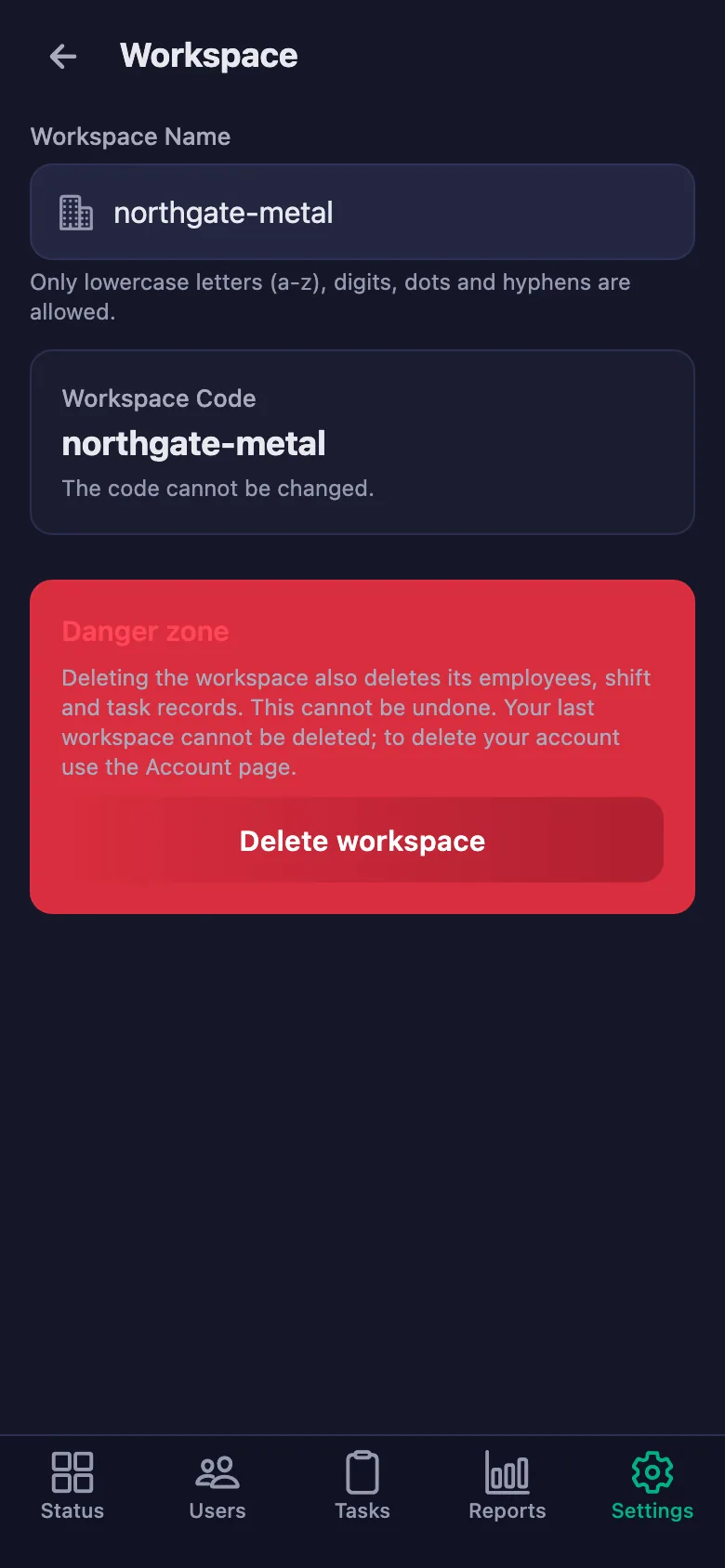
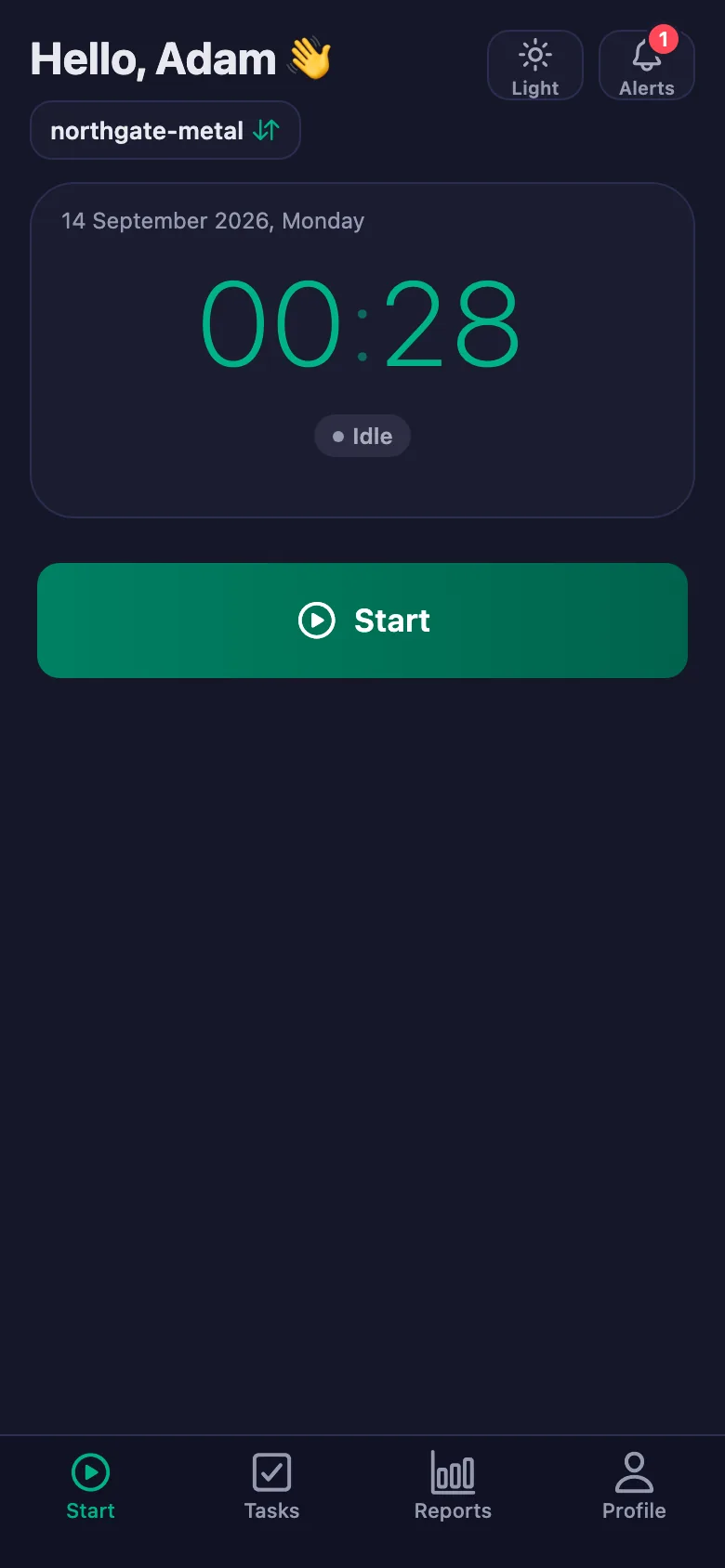
Setup and activation take just one minute — you can start free. Below you can watch how it all works, step by step, on the app's real screens.
Employer – Staff App Demo
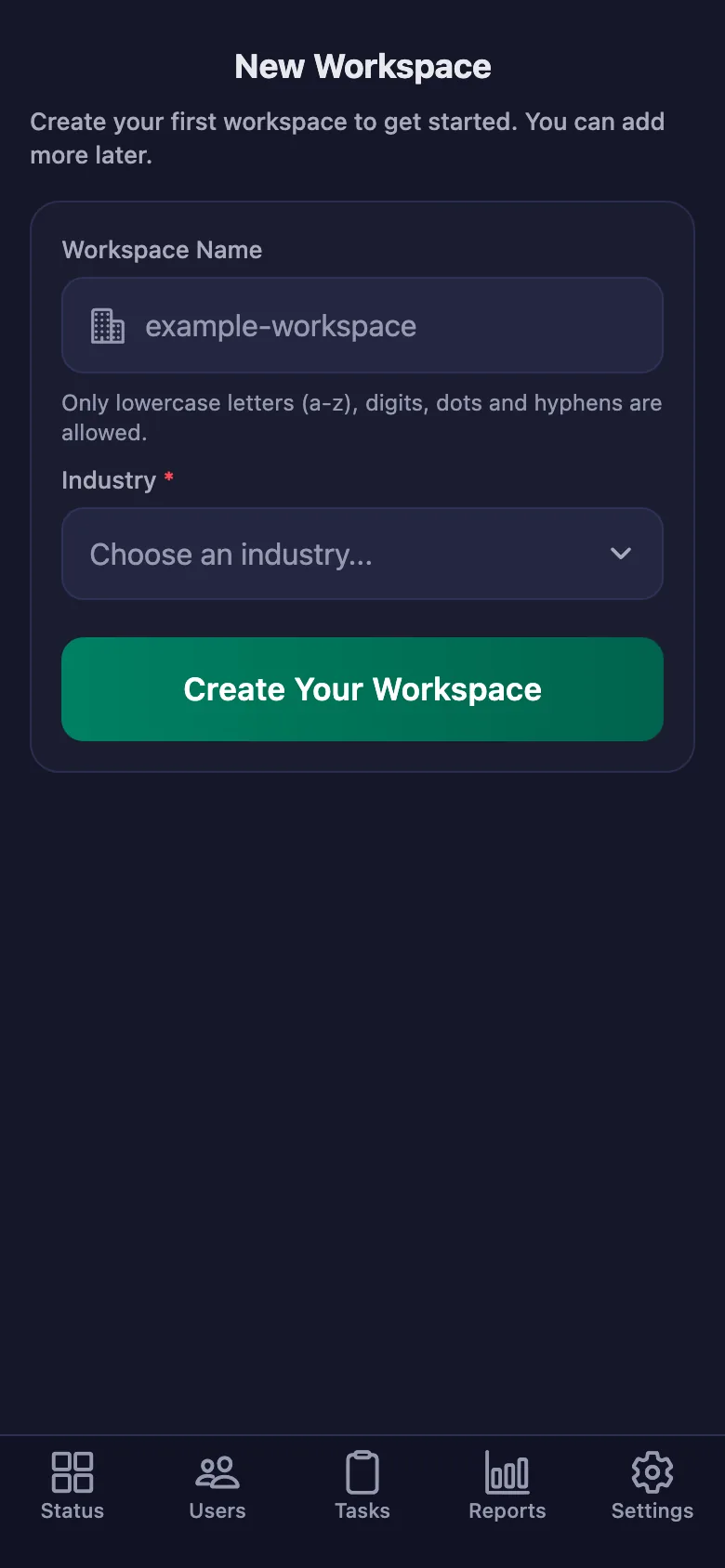
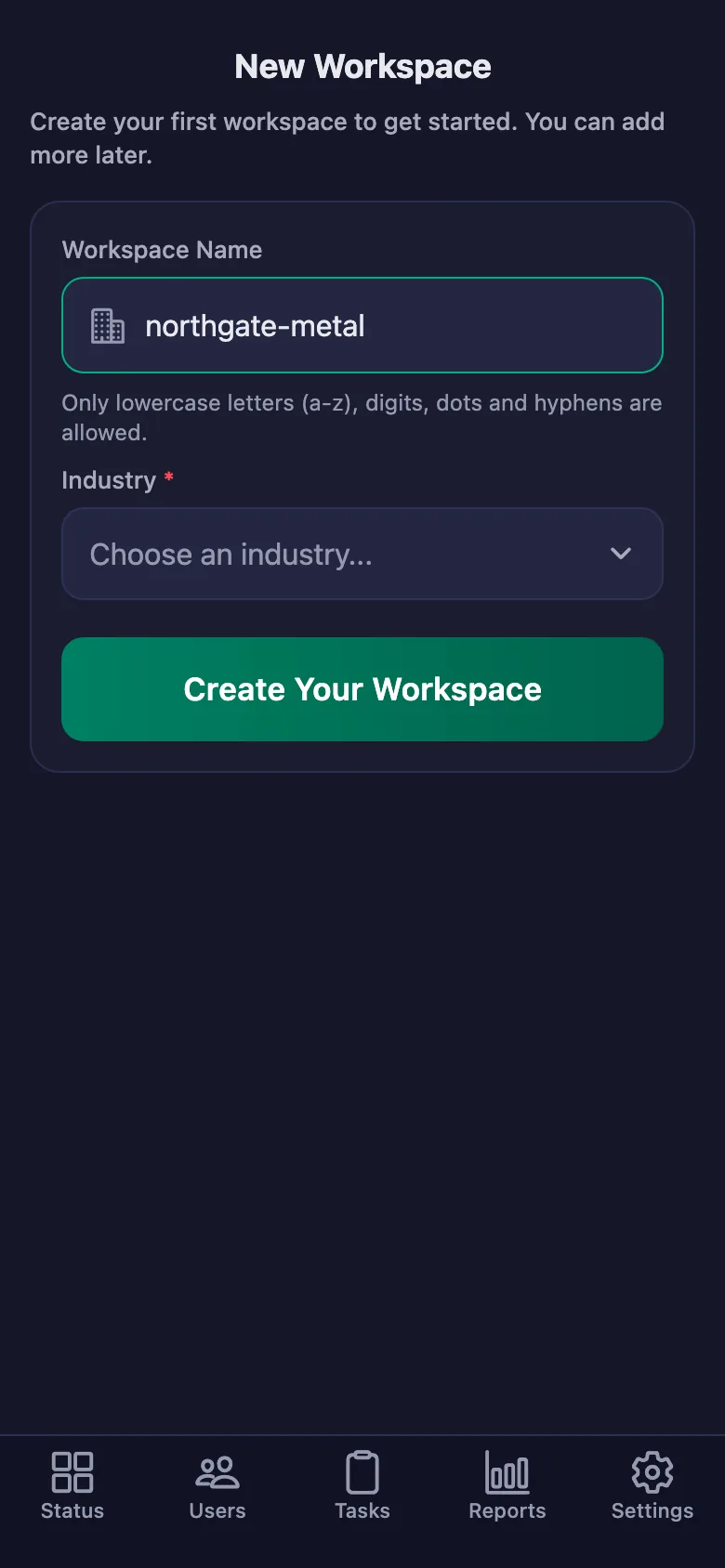
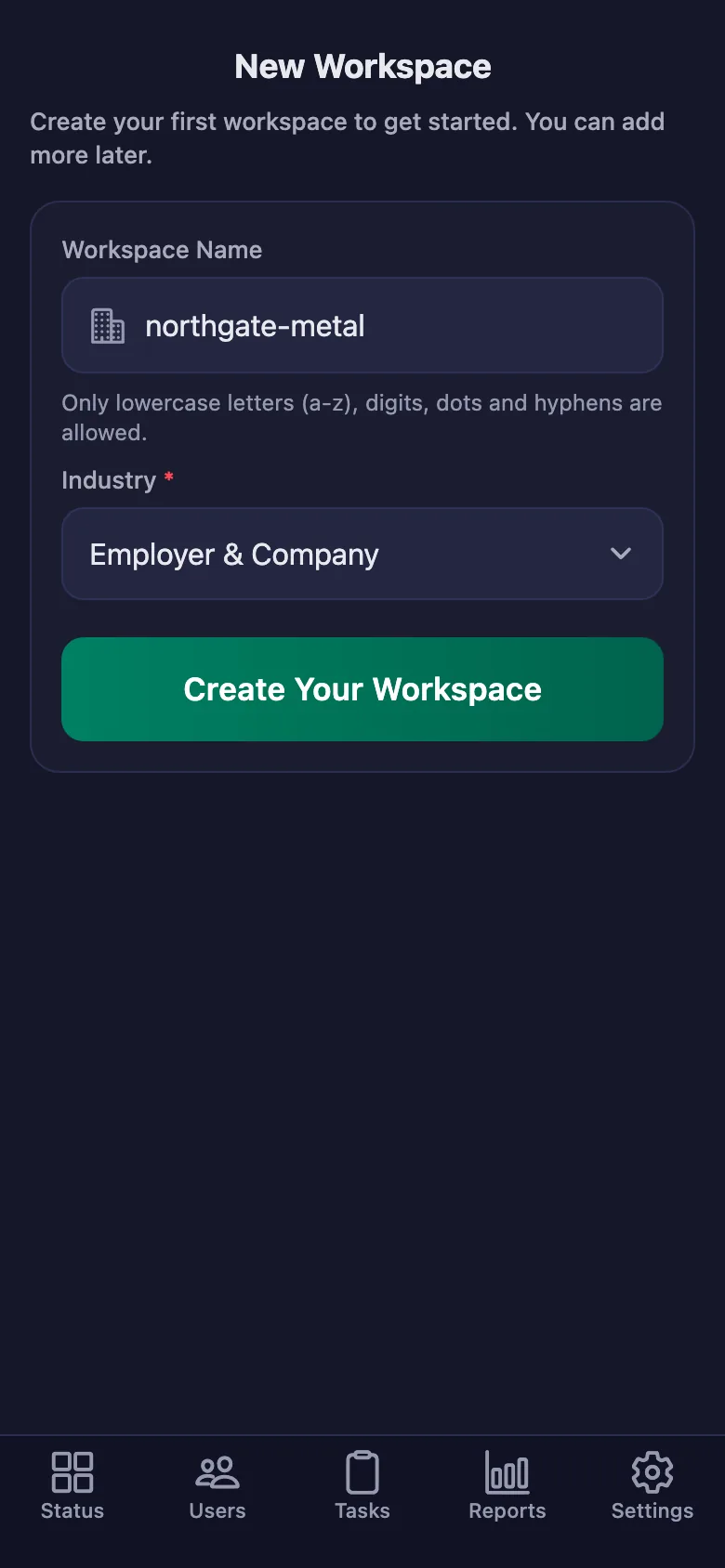
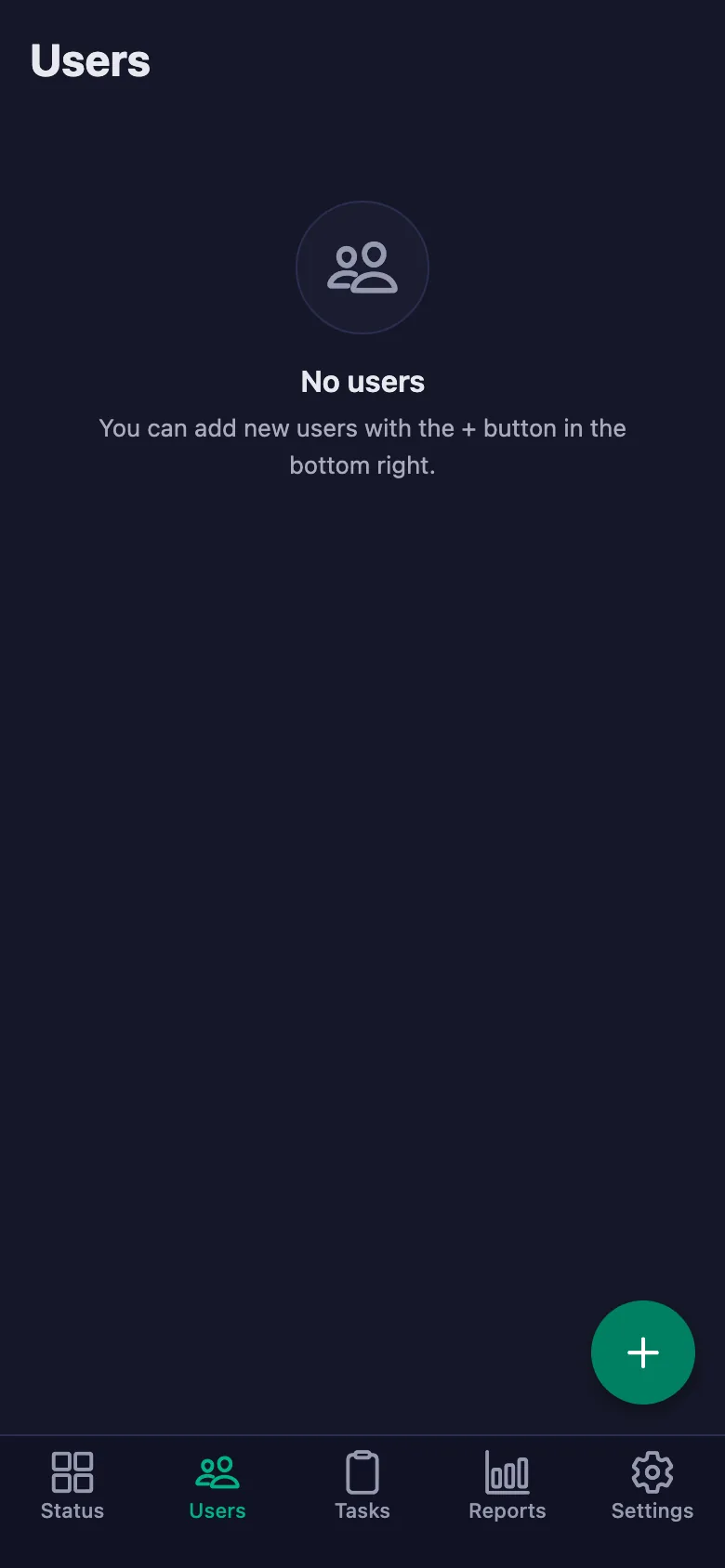
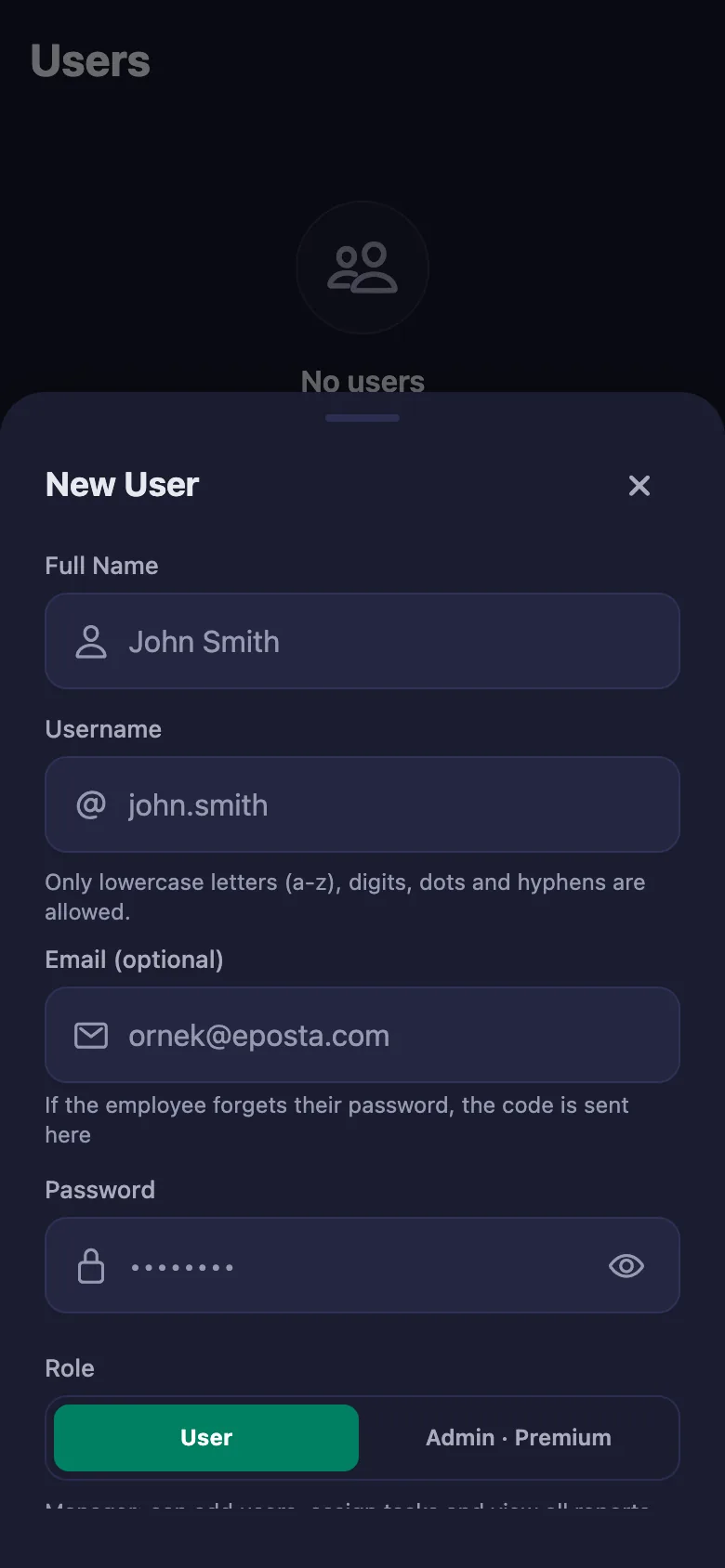
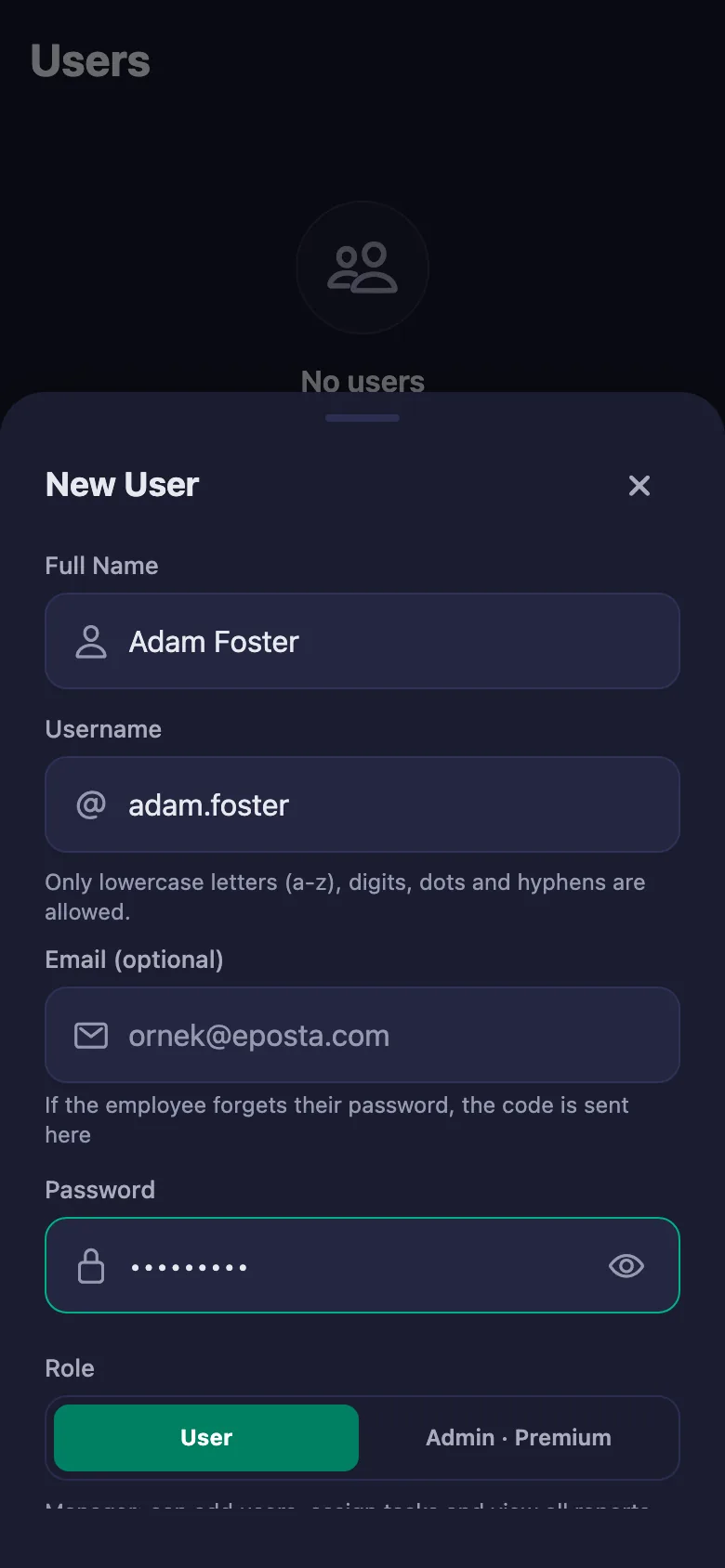
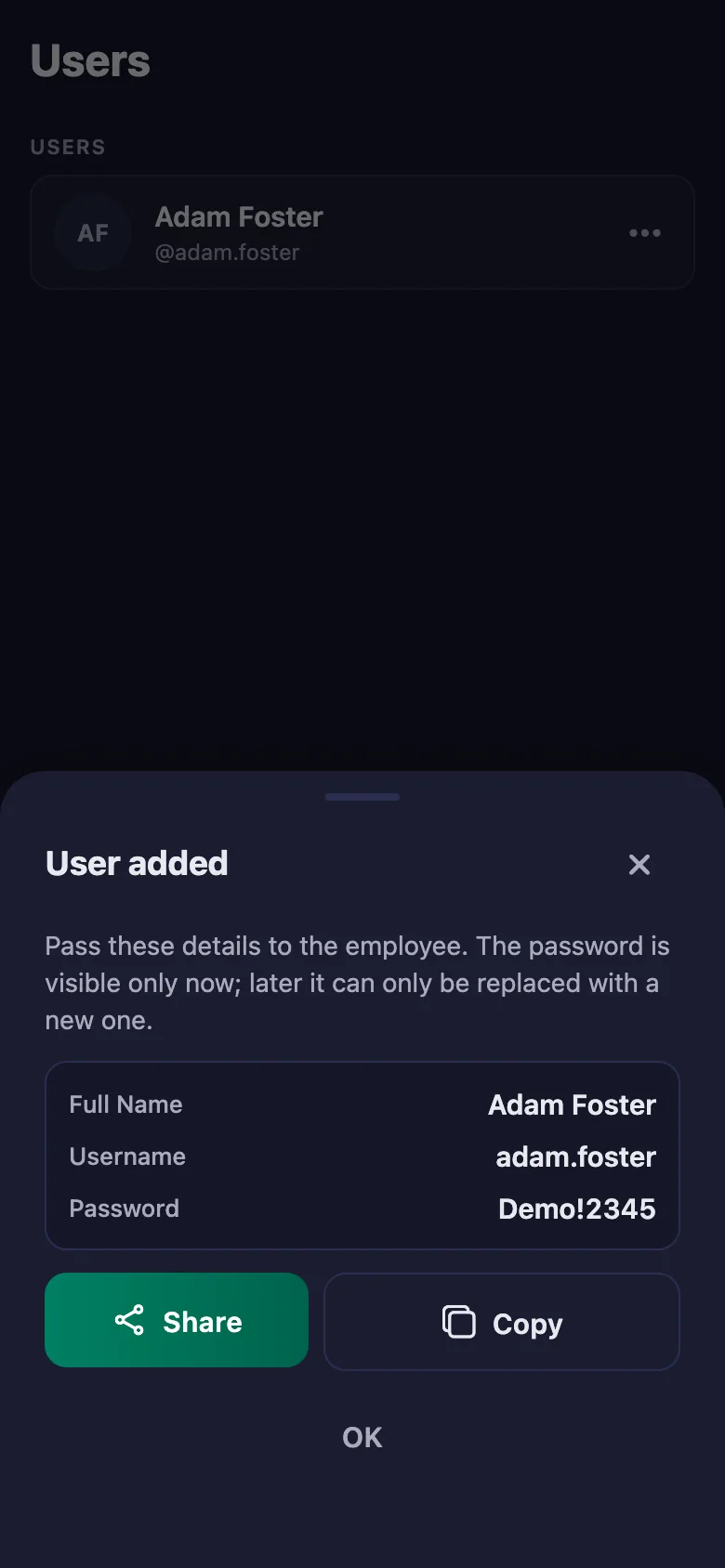
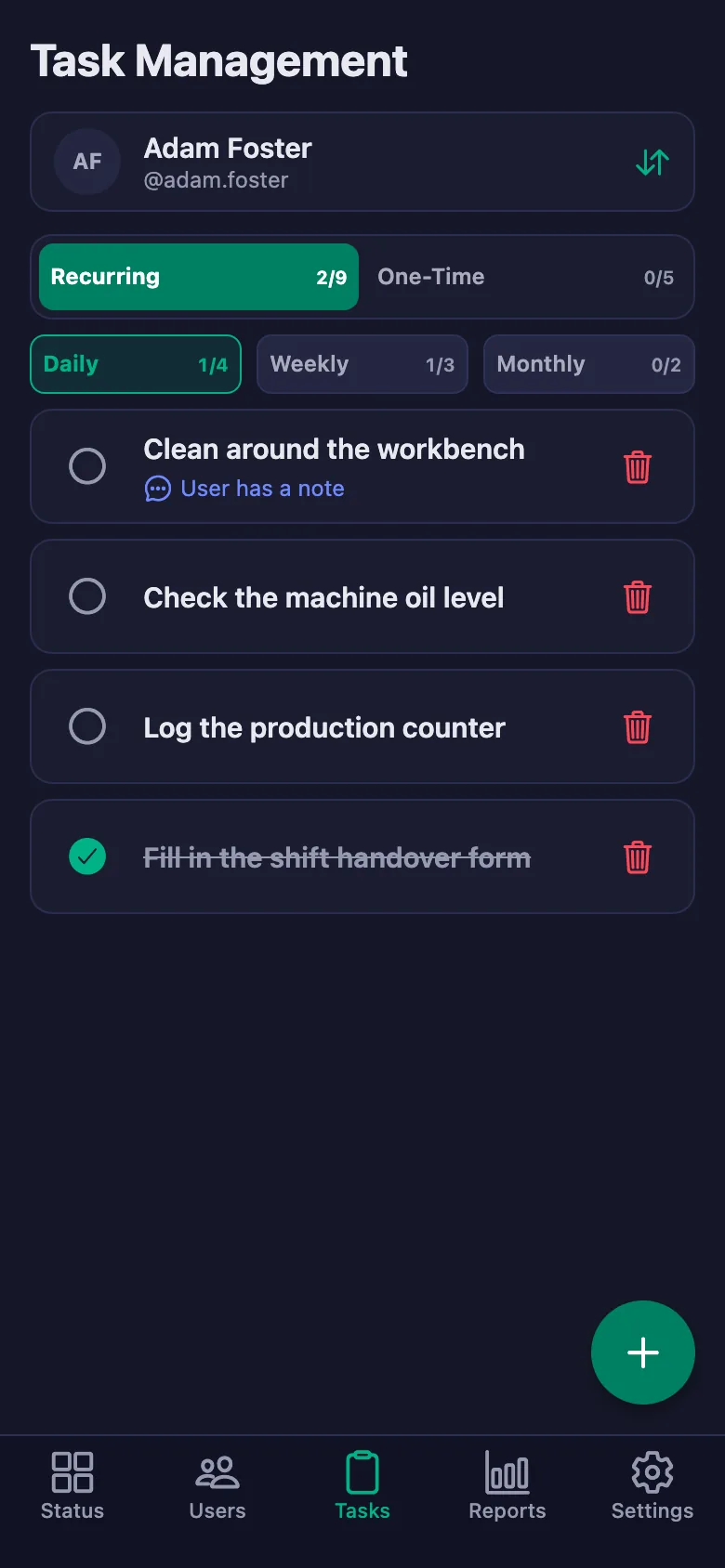
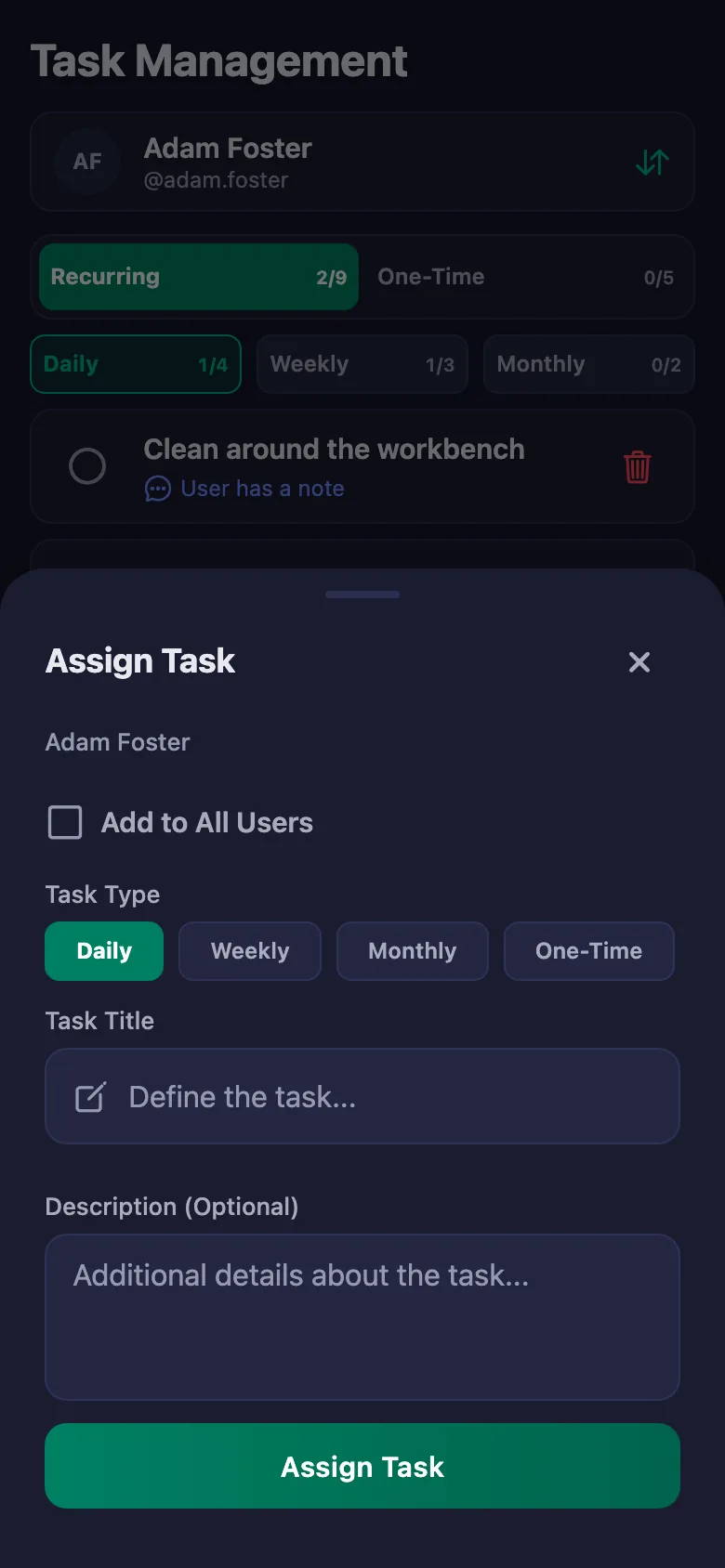
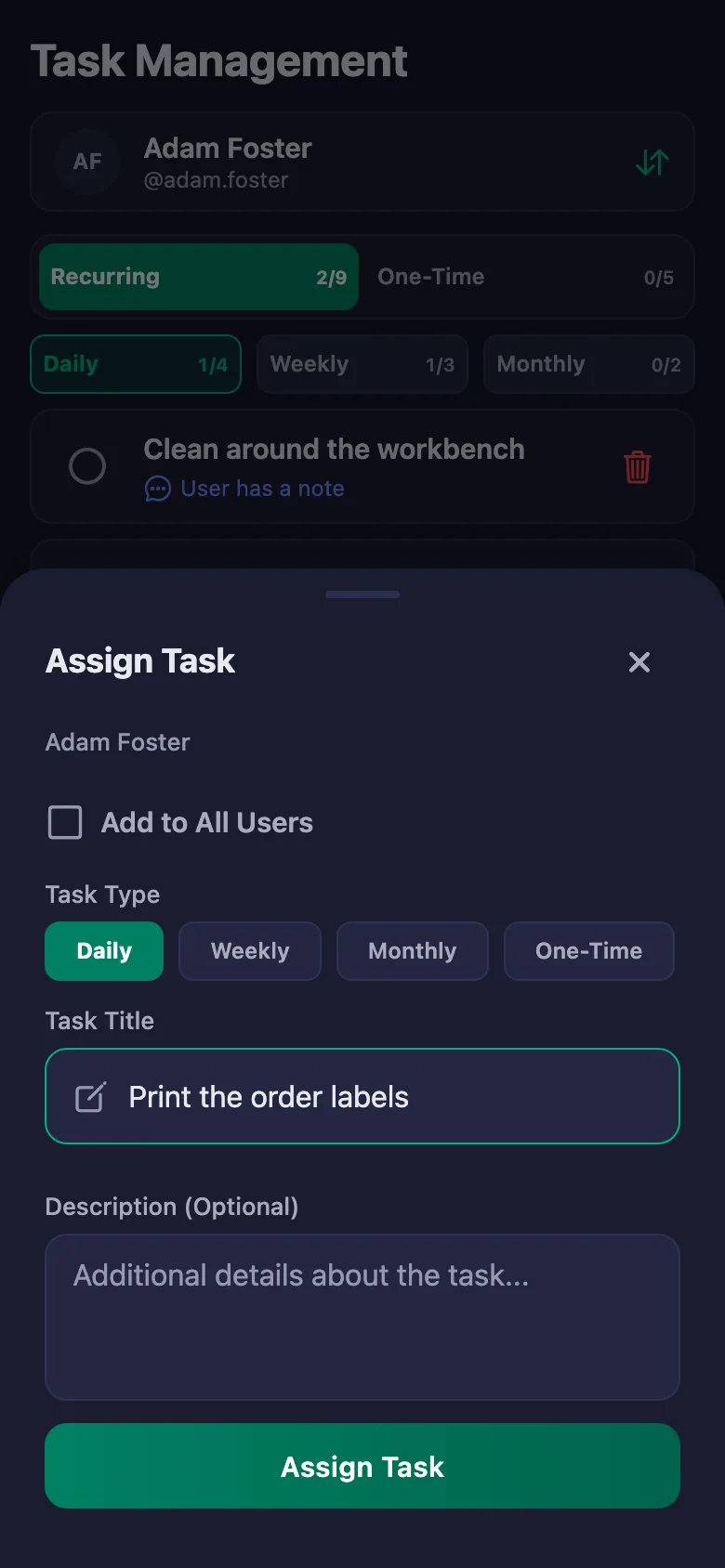
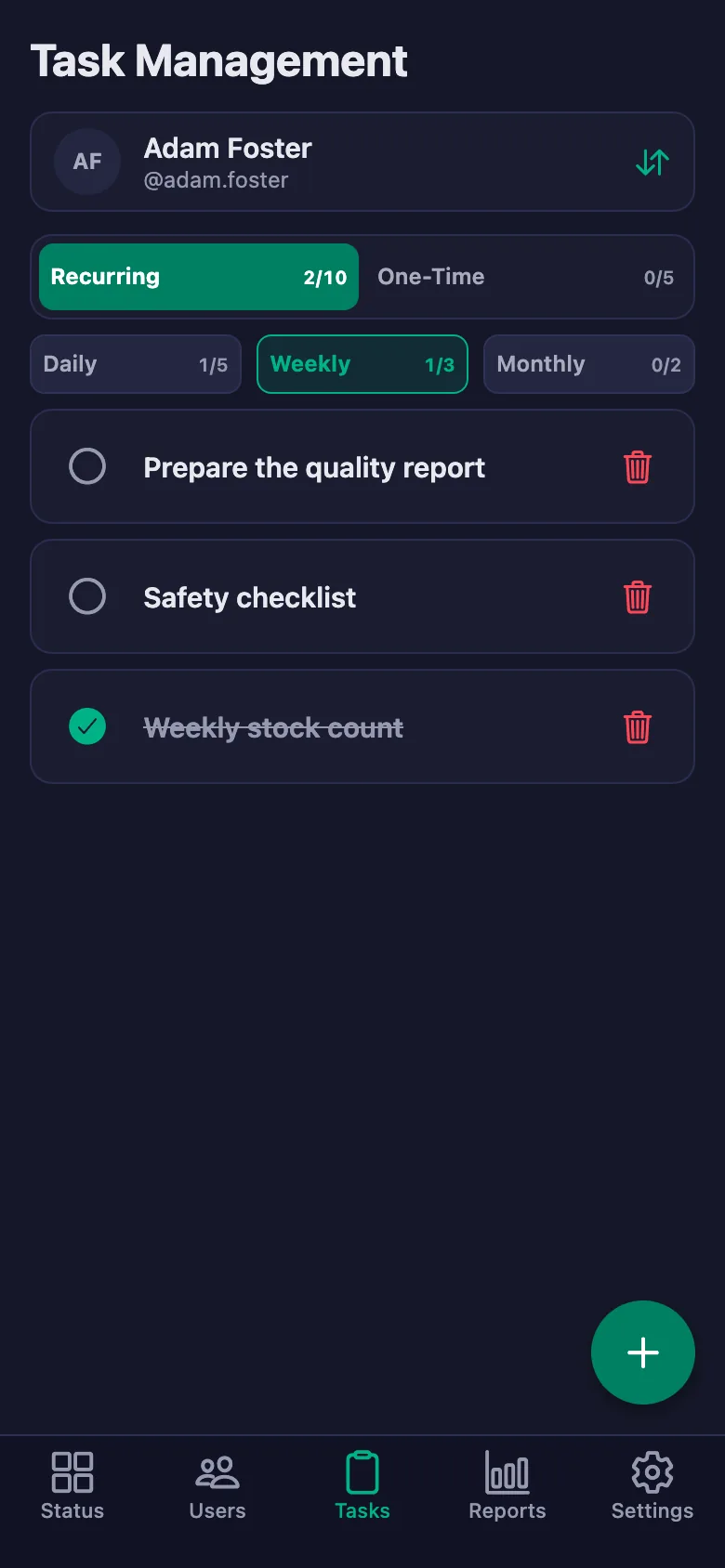
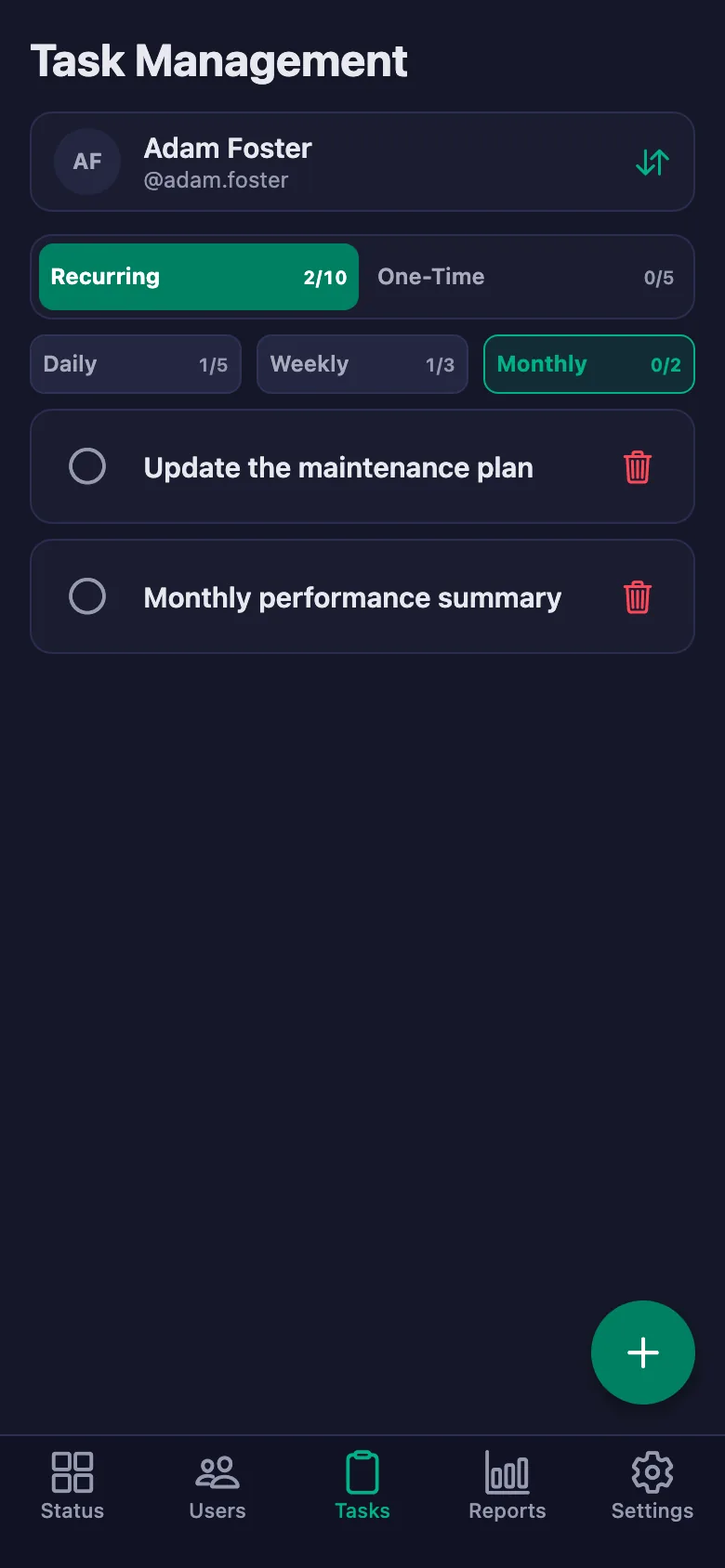
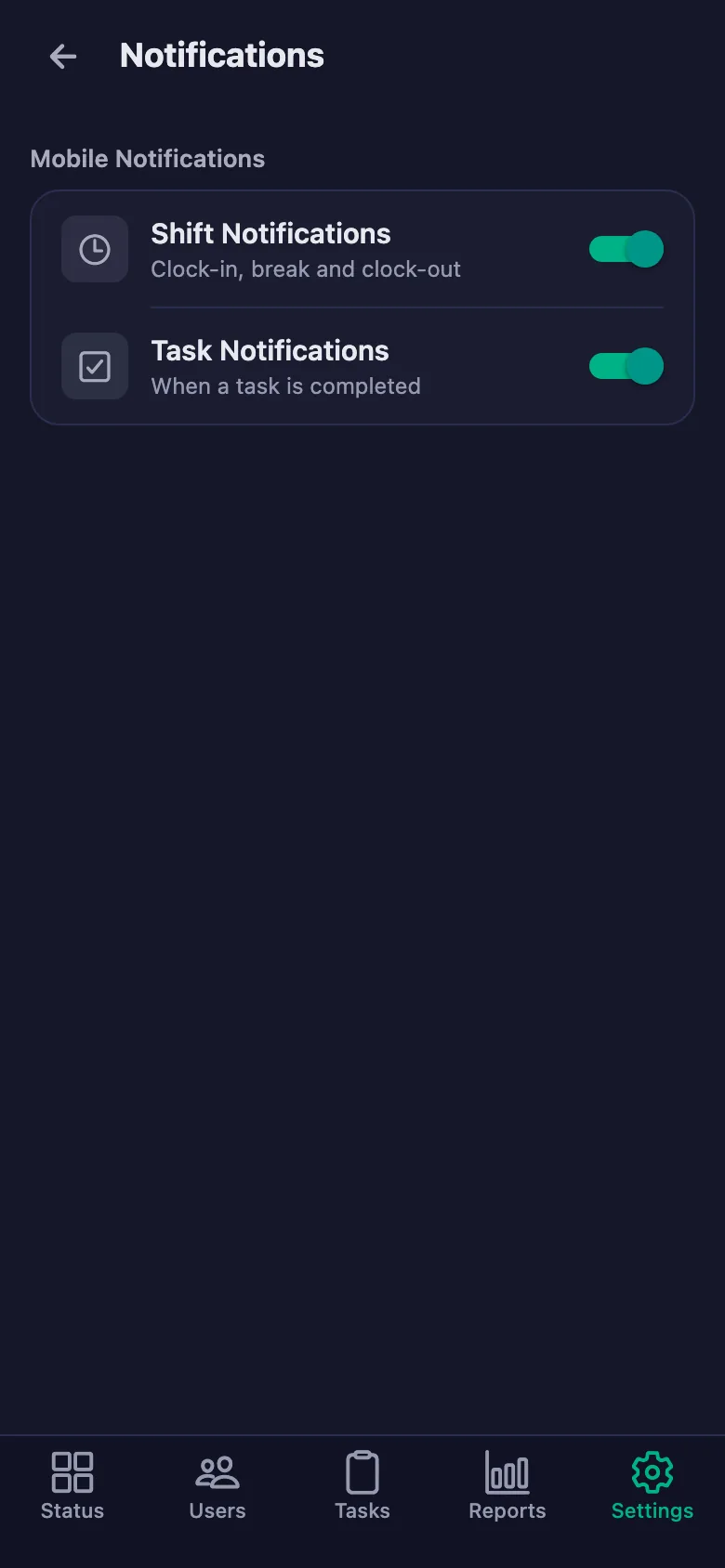
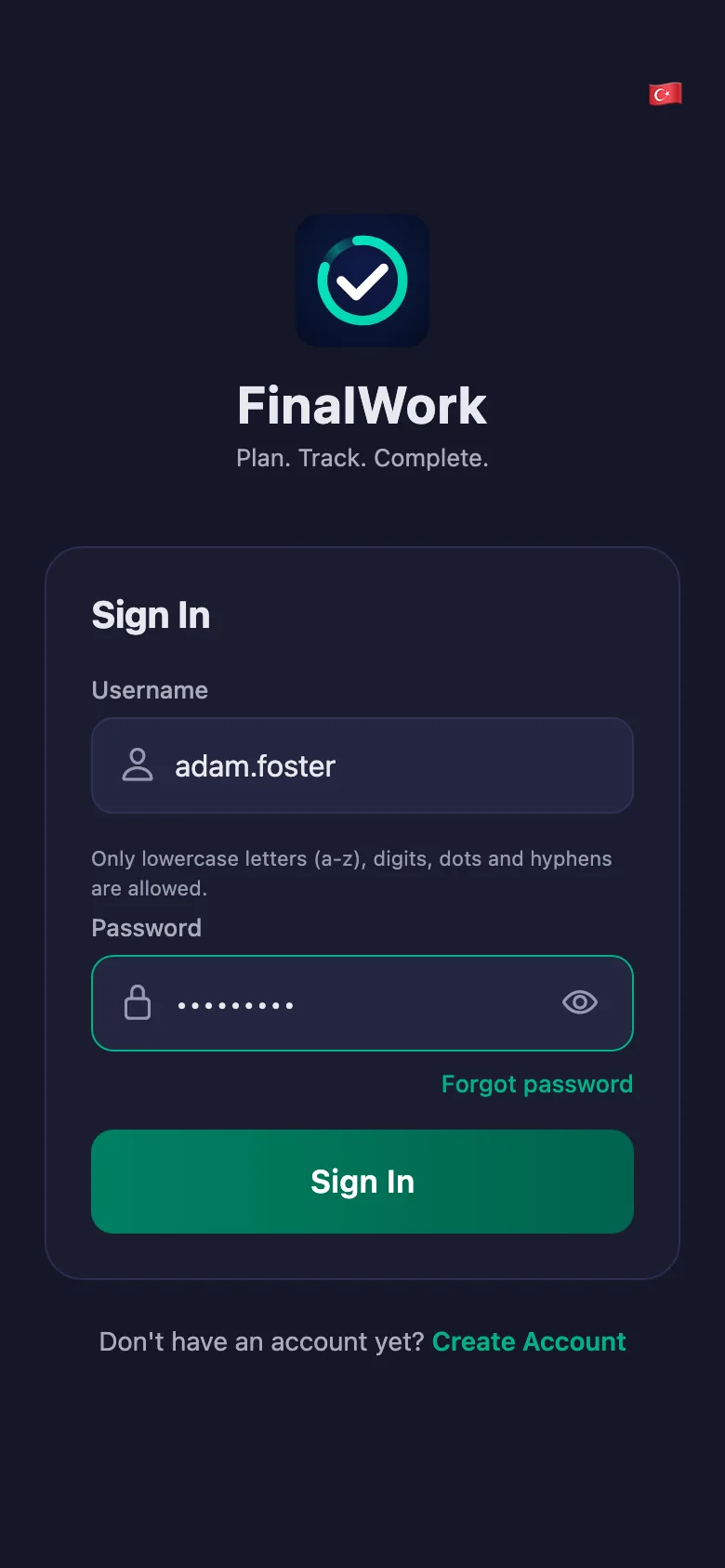
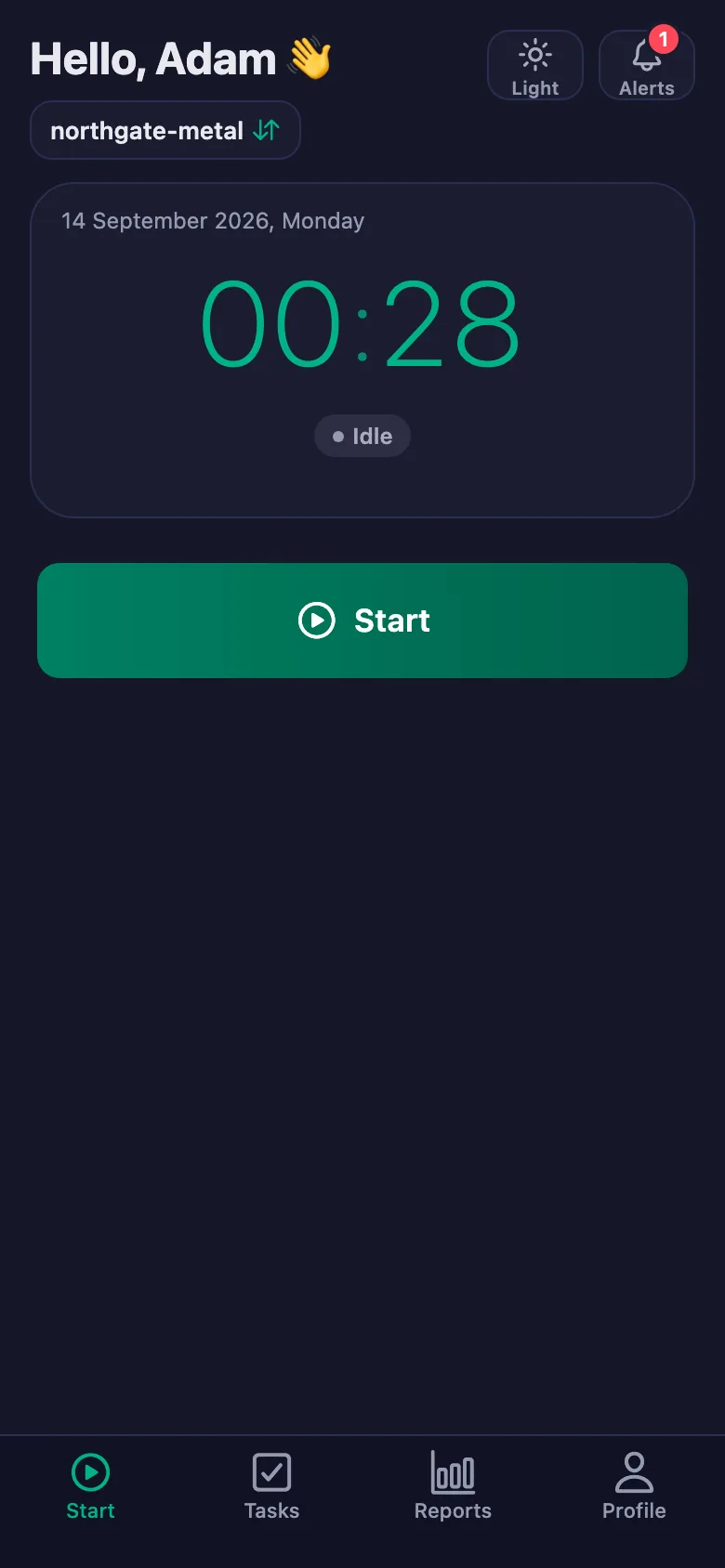
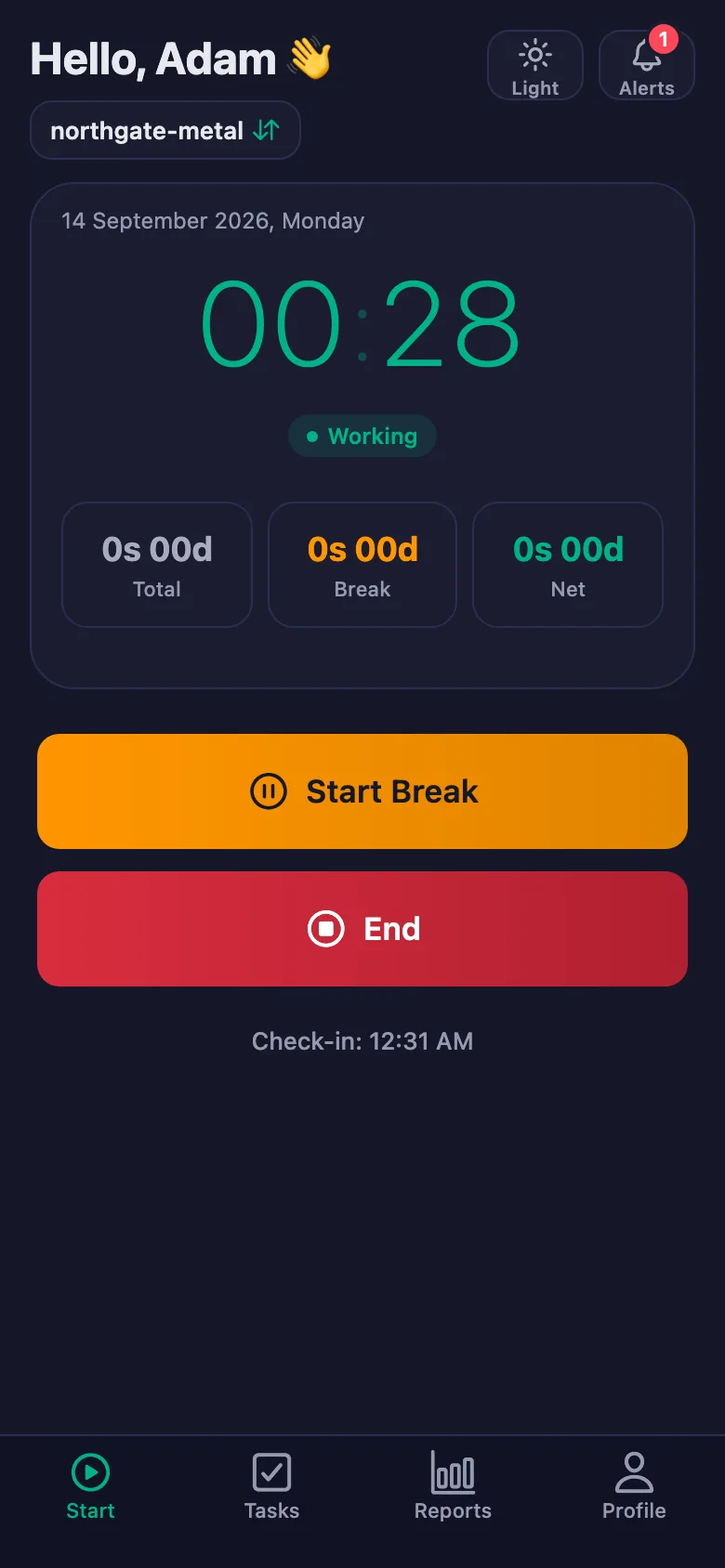
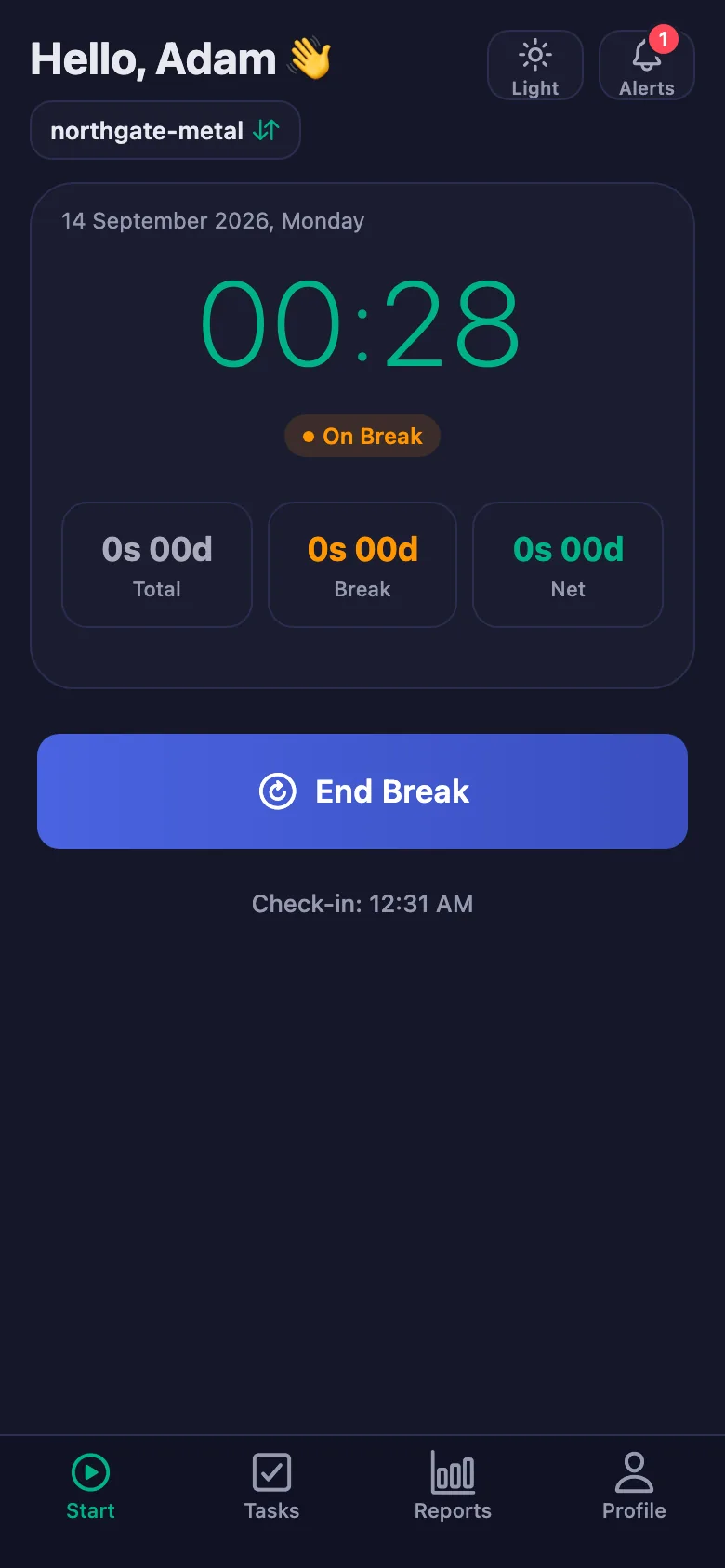
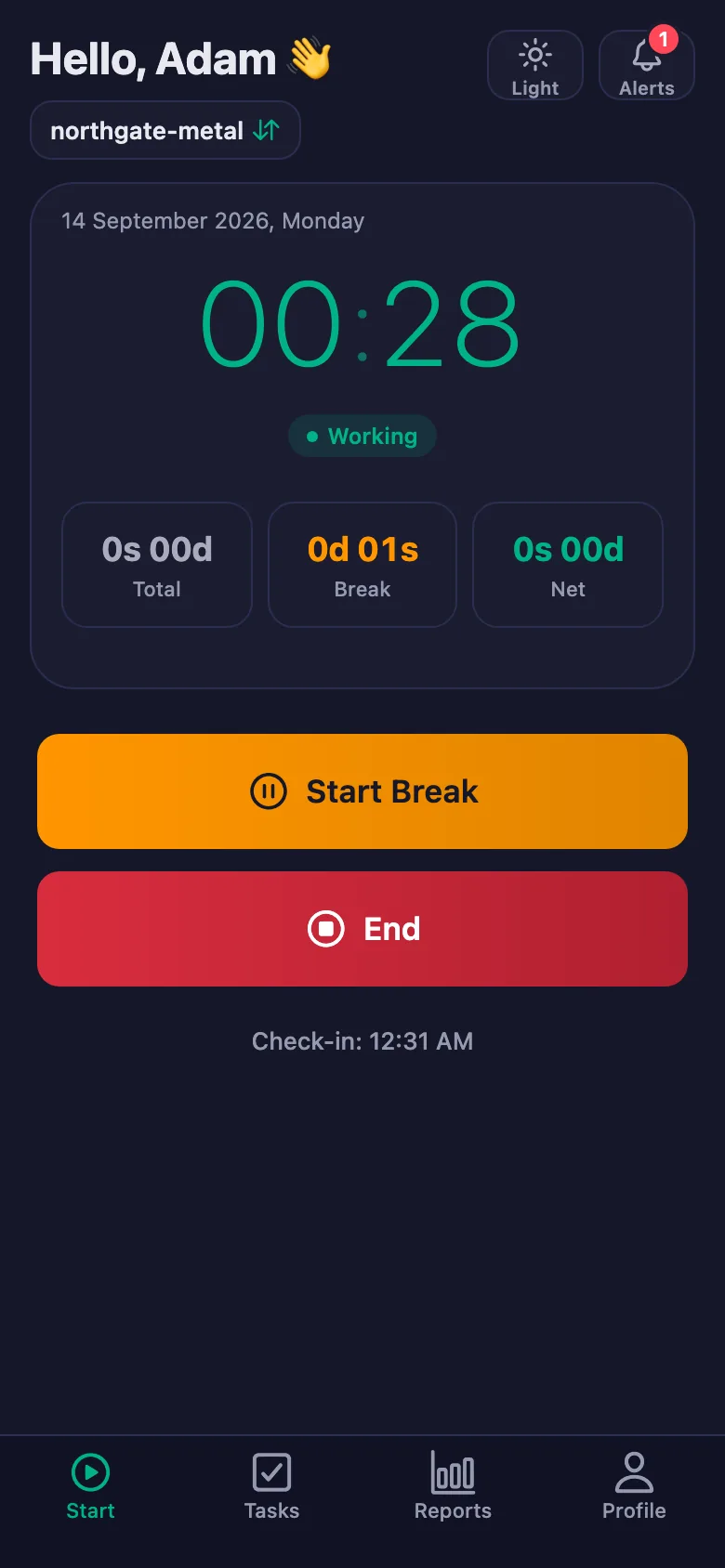
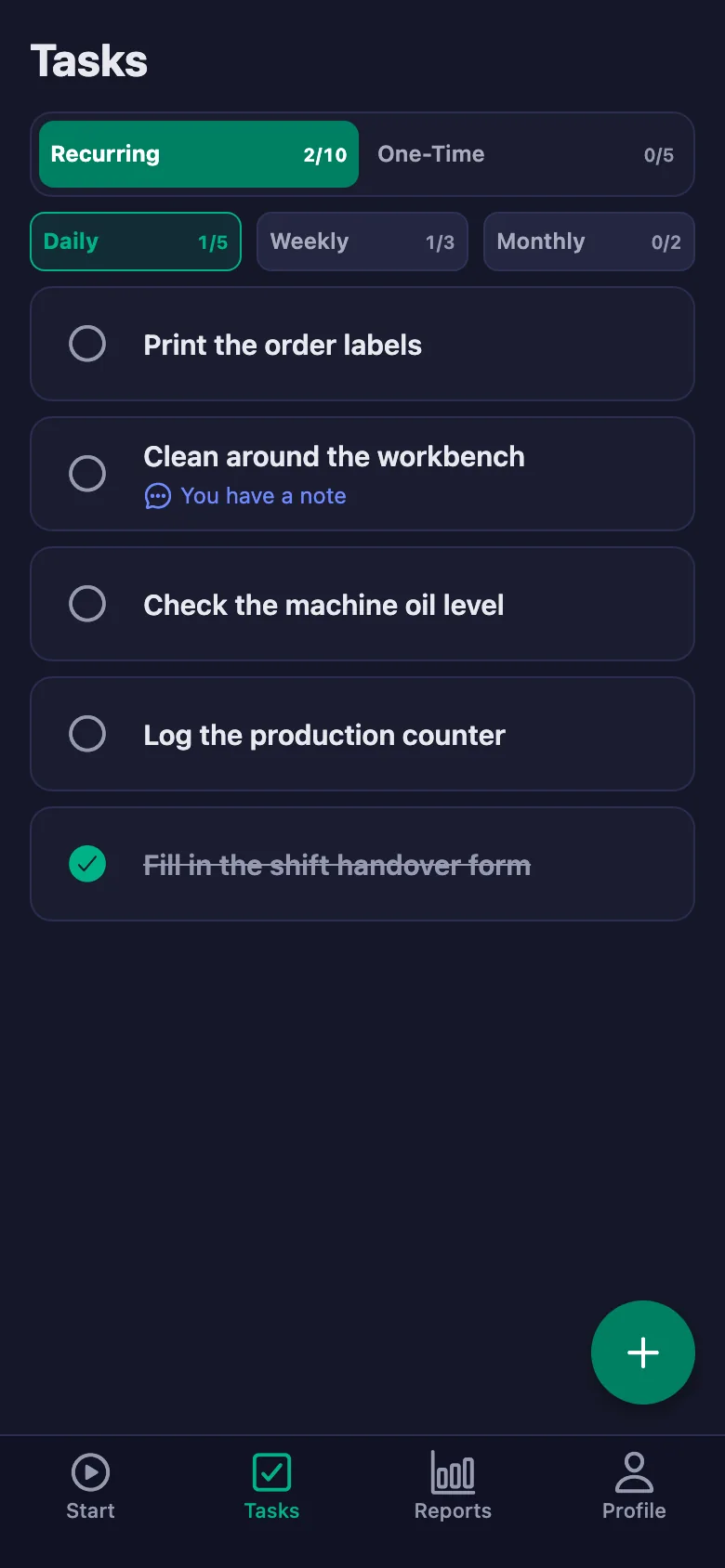
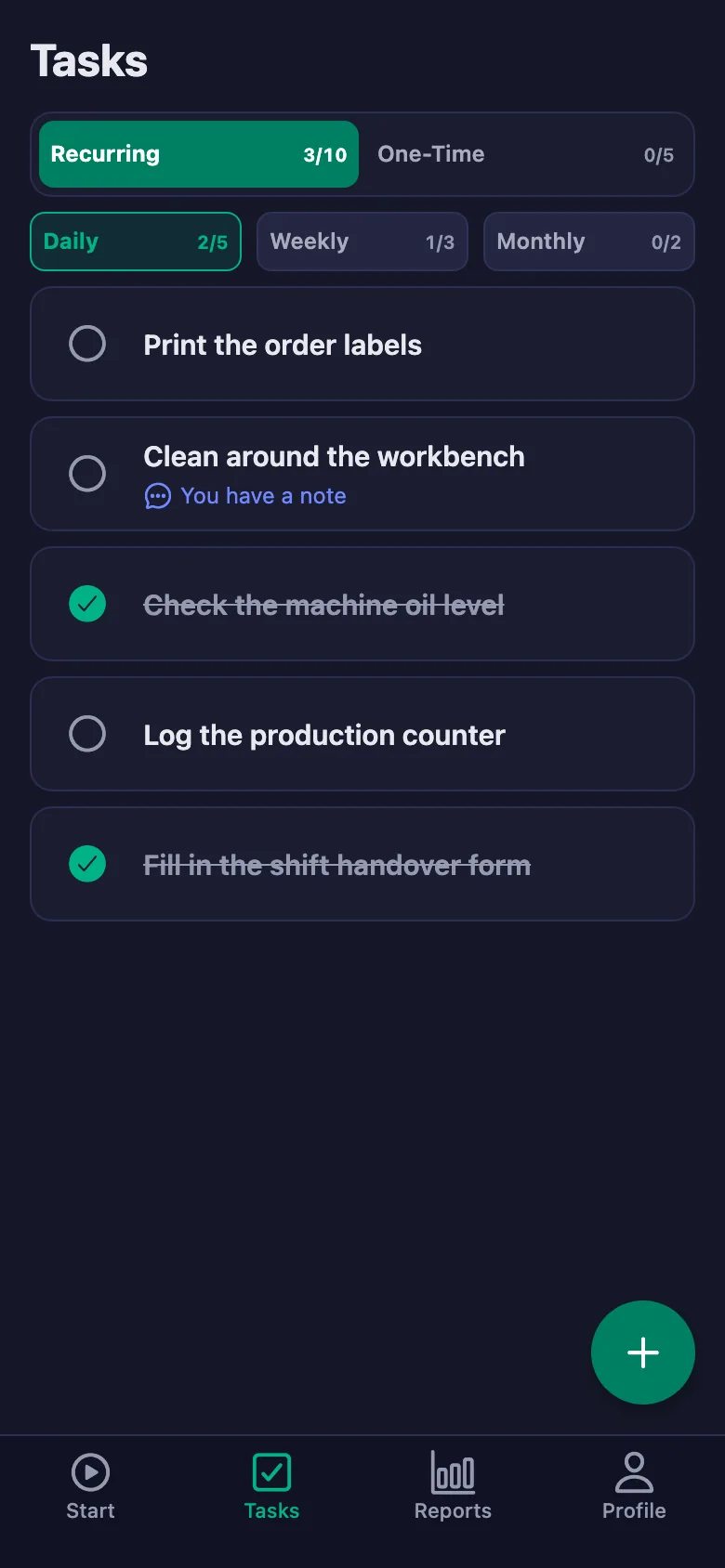
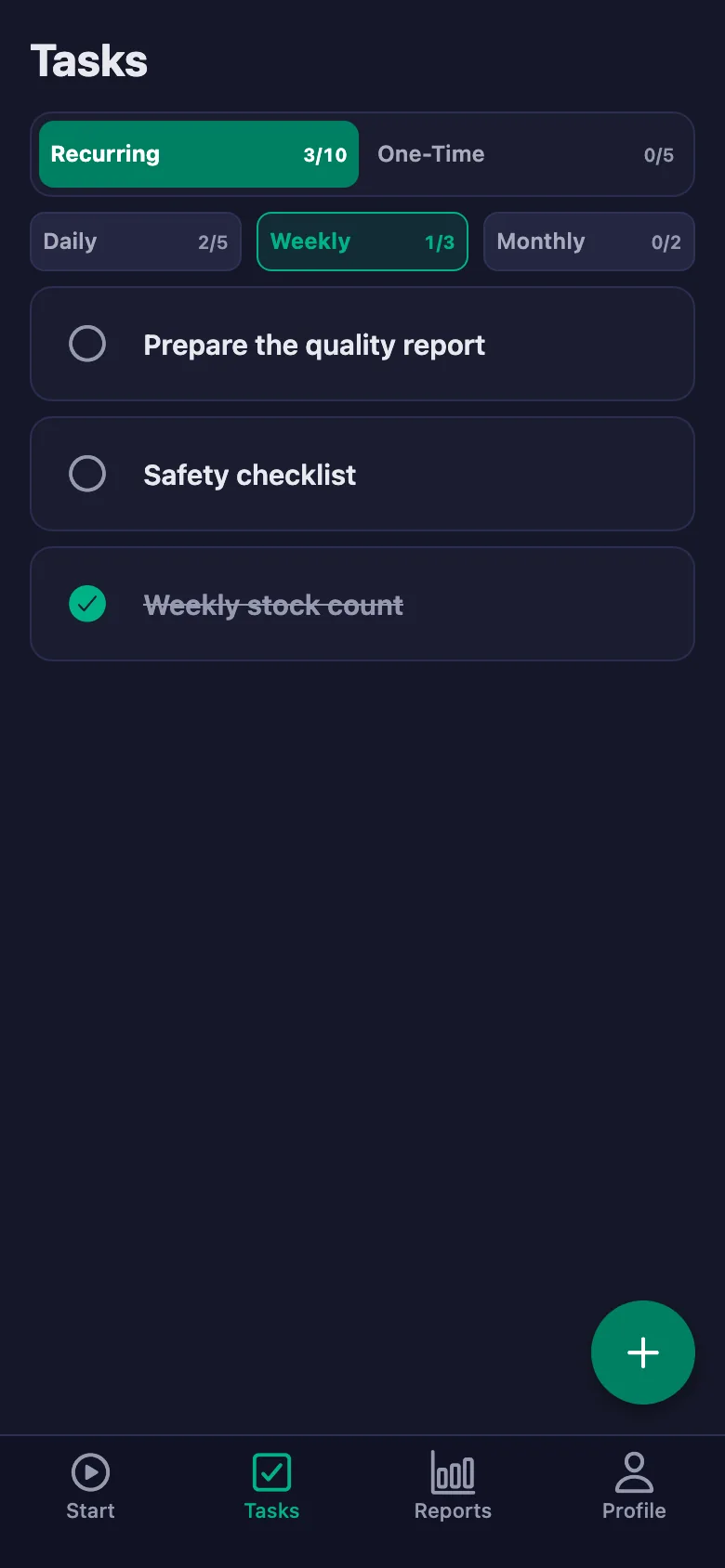
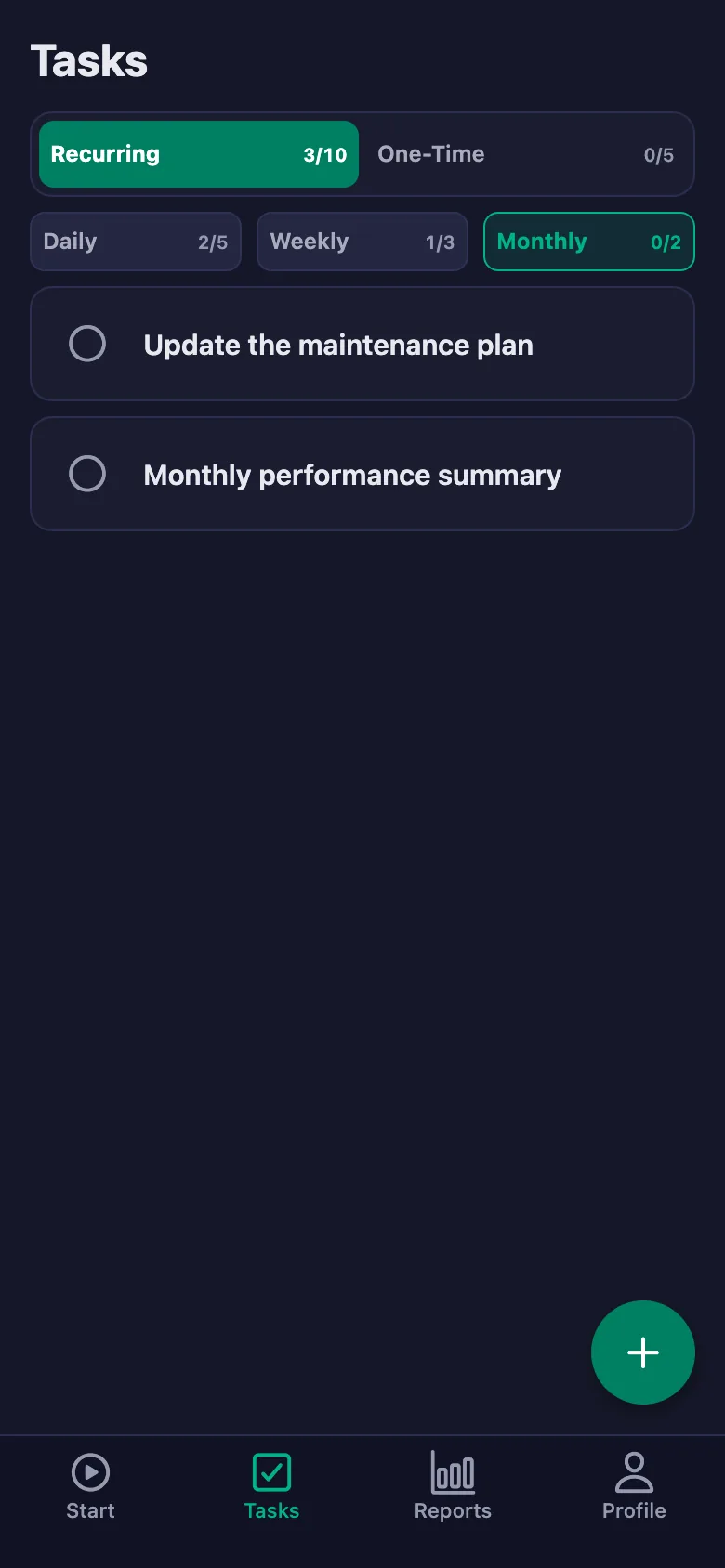
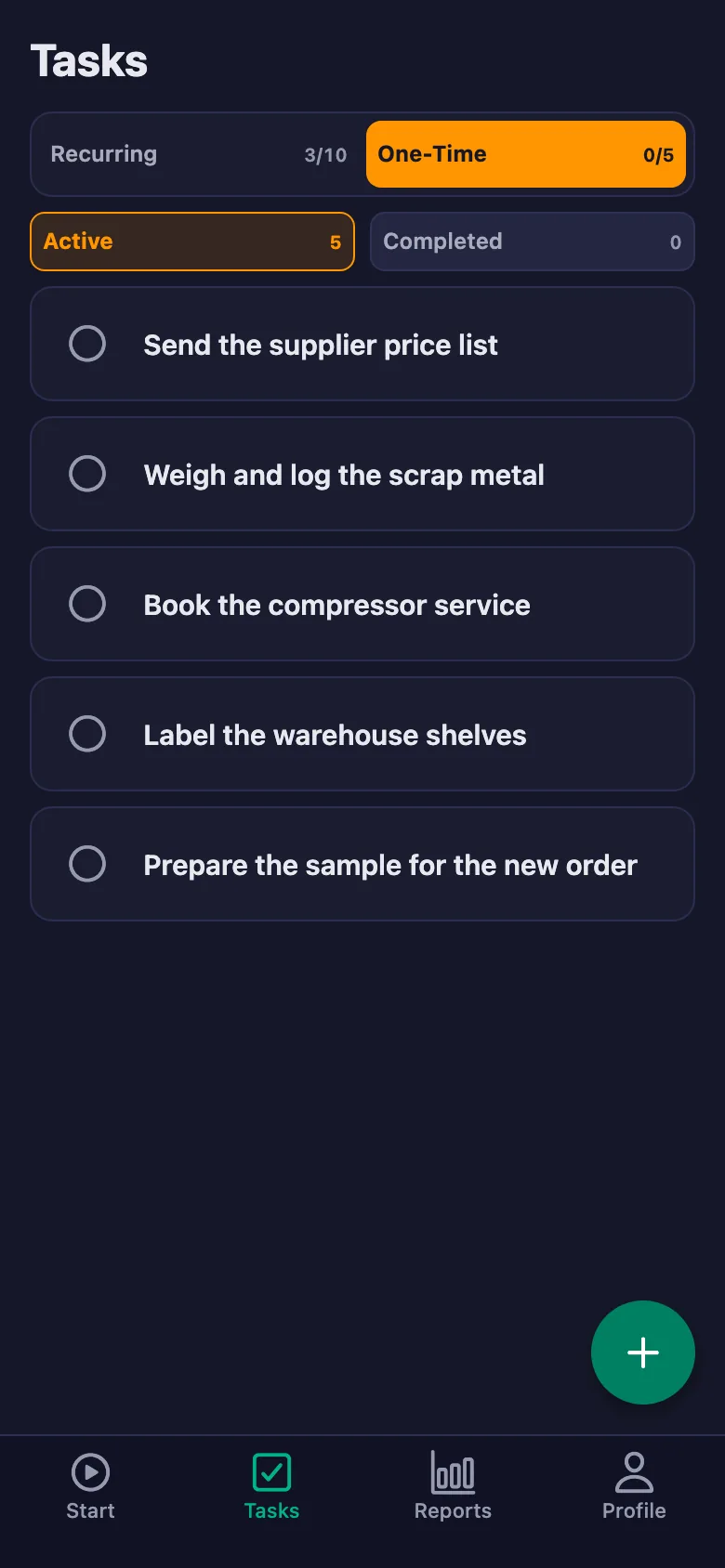
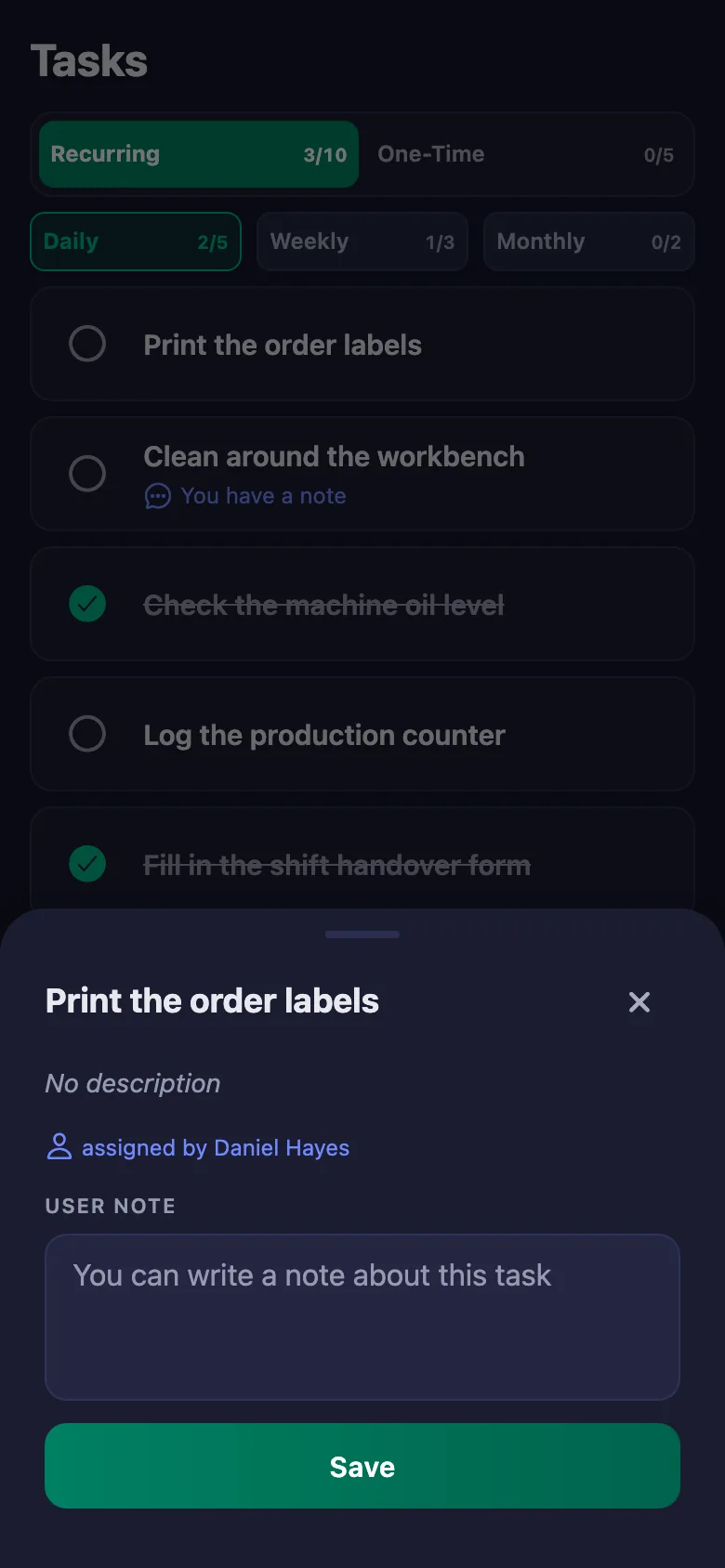
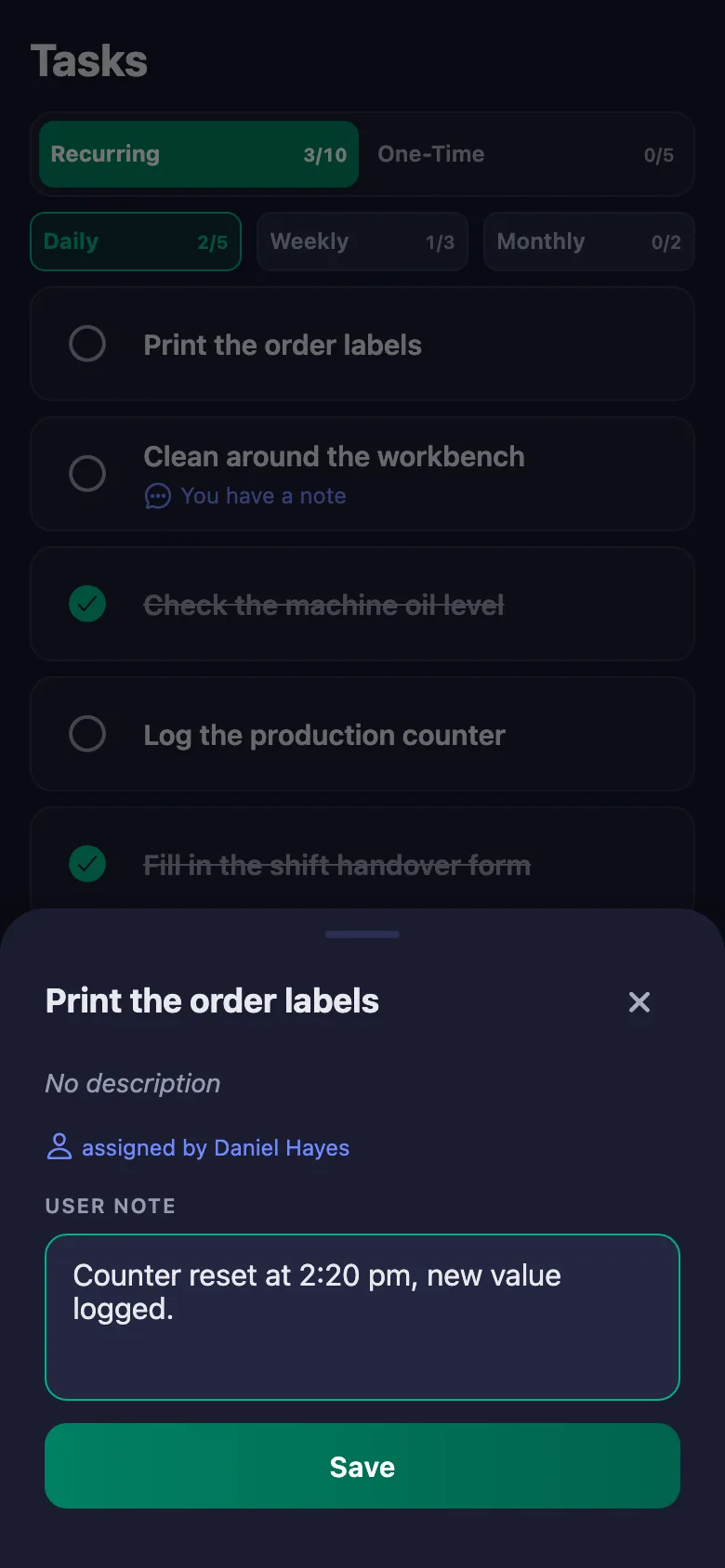
 FinalWork — Task reminder
You have 3 unfinished daily tasks.
FinalWork — Task reminder
You have 3 unfinished daily tasks.
Staff tracking software — frequently asked questions
Does my staff need the app on their phone?
Yes — staff start their shift from their own phone. The app runs on iOS and Android, and it can also be used from a browser.
Can staff start a shift before arriving at work?
Not if you make location permission mandatory. You switch it on under Settings → Location. While it is off, no permission is requested and location is never shown in reports.
How many staff can I add?
The free plan has a limited number of users; once you reach it the app warns you and no new user is added. Premium removes that limit.
Is break time deducted from the shift?
Yes. Breaks are counted separately and deducted from net working time; the report shows total, break and net time separately.
Do tasks renew on their own?
Daily tasks reopen every day, weekly ones every week and monthly ones every month. You choose the renewal hour and day under Settings → Task Reset.
Where do I find the report?
Under the Reports tab. Pick a date range to see it on screen, and download the same report as a PDF. The PDF is produced on the server, so every device gets exactly the same file.
Set your team up today
Setup and activation take just one minute — you can start free. Open the account, add your staff, and let the first shift start today.