Staff and Task Tracking for Law and Accounting Offices
Which deadline slipped, and who worked on what?
Filing and hearing dates are in the calendar, but who owns each job isn't written anywhere. FinalWork ties the daily jobs to a person, keeps the hours and gathers your team's notes in one place — you see it before a date slips.
What makes time and task tracking hard for office teams
In a practice the work hangs on dates, and a day lost cannot be made up. Most practice owners live with the following — on the right is what each one looks like in FinalWork.
Filing and hearing dates sit in a shared calendar, but nobody's name is against them — everyone assumes someone else has it.
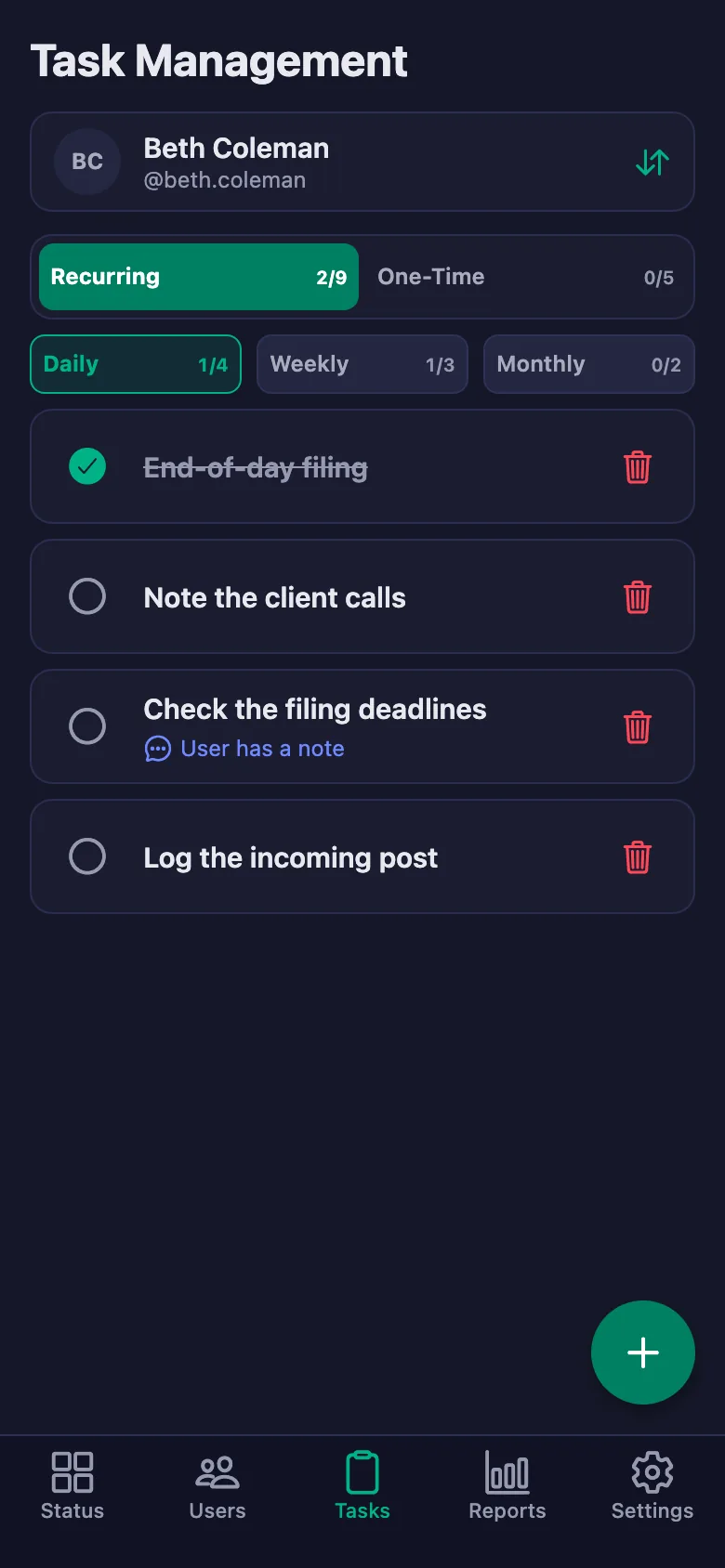
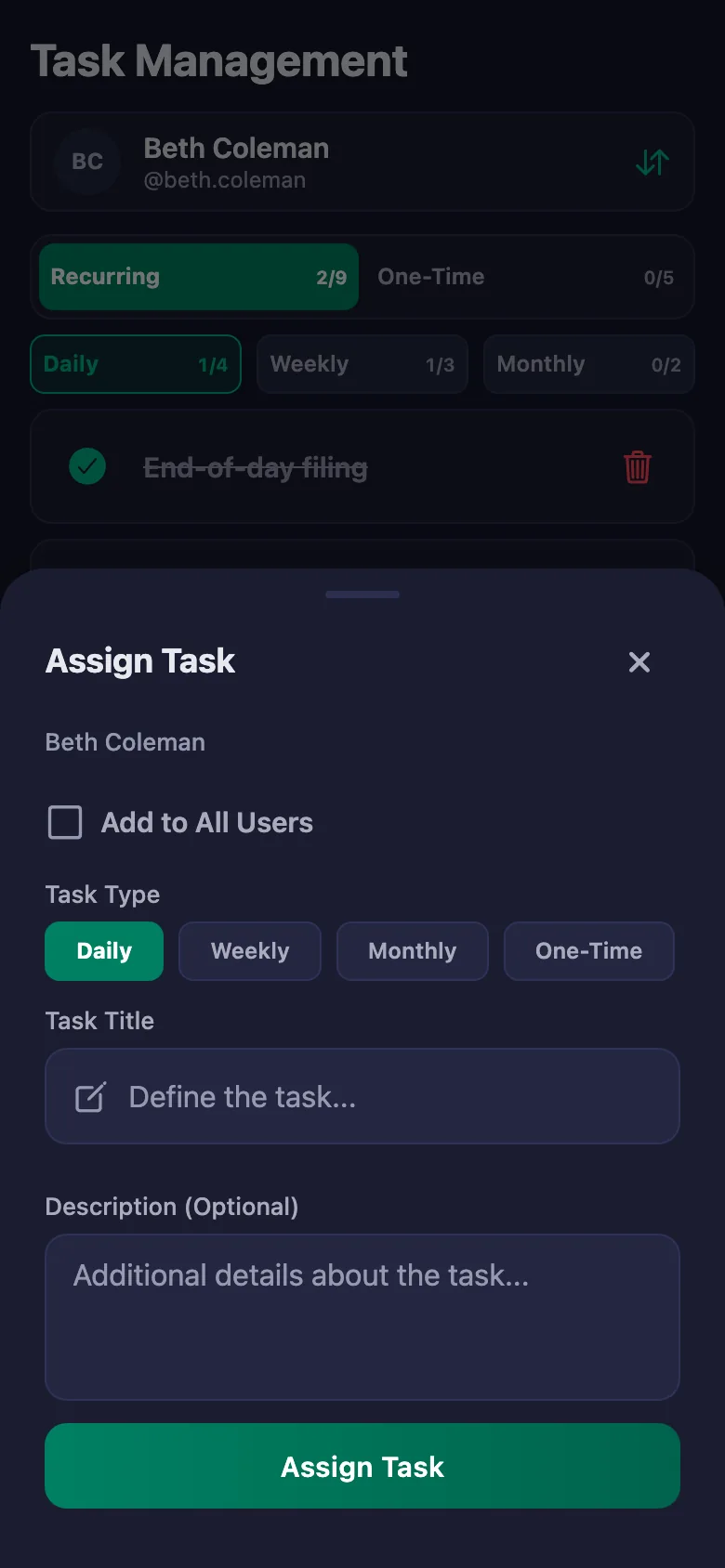
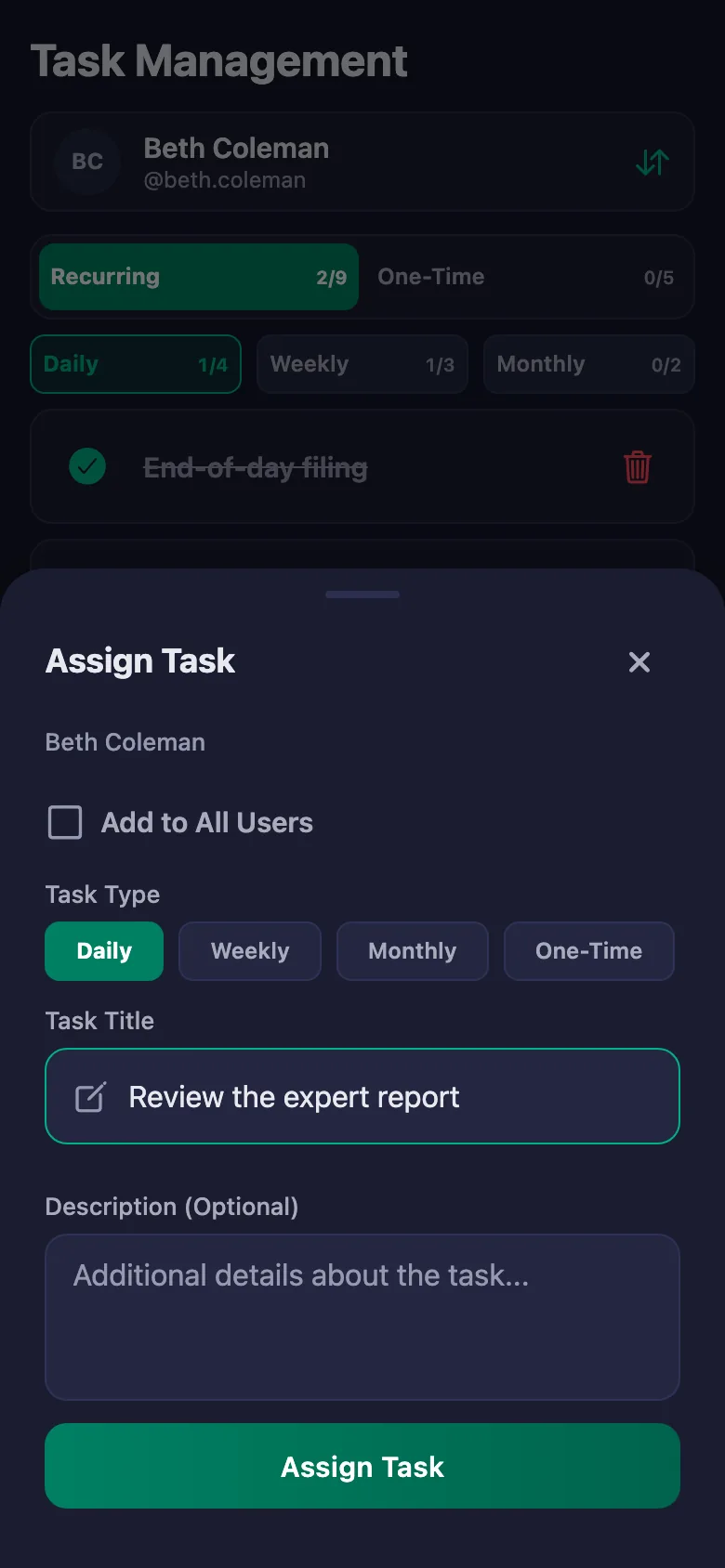
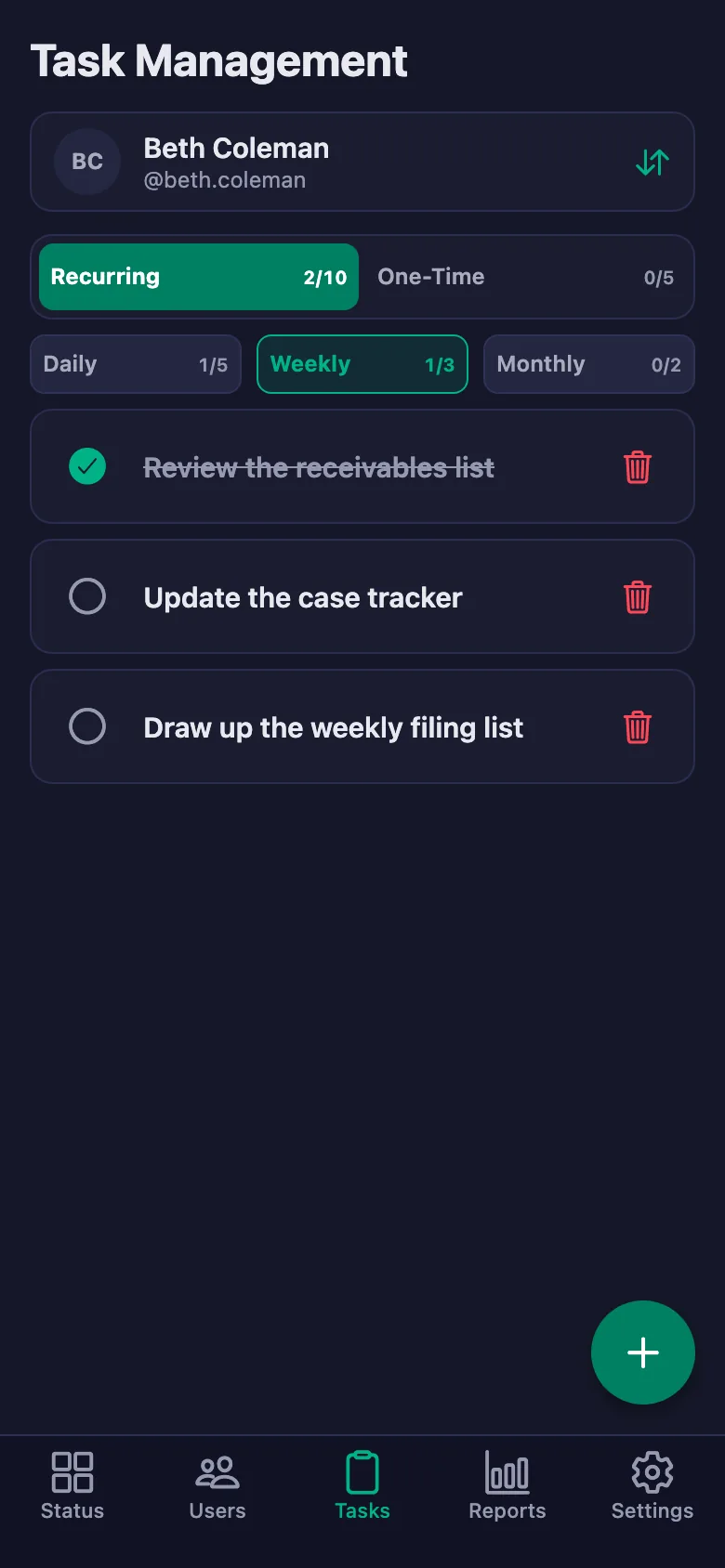
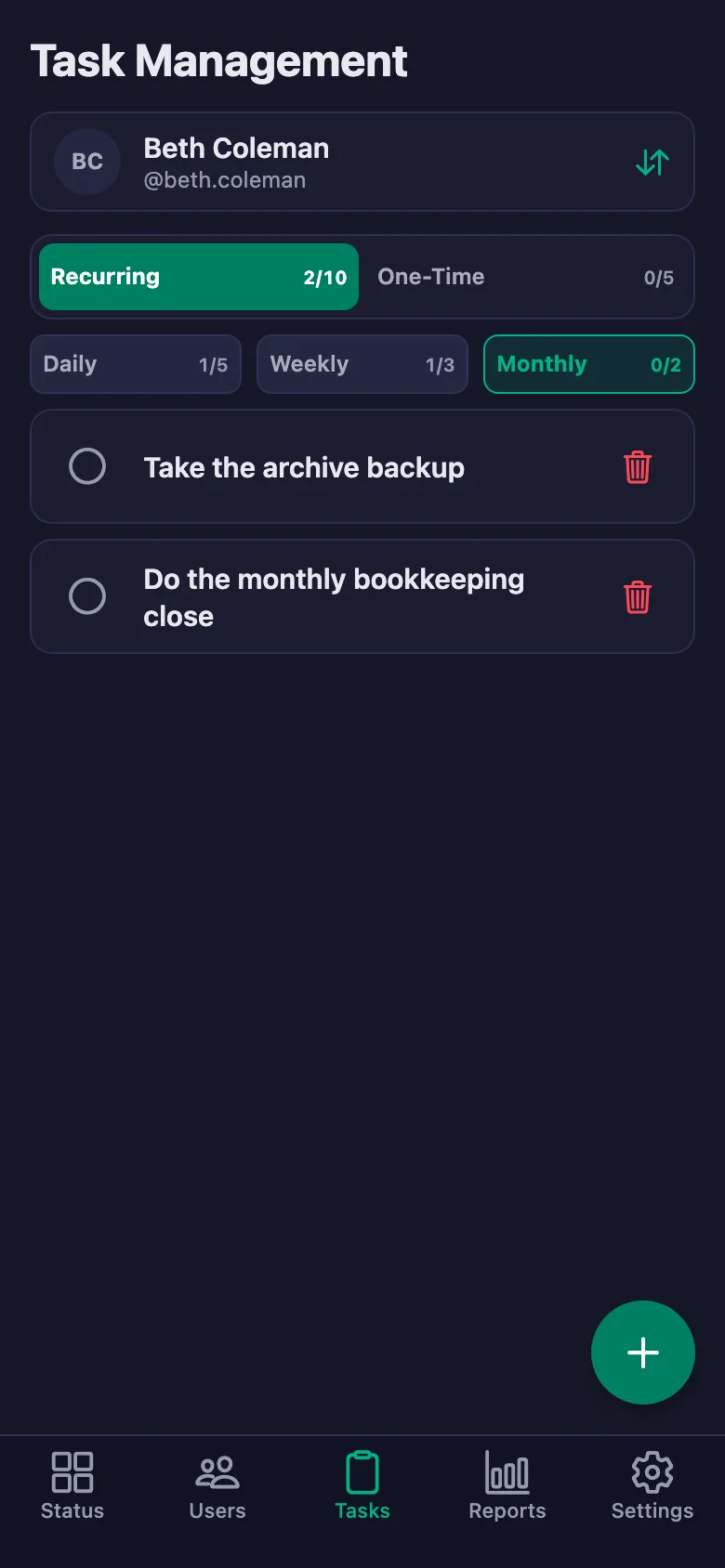
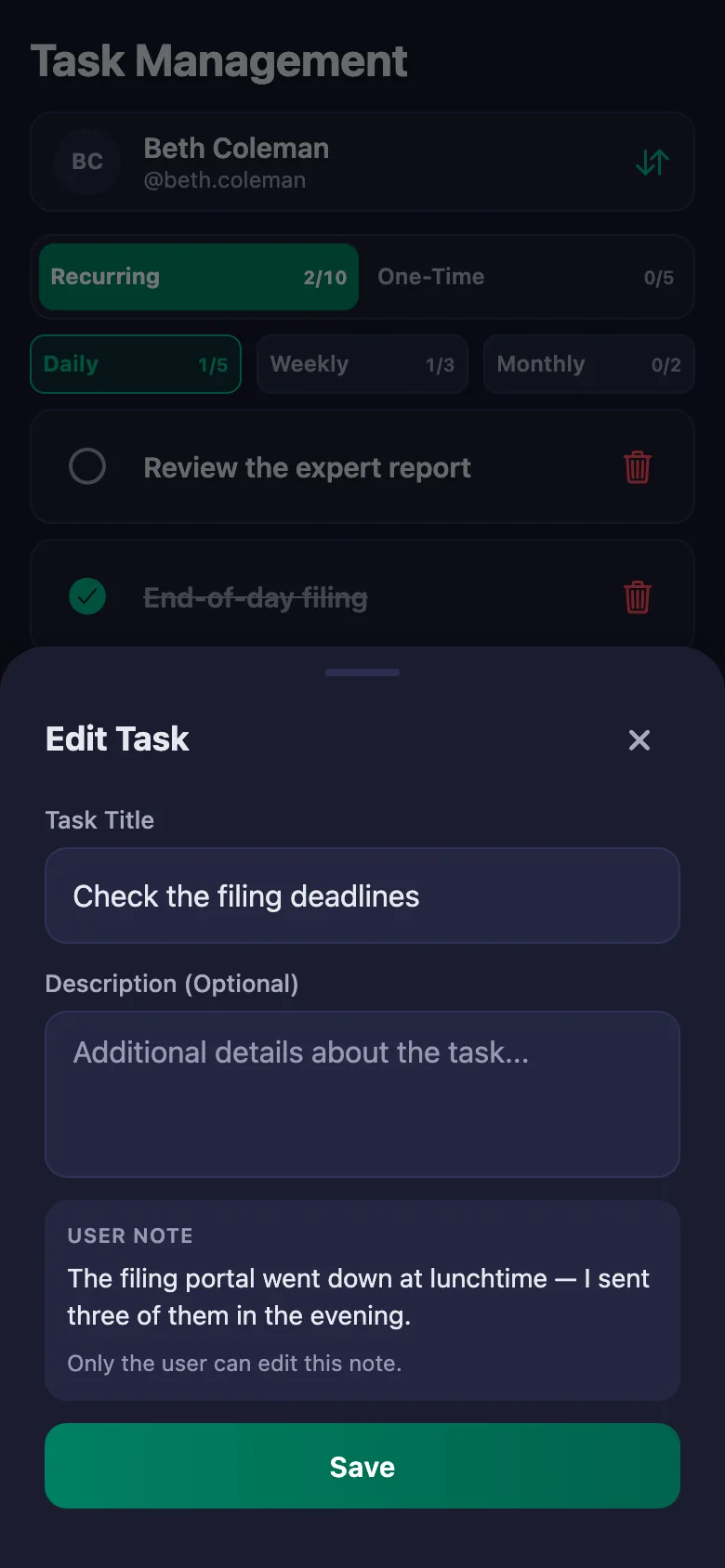
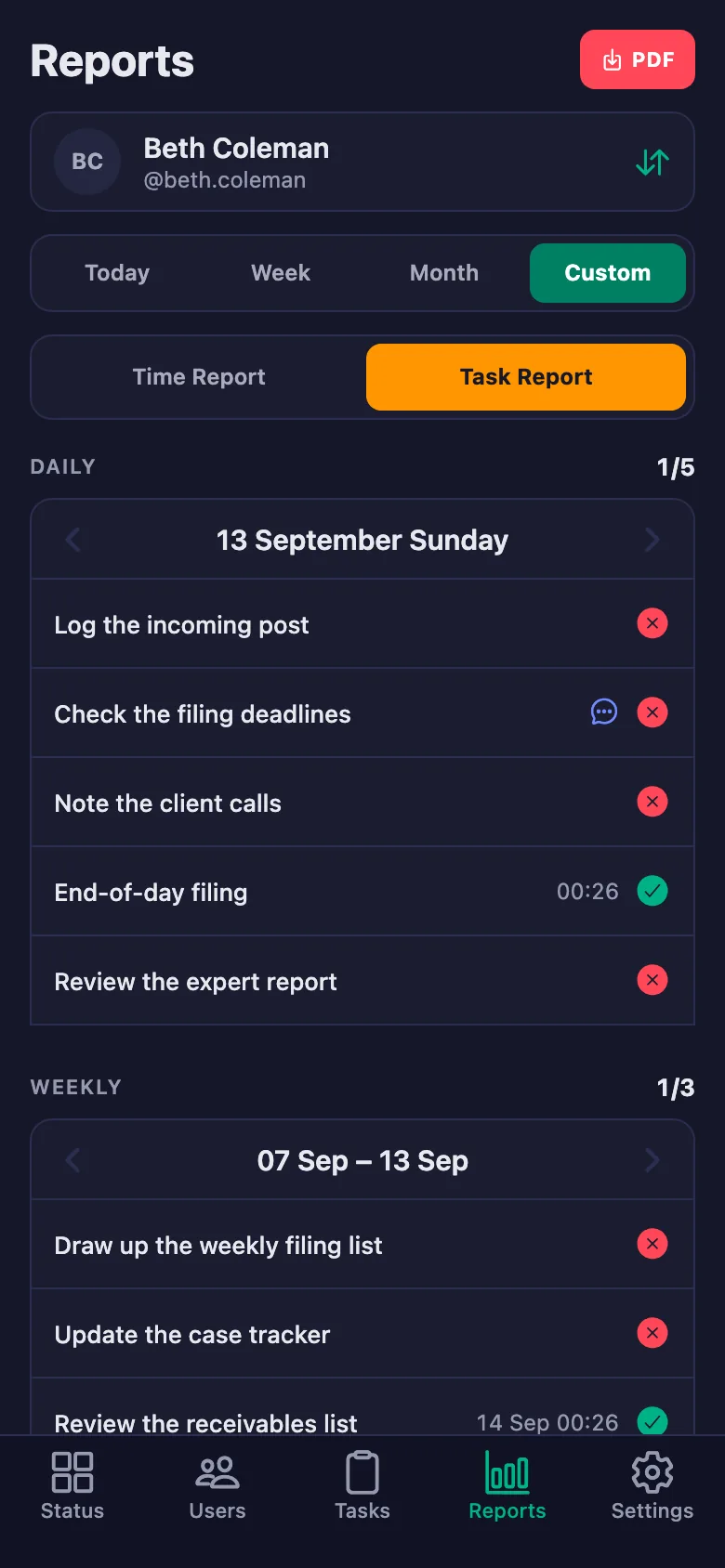
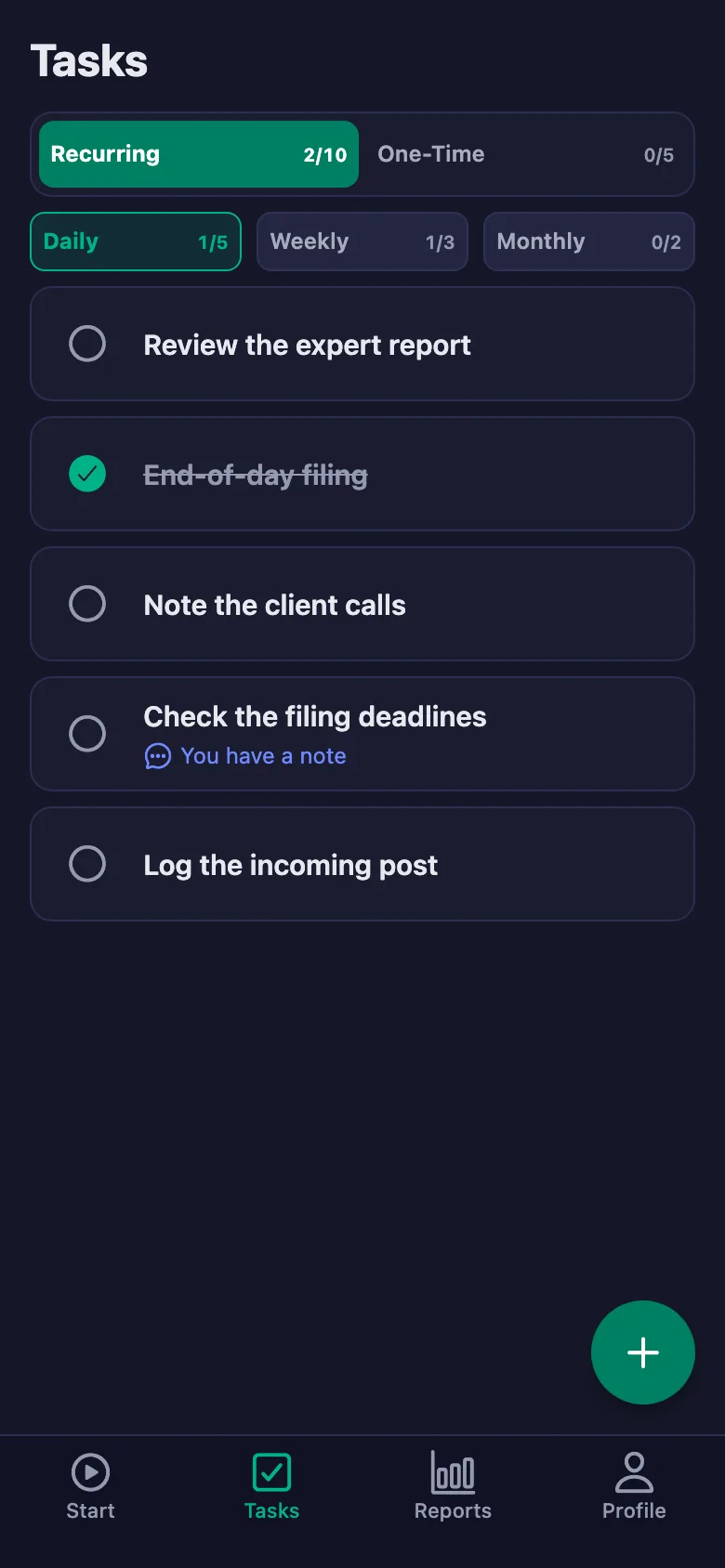
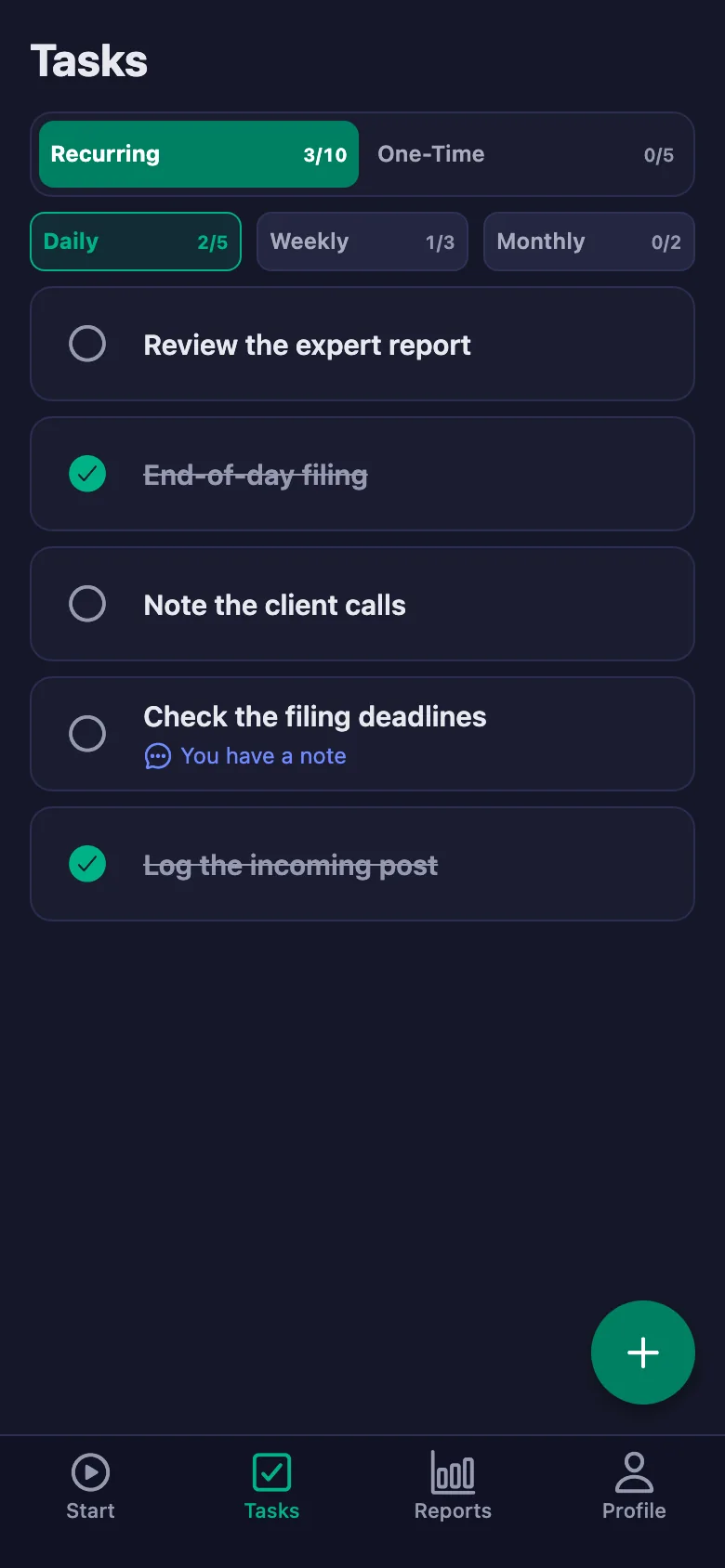
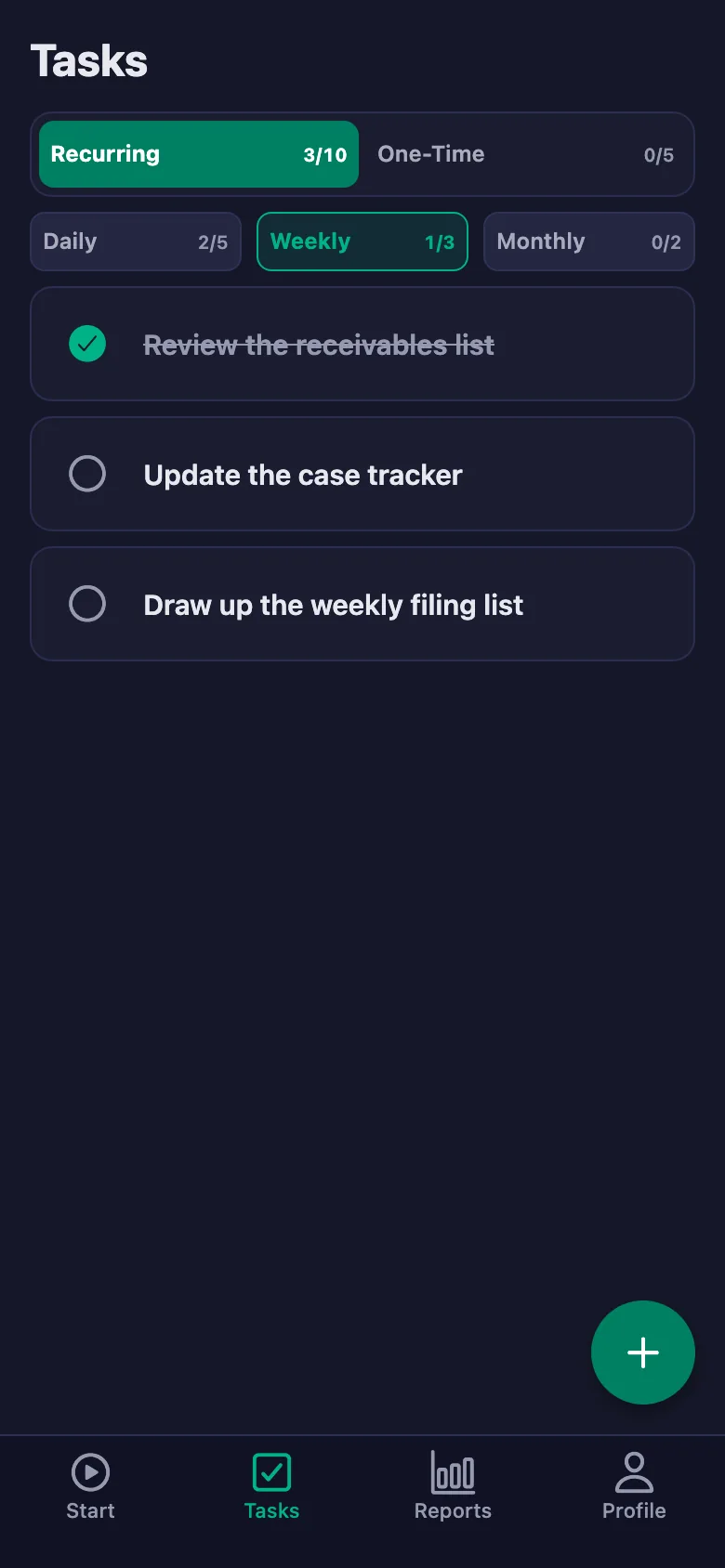
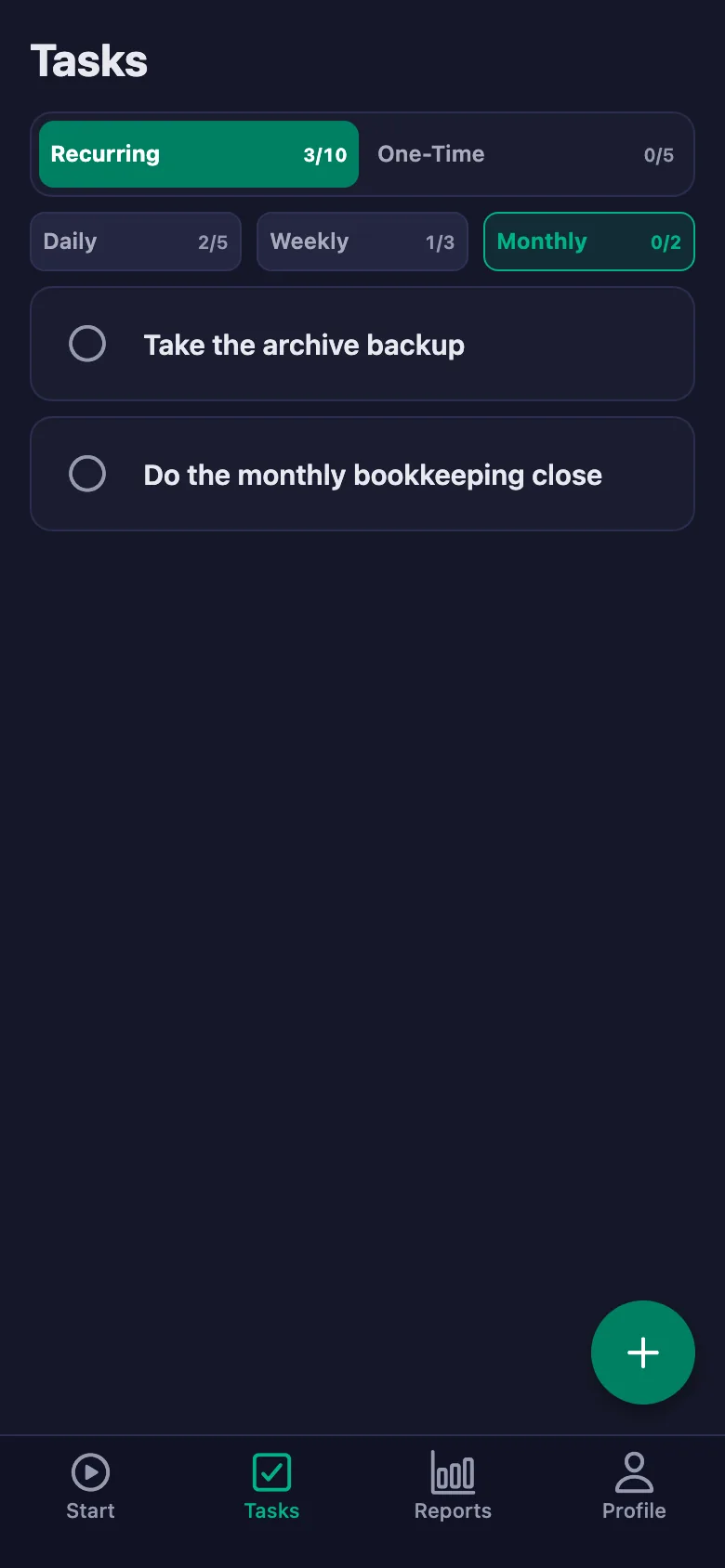
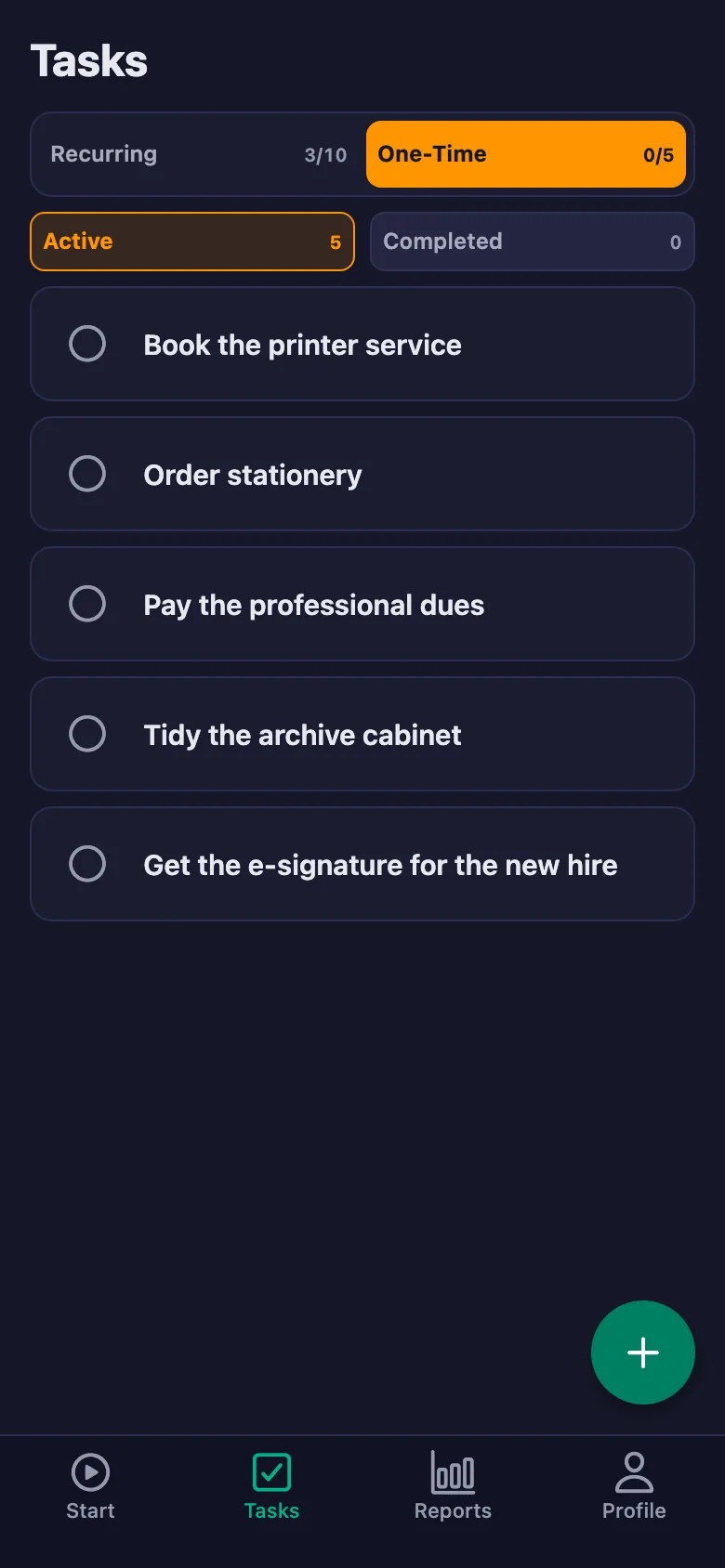
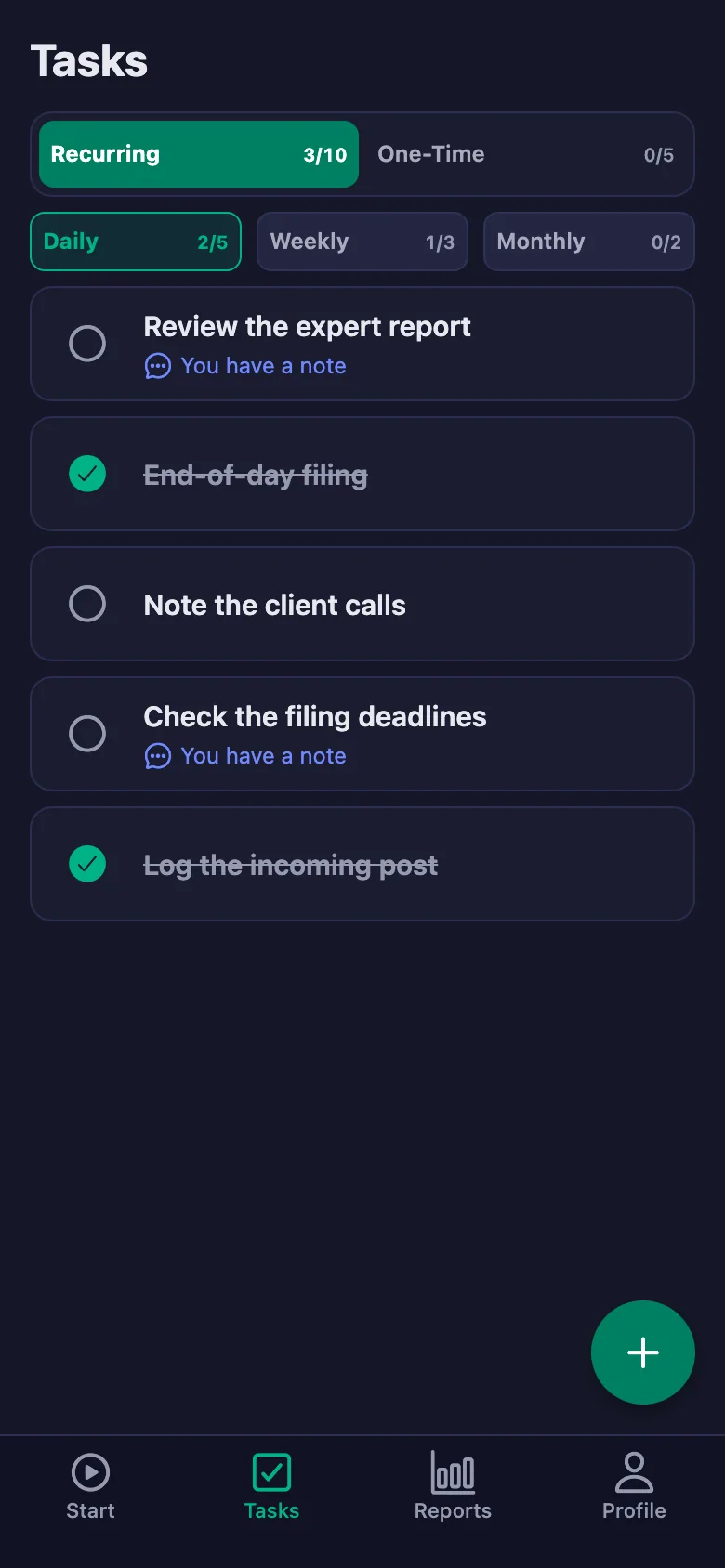
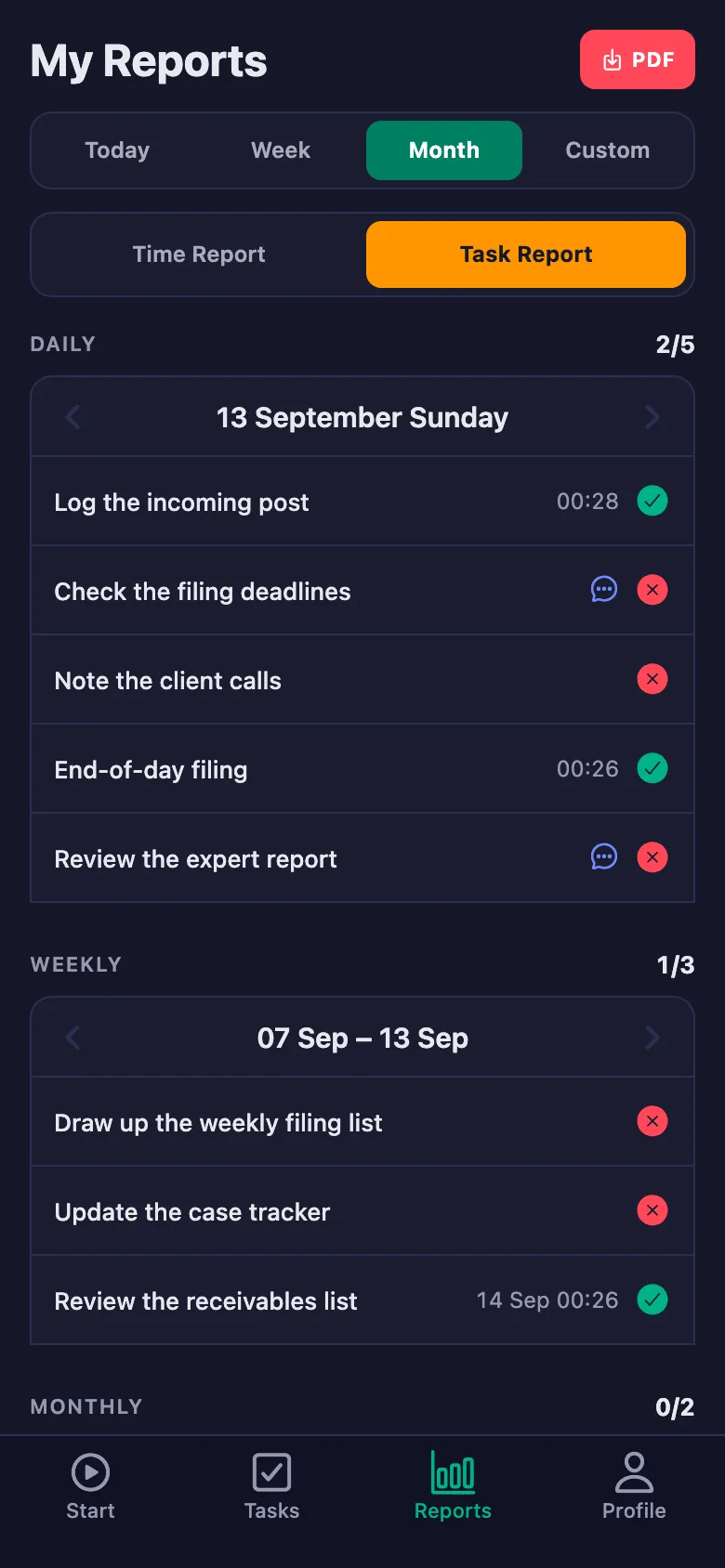
Every job sits there as a task assigned to a person: daily, weekly, monthly. Anything unticked stays on that person's screen.
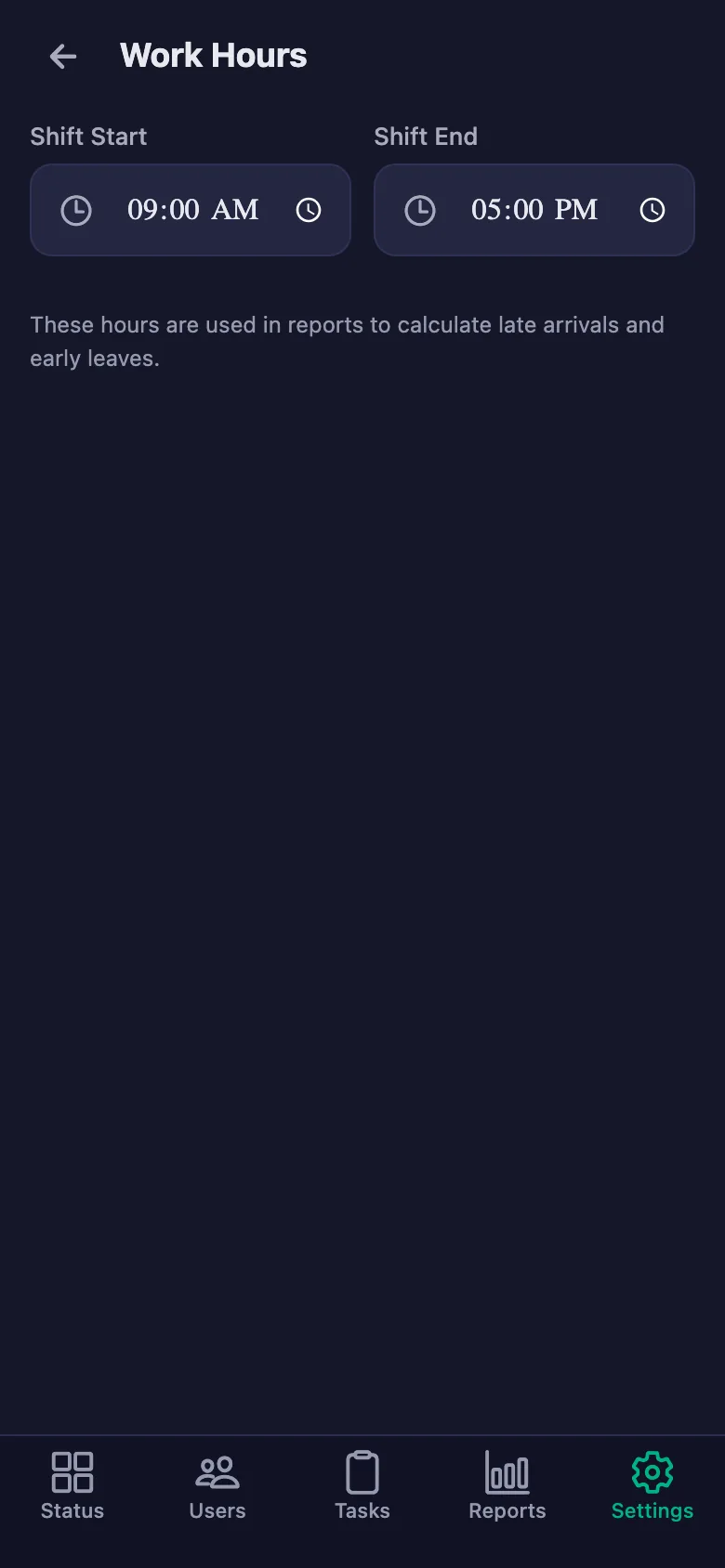
In busy periods nobody knows how many hours each person put in; overtime gets estimated afterwards.
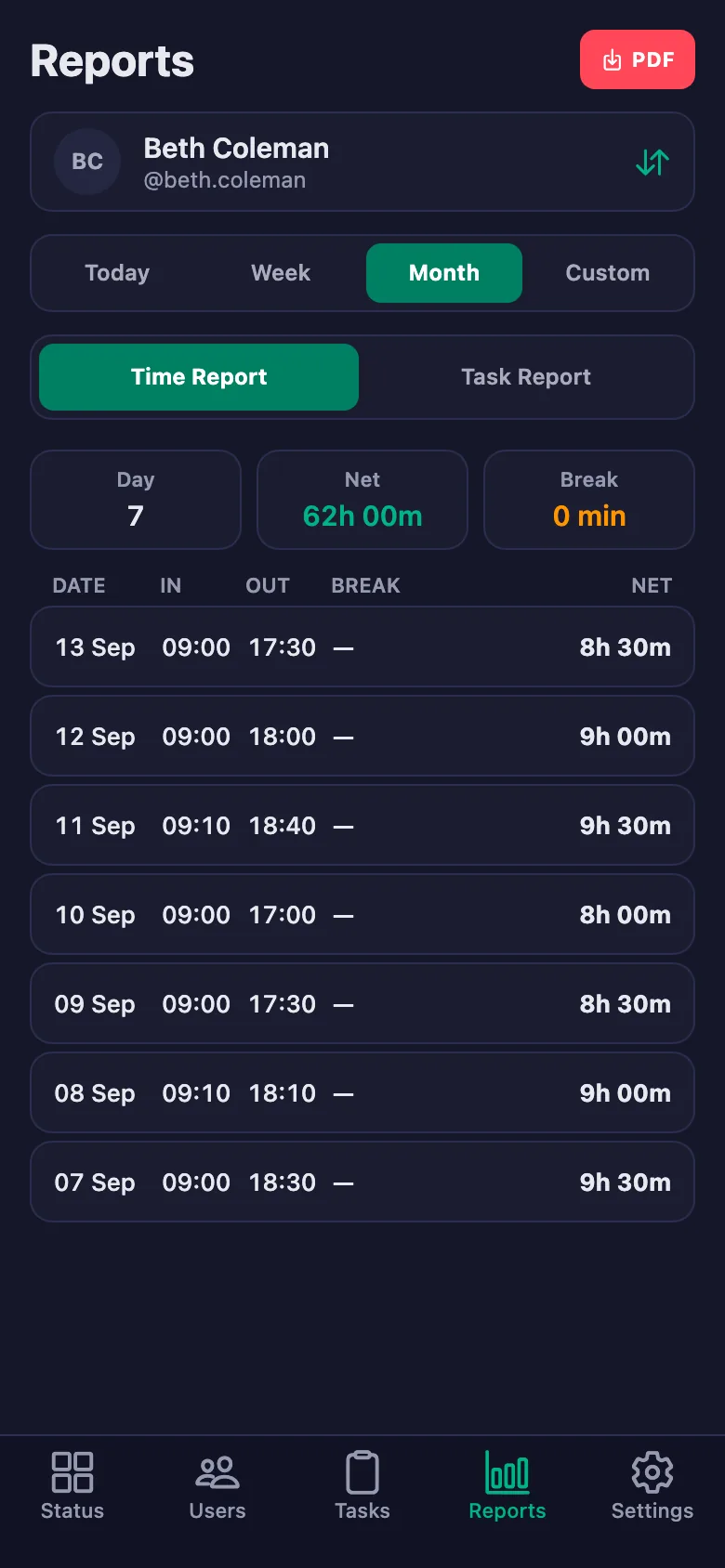
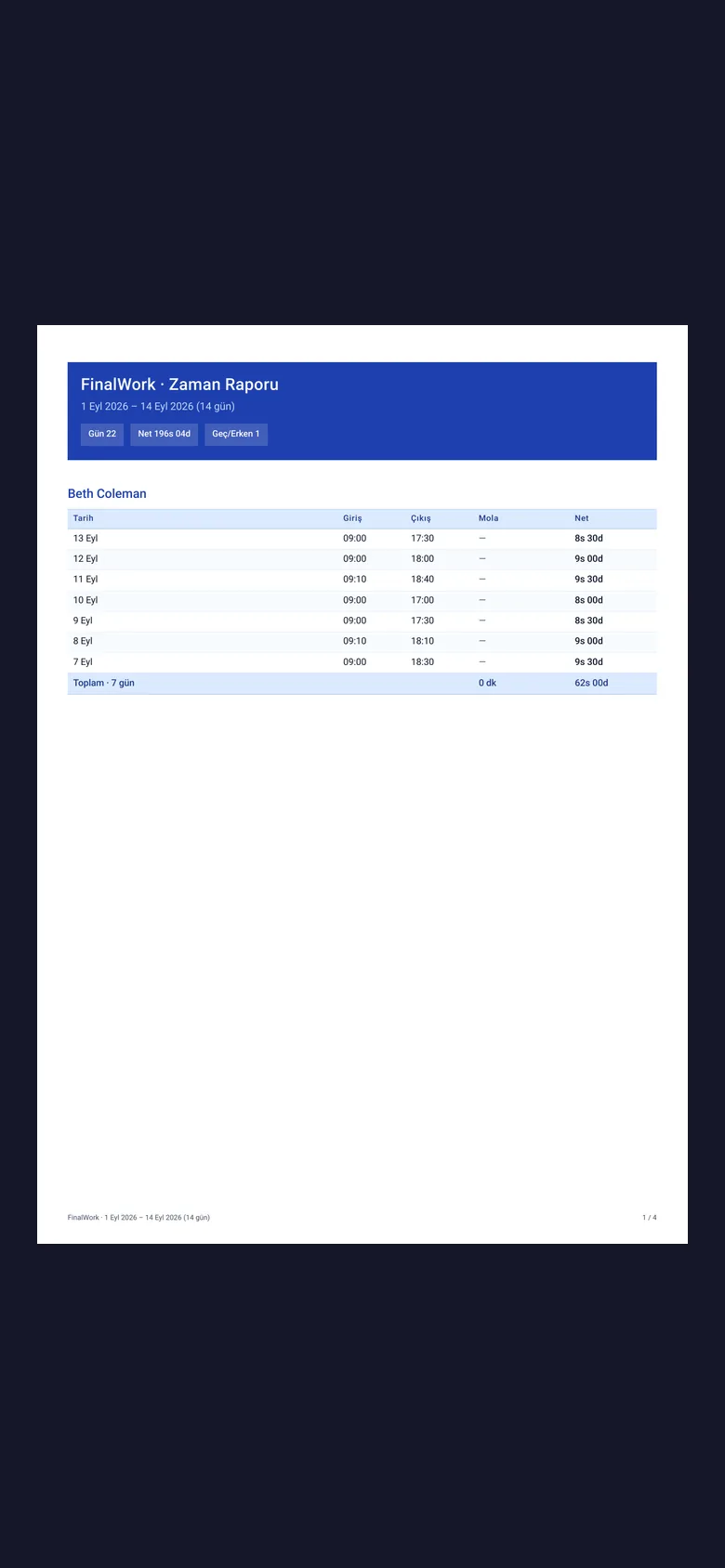
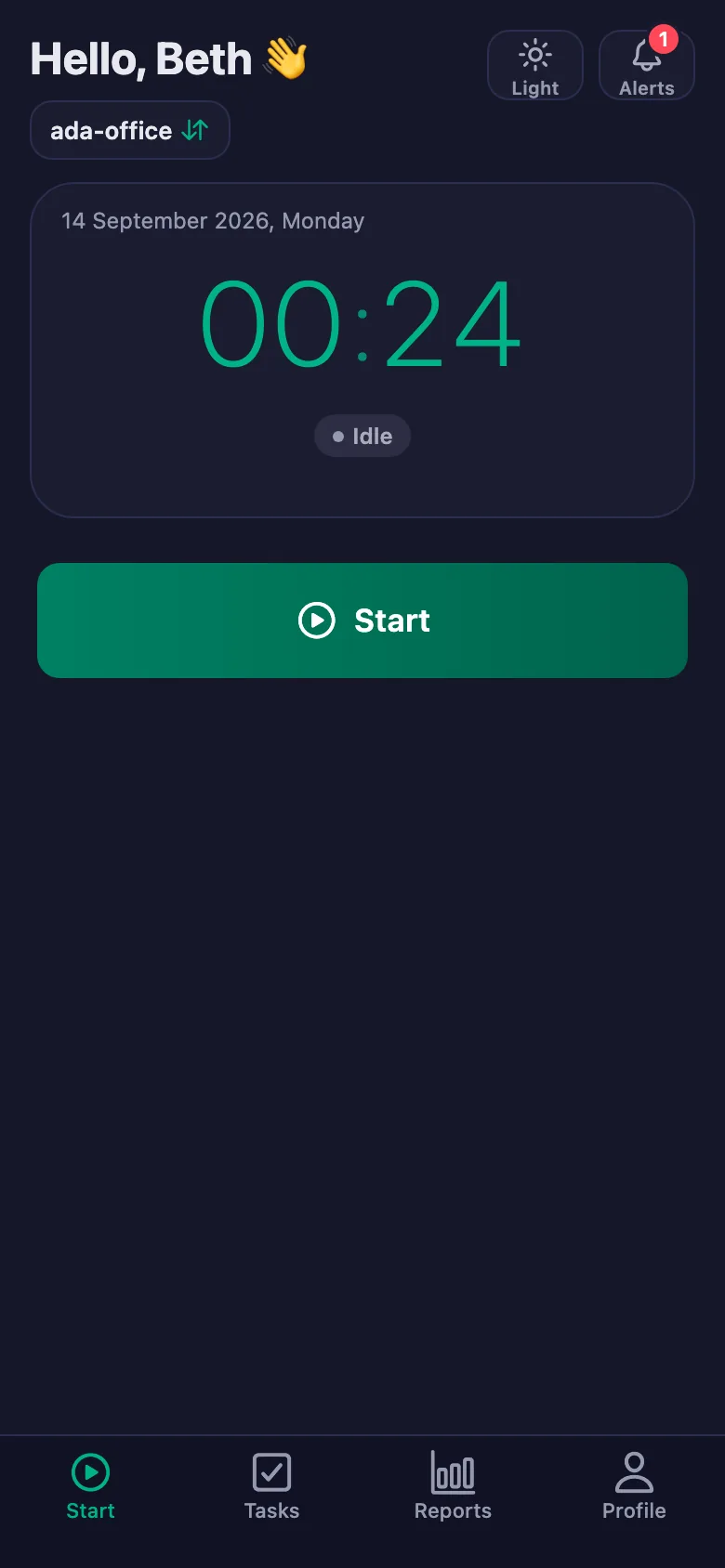
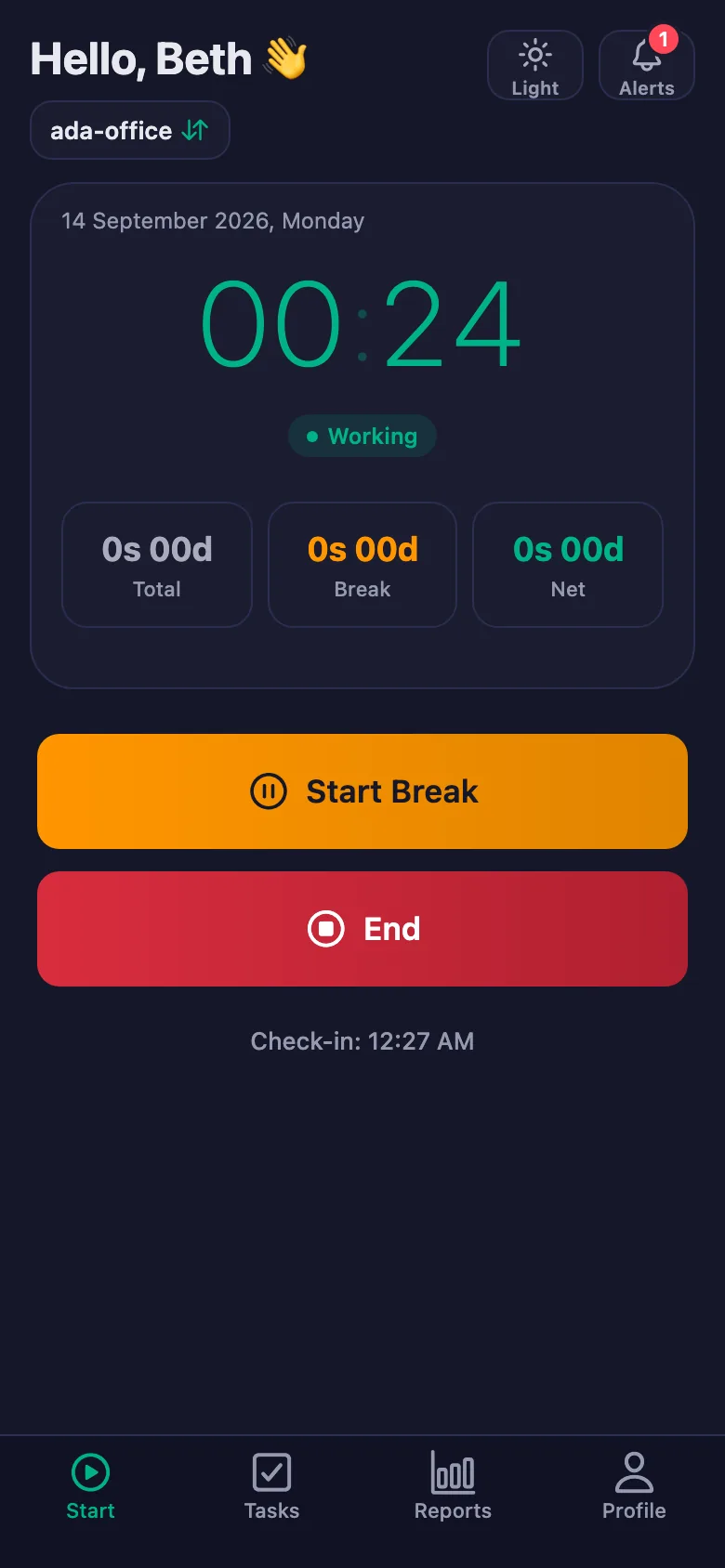
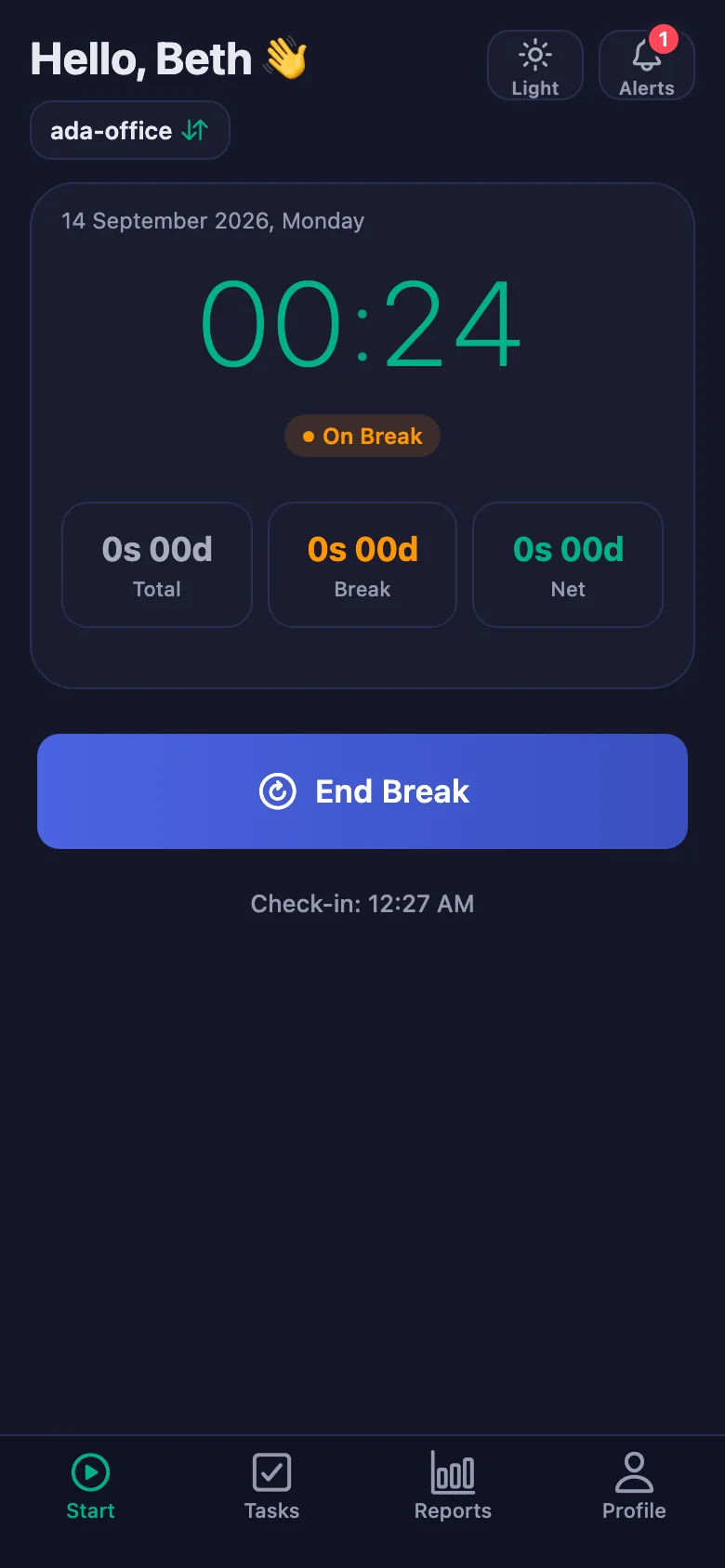
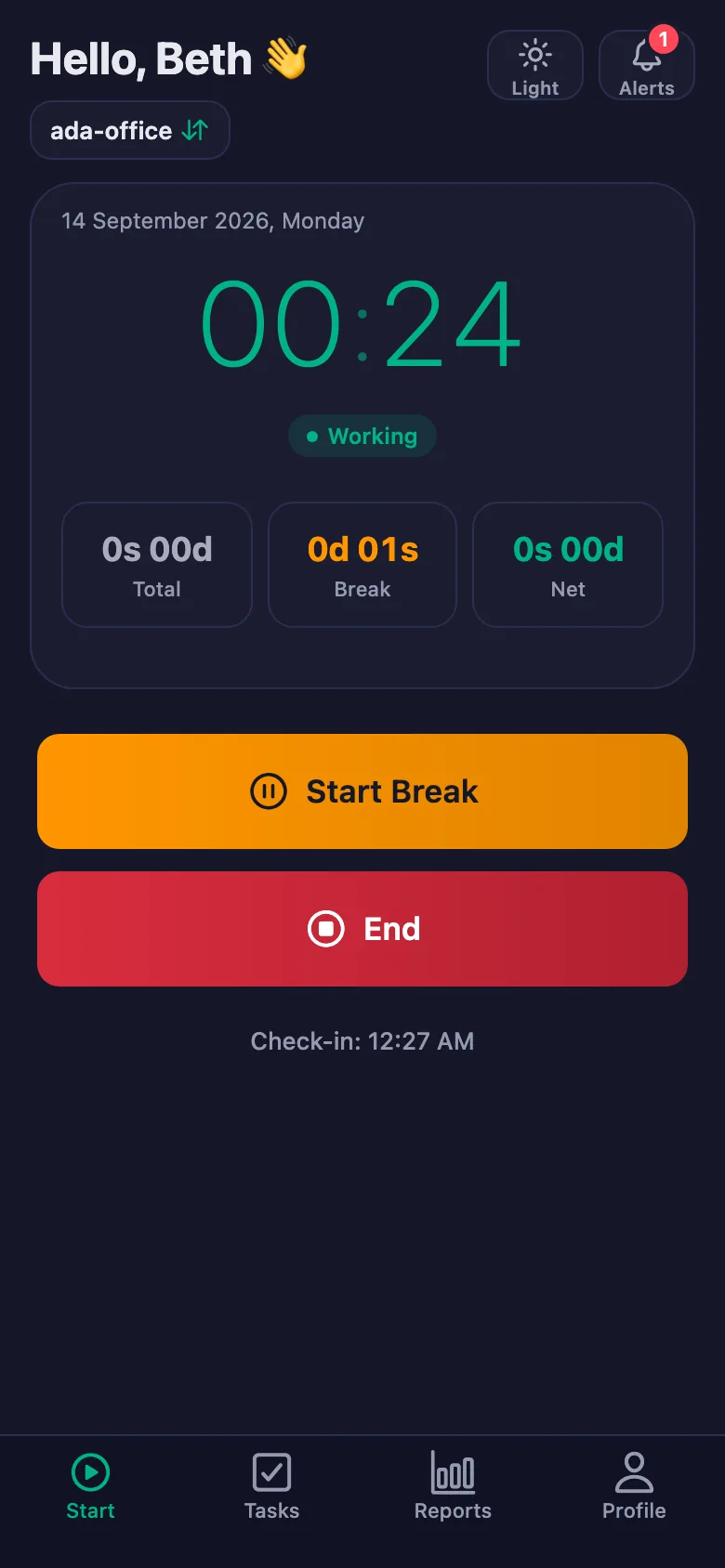
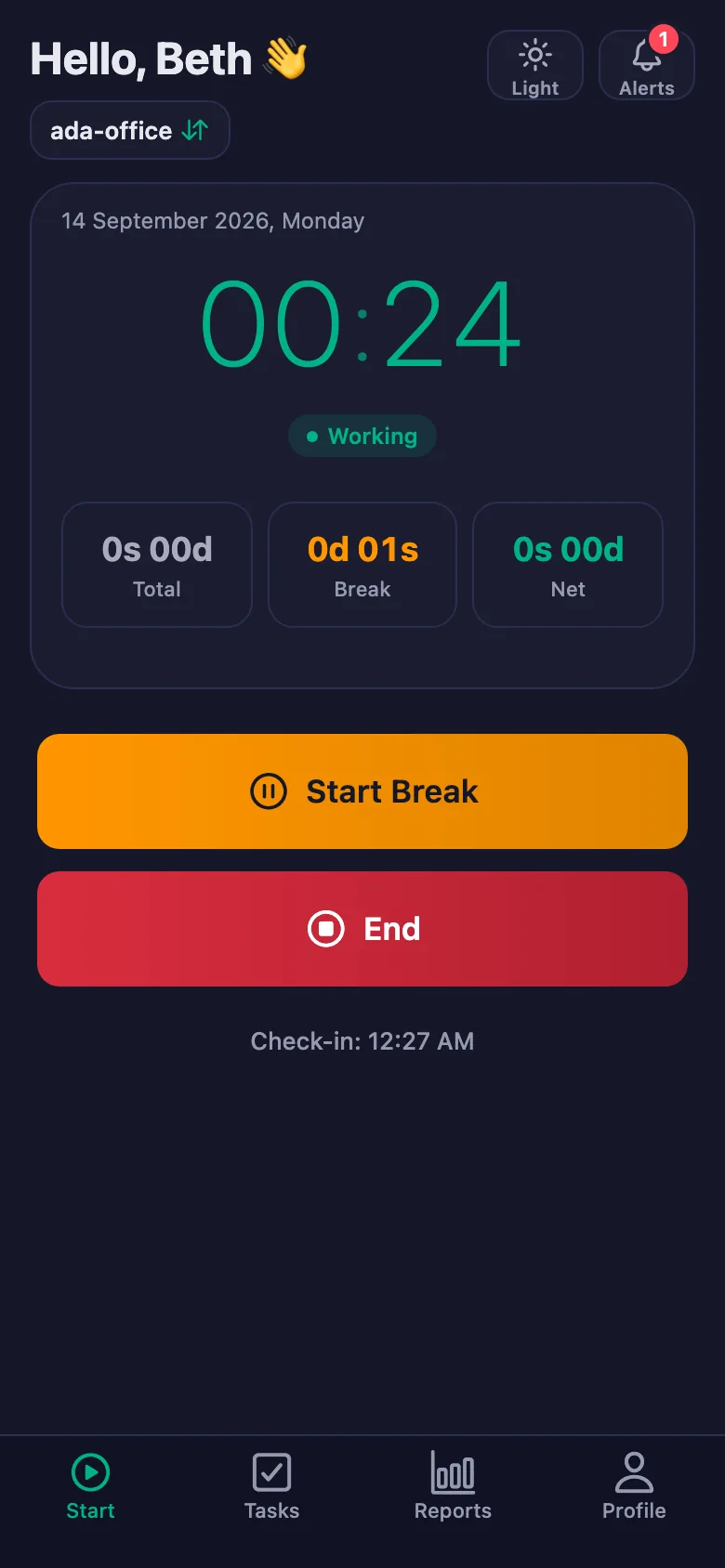
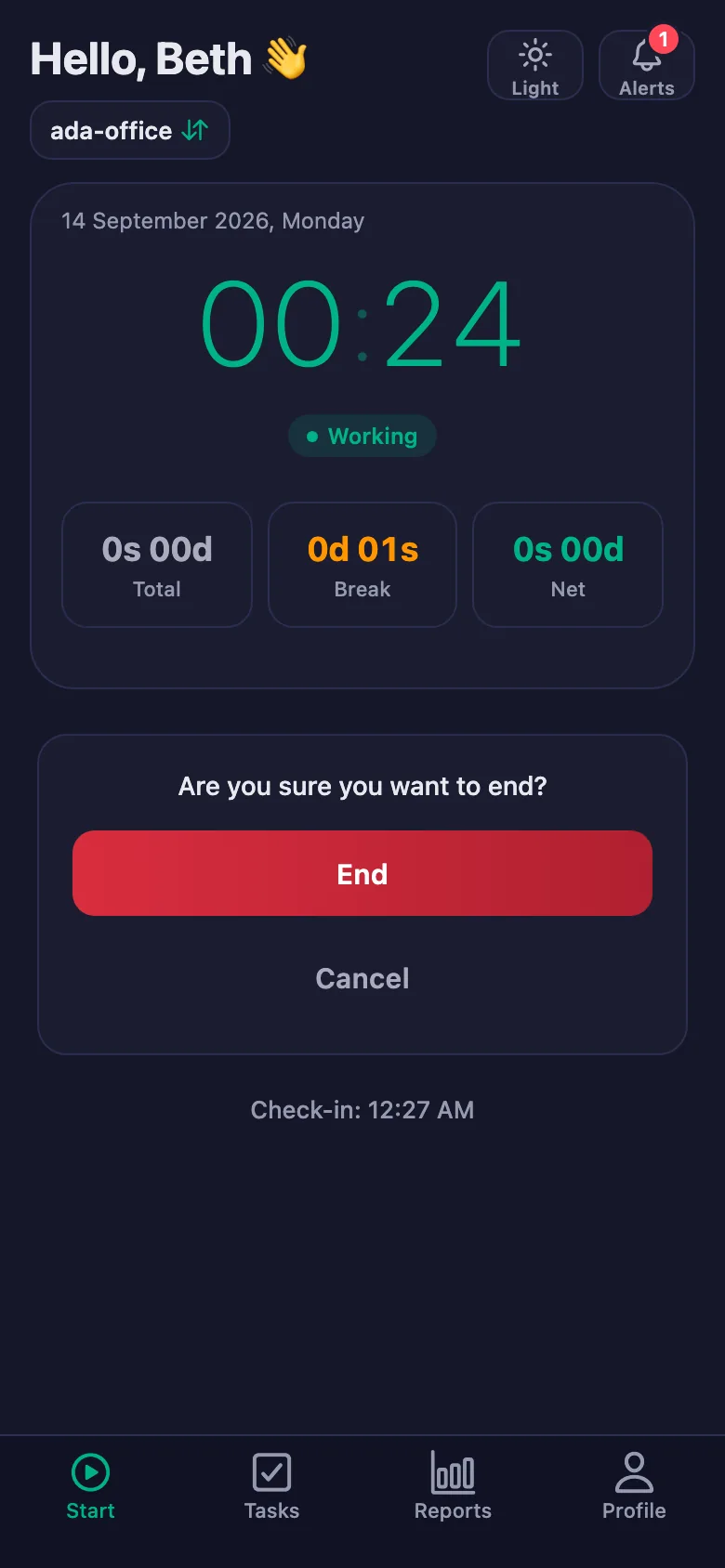
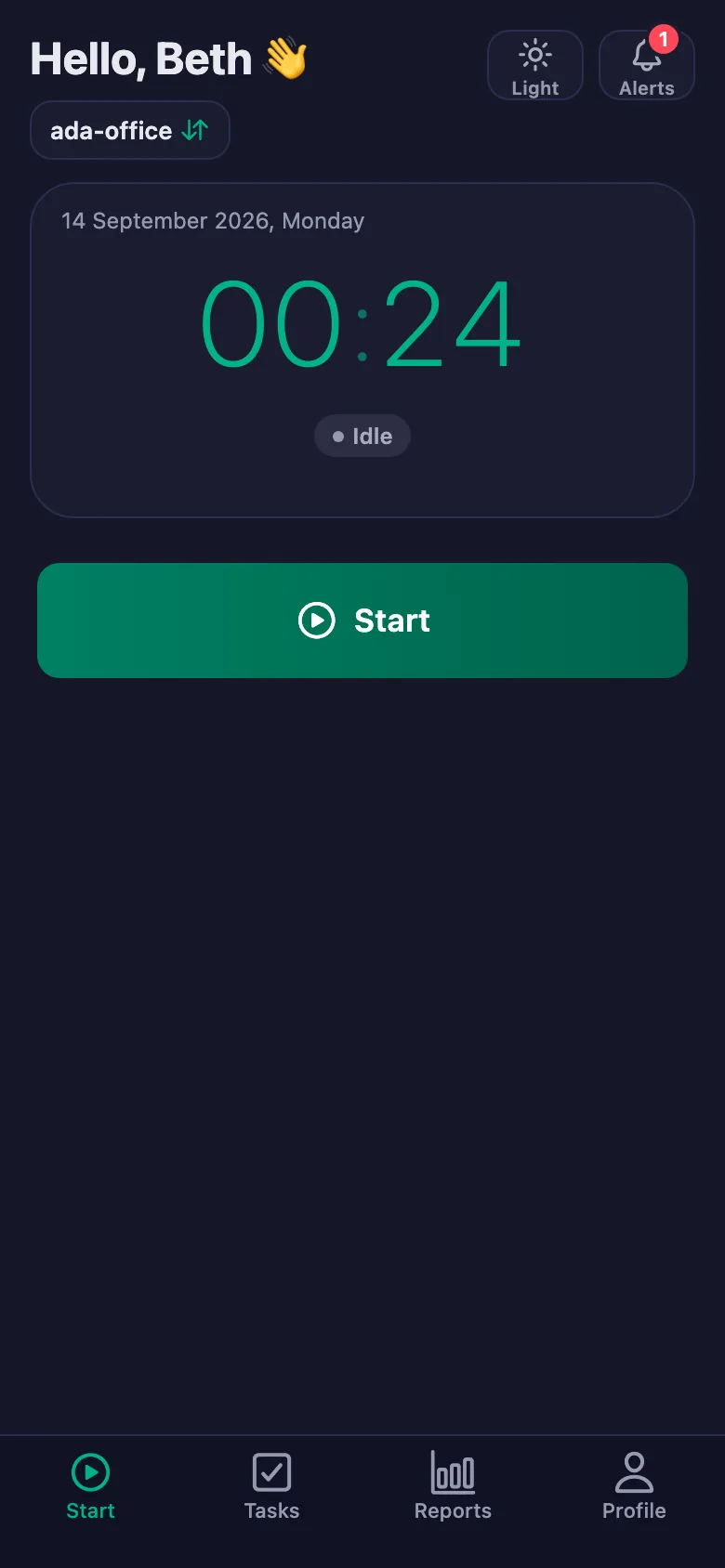
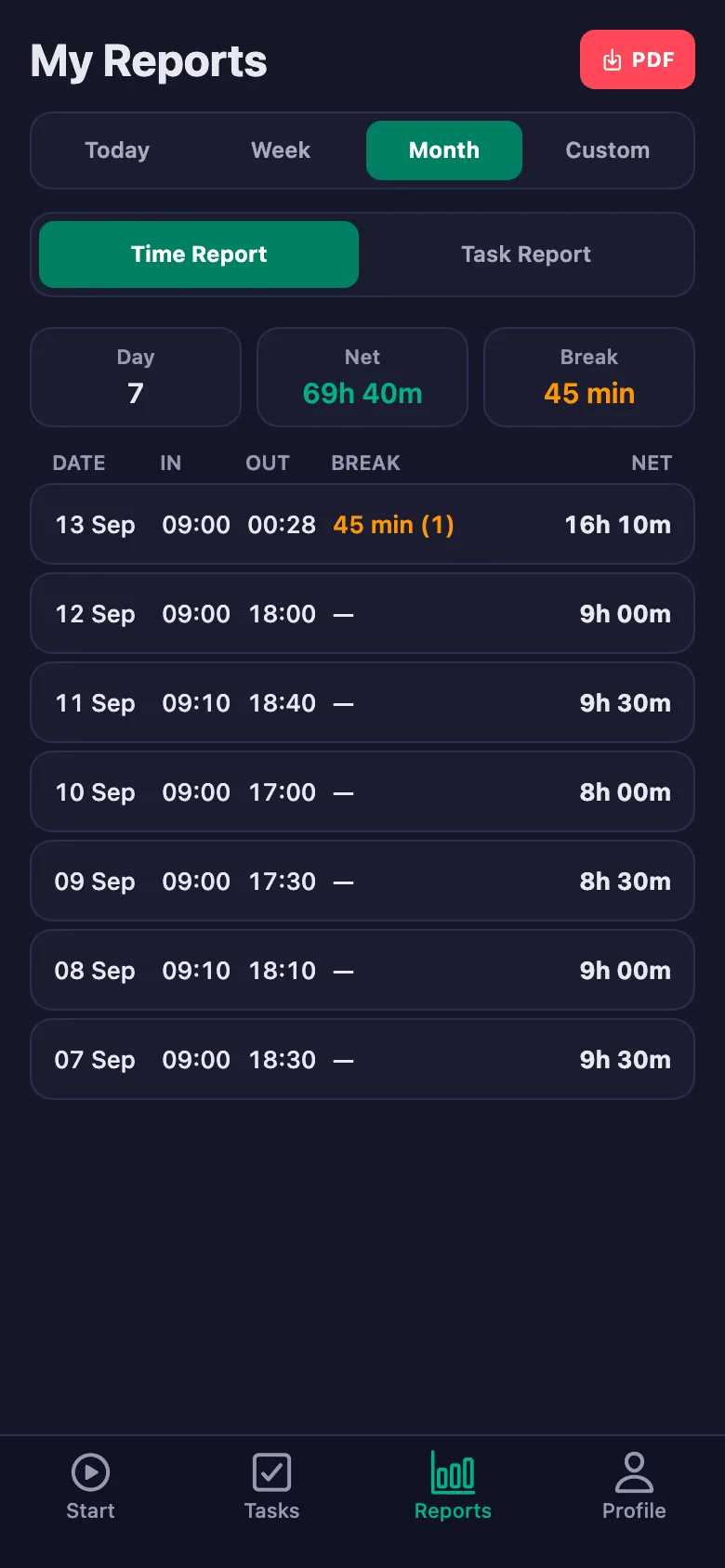
The team start the timer when they begin and stop it at the end. Total, break and net time appear separately in the report.
Obstacles like a portal going down or missing paperwork are mentioned out loud, and later nobody remembers why something was late.
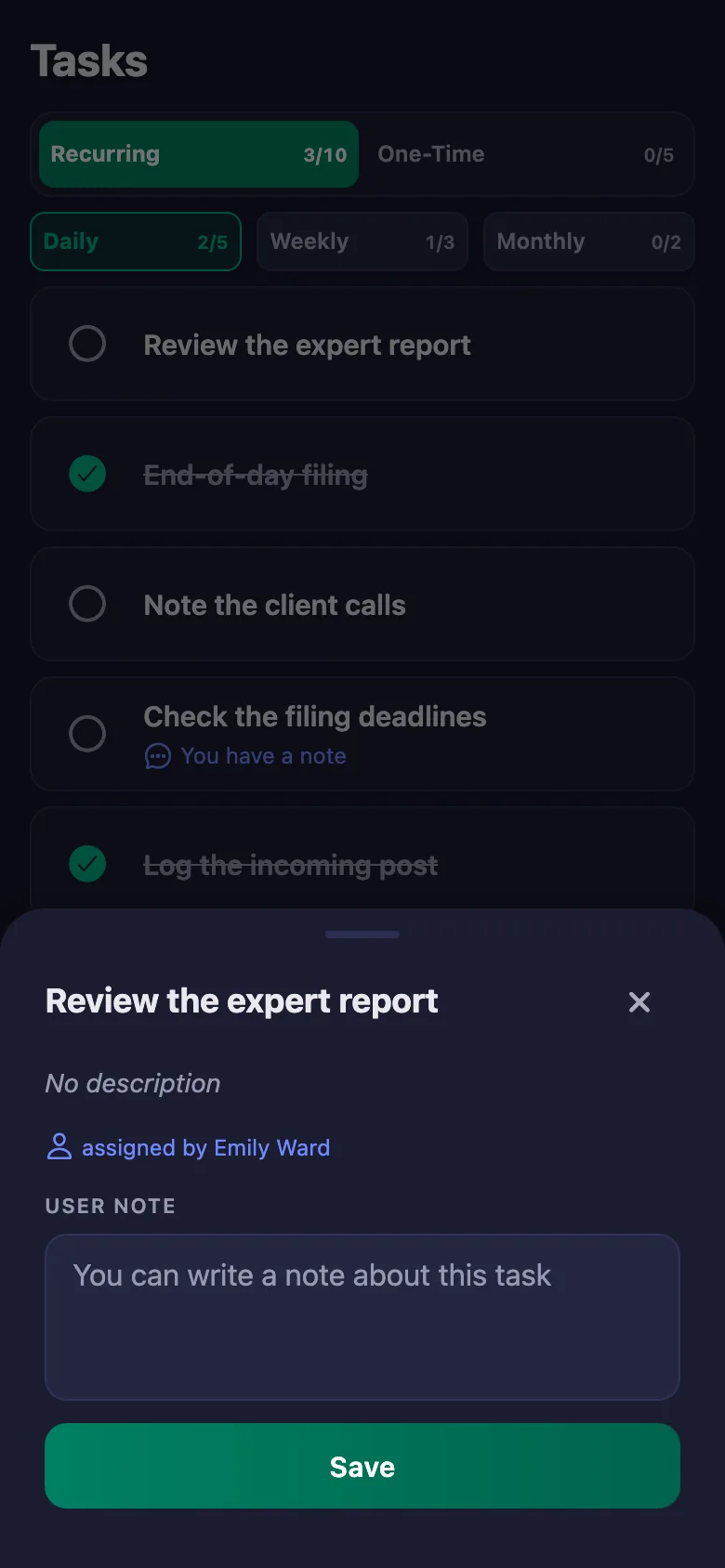
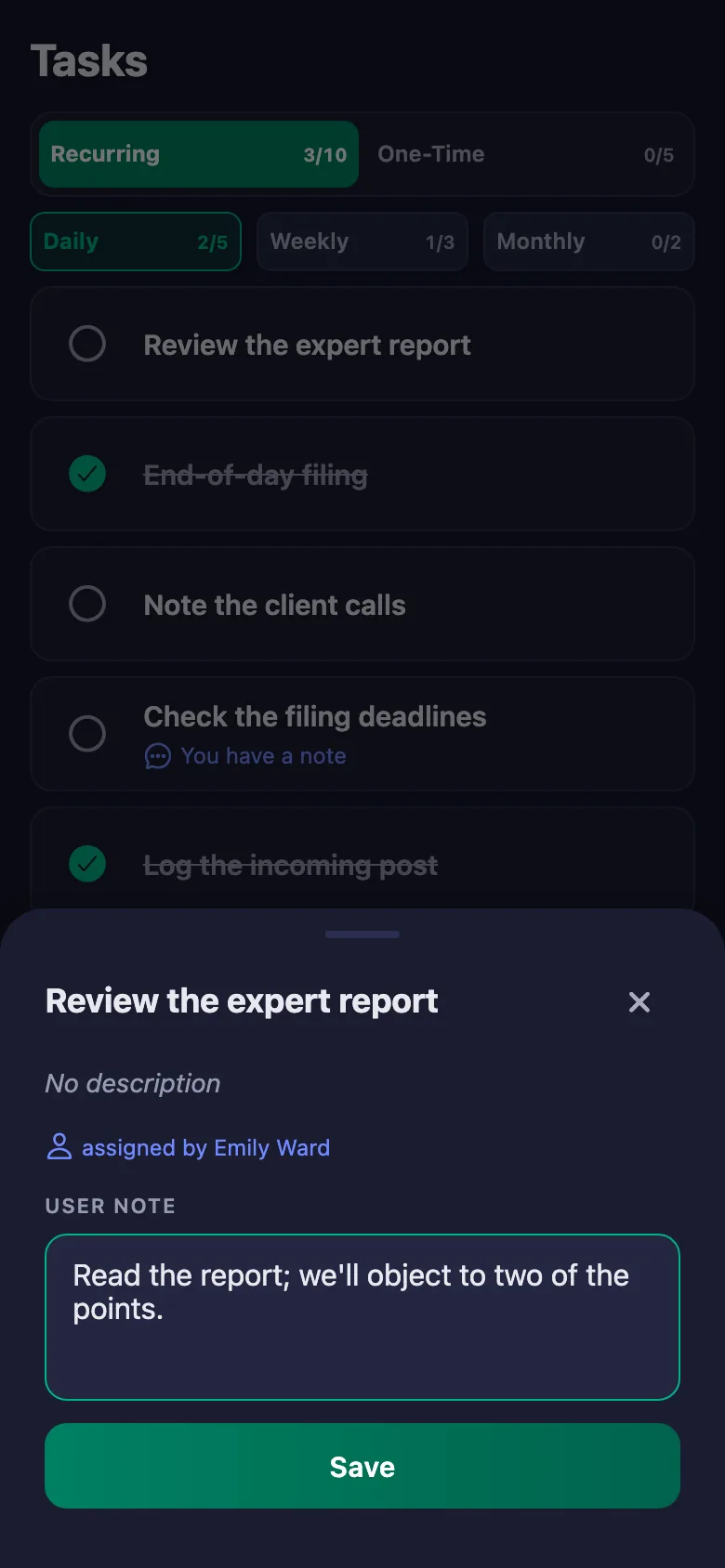
The team write a note under the job: what happened, when it was finished. The note sits on your screen, and only the person who wrote it can change it.
On a day you're not in the office, you don't know who came in and who is out.
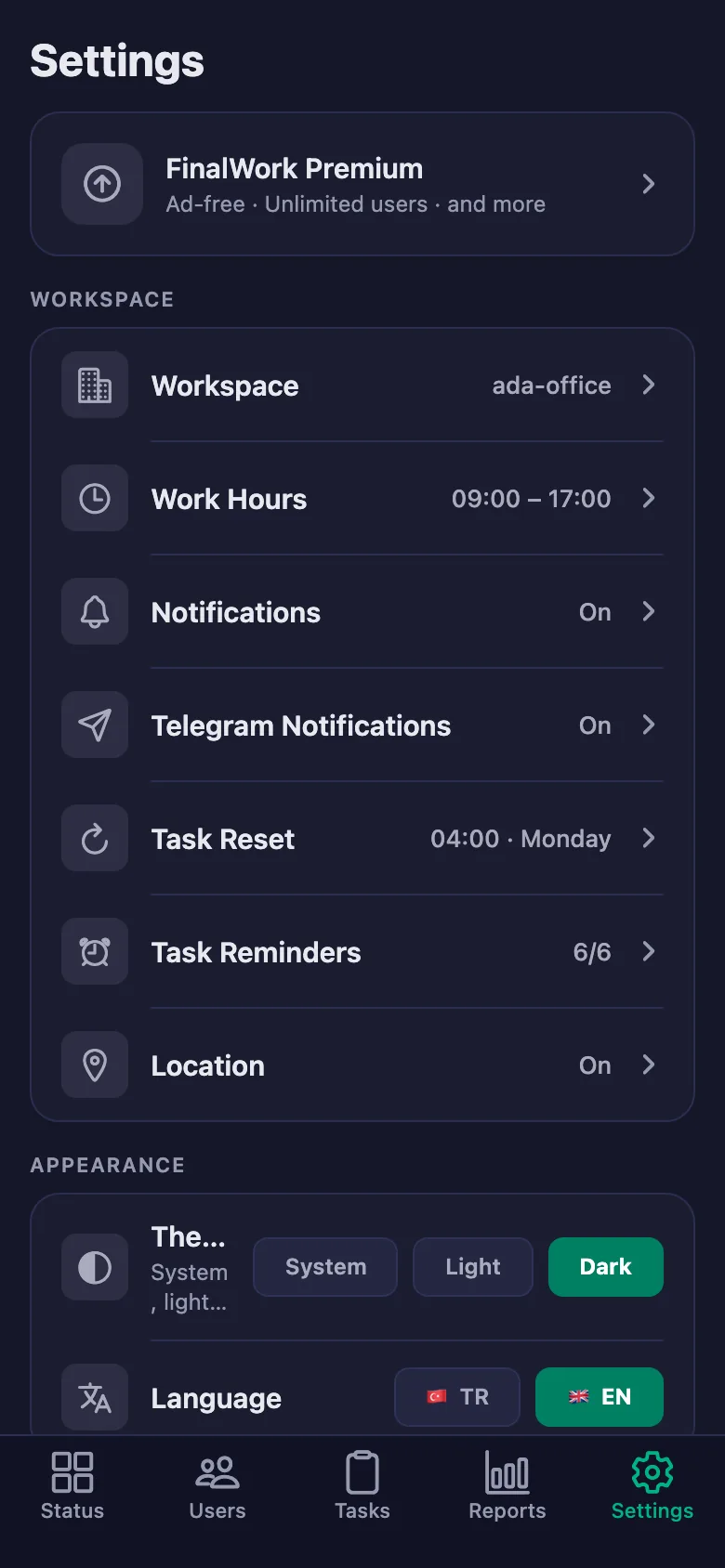
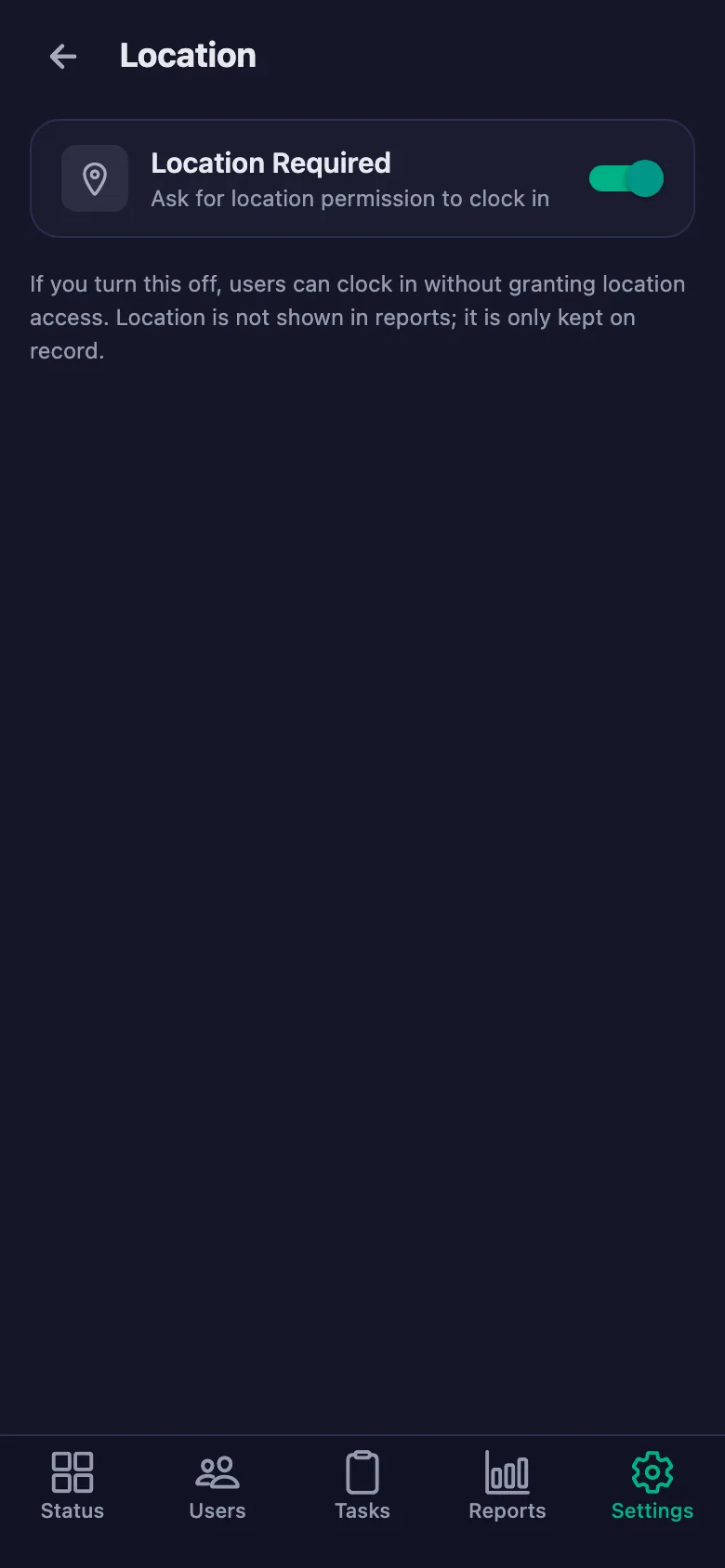
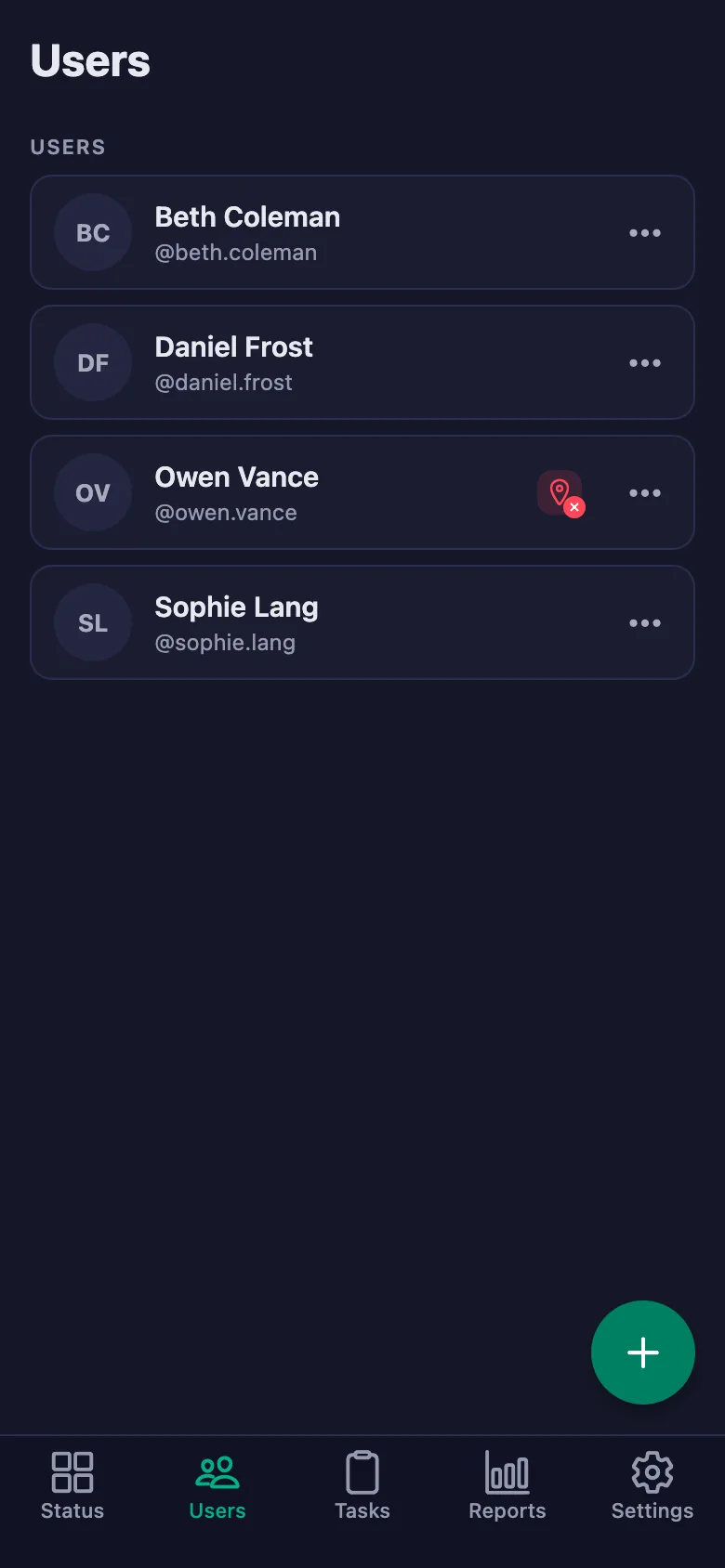
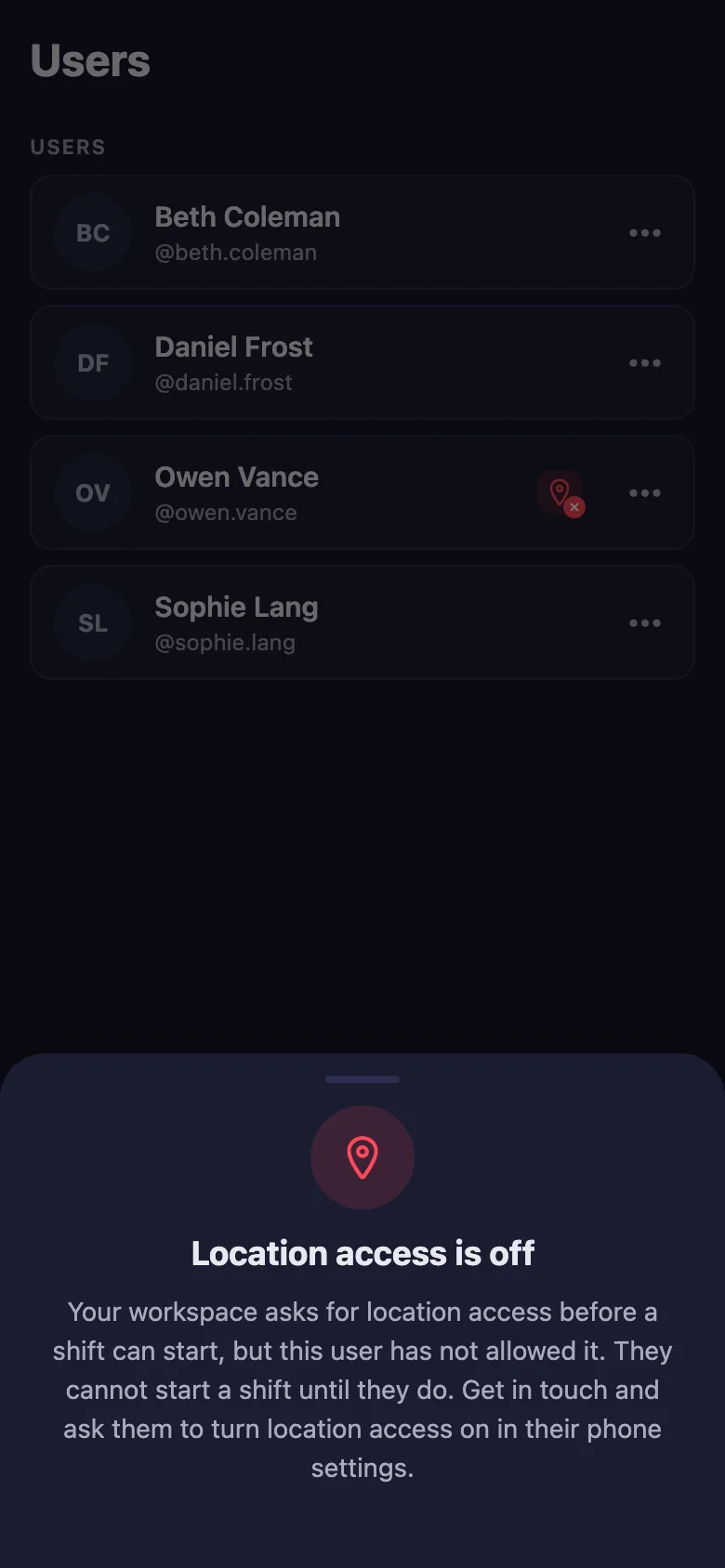
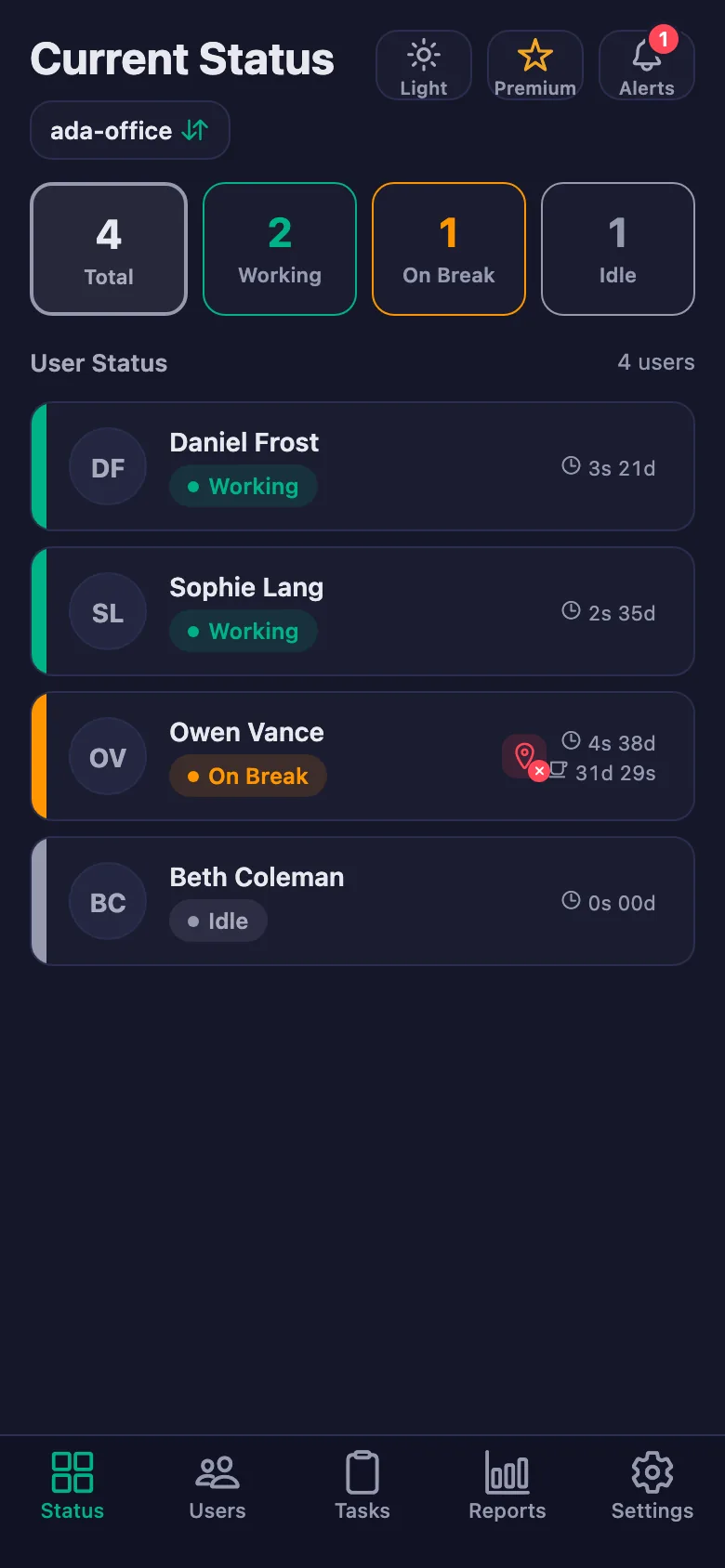
The live status screen shows whose timer is running and who is on a break. With the location rule on, work can only be started at the office.
As the deadline approaches, chasing it falls to you — asking each person one by one.
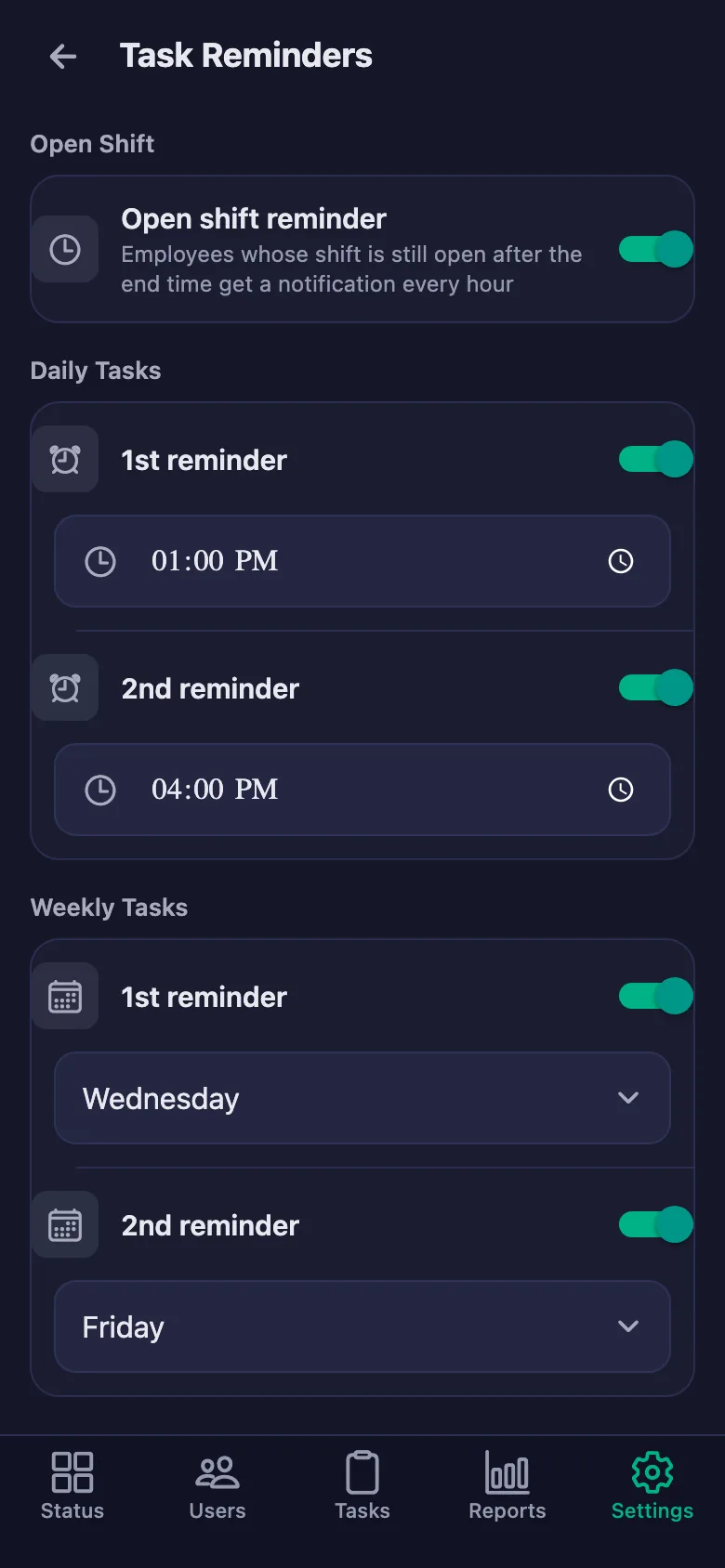
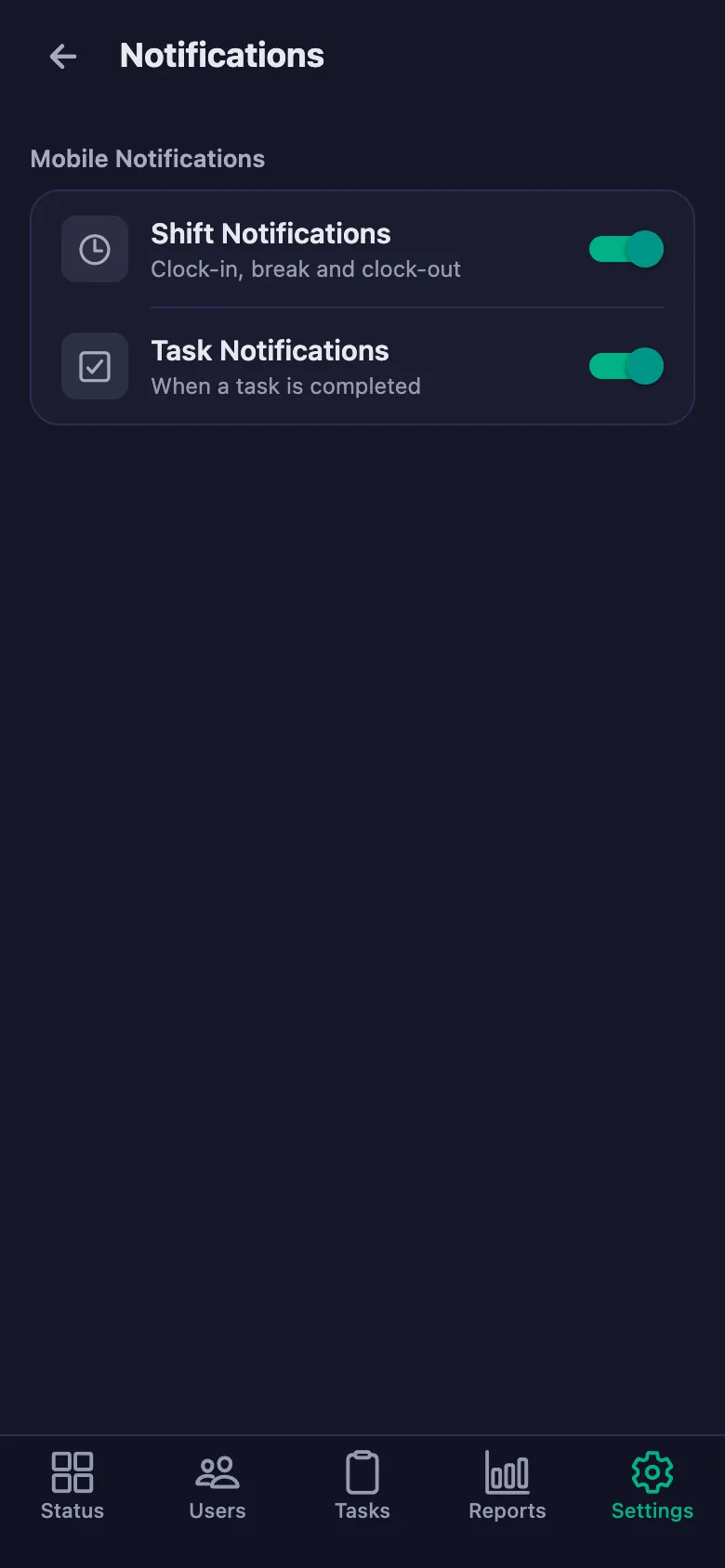
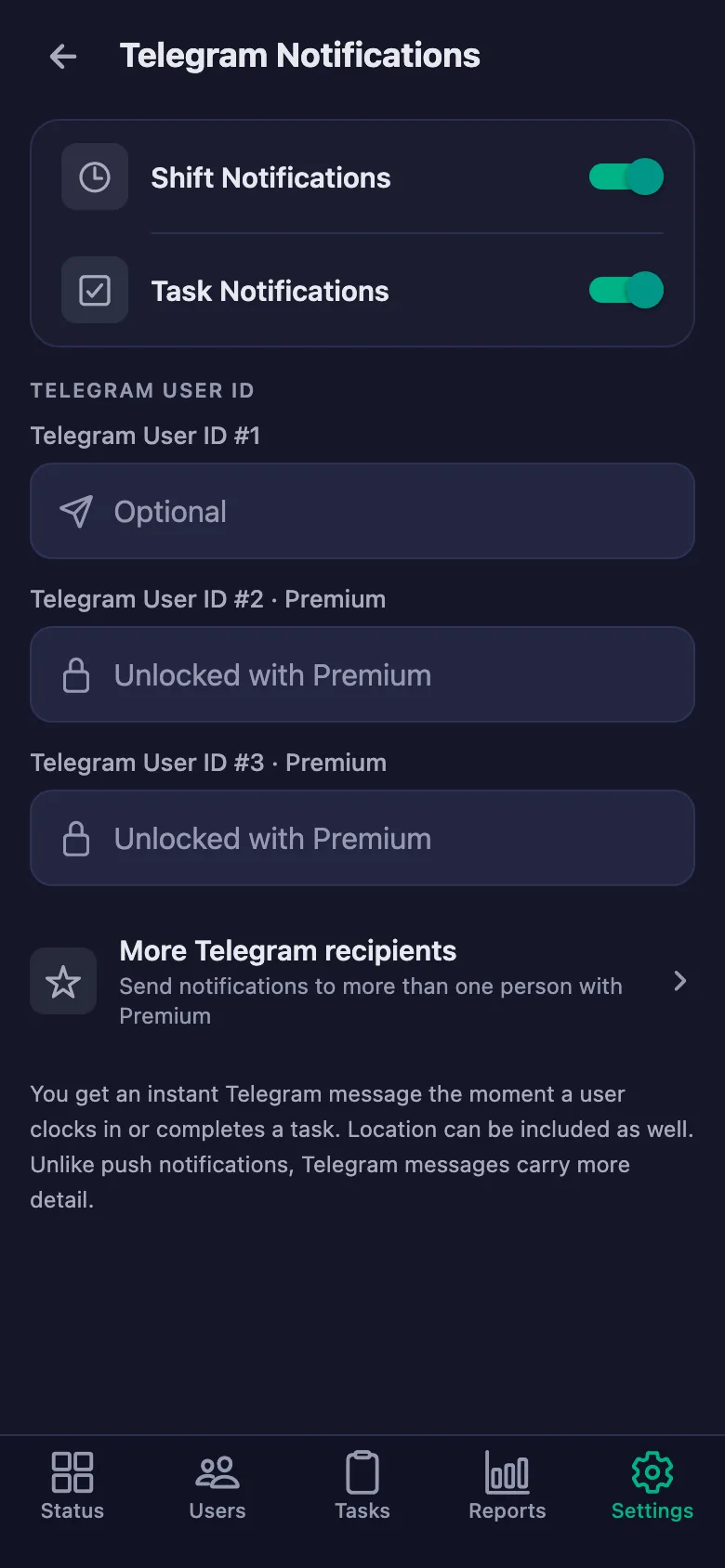
You set the reminder times, and the app does the chasing as the deadline nears. If a job is still open at that hour, a notification lands on the team's phones.
At the end of a period, pulling together who worked how much and which jobs closed takes days.
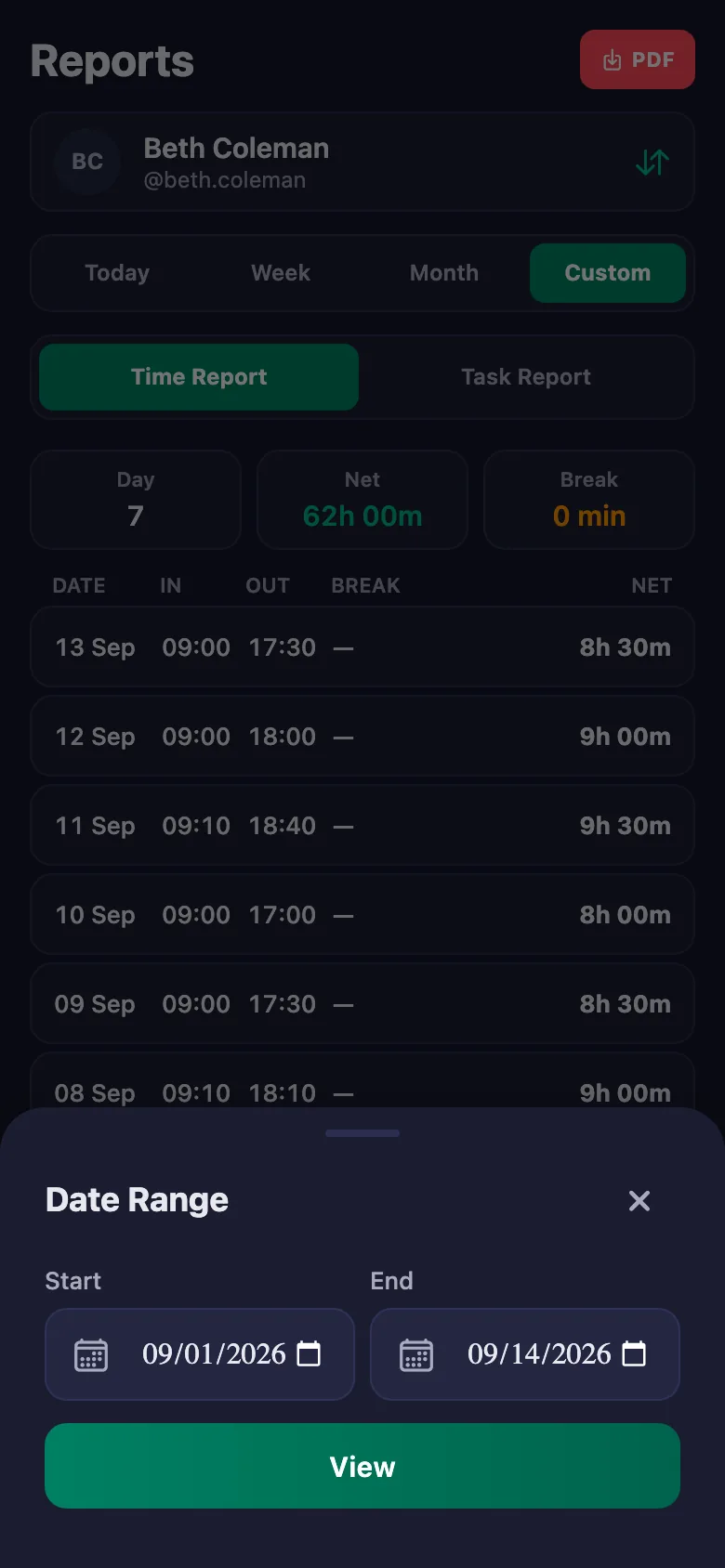
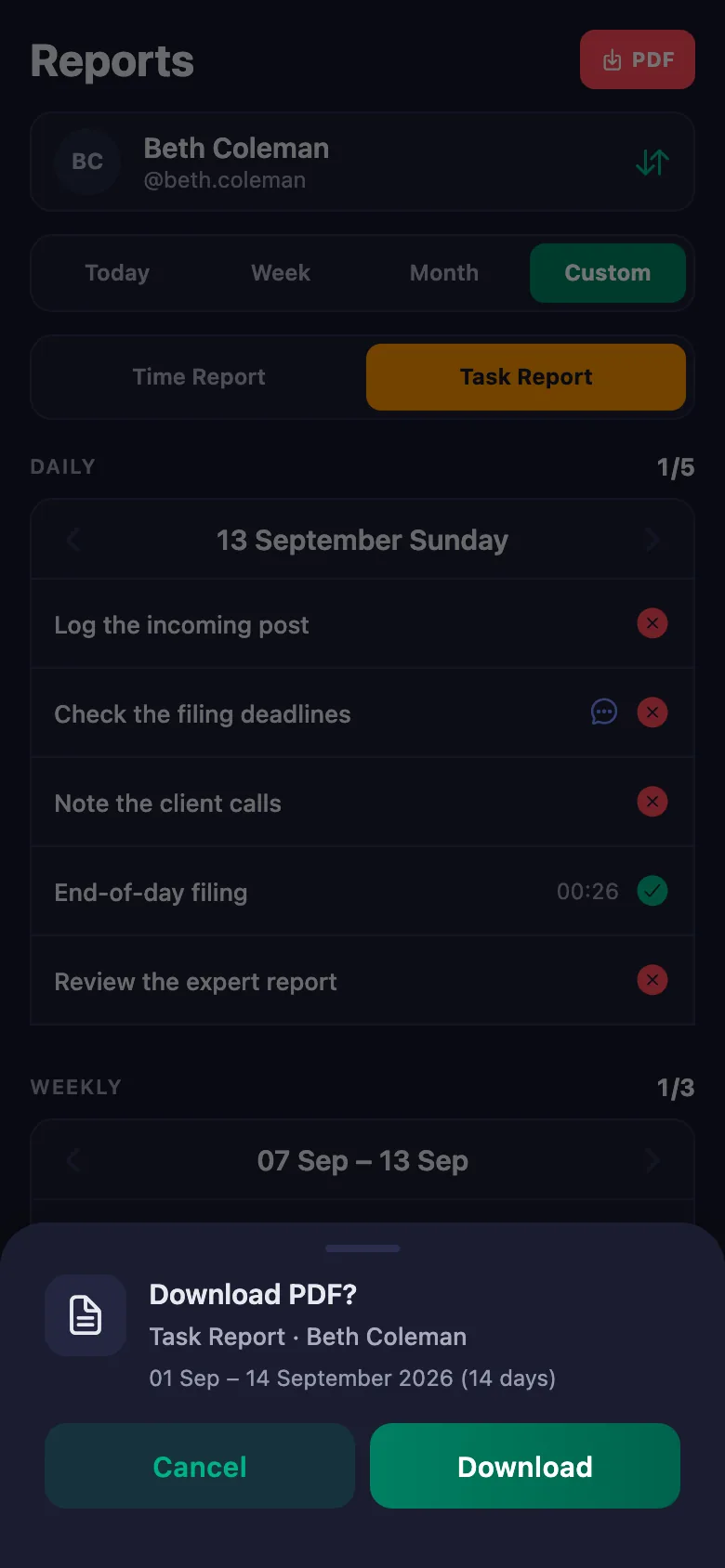
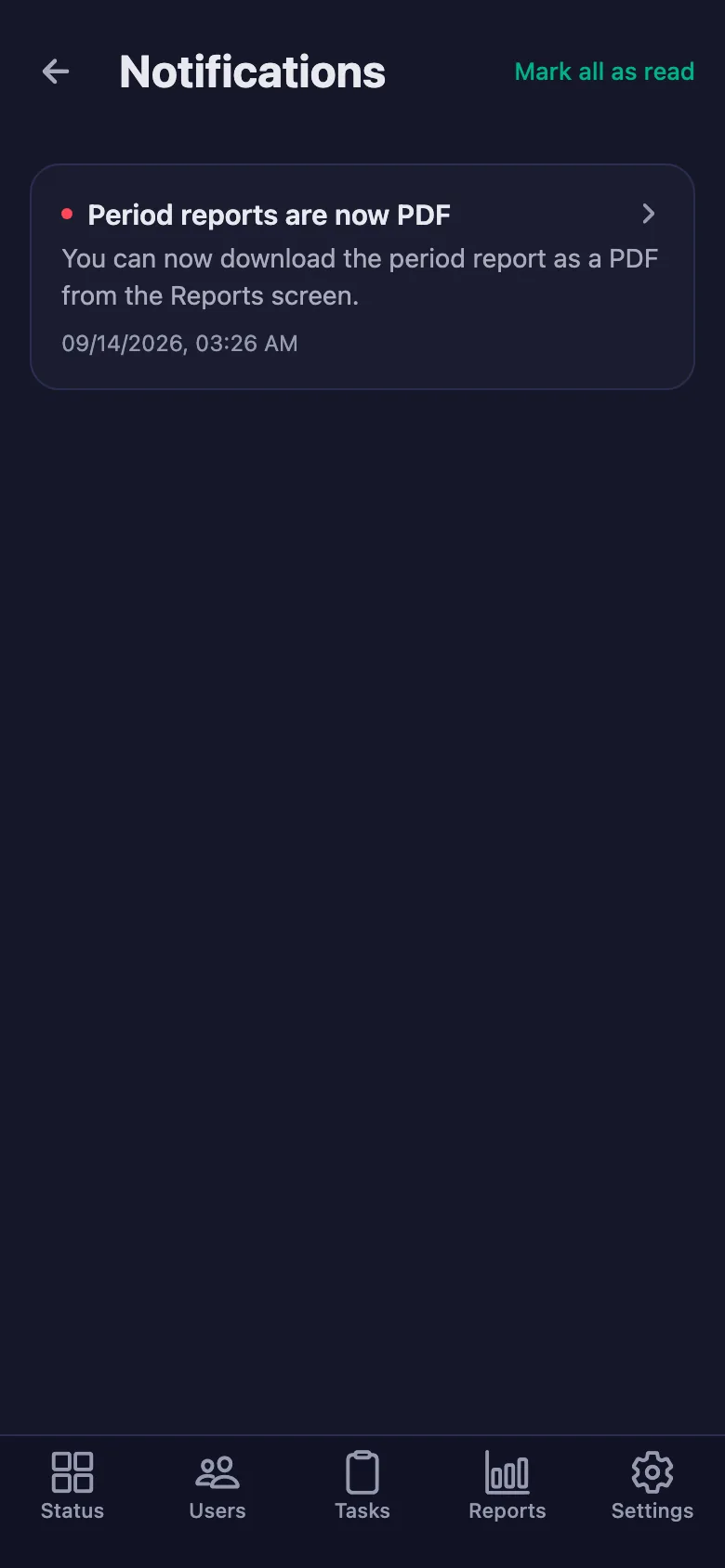
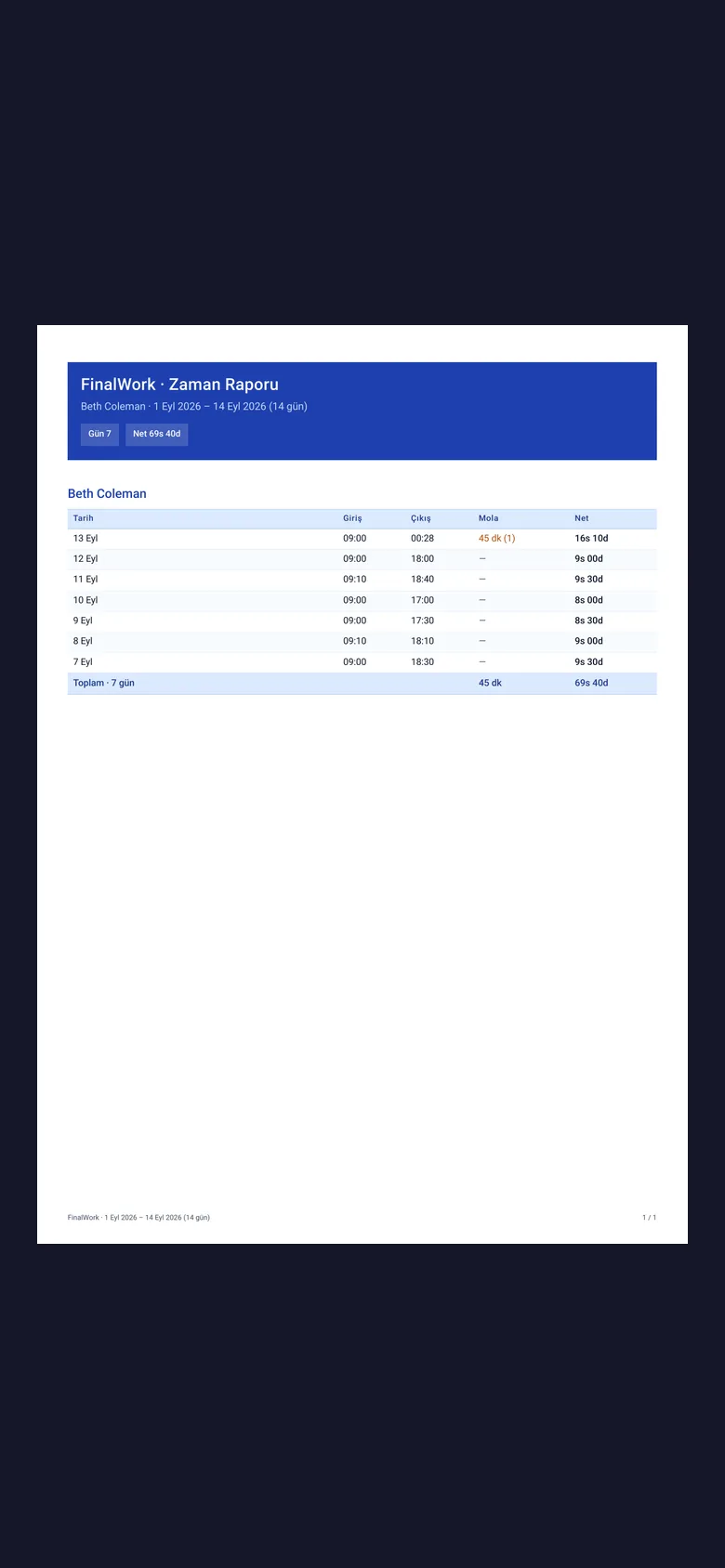
At the end of a period you pick a date range and the report appears on screen. You download it as a PDF and put it in the file.
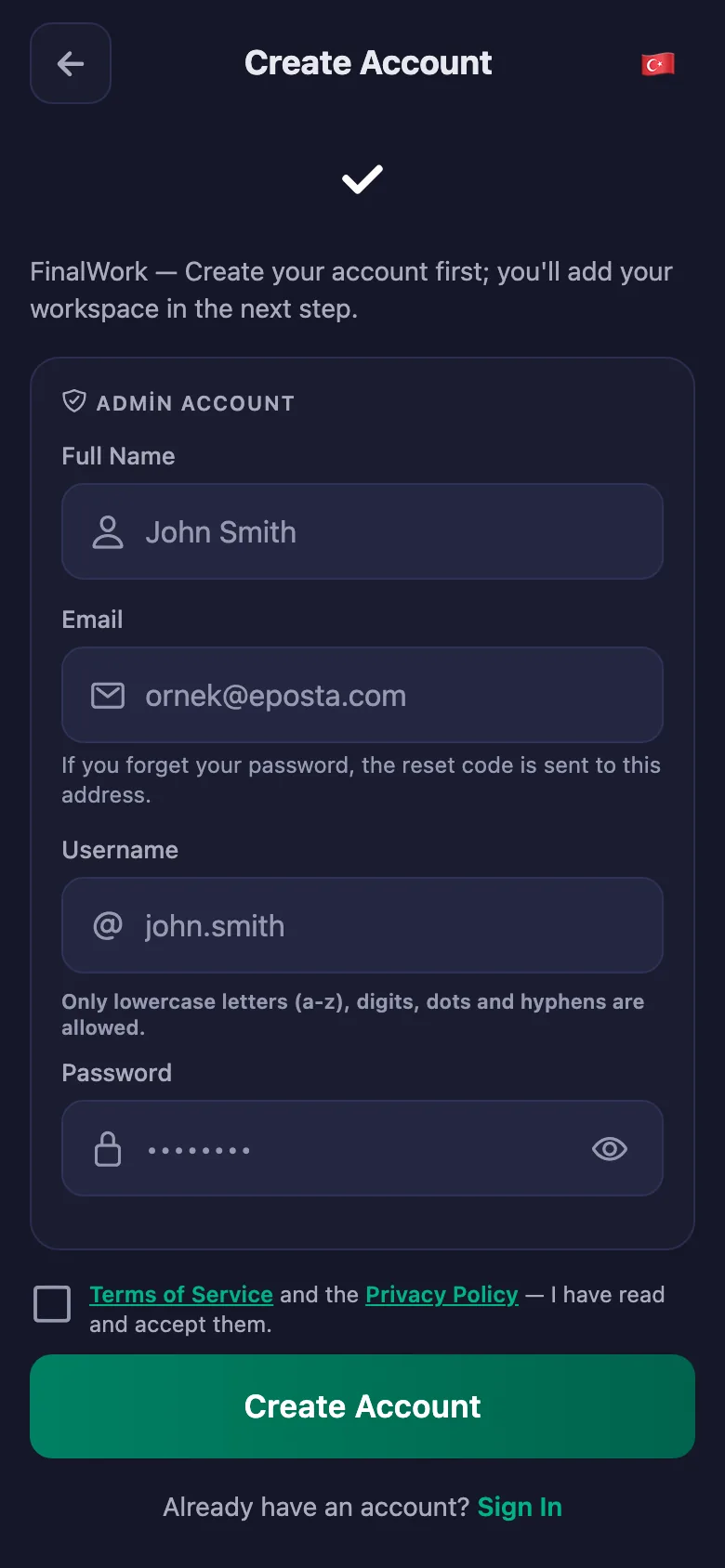
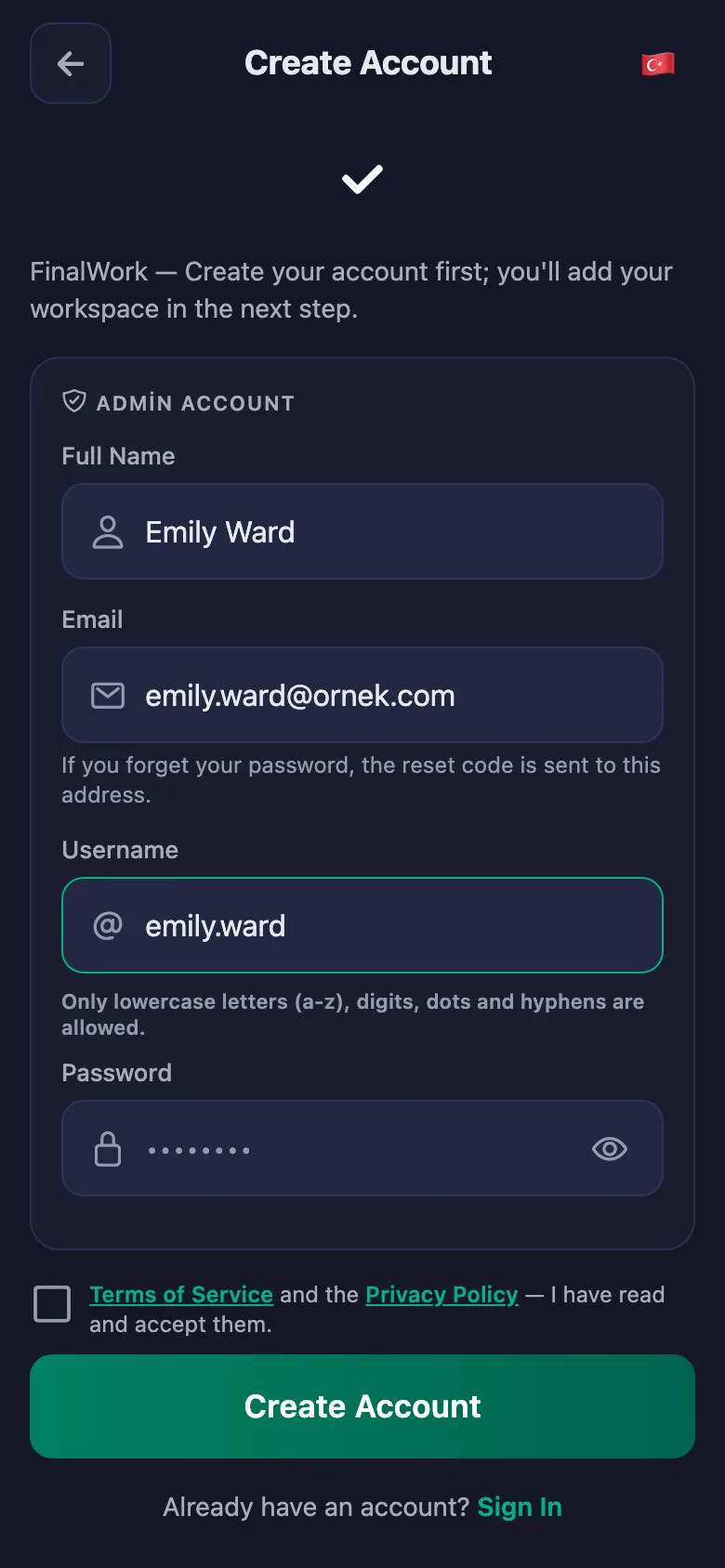
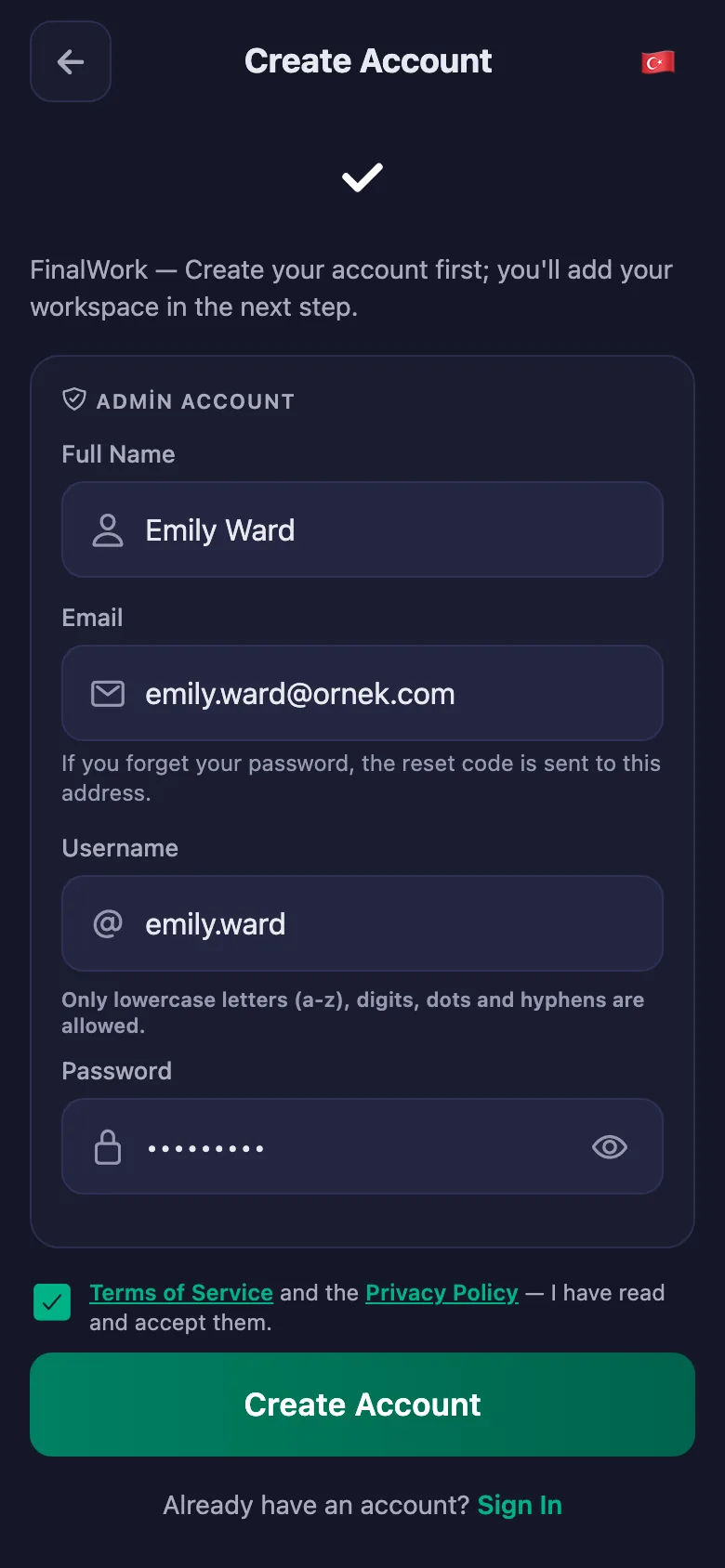
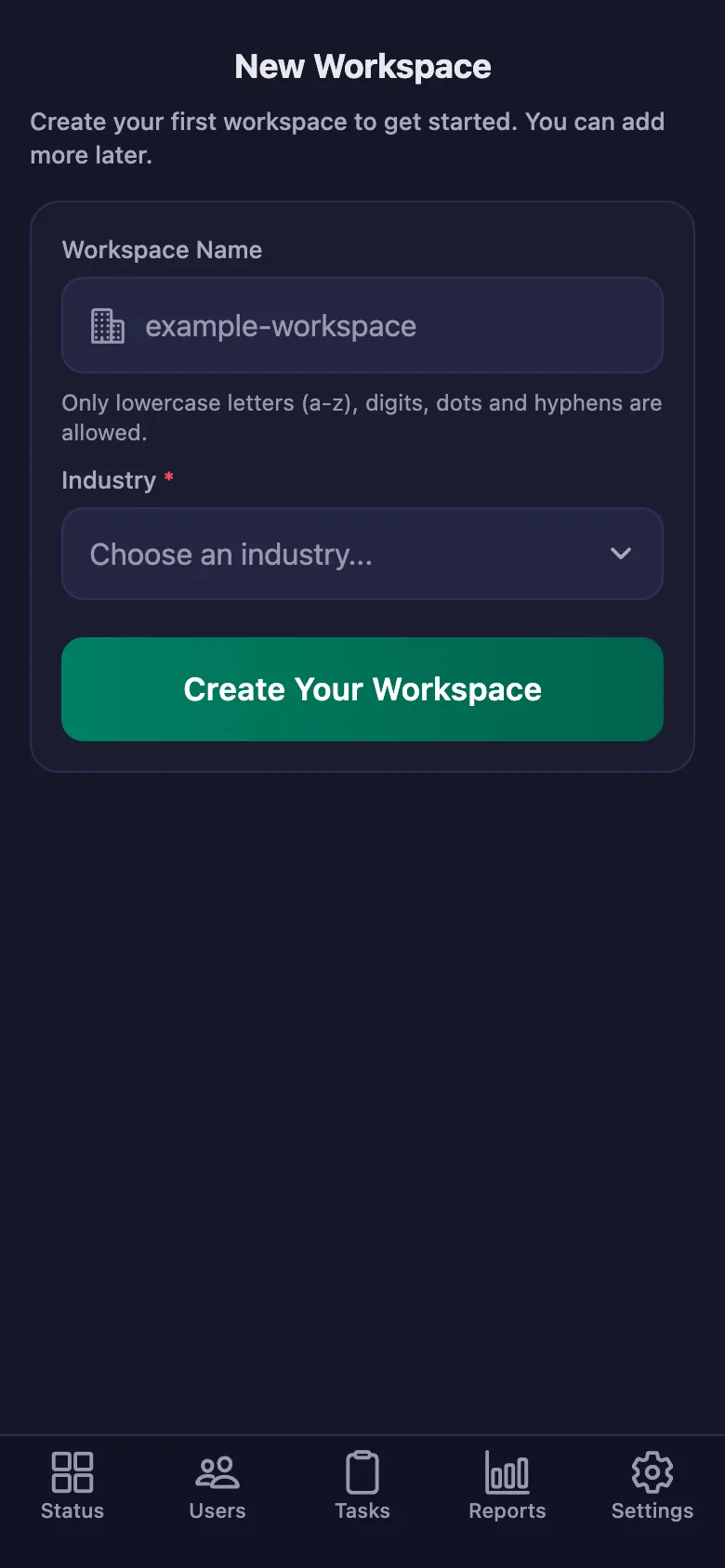
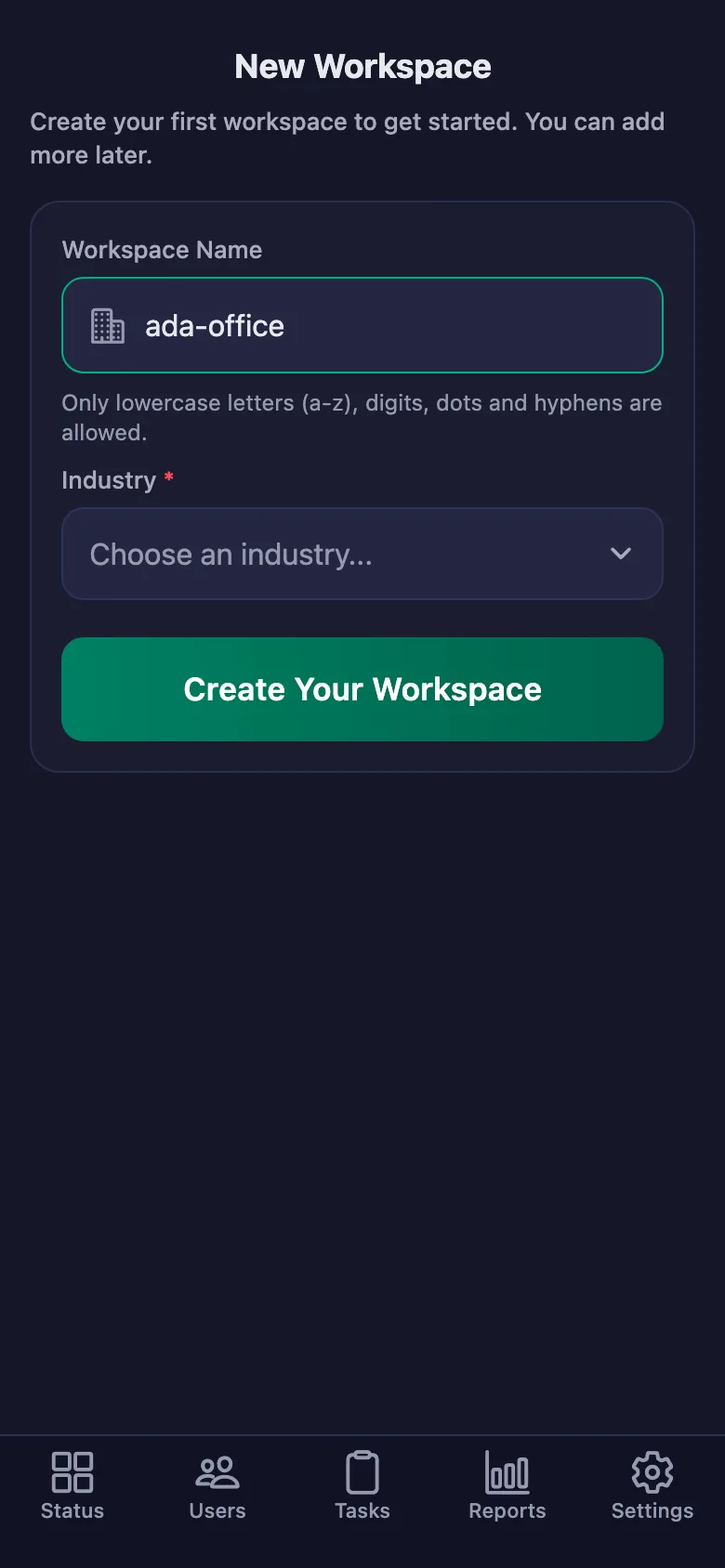
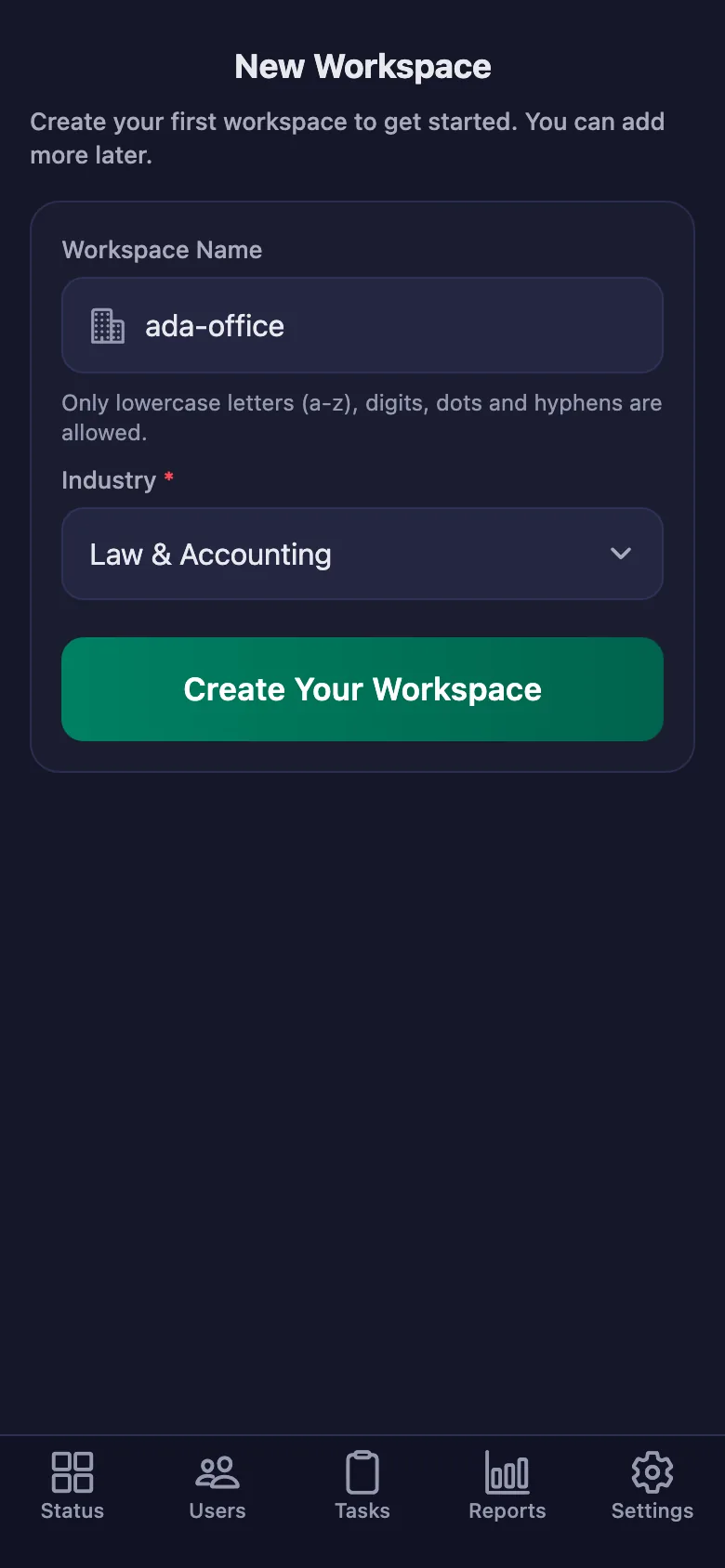
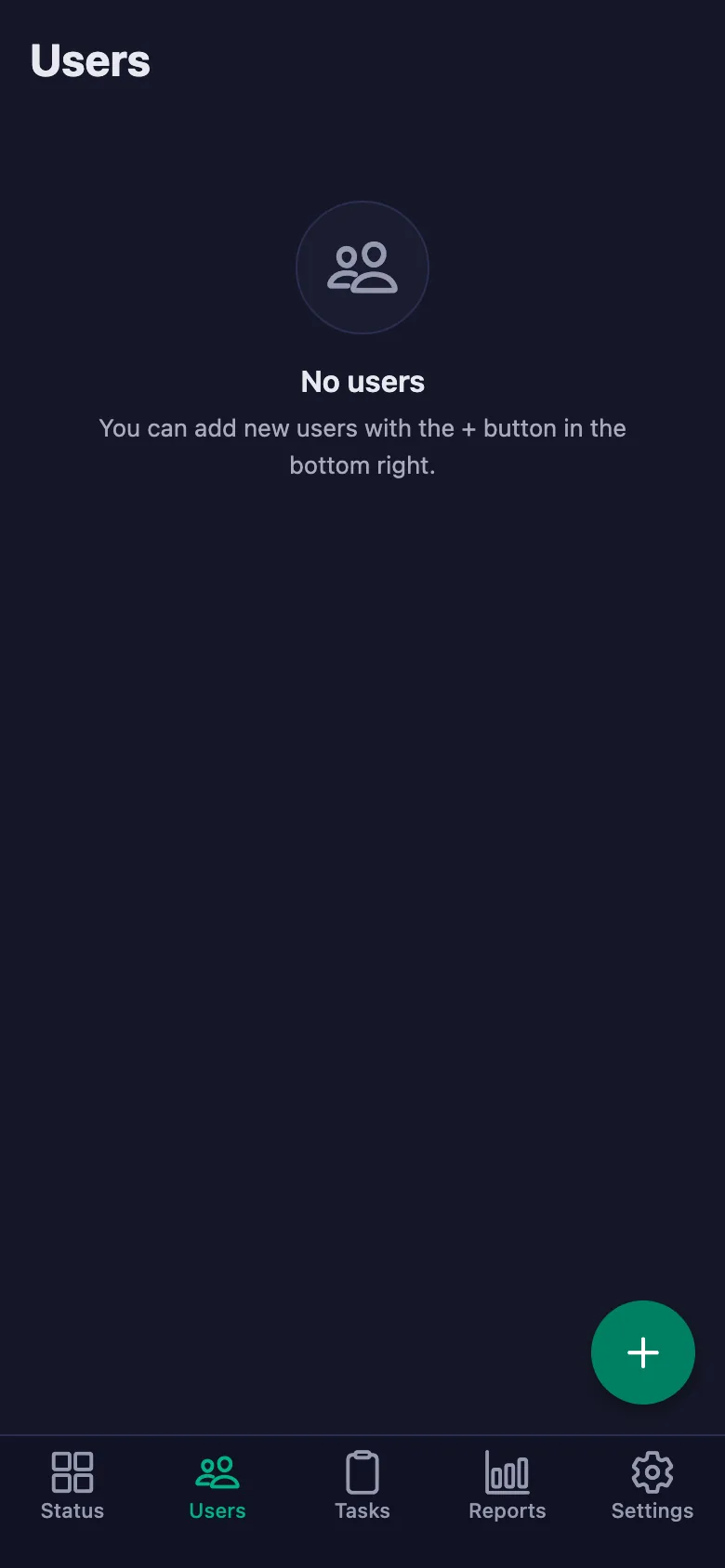
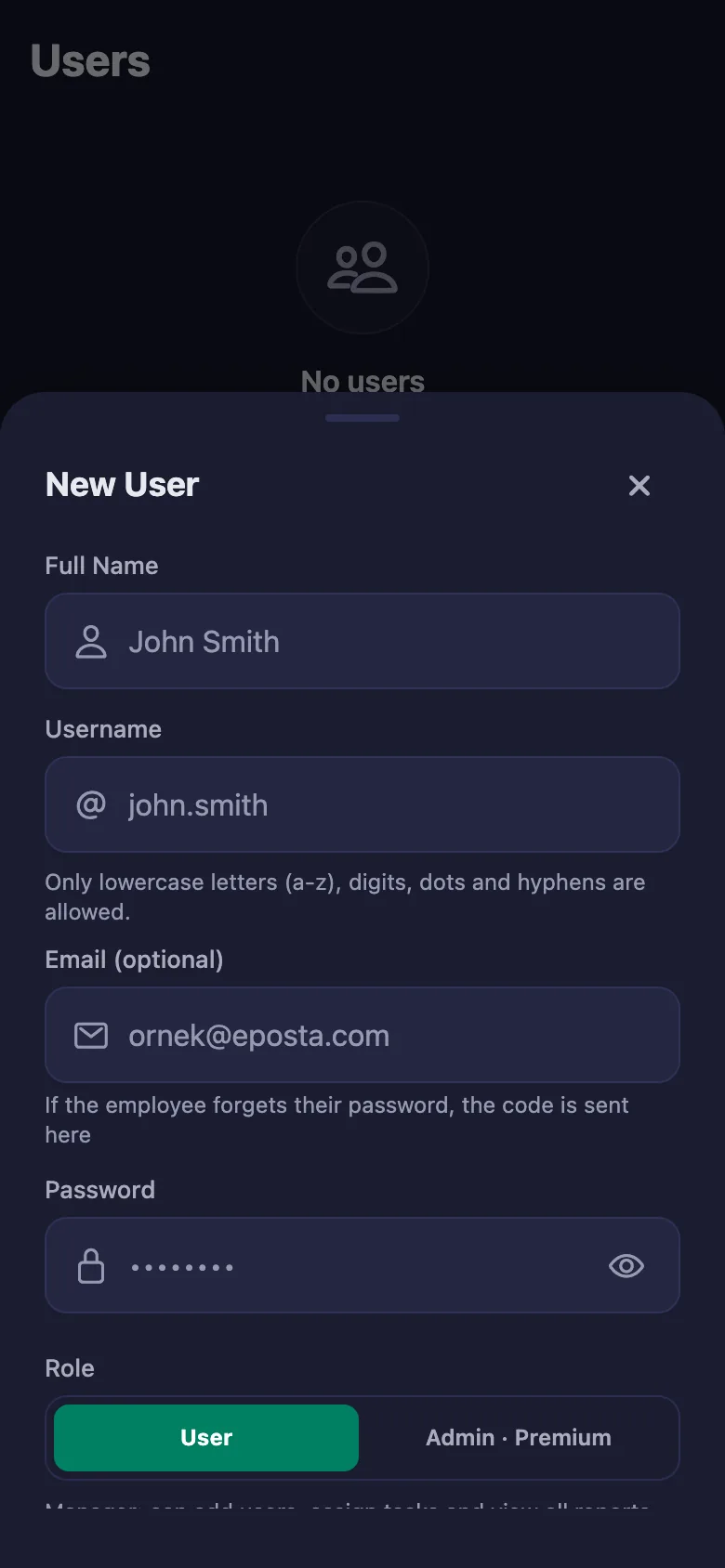
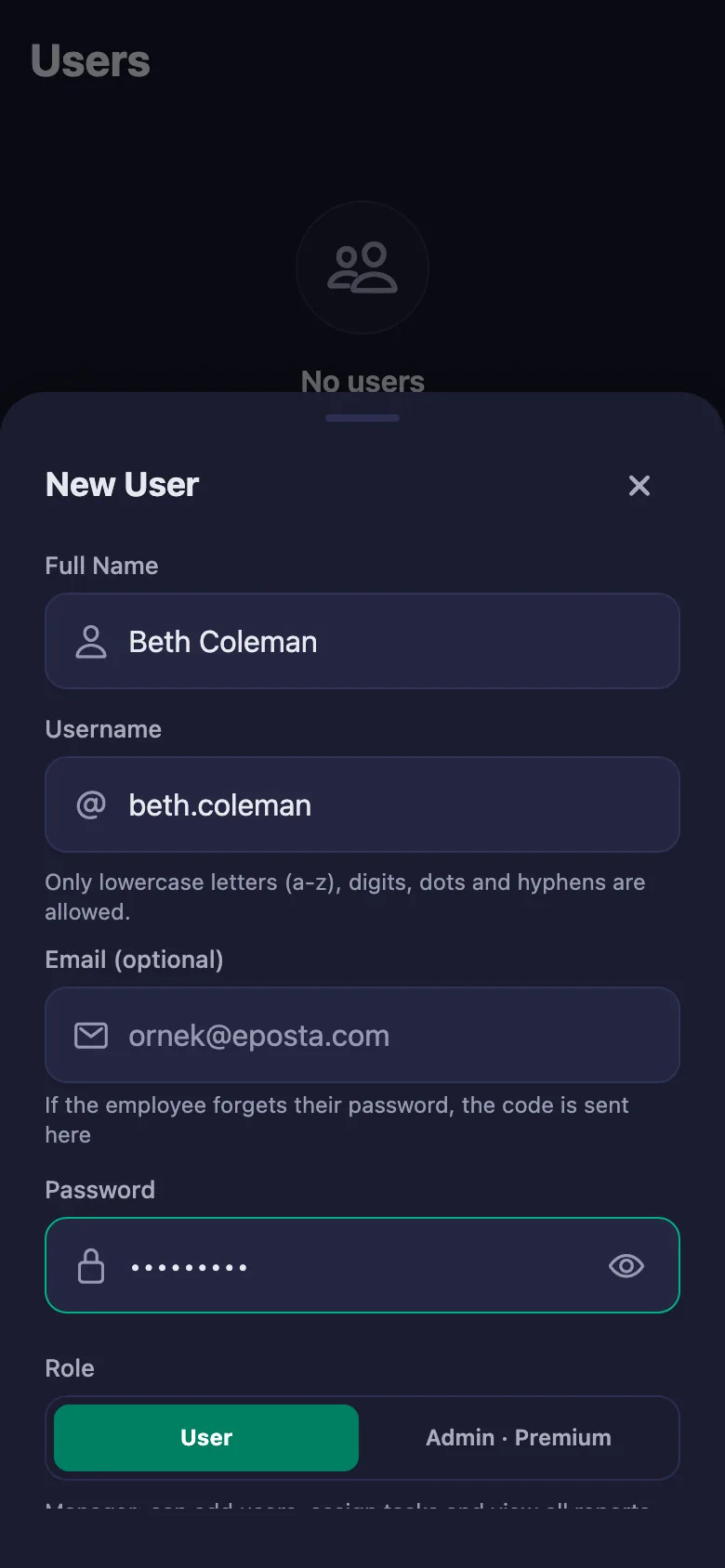
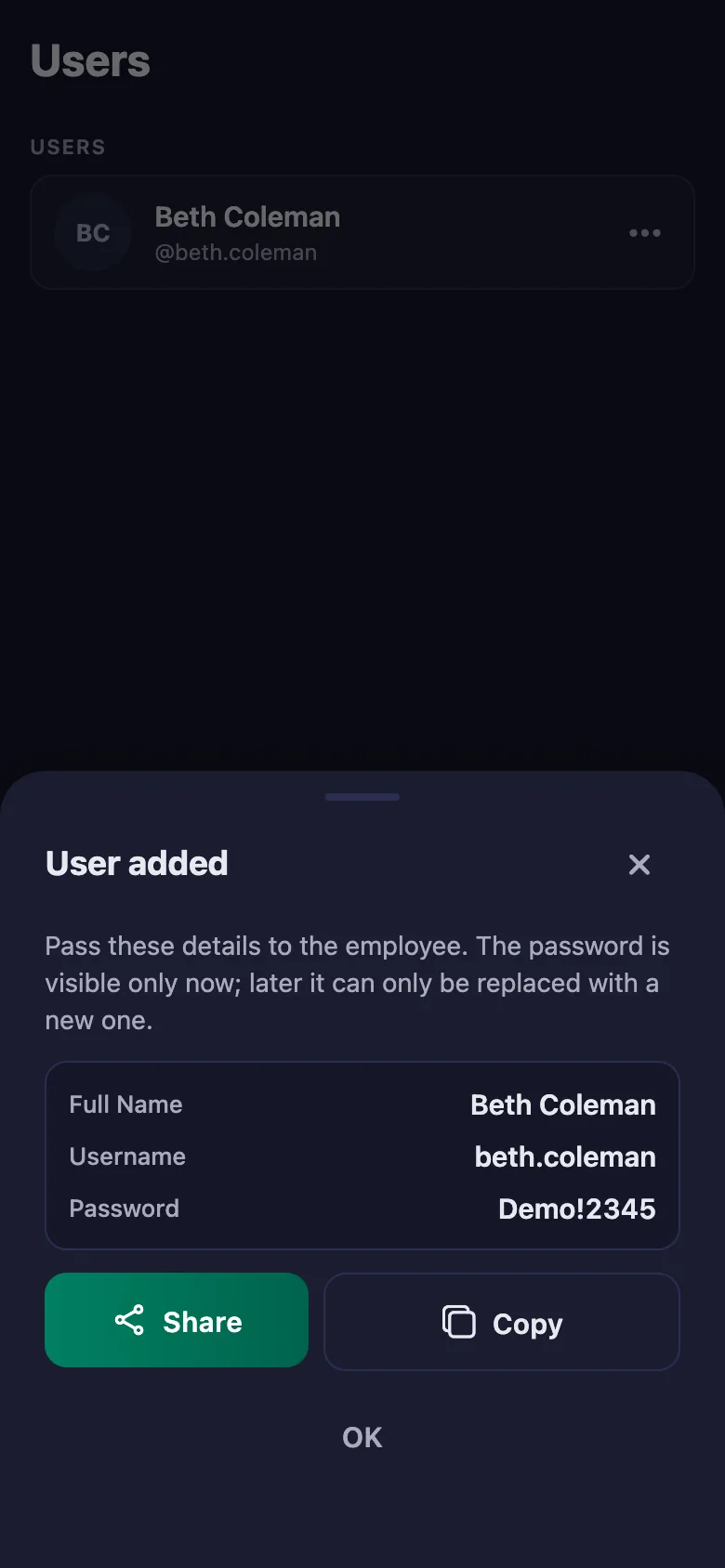
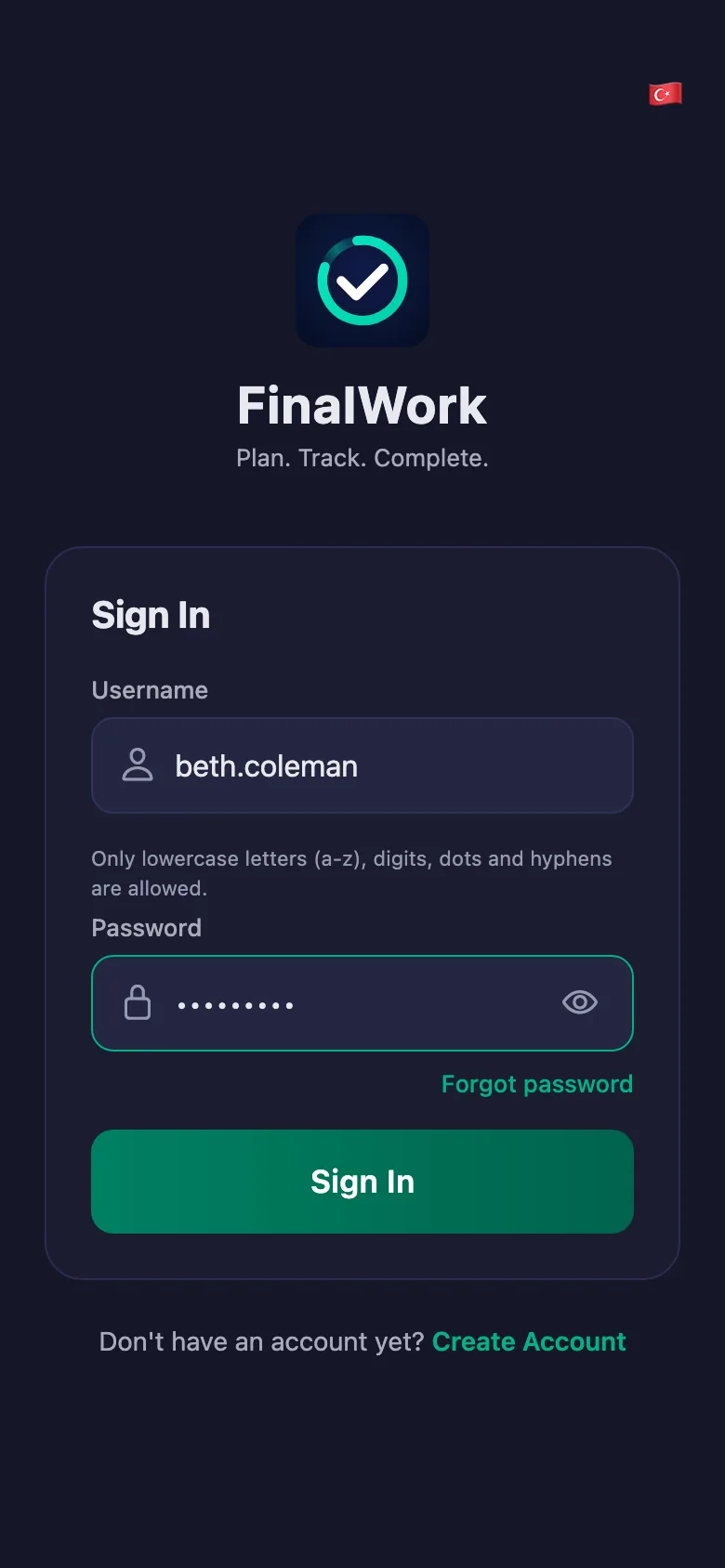
Setup and activation take just one minute — you can start free. Below you can watch the whole flow on the app's real screens.
Practice Owner – Office Team App Demo
 FinalWork — Task reminder
2 daily tasks are waiting for you.
FinalWork — Task reminder
2 daily tasks are waiting for you.
Office time and task tracking software — frequently asked questions
Do we enter case or client information?
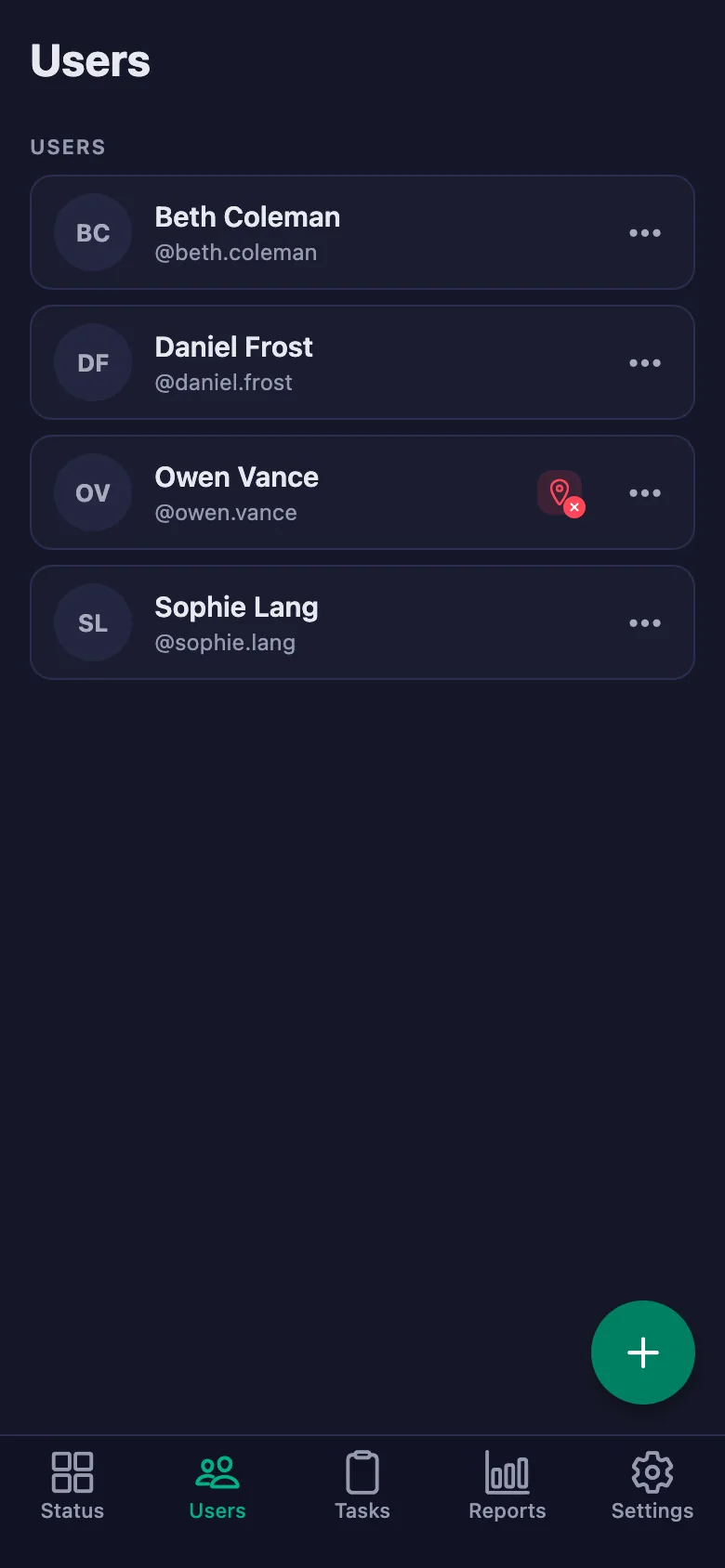
No. The app is not case management software and holds no client data. It tracks your team's working hours and daily job items; you carry on using your existing system as before.
Can I assign tasks to a specific person?
Yes. You can assign each task to one person, or to the whole team at once if you prefer. Everyone sees only their own list.
Can the team write notes, and can I see them?
Yes. The team can write a note under each job — what happened, why it was late. You can see the note but you cannot change it; only the person who wrote it can edit it.
How many people can I add?
The free plan has a limit on users; when you reach it the app warns you and no new user is added. The limit is lifted on Premium.
Can I use it for overtime?
The report shows how many hours and how many days each person worked; you can download it as a PDF and use it as the basis for overtime.
Does it suit trainees and part-time staff?
Yes. The timer measures the hours itself, so part-time work is recorded exactly as it happens; everyone's time appears separately in the report.
We have remote staff — is the location rule a problem?
The location rule is optional. With it switched off, the team can start work wherever they are, and the hours are still recorded.
Set up your practice today
Setup and activation take just one minute — you can start free. Open the account, add your first team member, and let today's jobs go on the record.