Work Tracking and Task Management for Remote Software Teams
How does the day become visible in a remote team?
“Who did what” gets left to the morning stand-up, and the hours are kept nowhere at all. FinalWork brings the daily jobs and the working hours into one place — and it does it without tracking anyone's location.
What makes work tracking hard in a remote team
The team is spread out, the tools are separate, and the day gets pulled together in a meeting. Most team leads live with the following — on the right is what each one looks like in FinalWork.
“What did you do today” is left to the morning stand-up; the meeting drags on and everyone loses half an hour.
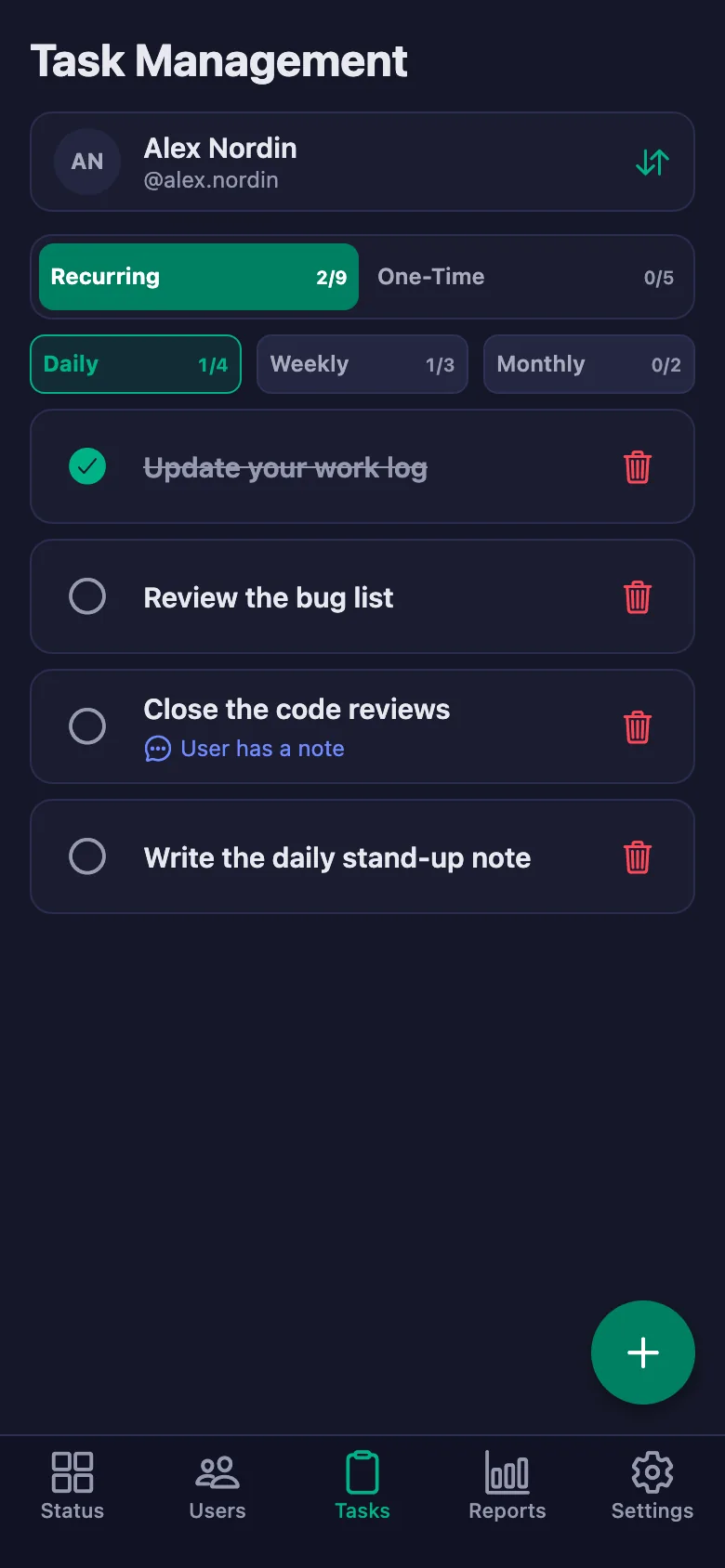
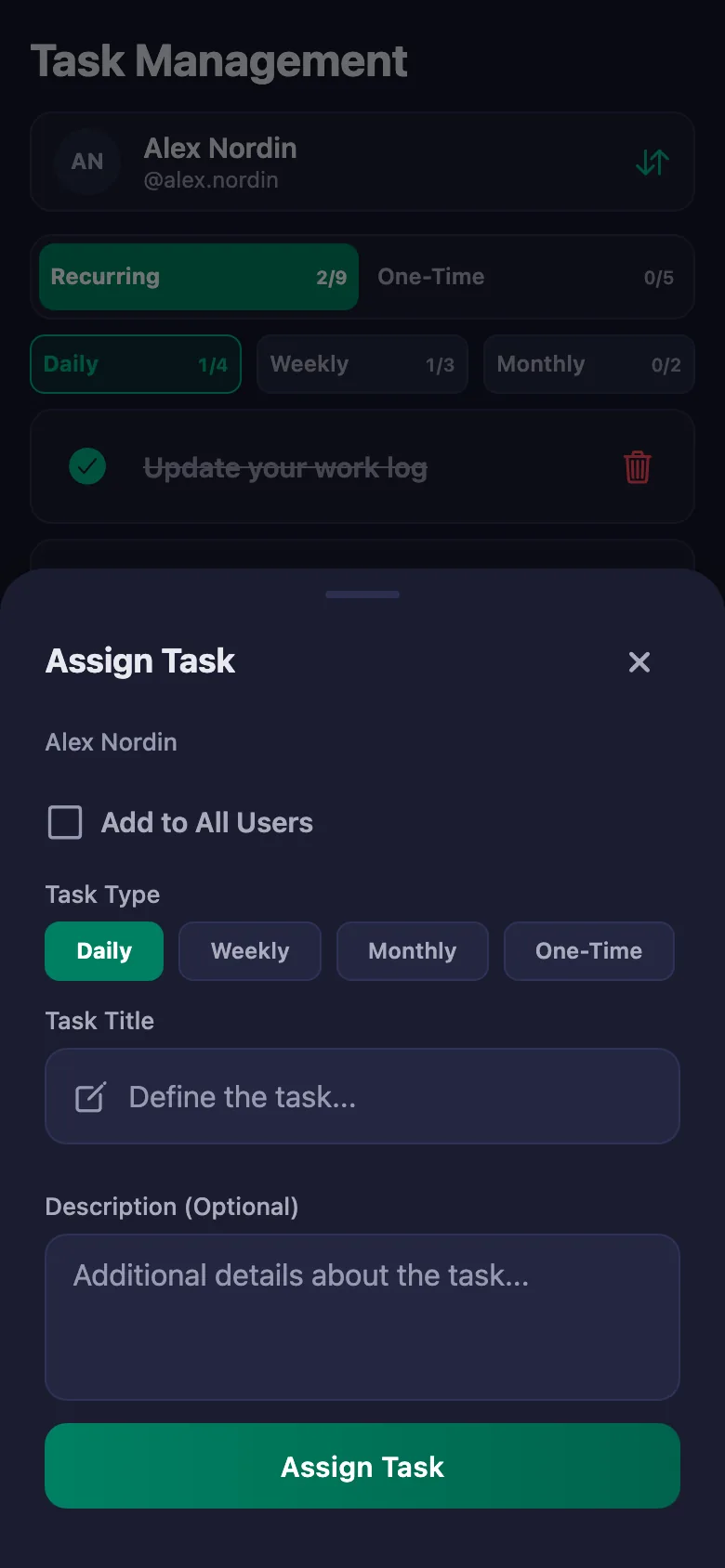
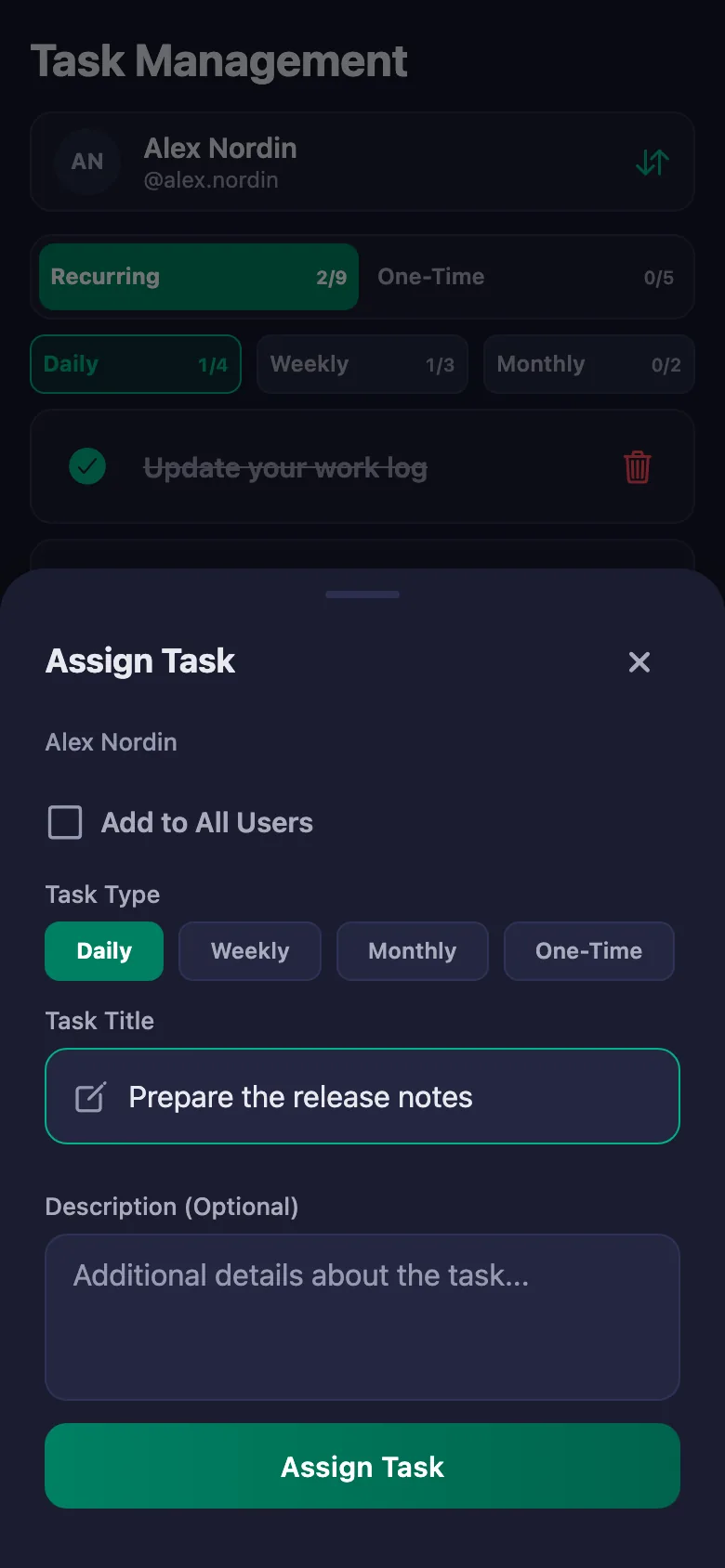
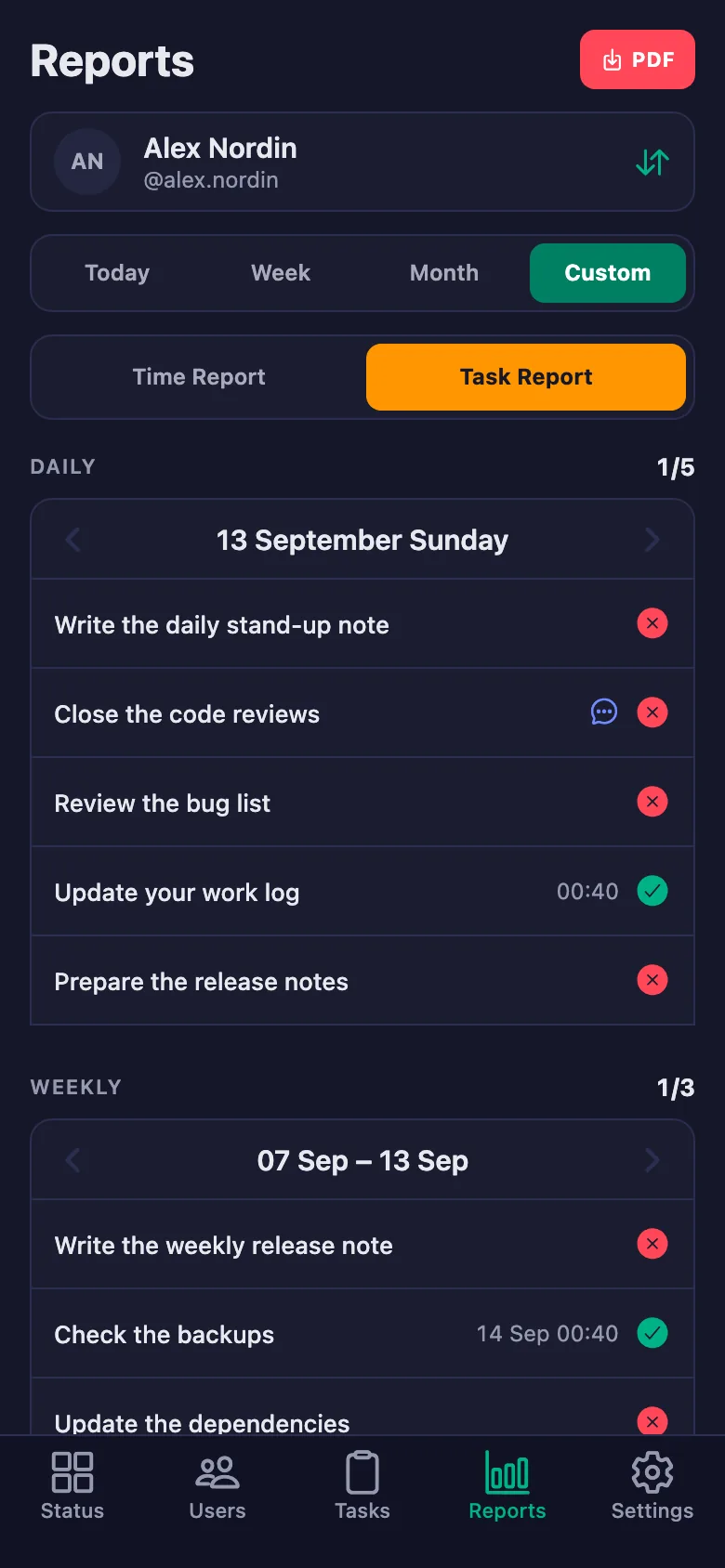
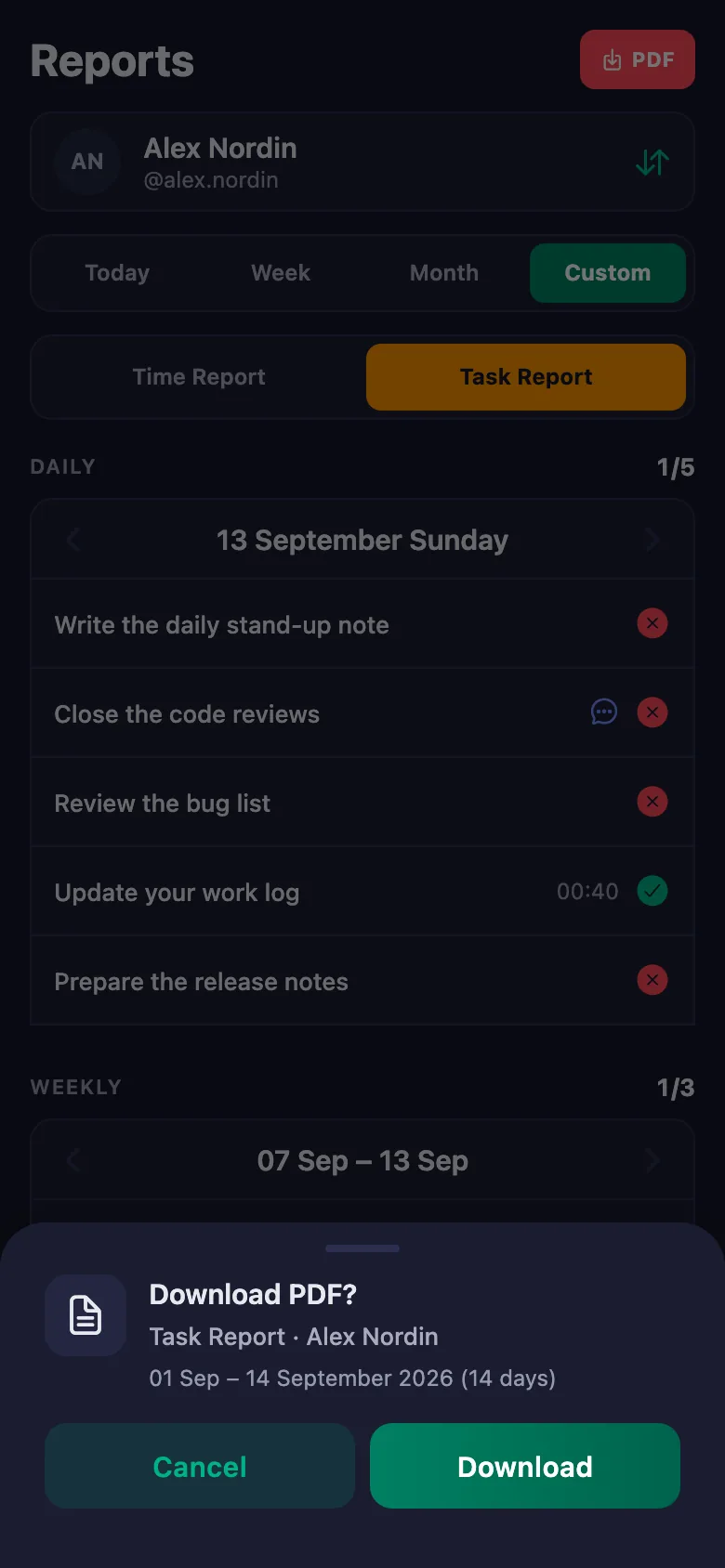
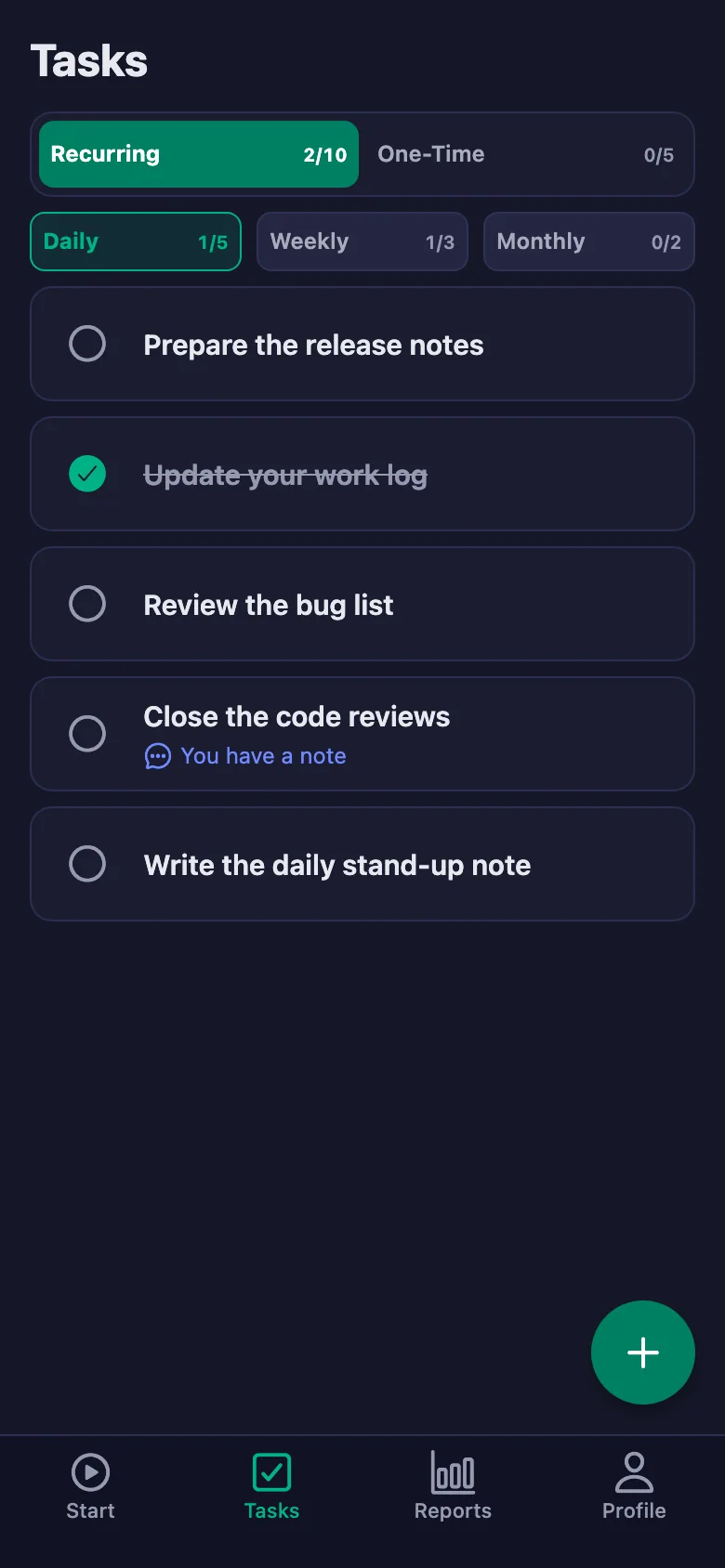
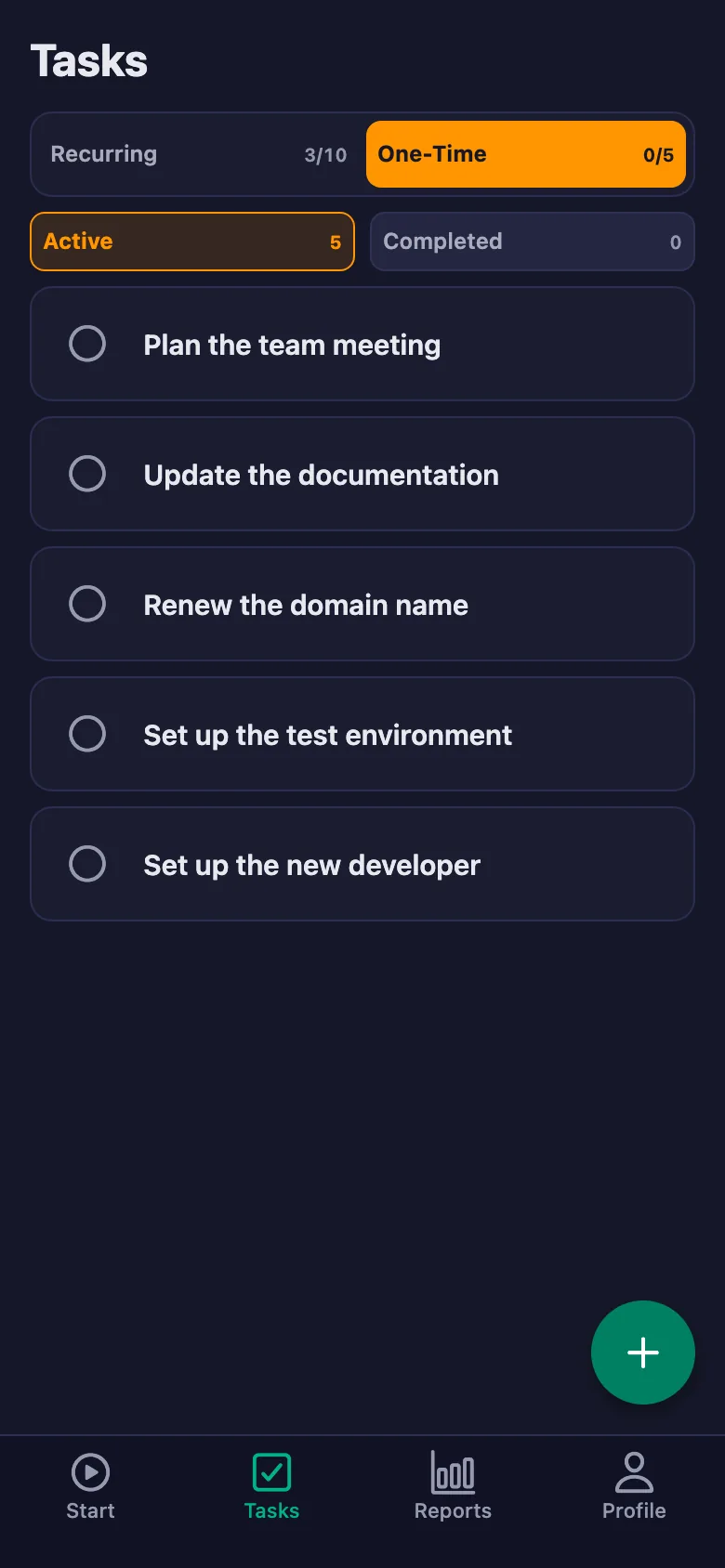
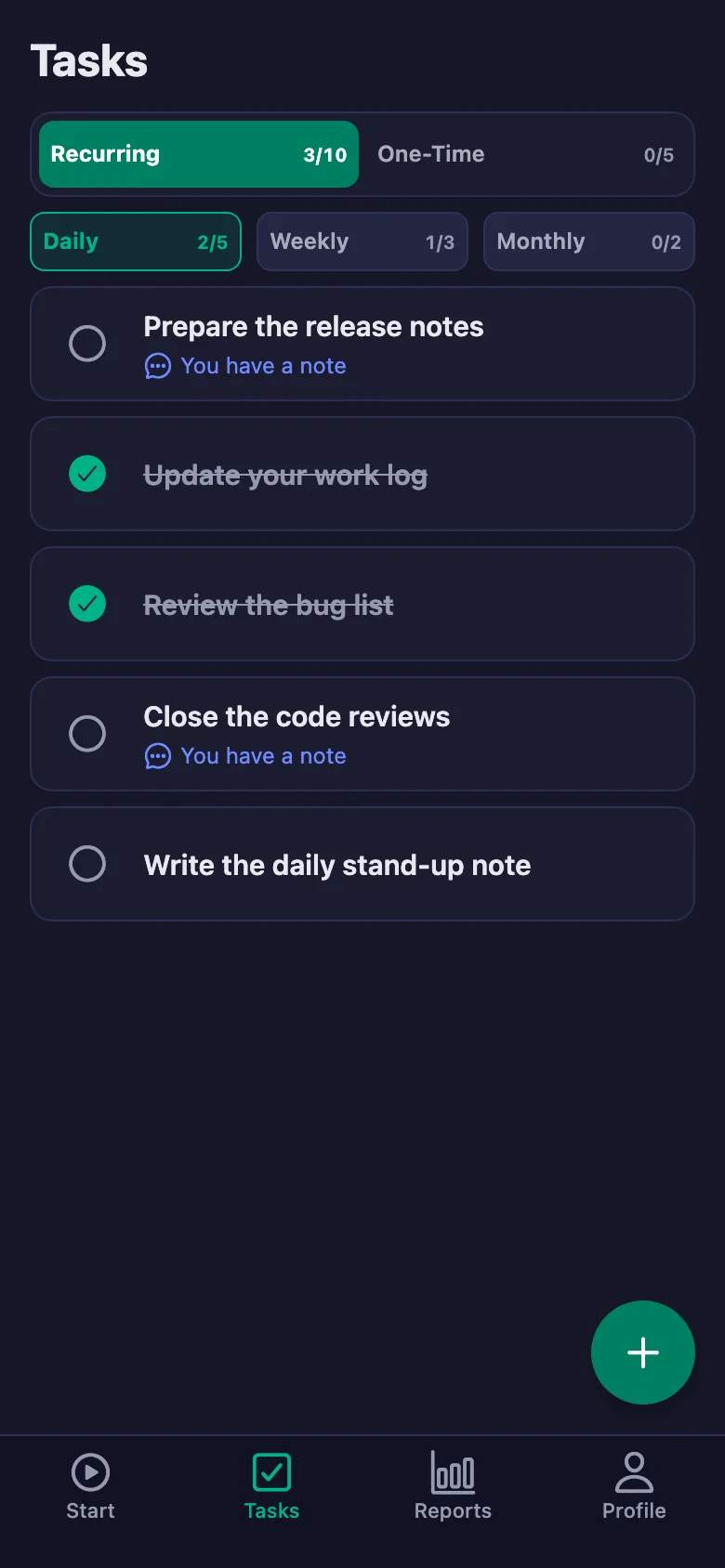
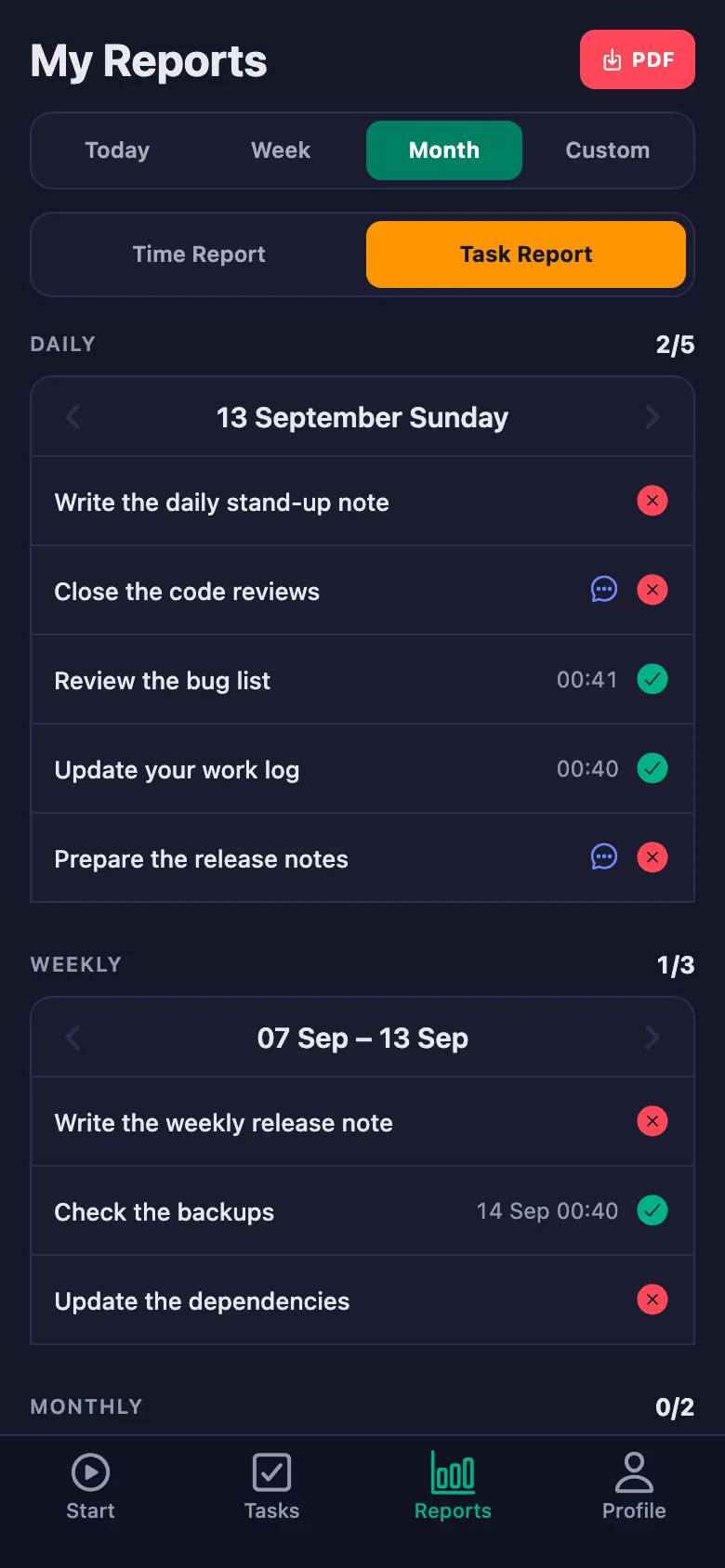
The daily jobs sit on each person's own list. Before the meeting starts you can already see who closed what.
Working hours are kept nowhere; overtime and overload only get noticed when somebody complains.
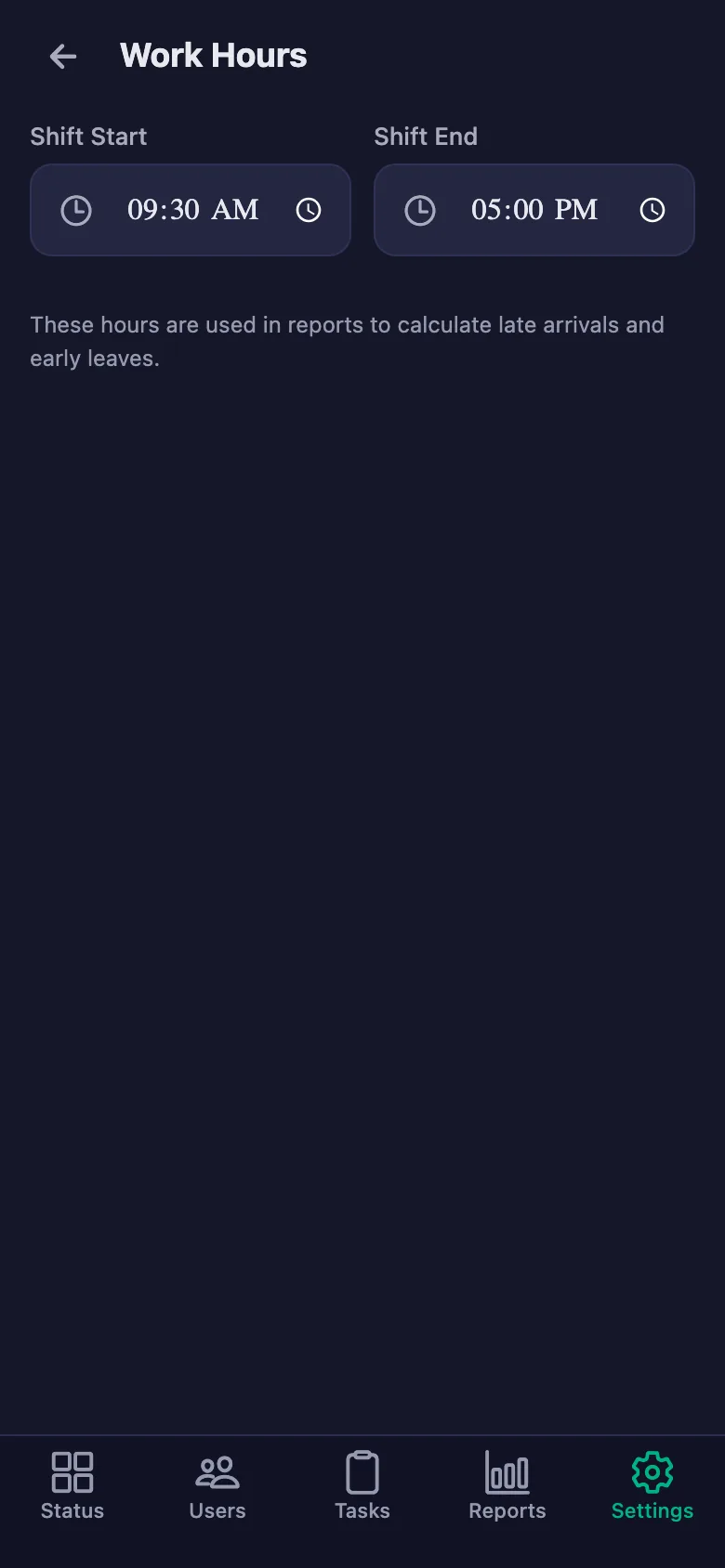
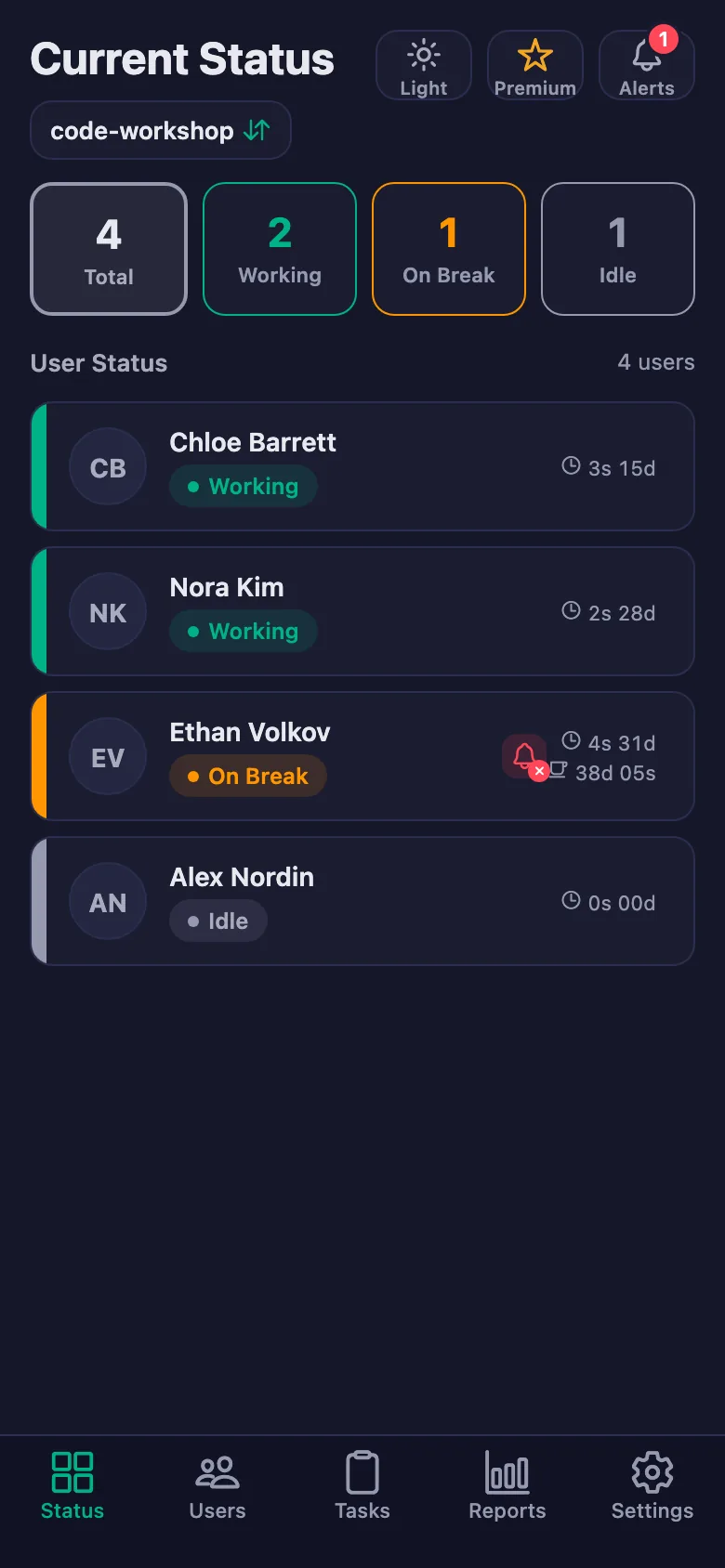
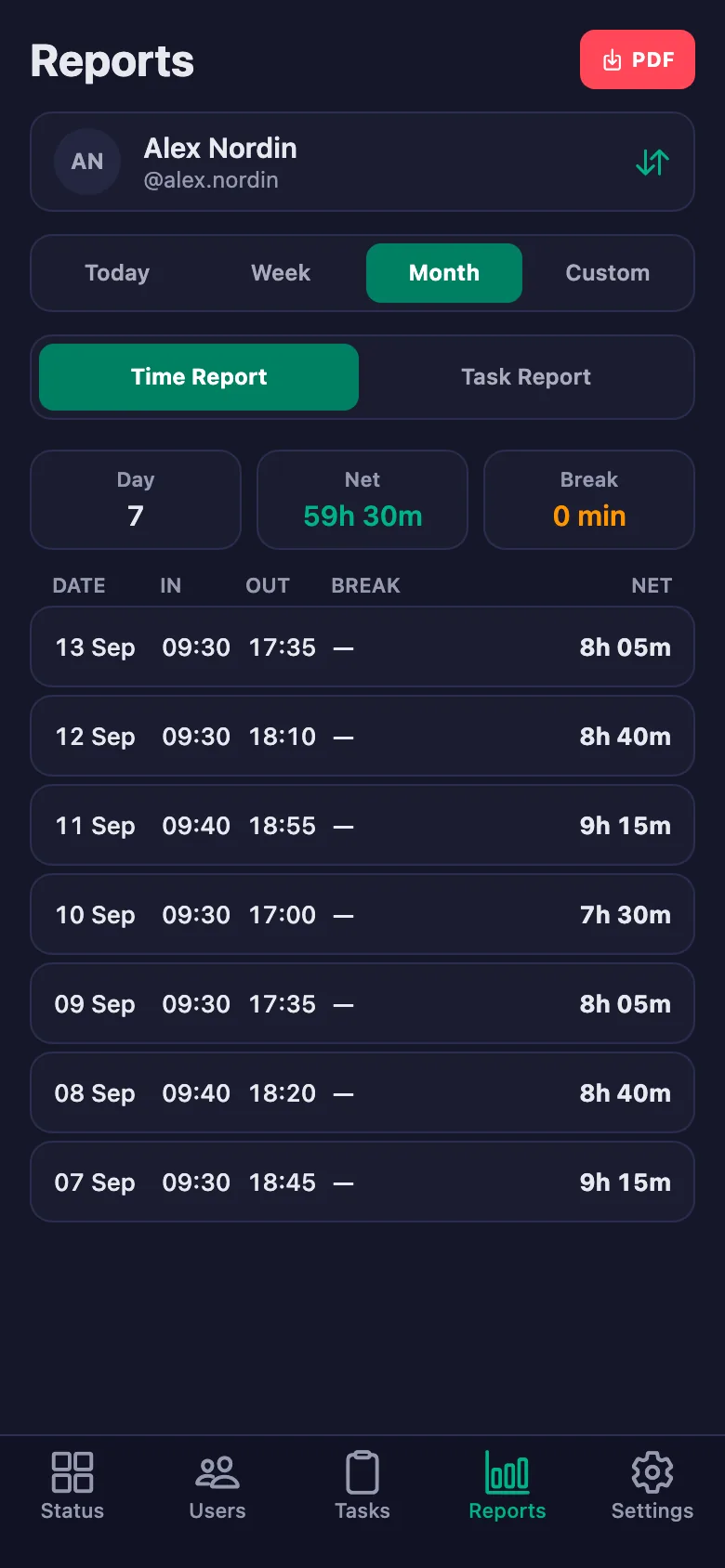
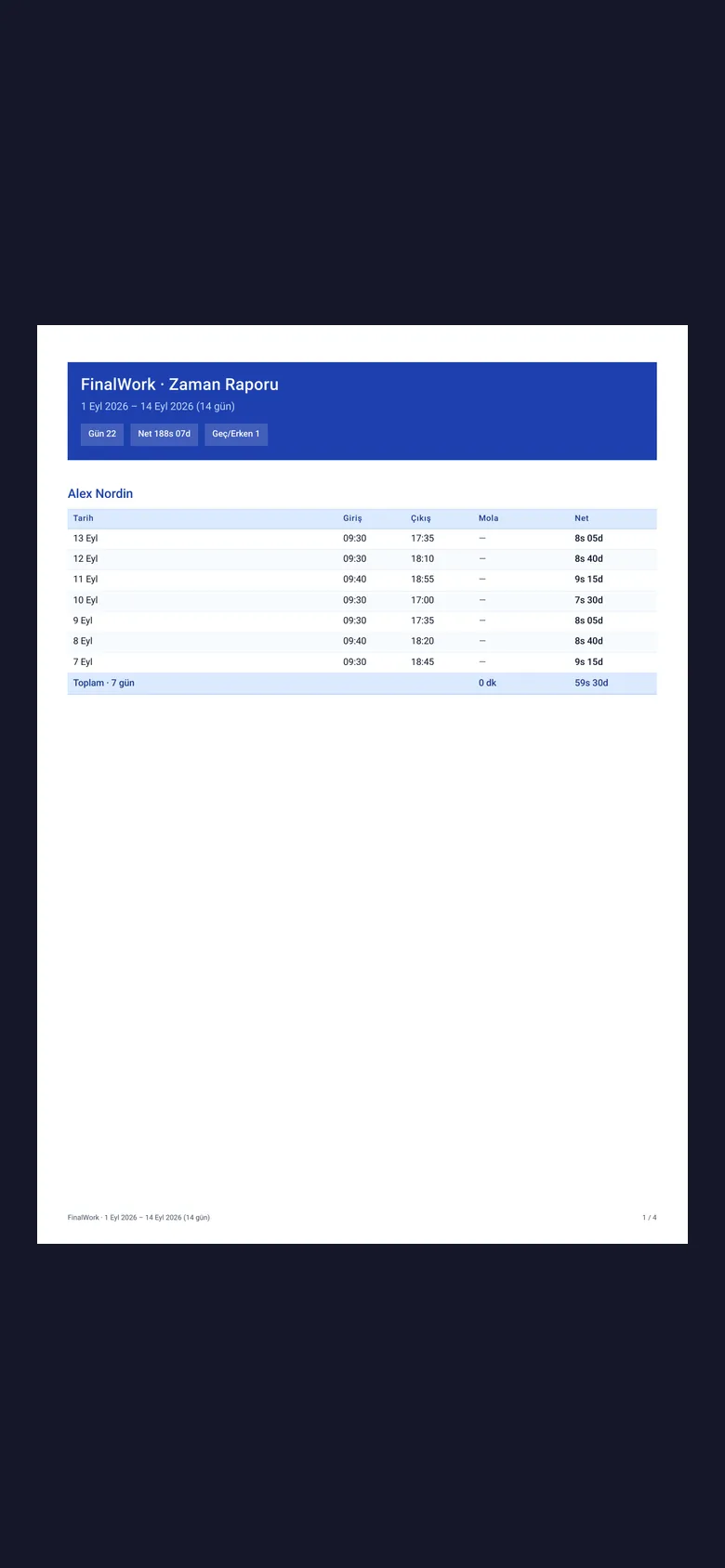
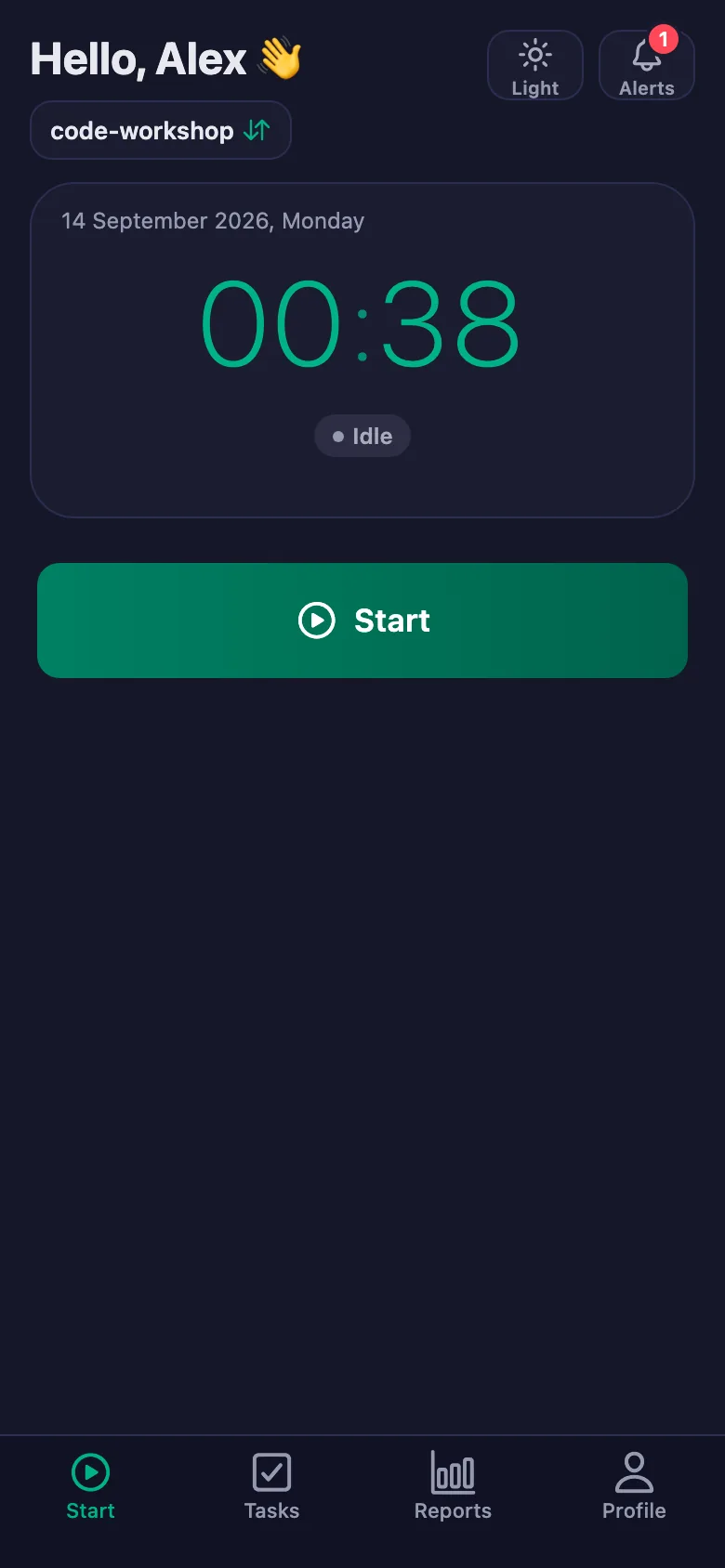
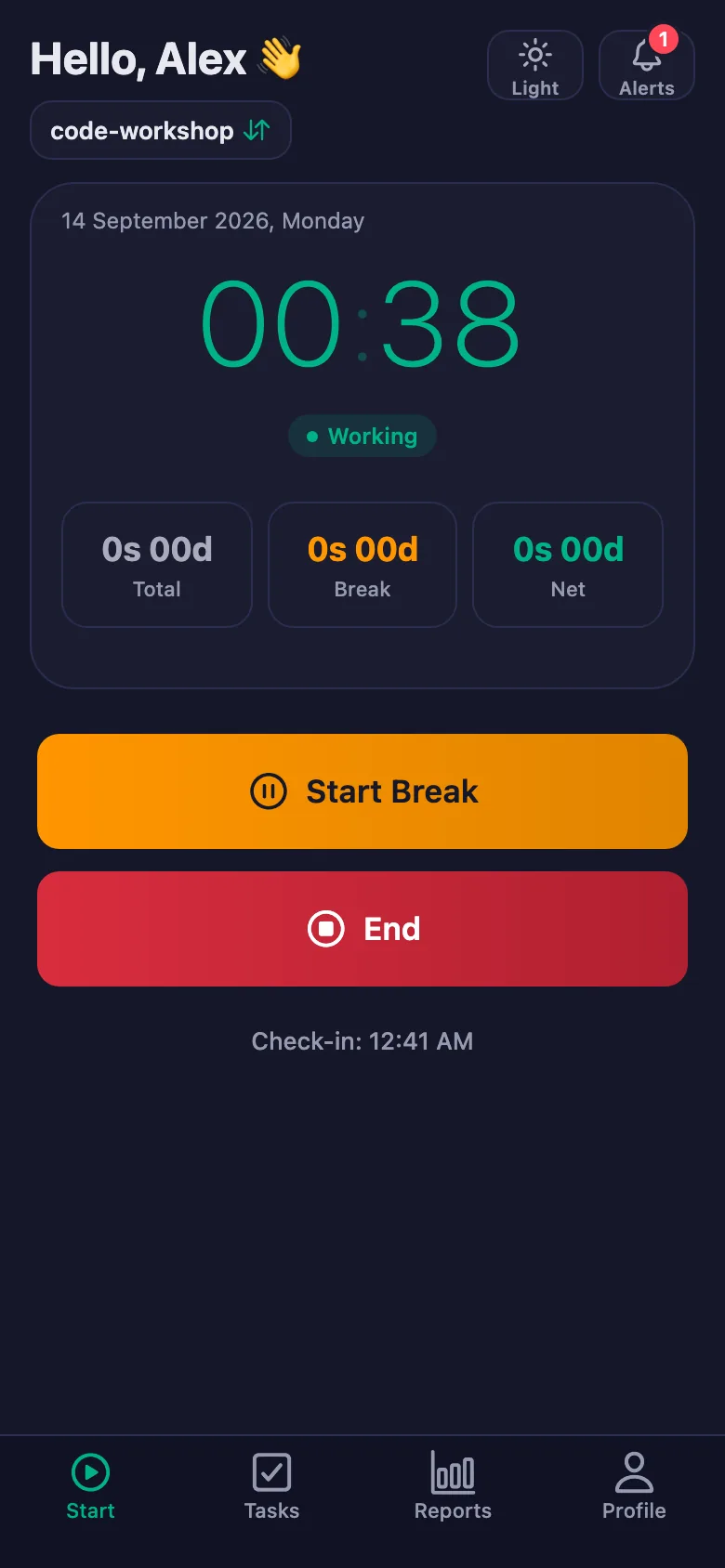
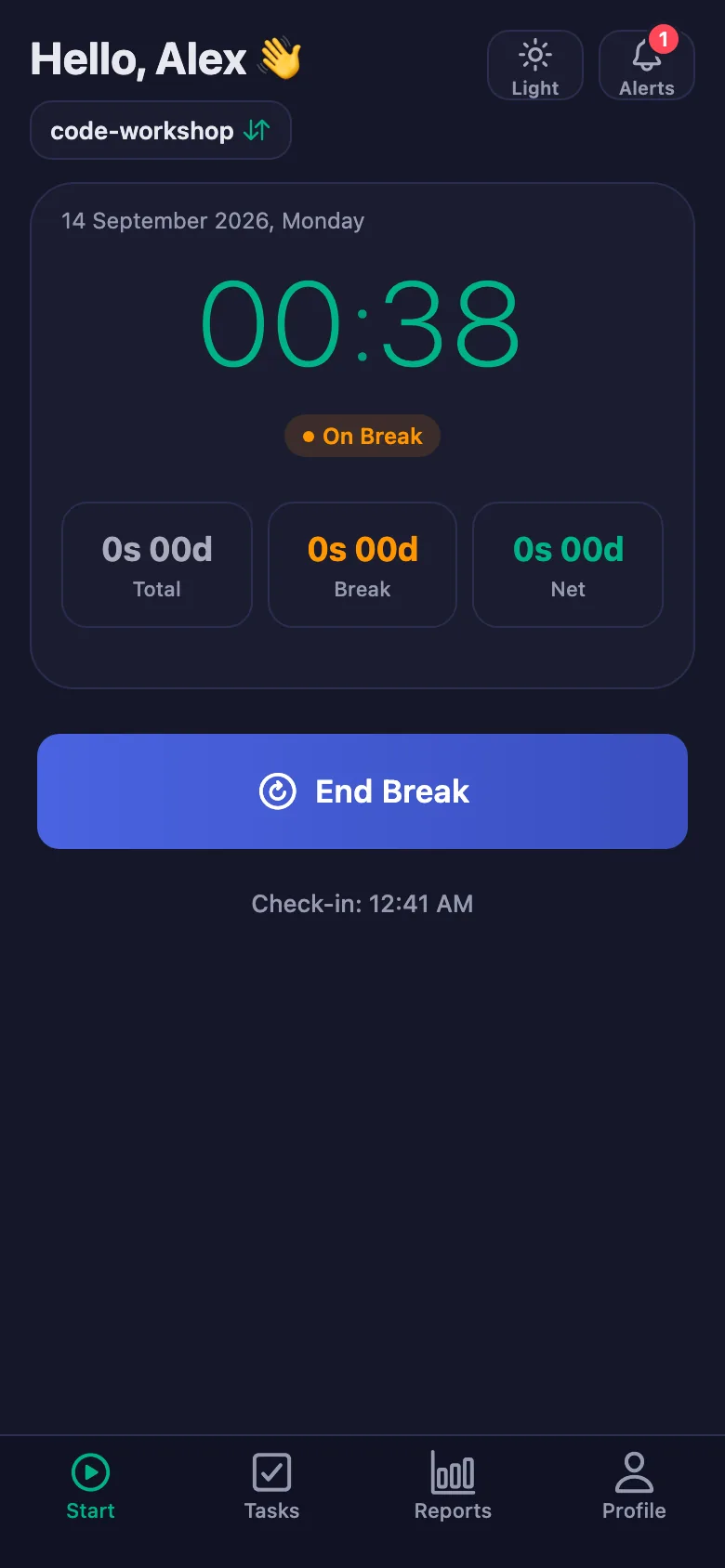
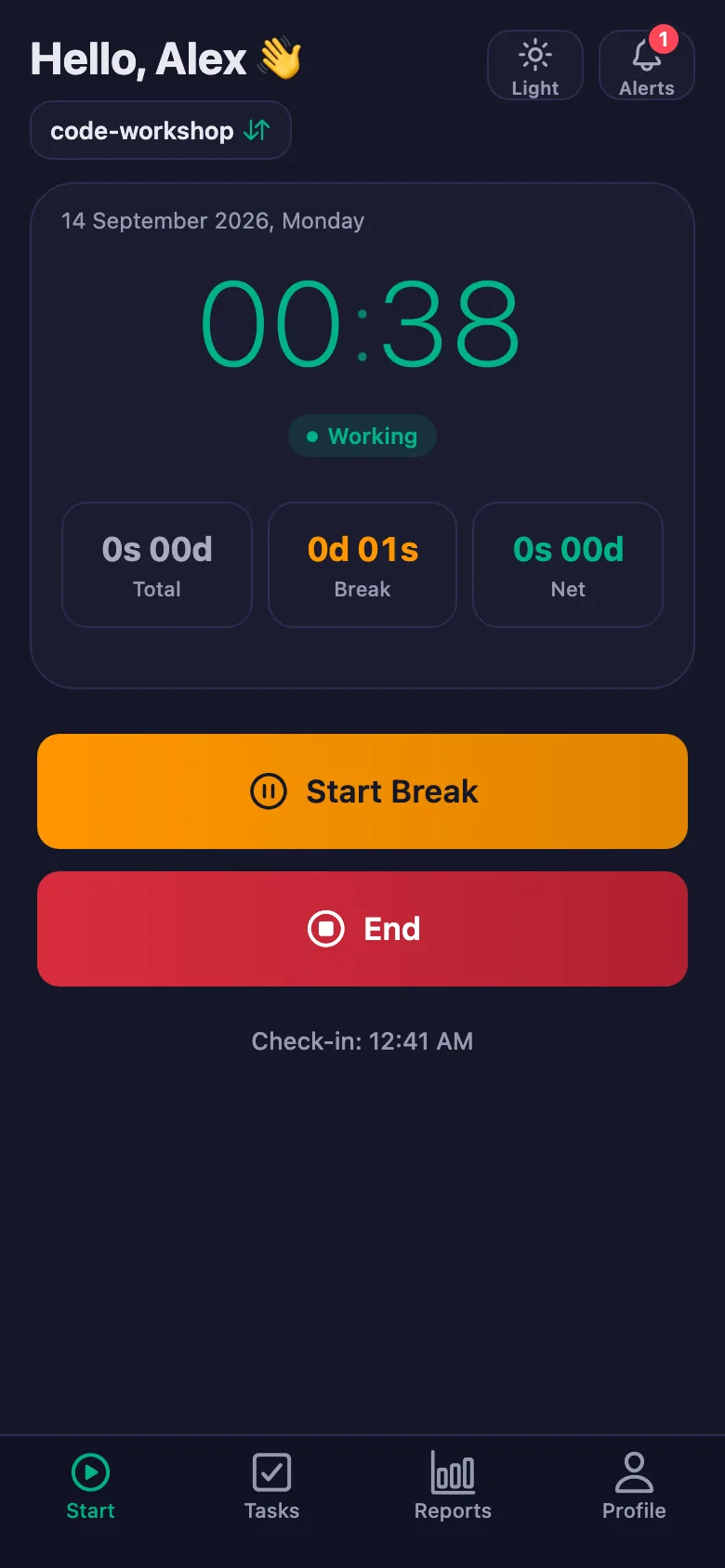
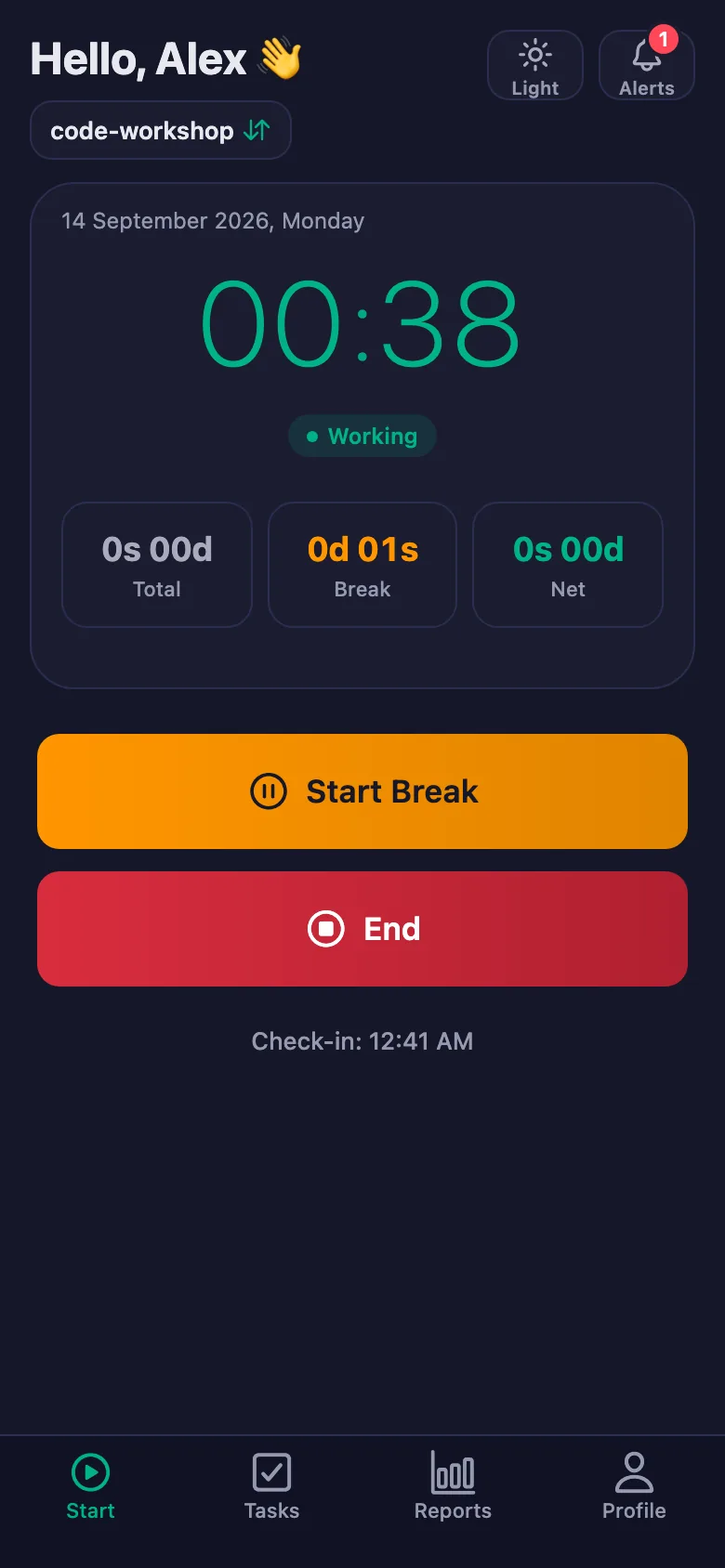
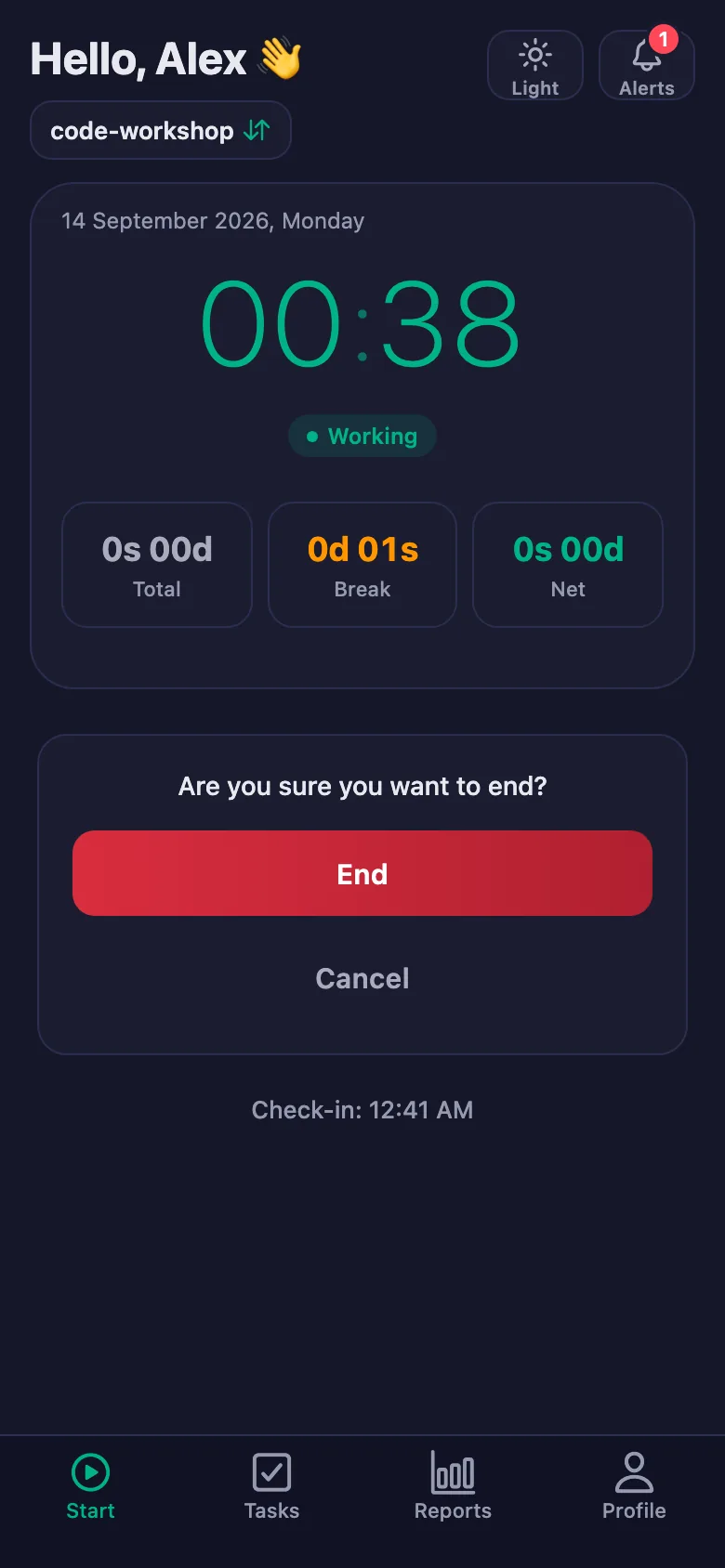
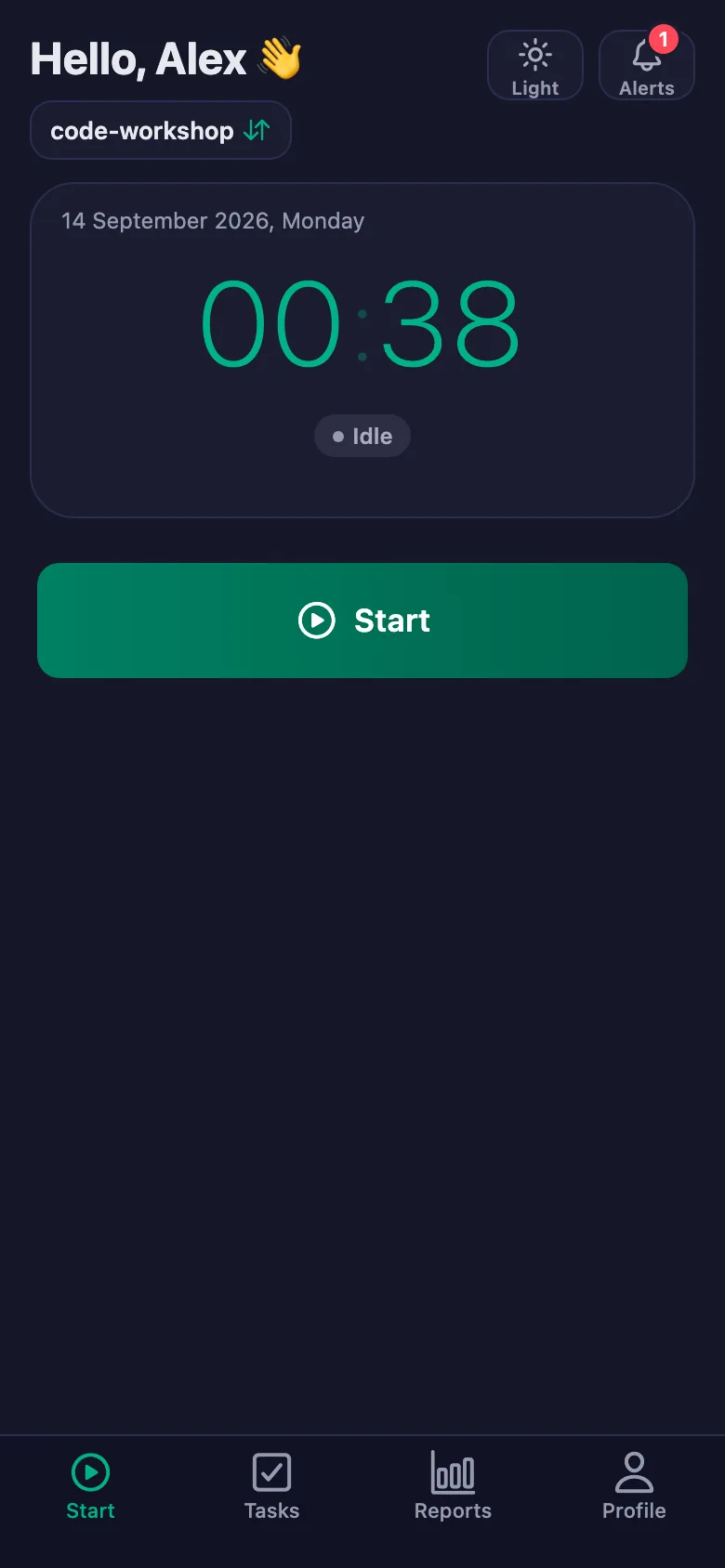
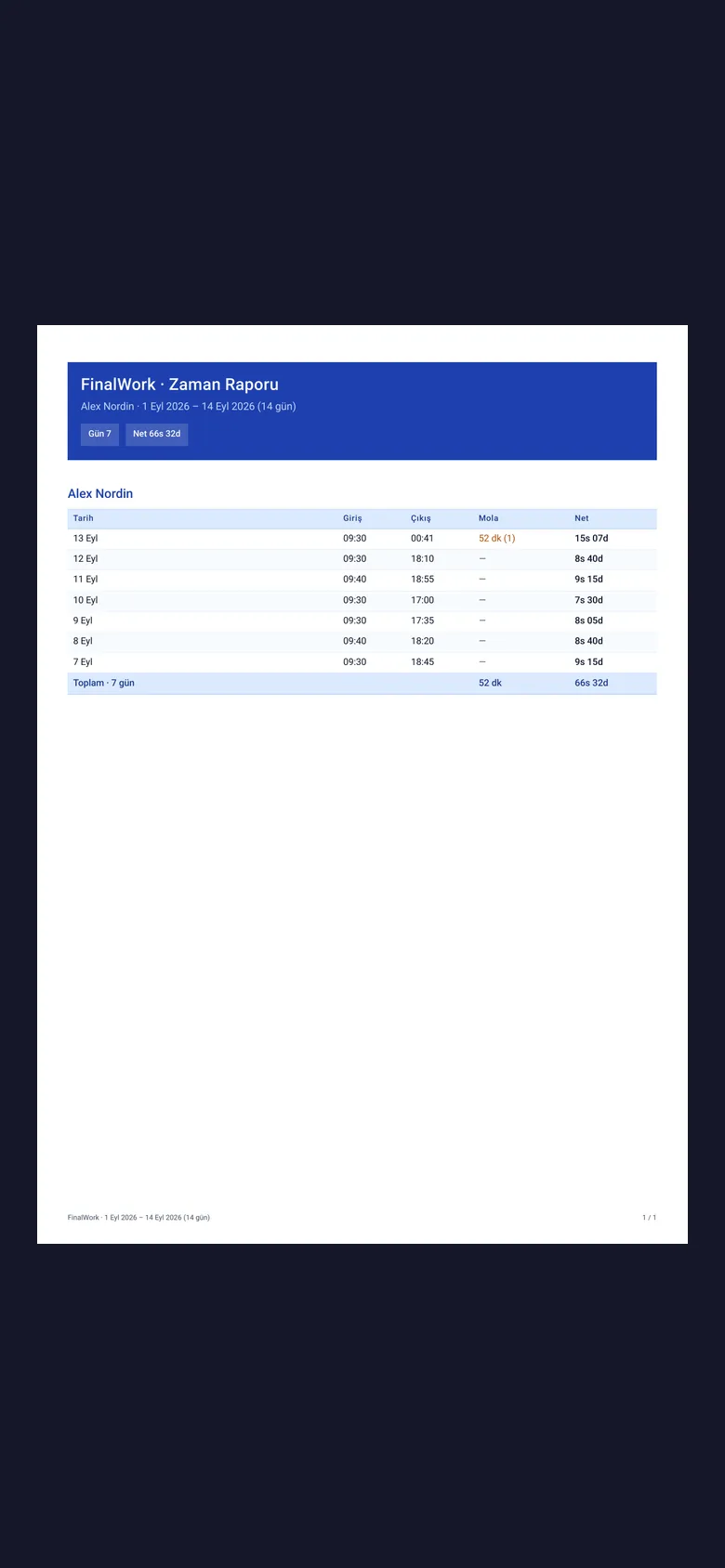
The team start the timer when the day begins and stop it when they log off. Total, lunch break and net time appear separately in the report.
To say where they are stuck, a team member has to wait for the meeting — and a day is lost that way.
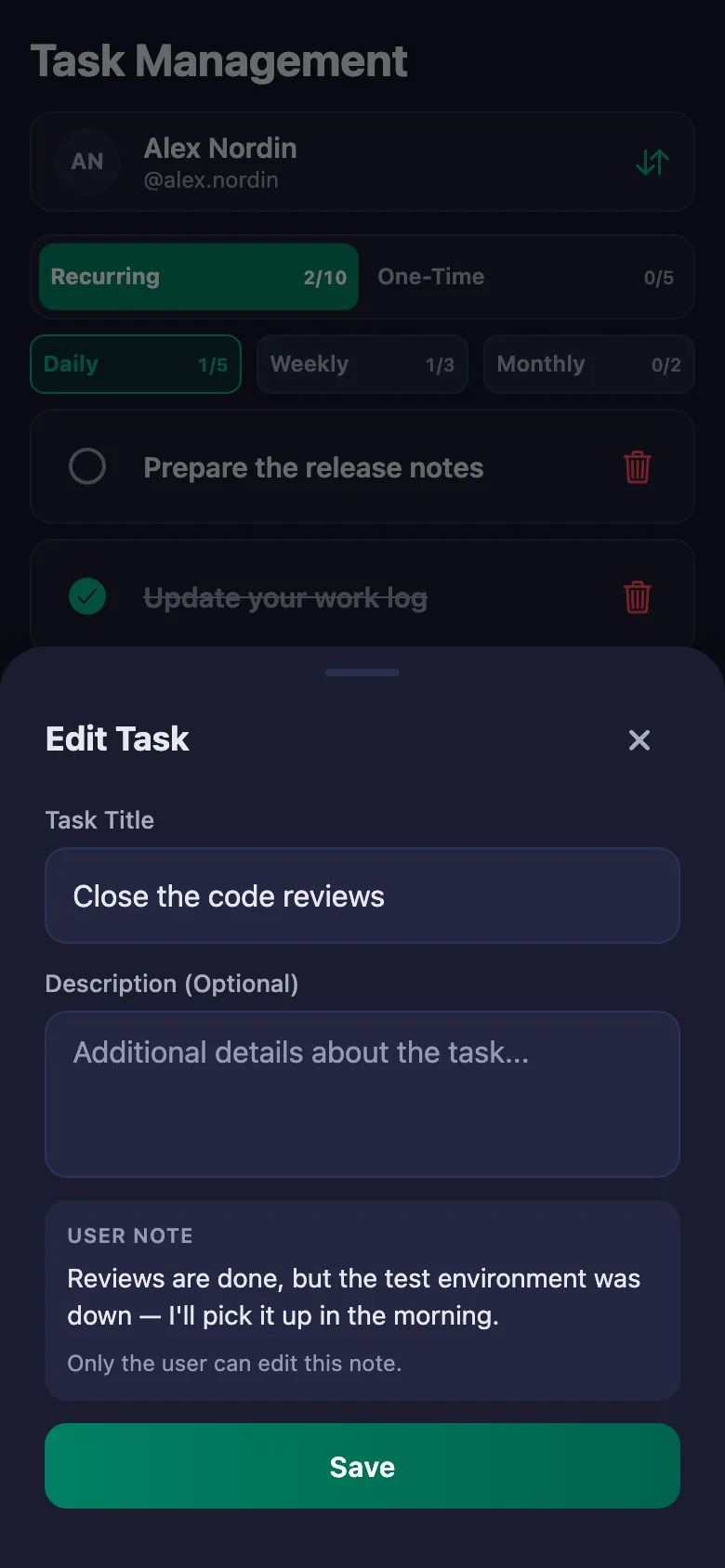
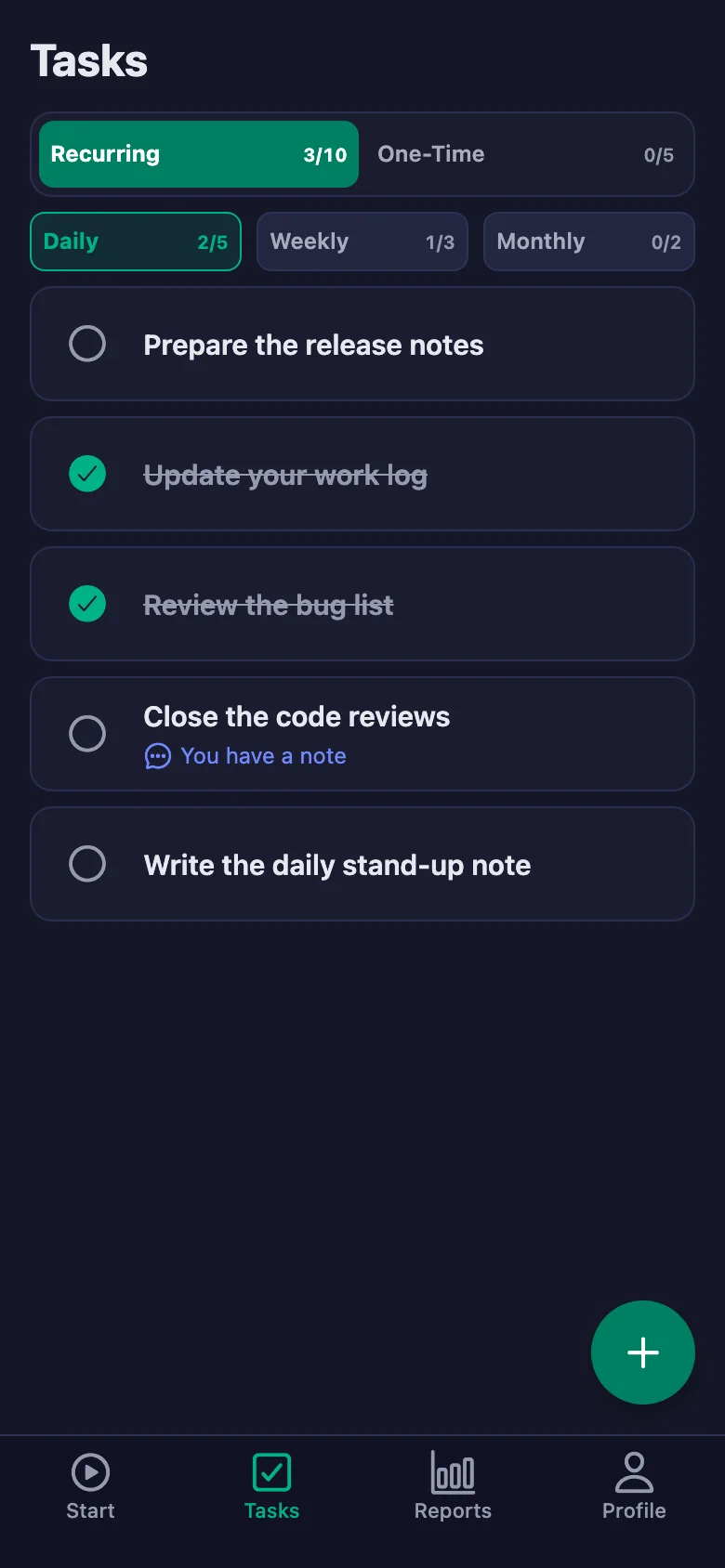
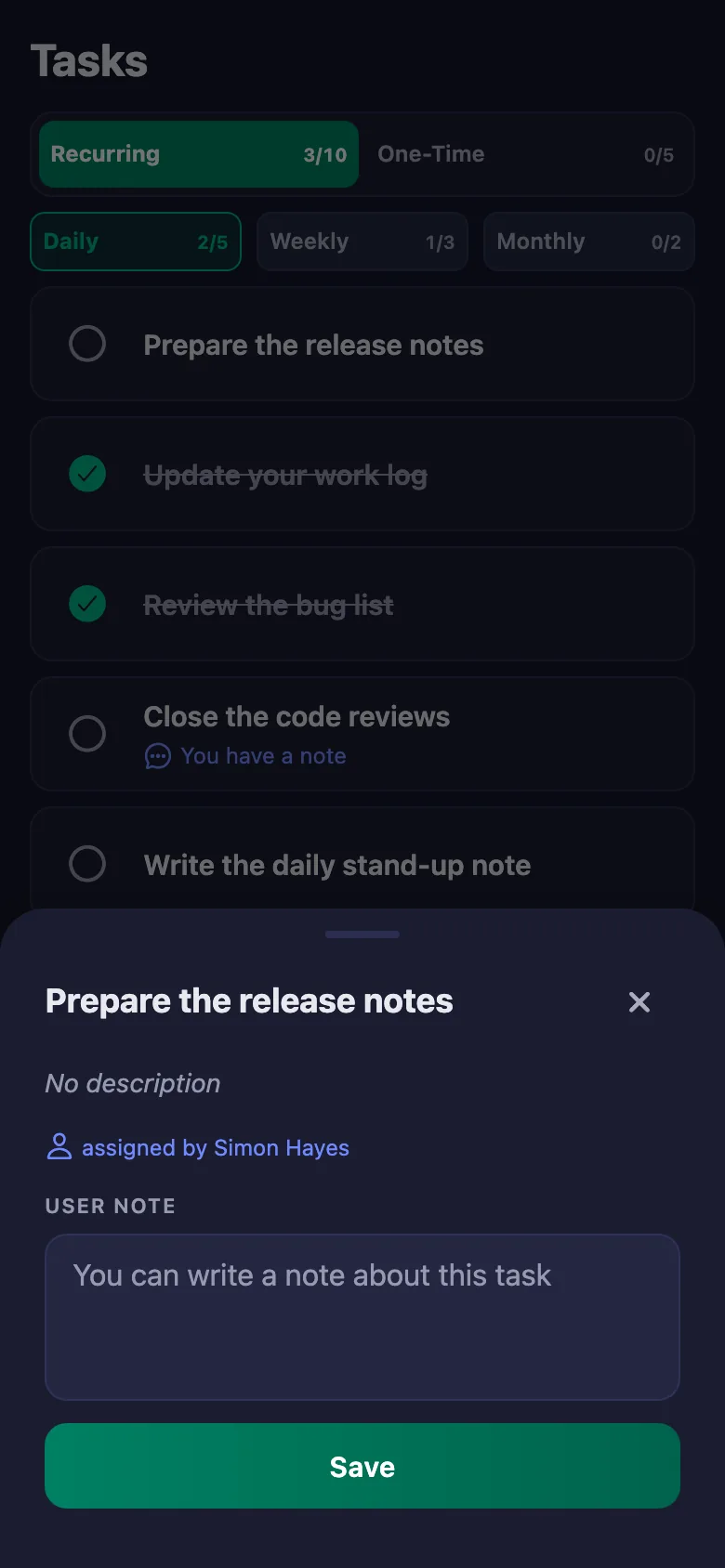
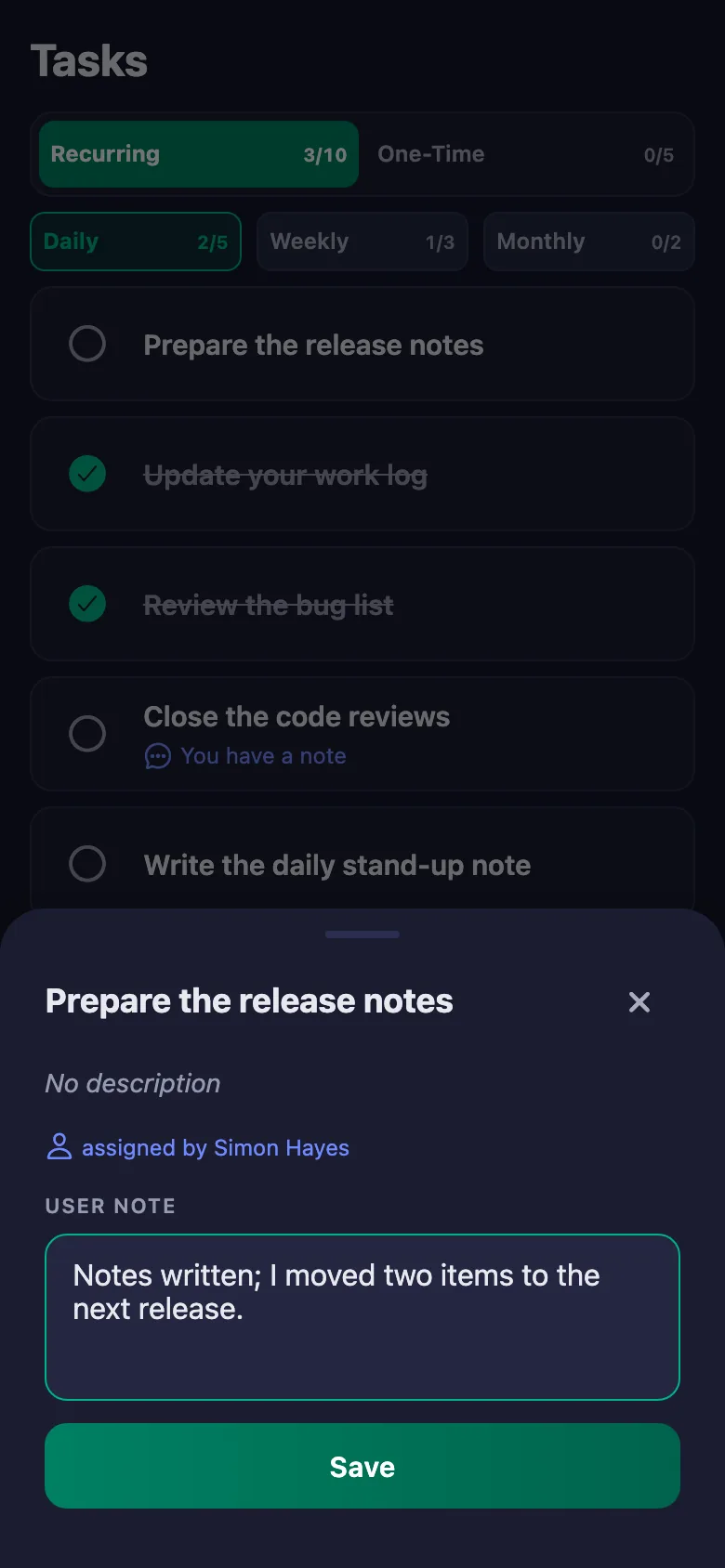
The team write a note under the job: where they got stuck, what they are waiting for. The note sits on your screen, and only the person who wrote it can change it.
Most time tracking tools want a location; for a remote team that is both unnecessary and uncomfortable.
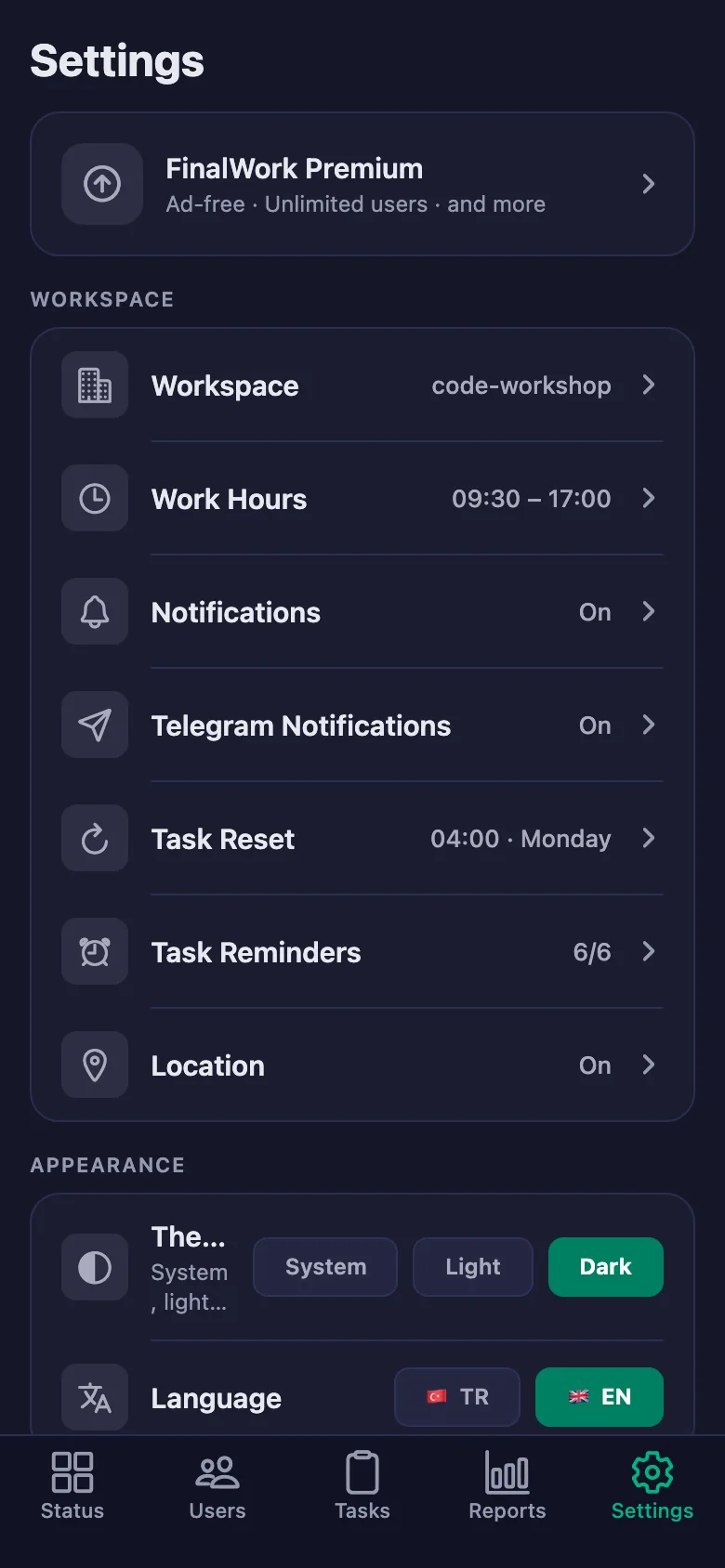
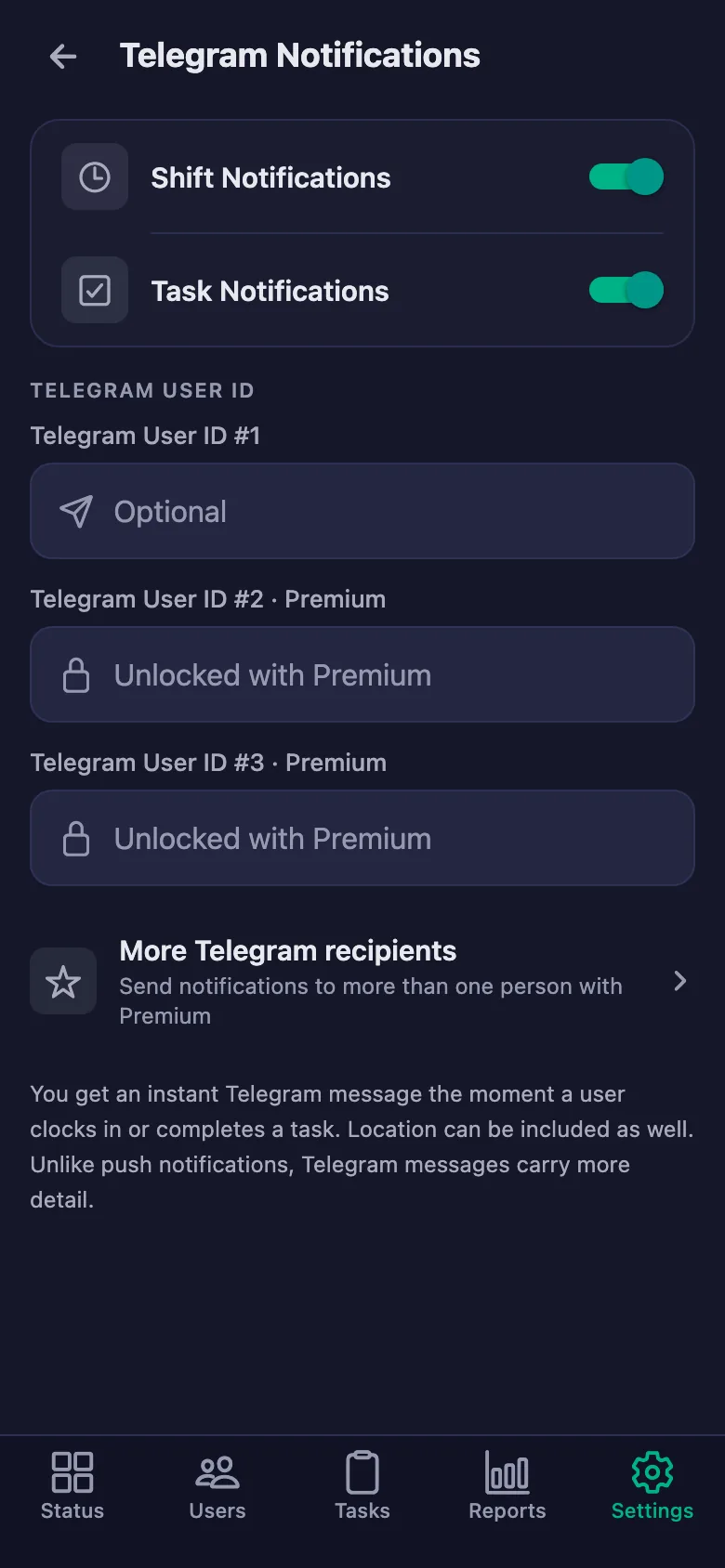
In this setup the location rule is never switched on — the app does not ask where you are. Only time and task records are kept.
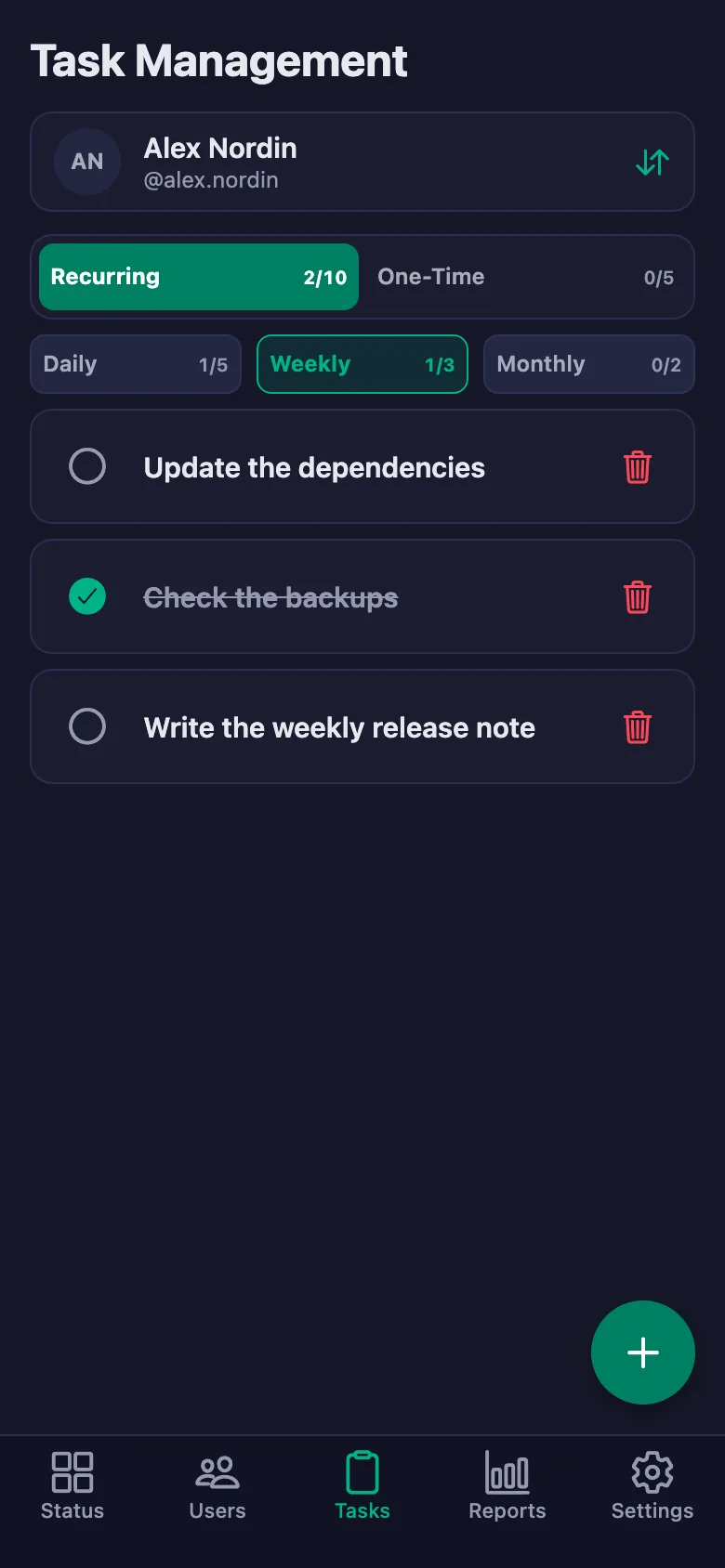
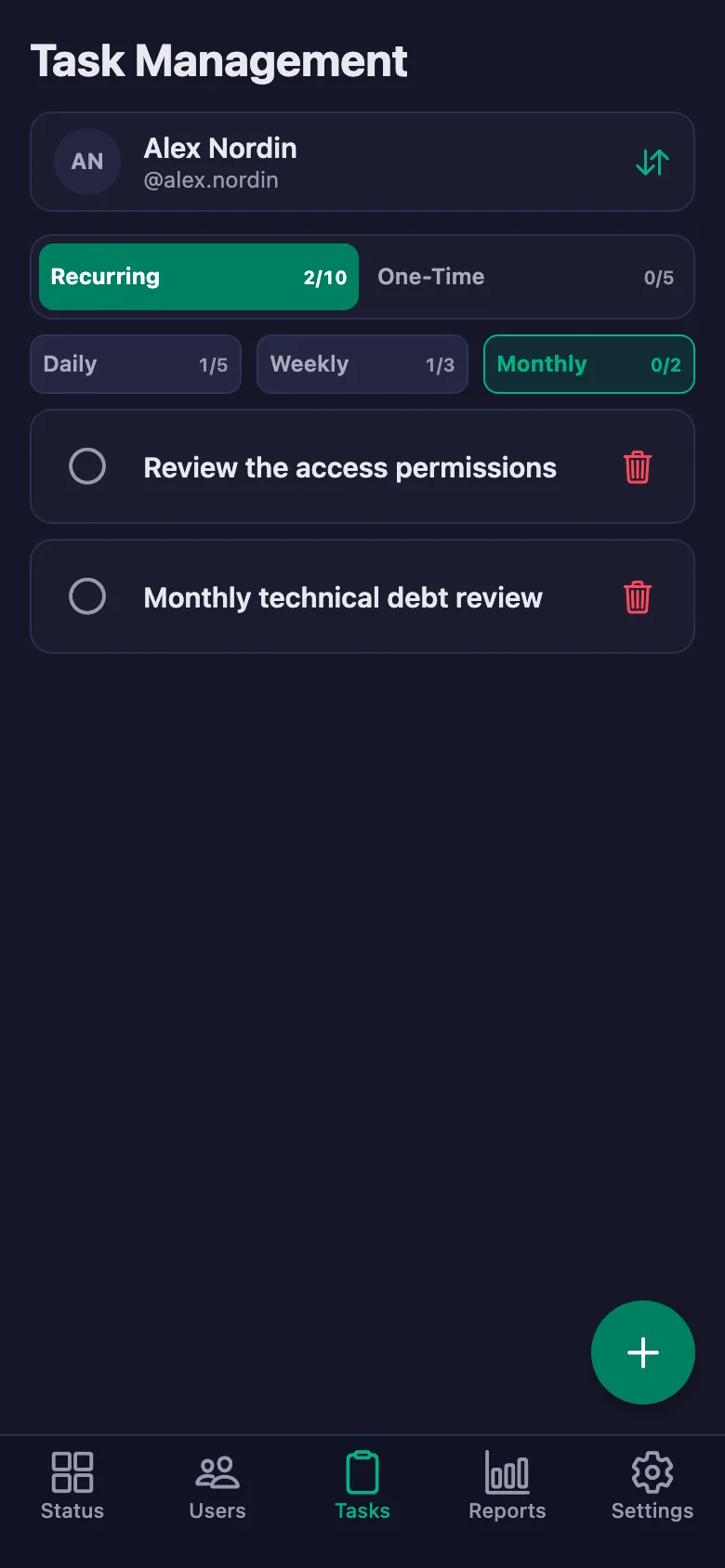
Repeating jobs like backup checks and dependency updates get buried under the urgent ones.
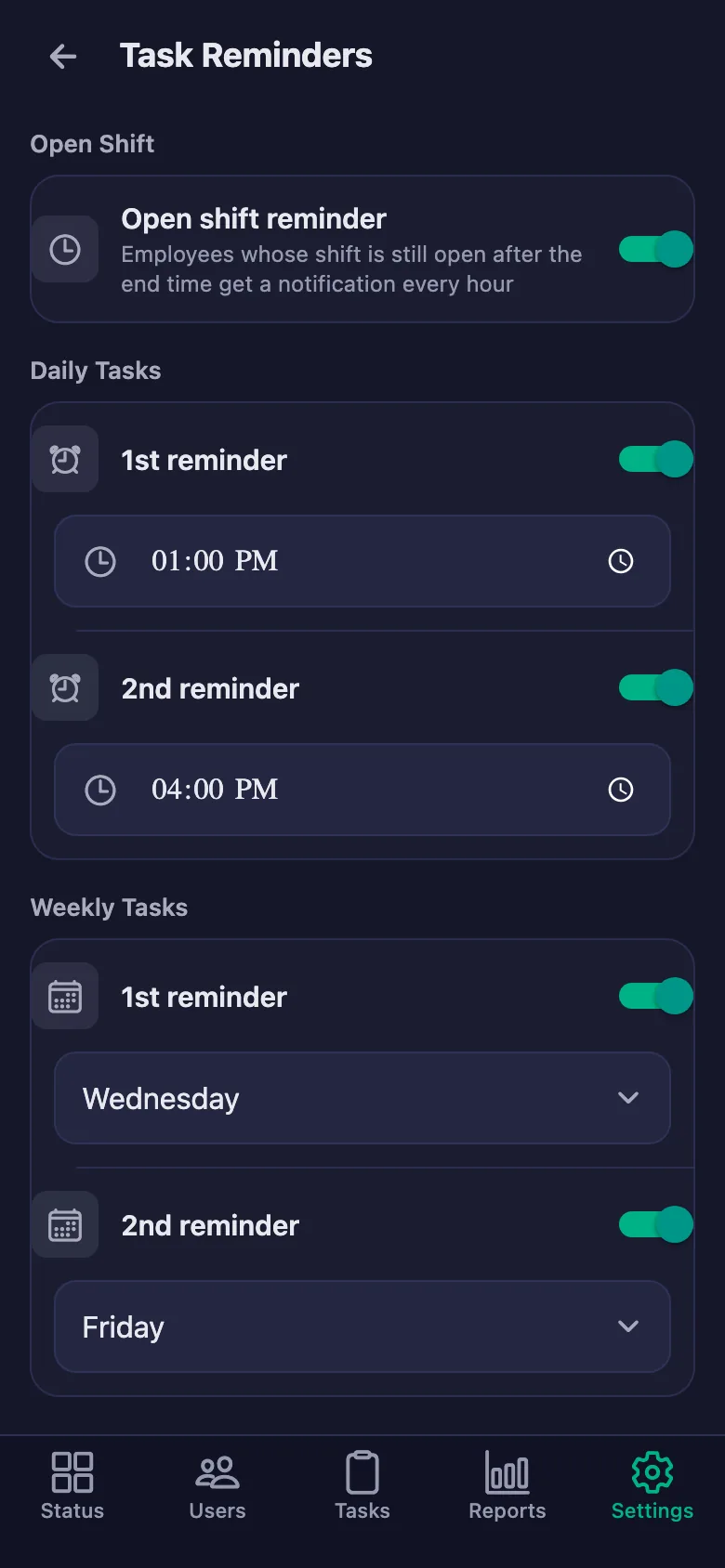
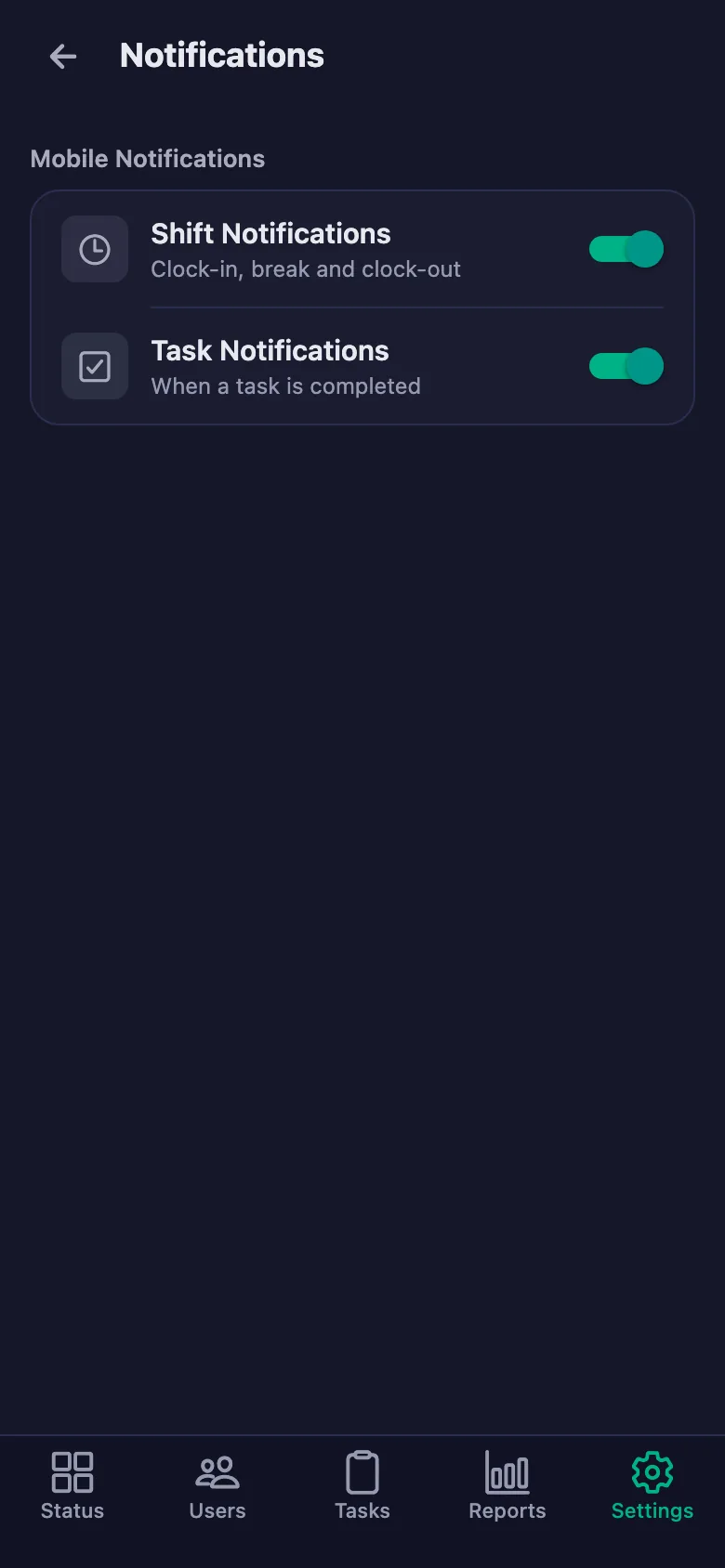
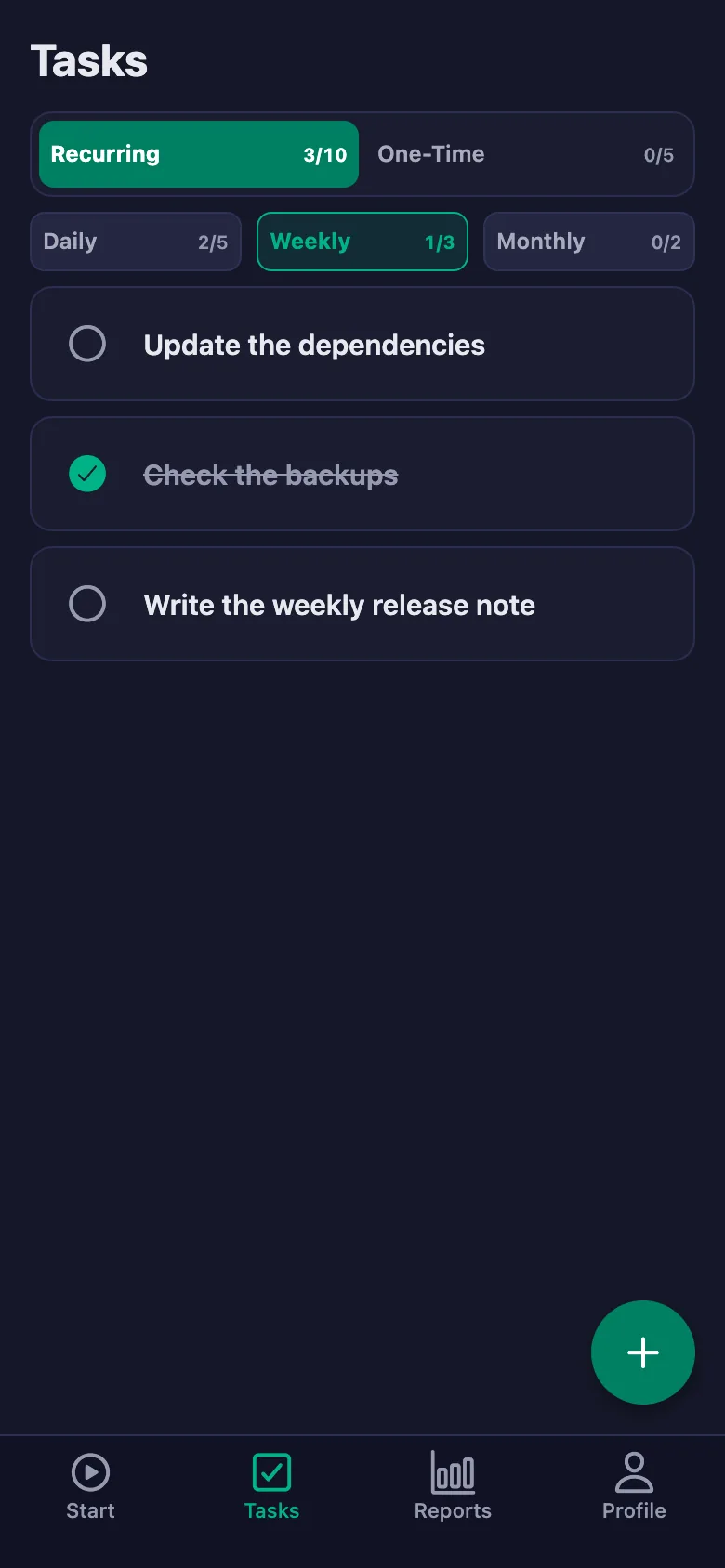
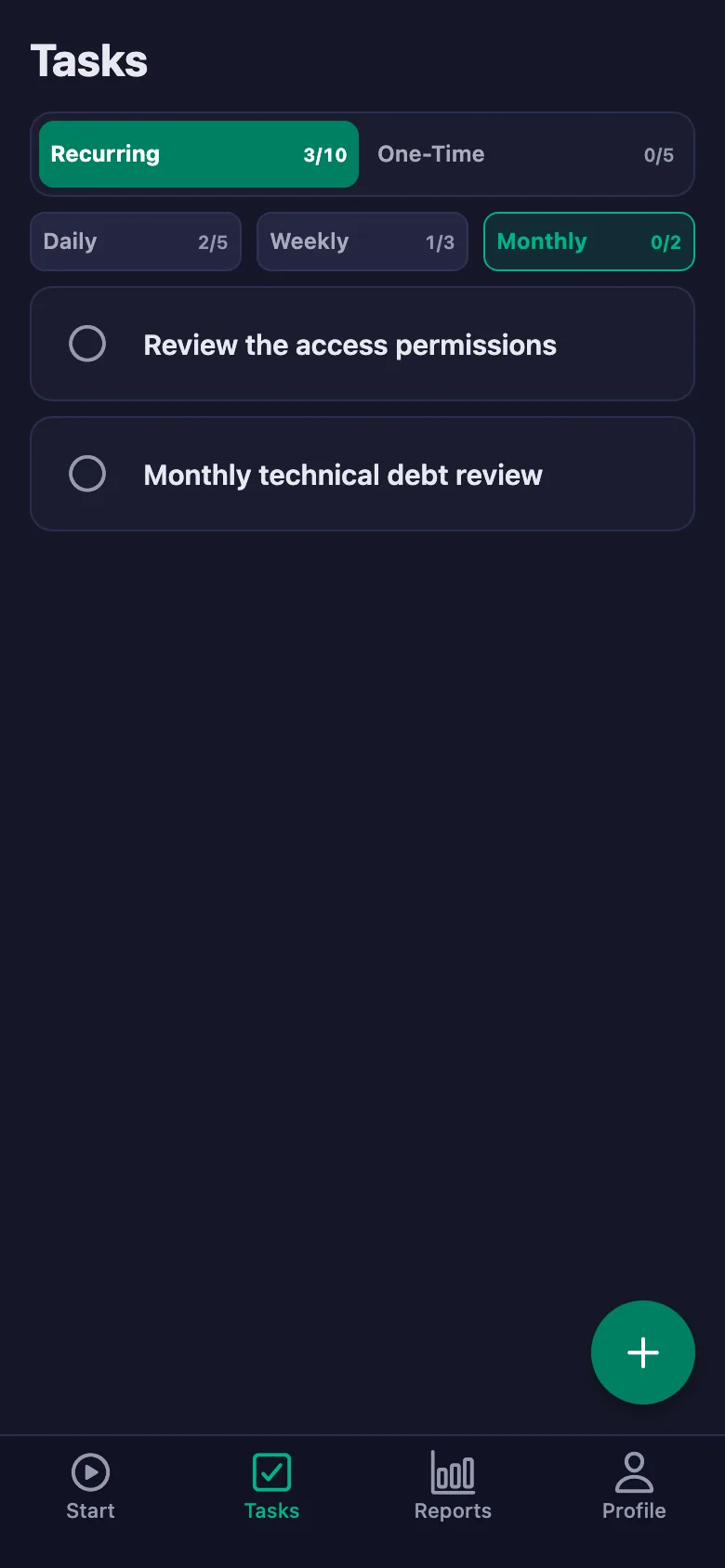
Weekly and monthly jobs reopen on their own; if one is still undone at the reminder hour, a notification lands on the phone.
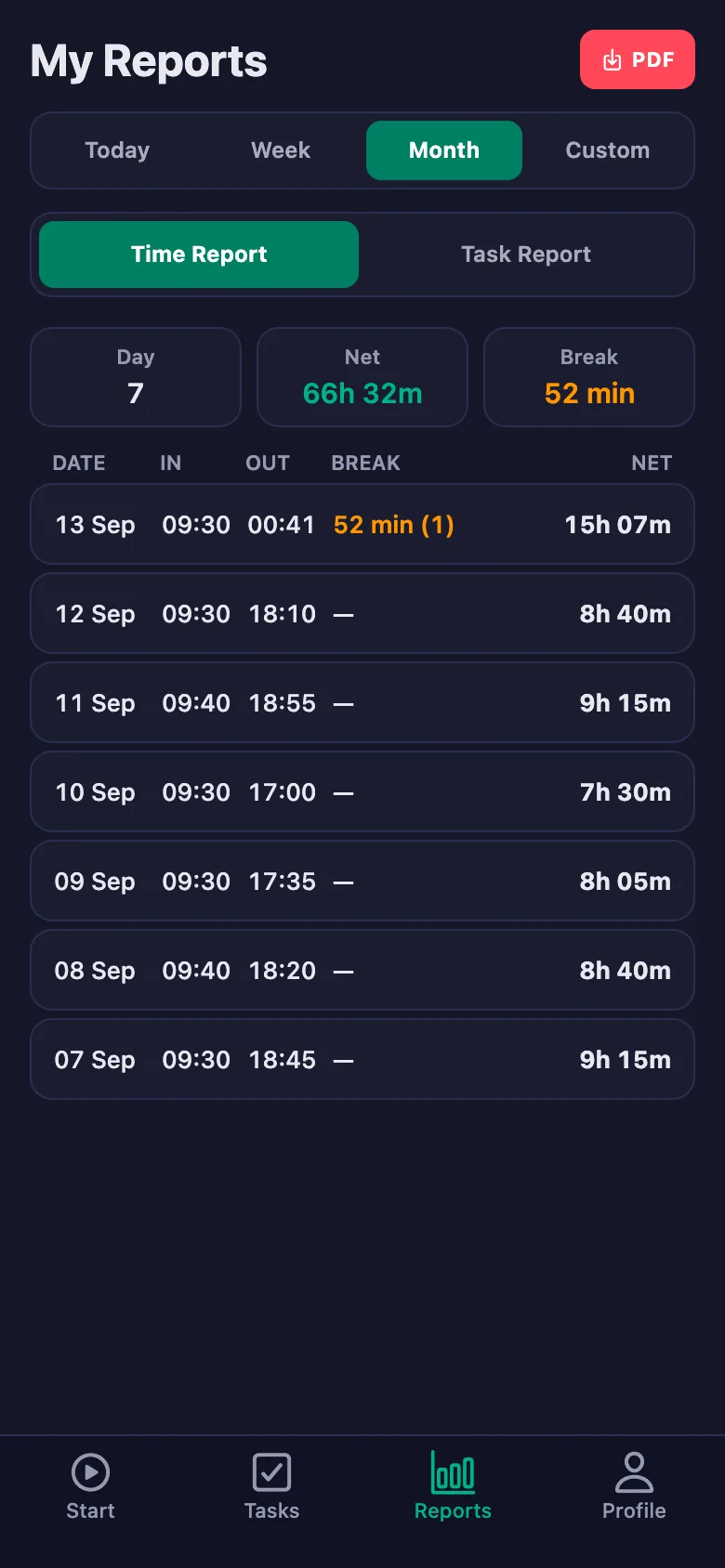
At the end of a period, pulling together who worked how much and what got finished takes time.
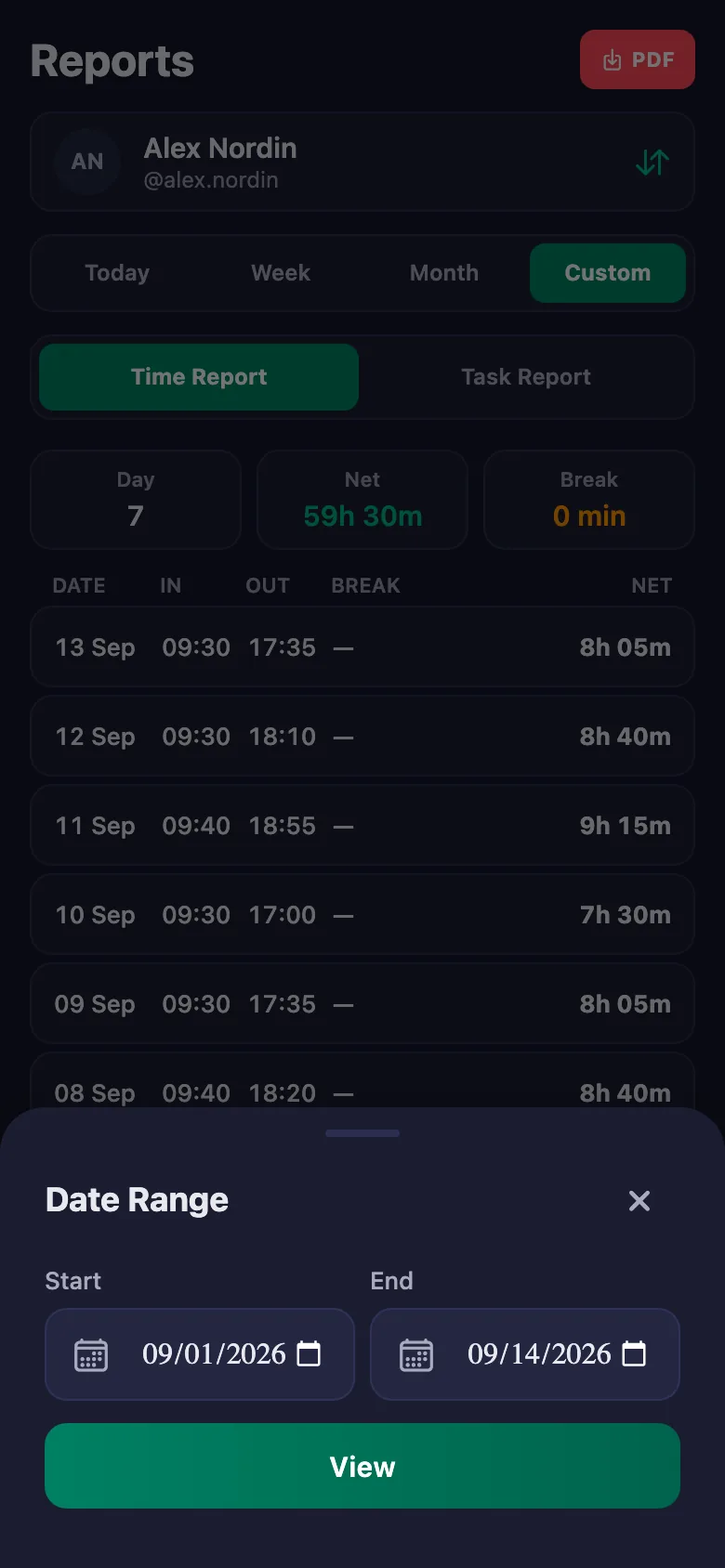
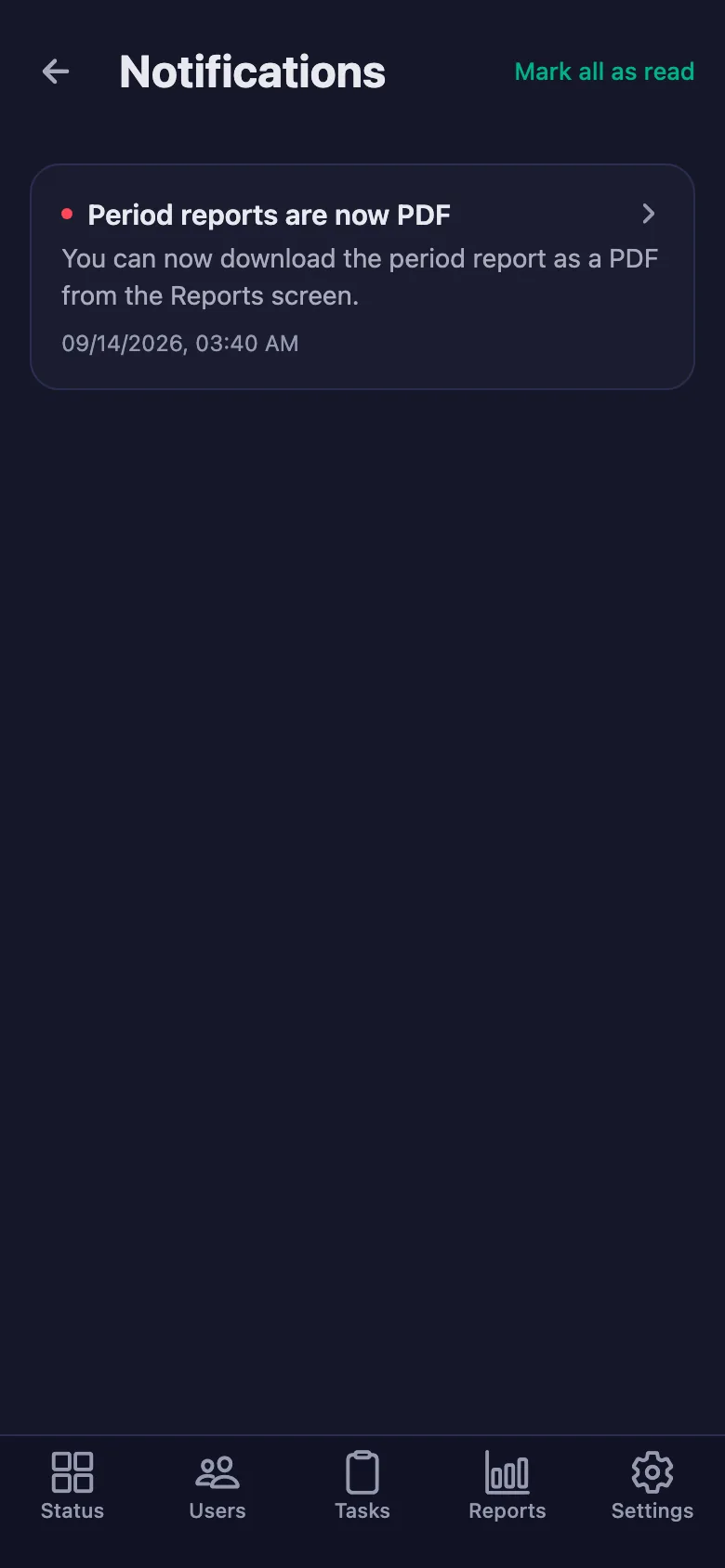
You pick a date range and the report appears on screen. You download the same report as a PDF and share it.
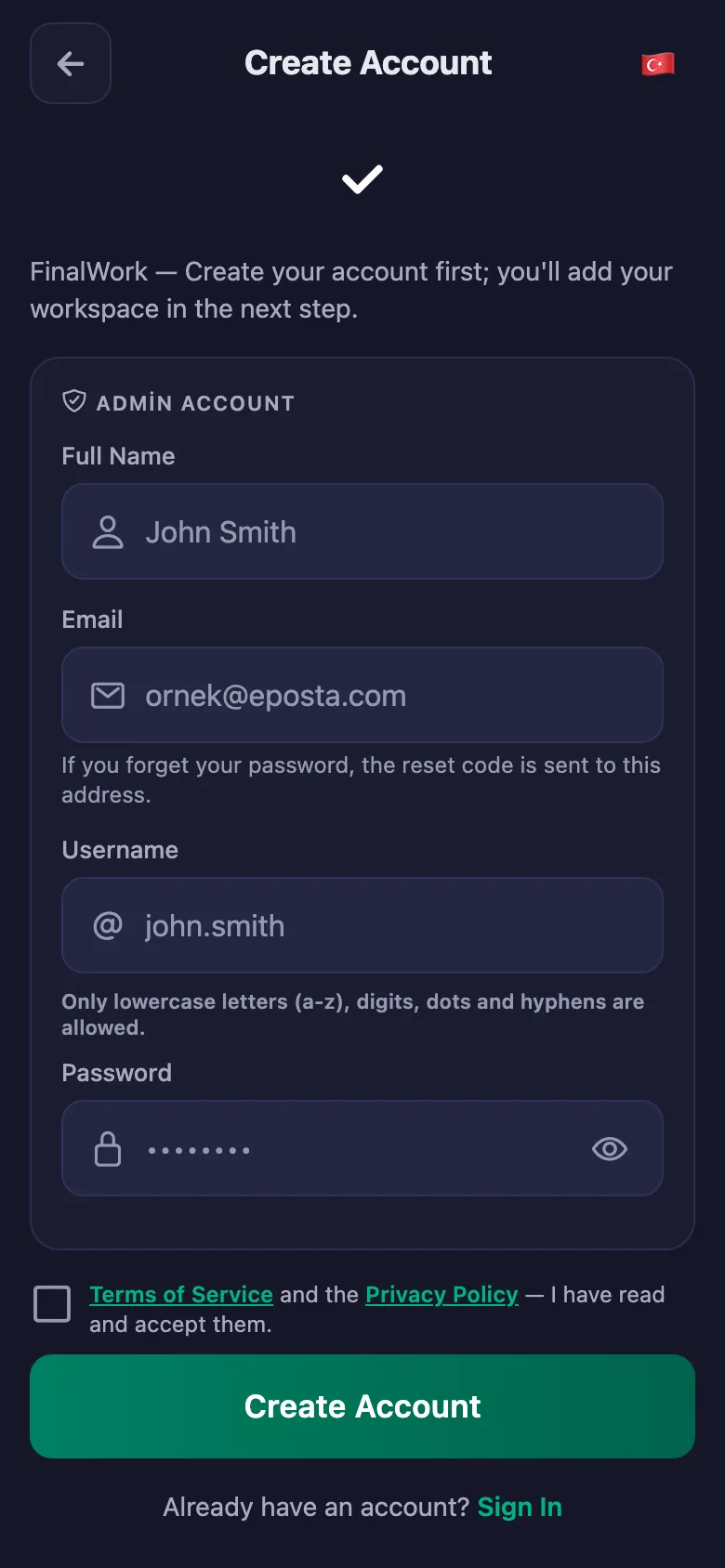
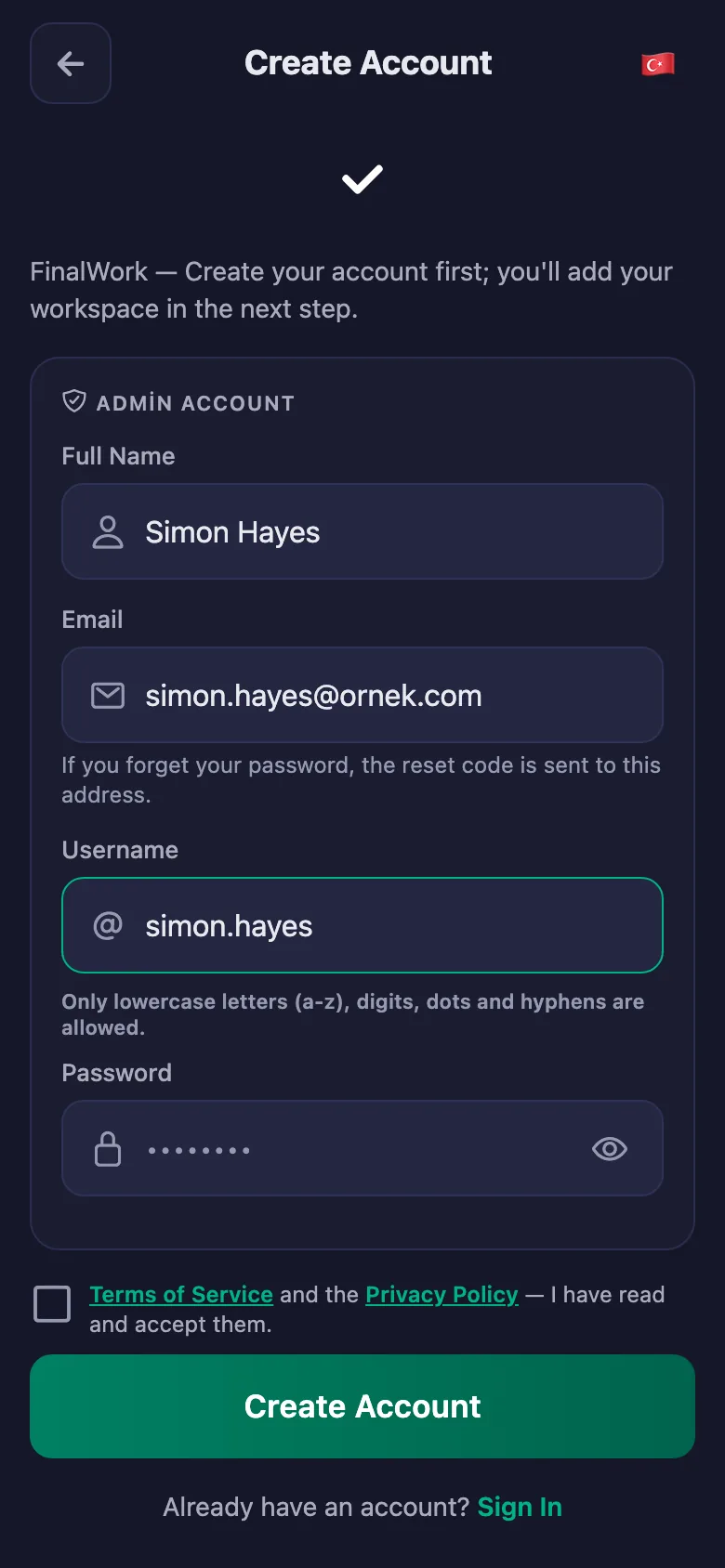
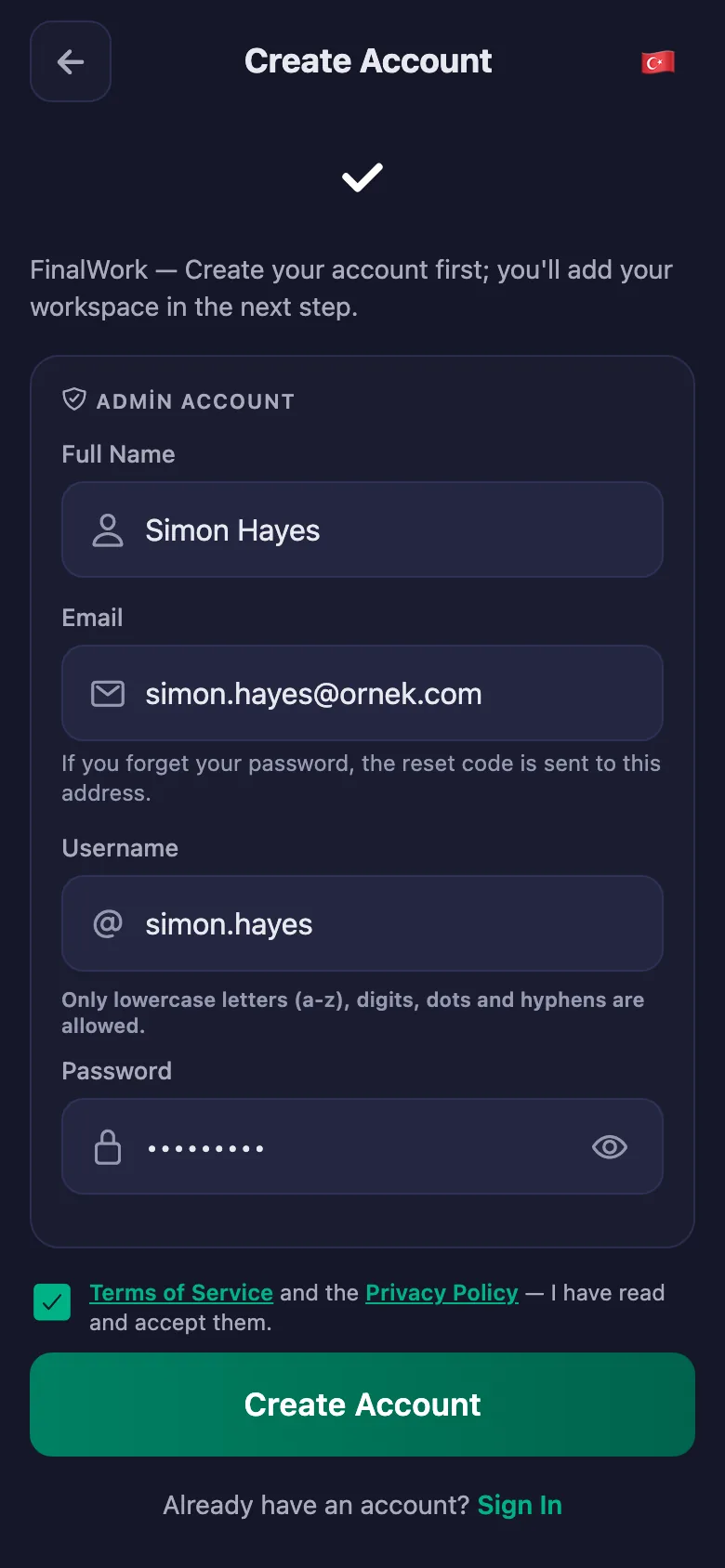
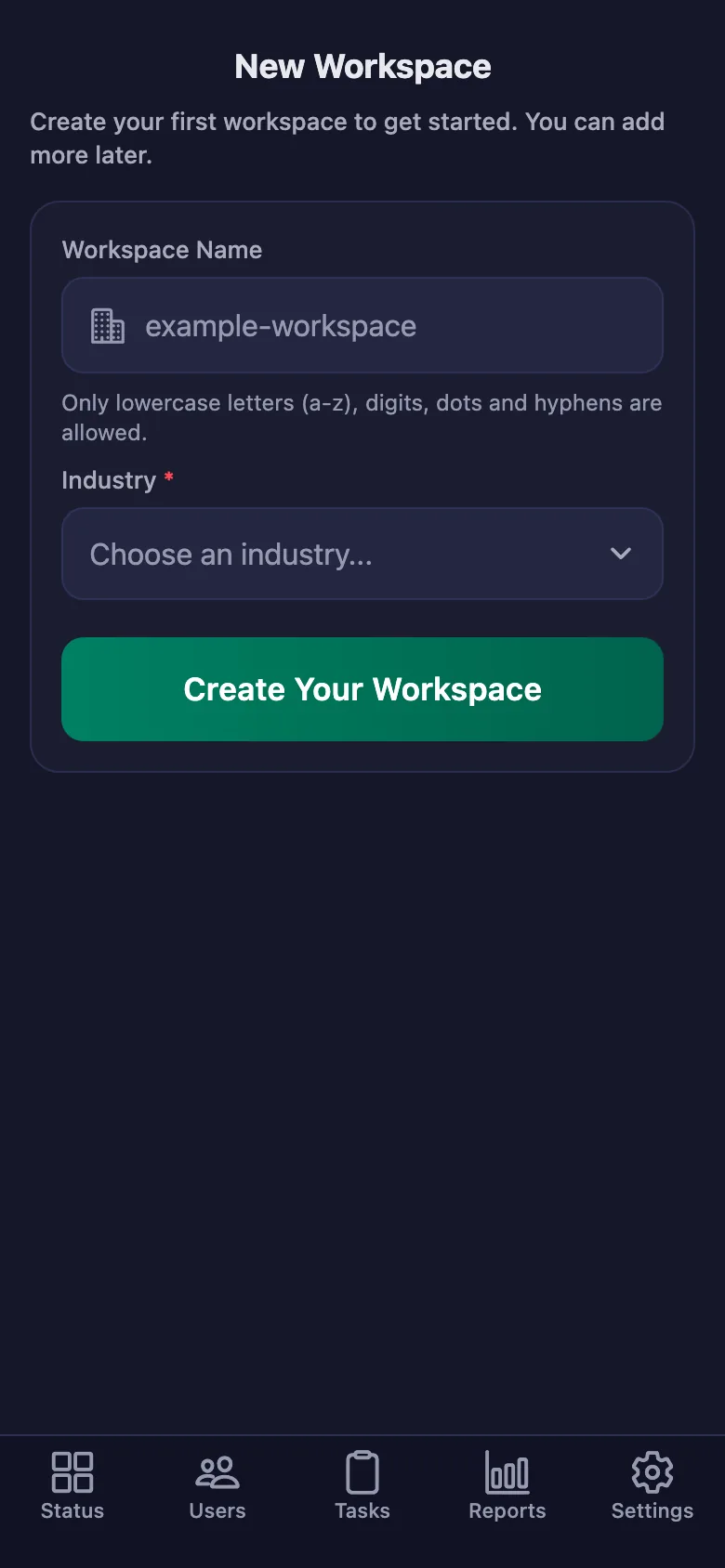
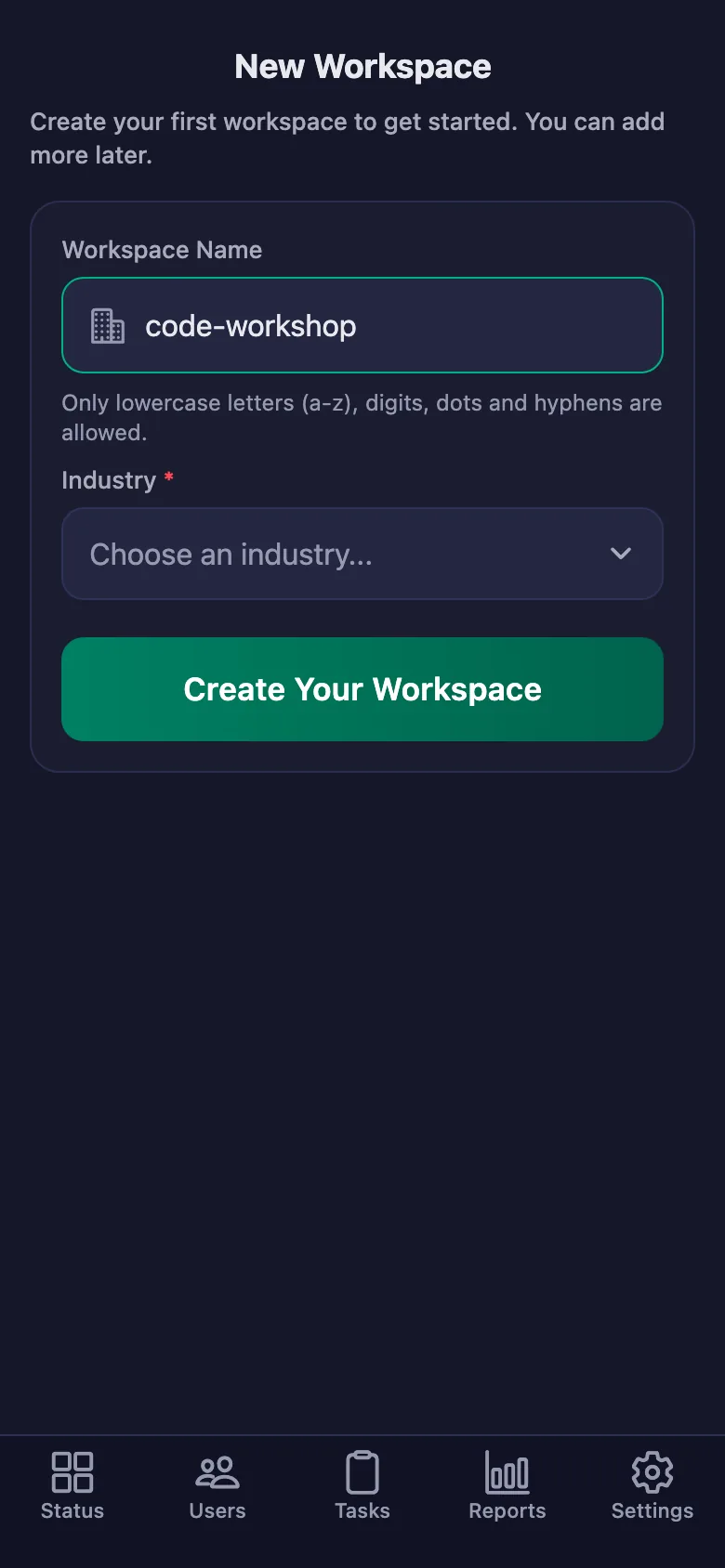
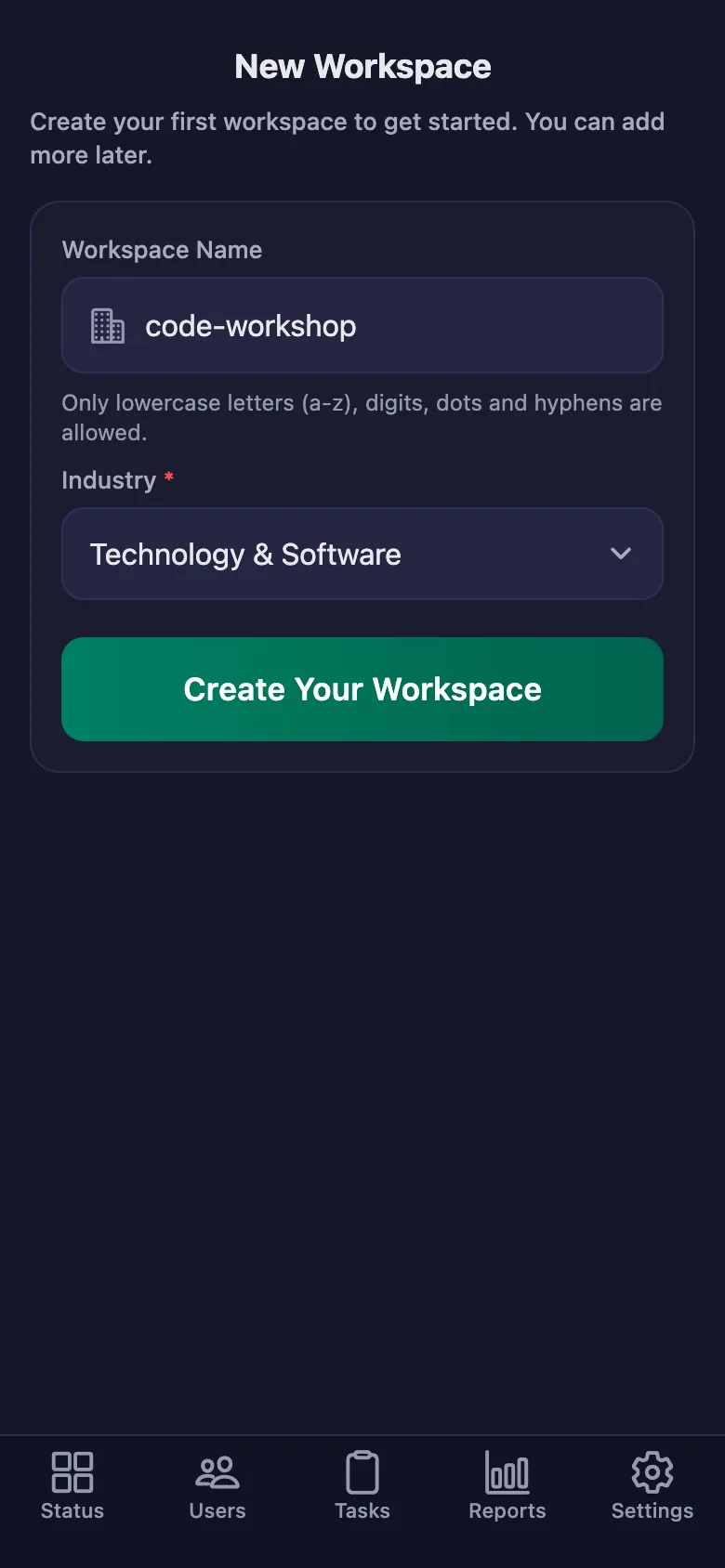
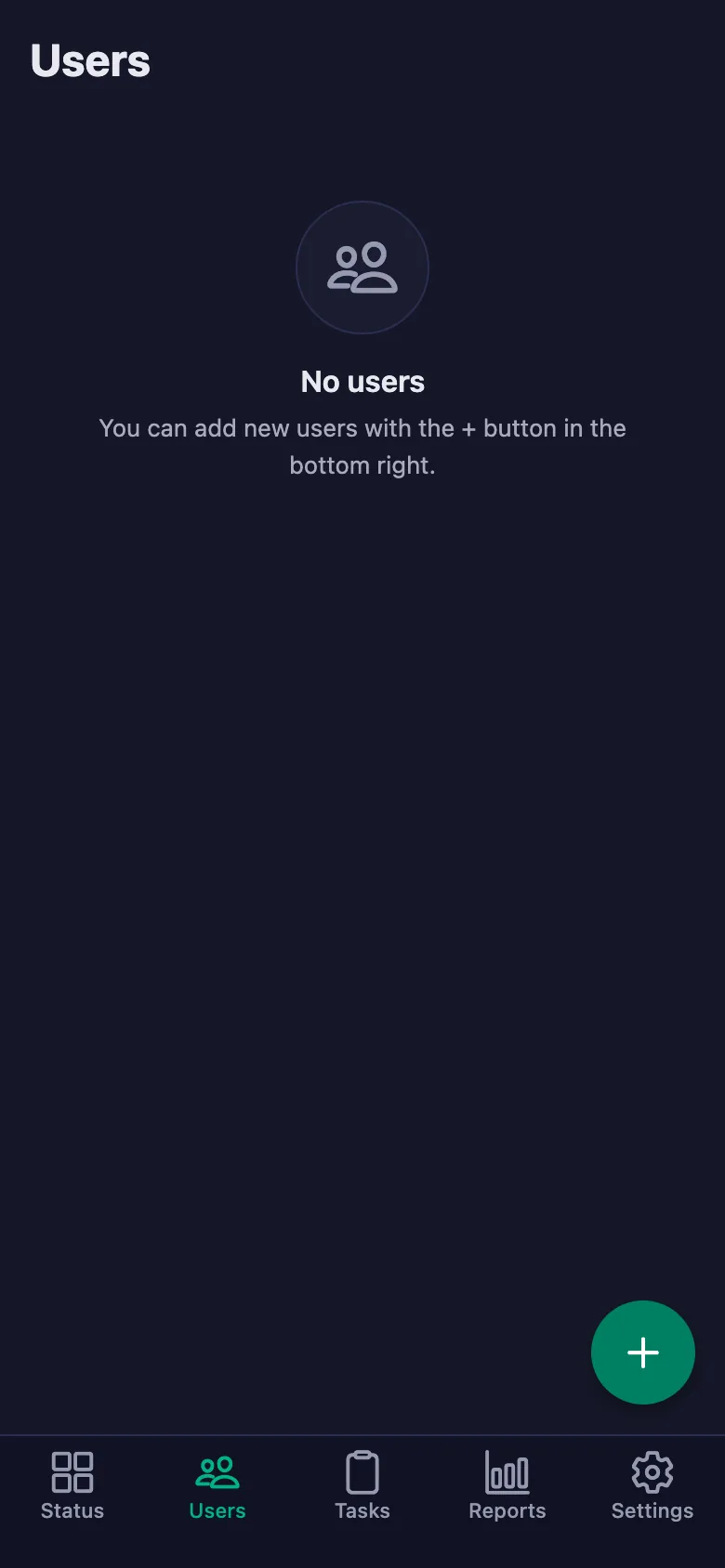
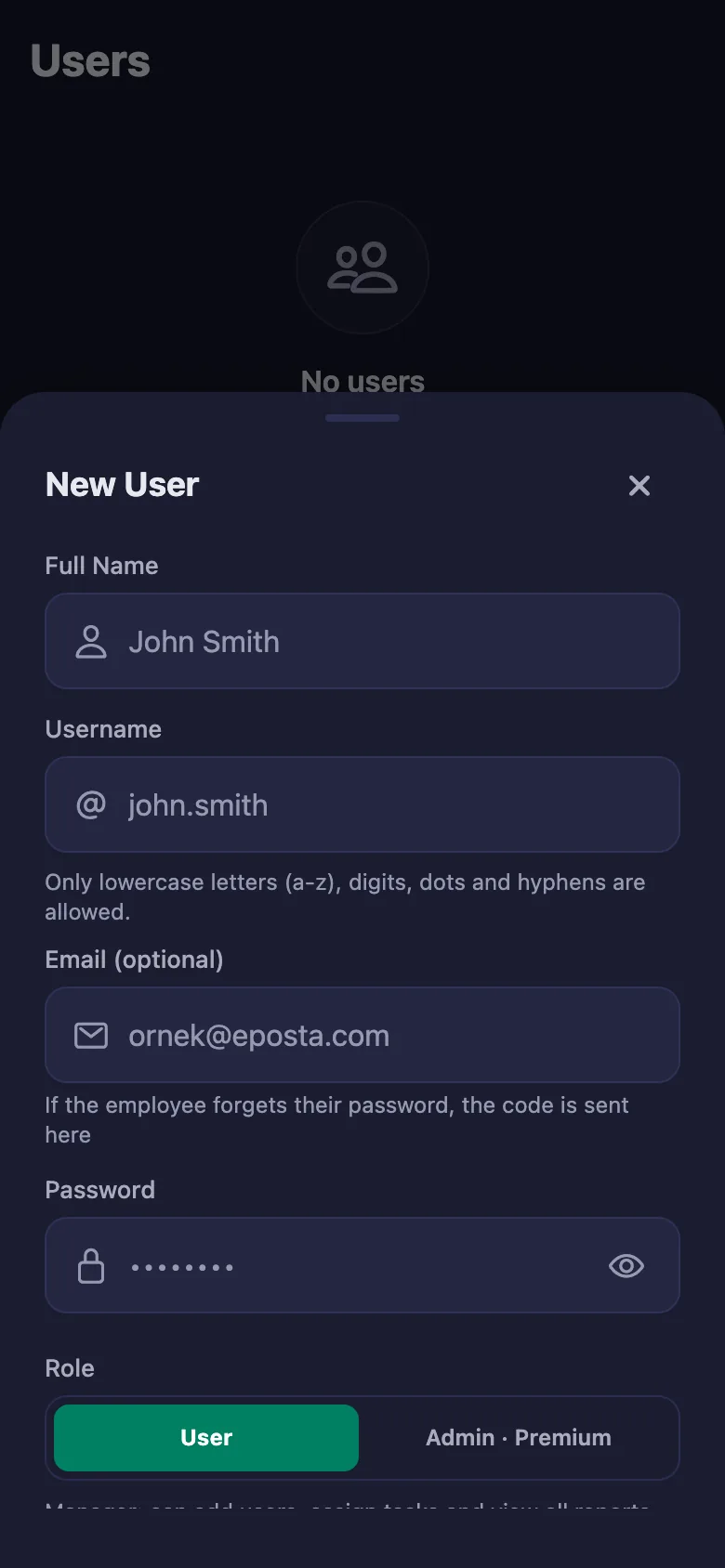
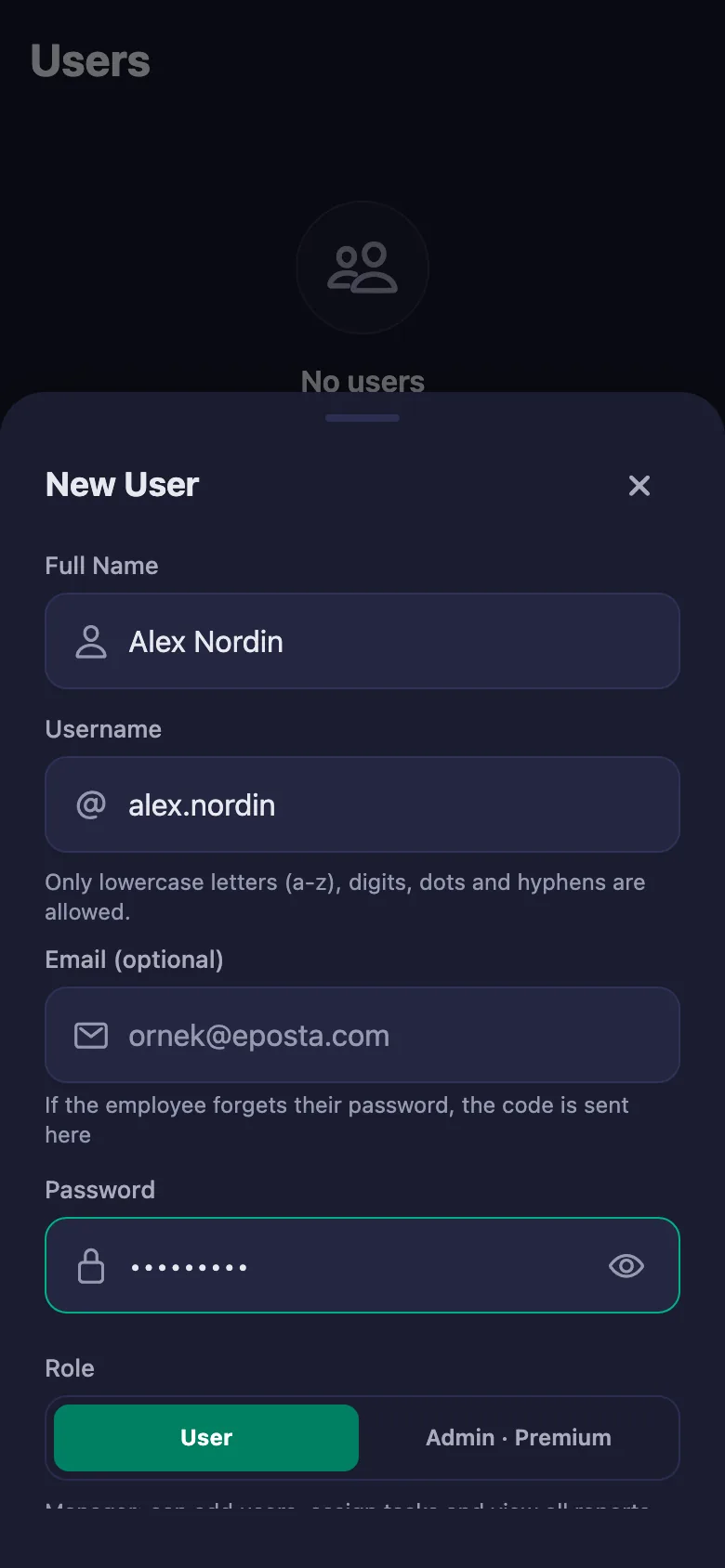
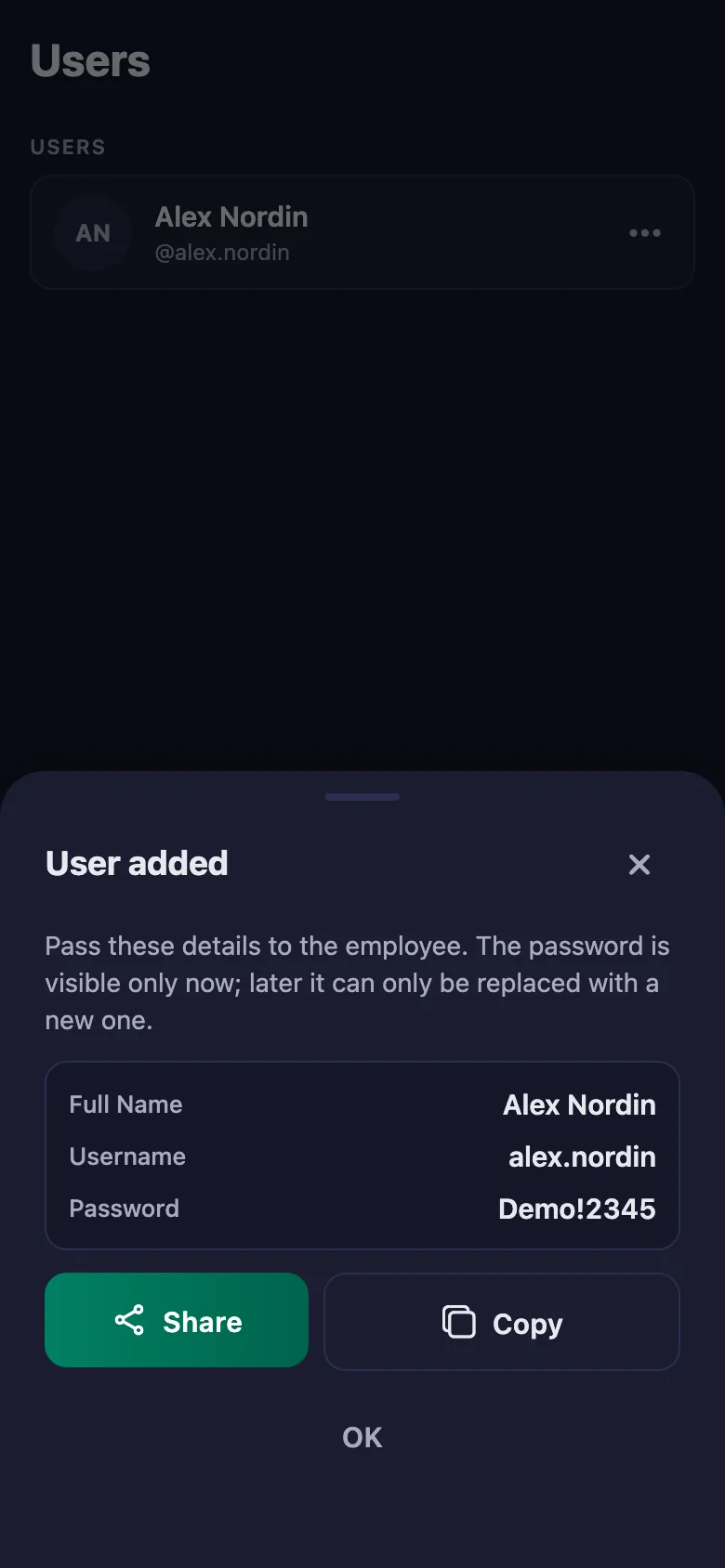
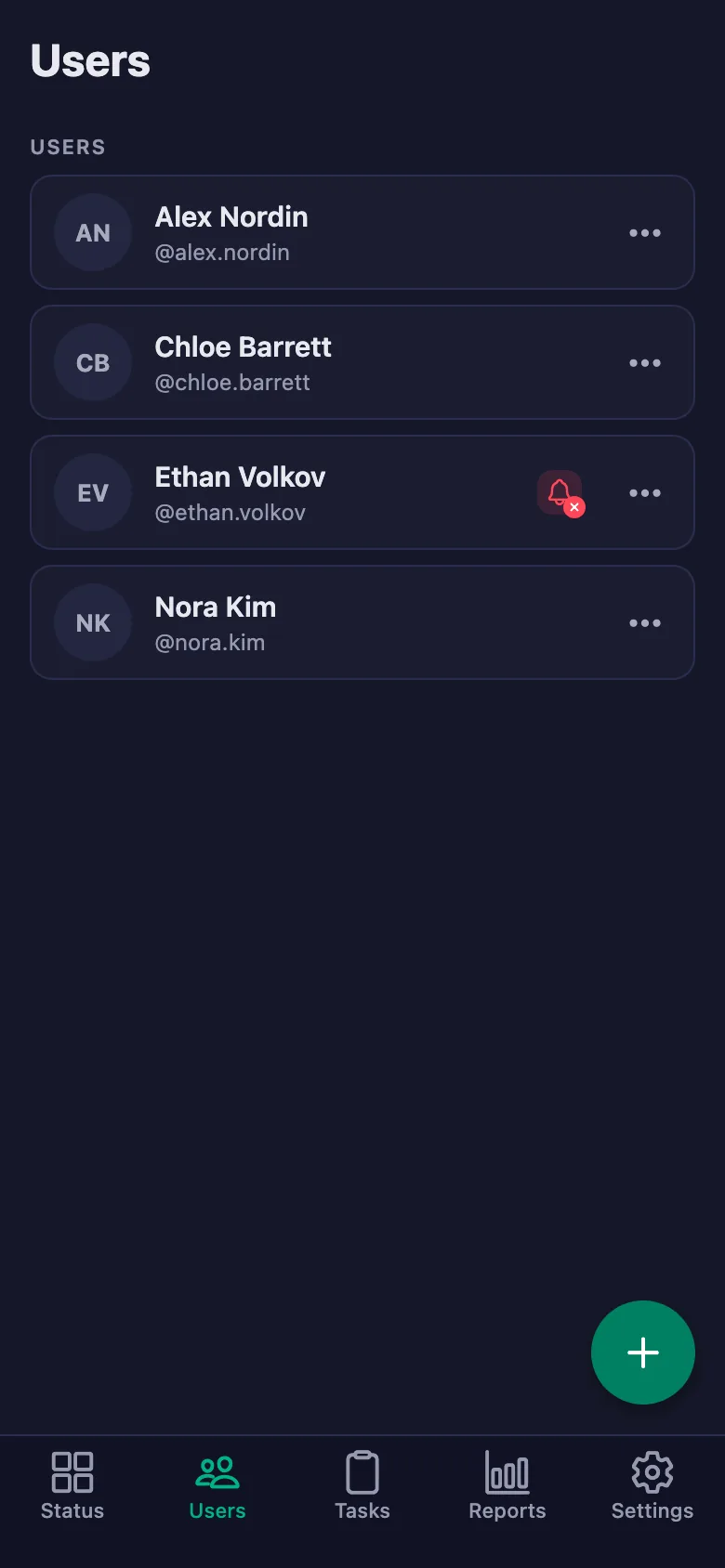
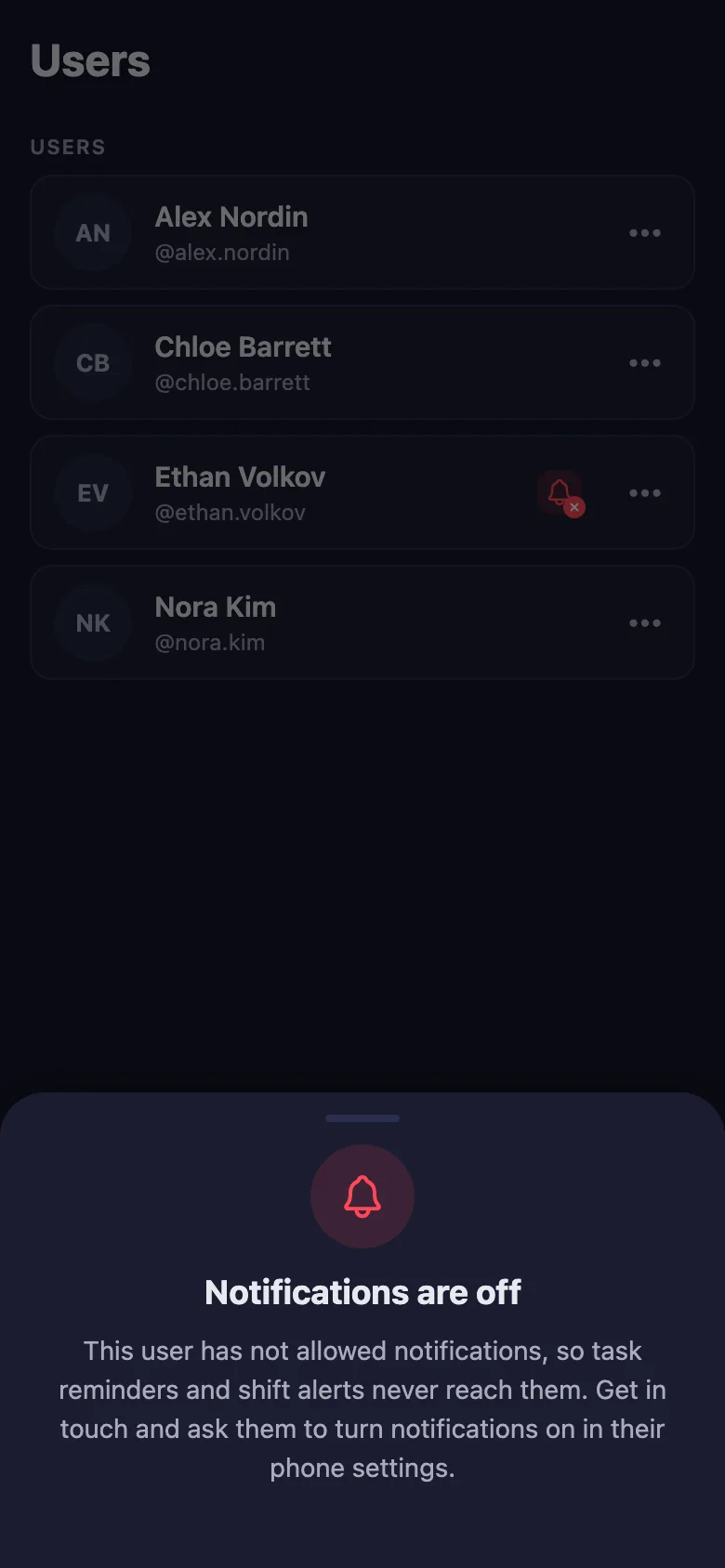
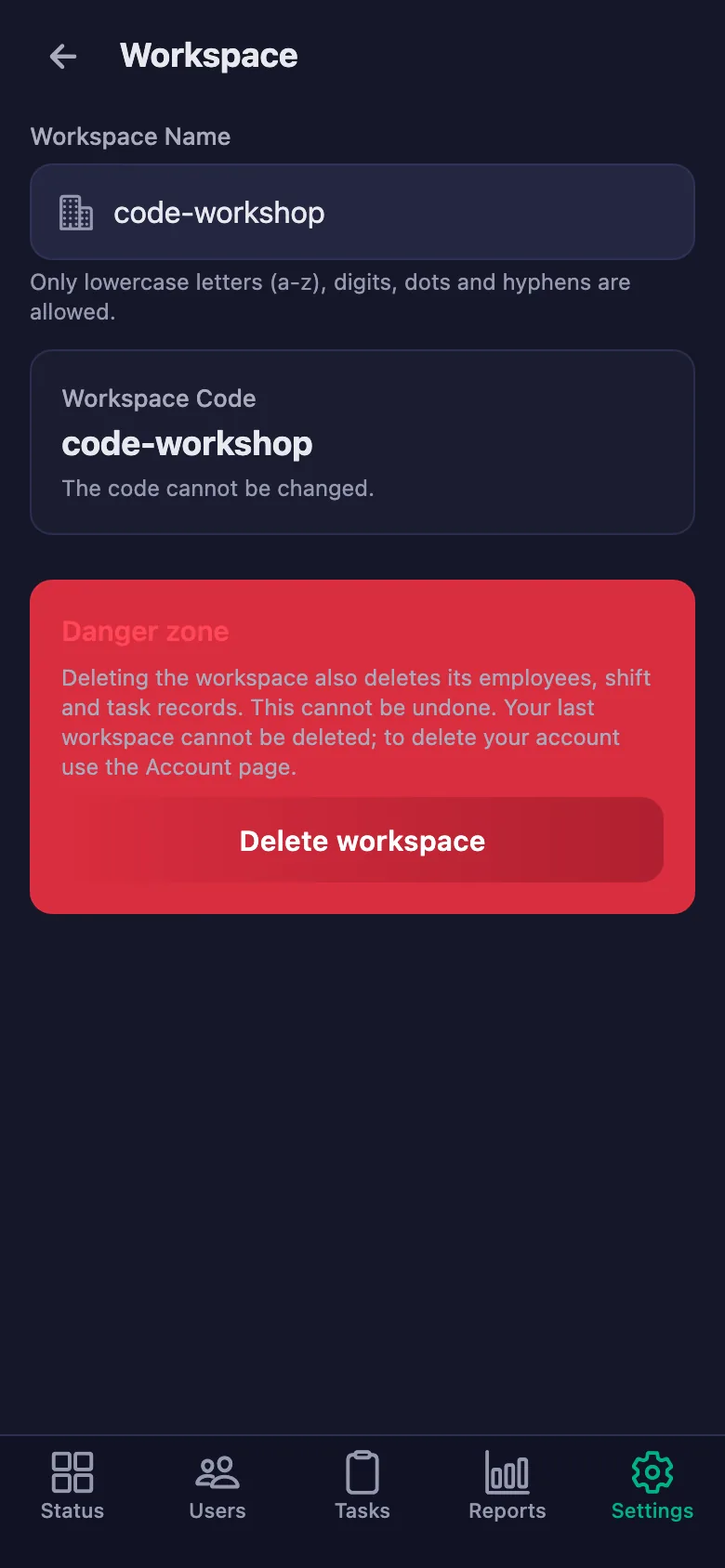
Setup and activation take just one minute — you can start free. Below you can watch the whole flow on the app's real screens.
Team Lead – Remote Team App Demo
 FinalWork — Task reminder
2 daily tasks are waiting for you.
FinalWork — Task reminder
2 daily tasks are waiting for you.
Remote team work tracking software — frequently asked questions
Does it track the location of remote staff?
No. In this setup the location rule is not switched on; the app does not ask where you are and does not record it. Only working time and ticked tasks are kept.
Does it replace our repository or issue board?
No. The app is not a repository or a development board; it tracks repeating daily jobs and working hours. You carry on using your existing tools as before.
Can the team write notes, and can I see them?
Yes. The team can write a note under each job — where they got stuck, what they are waiting for. You can see the note but you cannot change it; only the person who wrote it can edit it.
How many people can I add?
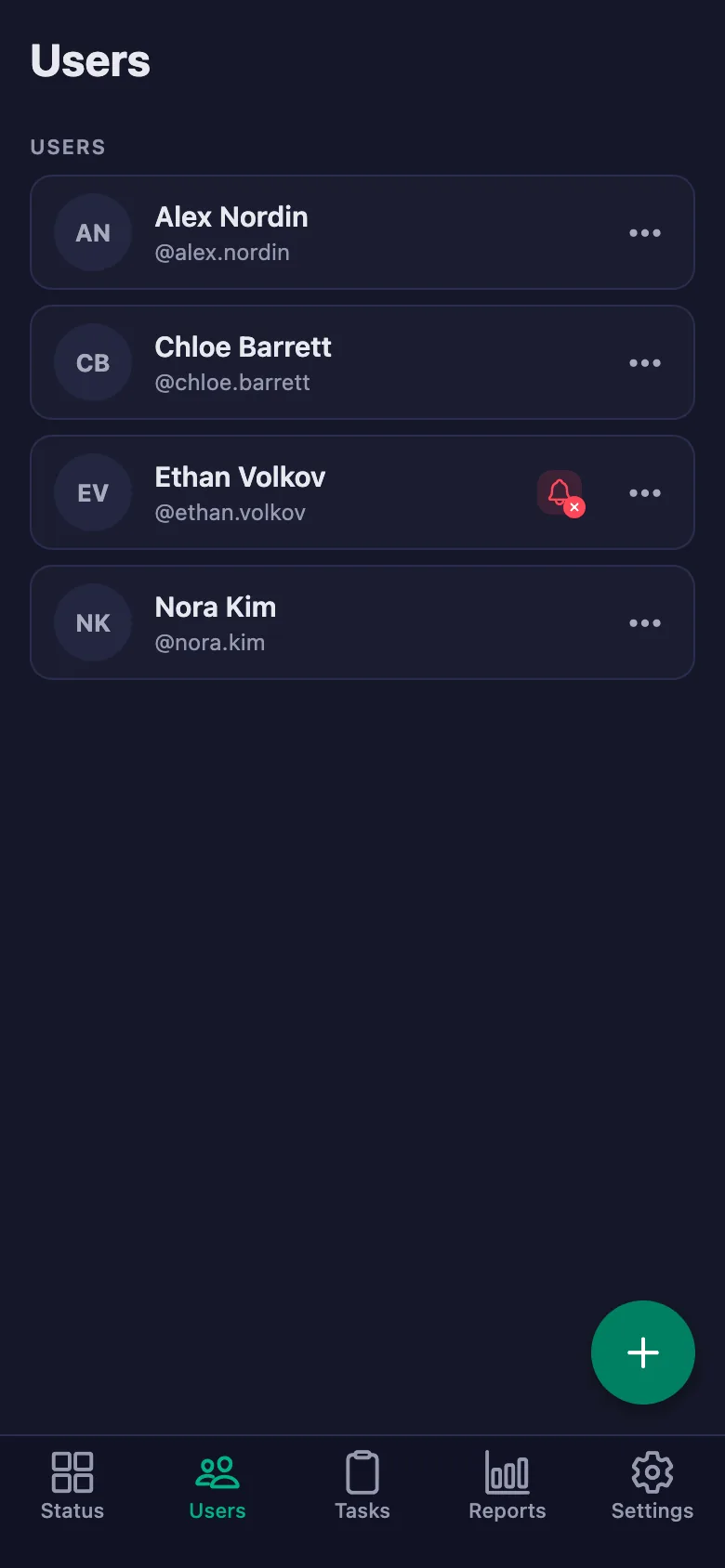
The free plan has a limit on users; when you reach it the app warns you and no new user is added. The limit is lifted on Premium.
Does it suit a team across different time zones?
The workspace's own time zone is used, and day and period calculations follow it. Because the timer measures each person's own working time, starting at different hours is not a problem.
In hybrid working, do office days show up separately?
The report shows time day by day, so how many hours were worked on each day can be read separately. If you want, you can also have the office day ticked off as its own task.
Can I see overtime?
The report shows total, break and net time separately. Work that runs past the hours you set appears in the report and can be downloaded as a PDF.
Set up your team today
Setup and activation take just one minute — you can start free. Open the account, add your first team member, and let today's work go on the record.