Who did the homework, and who actually studied?
Setting homework is the easy part; the real work is knowing what happened before the next lesson. FinalWork keeps your student's homework list, their notes and their study time in one place, so you walk into the lesson prepared.
Sound familiar?
Writing the homework takes a minute; following it up takes the whole term. Most teachers run into these — on the right is what each one looks like in FinalWork.
You write the homework on the board and your students copy it into a notebook. A week later, what was set and who wrote what down becomes a debate.
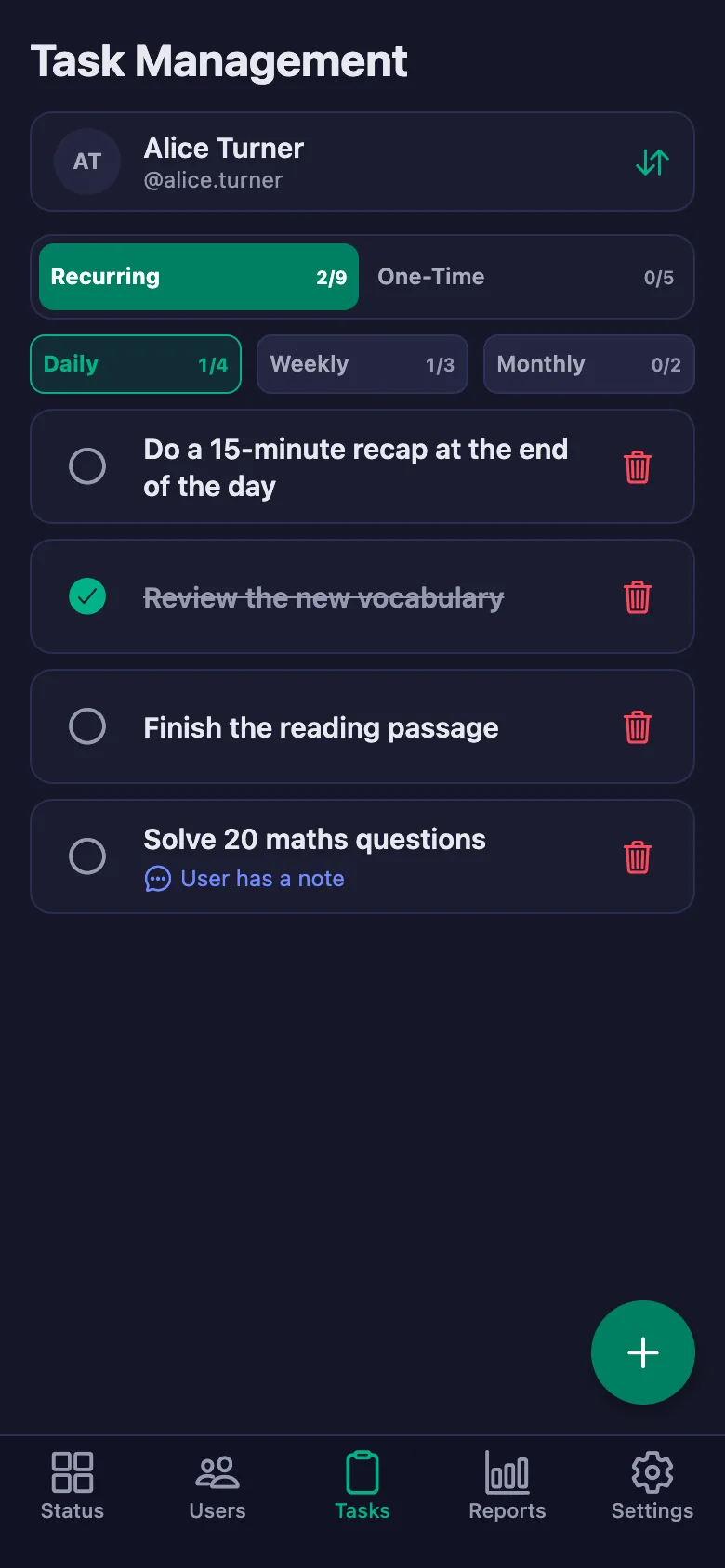
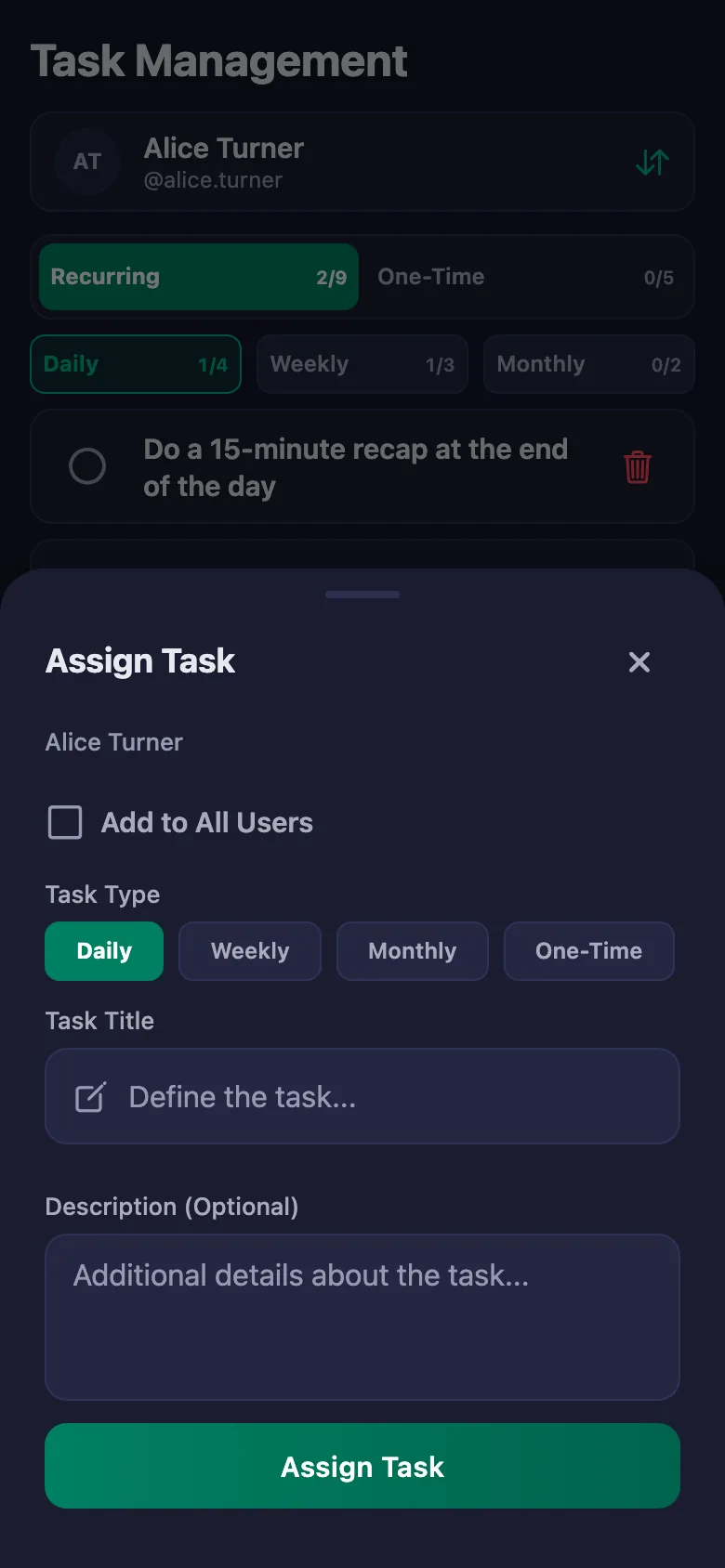
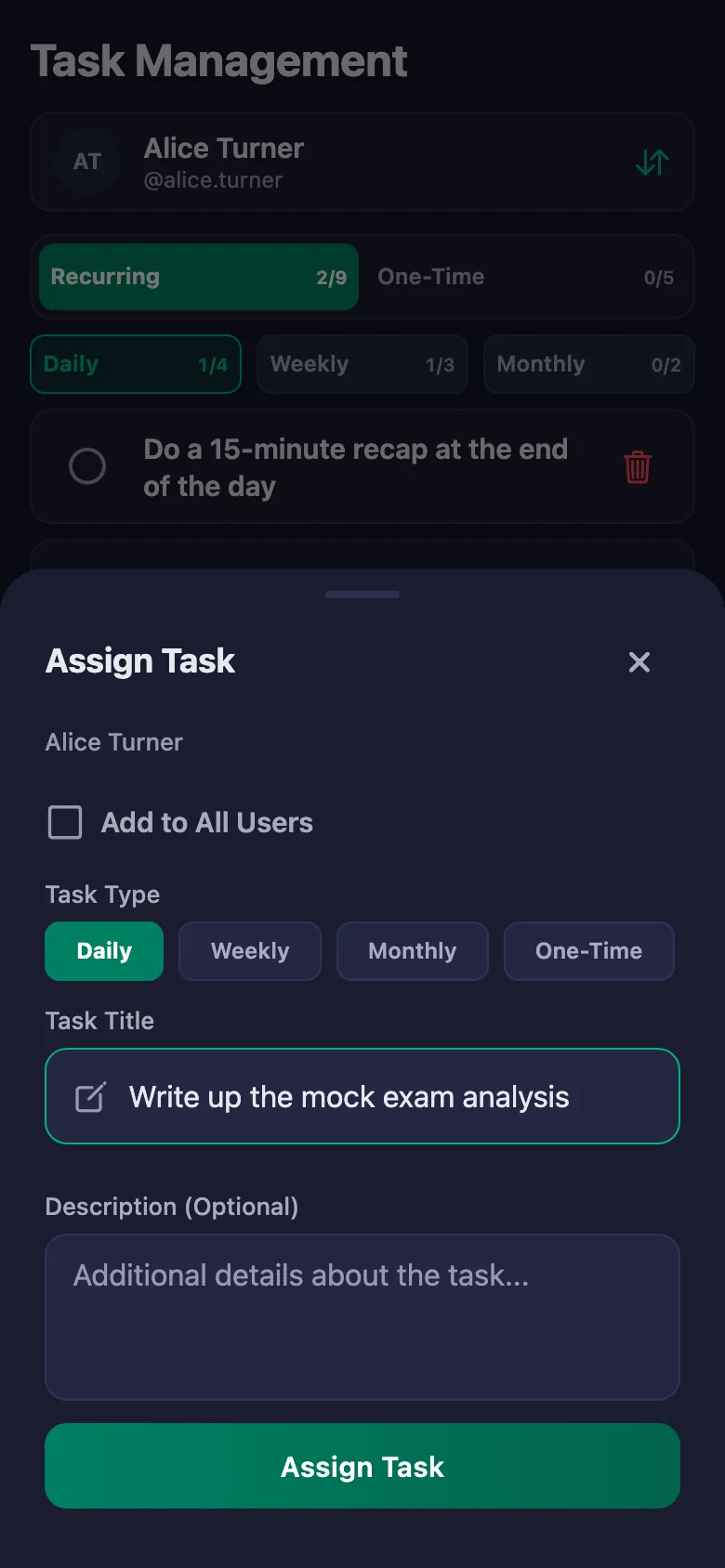
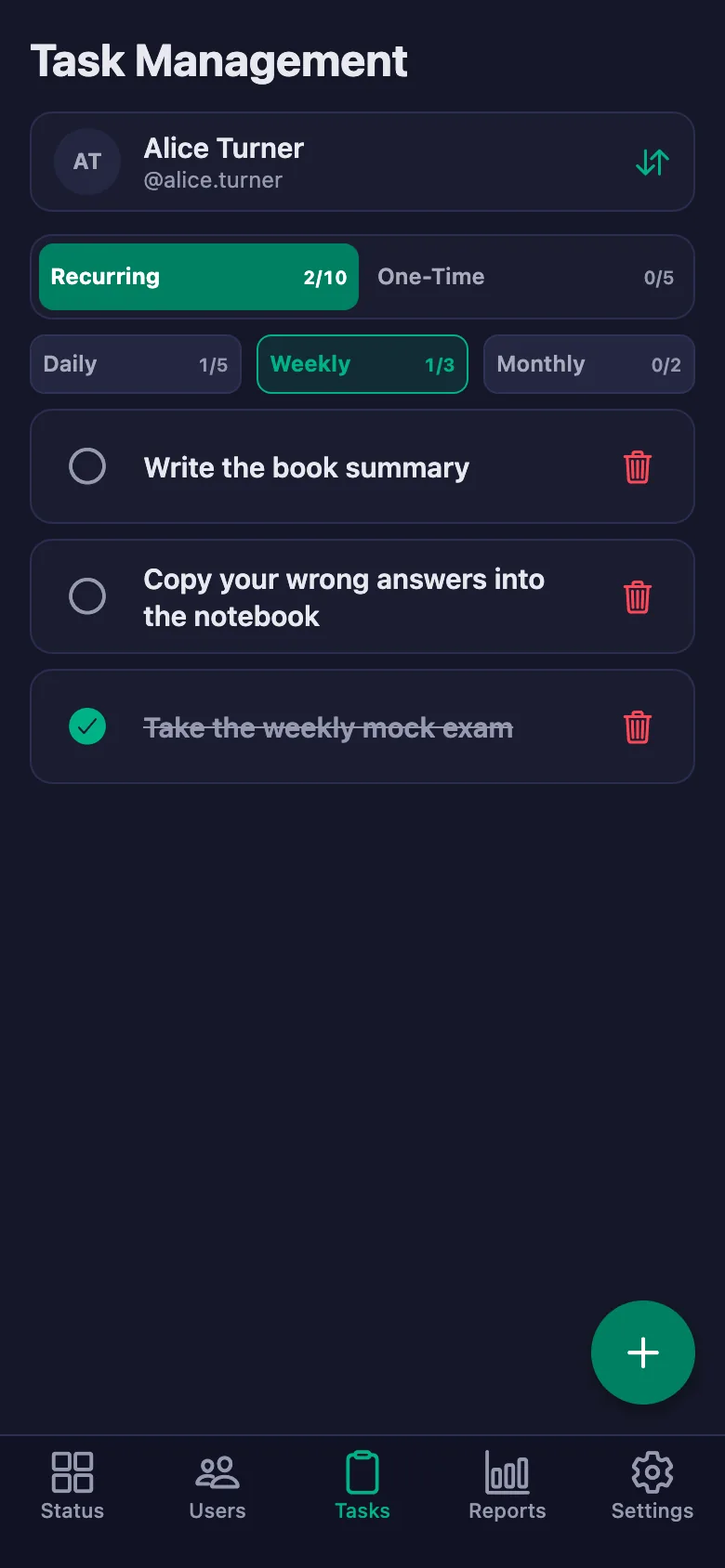
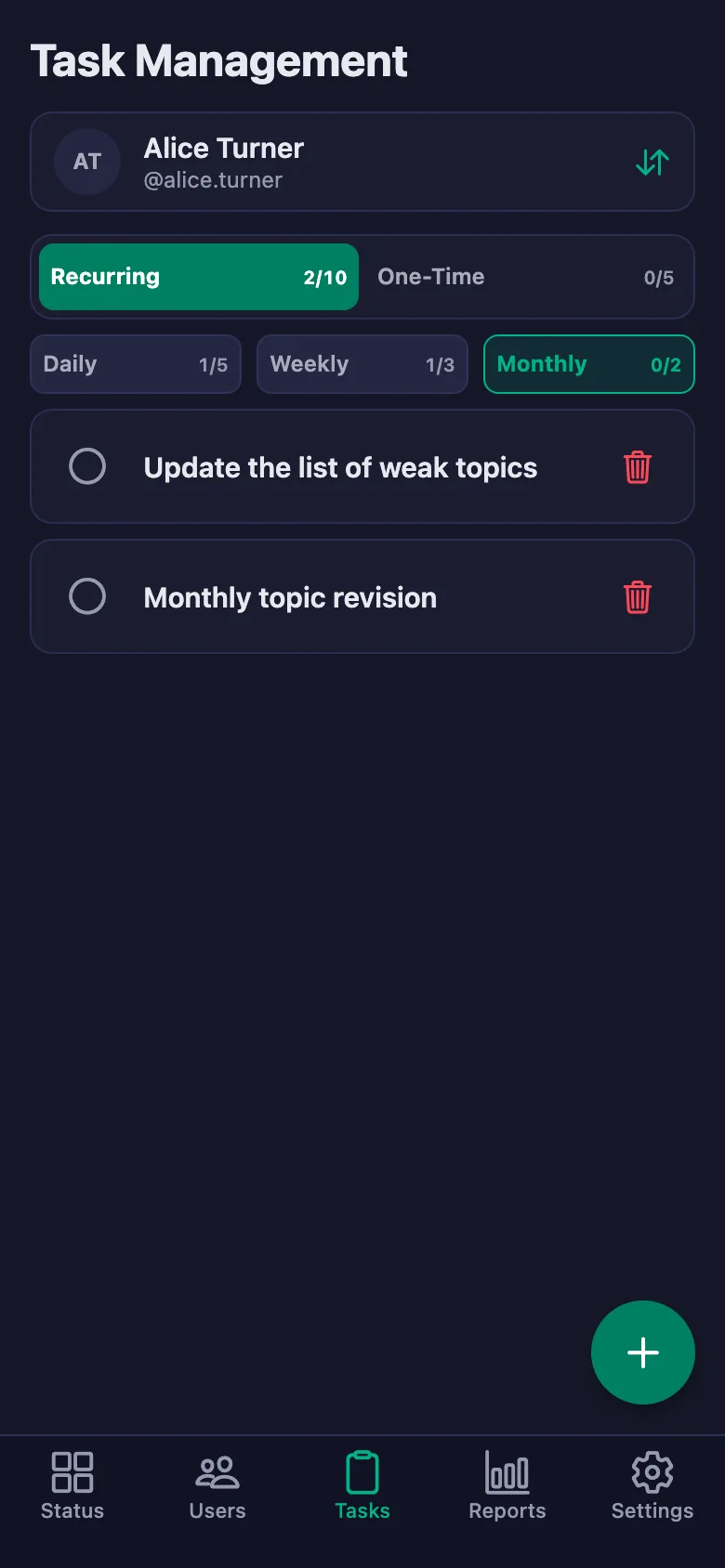
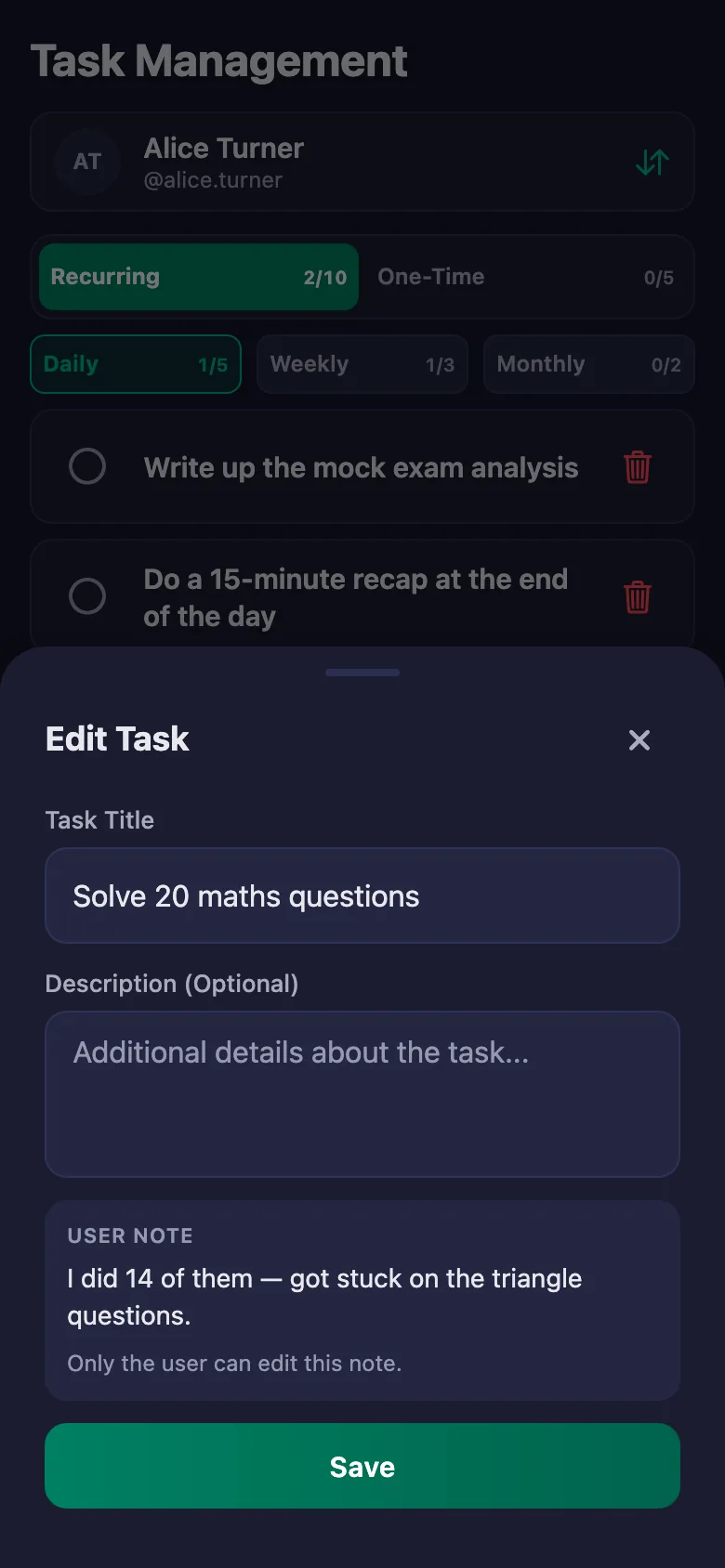
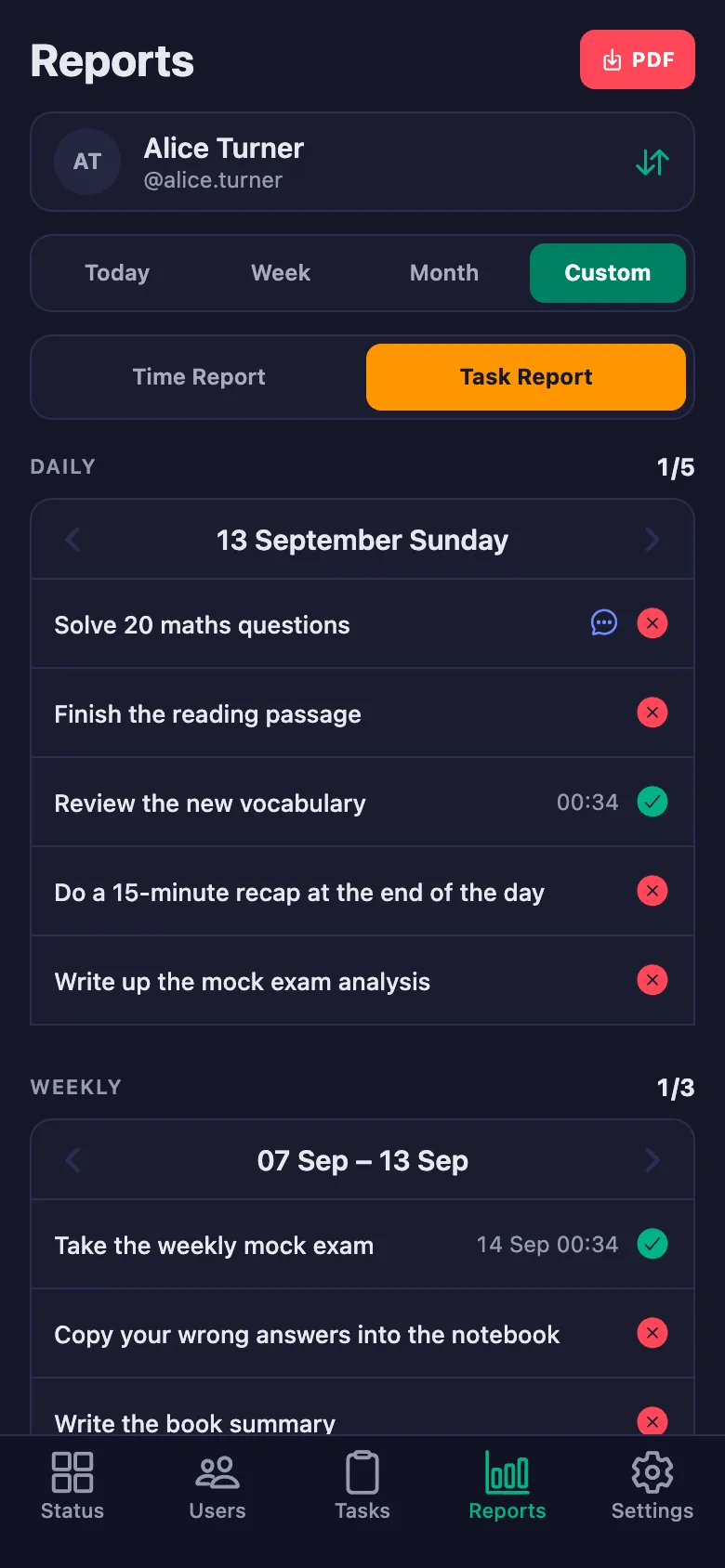
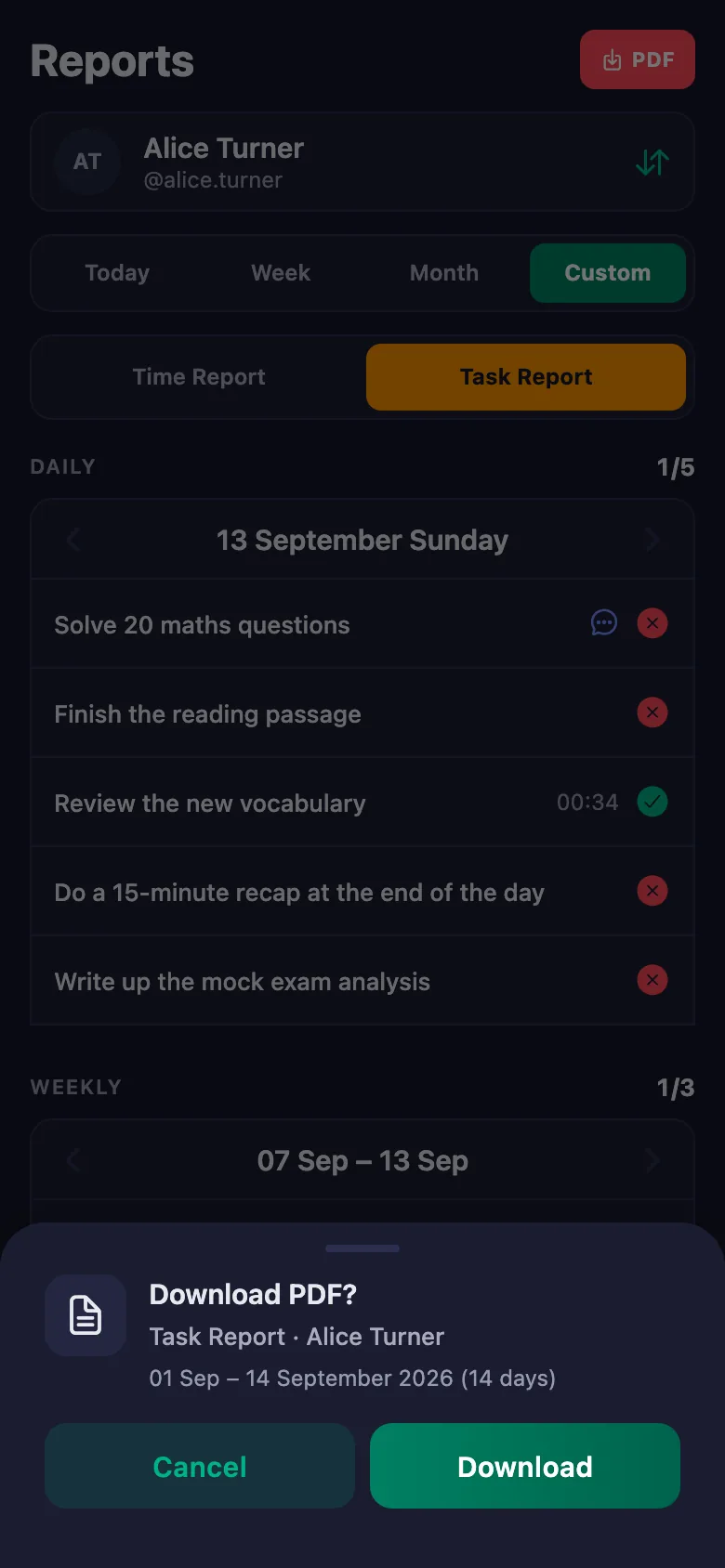
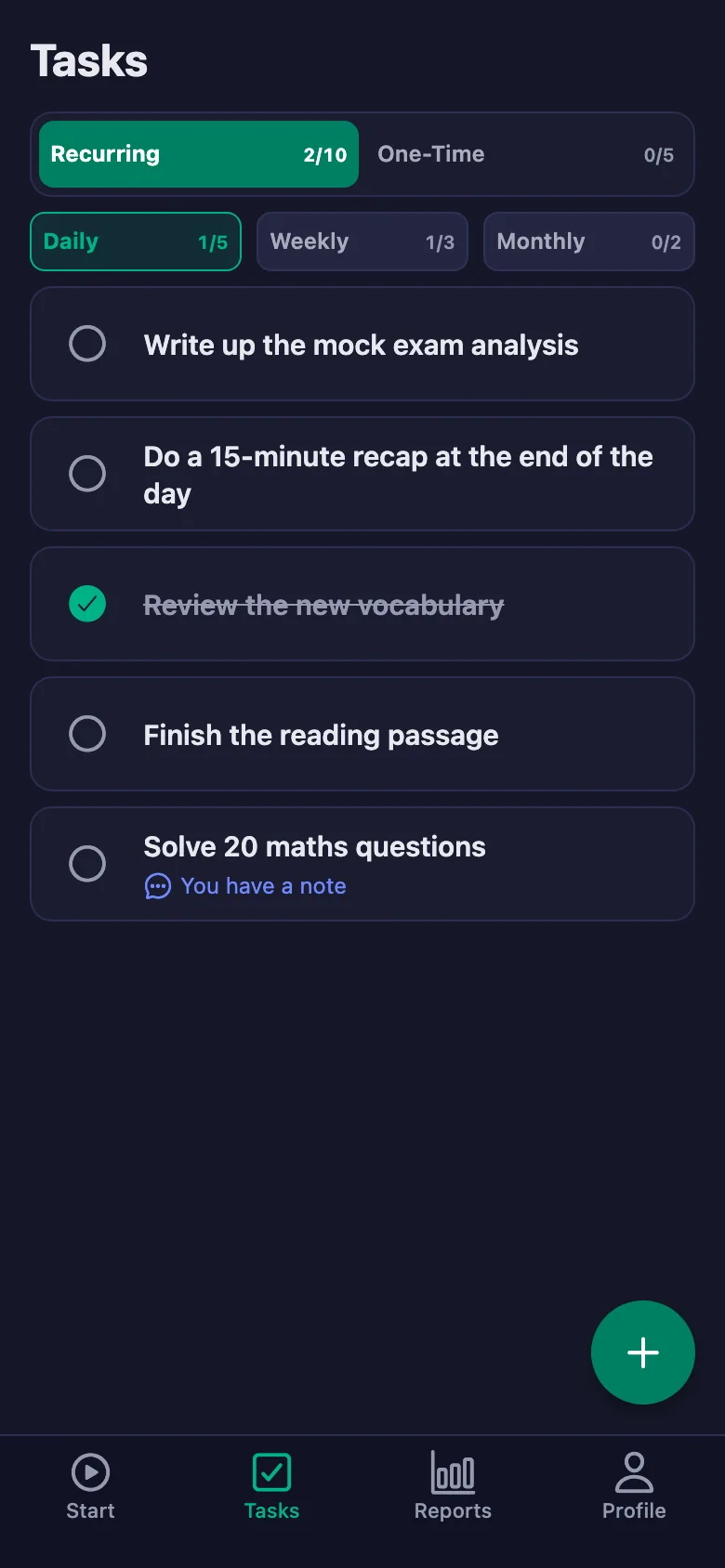
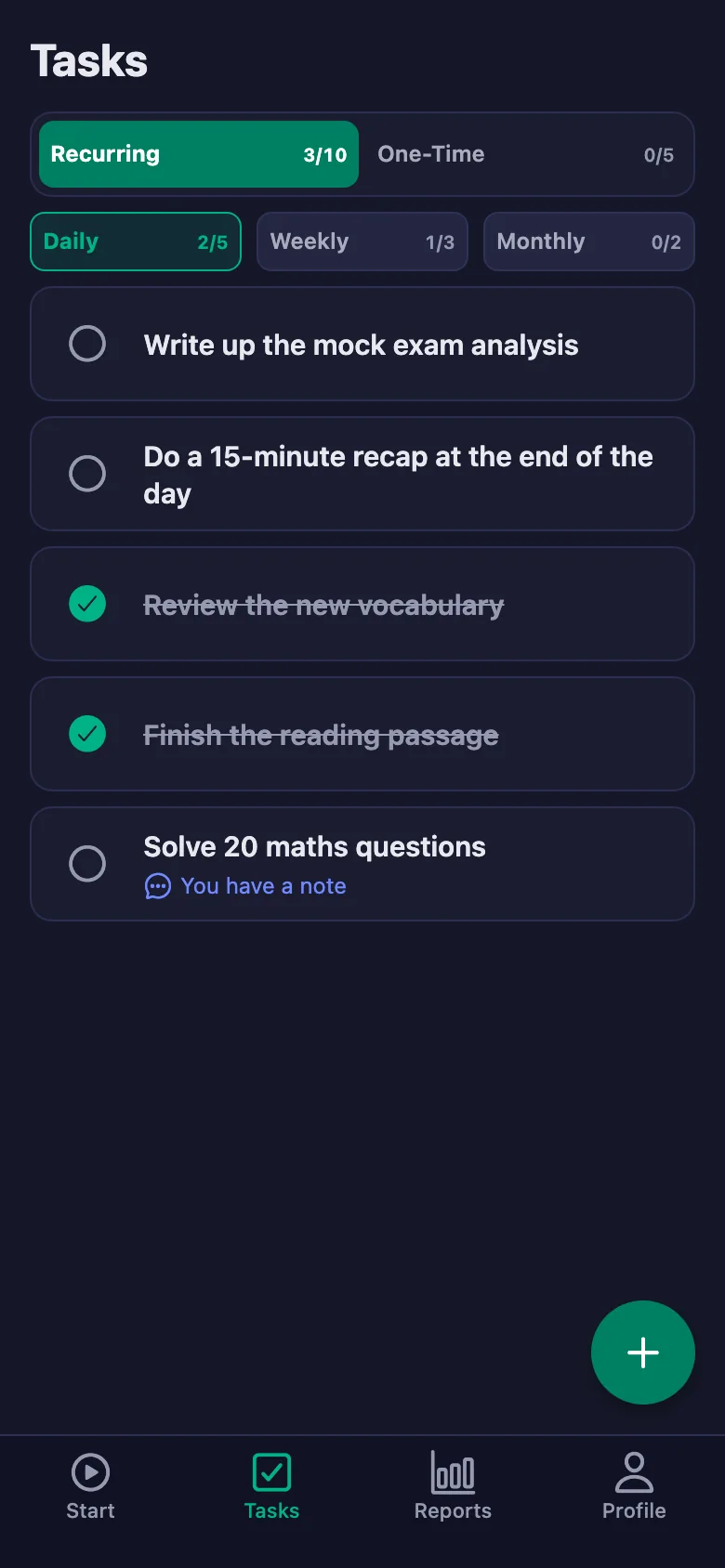
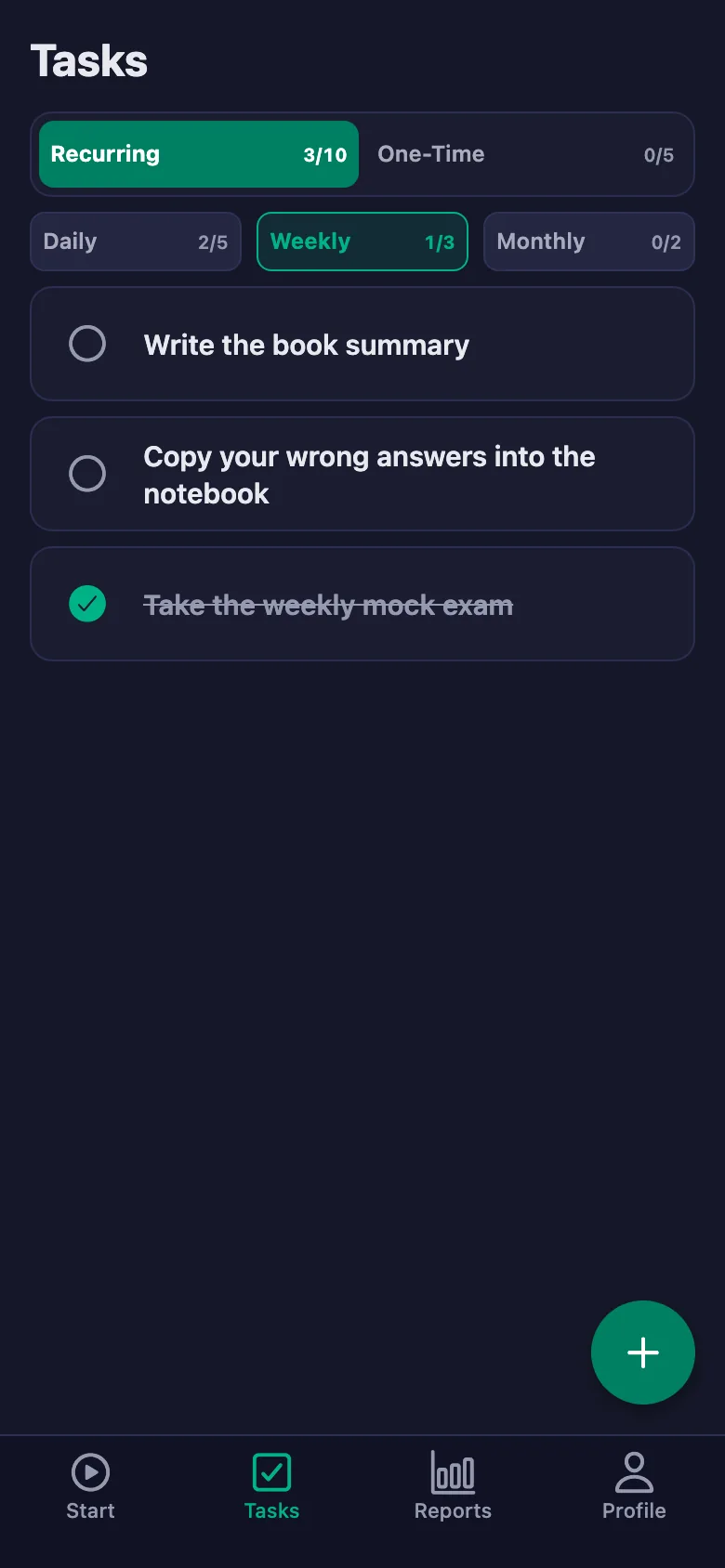
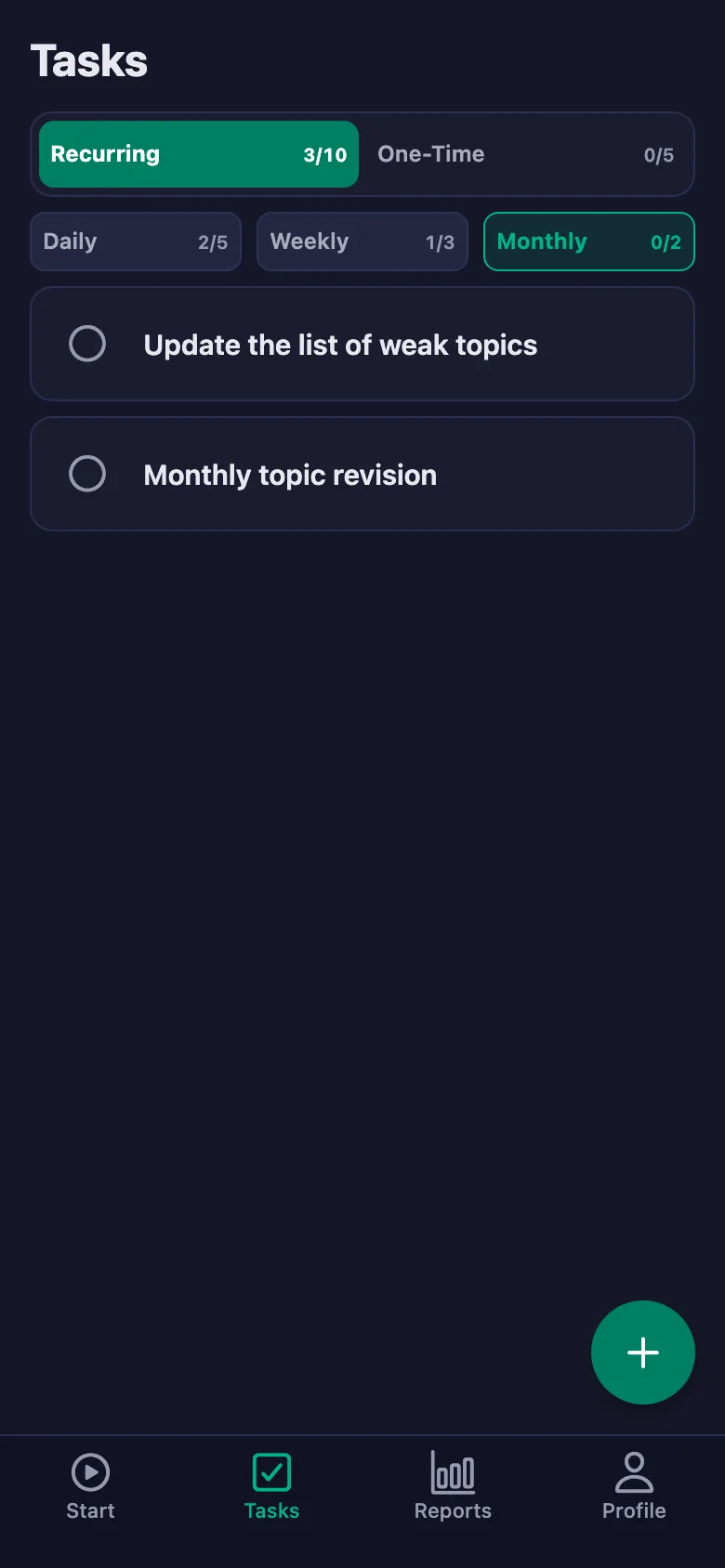
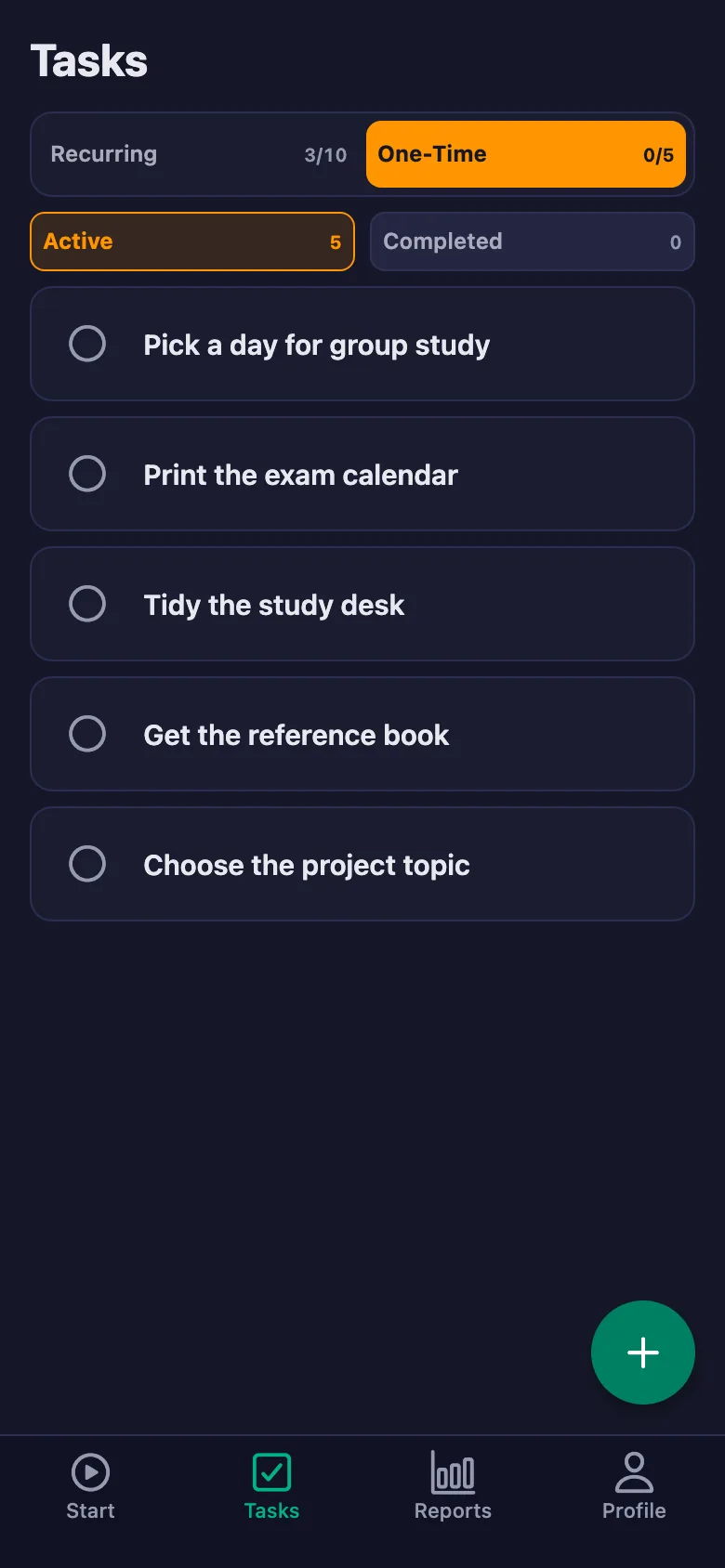
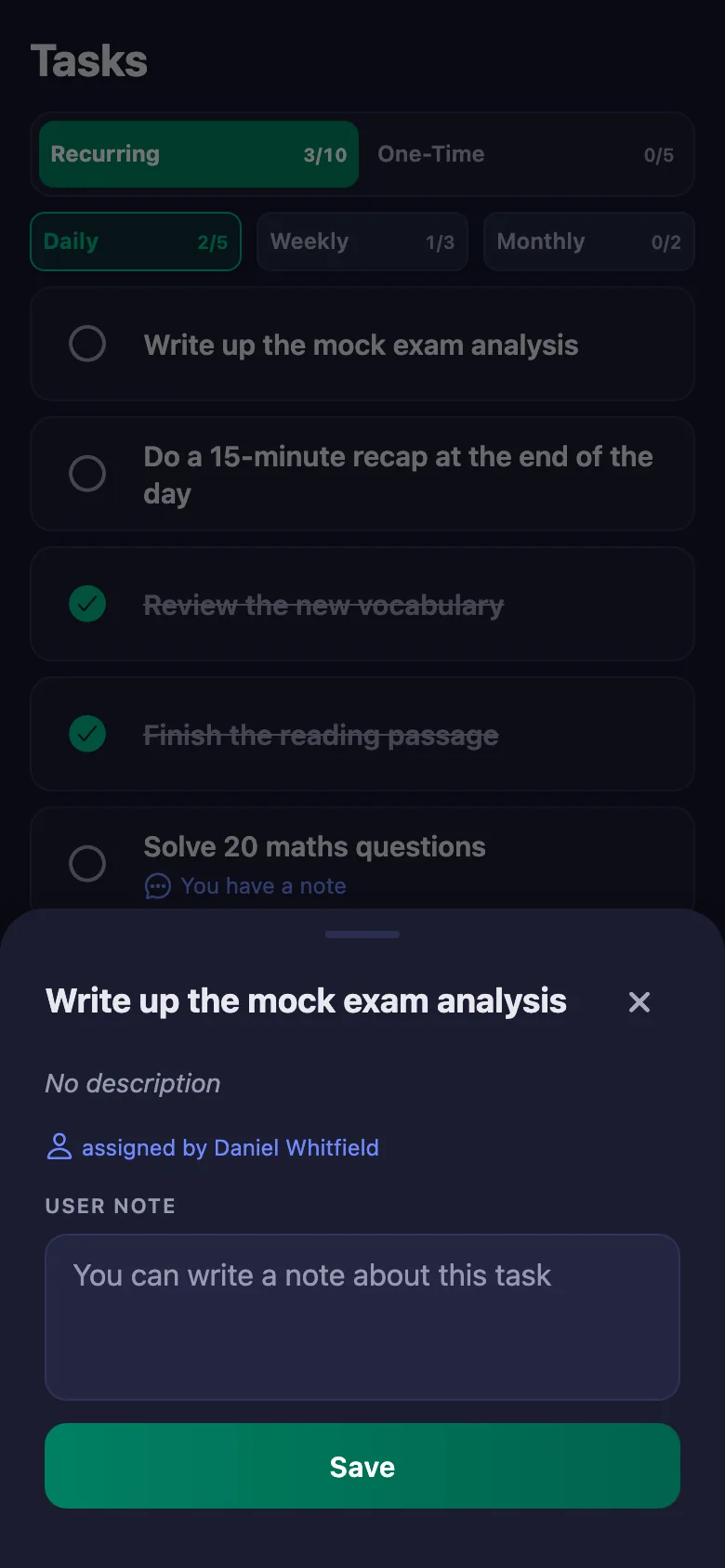
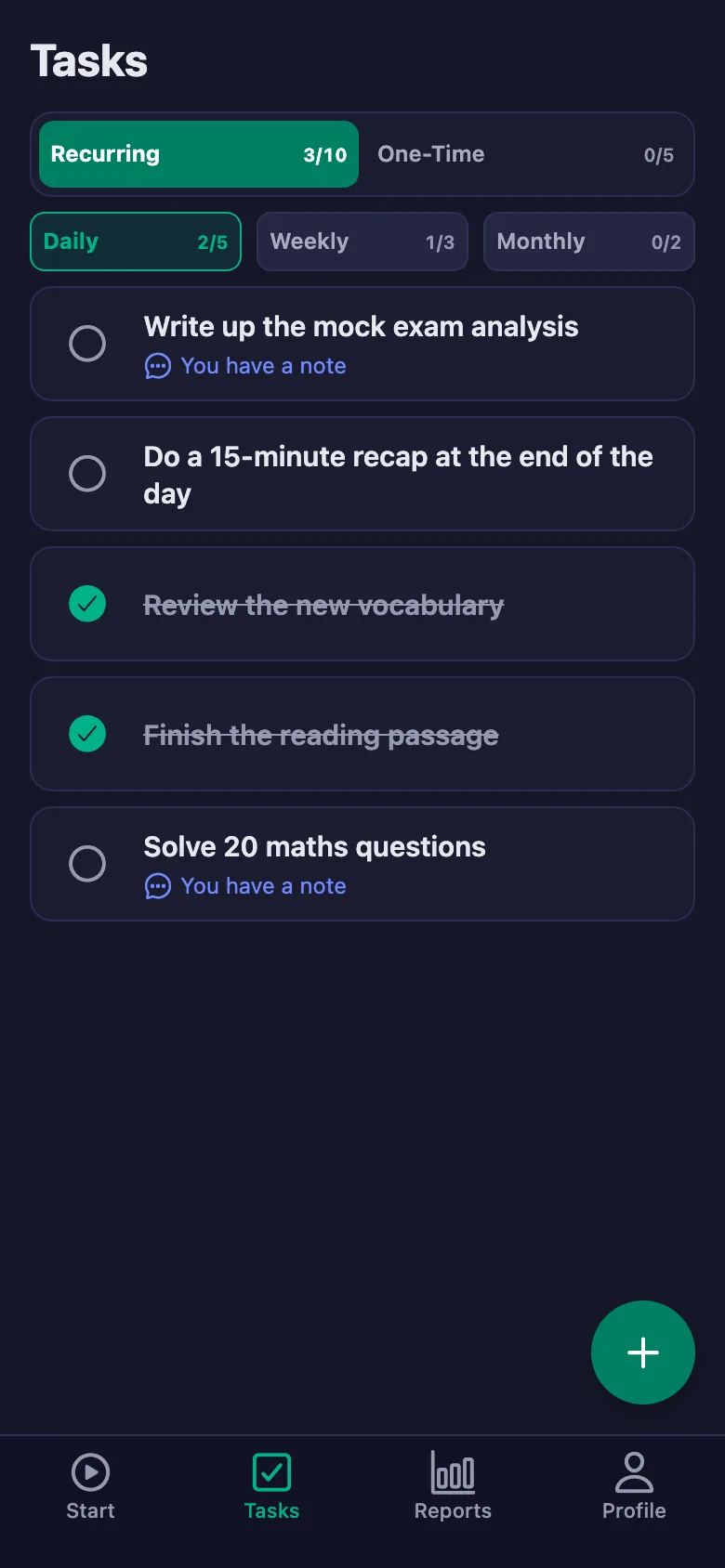
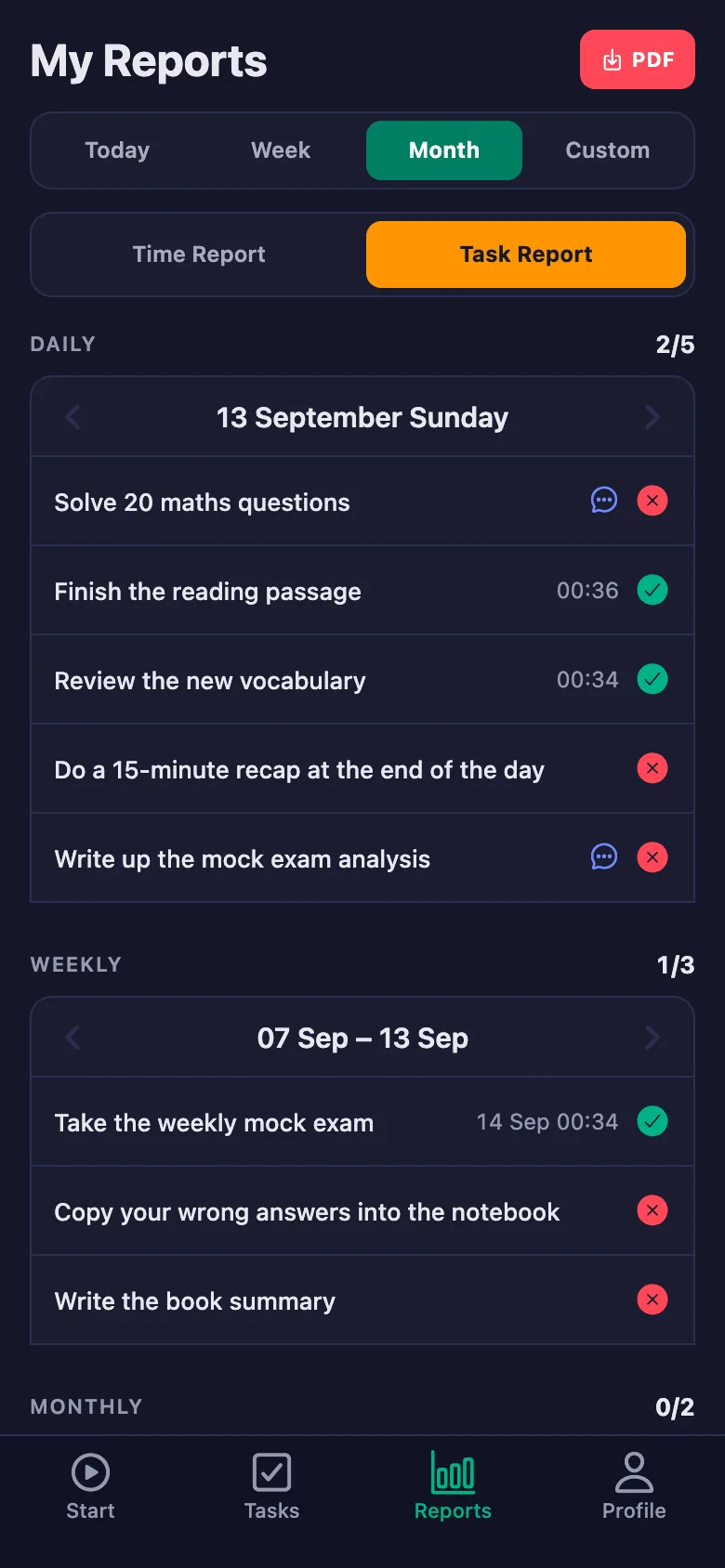
You write the homework once; it sits on your student's phone as daily, weekly and monthly items. Every time one is ticked off, you see it too.
The lesson opens with a roll call of who did it and who didn't; the first ten minutes go on that.
Before the lesson you can see who ticked what. You start with the lesson, not the roll call.
A student says “I didn't understand” — but which question they got stuck on stays unknown until the next lesson.
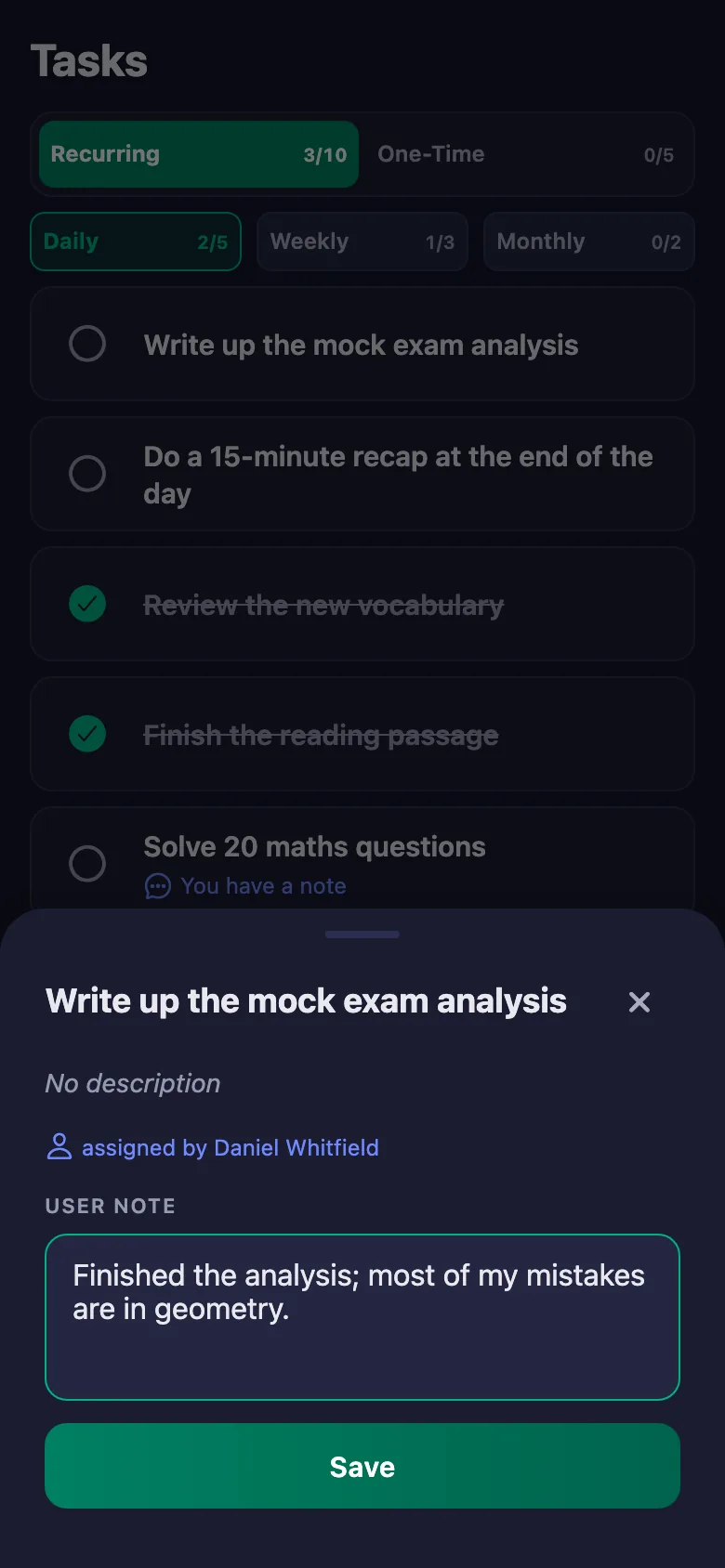
Your student writes a note under the item: where they got stuck, how long it took. The note sits on your screen, and only your student can change it.
“I studied,” they say — but how long, and on how many days? Study time is left entirely to what they tell you.
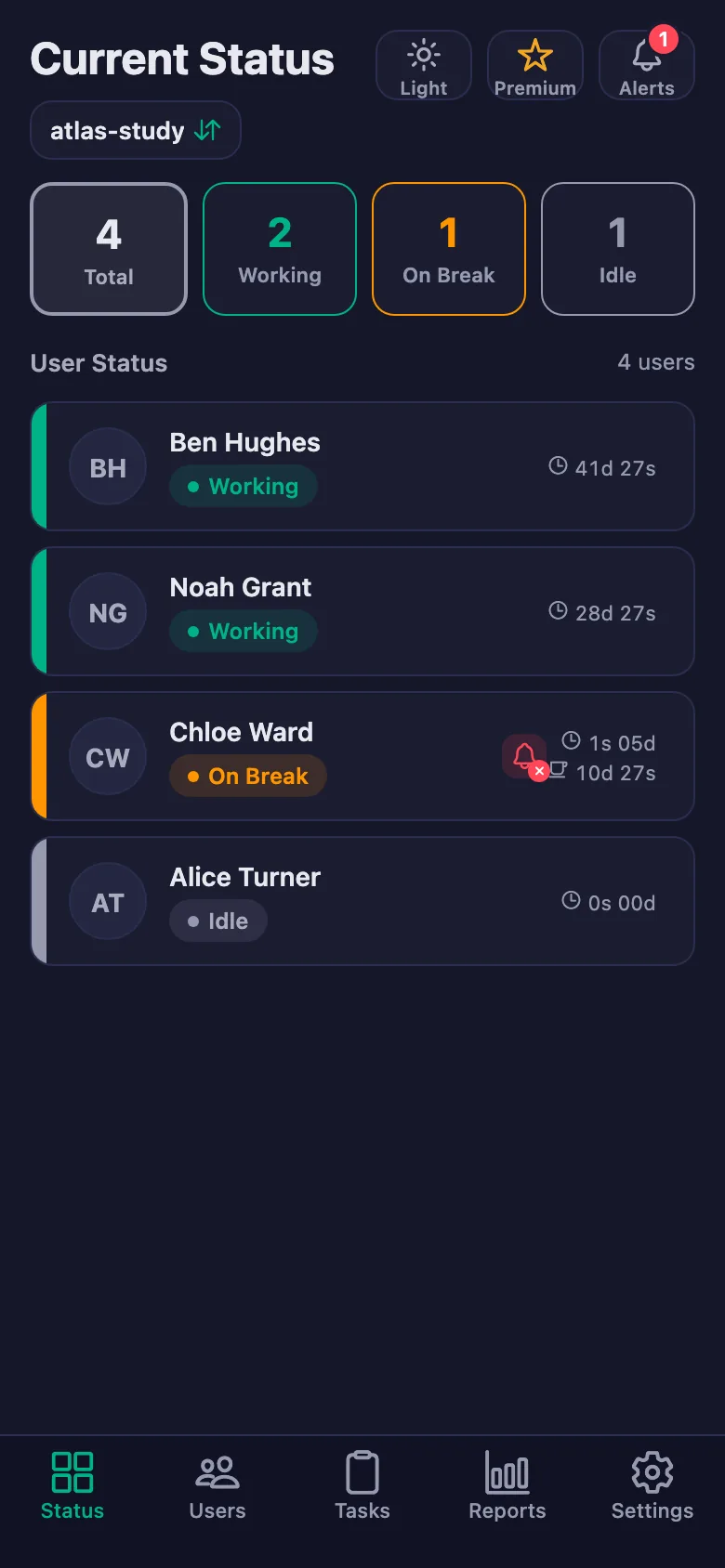
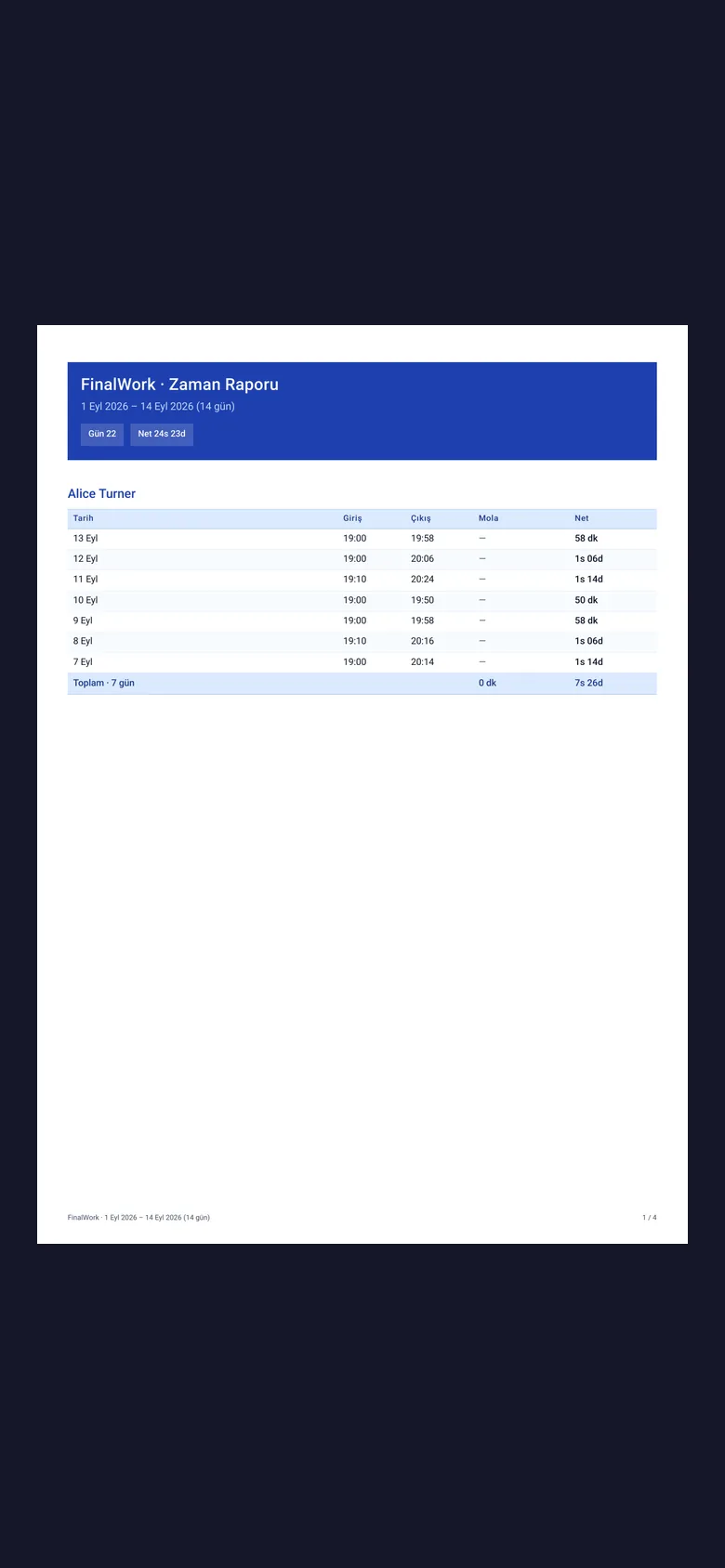
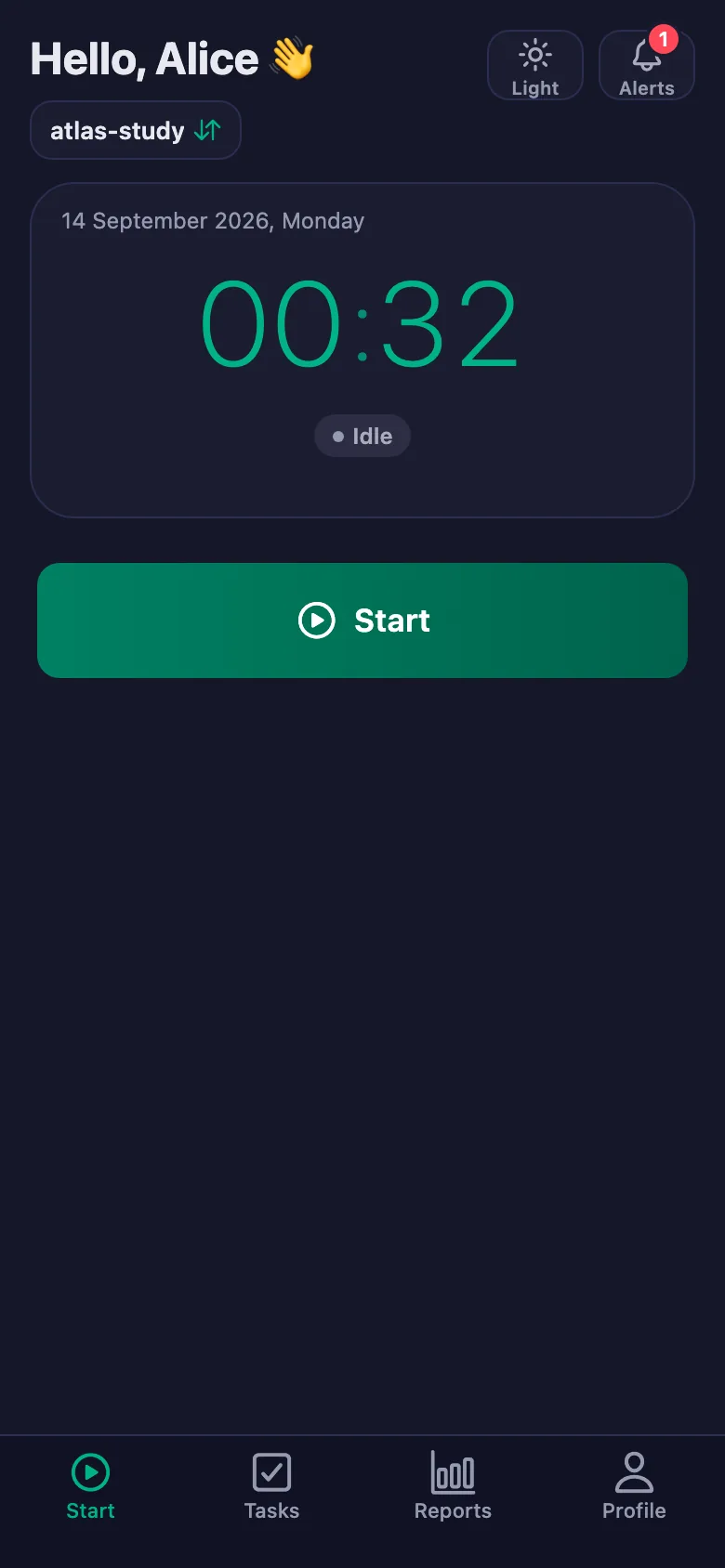
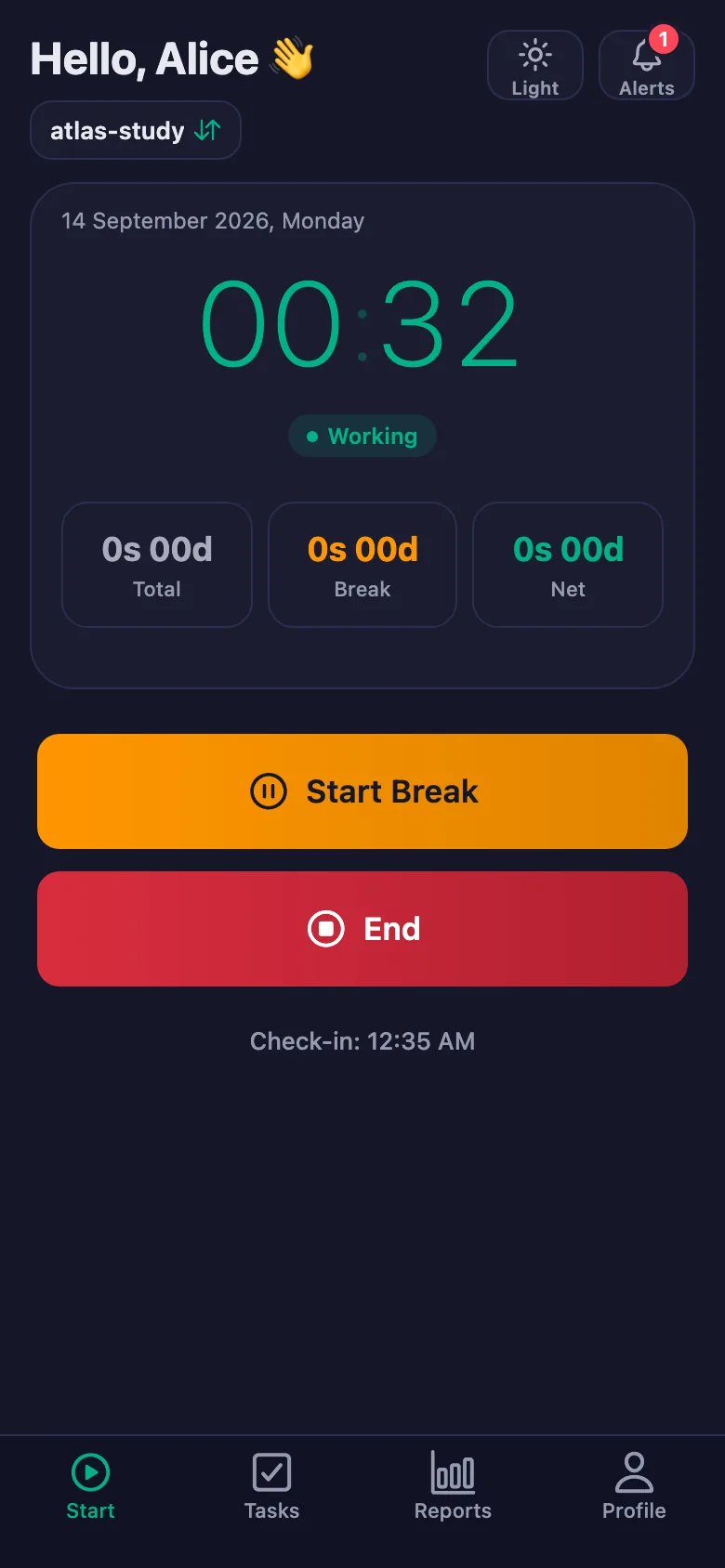
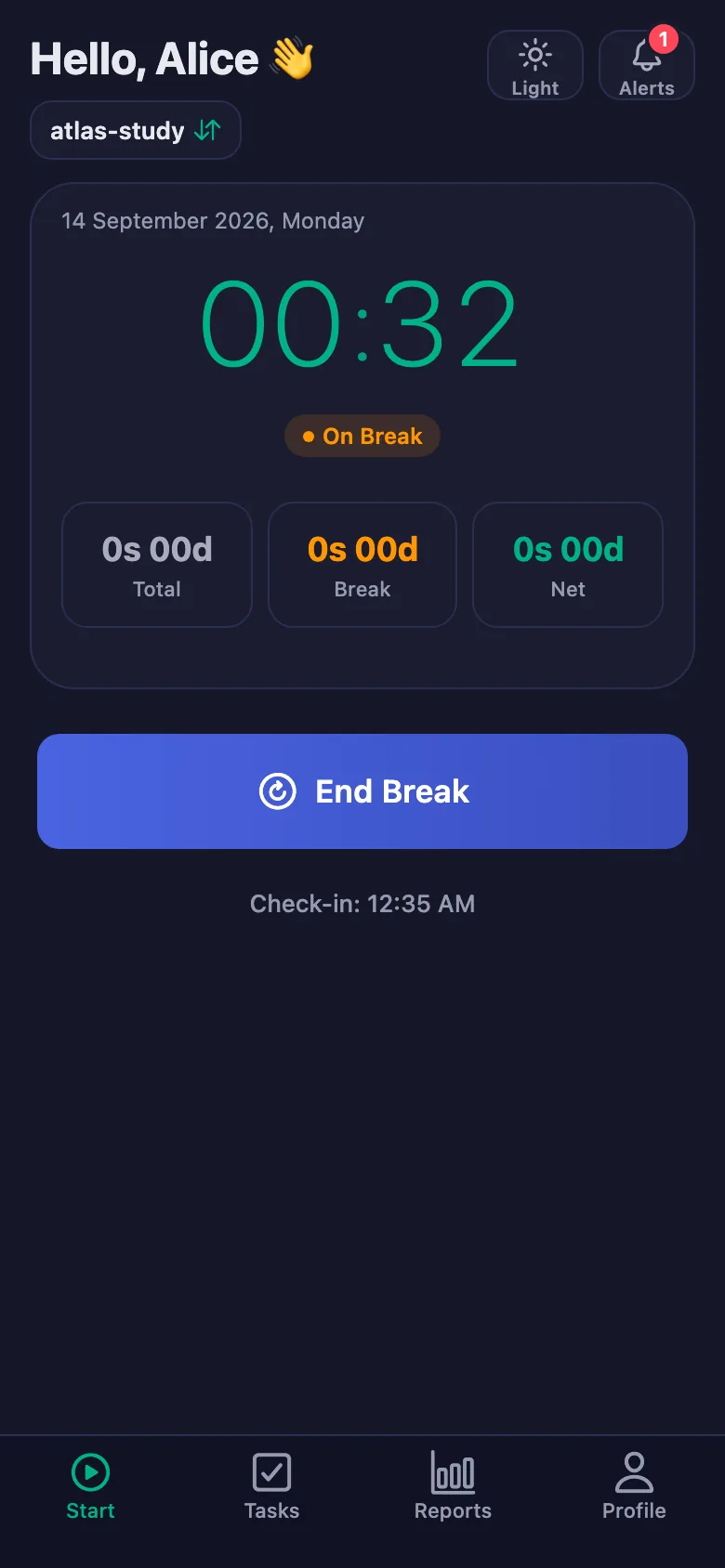
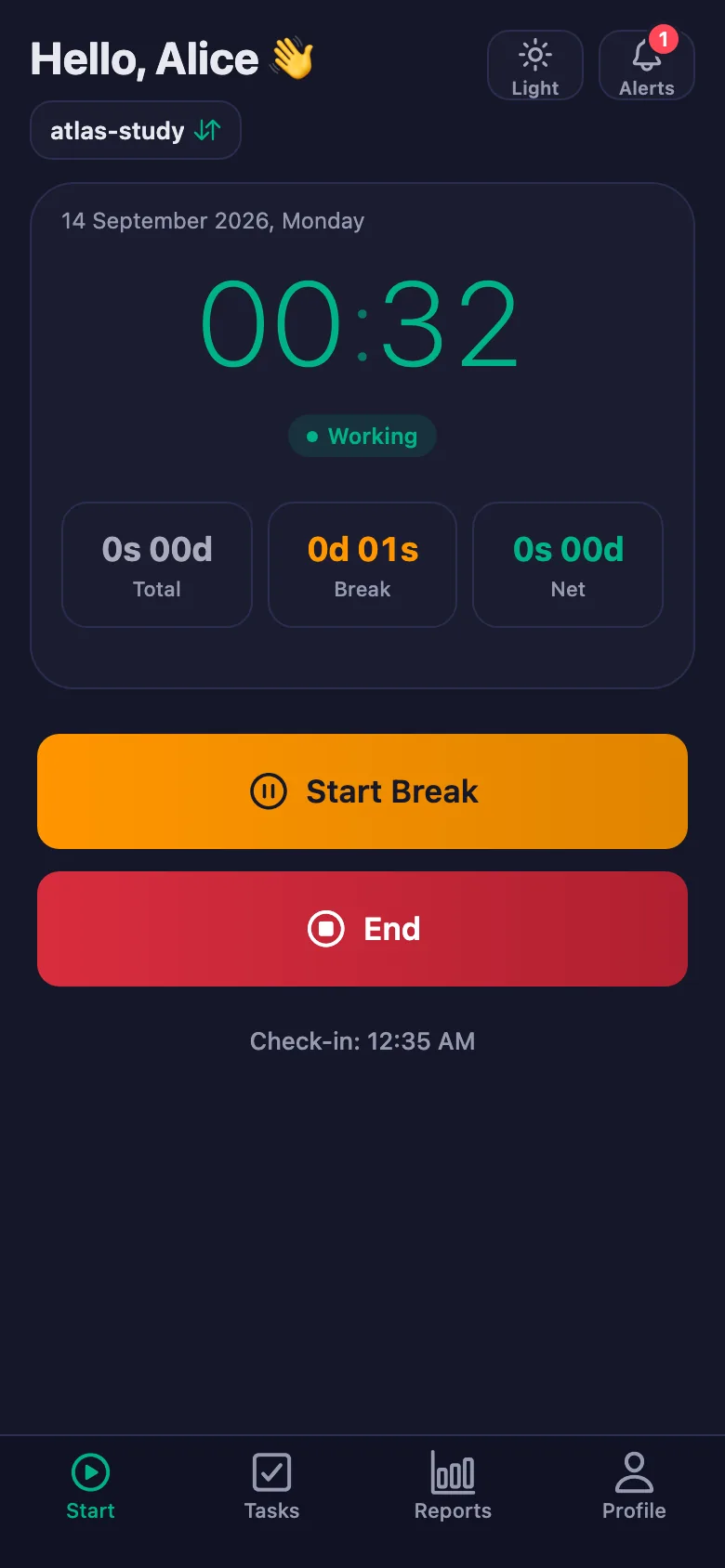
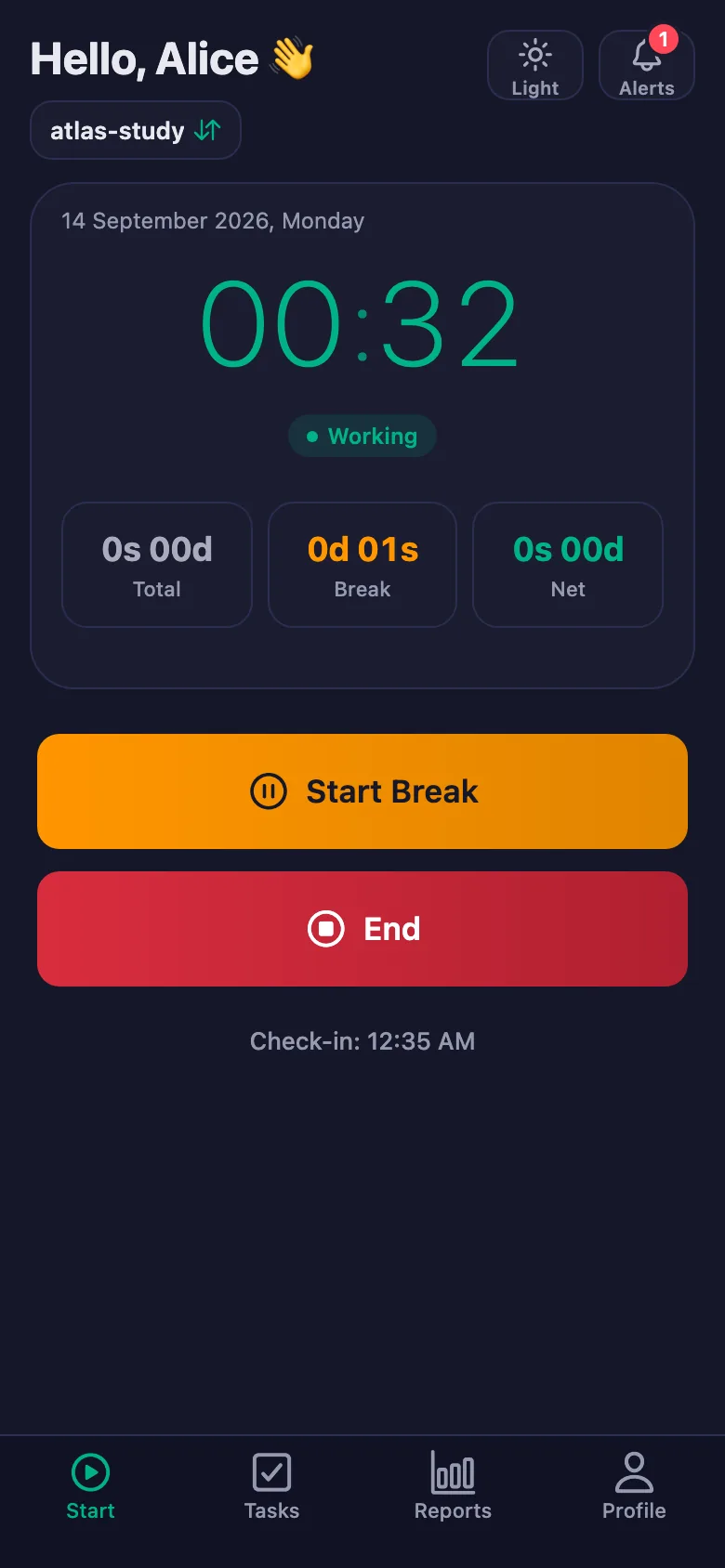
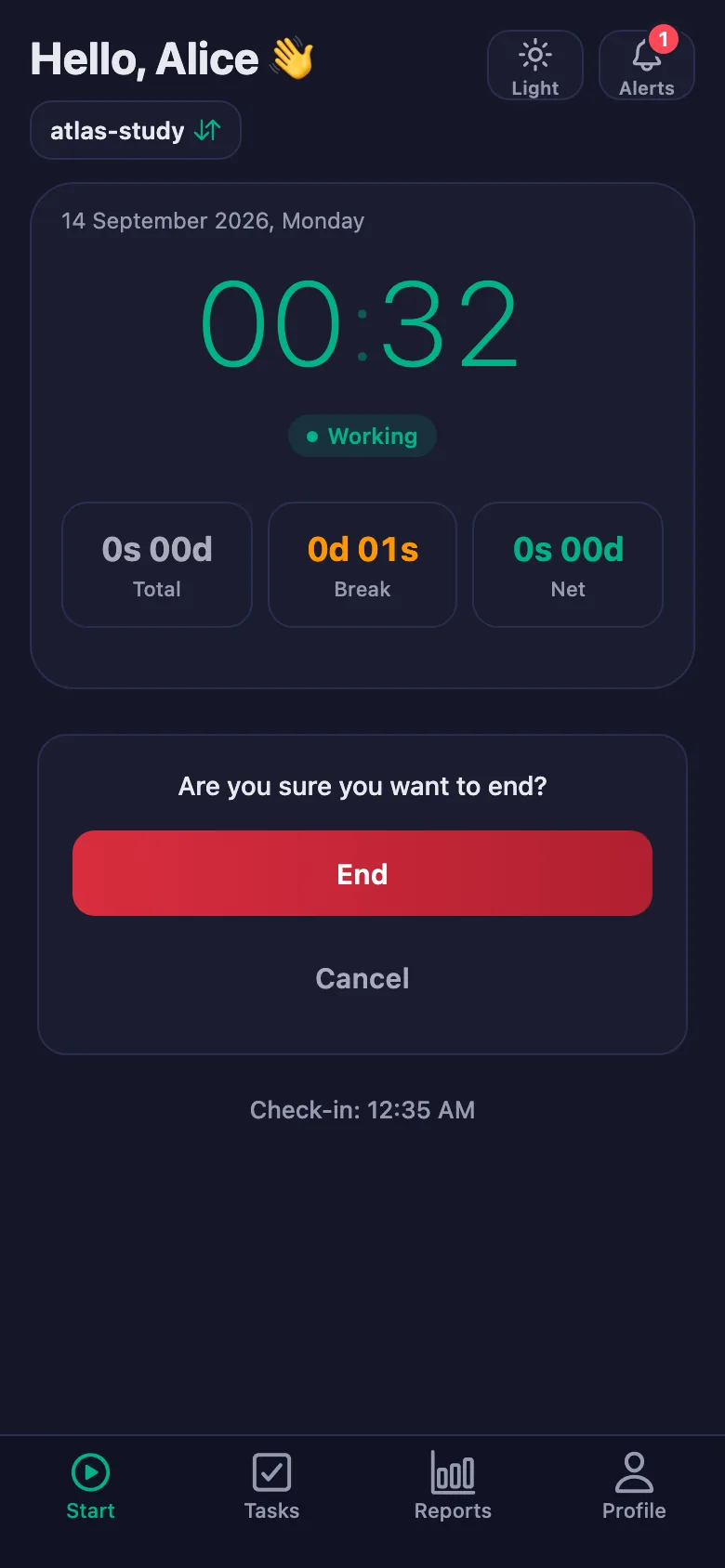
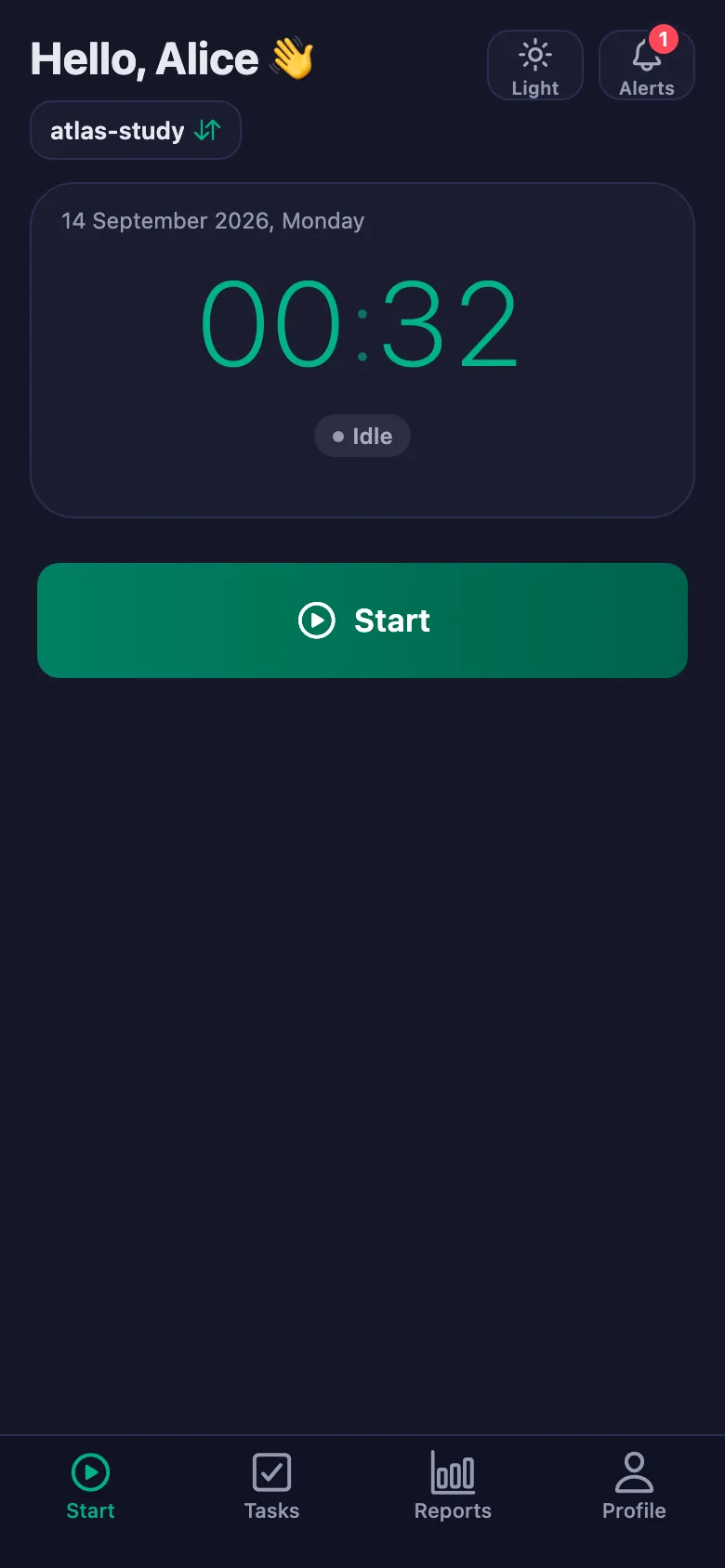
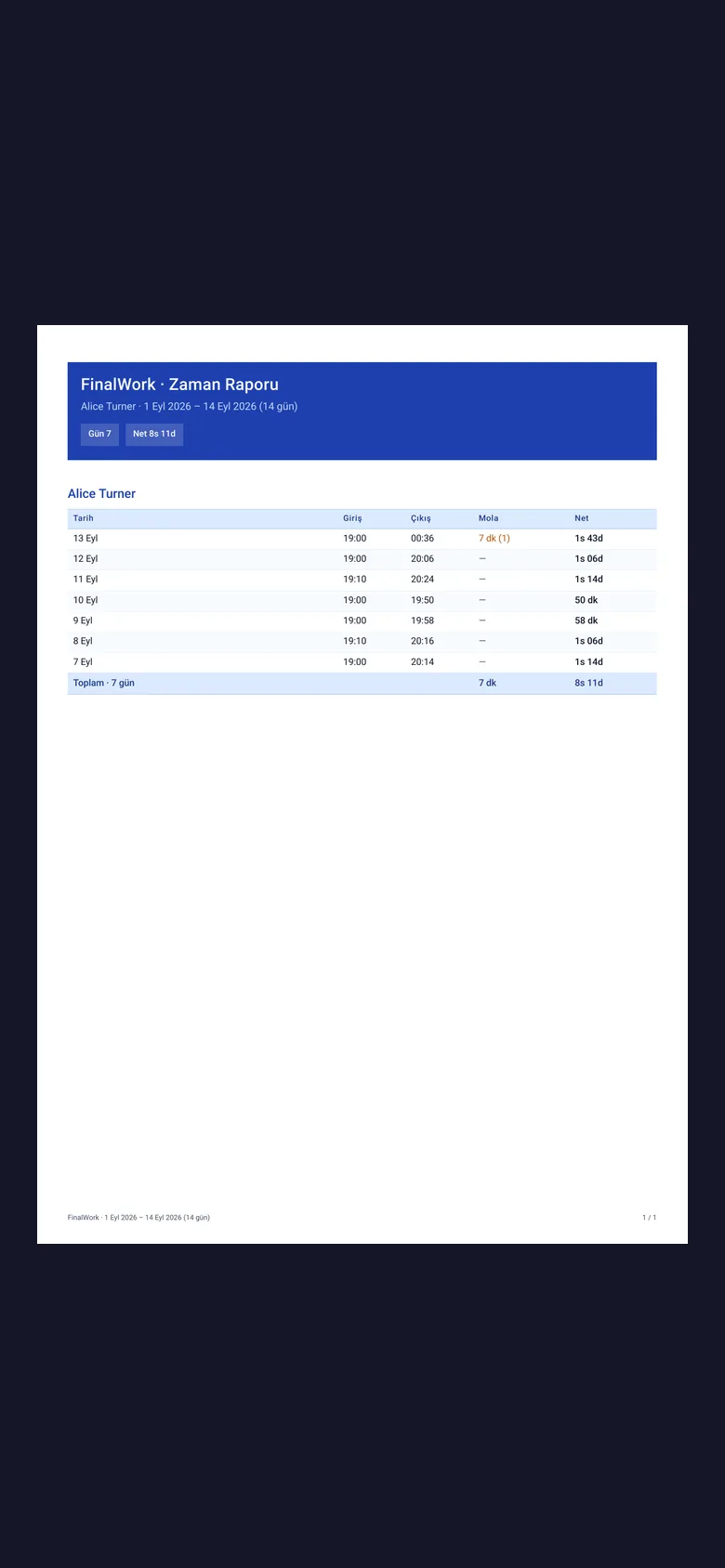
Your student starts the timer when they begin studying and stops it when they finish. Breaks are counted separately and deducted from net time.
Homework gets forgotten; reminding means messaging the parents' group one by one.
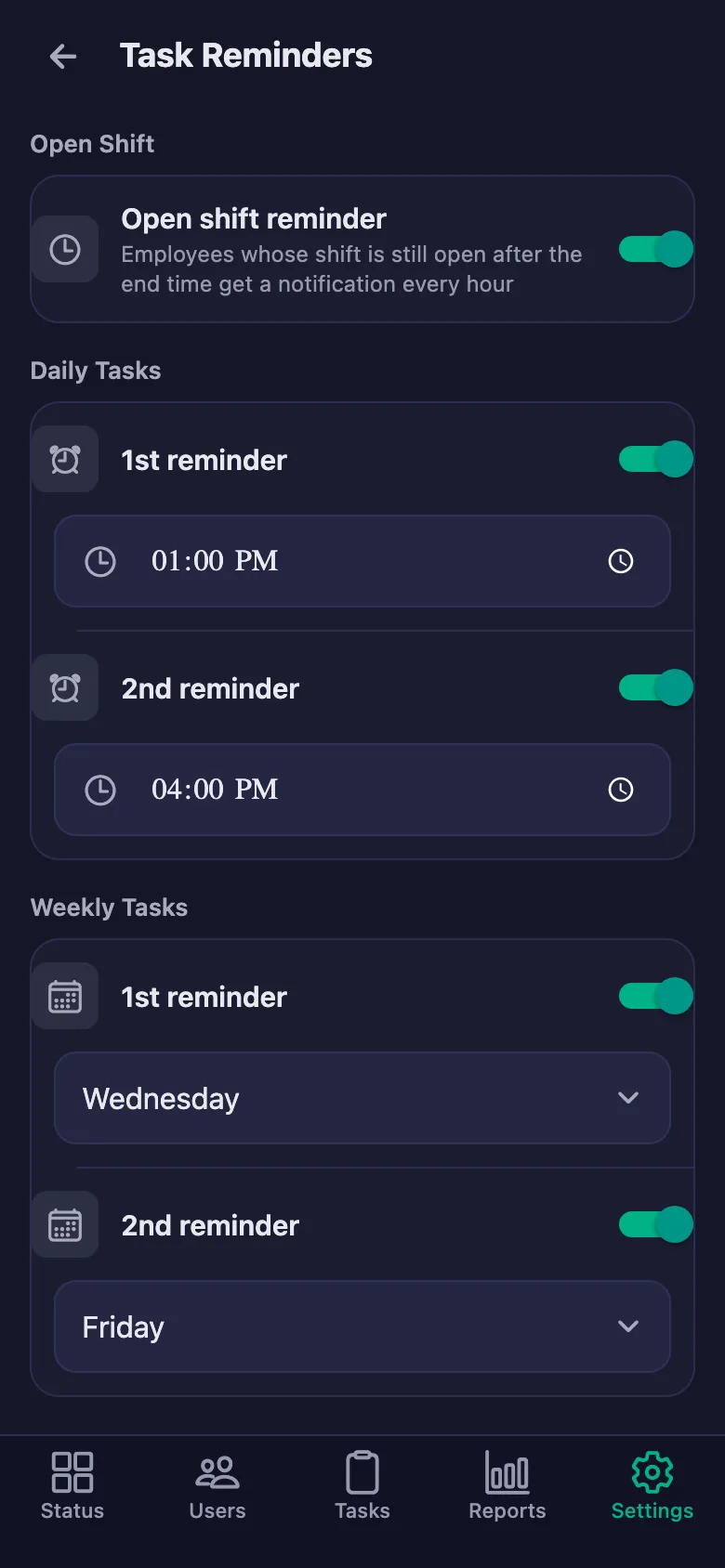
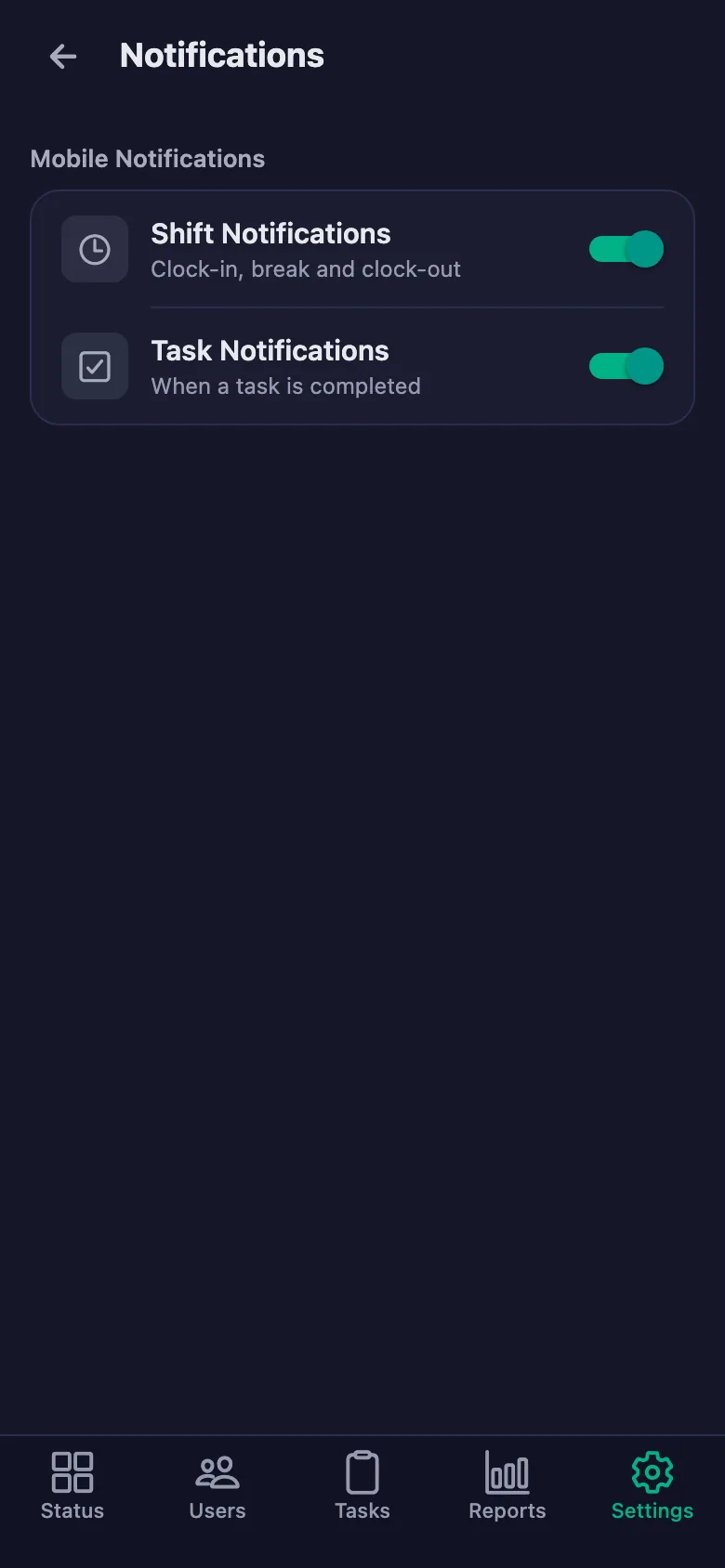
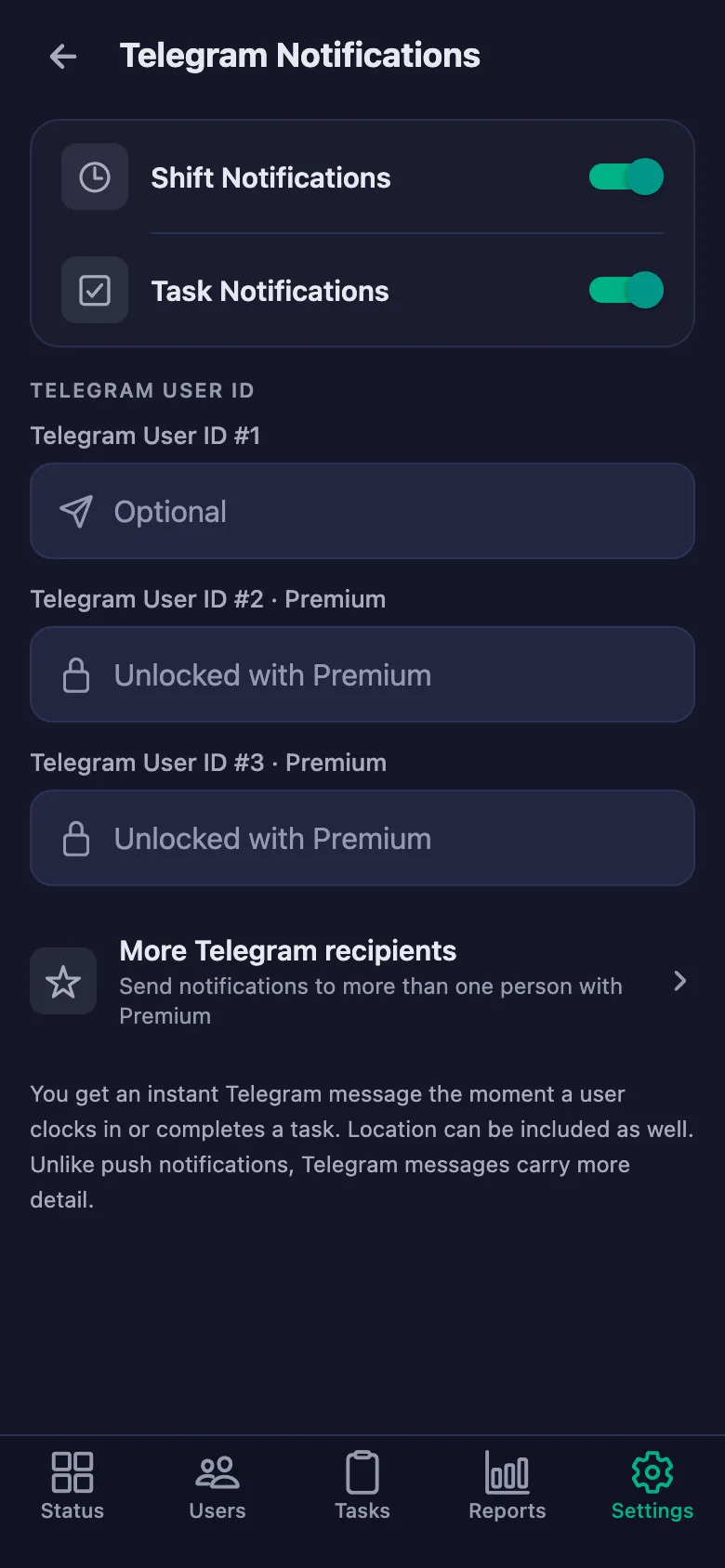
You choose the reminder times. If homework is still undone at that hour, a notification lands on your student's phone — you don't send a message.
Getting ready for a parents' meeting means digging through notebooks and notes.
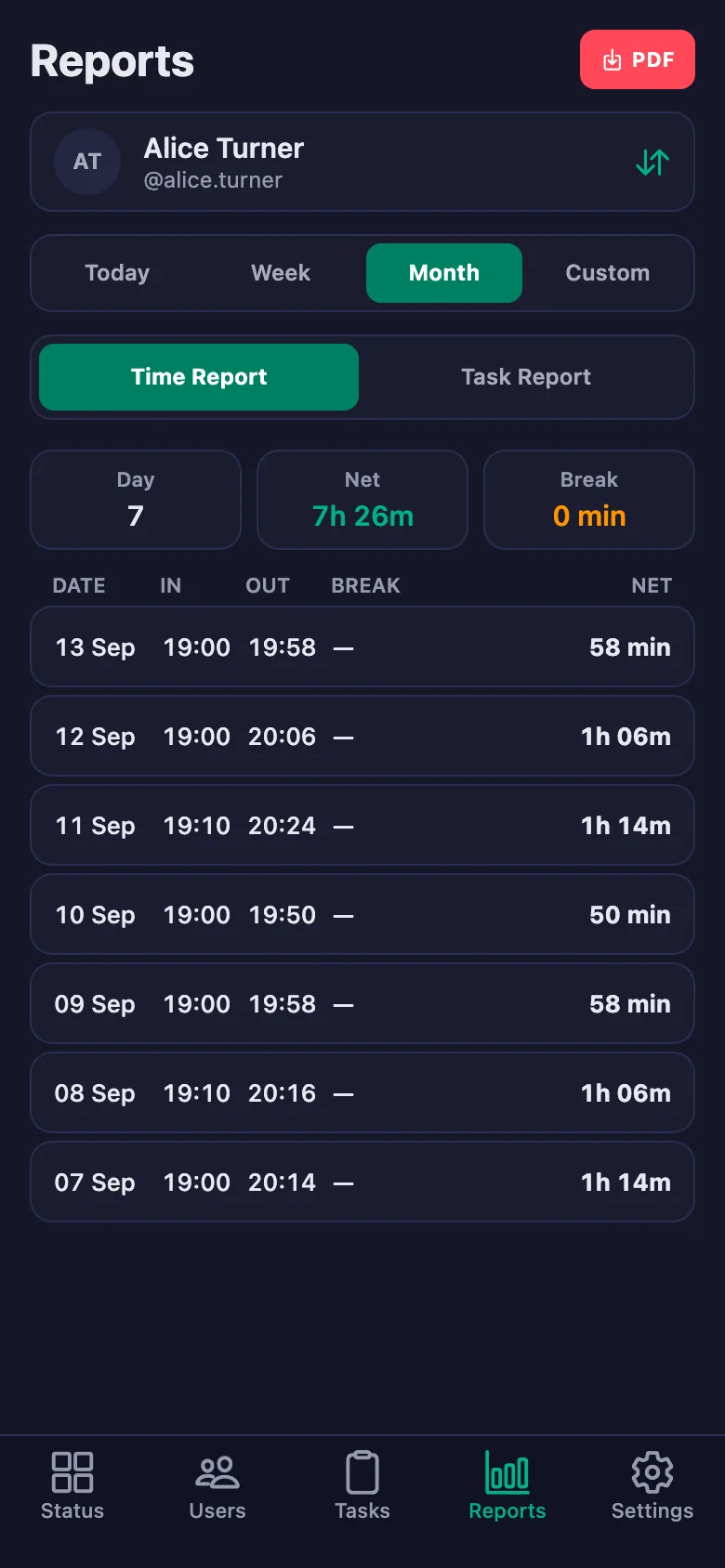
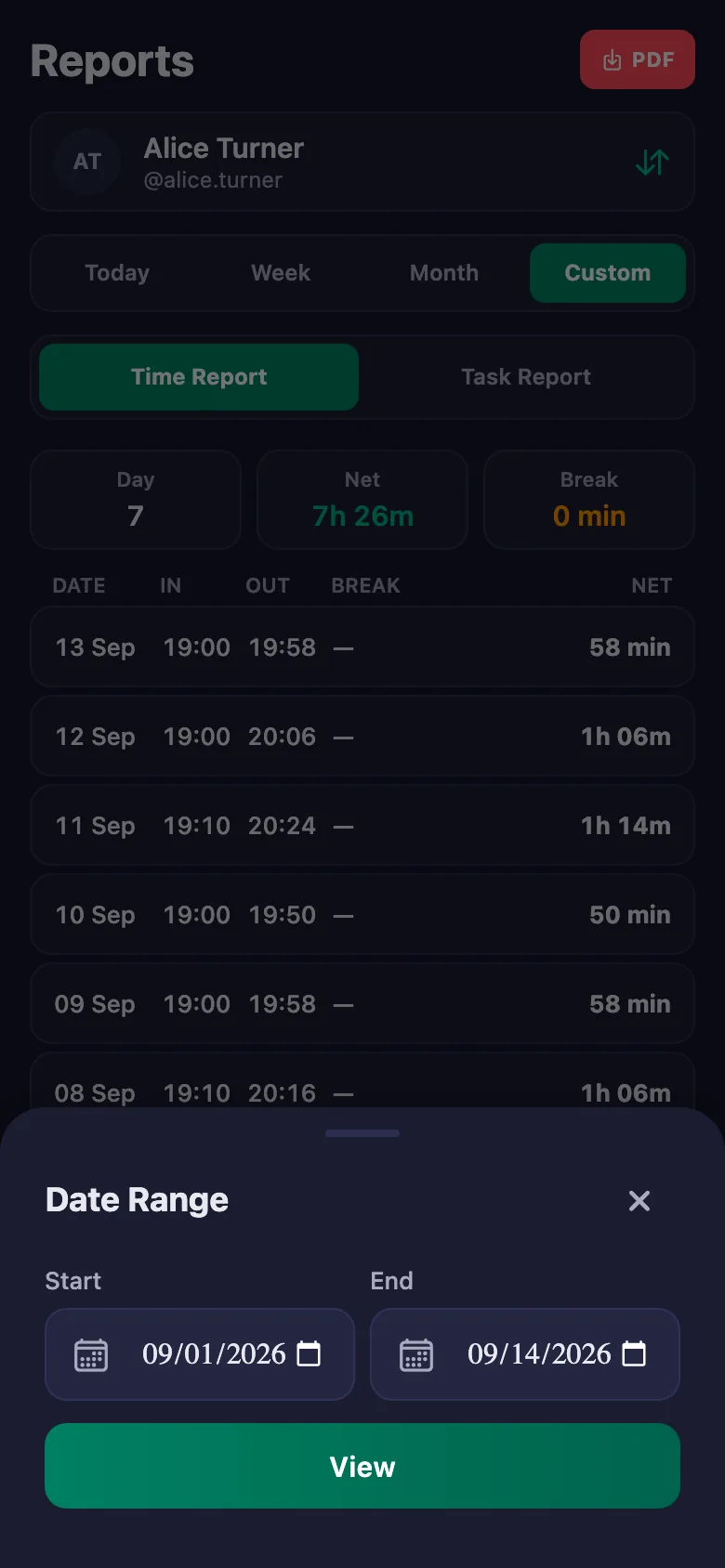
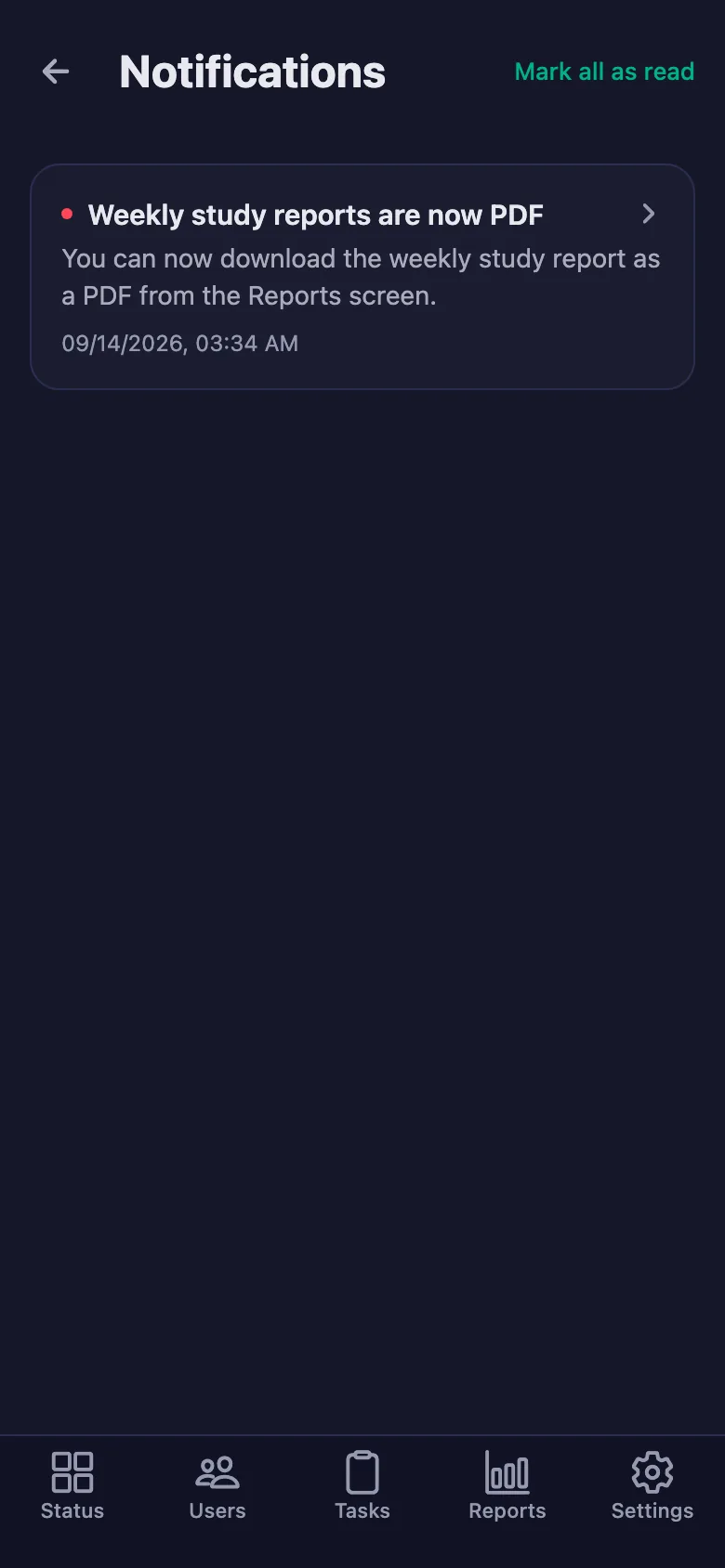
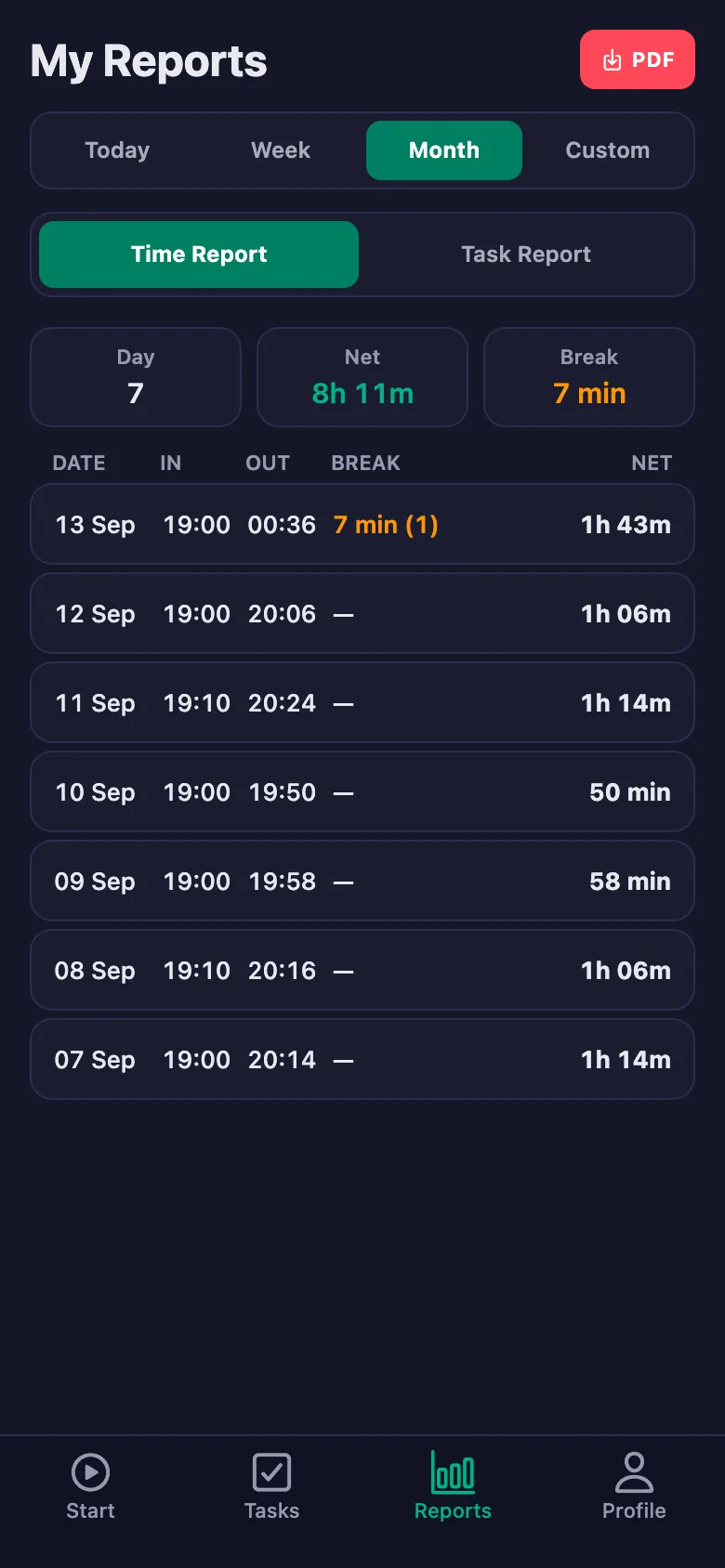
Pick a date range and the report appears on screen. Download the same report as a PDF and share it with the parents.
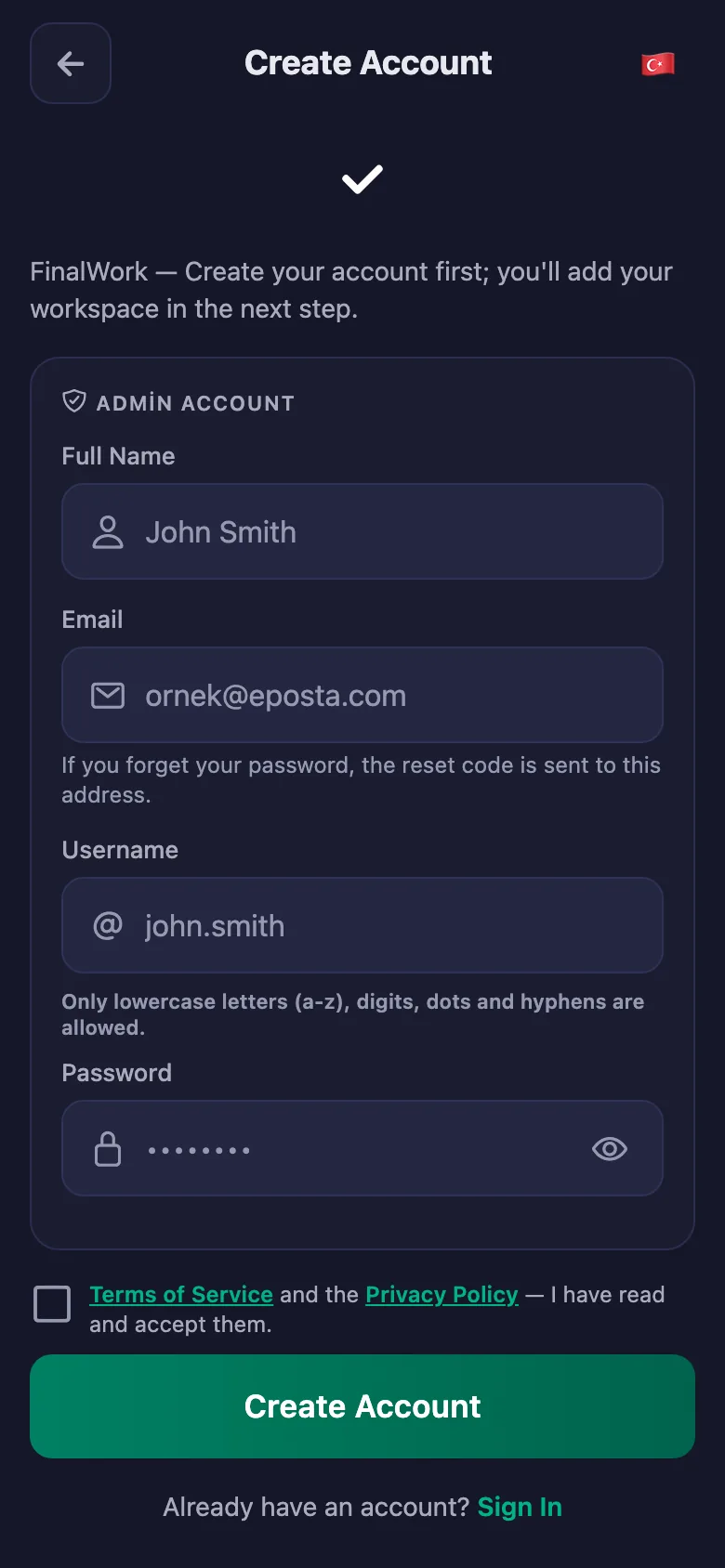
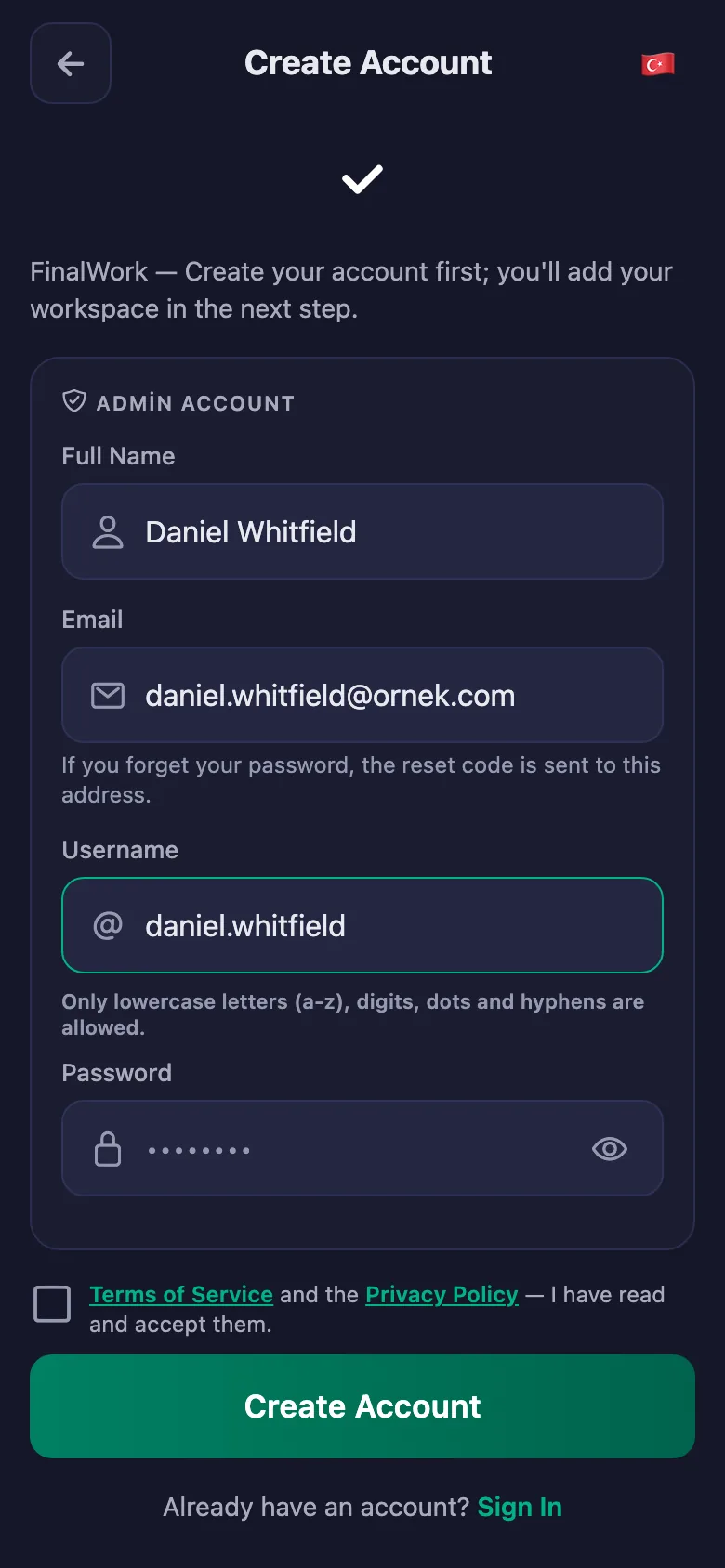
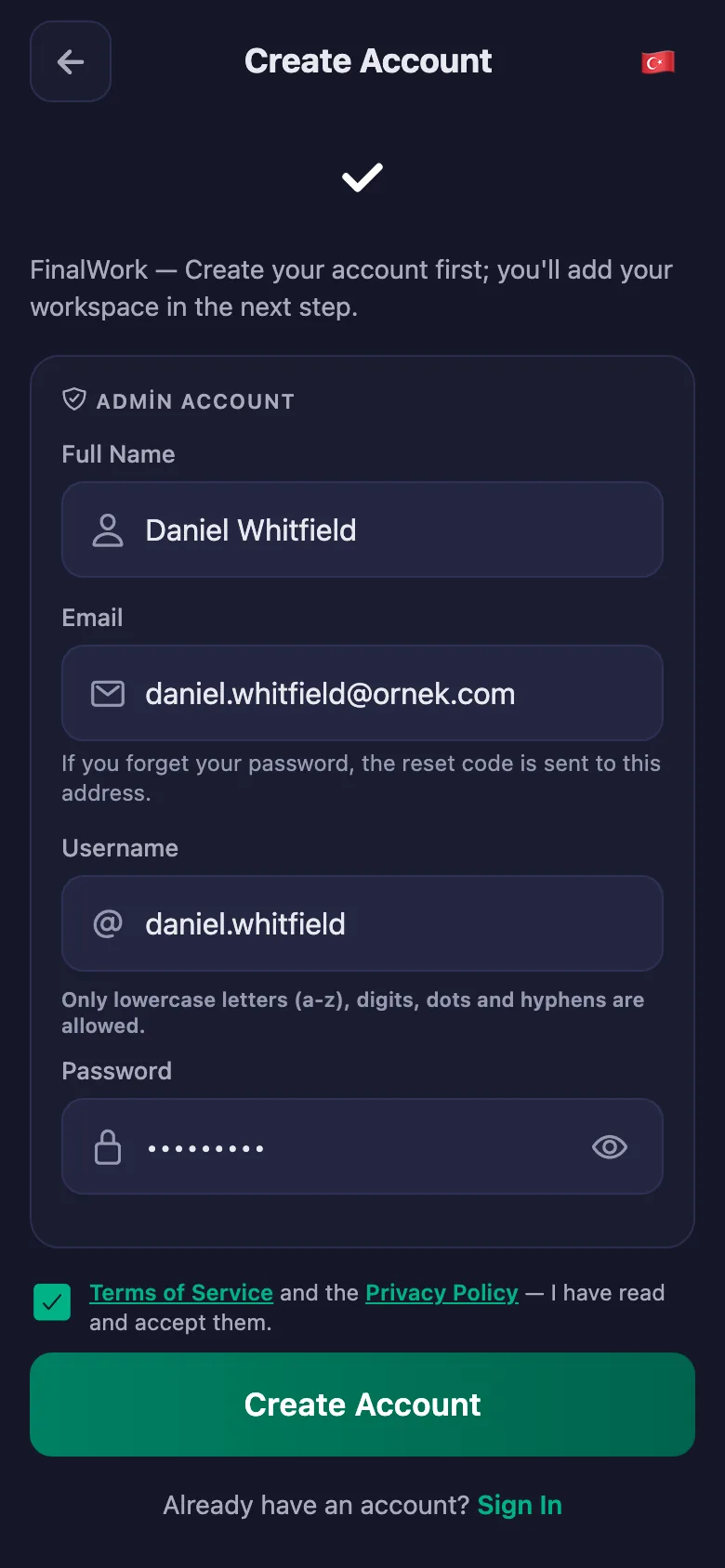
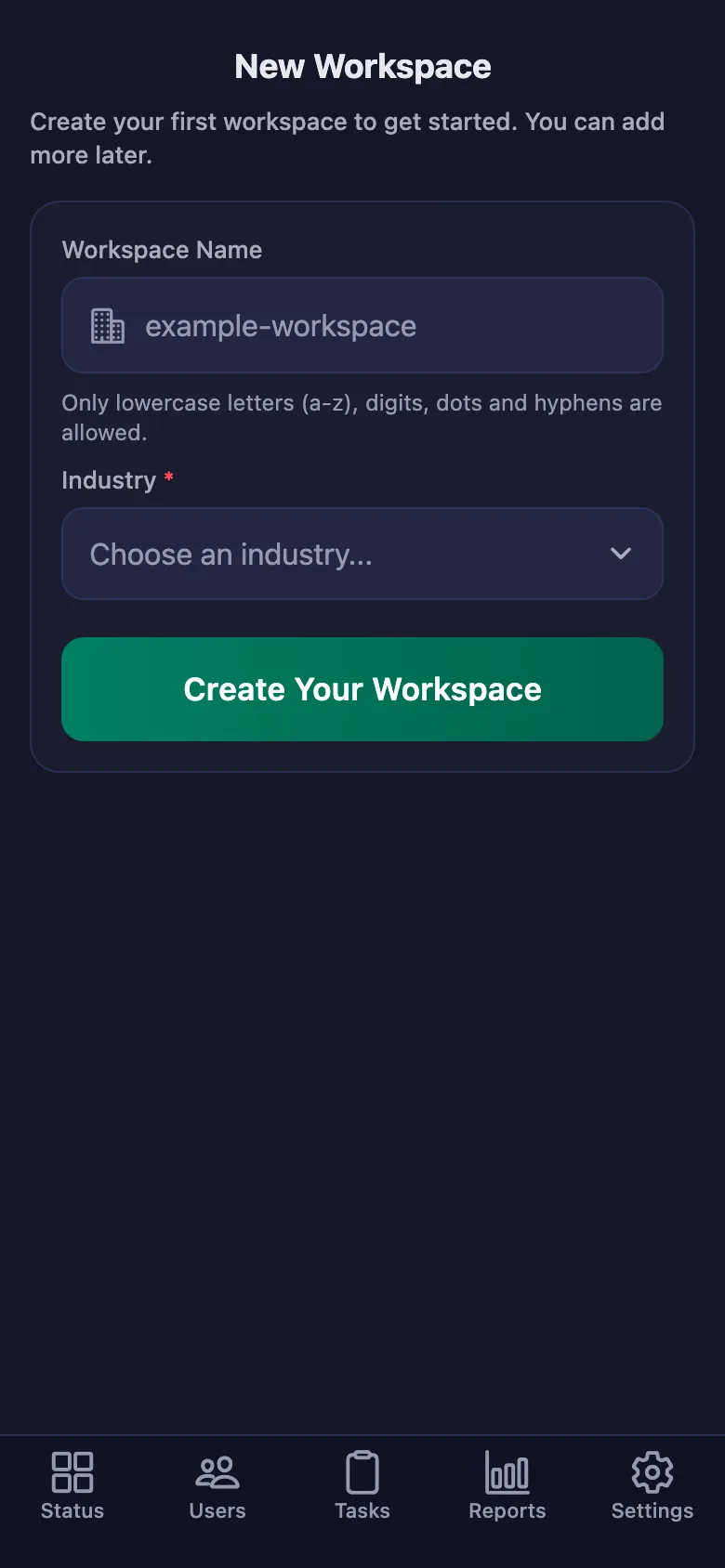
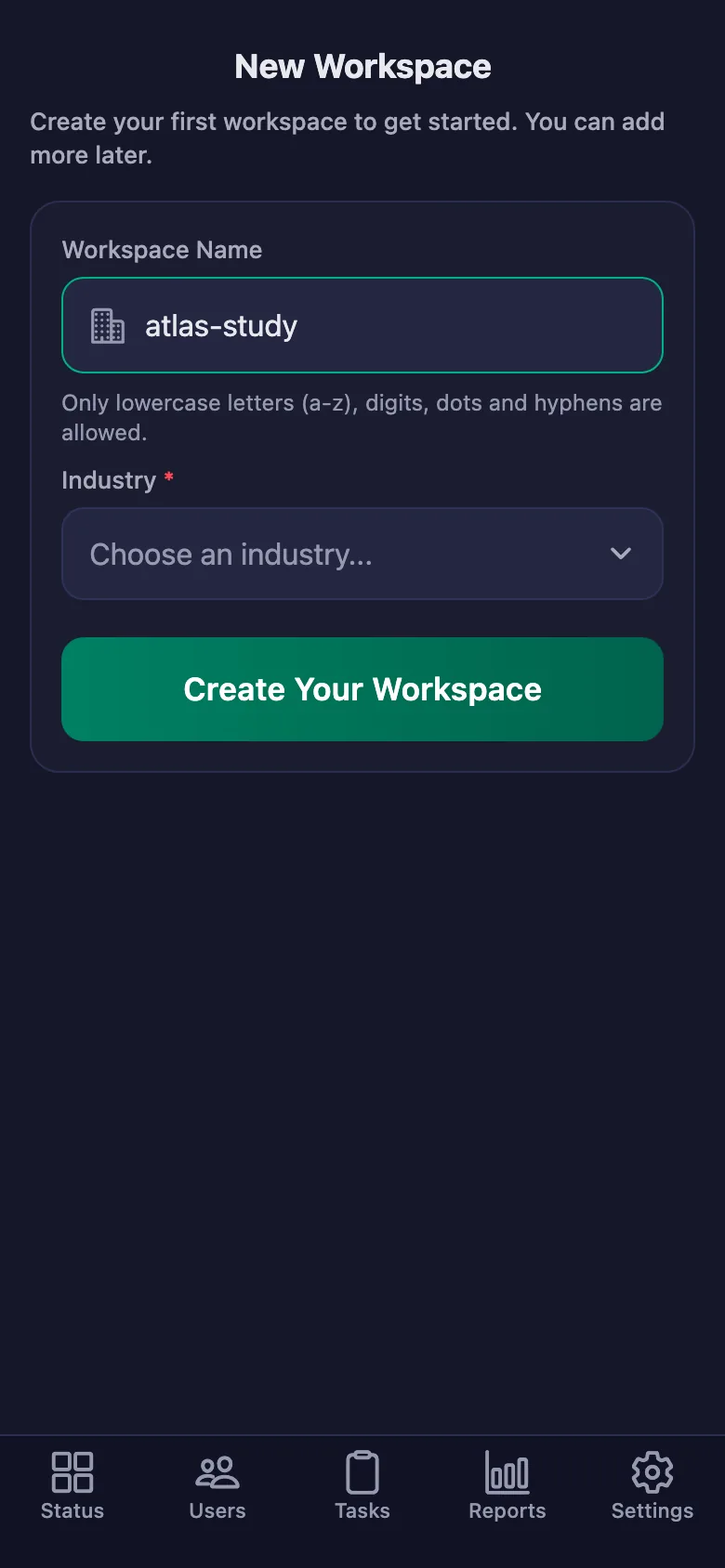
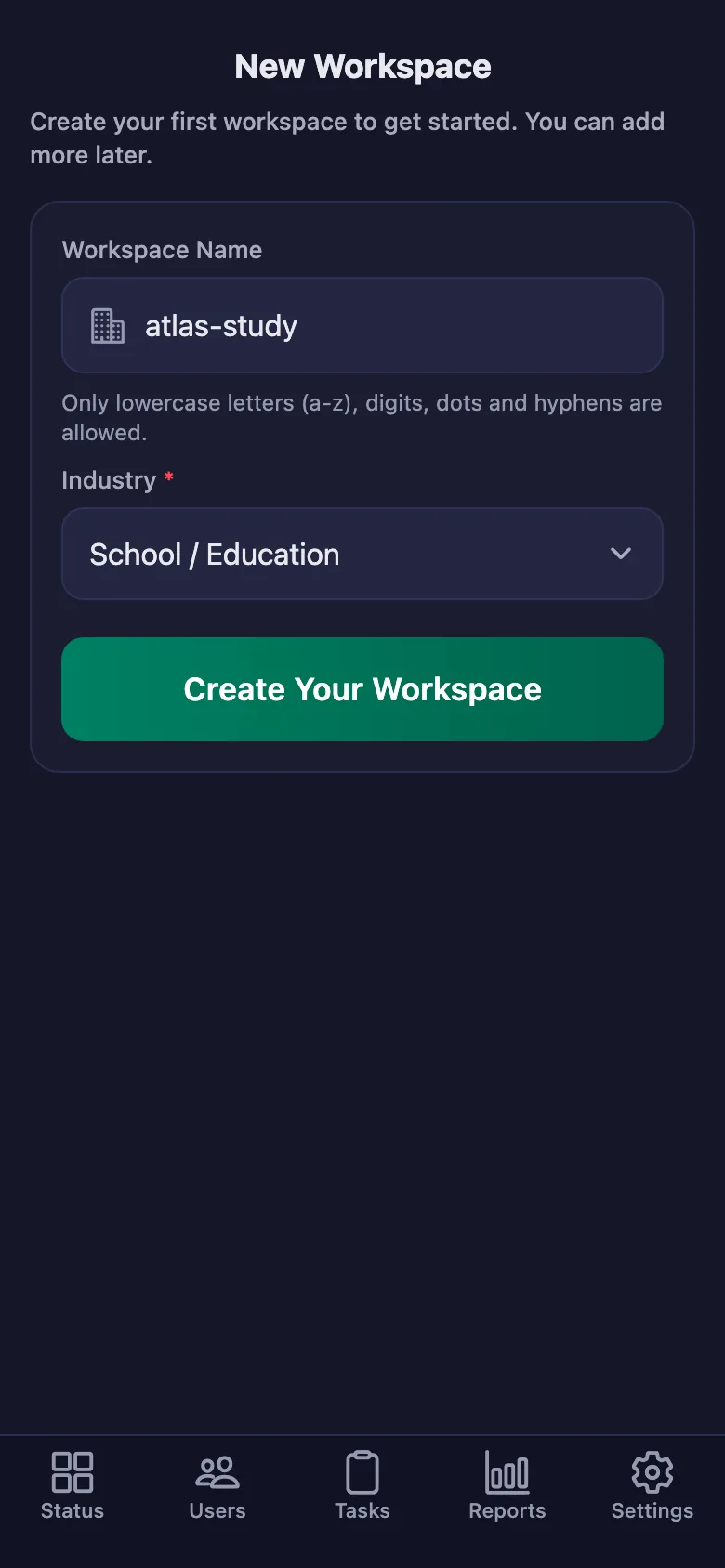
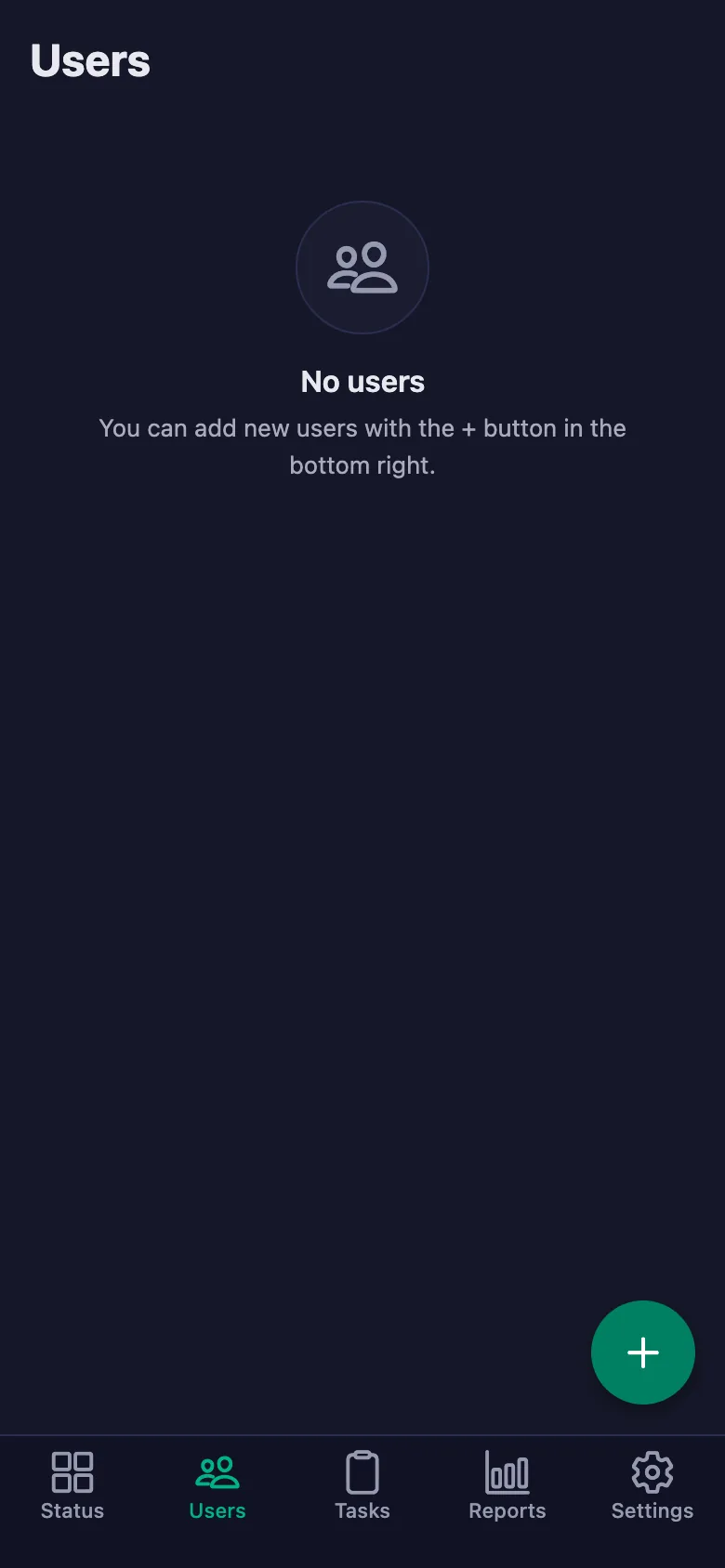
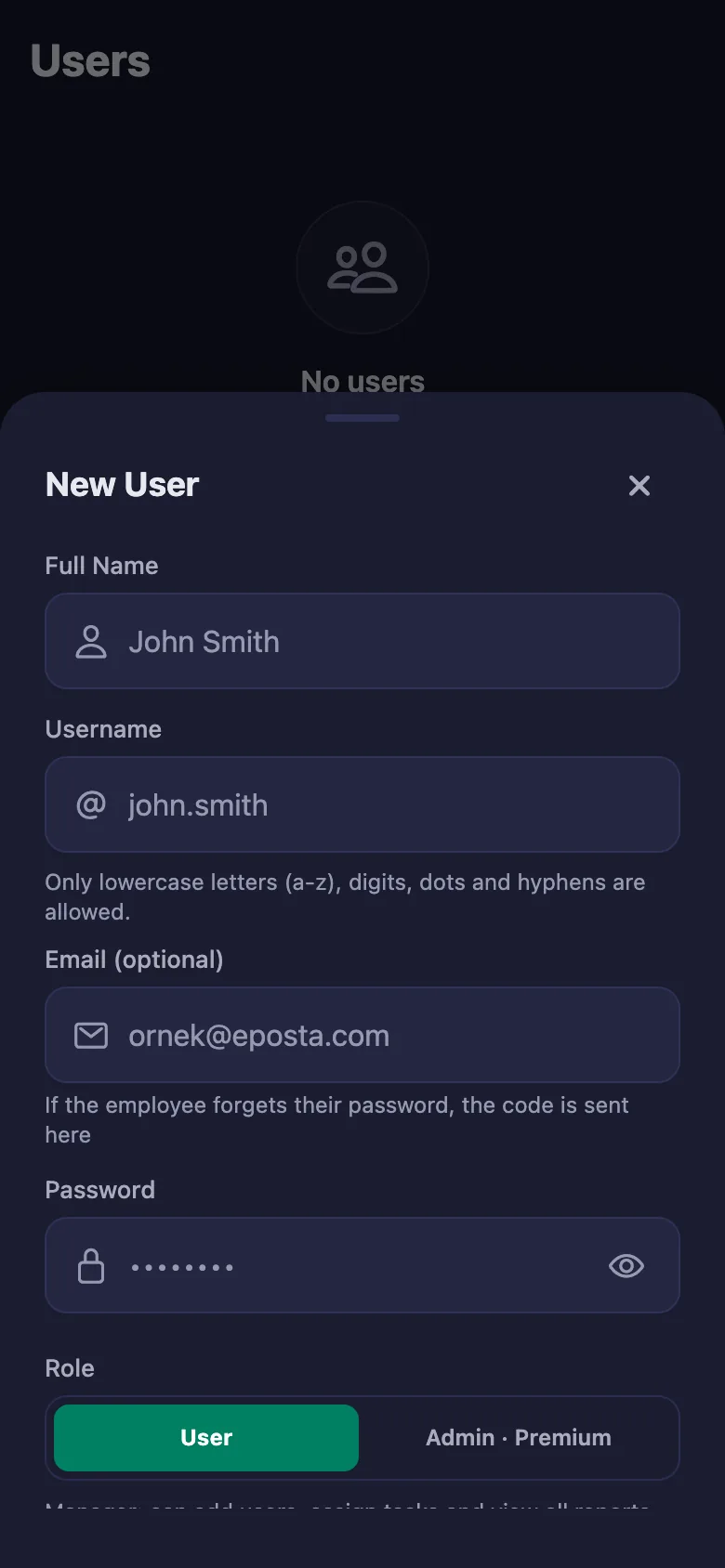
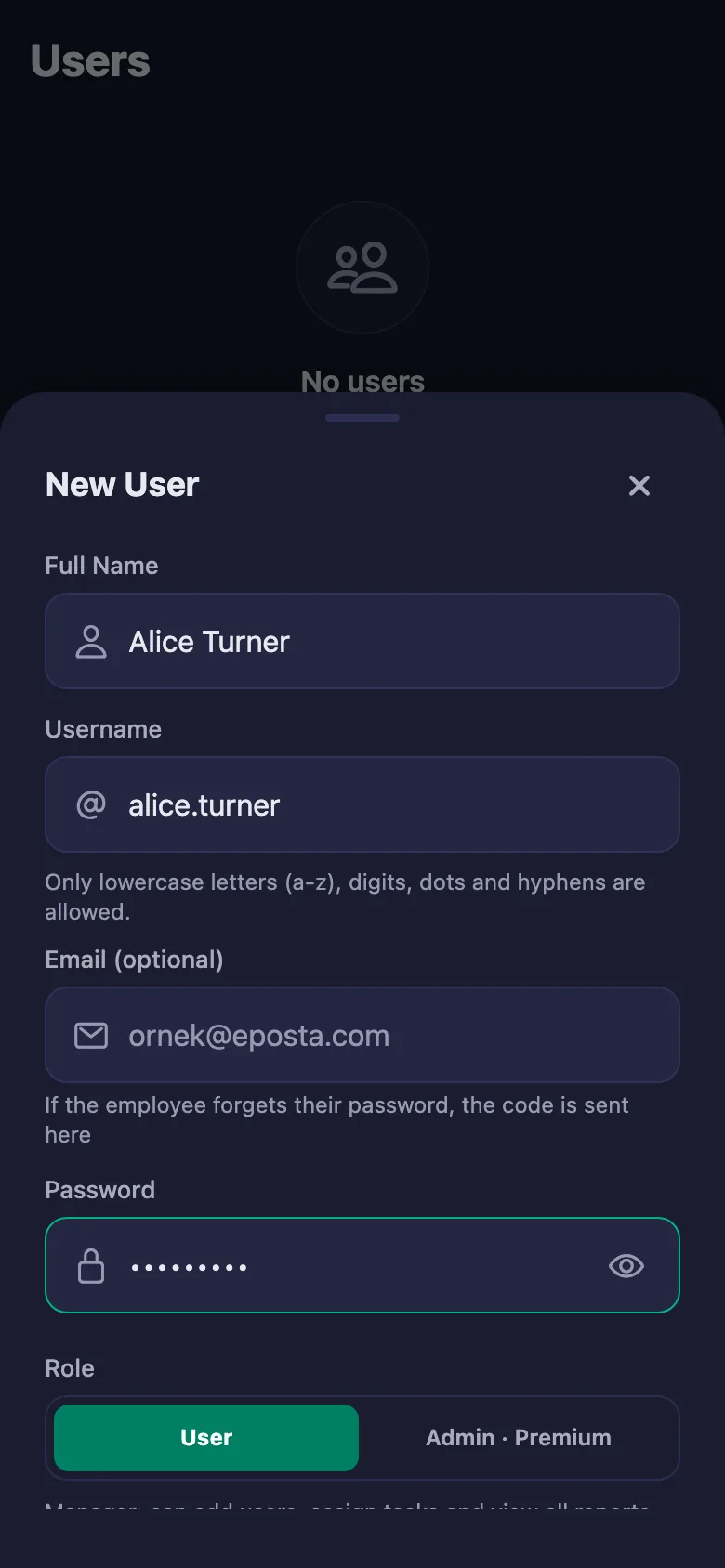
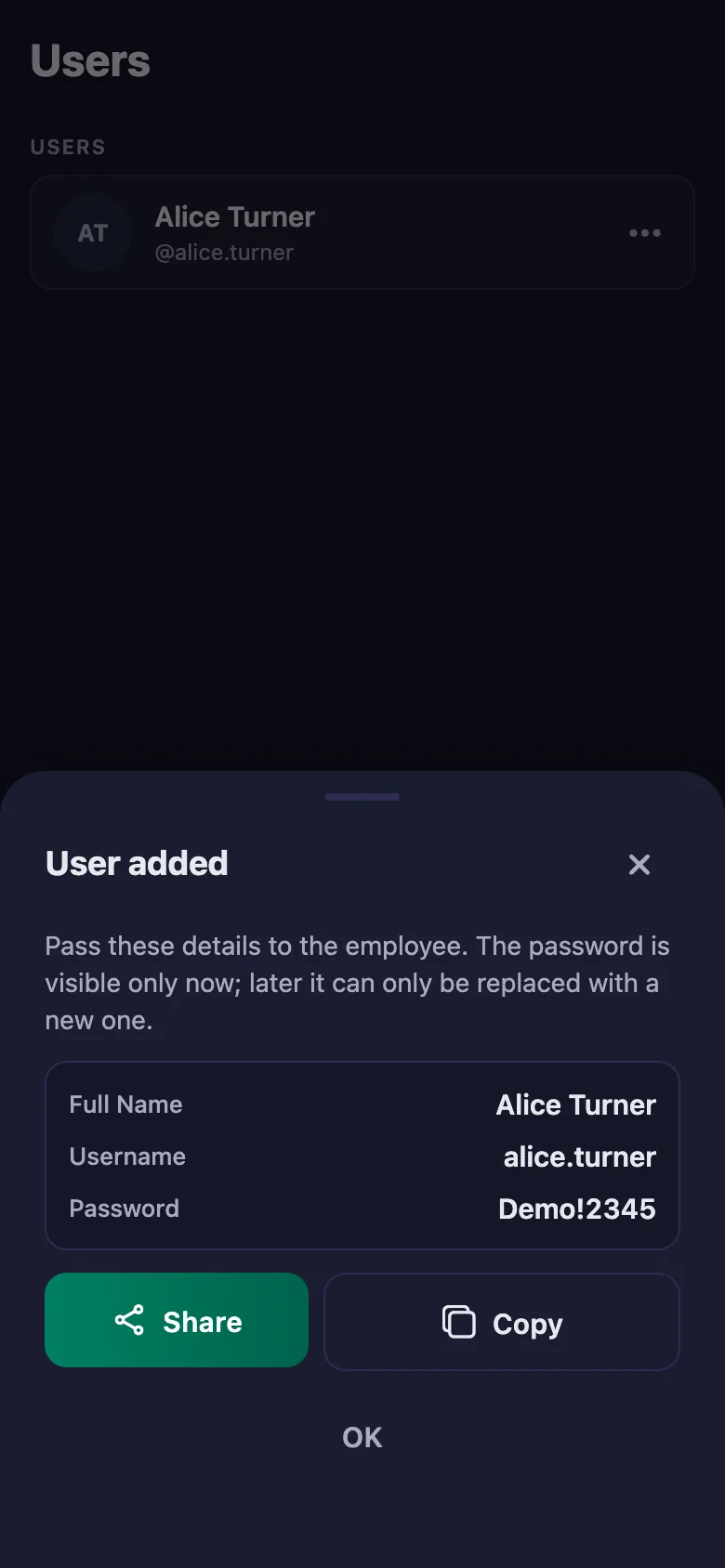
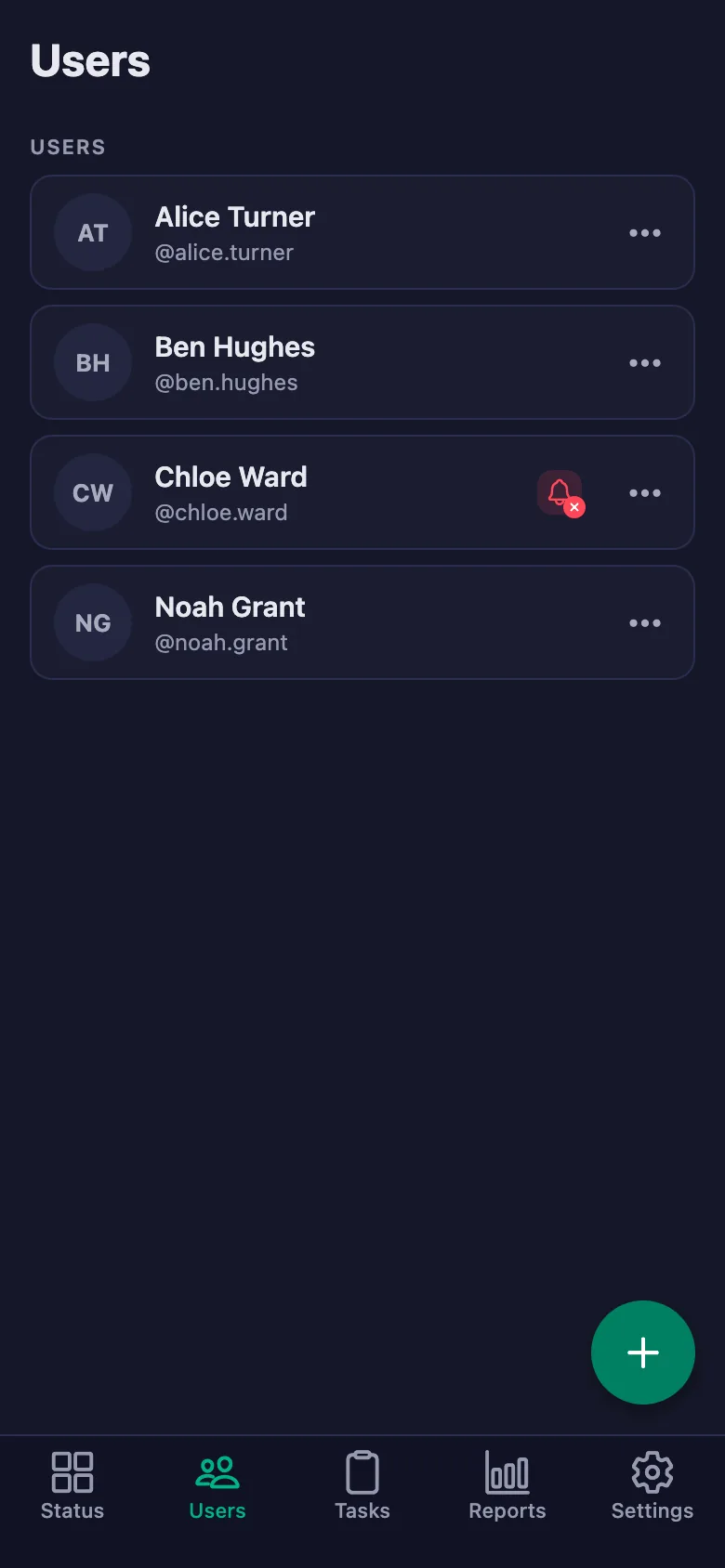
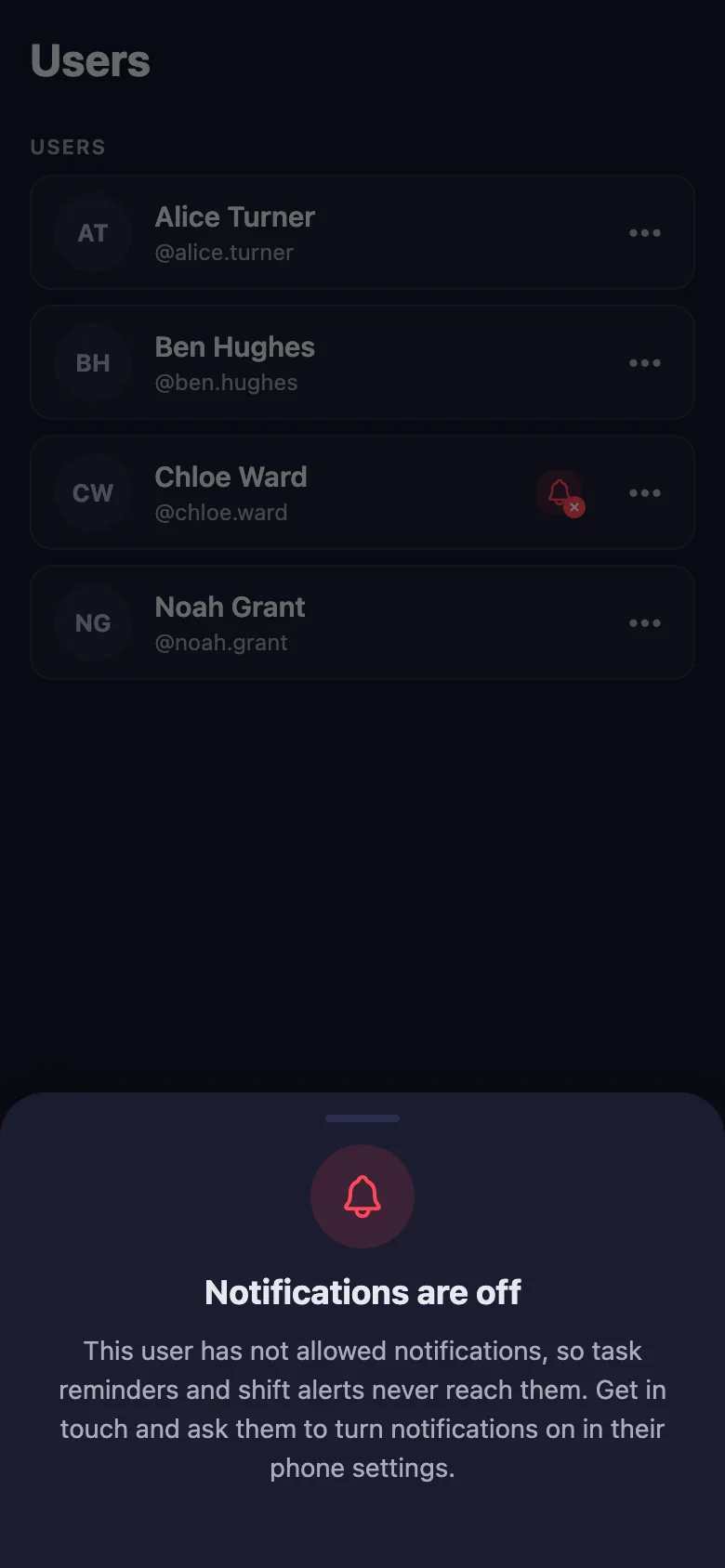
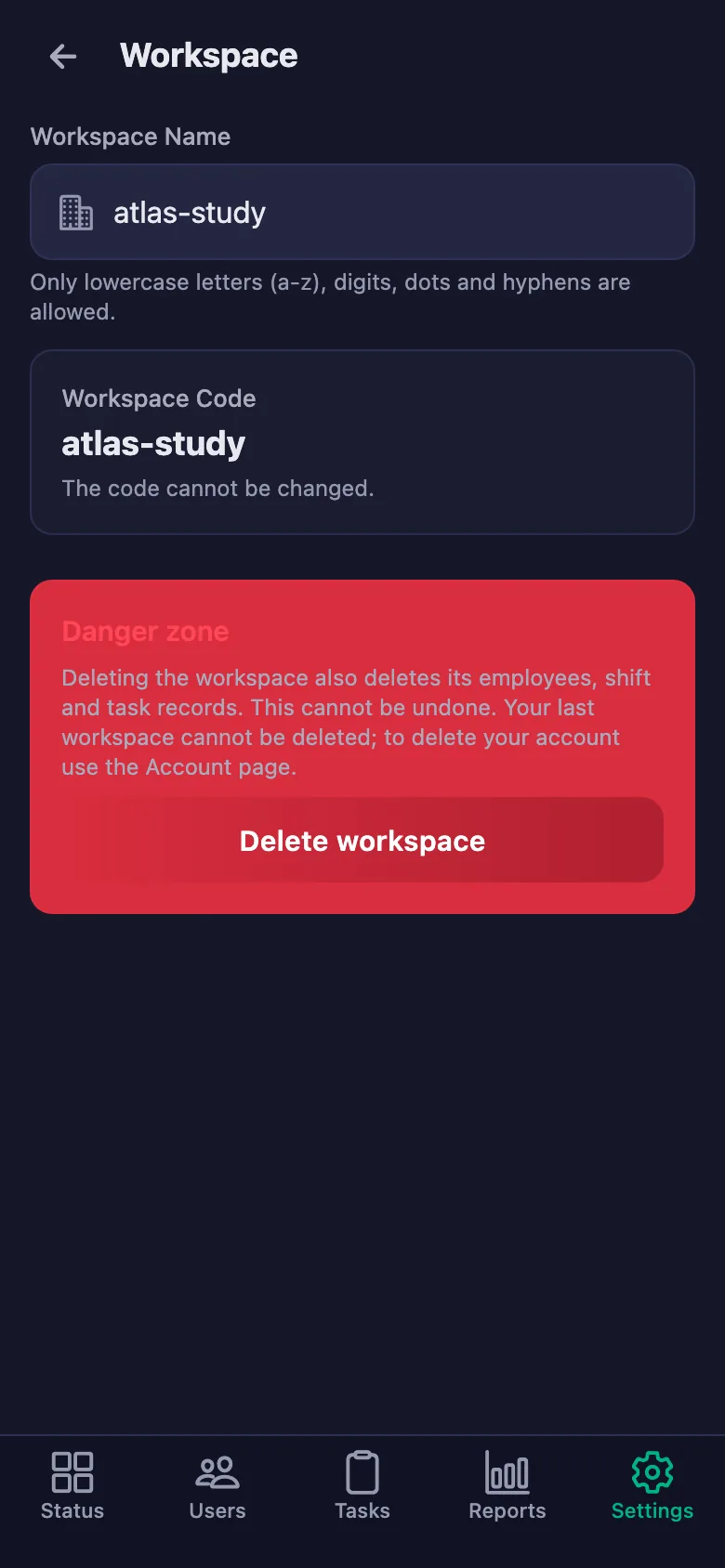
Setup and activation take just one minute — you can start free. Below you can watch how it all works, step by step, on the app's real screens.
Teacher – Student App Demo
 FinalWork — Task reminder
You have 3 unfinished daily tasks.
FinalWork — Task reminder
You have 3 unfinished daily tasks.
Does my student need the app on their phone?
Yes — your student ticks the homework off on their own phone. The app runs on iOS and Android, and it can also be used from a browser.
How do I set the homework?
You write each item as a task: daily, weekly, monthly or one-time. You can also assign the same item to the whole class at once.
Can my student write notes, and can I see them?
Yes. Your student can write a note under each item — where they got stuck, how long it took. You can see the note but not change it; the screen says so plainly: only the student can edit their note.
How many students can I add?
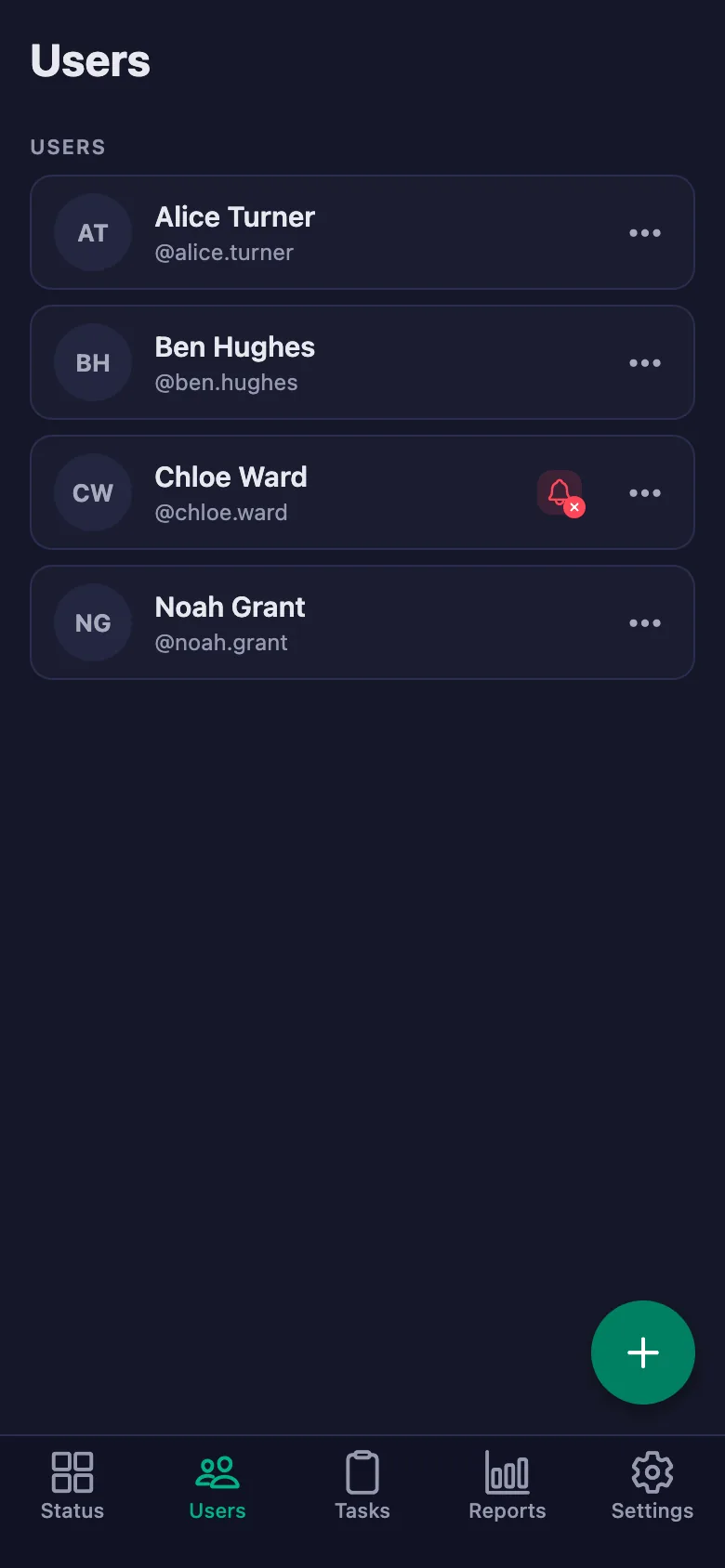
The free plan has a limited number of users; once you reach it the app warns you and no new user is added. Premium removes that limit.
How is study time measured?
Your student starts the timer when they begin and stops it when they finish. Breaks are counted separately and deducted from net time; the report shows total, break and net time separately.
Does the daily list renew on its own?
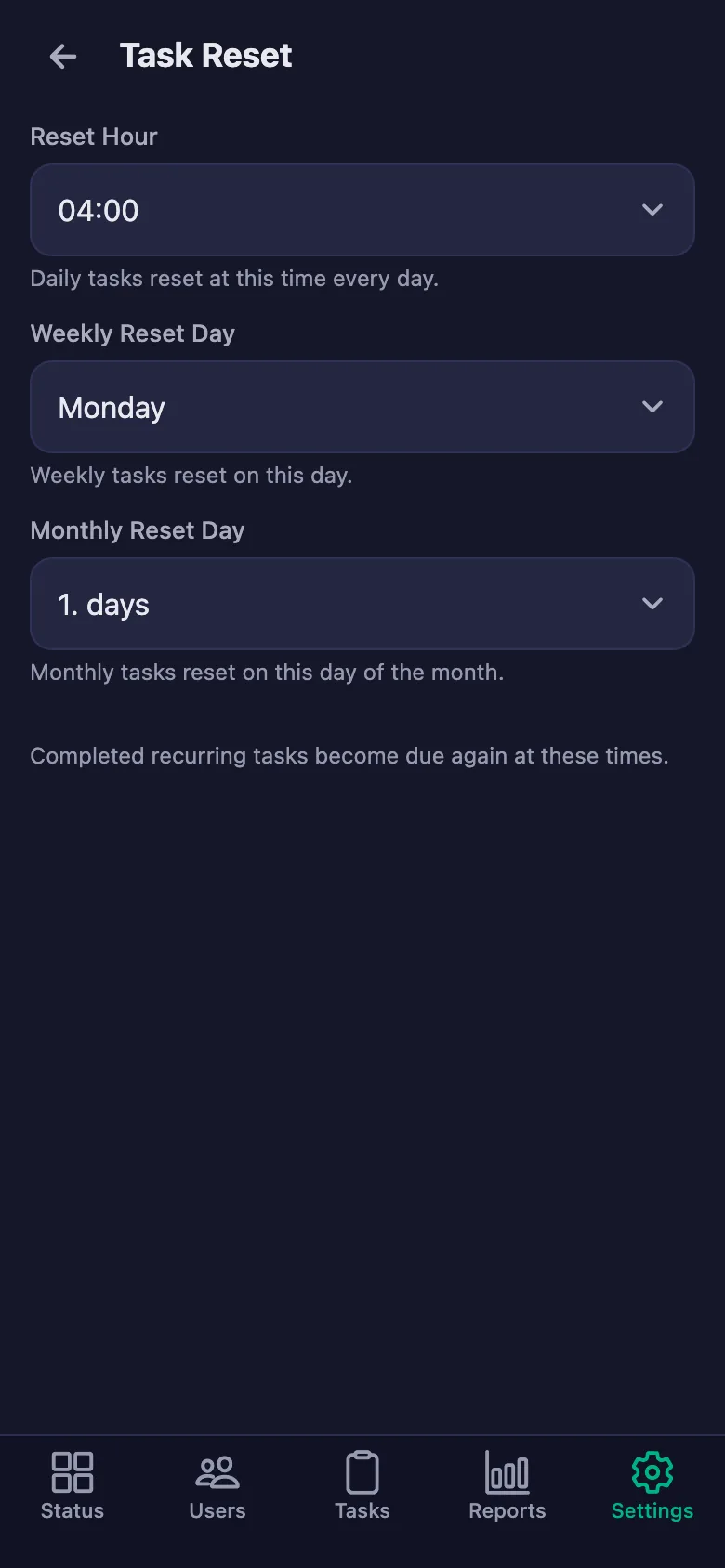
Daily items reopen every day, weekly ones every week and monthly ones every month. You choose the renewal hour and day under Settings → Task Reset.
Why do some screens say “shift”?
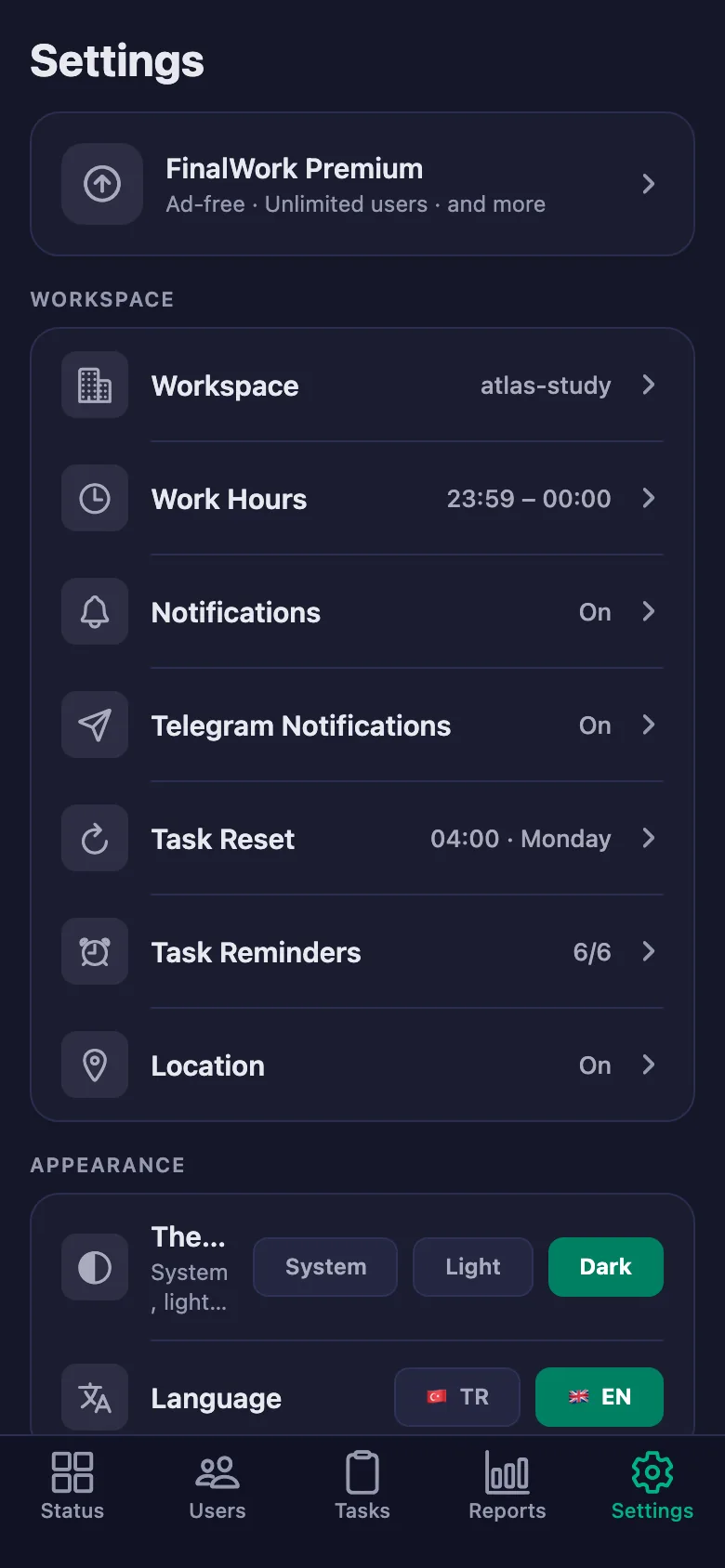
The app is also used for shift tracking, so a few settings screens use the word “shift”. In a teacher's use that timer records study time; everything else works the same way.
Set up your class today
Setup and activation take just one minute — you can start free. Open the account, add your first student, and let tonight's homework be ticked off.