What happened after the session?
Everything is clear in the session; the real question is what survives two weeks later. FinalWork keeps your client's daily steps, their notes and the time they put in all in one place, so you start the next session with a record rather than a guess.
Sound familiar?
The session lasts an hour; the gap in between lasts fourteen days. Most coaches live with the following — on the right is what each one looks like in FinalWork.
You note the steps at the end of the session and your client writes them in their own notebook. Two weeks later the two lists do not match.
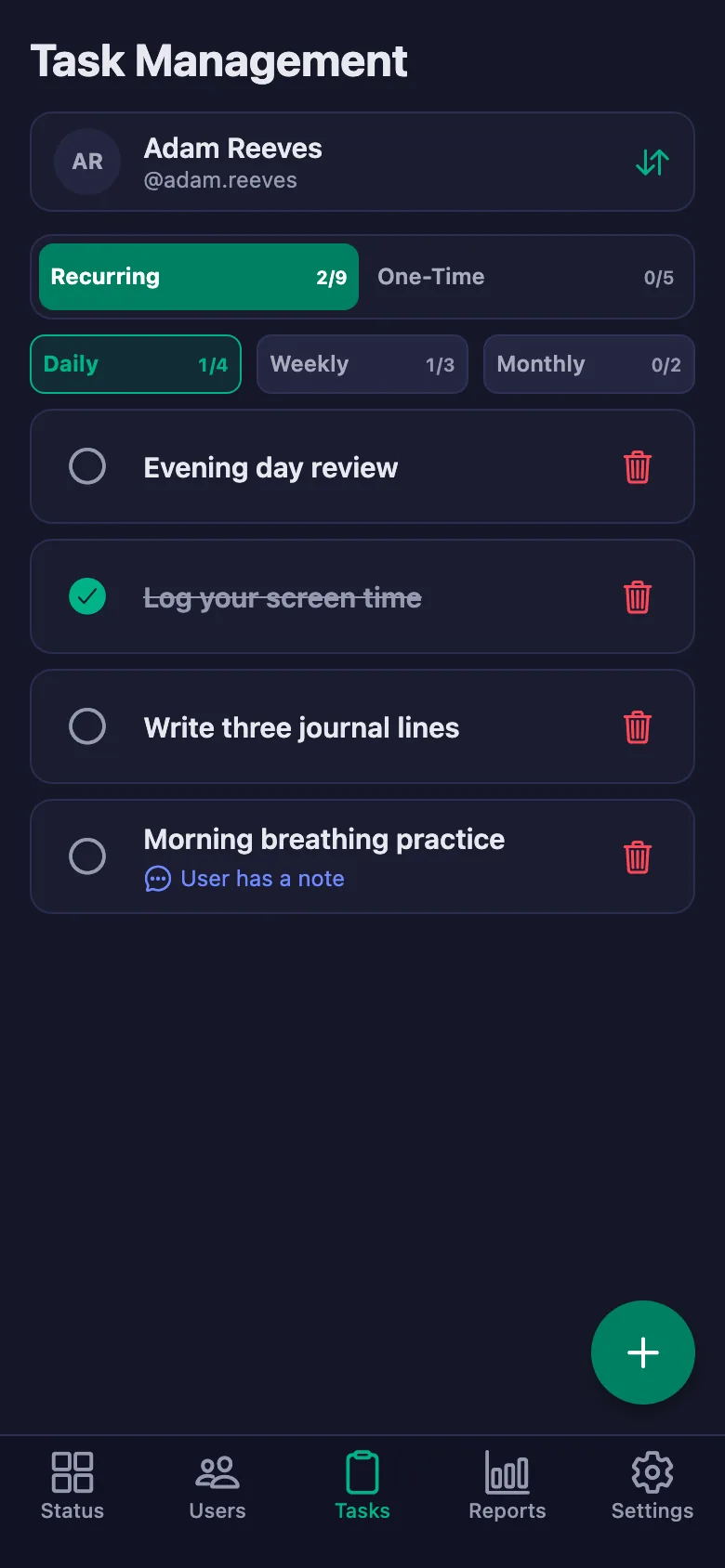
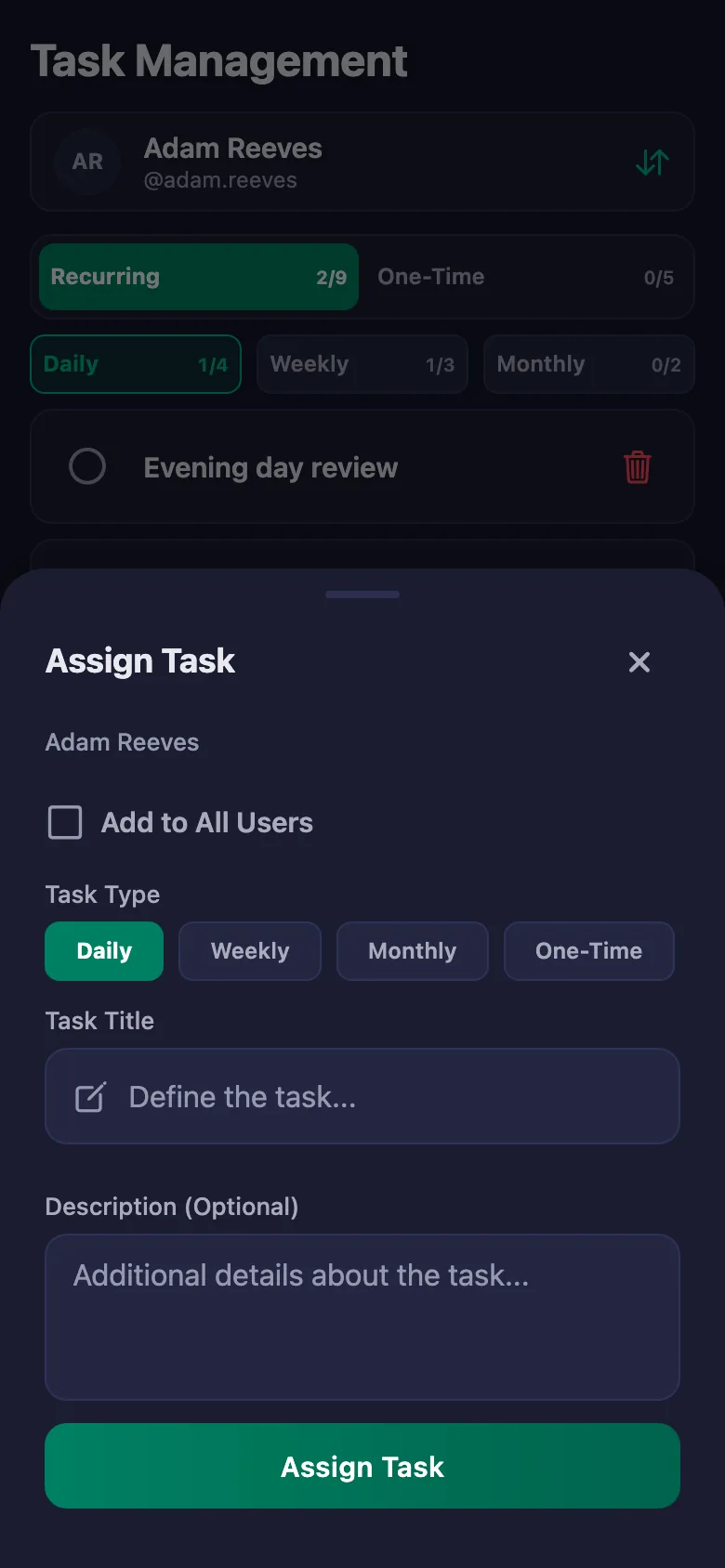
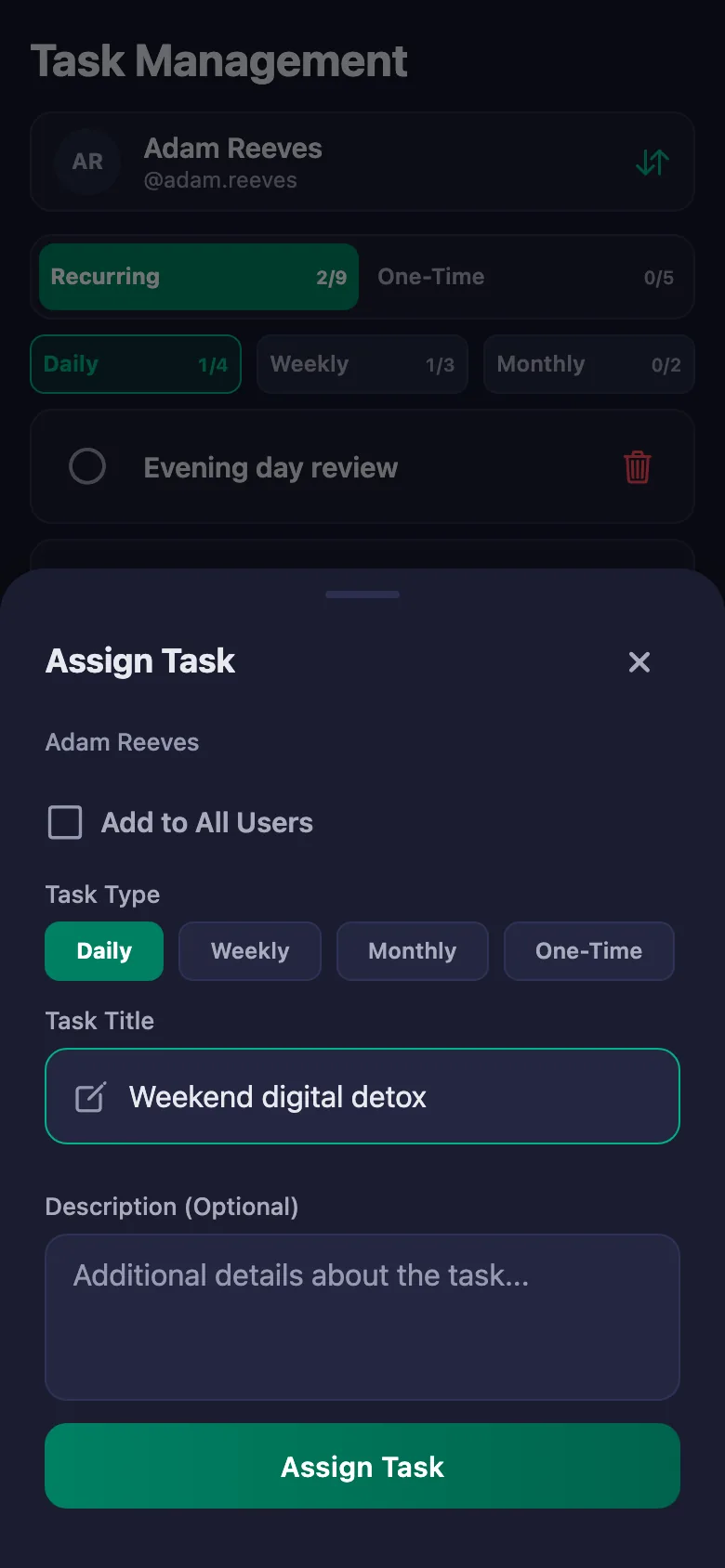
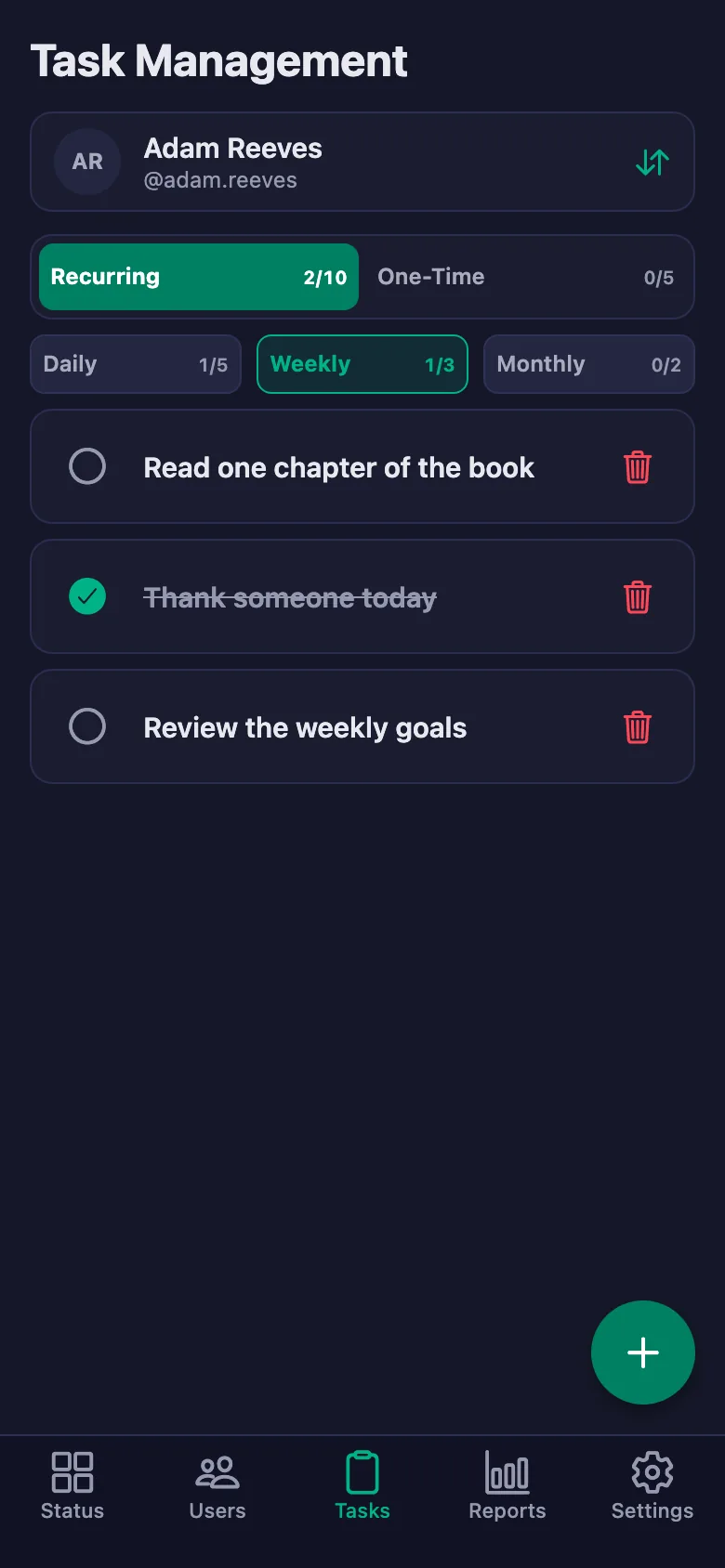
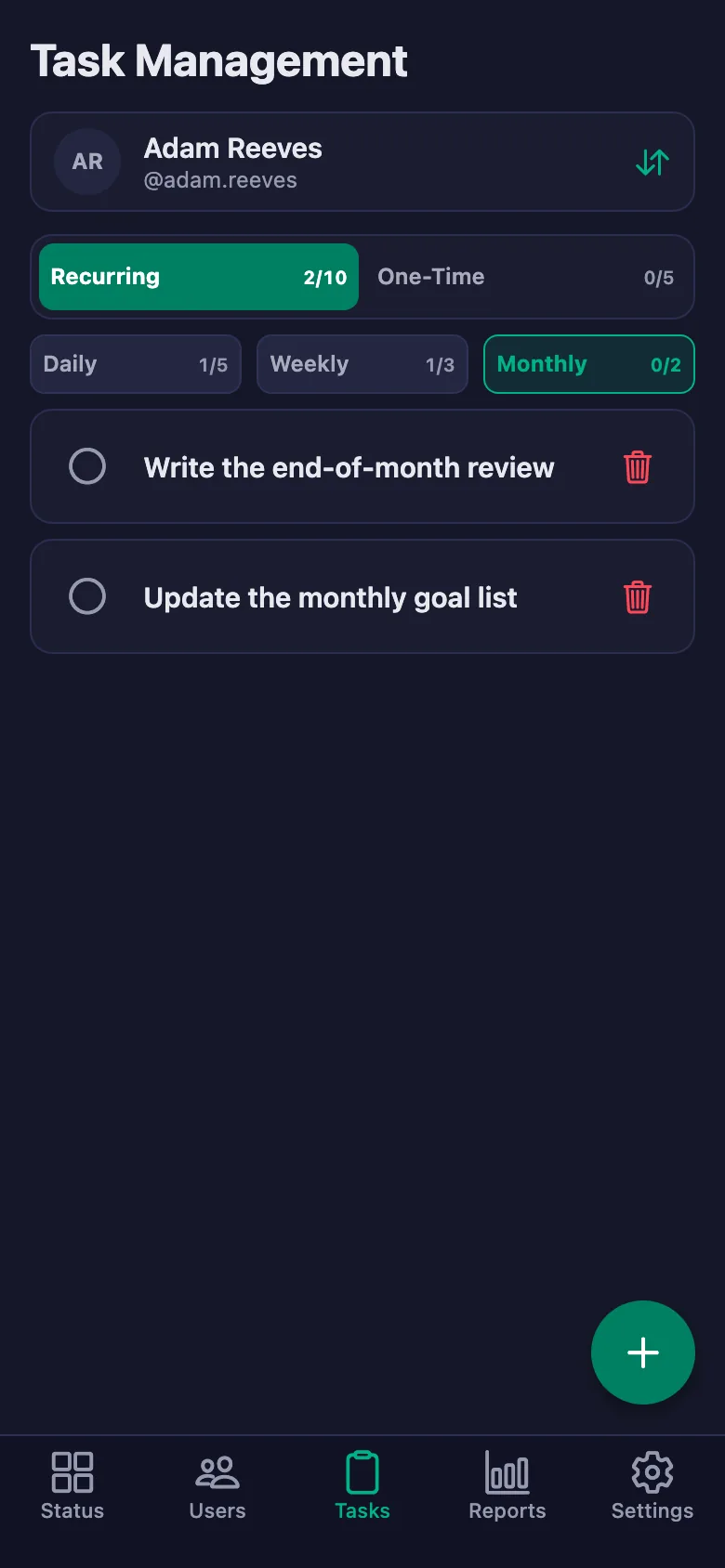
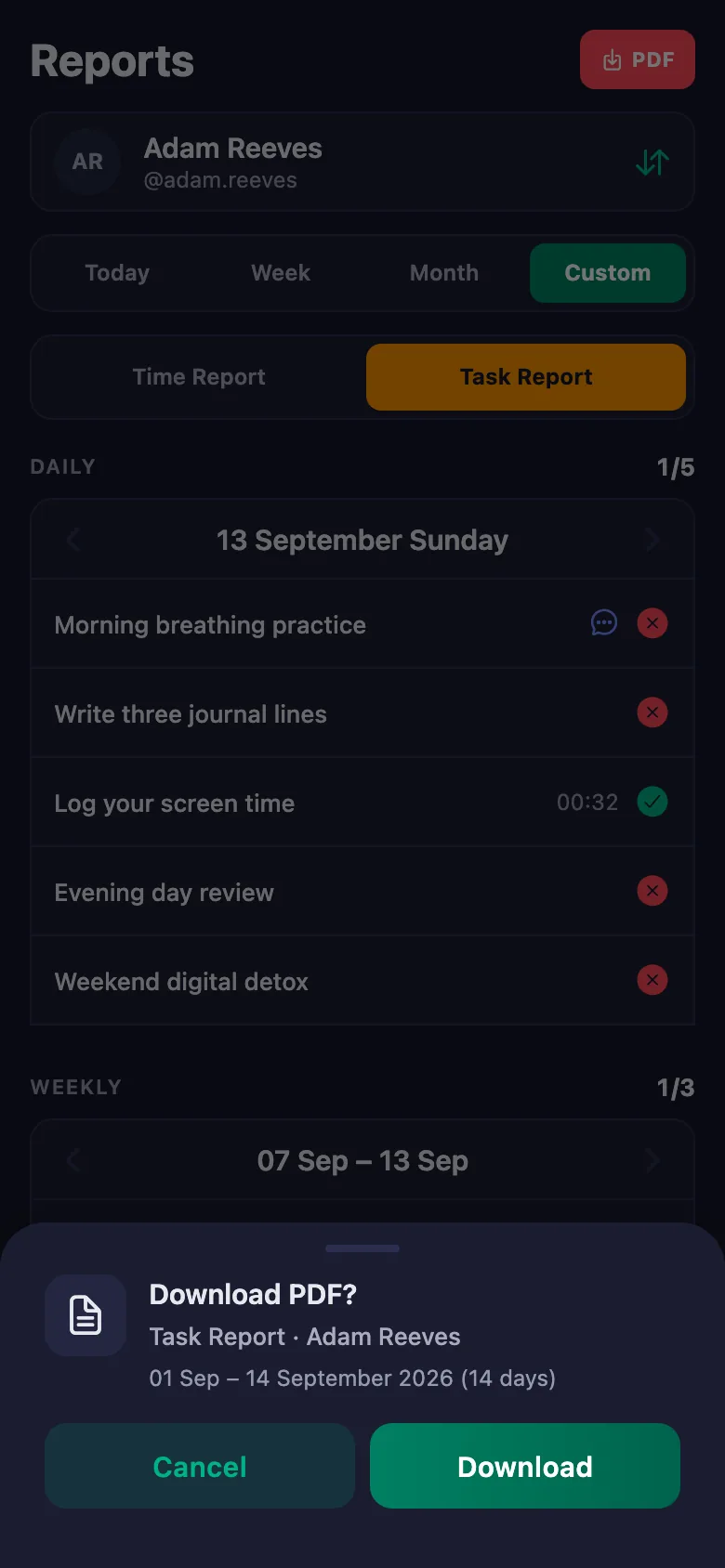
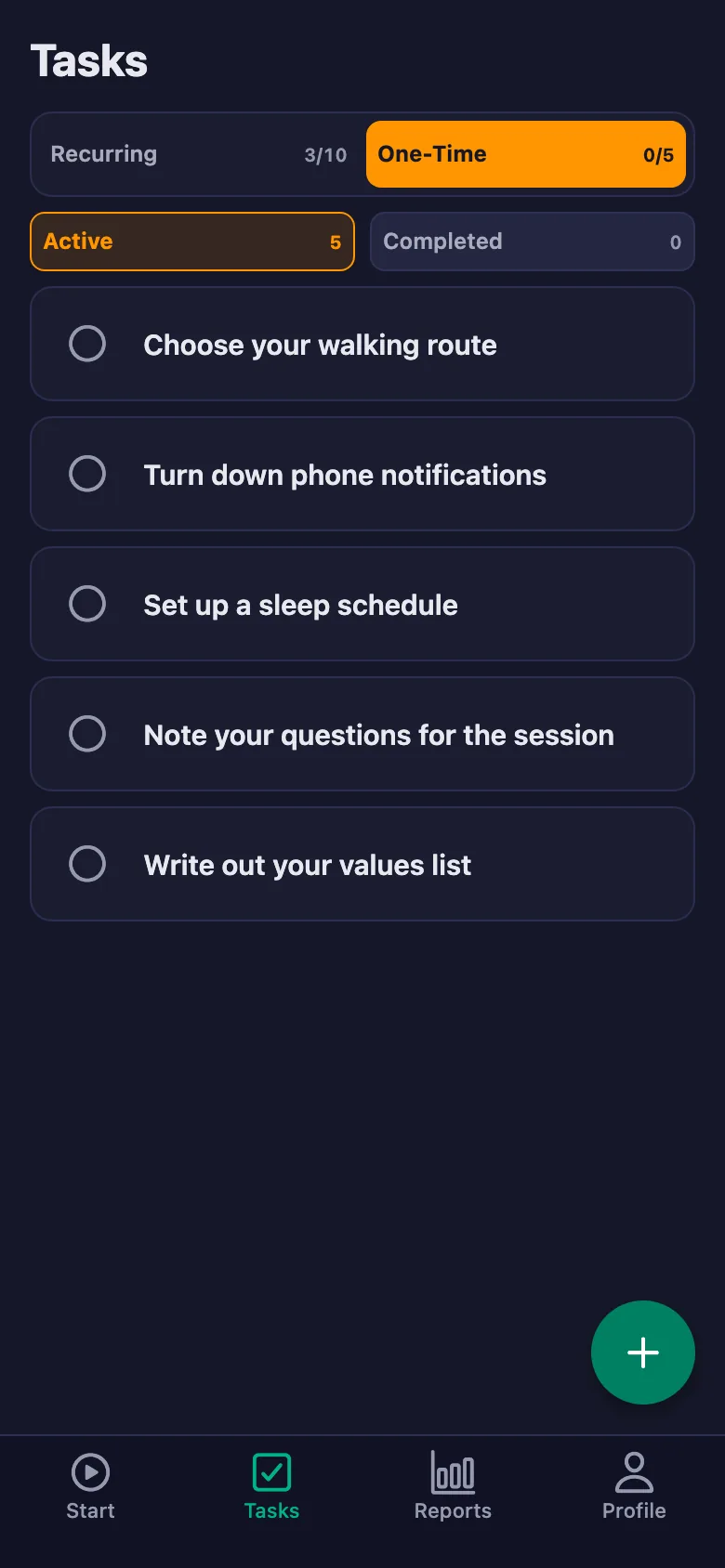
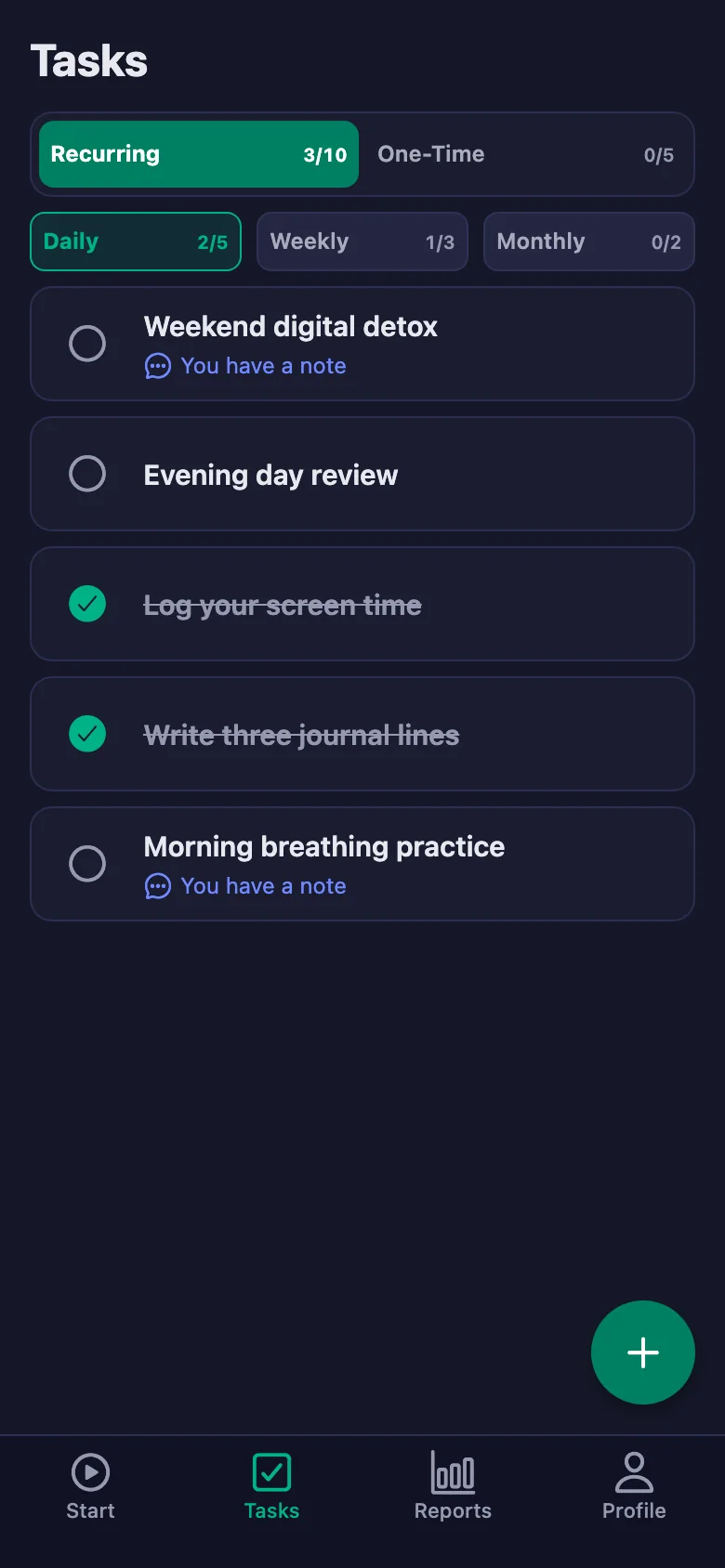
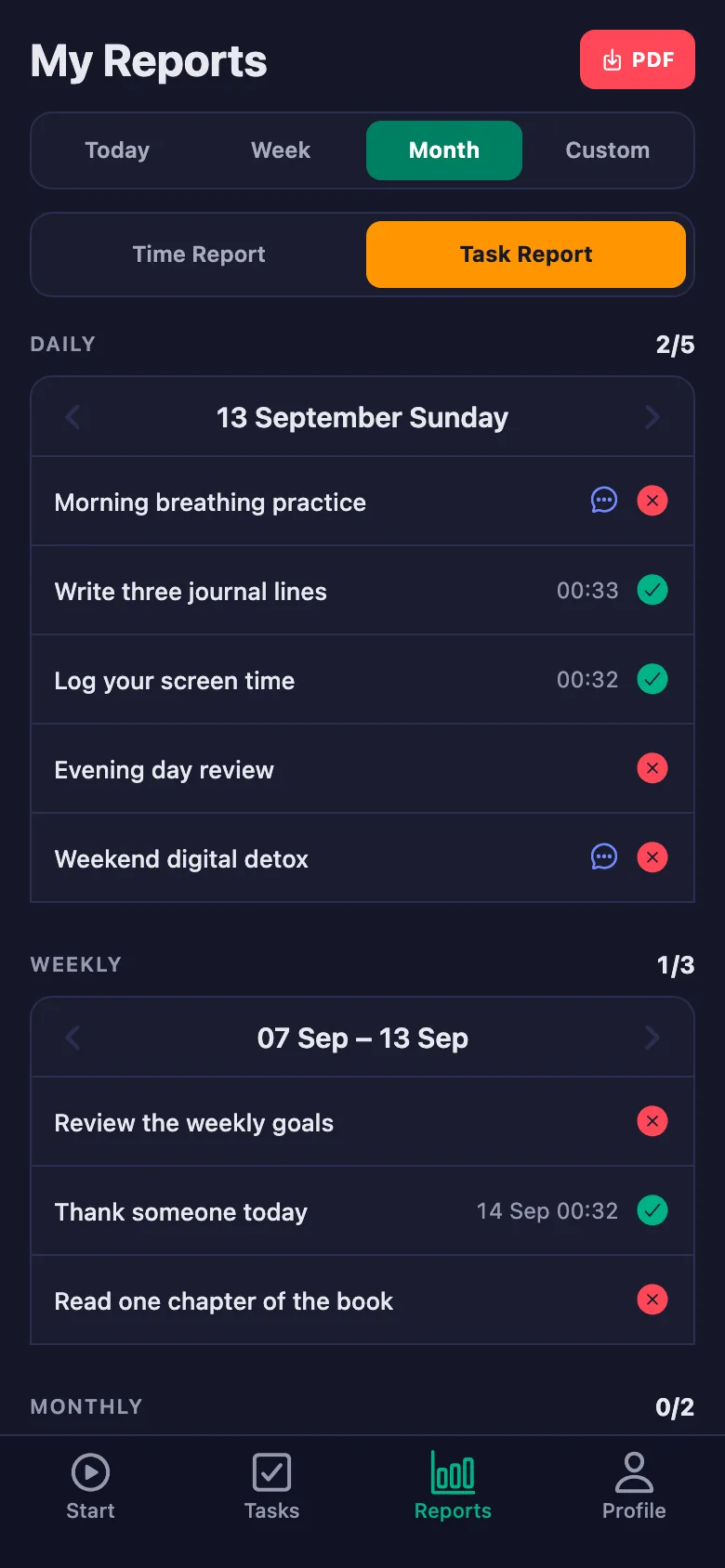
You write the steps once; they sit on your client's phone as daily, weekly and monthly items. Both sides are looking at the same list.
Half the session goes on “what did we talk about last time” — you only reach the real topic afterwards.
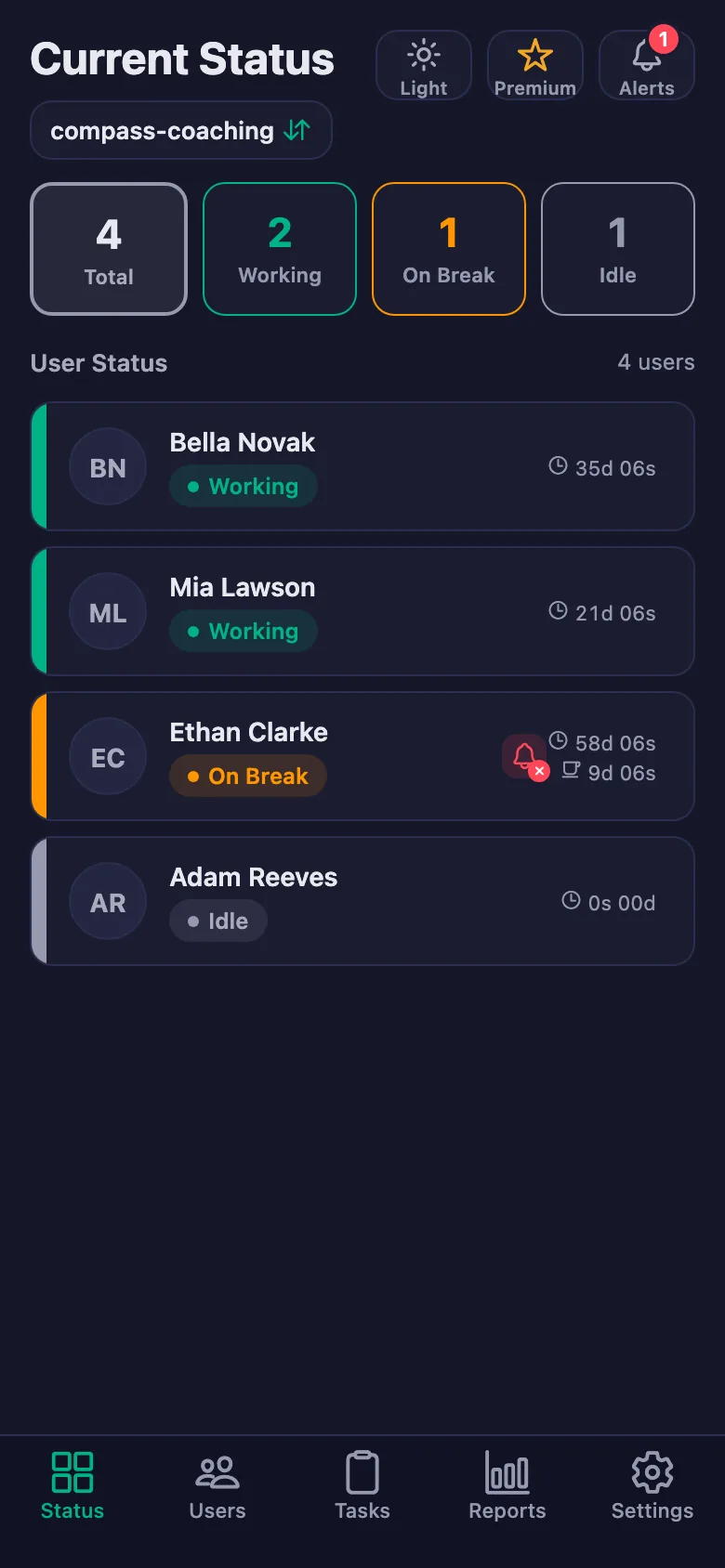
Before the session starts you can see what your client ticked off and what they skipped. The time goes into progress, not into remembering.
Your client says “I couldn't do it”, but why, and where exactly they got stuck, stays unknown until the session.
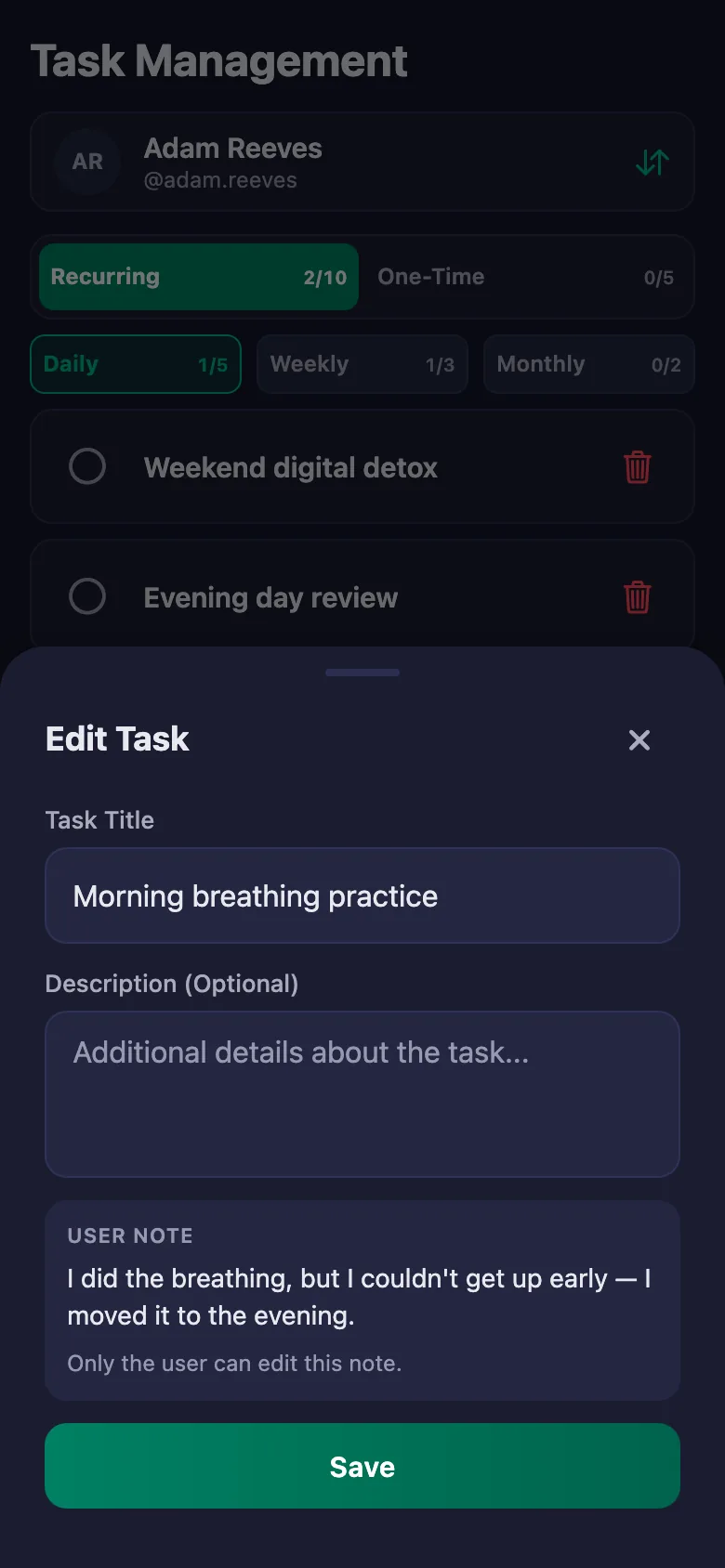
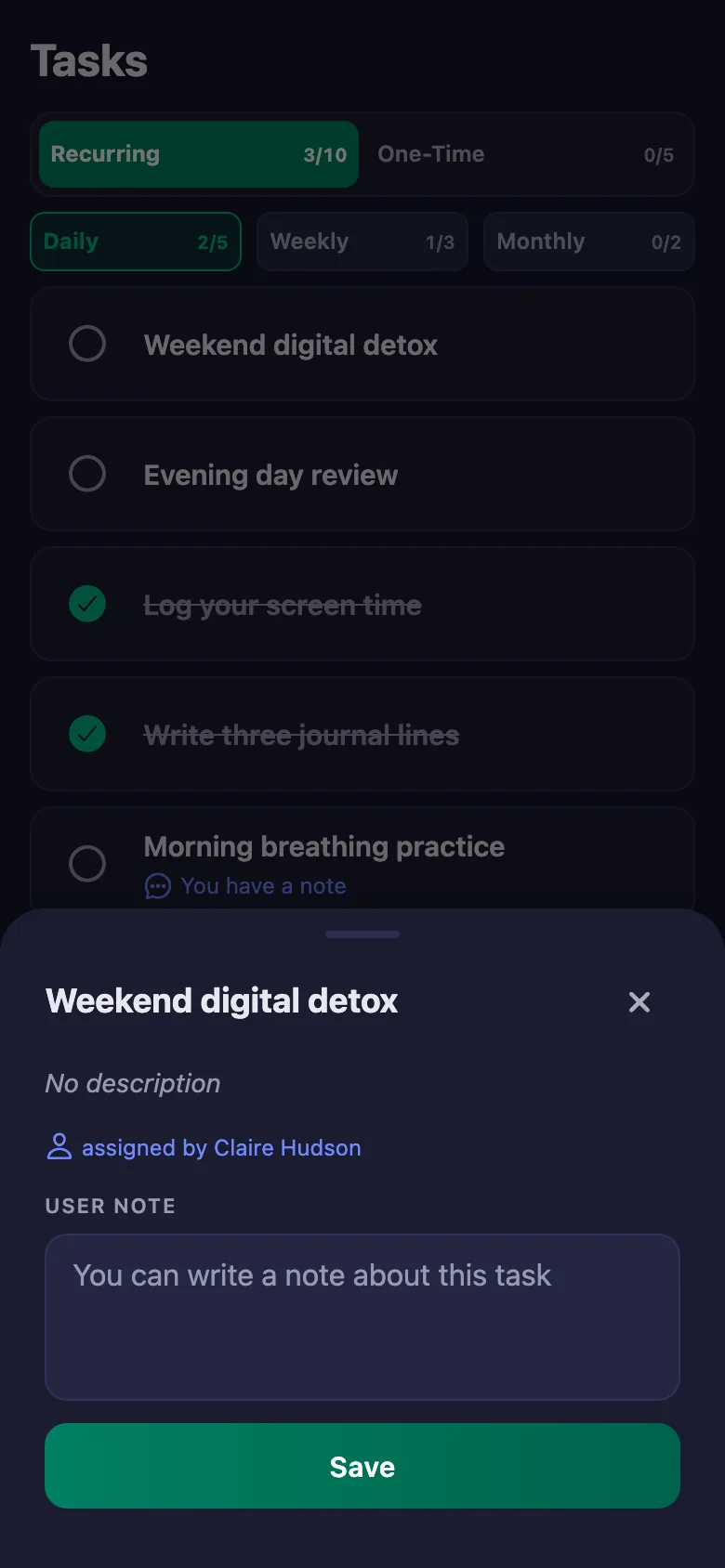
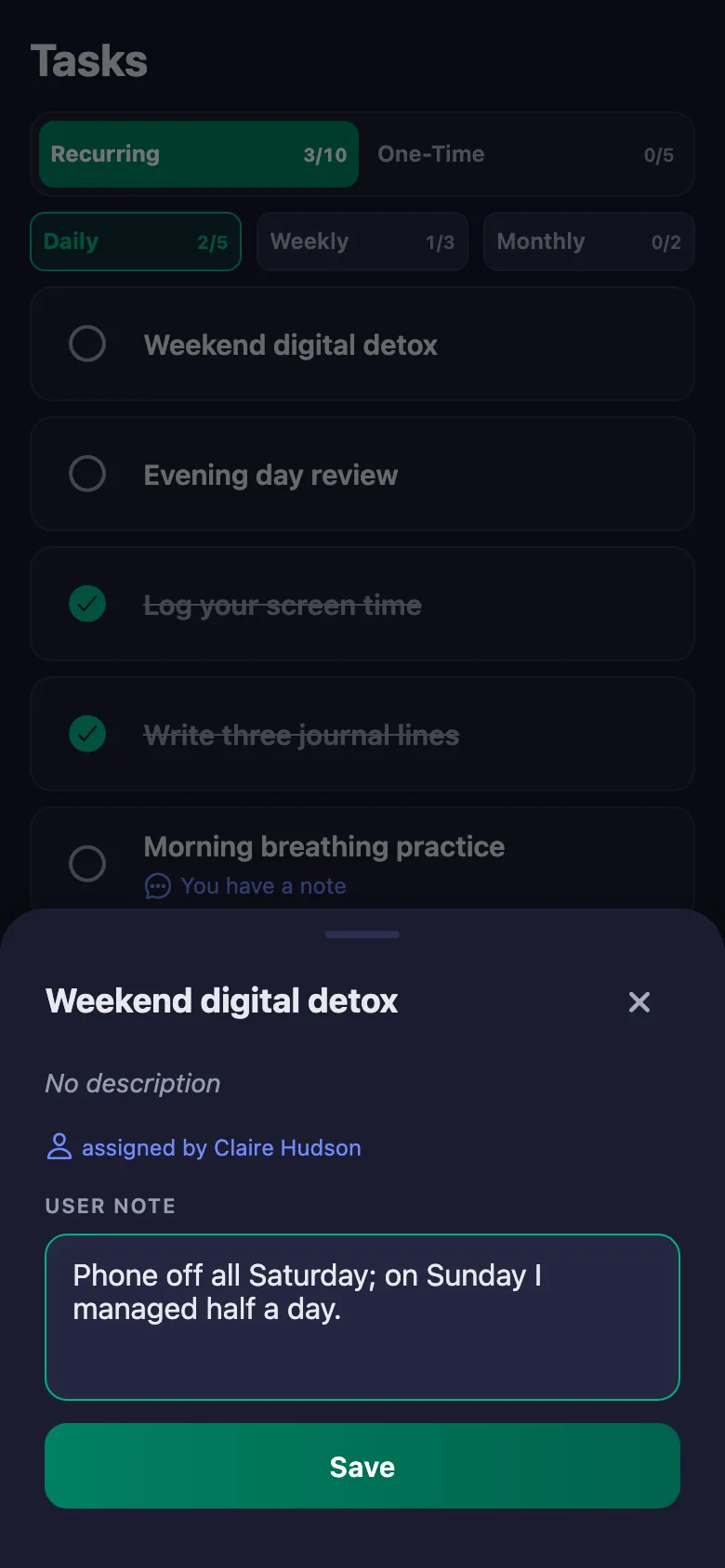
Your client writes a note under the item: what they tried, where it got hard. The note sits on your screen and only the client can change it.
“I worked on it this week” — but how long, and on how many days? It all comes down to what they say.
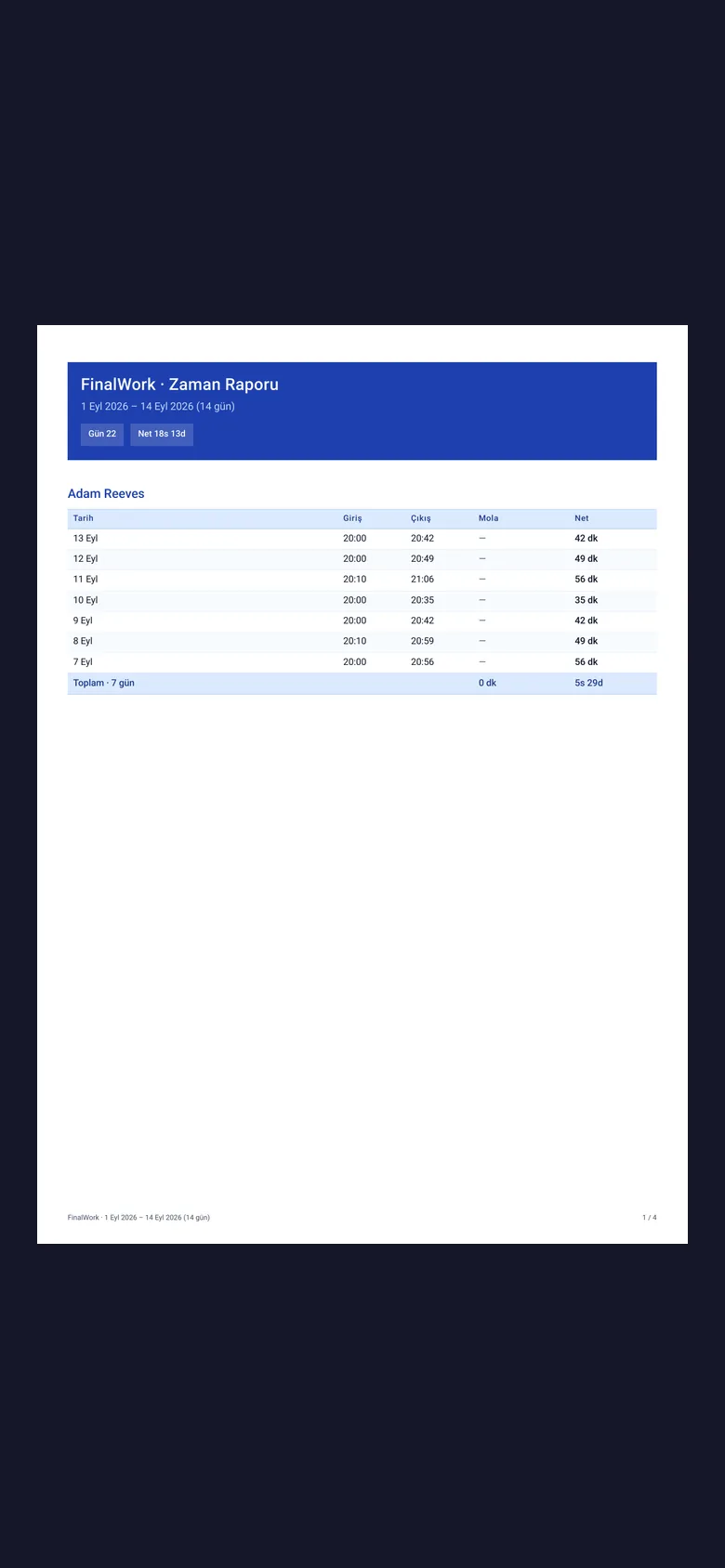
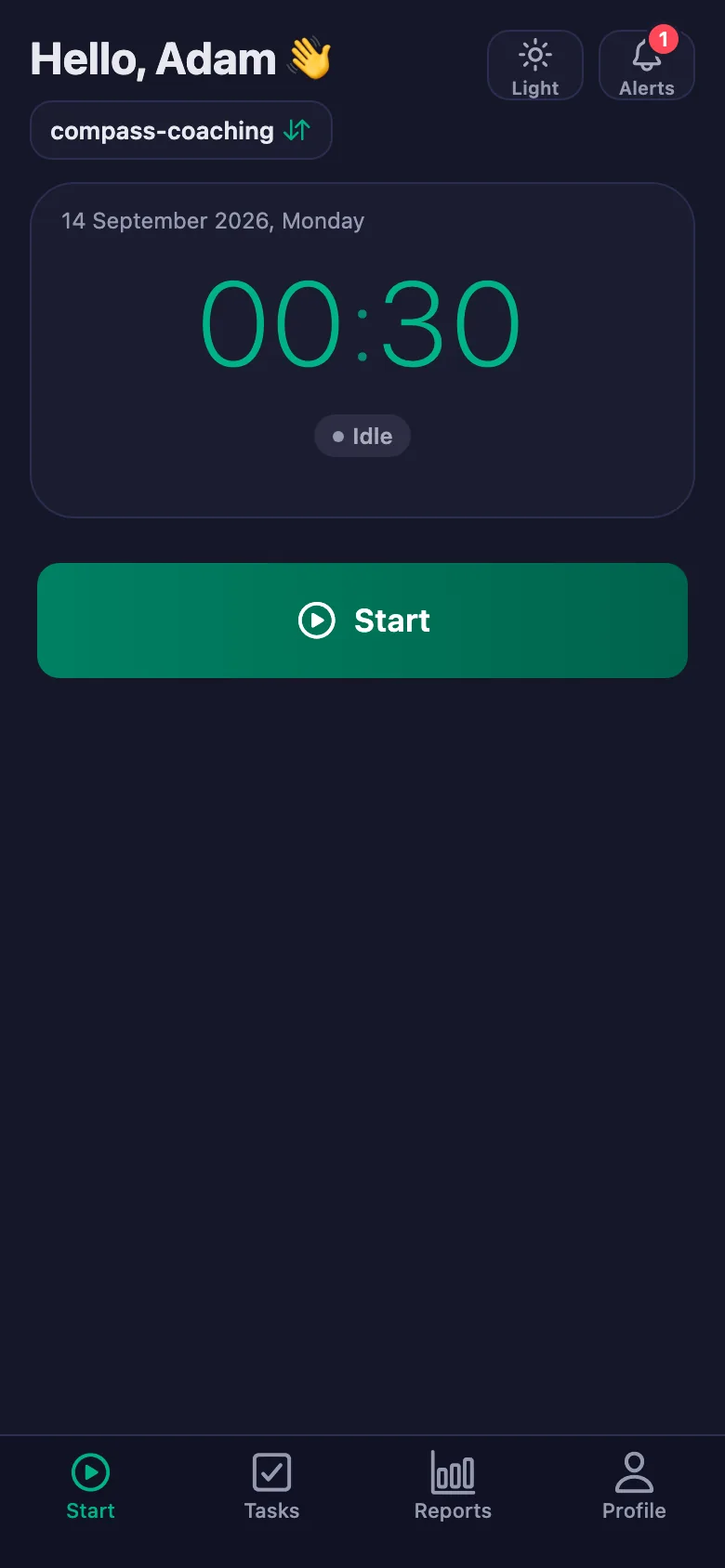
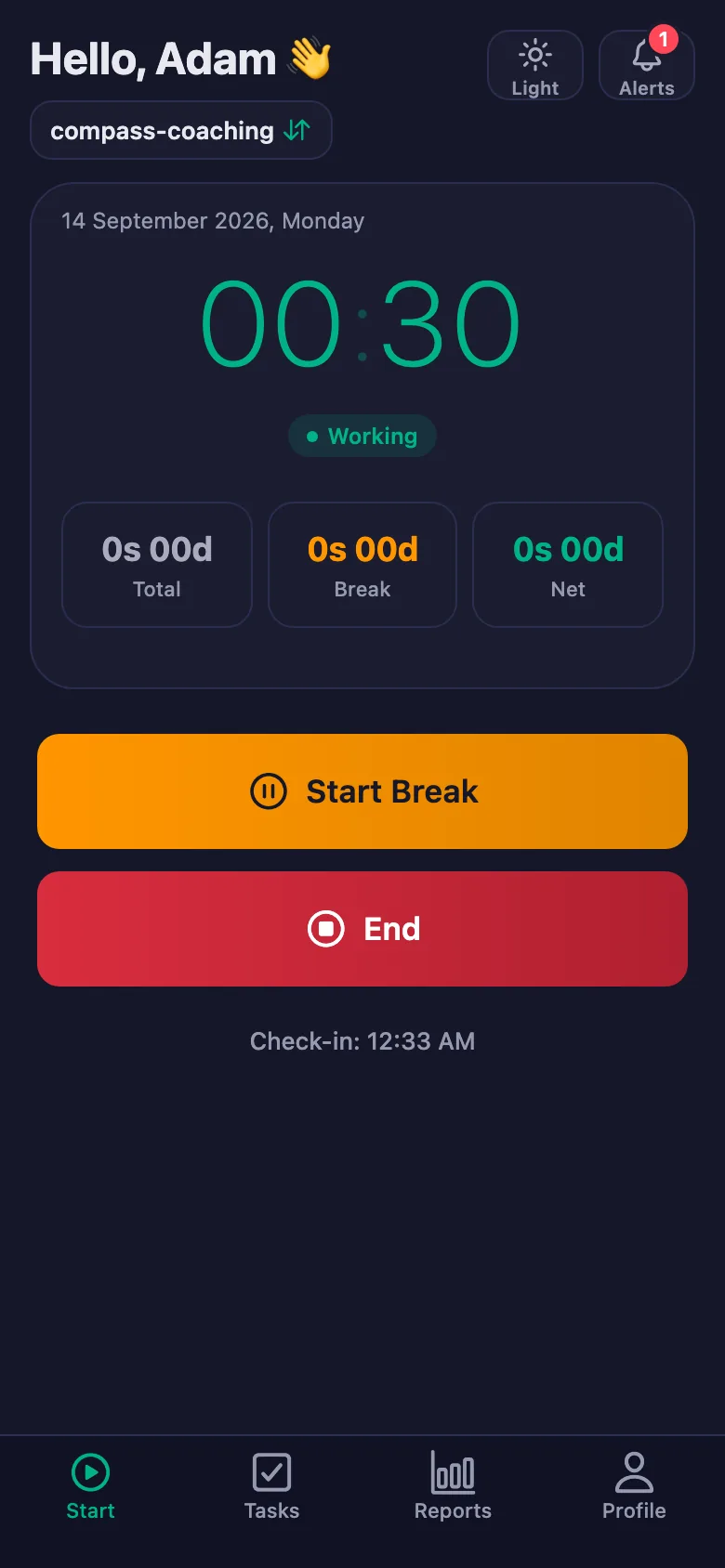
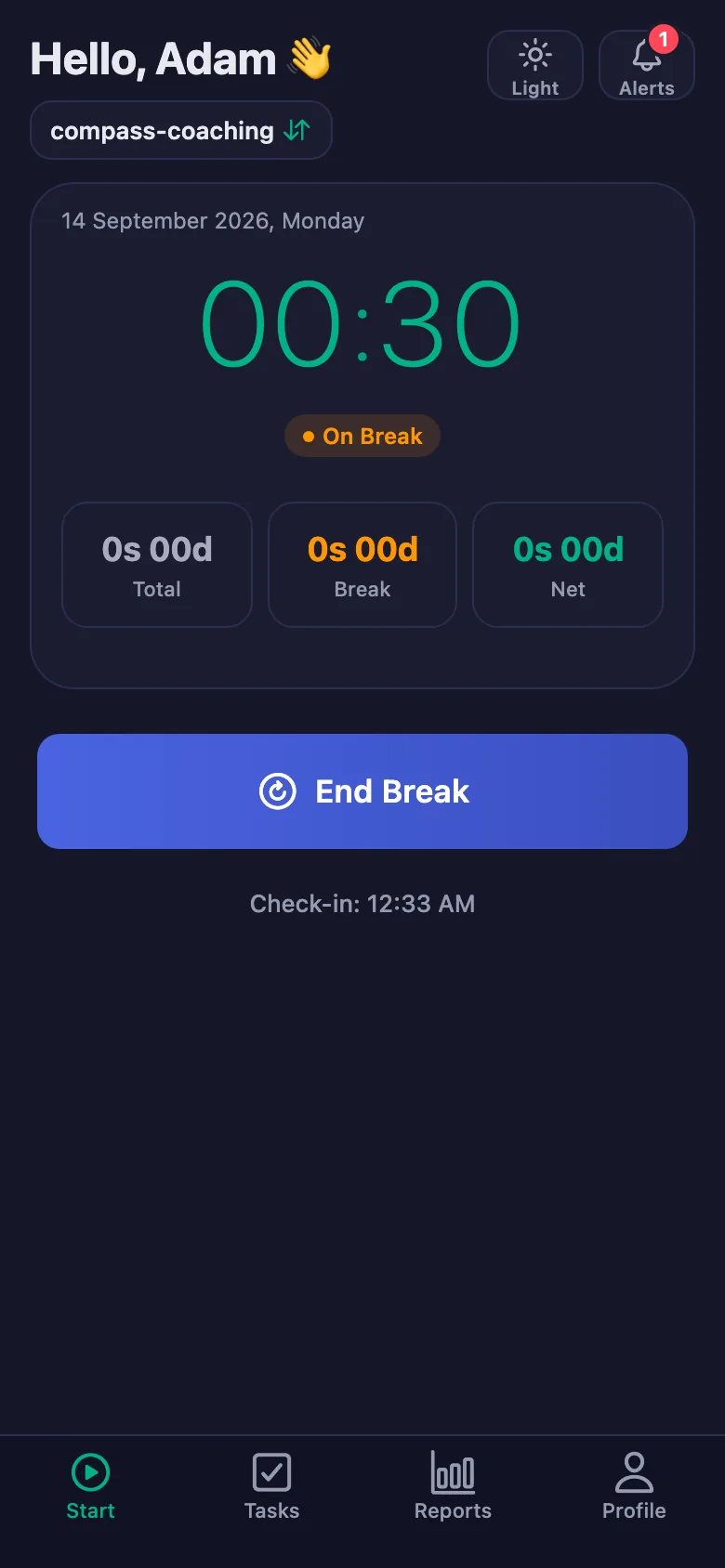
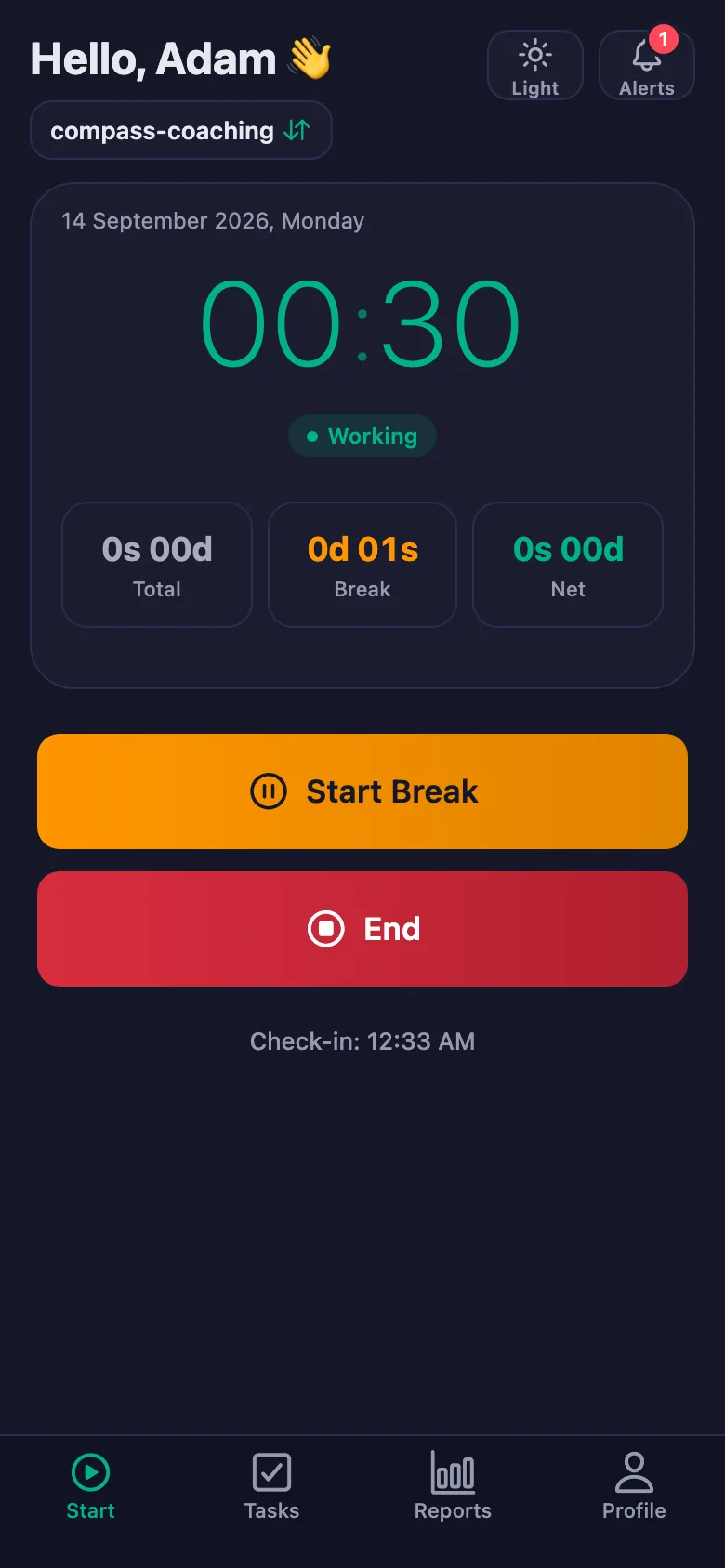
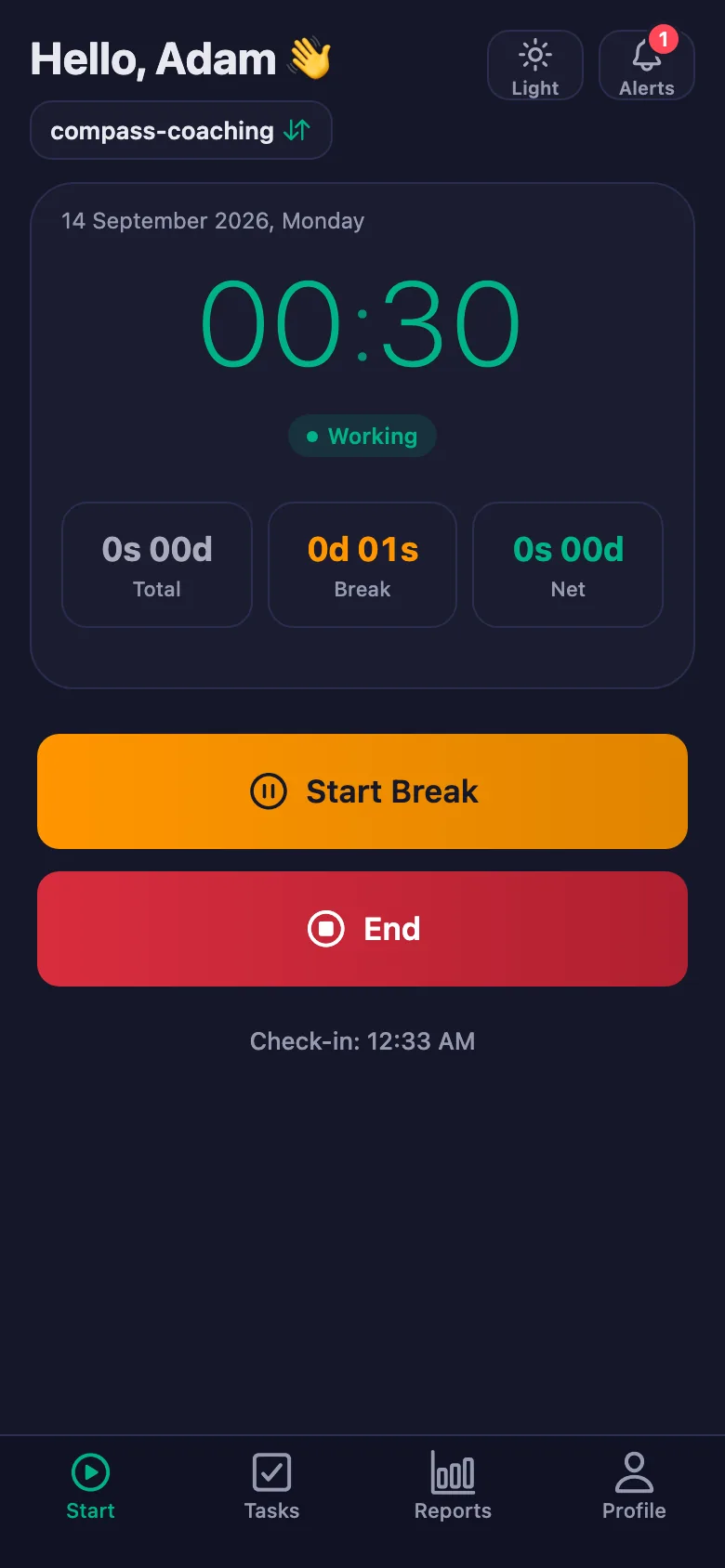
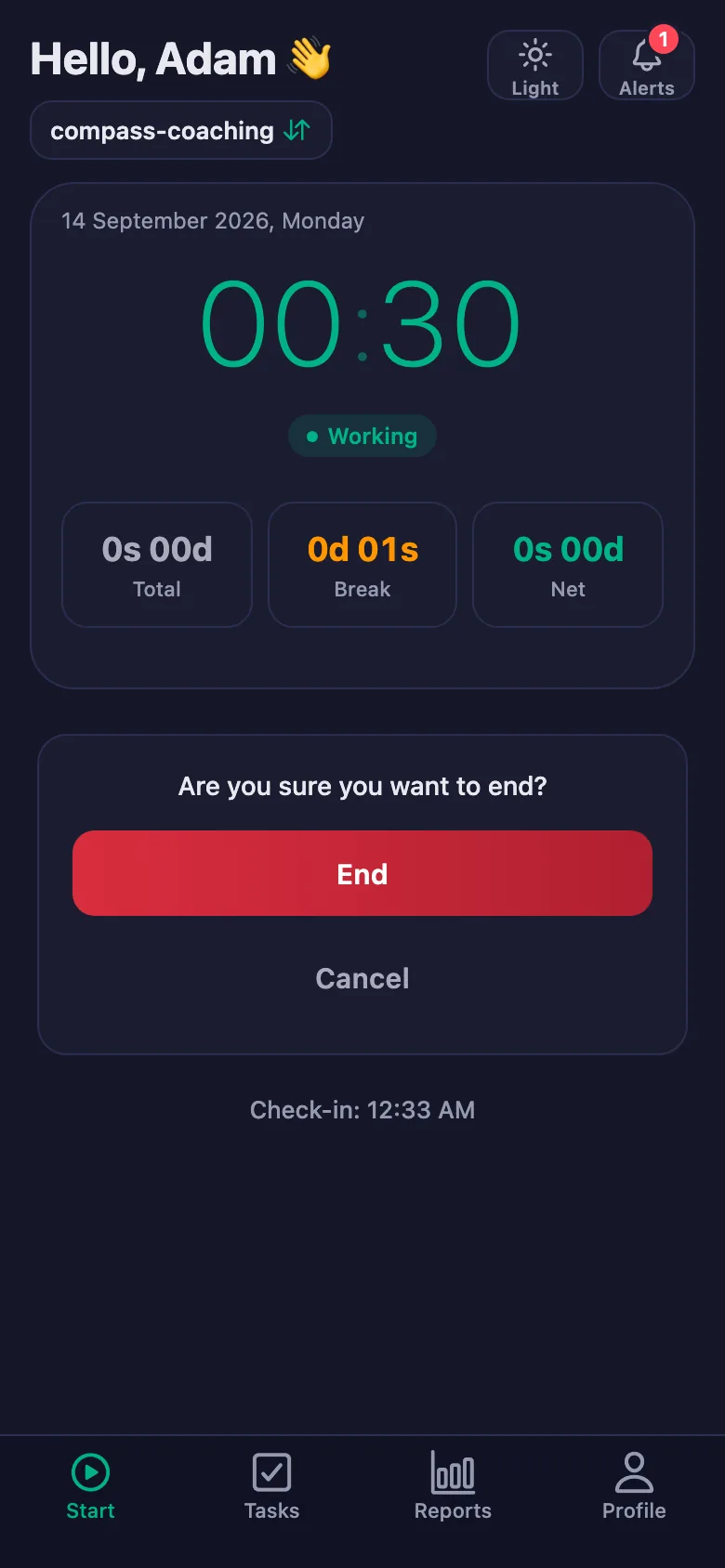
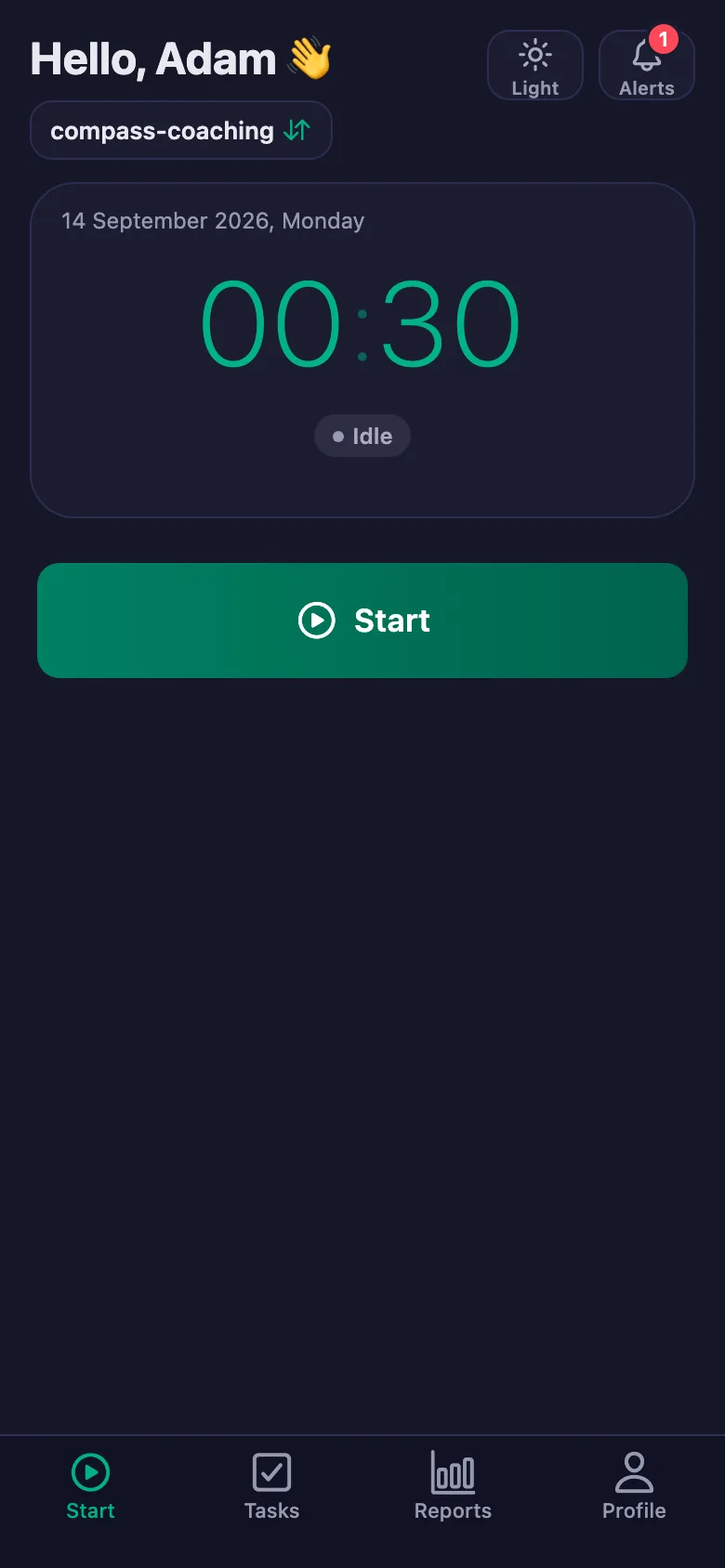
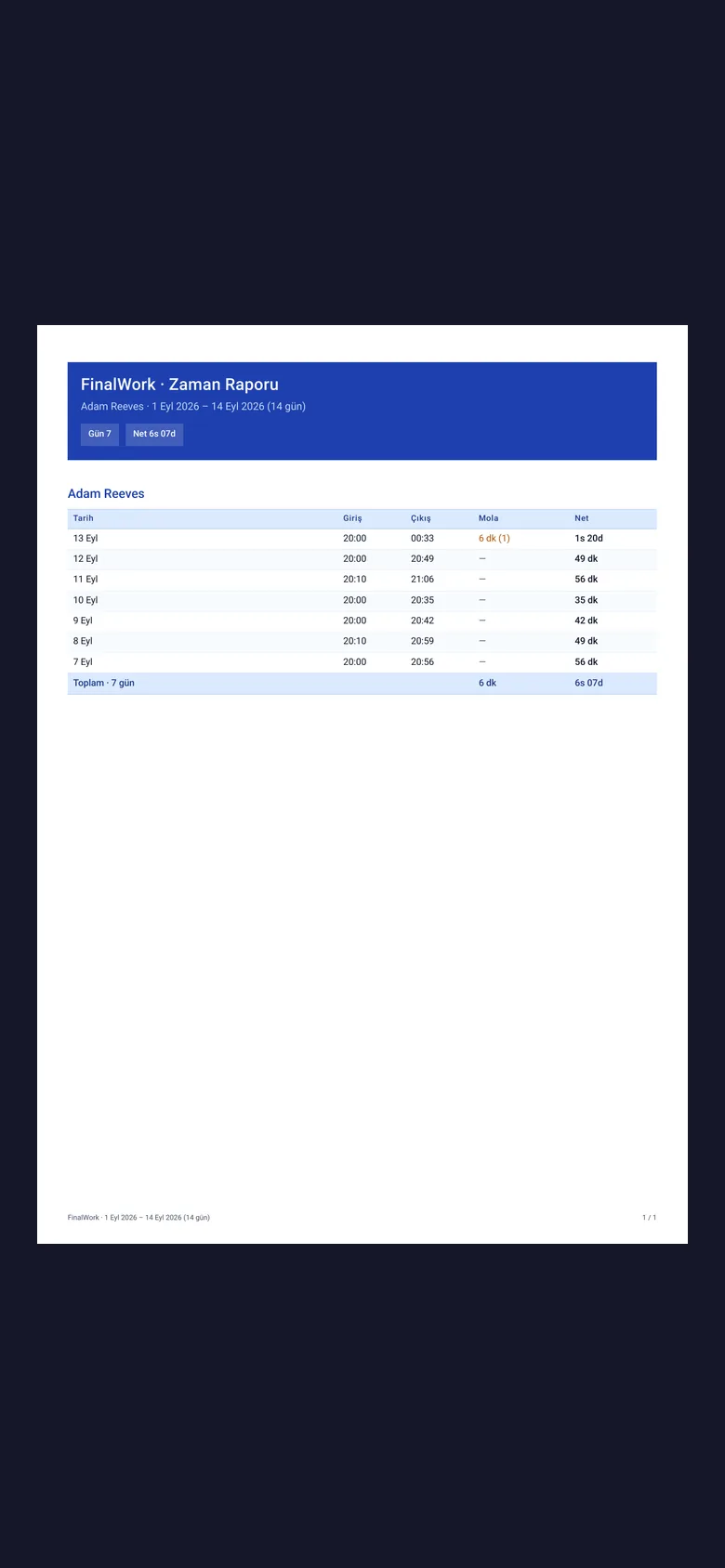
Your client starts the timer when they begin and stops it when they finish. Any break is counted separately and taken off the net time.
The daily steps get forgotten, and reminding means messaging each client one by one.
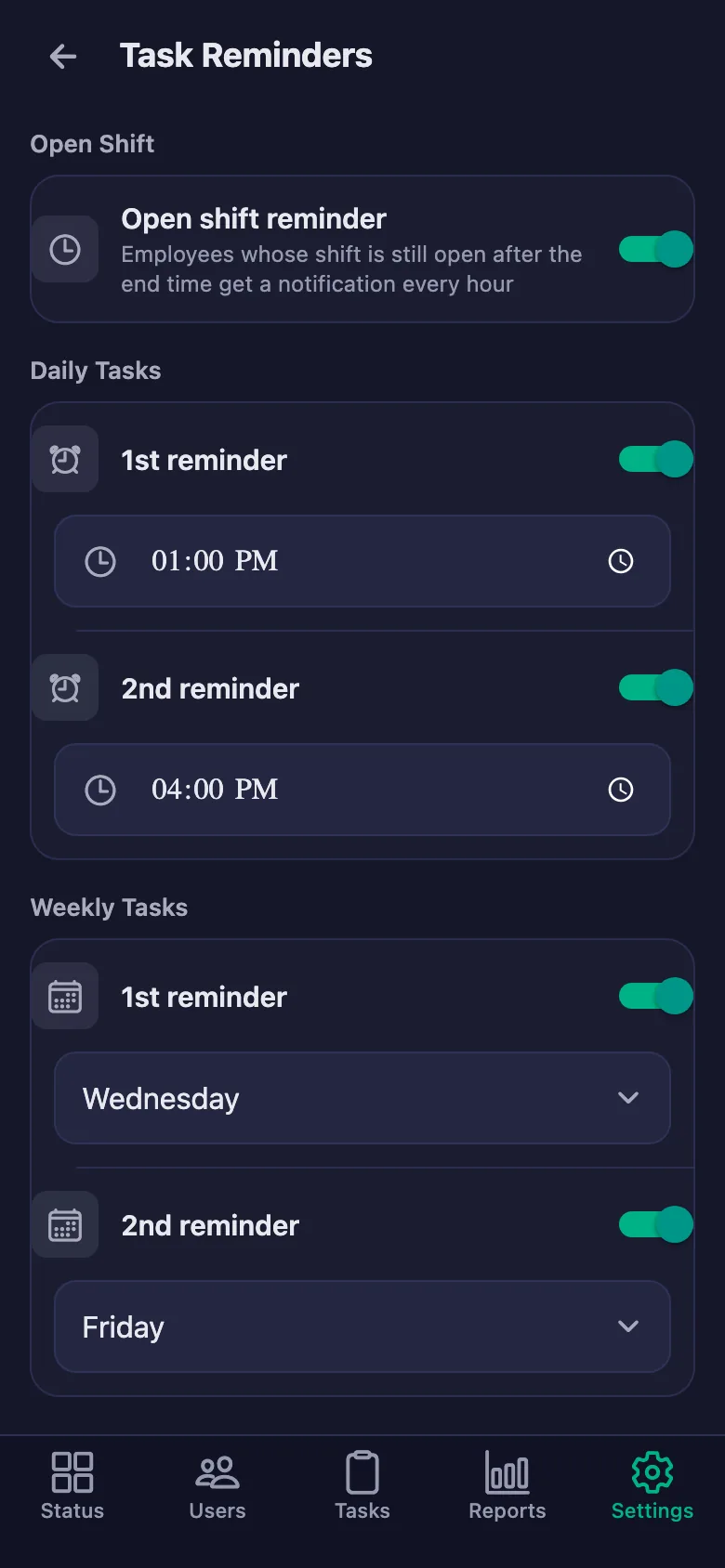
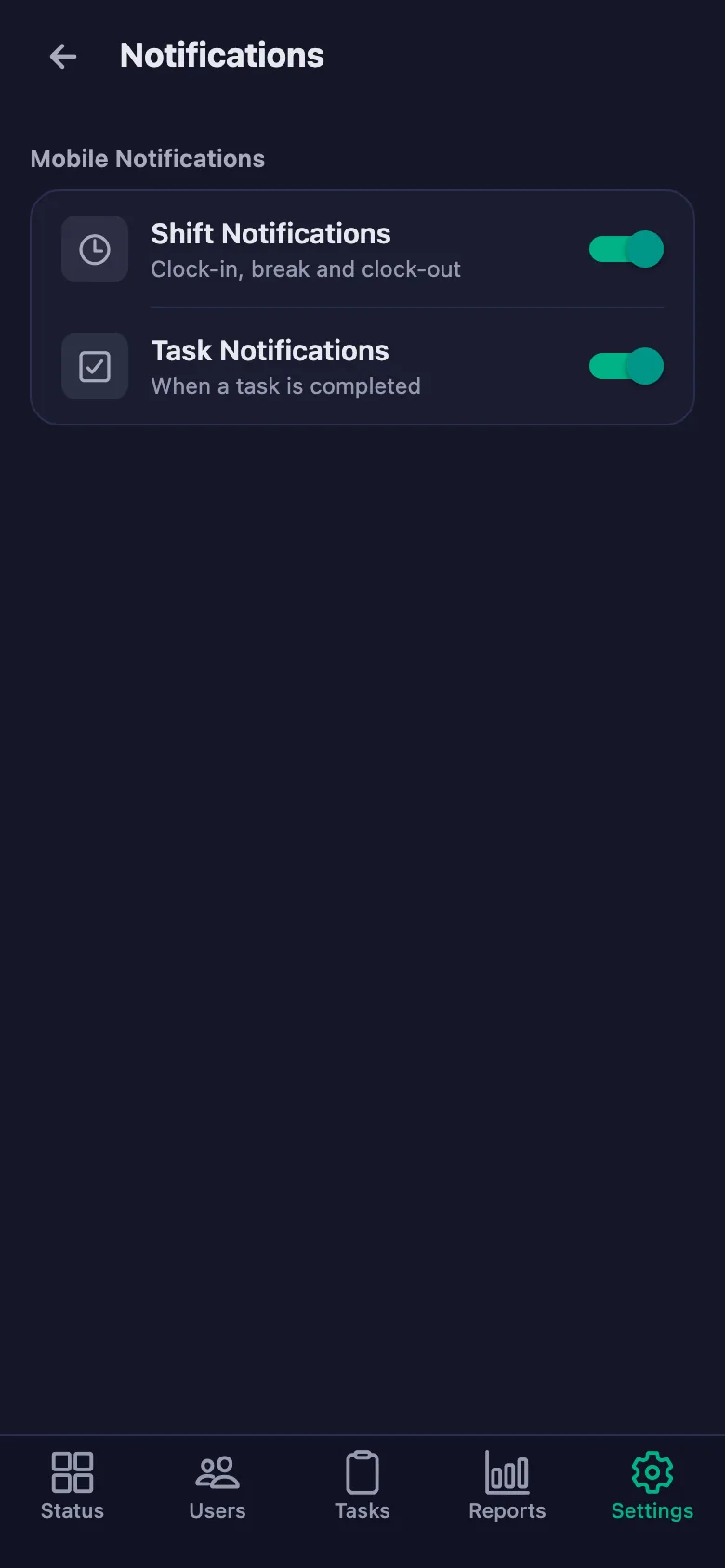
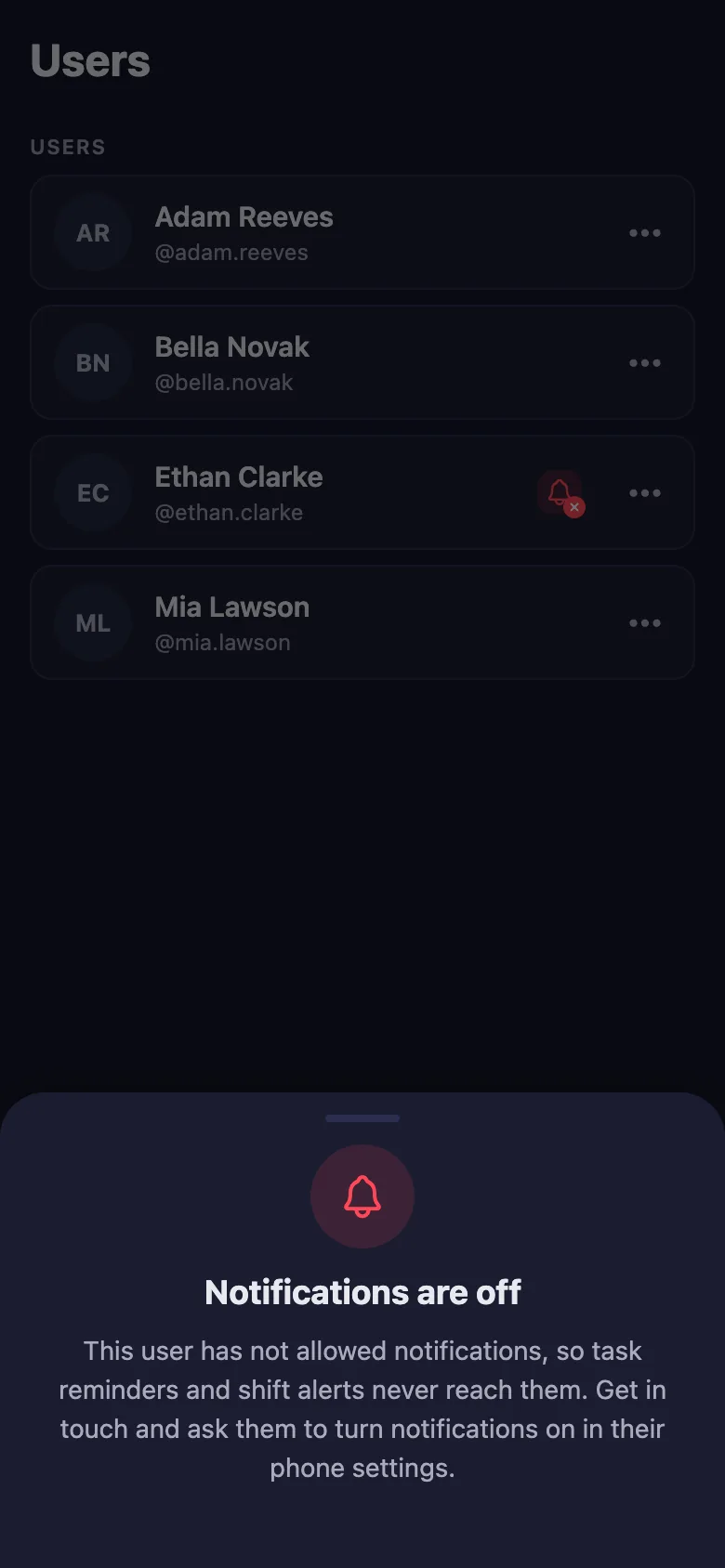
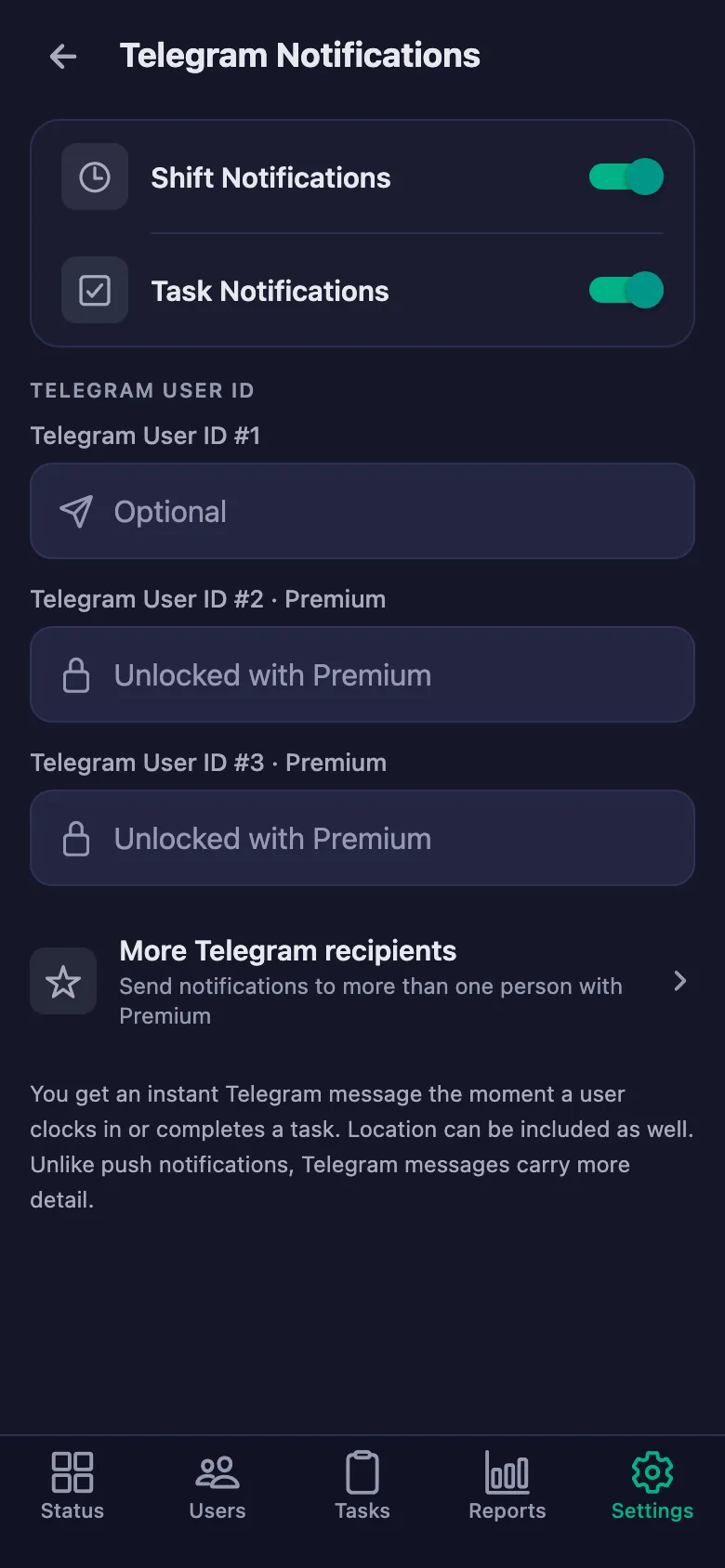
You set the reminder times. If a step is still undone at that hour, a notification lands on your client's phone — you are not the one sending messages.
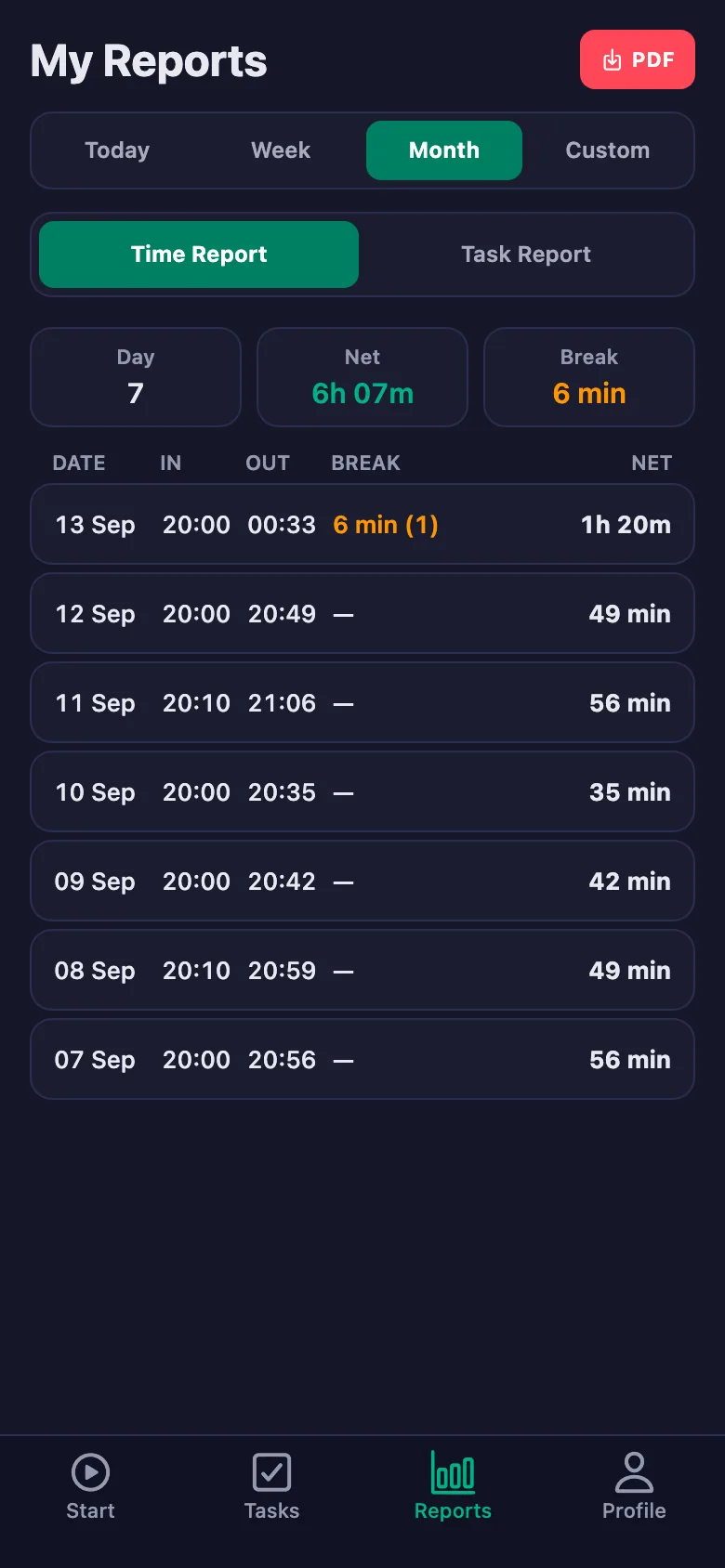
You want to show your client how far they have come, but there is no single record anywhere; it is all in your head.
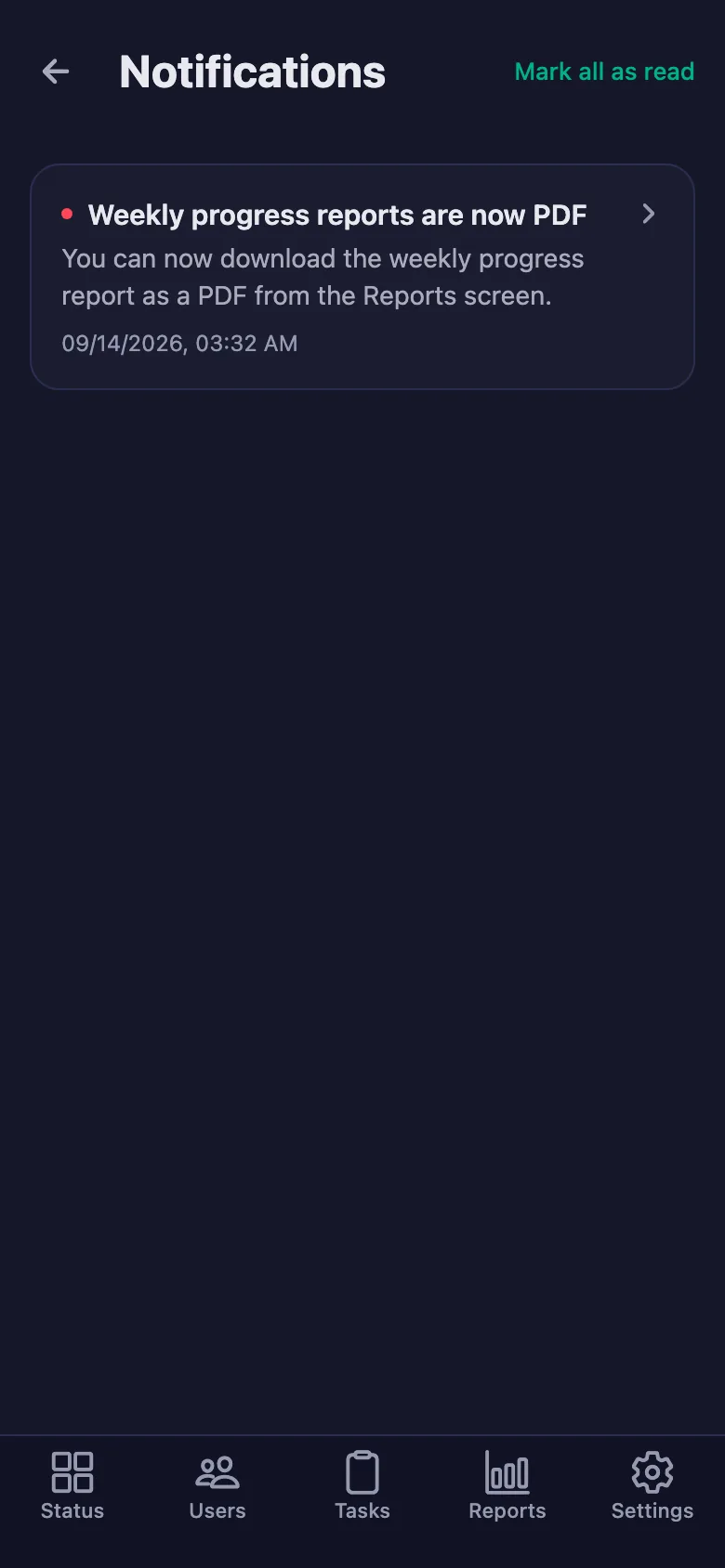
You pick a date range and the report appears on screen. Your client sees their own progress on their own screen too, and you can share the same report as a PDF.
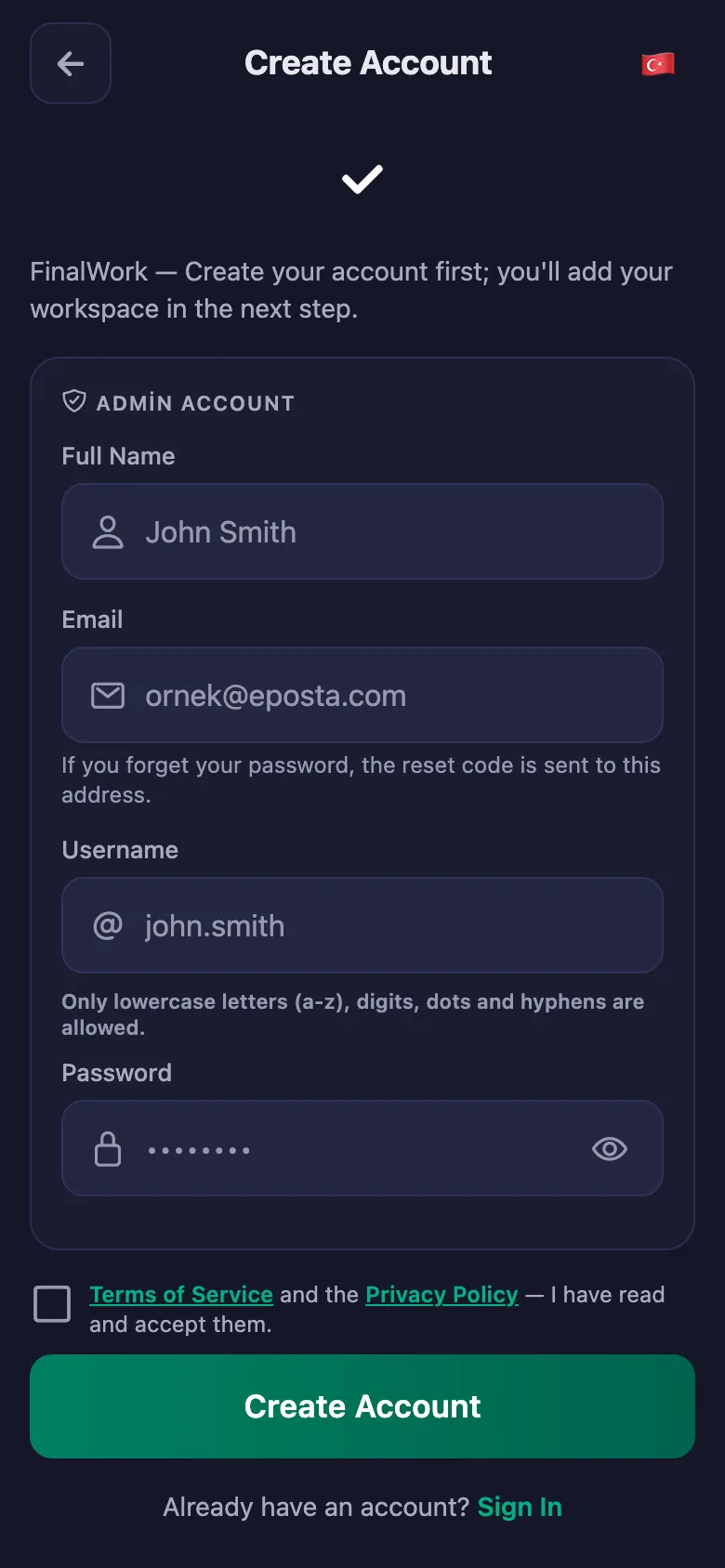
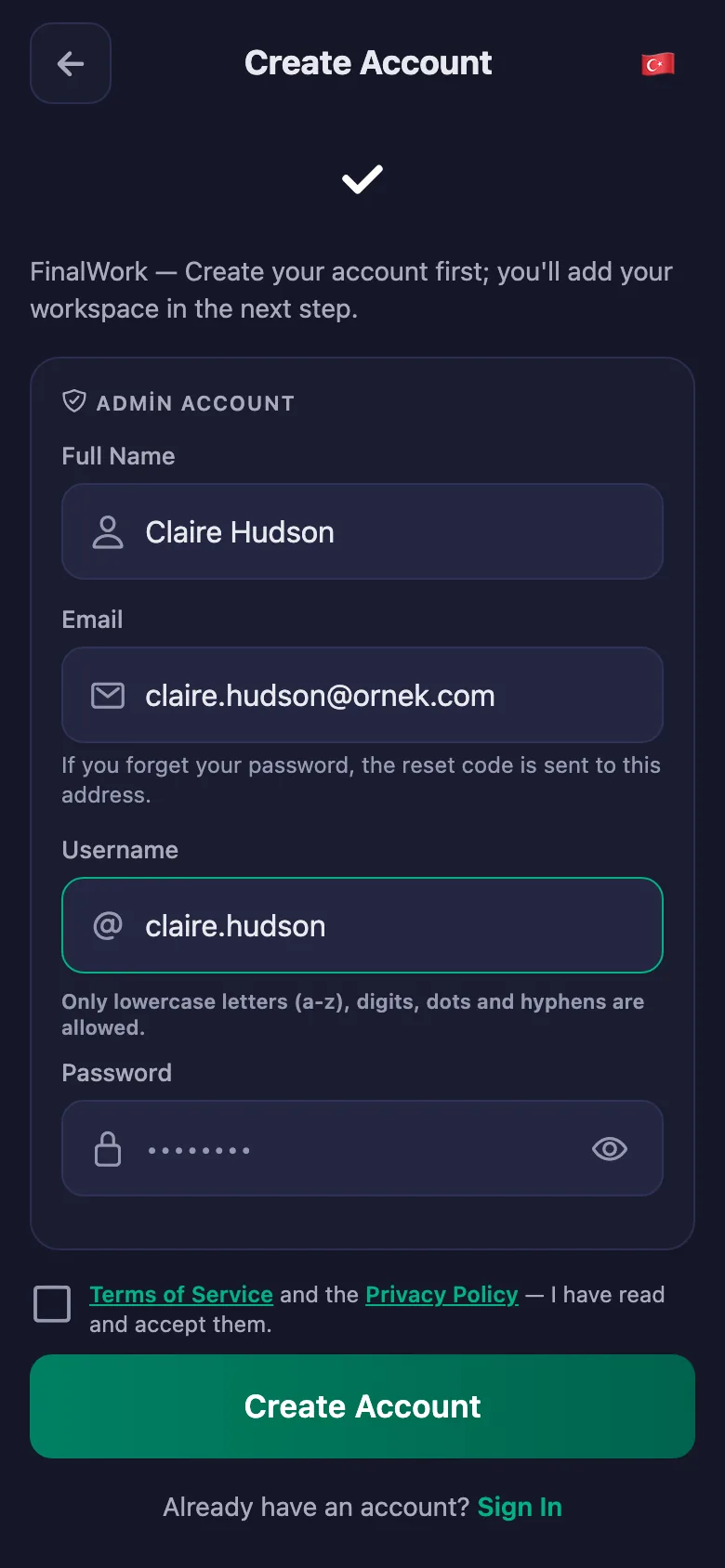
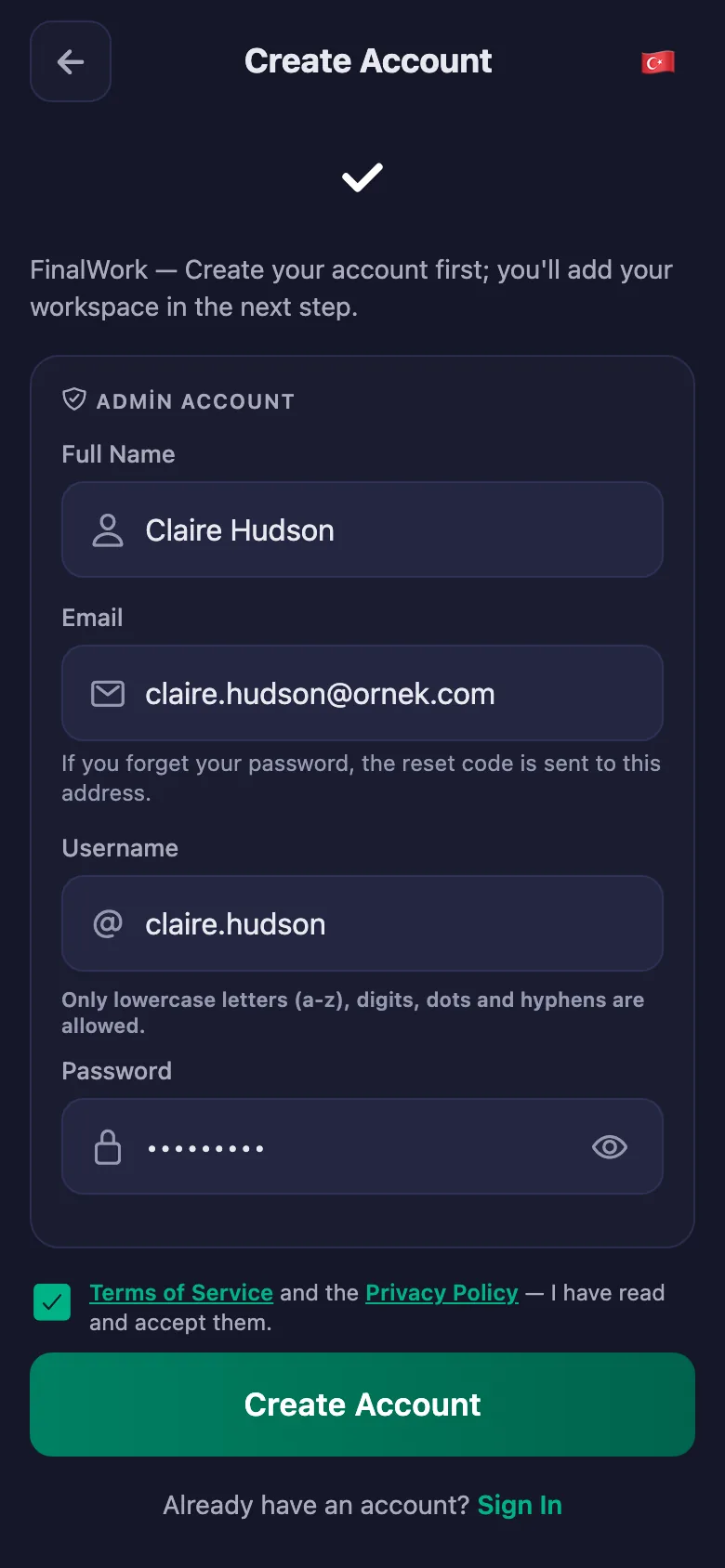
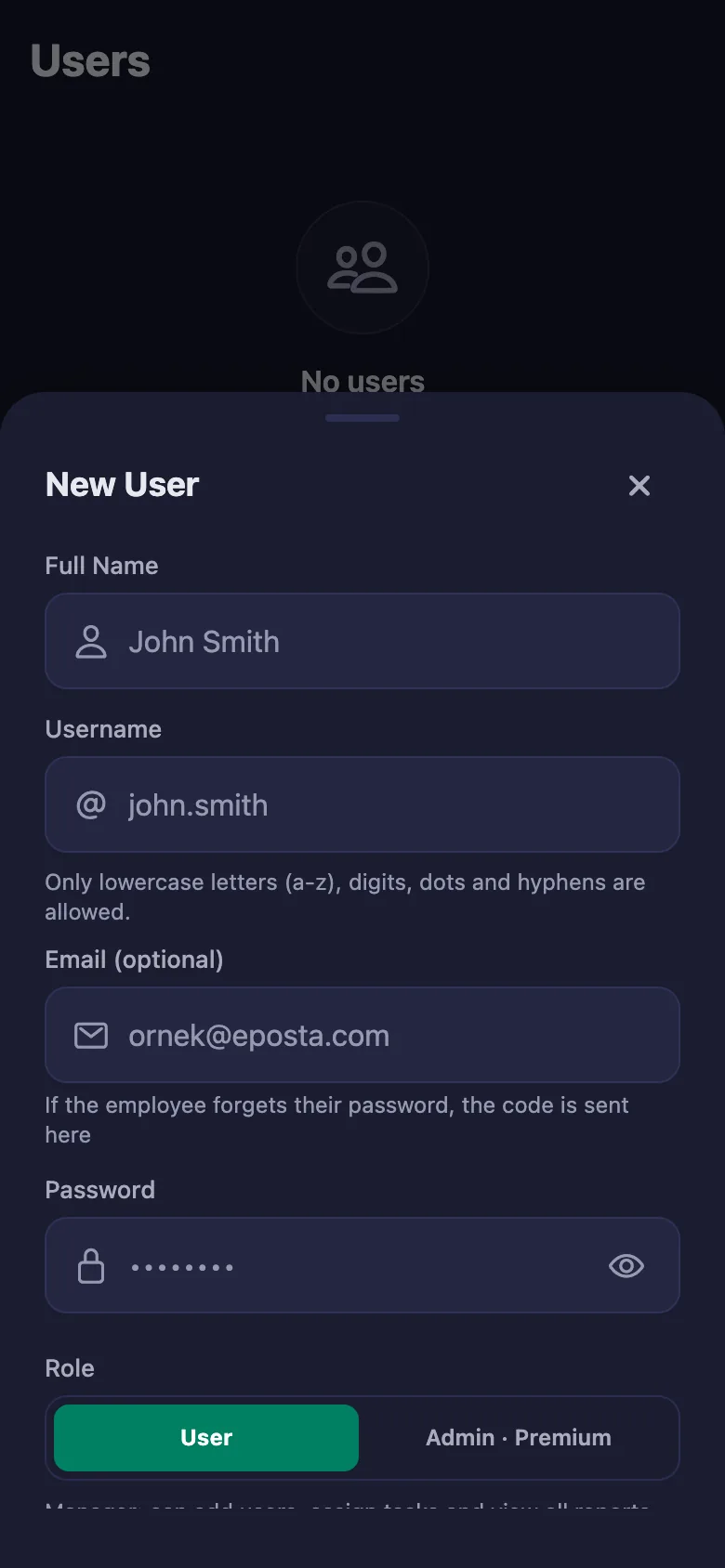
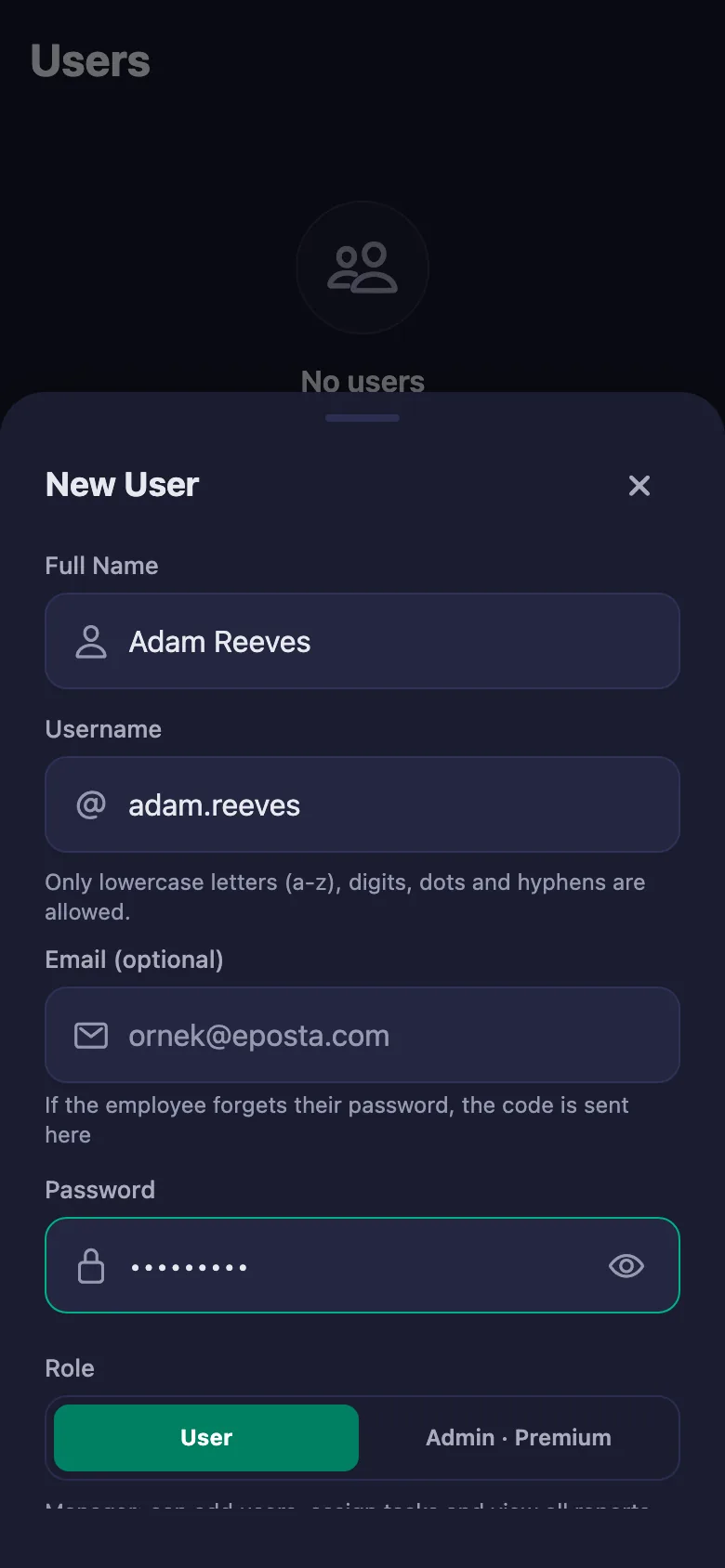
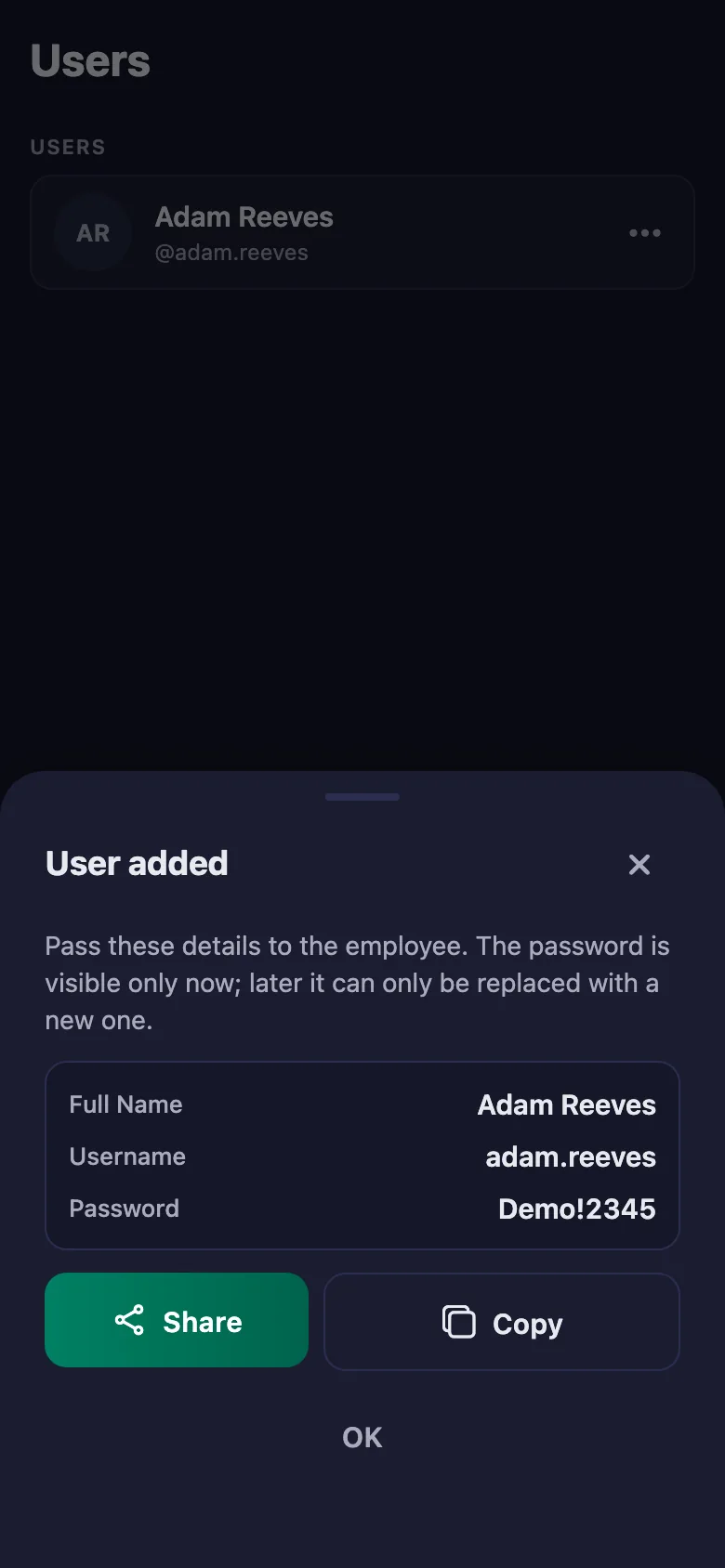
Setup and activation take just one minute — you can start free. Below you can watch the whole flow on the app's real screens.
Coach – Client App Demo
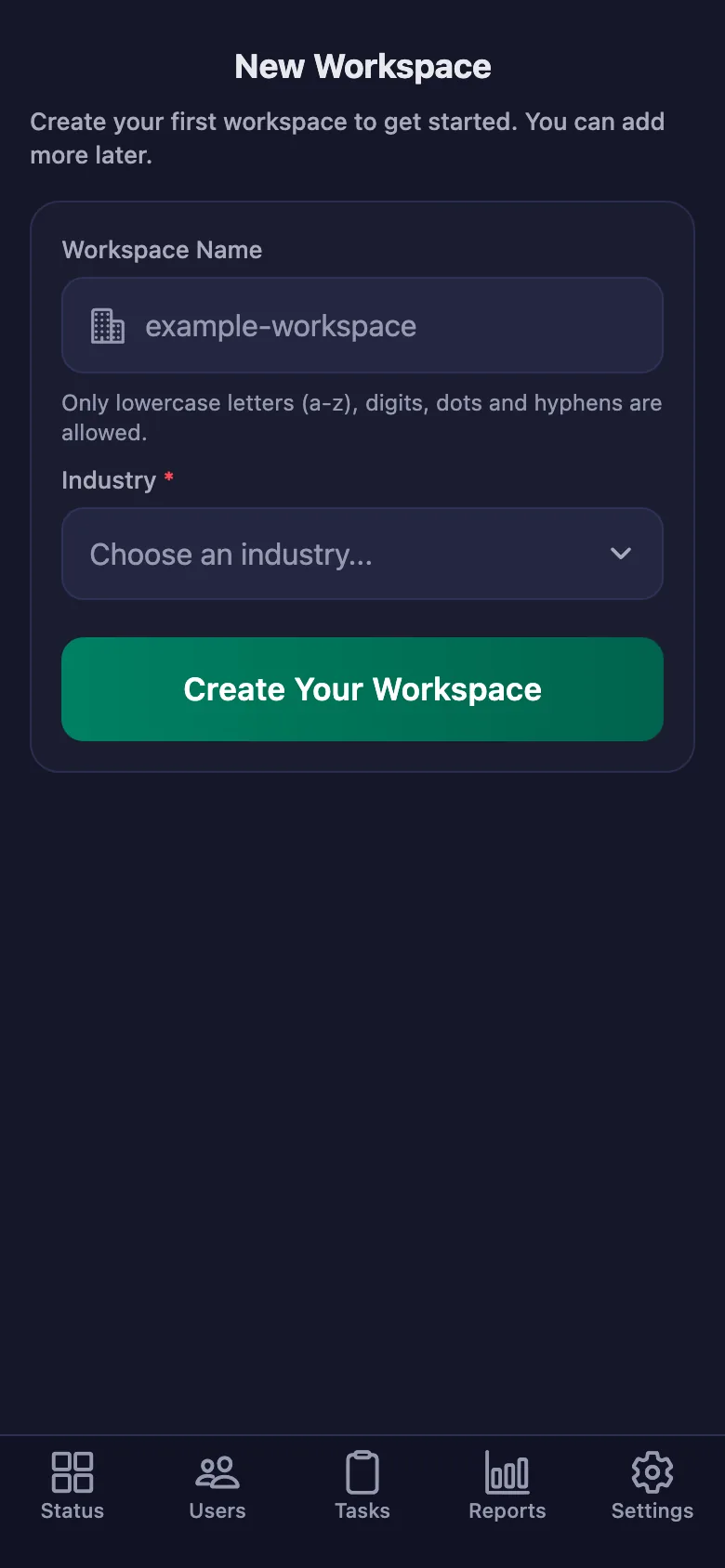
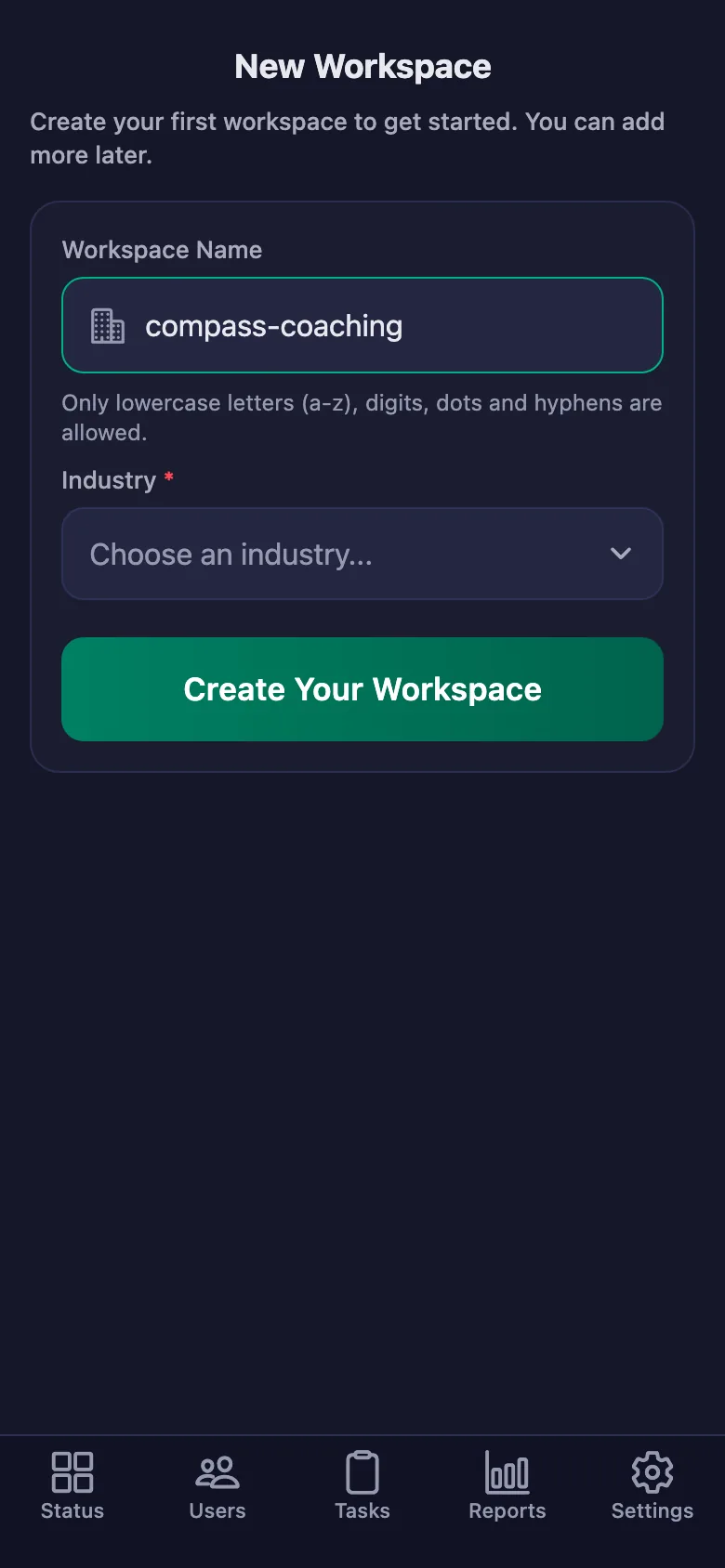
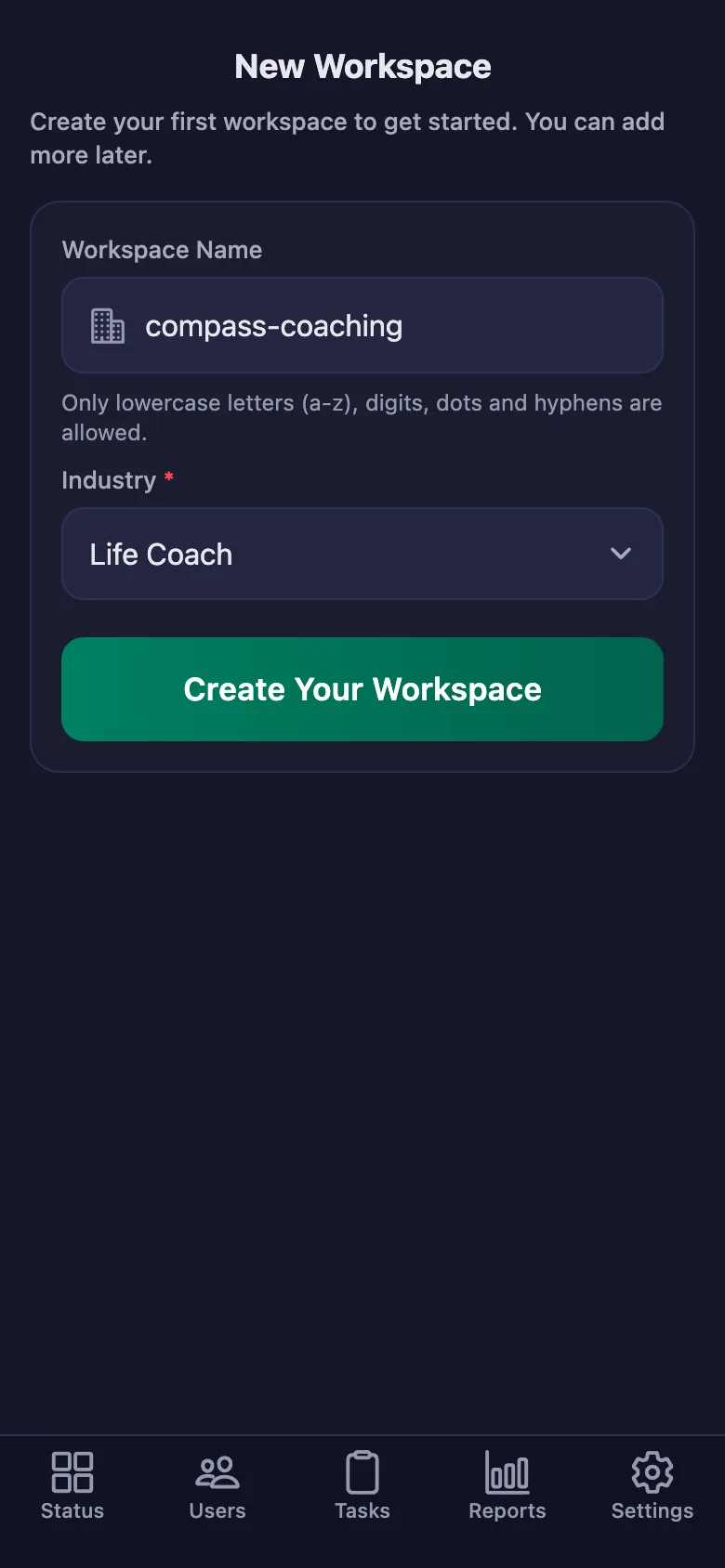
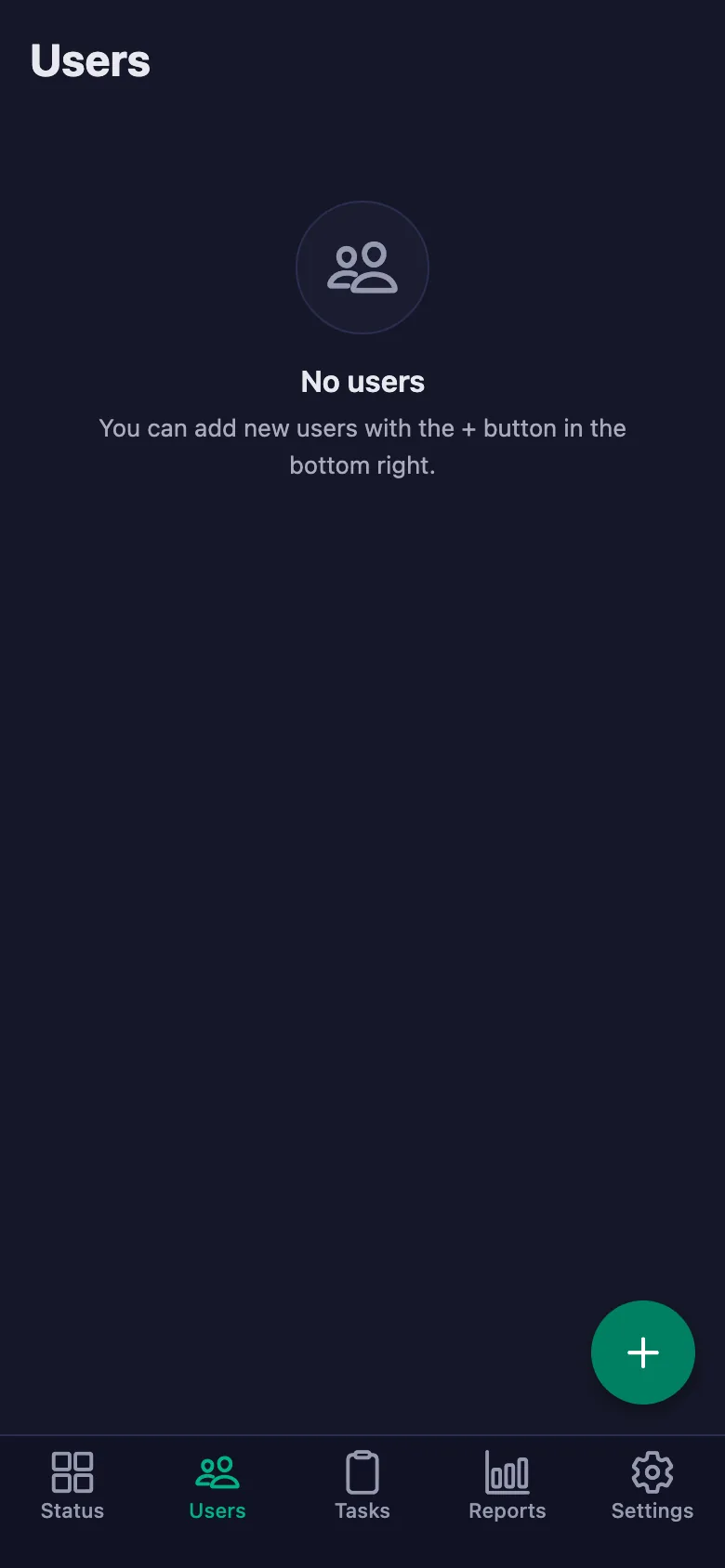
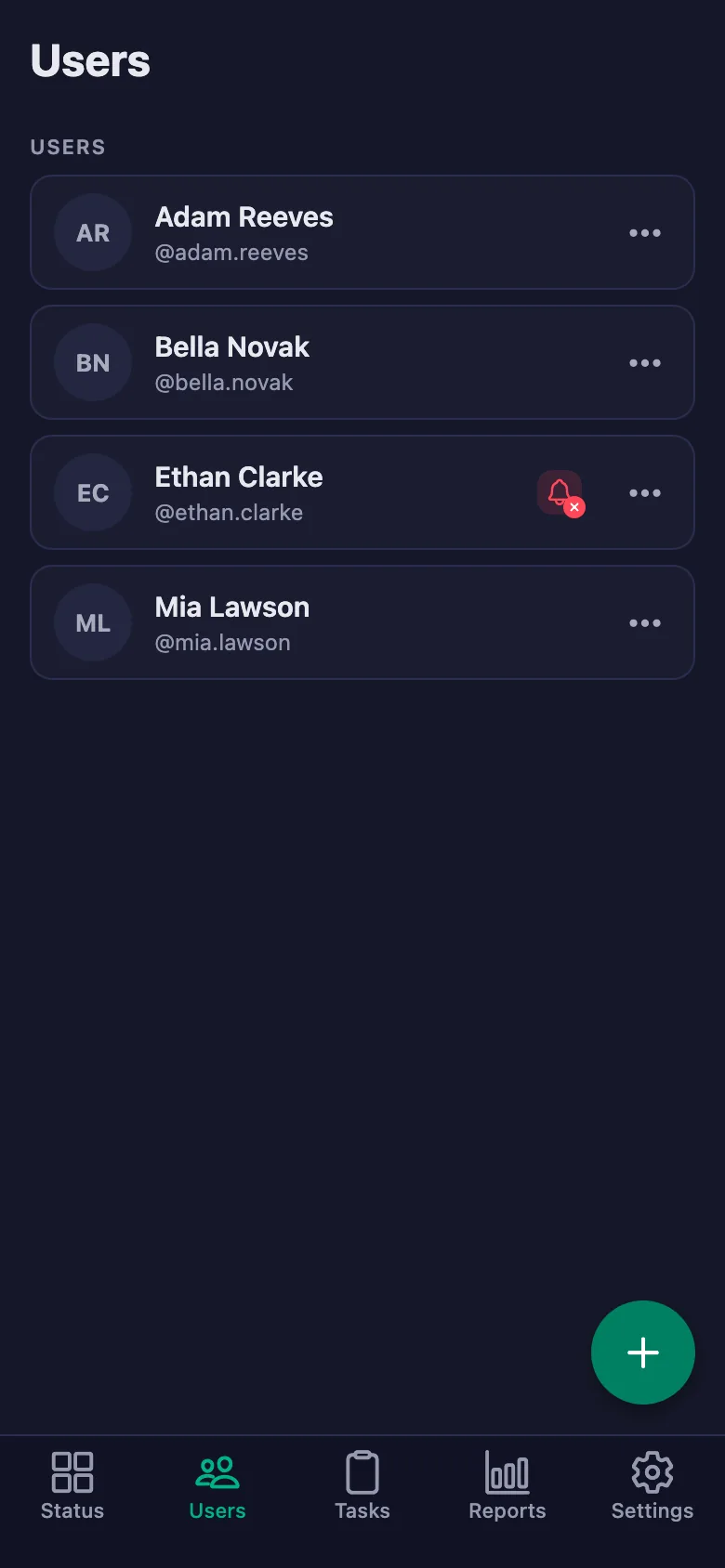
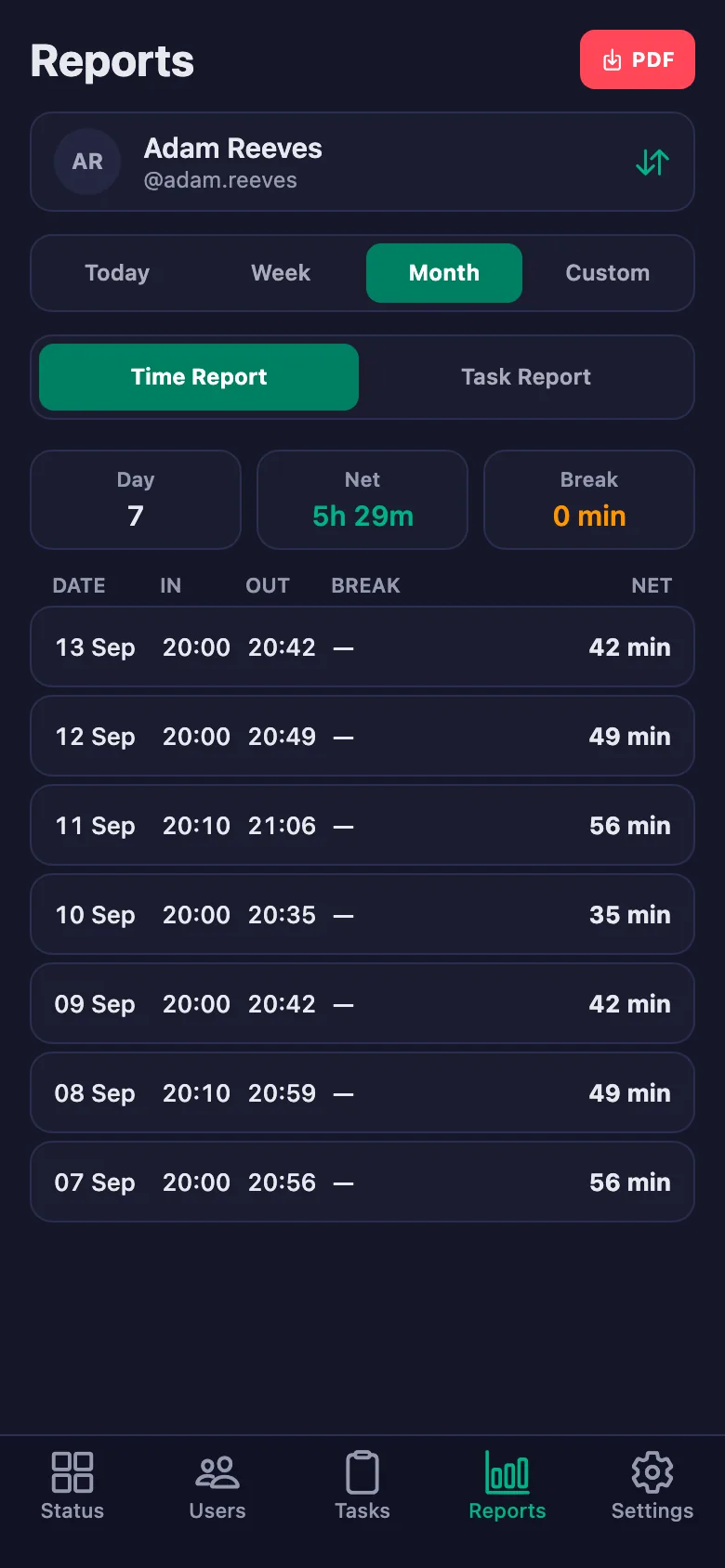
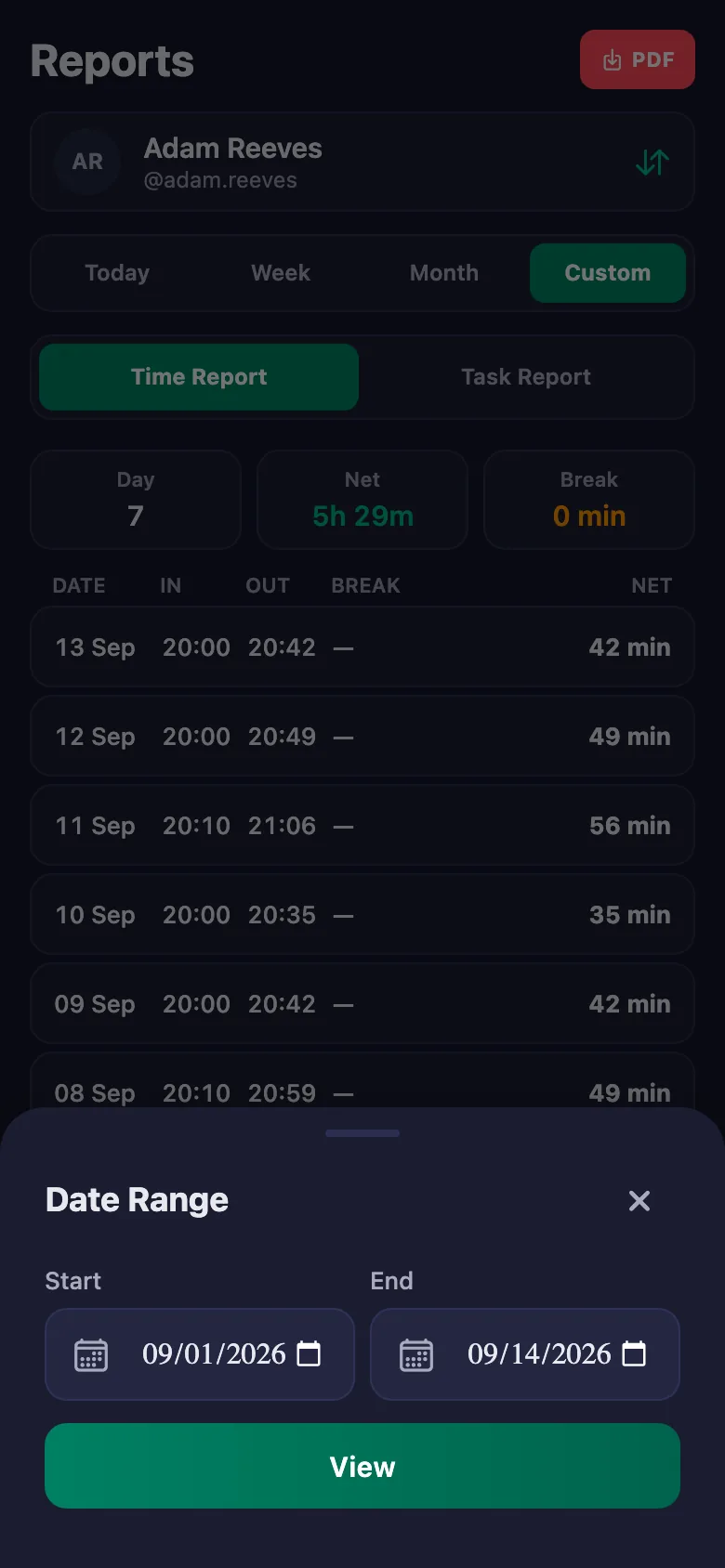
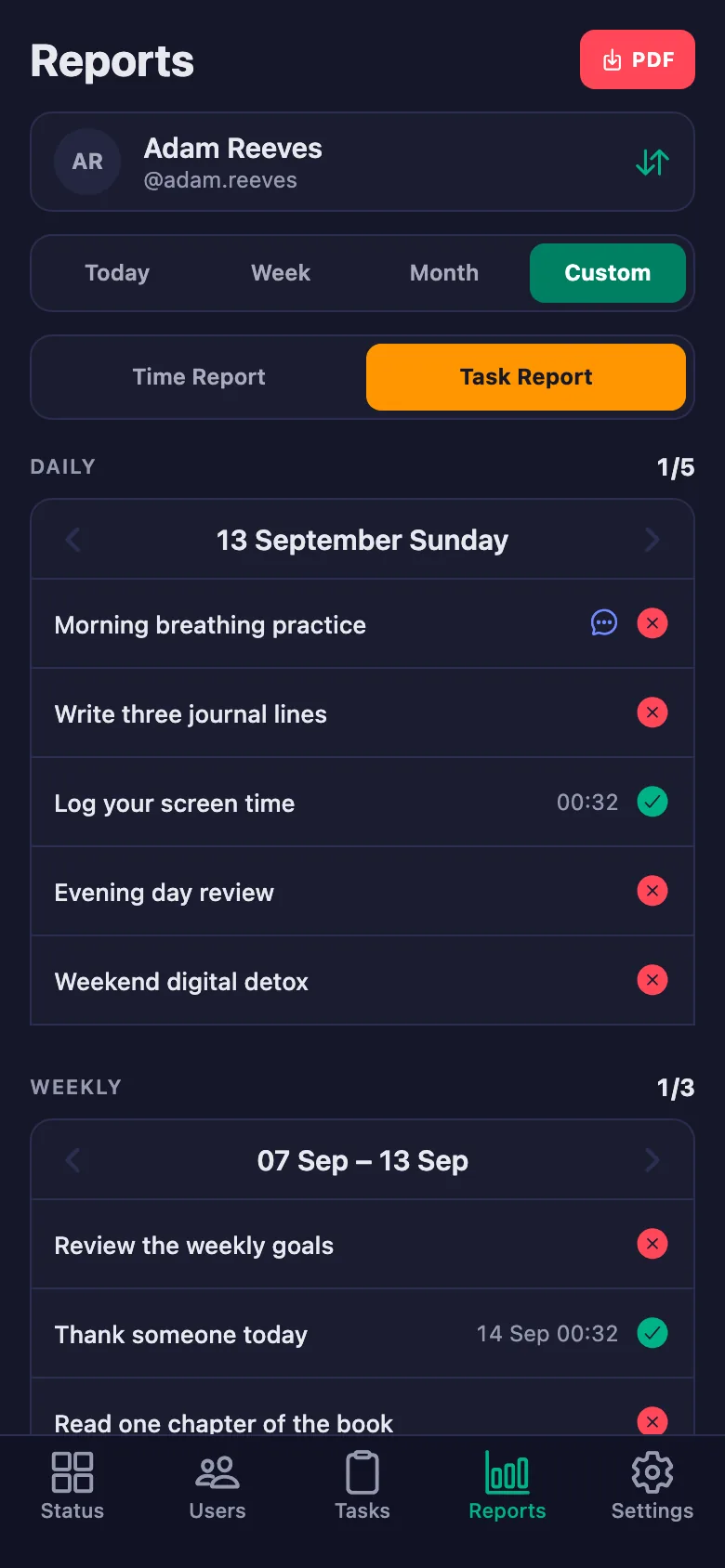
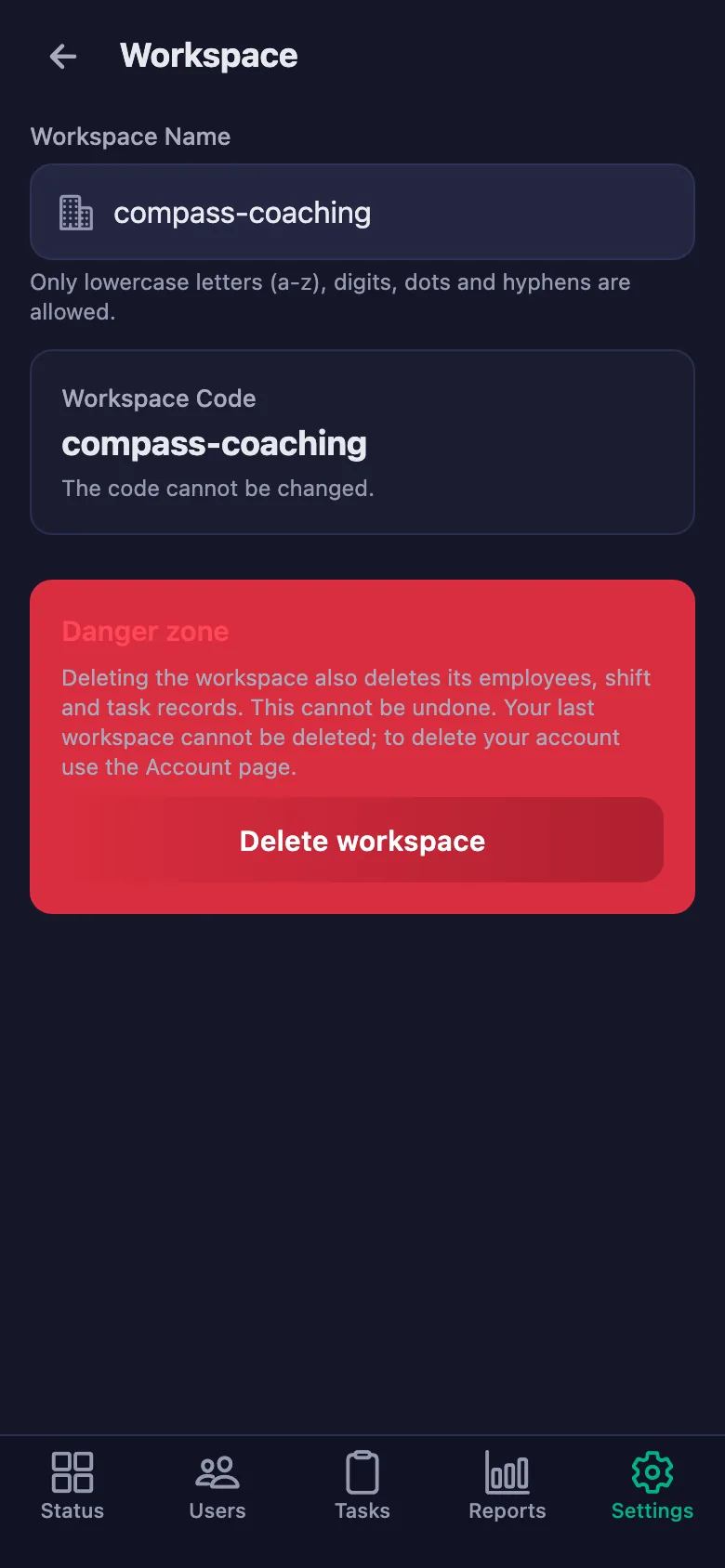
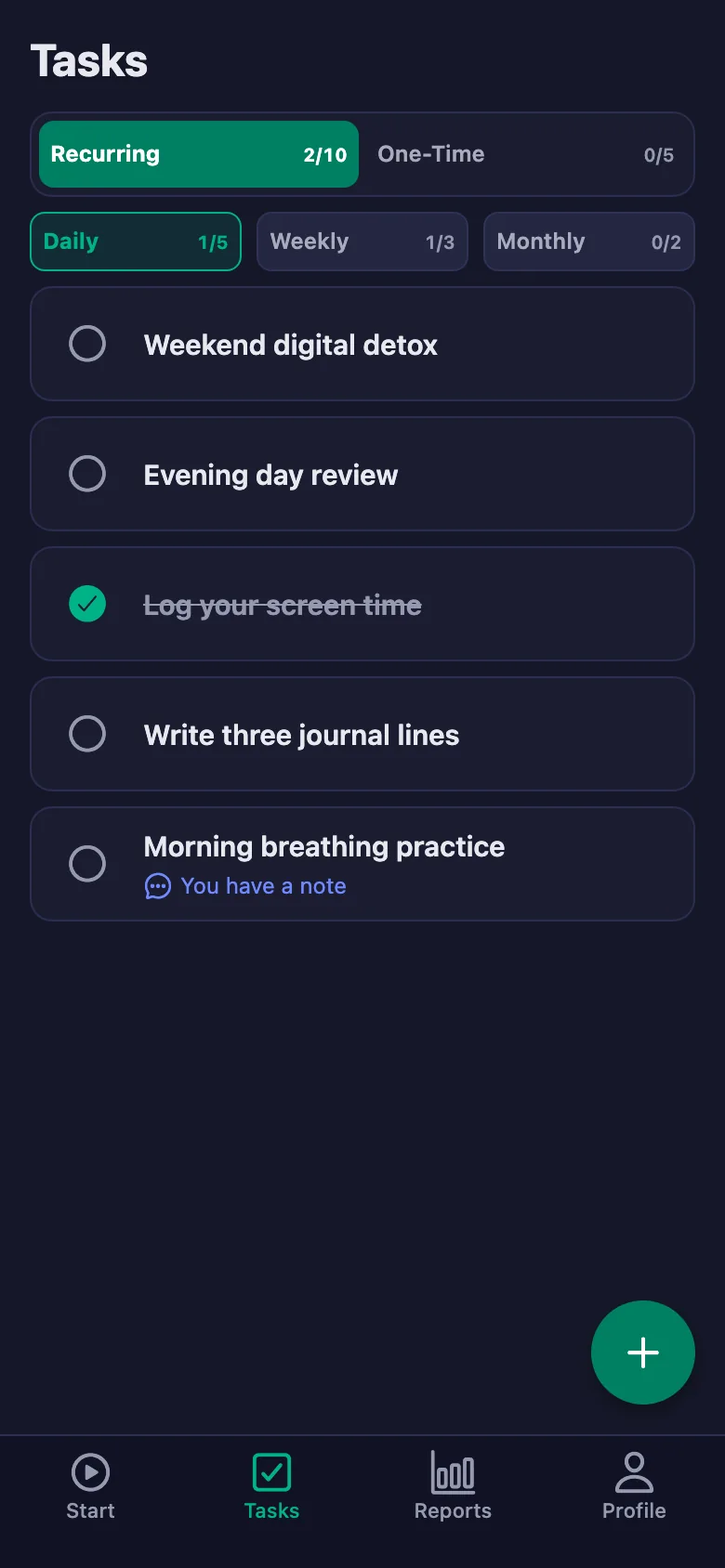
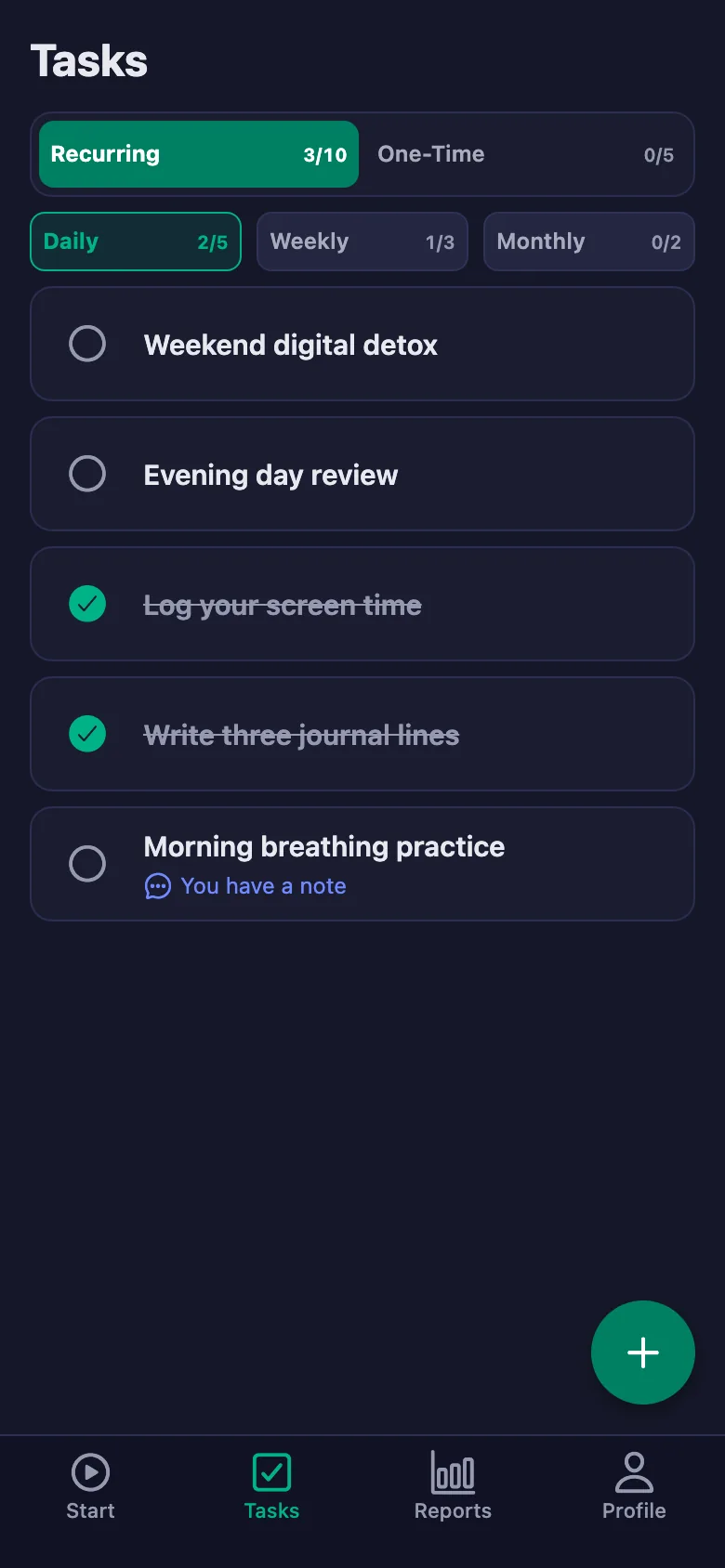
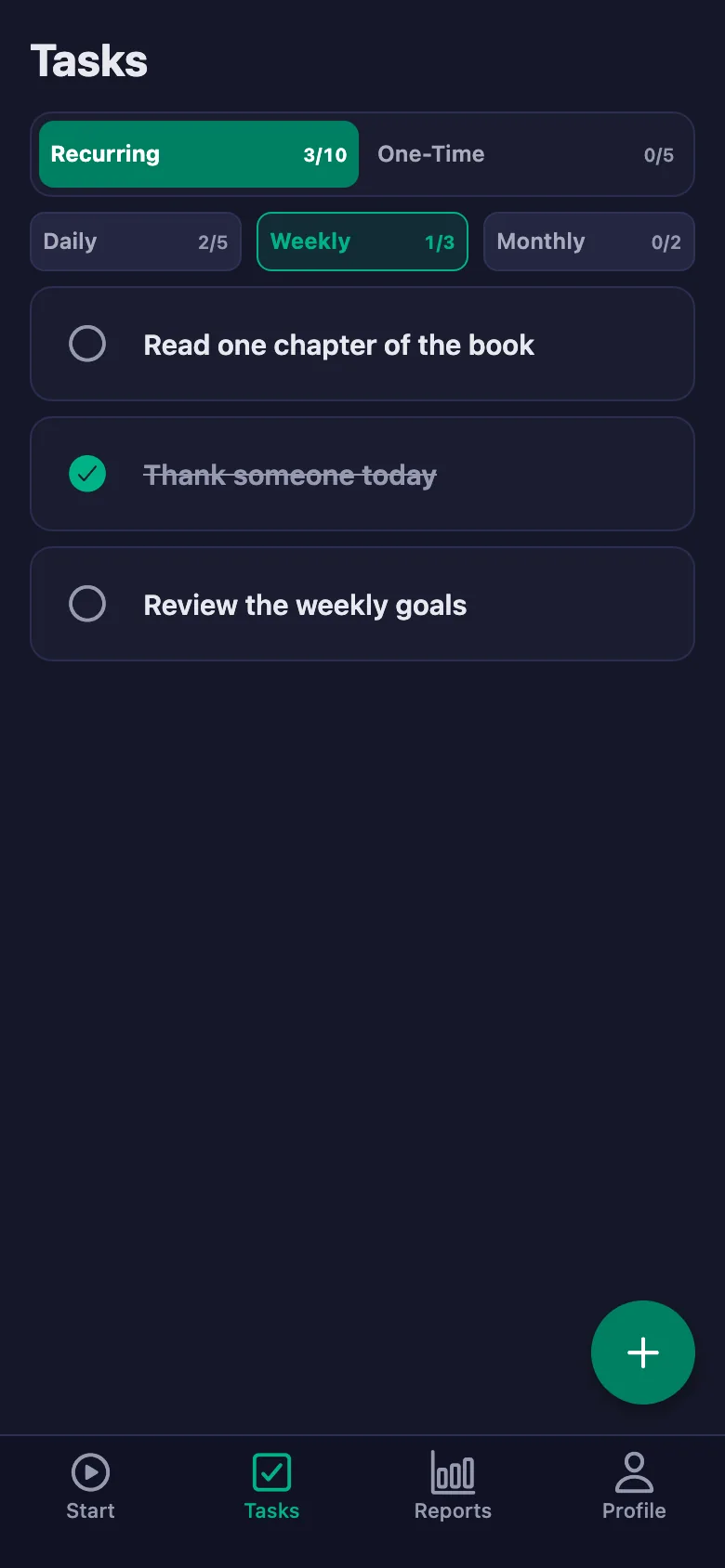
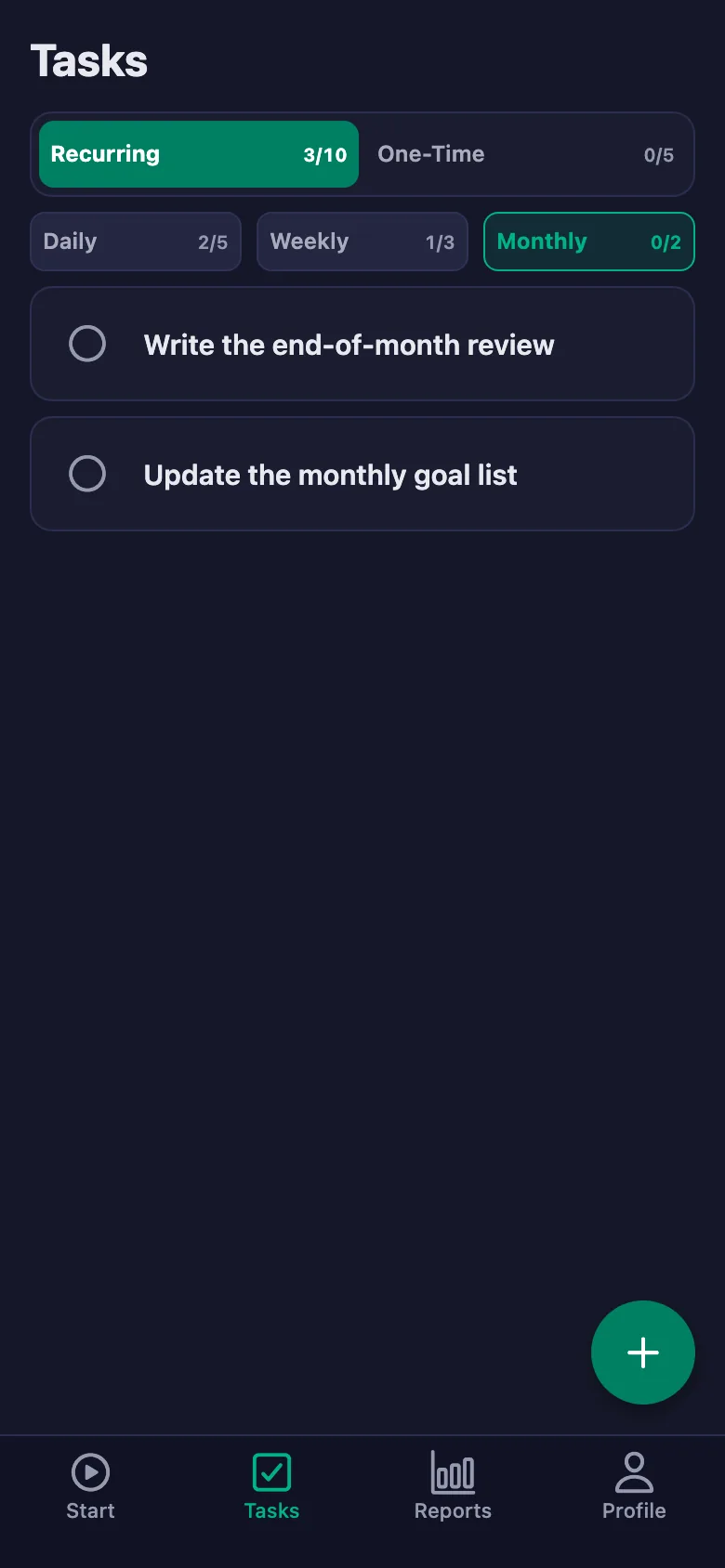
 FinalWork — Task reminder
2 daily steps are waiting for you.
FinalWork — Task reminder
2 daily steps are waiting for you.
Does my client need the app on their phone?
Yes — your client ticks the steps off on their own phone. The app runs on iOS and Android, and it can also be used from a browser.
How do I enter the steps we agreed in the session?
You write each step as a task: daily, weekly, monthly or one-off. You can also assign the same step to several clients at once.
Can my client write notes, and can I see them?
Yes. Your client can write a note under each step — what they tried, where it got hard. You can see the note but you cannot change it; the screen says so plainly: only the client can edit the note.
How many clients can I add?
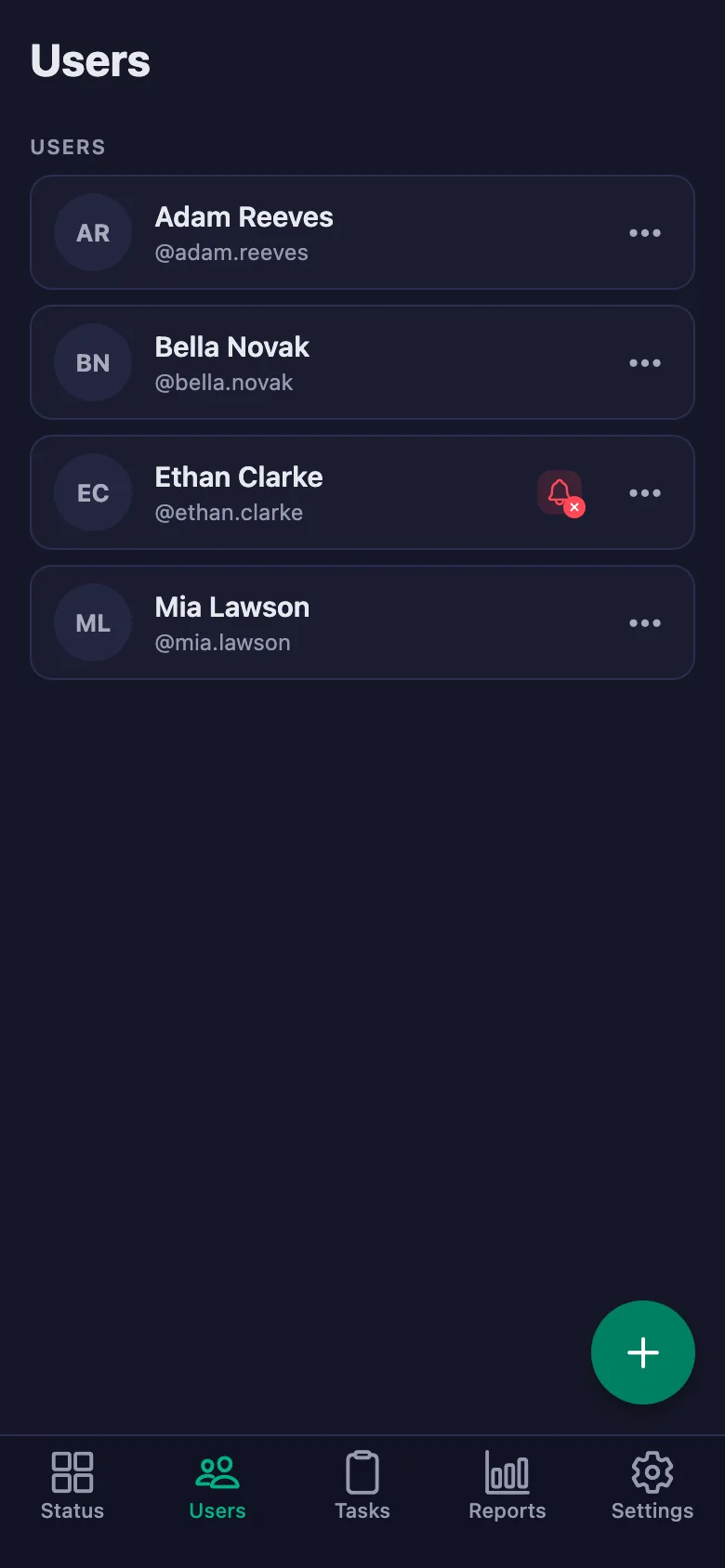
The free plan has a limit on users; when you reach it the app warns you and no new user is added. The limit is lifted on Premium.
Can clients see each other's lists?
No. Each client only sees their own steps, their own notes and their own time. You are the only one who sees the whole list.
Does the daily list refresh on its own?
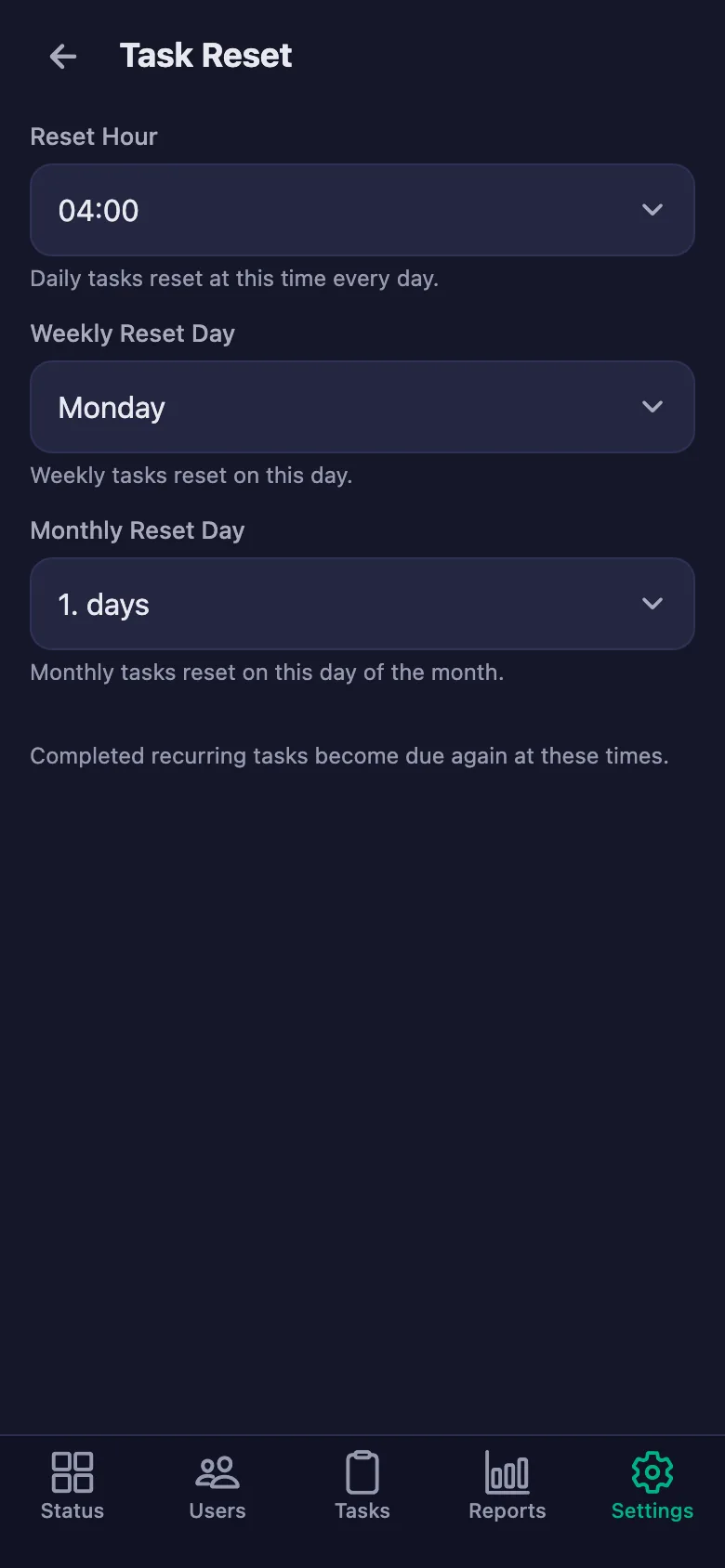
Daily steps reopen every day, weekly ones every week and monthly ones every month. You set the hour and the day under Settings → Task Reset.
Why do some screens say “work hours”?
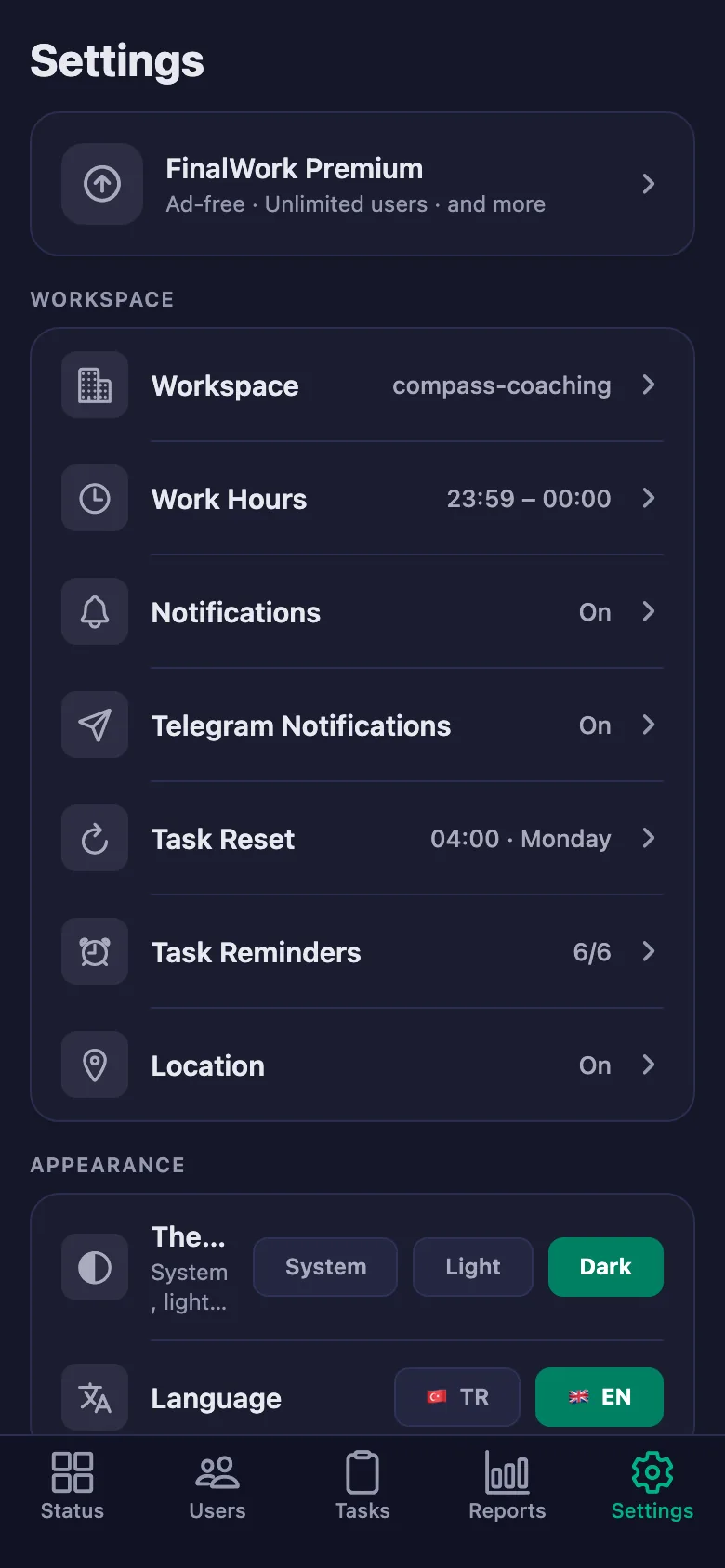
The app is also used for shift tracking, which is why a few settings screens use the word “work”. In coaching, that timer holds the time your client sets aside for themselves; everything else works the same way.
Set up your practice today
Setup and activation take just one minute — you can start free. Open the account, add your first client, and let tonight's step be ticked off.